
Withholding Orders
Overview
Workday provides rules and support for processing numerous types of withholding orders.
Note
: Countries have different terms for withholding orders and different types of withholding orders. For example, in the UK, the term is court orders.Objectives
After completing this chapter, you should be able to:
- List the steps Workday follows to calculate withholding orders.
- Record a withholding order.
- Adjust withholding orders.
- Override the processing priority of a withholding order.
Withholding Order Types
Each country has unique types of withholding orders. Depending on the country and withholding order type that you select, Workday:
- Determines the correct amount to withhold from the employee's disposable earnings or appropriate wage base, including any agency and employer fees.
- Applies withholding limits.
- Sets withholding order priorities. If an employee has multiple orders and the amount to withhold exceeds the limit, Workday follows statutory rules to determine what to withhold for each order. You can override the priority defaults for some order types.
Calculating Withholding Orders
The process for calculating withholding orders in Workday Payroll is similar for all withholding order types. For each withholding order, Workday Payroll:
Step | Description |
|---|---|
Calculates Disposable Income or Appropriate Wage Base | Calculates disposable earnings, gross pay, net, or other appropriate wage base, depending on the authorities governing the order. |
Calculates Maximum Withholding Limit | Calculates the maximum withholding limit according to statutory rules. |
Calculates Total Amount to be Withheld | Calculates the total amount to be withheld. |
Compares the Withholding Limit to Calculated Total Amount Withheld | Compares the withholding limit to the total amount to be withheld. |
Reduces Calculated Amount to the Maximum Limit | Reduces the calculated amount if the worker has multiple orders and the amount to be withheld exceeds the withholding limit. Workday follows the appropriate rules to determine what to withhold for each order, based on the order type. |
Automatically Assigns a Processing Priority Based on Regulations | Assigns a processing priority to each order, based on the appropriate authorities, when an employee has multiple orders. |
Resource
: Access the All Payroll Withholding Order Data
report to review the pay components configured for withholding orders by country.Steps for Processing Withholding Orders
Use the following steps for processing withholding orders:
- Identify disposable income or appropriate wage base for a withholding order.Note: Although this step is typically set up during deployment, it is helpful to understand how to determine wage base and what pay components to include.
- Create a deduction recipient.Note: This step may be completed in advance, or when you are recording an order for a worker.
- Record the details of the withholding order.
Once you have set up a withholding order, you can calculate payroll and review the results to ensure the correct withholding amounts for deductions and fees.
Note
: For U.S. child support orders, Workday provides Electronic Income Withholding Order (e-IWO) integration. This integration enables states to transmit child support orders using electronic methods, eliminating the need to manually record the order.Step 1: Identify Disposable Income or appropriate wage base
Add earnings and nonstatutory deductions to Workday-delivered PCGs used to calculate disposable income and appropriate wage base. Pay components and PCGs differ by country.
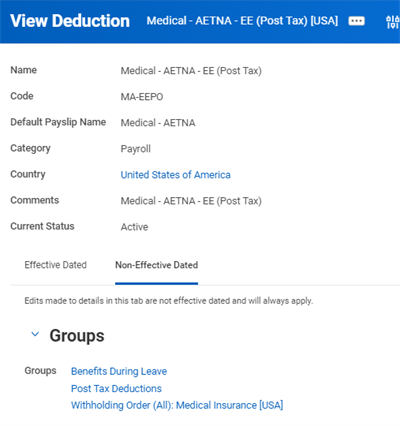
IDENTIFY DISPOSABLE INCOME OR APPROPRIATE WAGE BASE
Step 2: Create a Deduction Recipient
Use the
Create Deduction Recipient
task to record information for a third-party deduction recipient, including the recipient's:- Name
- Contact information
- Method of payment
- Details for the settlement account
You can also access the task to create the deduction recipient when you record a new withholding order.
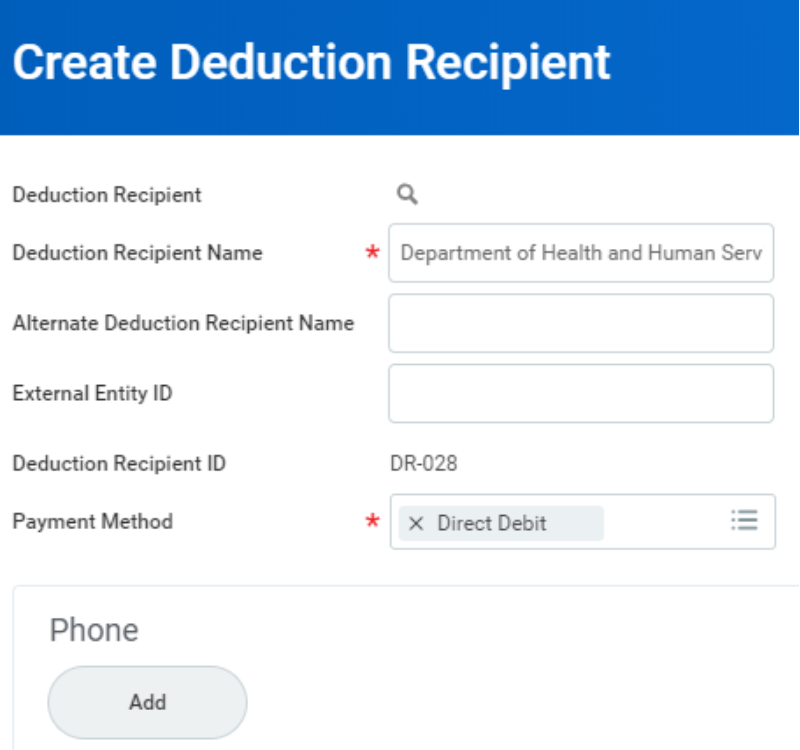
Create Deduction Recipient
Note
: Payroll Third-Party Payments allows you to generate and settle payments to deduction recipients for Income Withholding Orders and Court Orders.Step 3: Record the Details of a Withholding Order
Workday Payroll provides a withholding order task for each country to accommodate the differences of this process.
- Canada:Record CAN Withholding Order for Worker
- France:Record FRA Withholding Order for Worker
- UK:Record UK Court Order for Worker
- U.S:Record US Withholding Order for Worker
Access the task for the appropriate country, and then select the Worker and Order Type. The order type, such as Bankruptcy Order or Federal Tax Levy, controls the fields that display on the resulting page.
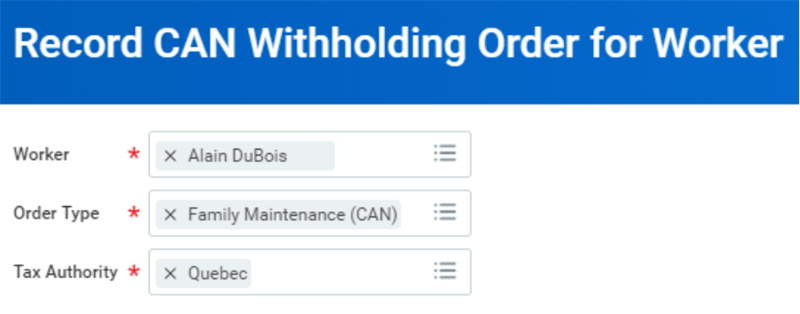
Withholding Order Details

Order Fees and Attachments
Some employers and agencies may charge a fee to the employee for processing withholding orders and only certain types of withholding orders allow fees. A selected tab displays at the bottom of the page for fees, where permitted. You can select the type of fee and enter the amount and frequency.
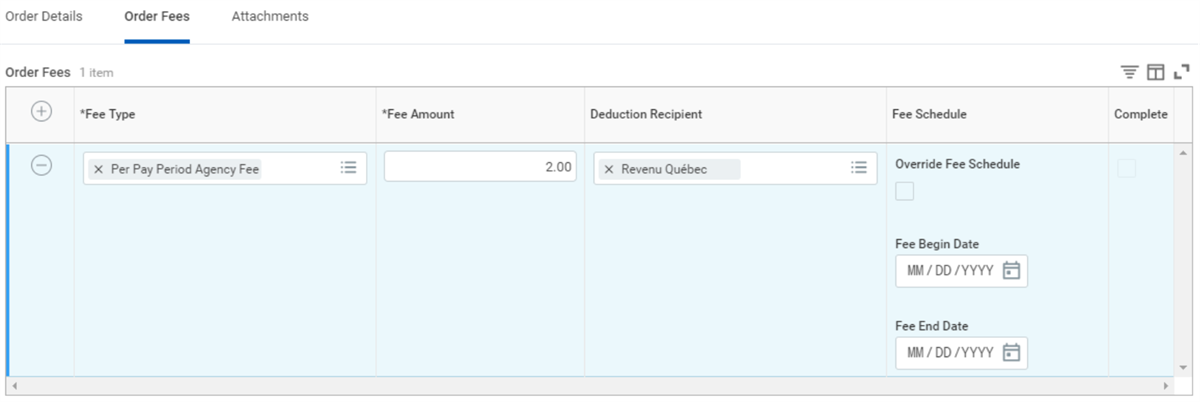
You can add an attachment to a withholding order from the Attachments tab.
Adjust a Withholding Order
You can edit, amend, terminate, or delete certain types of orders using the Related Action icon of the withholding or court order. You can also access the deduction history for that order, which is a useful audit tool.
- When you edit an existing withholding or court order, Workday tracks the changes as a modification of the original order to distinguish the edited order from an amended or terminated order.
- The Terminate and Amend actions are only available for certain types of withholding orders, such as U.S. support orders. Amend, terminate, and record original support orders separately so that you can manage and track the entire life cycle of the order, from initial entry to amendment and termination.
Note
: You cannot change the Company after Workday calculates a result for the withholding order.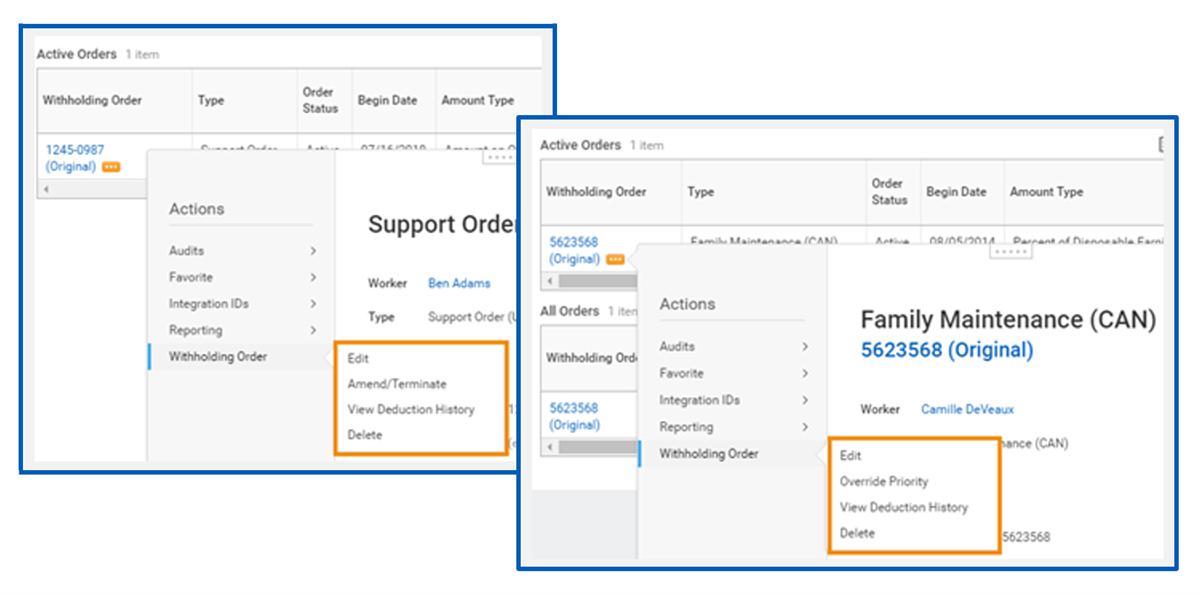
Note
: The amended order becomes effective in the first pay period that includes the amended Begin Date.However, withholding order deductions end as soon as you record the termination order in the Workday system.
Override Processing Priority
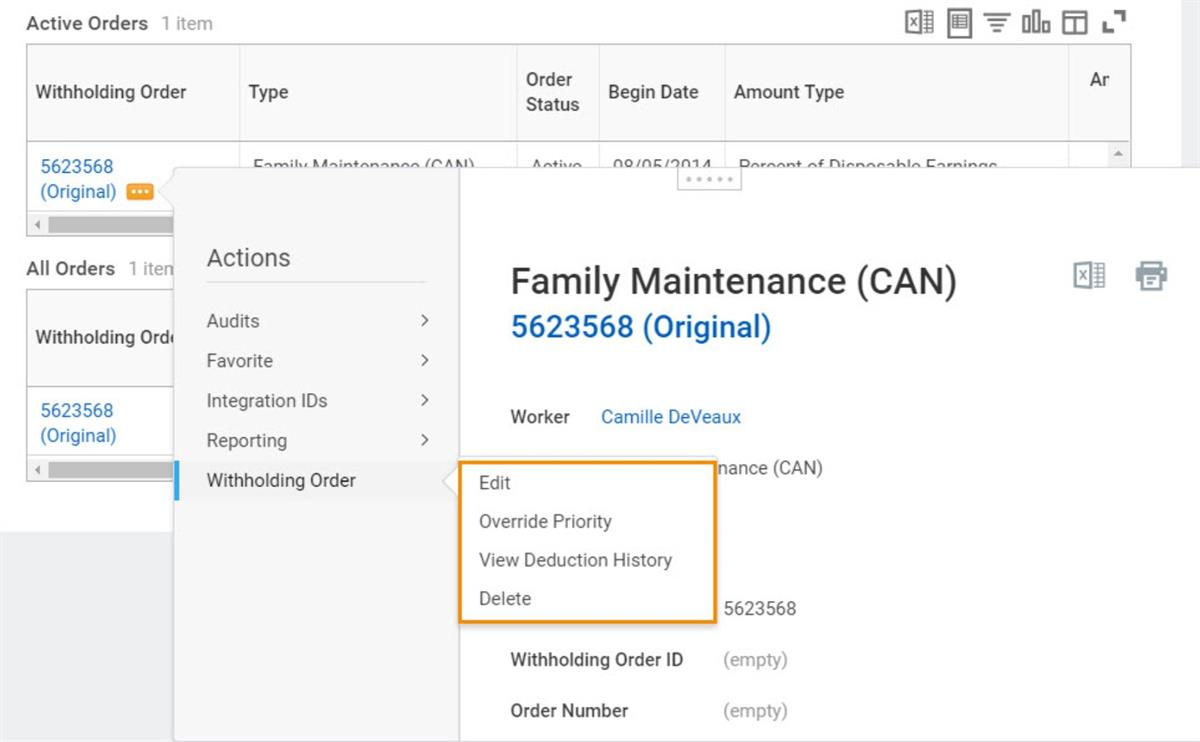
When a worker has multiple withholding orders, Workday assigns a processing priority to each order based on the rules of the agency issuing the order. You can override the default processing order assigned to any order type except support orders. To override the default processing order:
- Access theWithholding Orders for Workerreport. Review the Priority column.
- Select Withholding Order > Override Priority as a Related Action off a withholding order to access this task.
- Replace the system assigned Priority Default number with an Override Value. The lower the override value (number), the higher the priority.
Withholding Order Actions
Copy Withholding Orders for Workers
When transferring multiple workers, if no successor employer relationship exists, you can select multiple or all Withholding Order types to copy. If a successor employer relationship does exist, Workday uses the income withholding order types that you set up on the
Create Company Relationship
task. In this case, you cannot add or delete a withholding order type when you copy withholding orders.There are two standalone business processes that allow you to copy withholding orders:
- Copy Withholding Orders for a Workeris available from the Related Actions menu of a worker's Payroll category. It enables you to copy a worker's withholding orders from one company to another in the Workday tenant. You can select individual withholding orders or all withholding orders to copy from the Source Company to the Proposed Company and view them in the Pay > Withholding Orders tab in the workers profile.
- Copy Withholding Orders for Workersenables you to perform this action for multiple workers.
Note
: Workday provides a link back to the original for copied withholding orders, making it easier to compare them.