
Payroll Input
Overview
In this chapter, you will review examples of how to add, delete, and audit payroll input.
Objectives
After completing this chapter, you should be able to:
- Add payroll input for multiple workers.
- Add a payroll input using the Special Entry checkbox.
- Delete a payroll input.
- Add one-time and ongoing adjustments.
- Identify payroll calculation statuses.
- Identify payroll reports, audits and registers.
- List the steps to import payroll input.
Payroll Input Methods
There are multiple ways to add payroll input in Workday, including:
- Uploading payroll input using an EIB (Enterprise Interface Builder) based on the Import Payroll Input web service.
- Collaborating on payroll input with Worksheets.
- Entering payroll input using the Add Payroll Input for a Worker task.
This chapter focuses on payroll input via various tasks.
Resource
: For more information on using the EIB and Worksheets methods, search the Workday Administrator Guide for the following:- Concept: Data Entry in Payroll Input EIB Spreadsheets
- Steps: Using Payroll Input Workbooks
Payroll Input Tasks
Through payroll input you can:
- Enter hours, units, or other values to earnings or deductions that require employee-level input, such as hourly wages.
- Override, add to, or subtract from a worker's recurring earnings and deductions that normally resolve to a value without the addition of employee-level input, such as salary earnings.
There are multiple ways to enter payroll input.
- Enter payroll input for a worker by accessing their Related Actions menu, and then selectingPayroll > Add Input.
- Enter payroll input for a group of workers using theAdd Payroll Input by Workertask.
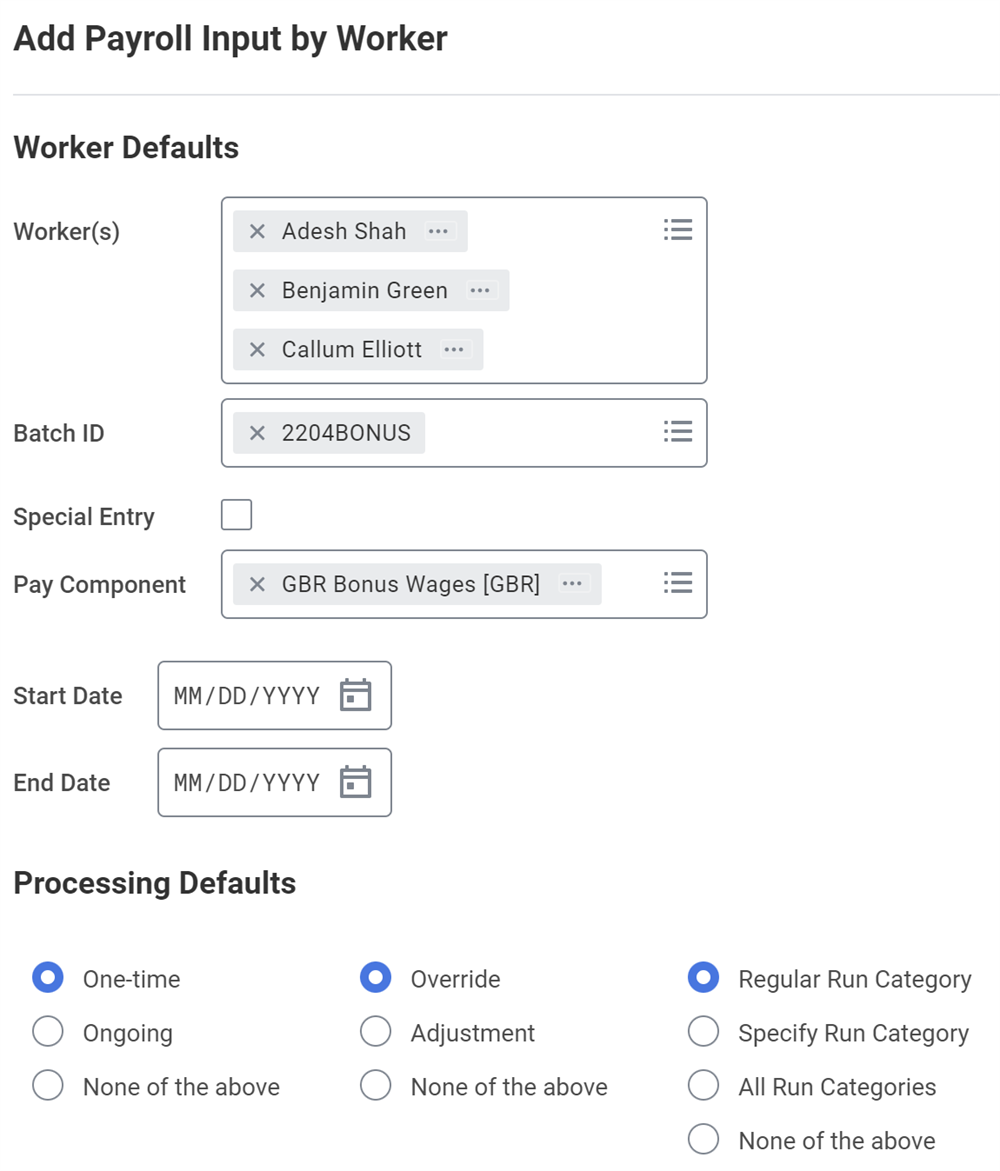
Using either method opens the Add Payroll Input by Worker page, which is a two-page process.
Page 1
: This page allows you to enter information that all entries have in common, such as the start date or pay component.Page 2
: When you select OK on the first page, the main payroll input page displays, populated with your entries from the first page. Then you can enter any remaining variable data.Tip
: You can upload payroll input using EIB, and workers can create payroll input for voluntary deductions through ESS.The more you select on the first page, the less data entry you need to complete on the second page.
However, you may limit your options on page two if you select too many values on page one. If dates, pay components, or processing options will differ for the group of workers, do not select them on the first page. You can enter them, worker by worker, on the second page.
The data highlighted on page two below defaulted based on the data selected on page one.
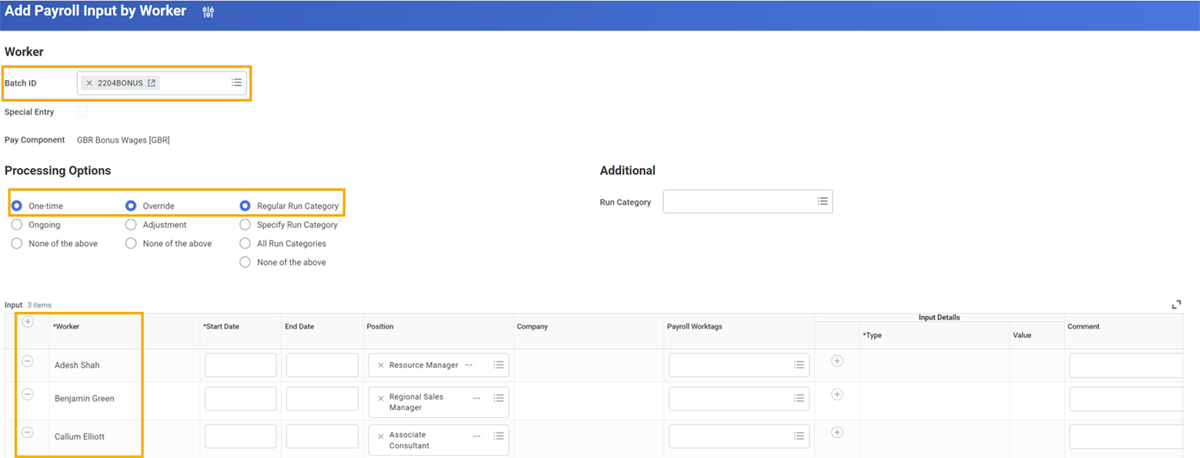
The following table describes the fields on the entry page:
Field | Description |
|---|---|
Batch ID | Optionally, you can enter a Batch ID to associate manual payroll inputs with a batch. You can also delete a batch by the ID using the Delete by Batch ID task. This can be done even when there are associated In Progress pay calculation results. |
Special Entry | Select this checkbox if you want to change an earning or deduction even if input is not allowed, based on the pay component's configuration. Select Special Entry to allow Input Details of any type, such as hours, amount, or rate. Important : Use this option with caution, as you are overriding your company's default not to allow input. Enter the reason for the special entry in the Comments field. |
One-Time | You must supply a Start Date and an End Date for Workday to resolve a one-time entry. One-time entries process during the subperiod that includes the end date. |
Ongoing | Only the Start Date is required for Workday to resolve an ongoing entry. If you make an ongoing entry and a change is made during the period, the change is prorated. If you have an entry that is outside a subperiod but within the pay period, Workday adds the entry to the previous subperiod. If there is no previous subperiod, Workday adds it to the subsequent subperiod. For example:
|
Override | Select Override to overwrite a payment. Important: If the pay component to override was established through payroll input as an ongoing or one-time override, entering an override for that pay component will add to the amount. It will not override it. In this case, use the adjustment option to add to or subtract from the ongoing payroll input.Payroll input does not cause proration. Therefore, if you enter a subset of days on an override, Workday will override the entire subperiod or period (if no subperiods). |
Adjustment | Select Adjustment to add to or subtract from a payment. Adjustments will resolve Pay Component Related Calculations (PCRCs). However, if you put in a flat amount (for Type, select Amount and enter a Value), PCRCs will not resolve. Each adjustment entry has a separate payroll calculations result resolution. |
Specify Run Category | If you select Specify Run Category, you must specify one in the Additional Defaults section. You can specify multiple run categories. |
Payroll Worktags | Select Payroll Worktags to associate components that are interdependent; for example, to tie a loan payment to a loan repayment. You can use Worktags for cost allocation also. Override cost allocation instructions entered elsewhere by selecting a business unit, cost center, fund, grant, program, project, or region.
Note : You can update Calculation Worktags on earnings and deductions as long as the pay components have not been used in payroll inputs, payroll calculations, or retro calculations. |
Override Currency | Select checkbox to allow currency override. |
Attachment | Select or upload any attachments you want to associate with the payroll input. You can configure your custom reports to display the attachments you upoad. You can also edit, delete, and purge payroll input attachments. |
Payroll Input and Calculation Statuses
After you enter payroll input, you can calculate or recalculate the worker's pay. Payroll input puts workers in one of the following calculation statuses:
- Not Yet Started: The payroll input is for a period that has not been calculated.
- Requires ReCalculation: The payroll input is for a period that has already been calculated.
- Waiting: The payroll input is for a period that has already been completed, and you have run a retro calculation. This status indicates that the worker has retro results that are not included in the pay result.
Resource
: Additional calculation and result statuses will display in different situations. For a complete listing of statuses, search Workday Community for:Reference: Pay Calculation Statuses
Payroll Reports
The following is a list of the most common reports that you can include in your payroll process:
- Payroll Register: This all-inclusive report, in PDF or Excel format, provides configurable options to meet internal and external audit requirements. You configure the report using theMaintain Payroll Register Configurationstask.
- Payroll Register by Period: Audit completed payroll and payroll in progress. You can configure this report using theMaintain Payroll Register by Period Configurationstask.
- Pay Calculation Results for Worker: Displays high-level results for an individual worker.
- Pay Calculation Results for Group of Workers: Displays results for all workers in a pay run group or pay group.
- Payroll Calculation ProcessingReport: Select payroll results for in-progress and completed pay periods and filter using facets. For the selected results, you can complete, cancel, cancel complete, recalculate and other functions.
- Payroll Calculation Lines ProcessingReport: Use facets to filter the payroll result lines and take a mass action to view a detail report.
- Payroll Input Not Processed: Displays unprocessed payroll input.
If you find payroll errors, make the necessary corrections and recalculate payroll.
Note
: To audit any task, object, or user, access the View User or Task or Object Audit Trail
report. This report allows you to audit users and objects to track all changes processed within a specified timeframe.Tip
: You can access the Sitemap from the My Account menu to view a list of all reports and tasks for payroll.Delivered Standard Reports for Payroll
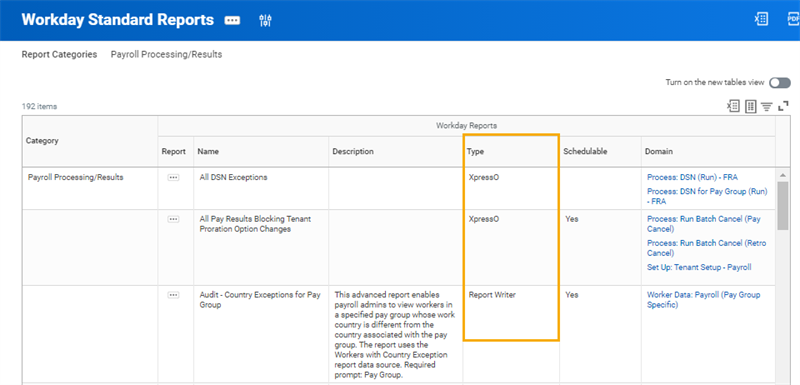
Access the
Workday Standard Reports
report to see a listing of Workday-delivered standard reports. The following are some standard report categories you may want to explore.Report Categories | Types of Reports |
|---|---|
Application: Payroll (Audits) | Includes a report to view earnings mapped to more than one compensation plan. |
Calendar | Includes reports for FLSA work periods, holiday and work schedules, and United Kingdom statutory work schedule calendars. |
Background Process: Critical (Audits) | Includes reports that allow you to view scheduled EIBs and scheduled reports that will have an exception. |
Corporate Directory | Includes directory reports by location, organization, and hierarchy. |
Organizations | Includes reports that display org charts, companies, cost centers, and regions. |
Payroll Interface | Includes several reports related to interface of deductions, earnings, costing, external payroll results, and payment elections. |
Payroll Processing Results | Includes over 100 audit reports. Some are the reports that you may be most familiar with, as you audit your payroll. |
Payroll Worker Data | Includes worker data reports for common reporting needs of workers in Canada, France, United Kingdom, and United States. |
Settlements | Includes reports related to the settlement process, including payments, positive pay files, advices, checks, and direct deposit. |
Set Up Payroll | Includes the reports listing all payroll data configured in your tenant. |
What's New | Includes the report to identify what is new with every release. |
Security Note
: The Workday Standard
Reports
report provides a comprehensive list of standard reports. You may see the names of standard reports to which you do not have access to run.Standard Report Types
There are two types of standard reports; Report Writer and XpressO. One distinction between these types is the ability to make a copy that you can modify.
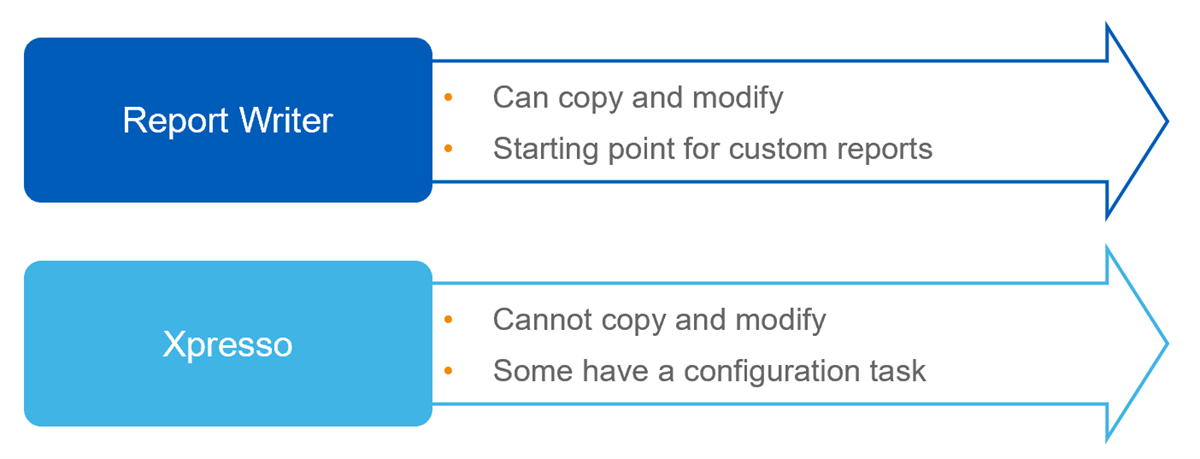
The following table describes standard payroll reports that you can copy and modify:
Report Name | Description |
|---|---|
Pay Balance Summary | Displays pay balances over one or more pay periods for a pay run group or pay group. |
Pay Calculation Off-Cycle Inputs for Group of Workers | Displays off-cycle inputs for workers for pay run groups or pay groups. |
Pay Calculation Results - Deduction Register | Displays period results for selected deduction. |
Pay Calculation Results - Earning Register | Displays period results for selected earning or pay component-related calculations (PCRCs). |
Pay Calculation Results for Group of Workers | Displays pay calculation results for workers for pay run groups or pay groups. |
Pay Calculation Results for Worker | Displays pay calculation results for a single worker. |
Pay Calculation Results - Outstanding Arrears Balance As of Pay Period | Displays outstanding arrears balance for a pay period for pay run groups or pay groups. |
Pay Calculation Results Summary | Displays summarized pay calculation results for pay periods for pay run groups or pay groups. |
Payroll Not Completed 'X' Days Before Payment Date | Displays pay groups for which payroll is still open a given number of days before payment date. |
Payroll Totals by Category | Displays a list of pay components separated by category. |
Payroll Totals by Pay Group and Category | Displays current period values, grouped by pay groups as rows and pay component category as columns. Drillable to more detailed level. |
YTD Payroll Totals by Pay Group and Category | Displays YTD values, grouped by pay groups as rows and pay component category as columns. Drillable to more detailed level. |
YTD Payroll Totals (Employer Paid) for Workers | Displays YTD values, grouped by workers as rows and employer pay component category as columns. Drillable to more detailed level. |
YTD Payroll Totals for Workers | Displays YTD values, grouped by workers as rows and employer pay component category as columns. Drillable to more detailed level. |
Registers
Workday delivers several payroll registers that provide pay period data. You can view registers even before the payroll is complete.
- Payroll Register Summary
- Payroll Register Summary with Subtotals
- Pay Calculation Results - Deduction Register
- Pay Calculation Results - Earning Register
- Payroll Register by Period
- Payroll Register
The last two registers listed above have maintenance tasks that allow you to configure these registers to suit your needs.
Payroll Register | Maintain Task |
|---|---|
Payroll Register by Period report This register generates actionable results. | Maintain Payroll Register by Period Configurations Create different configurations that you can select at runtime to view different types of period data. |
Payroll Register task This register generates a PDF or Excel file. | Maintain Payroll Register Configurations Configure the sections and groups of pay components and rates that display in the report. |
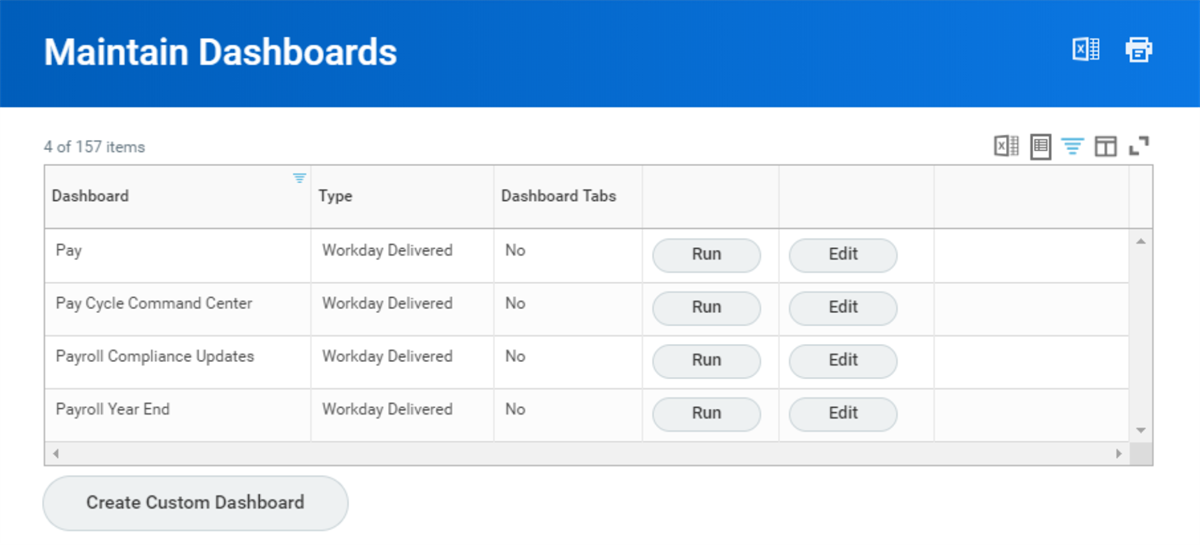
Dashboards
Dashboards provide insight into your payroll data, provide a launching point for processing tasks, and provide access to important reports and announcements.
These Workday-delivered dashboards can be configured with your specifications.
Dashboard Name | Description |
|---|---|
Pay Cycle Command Center | Provides access to payroll reports, tasks, and visual displays of results. |
Payroll Year End | Provides access to year-end tasks, past year-end statistics, and status of year-end forms. |
Payroll Compliance Updates | Provides visualization of the most impactful compliance changes and access to important details. |
Settlement | Provides up-to-date, graphical reports on the settlement activities in your organization. |
Access the
Maintain Dashboards
task to configure your payroll dashboards, including changes to the:- Prompts and default values.
- Worklets that display for each type of user.
- Tasks, reports, and external links that display.
- Announcements and videos that display for specific users, based on rules you specify.
0 ( )
Custom Payroll Reports
In addition to the standard reports, audits, and dashboards, you may also need to create custom reports. To learn more about payroll data sources and report writing, consider taking the Payroll Custom Reports (Learn Independent) course.
Payroll Audits
You can also define your own audits, and then access the
Run Payroll Audit
task to generate them. The Payroll Audit Exceptions
report provides faceted search and allows you to review audit exceptions, and if necessary, assign them to others to investigate.Audit Configurations
To ensure your audit process is useful for each subset of workers, you can add eligibility rules to audit configurations. Access the
Create Payroll Audit Worker Eligibility
task to create audit rules. You can create eligibility rules based on a wide selection of fields, including:- Business Unit
- Company
- Cost Center
- Default Work Province / State Tax Authority
- Job Profile
- Leave Type
- Location
- National Identifier
- Pay Group Detail
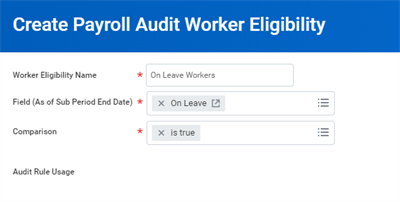
Once you create the audit rules, assign them to audit configurations on the
Maintain Payroll Audit Configurations
report.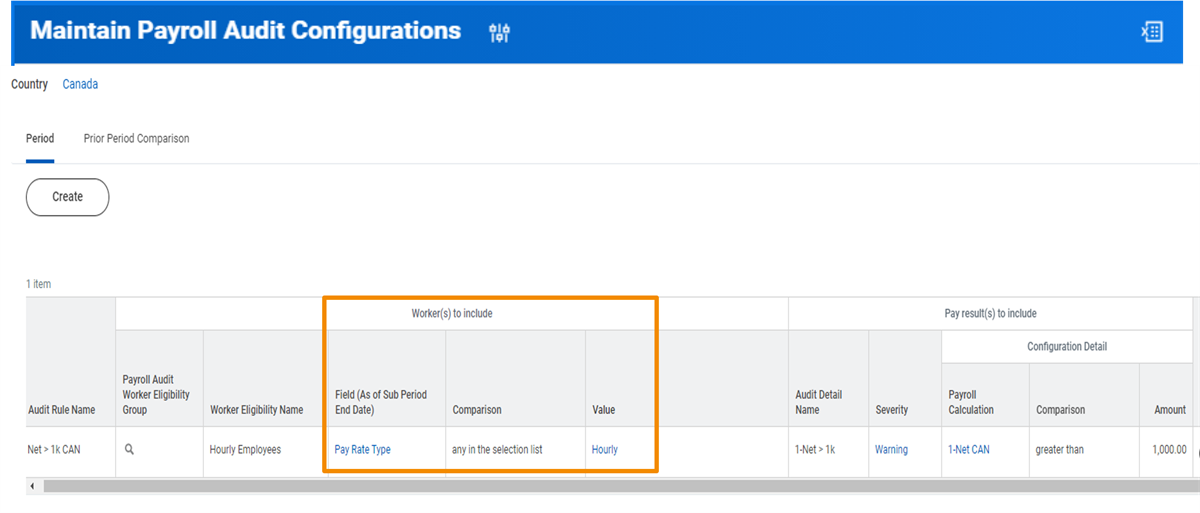
You can schedule audits to run automatically. Access the
Pay Audit Scheduler
to establish a run frequency. You can also run audits whenever needed using the Run Payroll Audit
report.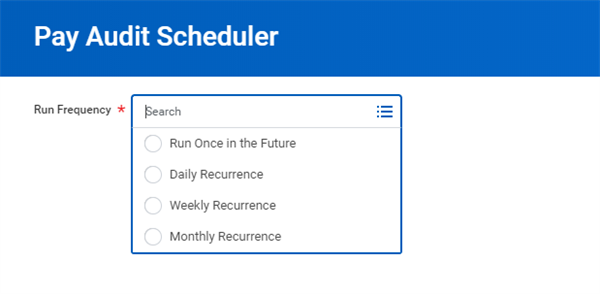
To review audit exceptions, access the
Payroll Audit Exceptions
report. This report provides faceted filters and allows you to take action on exceptions. For example, you can select one or more audit exceptions and assign them to another authorized user for review.To view audits assigned to you, access the
My Payroll Audit Exceptions
report.You can also review the
Pay Cycle Command Center
dashboard, Audit Summary
worklet to visualize audit exceptions. This worklet is based on a composite report, meaning you can drill down into exceptions to examine the details.Payroll Accounting Results
To view accounting results, run the
Payroll Accounting by Company/Period
or Payroll Accounting by Period/Pay Group
reports. To identify and fix operational journals with errors, use the Fix Operational Journals with Errors
report. If necessary, after identifying and correcting accounting errors, rerun the accounting process using the Run Pay Accounting
task.Important
: The Run Pay Accounting
task regenerates the accounting entries. It does not recalculate payroll. If there are errors in your original payroll calculation, these errors will be reflected in your accounting entries.High-Volume Input Using Enterprise Interface Builder (EIB)
To minimize manual data entry, you can use Workday's Enterprise Interface Builder (EIB). EIB is a tool that allows you to build simple inbound and outbound integrations between Workday and external systems. For example, using inbound integrations you can upload:
- Period schedules - using thePut Period Scheduleweb service.
- Payroll input - using theImport Payroll Inputweb service.
- Off-cycle input - usingImport Payroll Off Cycle Paymentweb service.
- Worker data - using various web services, depending on the type of data.
The
Create EIB
task interface guides your setup with options based on the data. When you create the EIB, you select a predefined spreadsheet template or a web service operation that determines the format of the spreadsheet template.
The EIB has four components:- Integration System
- Defines the integration in Workday
- Contains all components required to perform the task
- Integration Data Source
- Data Workday receives from an external source, or
- Data that the integration extracts from Workday
- Integration Transformation
- Converts the data into a format that Workday or the receiving endpoint can understand
- Workday provides some delivered transformations, but others can be created
- Integration Transport Protocol
- Defines how Workday imports data from or exports data to an external endpoint
Note
: Worksheets is an additional option to manage bulk data in Workday. Worksheets allows you to directly maintain payroll input in a collaborative, centralized environment. Data updates in real time and eliminates version control issues with third-party payroll providers. For details on Worksheets, see Workday Community.Inbound EIB Integration
There are five steps to set up EIBs from templates using web service operations
1. Set Up Inbound EIB Integration.
Access the
Create EIB
task and follow the instructions to establish the inbound integration settings.2. Generate a Spreadsheet Template.
You can generate a spreadsheet template from the Related Action on the integration that you create. This image is an example of the spreadsheet generated by the
Create EIB
task using the Put Period Schedule web service data format.3. If Necessary, Modify the Template.
You may need to modify the spreadsheet template before you can populate it with your data. Use caution when modifying templates. Some changes can cause integrations to fail.
Resource
: For more information, search Workday Community for Concept: EIB Template Models and Spreadsheet Templates.4. Prepare the EIB Spreadsheet.
Prepare the spreadsheet by populating it with the data you need to import.
Resource
: For more information, search Workday Community for Concept: Spreadsheet Data Entry Guidelines.5. Launch the Spreadsheet Upload.
When the spreadsheet is ready for loading into Workday, use the
Launch / Schedule Integration
task to import the data. This task supports integrations built with the Enterprise Interface Builder (EIB) and most integrations in the Workday Integration Network.Cancel Payroll Results
You may choose to cancel results, depending on where you are in the payroll process. When you cancel a result, the status of the payroll result will change.
If your pay results are In Progress, you can cancel and move them to a Not Yet Started status. You can cancel on-cycle or off-cycle payroll results. These options are available:
- Individual payroll result using thePay Calculation > CancelRelated Actions menu.
- Multiple results for a pay group or pay run group usingRun Pay Cancel. Using this option, you can cancel all results or select worker results to cancel. You also have the option to cancel by batch ID or payroll action reason, selectAll Workers,then select theBatch IDor theReason.
The
Cancel Pay Complete
task allows you to cancel completed payroll transactions and put them back into an In Progress status. You can only complete this task in the following circumstances:- The on cycle payroll is in completed or completed with exceptions status.
- The pay period does not have a retro in progress or in a completed status.
- The settlement process is not completed.
- No post processing has occurred, such as tax integrations.
Important
: After you cancel a complete payroll, some individual payroll results may not revert to the In Progress status.Resource
: For details on the Cancel Pay Complete
task, see Workday Community.Security Note
: The Cancel Pay Complete
task belongs to a separate security domain (Process: Run Batch Cancel Complete domain in the Core Payroll Functional Area) and therefore can be limited to specific security groups.