
Retro and Off Cycle Processing
Overview
In this chapter, you will review some of the more complex aspects of payroll processing, including retro and off-cycle payments.
Objectives
After completing this chapter, you should be able to:
- Process supported retroactive event.
- Process off-cycle payroll transactions.
Retro Defined
Within Workday Payroll, retro is defined as a change that affects one or more completed payroll results. Retro pay enables you to react to past payroll activity in workers' current payroll by:
- Recalculating pay results for impacted prior periods back to a specific date.
- Reporting differences between the original and the recalculated pay results.
- Paying the differences in the current period.
Retro Processing
To begin retro processing, you first calculate the retro for one or more pay groups using the
Run Retro Pay Calculation
task. The retro calculation task has similar processing and scheduling options as the Run Payroll Calculation
task.To manage your retro process, access the
Retro Calculation Processing Report
. From this report, you can audit and complete retro results. You can include retro differences in the next regular processing period, or you can process the retro amounts in an off-cycle payment.Resource
: For details on retro processing, search the Workday Administrator Guide for the Retroactive
Payments
topic.Retro Processing Dates
An important date in retro processing is the No Retro Processing Prior To (NRPPT) date. A worker's NRPPT date determines how far back Workday searches for retroactive changes. For any changes that occur before that date, you must manually calculate and enter the differences, such as with payroll inputs.
Initially, Workday sets the NRPPT date to the first day of your first Workday Payroll pay period when you run your first retro pay calculation. The NRPPT date changes automatically with certain events. You can also change the NRPPT date at your discretion to accommodate your organizational needs. Events that change the NRPPT date during retro calculations are:
- The worker has an unsupported retro event.
- The worker's NRPPT date needs to push forward to honor the maximum lookback.
Tip
: Use the Payroll No Retro Processing Prior To Date for Group of Workers
report to identify the NRPPT date currently in effect for workers.You can change the NRPPT date for one or more workers to manage different scenarios.
Example
: Some customers update the NRPPT date for workers annually to reduce the processing time required to review each worker's results for multiple years.You can use the following to change the NRPPT date.
Task/Web Service | What it Does |
|---|---|
Change No Retro Prior to Date business process | Use this business process to change a worker's NRPPT date to a date that you select. The new date must be later than any unsupported event date. |
Change No Retro Processing Prior to Date for Group of Workers task | Use this task to change the NRPPT date for all workers in selected pay groups or pay run groups. This task changes the NRPPT date to the day after the end date of the last completed pay period that has any results, including off-cycle results. |
Change No Retro Processing Prior To web service | Use this web service to change each worker's NRPPT date to a specified date , which can differ by worker. |
Scenario
: You have been live on Workday Payroll for almost two years and are processing retro back to your deployment date. Due to your company policies or regulations of the agencies in your worker's location, you may not want to generate retro results back to your first Workday Payroll processing date. You can move the NRPPT date forward for your population.Supported and Unsupported Retro
When you run a retro pay calculation, the results can have different statuses. Payroll input is an example of a supported retro transaction, meaning Workday calculates the retroactive amounts. Some retro changes are identified, but not calculated. These changes are unsupported retroactive types. Workday identifies these transactions so that you can enter the necessary adjustments.
Examples of supported and unsupported events:
- A compensation change triggers retro and is a supported event.
- A tax authority change triggers retro, but is not a supported event.
- A change in benefit election deductions triggers retro and is a supported event; however, a change in benefit dependents does not trigger retro.
You can also have a worker with a supported retro event, but there are factors that cause it to be an unprocessed retro event.
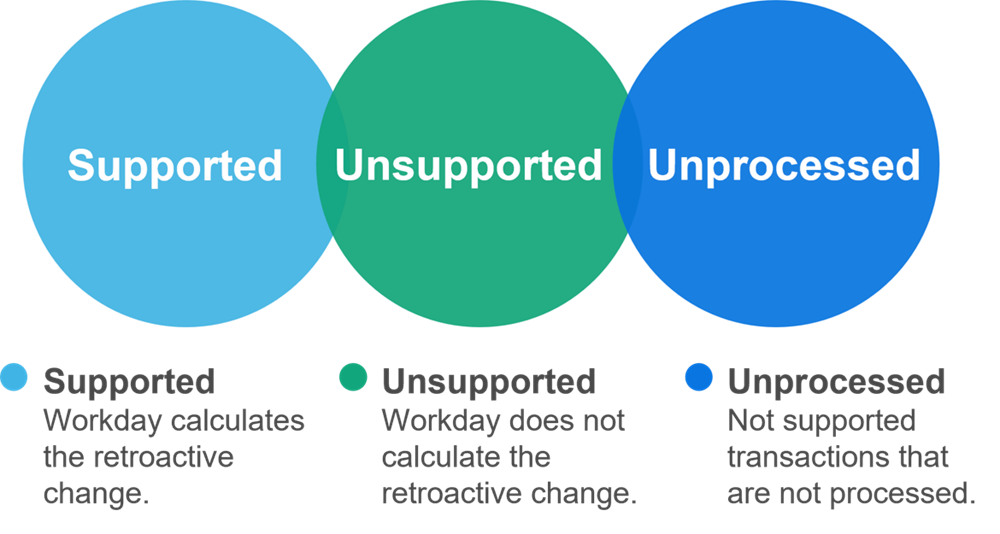
Differences between Supported, Unsupported, and Unprocessed Retro.
When an event triggers retro, Workday considers all events from the last completed period to the NRPPT date. Those events include both supported and unsupported events, regardless of whether they are related to the triggering event.
Example
: The current pay period is July, and Meghan has a retro bonus to process from June. Your HR partner enters a tax authority change also effective in June but does not notify you. When you run retro, Workday considers both the bonus and the tax authority change.Tip
: Access these reports to identify the supported and unsupported transactions and check back often for any new transactions that are supported.- All Supported Payroll Retro Transaction Types
- All Unsupported Payroll Retro Transaction Types
Unprocessed Retro
Some factors can cause a supported retro transaction to have unprocessed results. The following are common examples that will result in unprocessed retro transactions:
- Concurrently processing a supported and an unsupported transaction.
- Processing a retro transaction for a date before the worker's NRPPT date.
- Processing a retro transaction for a pay component that does not allow retro.
- Processing a retro transaction for a worker that is not eligible for the pay component related to the event.
When you run retro for workers with unprocessed events:
- Workday identifies those events as unprocessed in reports.
- You can adjust the configuration and run retro again to process them.
Note
: You can manually resolve unsupported events and move the worker's NRPPT date to before the unprocessed event occurs.The retro pay calculation considers events occurring in the current pay period when:
- The current on-cycle payroll is in progress.
- You complete off-cycle results, or results from other run categories, after the start of the current pay period.
Example
Retro Processing Statuses
When you run a retro calculation, Workday displays retro statuses on retro pay calculation tasks and reports such as
Run Retro Pay Calculation
task or Retro Calculation Processing Report
. Workers with retro will have one of the following retro statuses:Retro Status | Definition |
|---|---|
Cannot Process Retro - has unsupported retro events | Worker has unsupported retro changes that require manual adjustments. |
Supported Retro to process | Worker has supported retro changes that require processing. |
Suspended Retro to exclude | Worker has supported retro changes and you suspended the results, Workday no longer includes the worker's retro result in the target period. |
Cannot Process Retro - Retro Change Date Event in progress | Workday is in the process of changing the worker's NRPPT date. You can recalculate retro for the worker once you complete the event. |
Calculation Statuses in Retro Processing
As with regular processing, each worker also has a calculation status. A Retro Pay Calculation Status applies to calculated or completed retro runs for entire pay groups. Canceling retro results for one worker or a subset of workers in a pay group does not trigger status updates.
Status | Description |
|---|---|
In Progress | The Run Retro Pay Calculation task results include no In Error or Requires Re-Calculation statuses. |
In Error | You can correct the error. Use the Run Retro Pay Calculation task again and complete the retro. |
Requires ReCalculation | You can run the Run Retro Pay Calculation task again and complete the retro. |
Pending Prior Retro | There is a change in a worker's pay group, and the Run Retro Pay Calculation task includes 2 retro worker results:
When you recalculate retro, Workday:
|
Complete | The Run Retro Pay Complete task results include no In Error or Requires Re-Calculation statuses |
Note
: Workday displays calculation statuses on the:- Retro Calculation Processing Report
- Run Retro Pay Calculationtask
- Retro Pay Calculation Results for Group of Workersreport
Retro Reports
Review the following reports for retro planning:
Report | Description |
|---|---|
All Supported Payroll Retro Transaction Types | This report displays transactions that are supported for retro calculations. |
All Unsupported Payroll Retro Transaction Types | This report displays transactions that are not supported for retro calculations. Some transactions listed in this report generate an unsupported retro event, even if the transaction is dated in the current period. For example, whenever a worker is moved to a new pay group or new company, the next retro calculation identifies this change as an unsupported event and pushes out the worker's NRPPT date. |
Payroll No Retro Processing Prior To Date for Group of Workers | Displays the current NRPPT date for a group of workers. This is the date that will be in effect for the next retro calculation. |
Review the following reports to verify retro processing results:
Report | Description |
|---|---|
Retro Calculation Processing Report | Displays completed or in-progress retro results. You can filter the listed facets, including retro transaction type, differences amount, retro status, or calculation status. Mass action buttons allow you to take action on a group of selected workers. For example, you can complete retro for selected workers. |
Retro Pay Calculation Results for Group of Workers | This report displays retro results for a group of workers. You can view specific retro transactions or specific retro calculation statuses. |
Retro Pay Calculation Results for Worker | This report displays retro results for a worker. You can view results based on when the retro was entered or based on the target period for the retro. |
Review the following reports to audit retro:
Report | Description |
|---|---|
Payroll Changes Unprocessed for a Retro Run | Identifies unprocessed and unsupported retro changes that need a manual adjustment. |
Payroll Retro Unprocessed Differences | Identifies retro results that have not been calculated yet in the target period. |
Payroll Retro Changes for Group of Workers | This report displays retroactive changes within the date range of selected periods. |
Payroll Retro Changes that Invalidate Retro Difference(s) | Lists workers with invalid retro differences in the current, on-cycle payroll when workers move from one company, pay group, or tax authority to another after you calculate retro differences. |
Reversal Results with Retro | Identifies workers with retro differences when the source period or target period was later reversed.
|
Retro Pay Calculation Results Volume Report | Run this report to gain insight into how many calculations are being processed and why a retro calculation may take longer than expected. This report displays how many workers and retro results were processed and the earliest NRPPT date processed in retro. Optionally, you can include worker details. |
Off-Cycle Processing
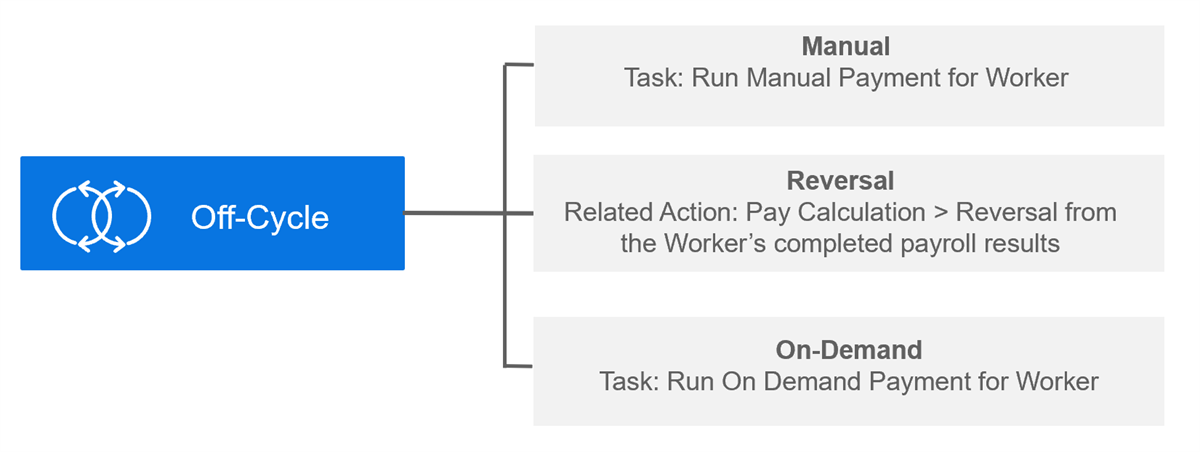
Off-cycle transactions occur outside of a regularly scheduled, on-cycle pay run and include:
- Manual:Record payments made to workers outside of Workday Payroll or move taxable wages and balances.
- Reversal: Back out a completed pay calculation for a worker.
- On-demand: Replace or in addition to a worker's on-cycle payments.
You can create off-cycle entries and attach them to the current or prior on-cycle pay period. Because off-cycle calculations are attached to on-cycle periods, they can affect on-cycle results.
Based on the type of off-cycle, select the appropriate task:
Note
: You can also calculate off-cycle payments for batches of workers using the Run Off-cycle Pay Calculation
task, or you can upload manual or on-demand payments using the Import Payroll Off-cycle Payment
Web Service. You cannot load reversals with a Web Service.Tip
: You can view payroll inputs for off-cycle payments by accessing the Pay Calculation Off Cycle Inputs for Group of Workers
report.Processing Sequence
Workday enforces the following processing sequence for off-cycle and on-cycle payments:
- Manual payments
- Reversals
- On-demand pay calculations
- On-cycle pay calculations
This order means that you must complete all off-cycles before completing any on-cycle calculations. However, if you process off-cycle runs independently in an adjustment run, those off-cycles do not affect the regular on-cycle run.
When you process off-cycle entries with a current open payroll, you will need to recalculate the current payroll for the individual workers affected by the off-cycle transactions.
You may process multiple off-cycle entries of the same type against the same worker at the same time. However, only one of the entries is allowed to be in an 'in progress' status. For example, you need to complete your first manual pay entry before processing a second such entry. However, you could process an on-demand for the same worker at the same time.
Complete settlement of off-cycles separately from the settlement of on-cycle transactions.
Reminder
: Workday automatically generates payroll accounting entries as part of the calculation process. You do not need to run a separate process to generate accounting entries.Manual Payments
You will typically use manual payments to:
- Correct a payroll error.
- Record adjustments in the current or prior year to solve tax discrepancies.
- Record the exercise of stock options.
- For Payroll for the U.S., record third-party sick pay when the third party withholds employee taxes and transfers liability of the employer's taxes to you.
- Reduce a worker's arrears balance in Workday when a worker pays a deduction using a personal check.
Manual payments must reflect all worker deductions and taxes, and you must enter each manually, as Workday calculates employer taxes only. Gross minus taxes and deductions must equal the net input.
Reversals
You use reversals to 'back out' or reverse the entire pay result for a worker. You can only reverse completed payroll results. One way to create a reversal entry is to run the
Pay Calculation Results for a Worker
report, as shown: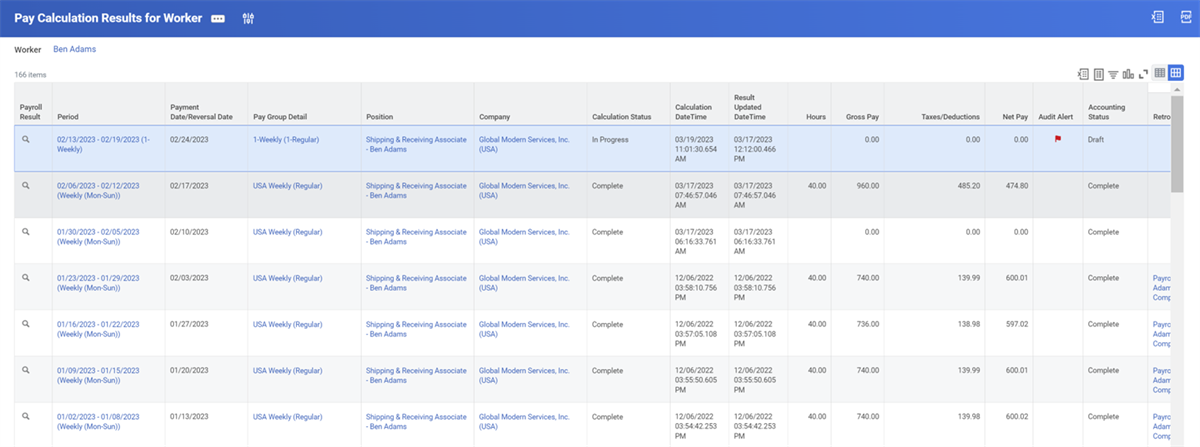
From the Related Action icon on the payroll results, you can select Pay Calculation > Reversal.
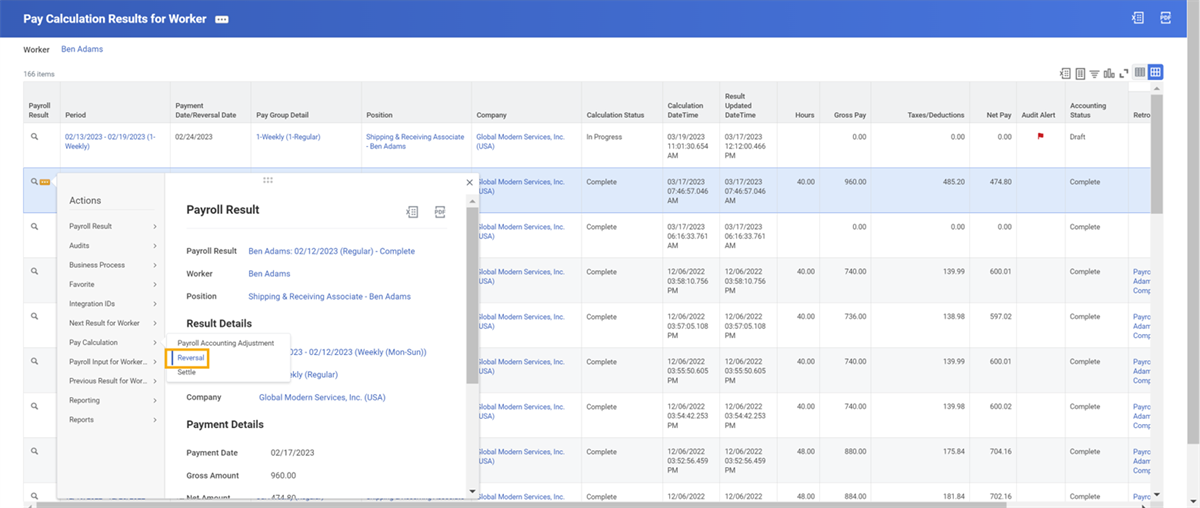
Once Workday reverses the payroll result, all previous positive entries show as negative and all previous negative entries as positive. The net effect of a reversal is to 'zero out' or void the entry.
Note
: When you complete a reversal, it is no longer displayed on the self-service payslip page.Keep in mind the effect that a reversal may have on general ledger, positive pay and check reconciliation, direct deposit, and taxes. If your organization does not use Workday for accounting, the results may differ. However, if you are using Workday for accounting, the reversals display, as follows:
If the accounting period of the original result is open, Workday:
- Posts the reversal to the original period.
- Reverses payroll accruals to the reporting period.
If the accounting period of the original result is closed, Workday:
- Reverses payroll accruals to the reporting period.
- Uses the reporting period payment date as the accounting date.
On Demand Payment
You can process an on-demand payment for a prior period or for a worker with trailing payments, and issue payments as check or direct deposit.
Additionally, you can create on-demand payments in the next pay period while the current period is still in progress. This reduces manual processing when you need to generate same-day payments for terminated workers and ensures that final payslips reflect accurate pay period dates.
There are two types of on-demand payments:
- Replacement payment
- Additional payment
Replacement
Use a replacement payment to replace a worker's regularly scheduled pay. All scheduled deductions resolve, and all earnings and deductions are available for input, except taxes.
You may need to use a replacement payment when a terminated worker's final pay needs to include regular pay plus vacation payout. For replacement payments, consider the following:
- A worker can have one replacement for each subperiod in the pay period.
- If a terminated worker is rehired in the same pay period, you can pay the worker with a replacement payment for each subperiod. Complete one replacement payment before issuing another replacement payment in the same pay period.
- If a terminated worker is paid with an on-cycle payment, and then rehired in the same pay period after the on-cycle calculation completes, process a replacement payment for the second subperiod by selecting the Prior Period checkbox.
Tip
: Workday delivers an On Demand Event
business process that allows nonpayroll users to submit on-demand replacement pay for terminated workers. Configuration is required. To learn more, search Workday Community for Decentralized Processing for On-Demand Payments.Additional
Use an additional payment to generate a payment in addition to the worker's regularly scheduled pay. For example, you may use an additional payment to pay a bonus. For additional payments, consider the following:
- A worker can have unlimited additional payments in a given period.
- By default, Workday calculates all employer taxes but will not withhold benefit or general deductions on an additional payment. You can only enter earnings and deductions where worker input is admissible.
Note
: Some organizations configure a run category that specifies benefits or general deductions to calculate on an on-demand additional payment.Tip
: Audit your off-cycle payments with the Pay Calculation Off-cycle Inputs for Group Of Workers
standard report.