
Framework Configuration
Overview
Before running regular payroll, you must plan and configure elements of the payroll processing framework. In this chapter, you learn how to set up these elements according to company requirements.
Objectives
After completing this chapter, you should be able to:
- Enable a tenant for payroll.
- Generate period schedules.
- Define gross and net pay accumulations.
- Create run categories.
- Define payment election rules.
- Create pay groups.
- Assign workers to pay groups.
- List payroll-specific business processes.
- Describe the difference between user-based and role-based security groups.
Framework Configuration
Tenant Setup – Payroll
Before configuring the payroll processing framework, access the
Edit Tenant Setup - Payroll
task to enable the tenant-wide settings for payroll, which includes:- Selecting countries that will use Workday Payroll.
- Enabling continuous calculation.
- Specifying the lookback period for retro calculations.
- Selecting ID sequence definition for withholding orders.
- Enabling payslip options, including the option to print multiple payslips.
- Enabling costing allocations.
- Specifying payroll accounting options.
Resource
: For details on each tenant setup option for payroll, search the Workday Administrator Guide for the Edit Tenant Setup - Payroll
topic.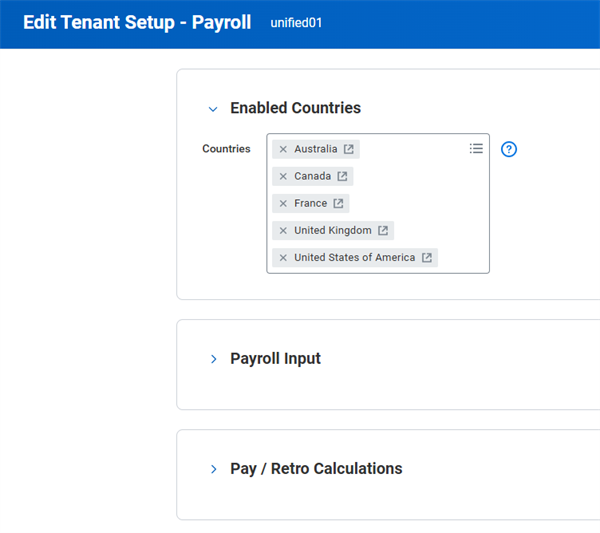
Edit Tenant Setup - HCM
Other tenant setup areas support features used by payroll. Consider the following Workday HCM tenant-wide settings.
Multiple Jobs
If workers have multiple positions, configure your tenant to support multiple jobs using the
Edit Tenant Setup - HCM
task. Specifying Multiple Jobs for your tenant enables the Position worktag on pay components.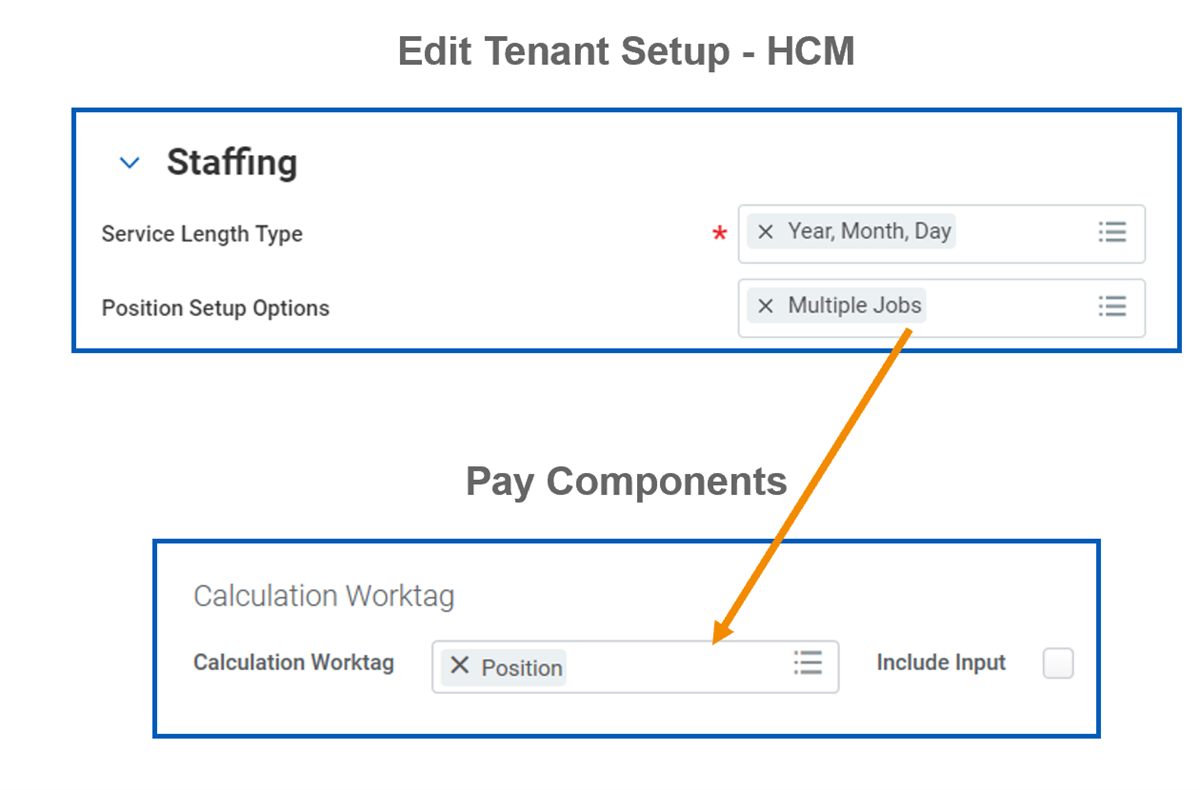
Resource
: You can combine payslips for a worker with multiple jobs across related companies. For details, search the Workday Administrator Guide for the Combine Payslips
topic.Employee ID
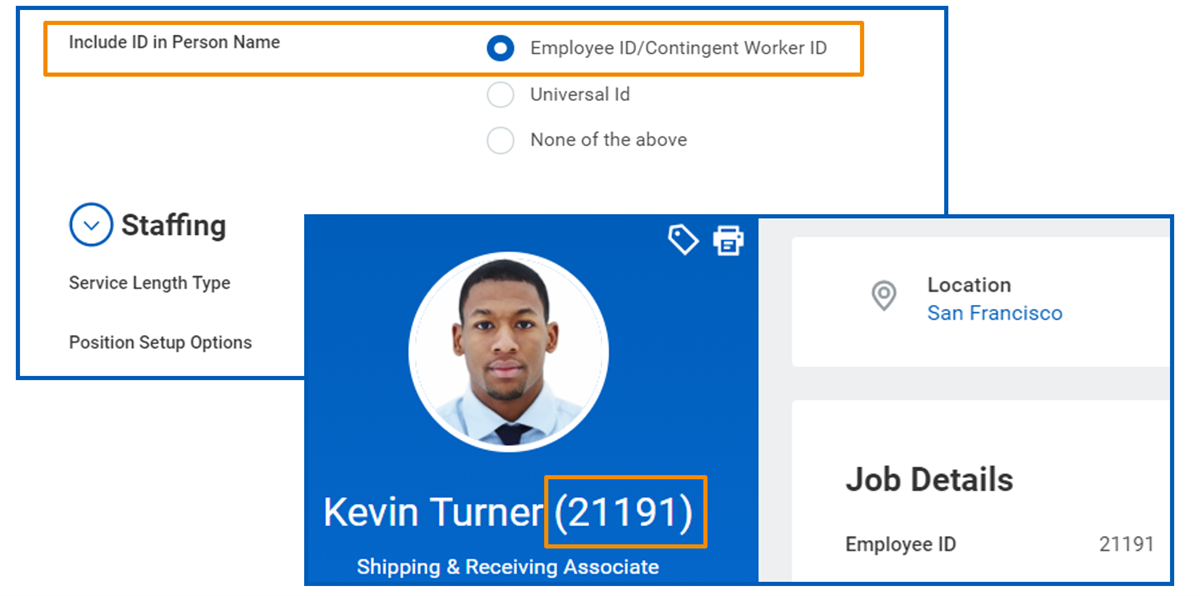
To display an employee's ID beside their name, select the Include ID in Person Name option.
Payroll Processing Framework
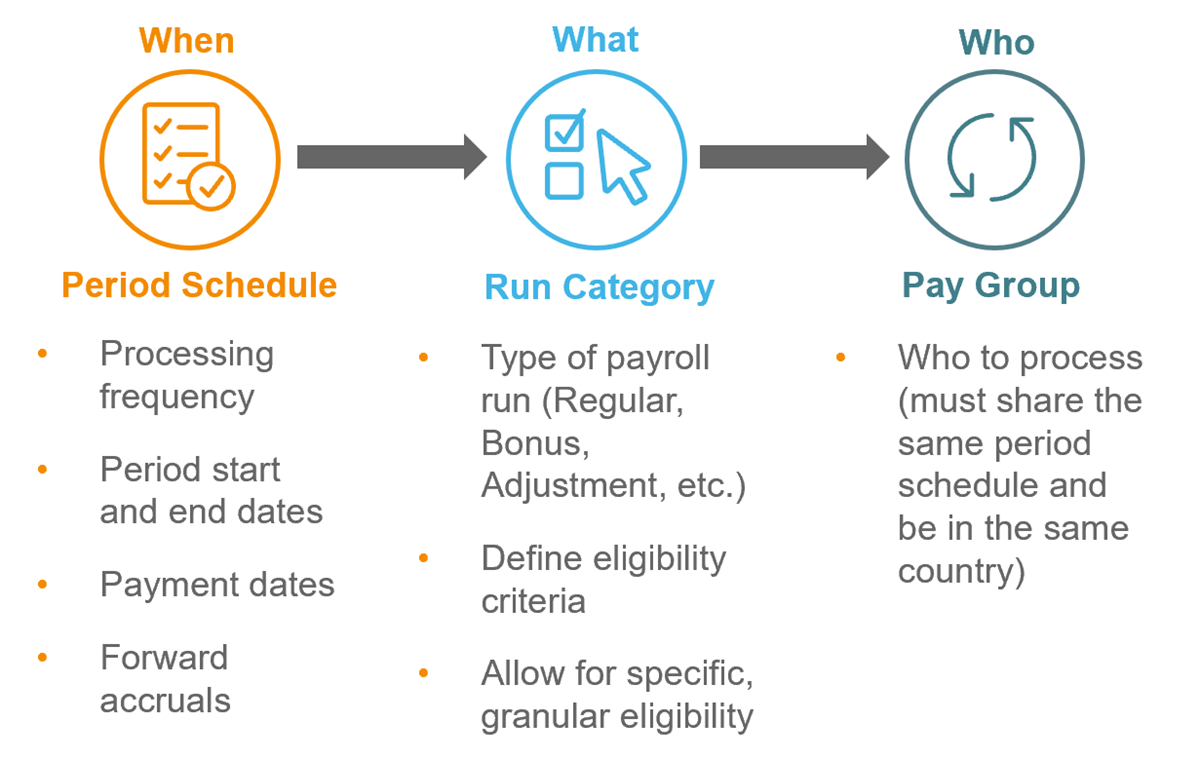
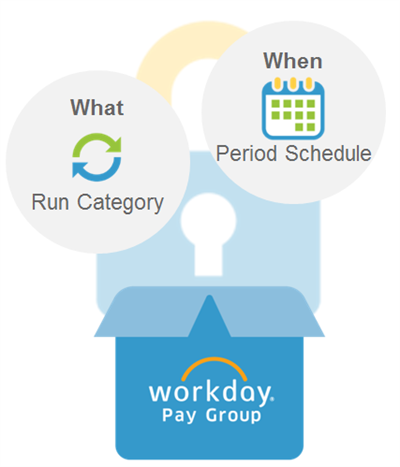
The payroll processing framework includes period schedules, run categories, and pay groups. The association between these three elements identifies when to process payroll, what to process, and who to process.
Period Schedule Configuration
Period schedules control the employee pay cadence. They have start dates, end dates, and payment dates.
Period schedules define consecutive periods for payroll processing and time tracking. If configured, Workday Payroll, Workday Absence, and Workday Time Tracking can share period schedules. Shared schedules are appropriate only if the time and pay period dates match.
You can build period schedules in Workday or import them using Enterprise Interface Builder (EIB).
Note
: You can extend existing period schedules with the Generate Period Schedule Periods
task.After you create pay period schedules, you assign them to pay groups. Pay groups with the same frequency can use the same period schedule, if all dates match (start, end, and payment dates).
Tip
: The period schedule Usage field identifies applications using the schedule, such as Payroll, Absence, and Time Tracking.Resource
: Search Workday Community for more information about period schedules.Payment Date Optional Fields
You can use these optional fields to support the period schedule.
Regular Pay Day
determines the regular payment date reported on a worker's Statutory Compensation Statements, if needed.Payment Date Auto-Adjust
prevents payment dates from falling on a weekend. For example: Enter -1 in the Saturday field to change payment dates that fall on a Saturday to the previous Friday. Use this option when the payment day varies, which usually occurs with semi-monthly and monthly pay frequencies.Holiday Calendar
enables you to add holiday calendars to your period schedules so that Workday will automatically prevent payment dates to occur on a holiday. You can select only one holiday calendar at a time.Auto-Adjust on Holidays
prevents payment dates from occurring on a holiday, as indicated on the included holiday calendar. The payment date will automatically adjust according to what has been configured in this field, either Before Holiday or After Holiday.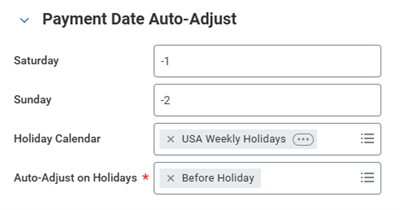
0 ( )
Payment Date Offset Days Default
defaults the payment date by the specified number of days before or after the period end date. Weekly and bi-weekly schedules commonly use this option.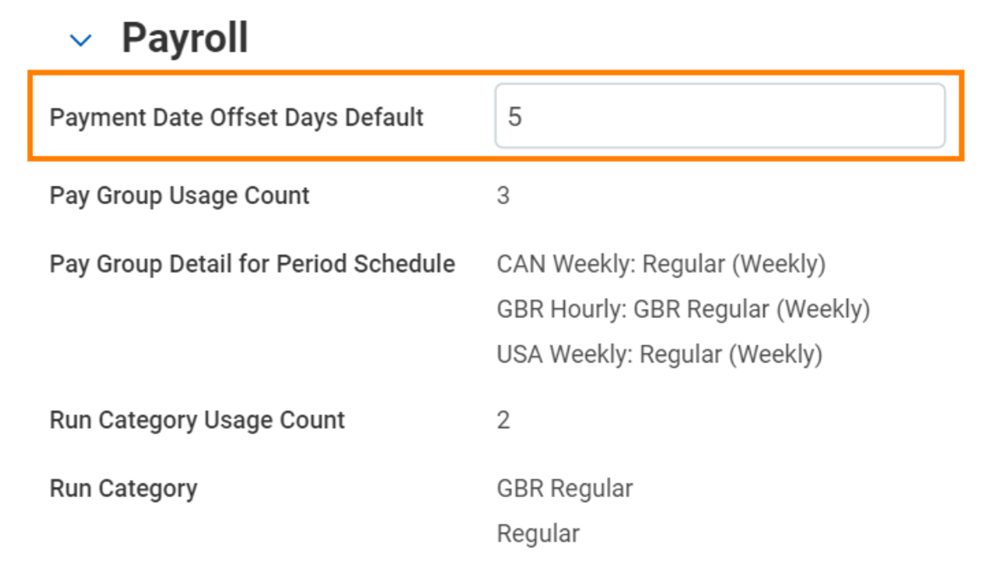
Payment Date Offset Days Default Field
When creating a new schedule, the Payment Date Offset Days Default field does not display initially. To set up a payment date offset:
- Save the period schedule.
- From the period schedule name, select the Related Action Period Schedule > Edit.
- Expand the Payroll section.
- Change the Payment Date Offset Days Default.
- Continue to build the period schedule.
Continuous Payroll Calculation
If your organization has enabled continuous calculation in the
Edit Tenant Setup - Payroll
task, a continuous calculation option displays in the period schedule. This option enables the initial calculation of each pay period to calculate automatically.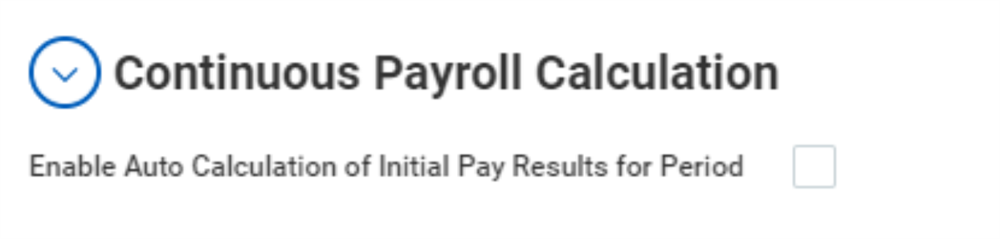
When you enable continuous calculation in your tenant, your period schedules display additional options.
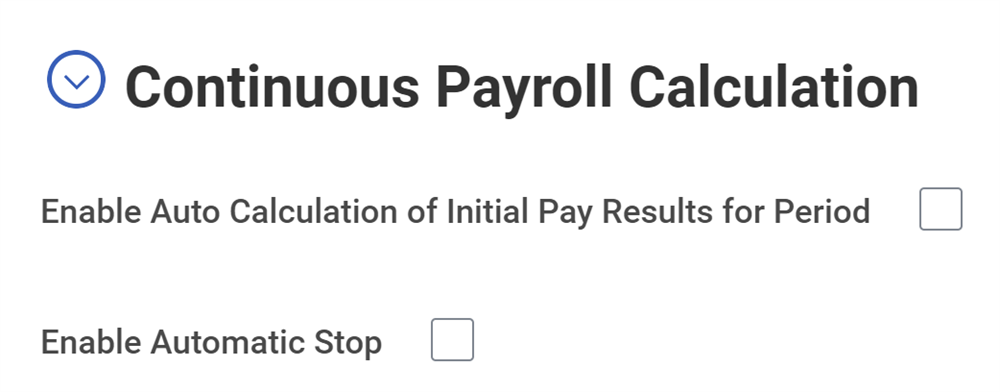
Enable these options in your period schedules to establish a start and stop time for the continuous calculation. For example, you can have calculations begin on the period start date, and stop a few days before the period end date so that you can perform final audits.
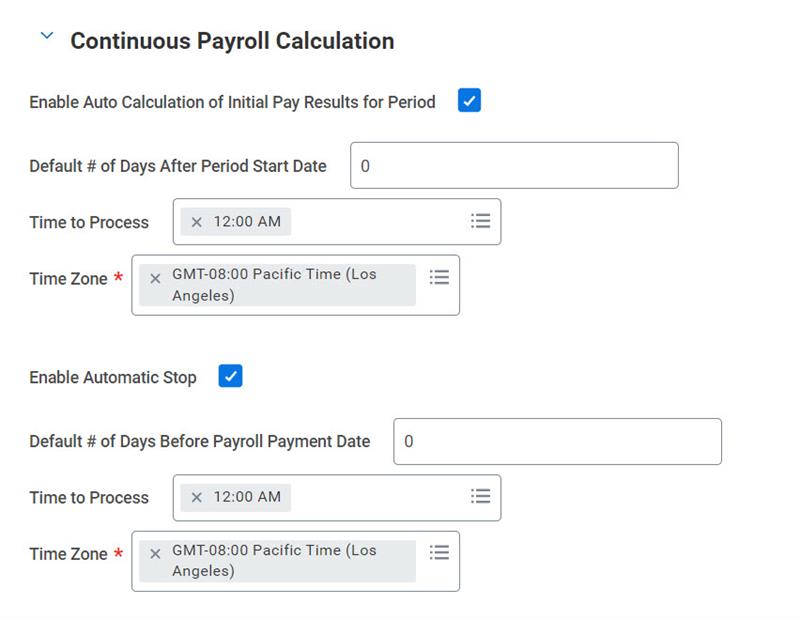
You can configure the types of pay-impacting events processed by both continuous calculation and smart calculation with the
Configure Smart Calculation Event Processing
task.Once configured, you can manage continuous payroll calculation with these reports:
- Update Continuous Payroll Calculation Statusreport to review the current status or to pause the continuous calculation when you are ready to audit.
- Continuous Payroll Calculation Pipelinereport to view a snapshot of the payroll-impacting events that have been entered in Workday, but not yet calculated.
Continuous calculation is not enabled in your training tenant. You will process all calculations manually during training.
Resource
: For more information on the continuous calculation feature, search Workday Community for: Setup Considerations: Continuous Payroll CalculationTime Tracking
Workday Payroll and Workday Time Tracking can share the same period schedules depending on when you pay employees for time worked. For each period, you specify:
Field | Purpose |
|---|---|
Open Time Entry | Date and time that workers can begin entering time for the period. Leave this field empty if there are no restrictions. |
Lock Time Entry | Date and time that workers can no longer enter time or change time entries for the period. You can make payroll administrators, timekeepers, and other users exempt from the lockout so that they can make last-minute changes to time blocks during the initial lockout period. Exempt users must belong to a user-based or role-based security group associated with the Time Tracking: Exempt from Lockout domain. |
Unlock For Adjustments | The end of the lock period. Unlocking the period after payroll is complete makes it possible for users to enter and correct time for the period. |
Close Time Entry | The final close date and time for the period. Users can no longer make additional time entries and corrections for the time period. |
Pay On-Demand
Pay on-demand is an optional configuration that provides employees an ability to access a portion of their earned wages prior to the payment date. You can define rules related to the number of payments, taxation, settlement, and approvals.
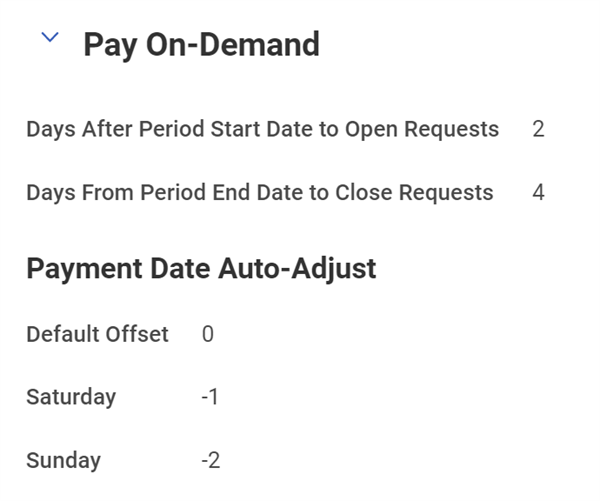
The period schedule is used to determine:
- When workers can request pay on-demand.
- How to adjust the payment date for weekends.
Resource
: For setup considerations and tasks to configure Pay On-Demand options, review the following topic in the Workday Administrator Guide:Steps: Setup Pay On-Demand
Accounting Date Override
To override the accounting date, enter a date that is on or before the period end date or the payroll payment date. Depending on your configuration, Workday sets the new override date as the initial accounting date for these on-cycle and off-cycle operational journals:
- Fringe Actuals
- On-Demand Additional
- On-Demand Replacement
- Payroll Actuals
- Payroll Accounting Adjustments
Note
: When you select the Use Payment Date as Accounting Date for Off-cycle Payments from the Payroll Accounting section on the Edit Tenant Setup - Payroll
task, and also enter an Accounting Date Override on the period schedule, Workday uses the override date as the initial accounting date for off-cycle payments.Payroll General Ledger (GL) Accruals
Accruals in accounting allow you to keep assets and liabilities in the financial reporting periods where they belong. You can use payroll GL accruals in your period schedules to estimate payroll payments in a future pay period that spans two financial reporting periods.
Workday creates the forward accrual as a ratio. The estimated number of days in the pay period (days to accrue) is divided by the days in a full financial accounting period (days in basis). You create a forward accrual on a specified accrual date and reverse it on a specified accrual reversal date.
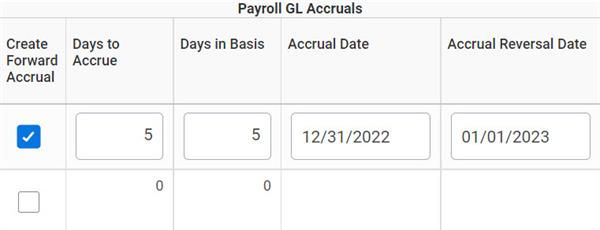
- Days to Accrue:The number of days for which you are estimating payroll costs.
- Days in Basis:The number of work or calendar days in a full financial reporting period.
- Accrual Date:The date of the accounting entry.
- Accrual Reversal Date:Any day after the accrual date.
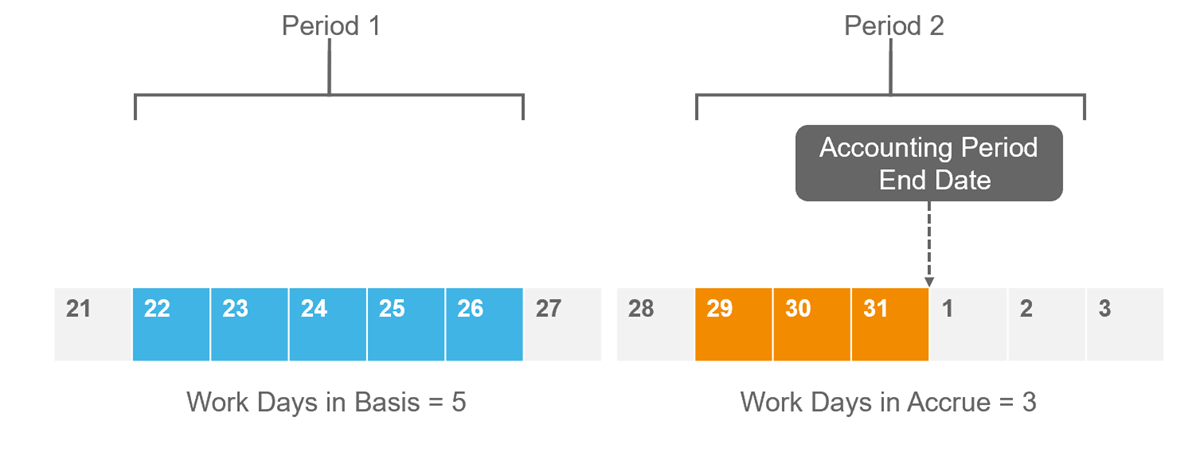
The following diagram illustrates how Workday uses one week of payroll actuals as the basis for estimating payroll costs in the next period. The second period has three days that precede the accounting period end date. Workday calculates the forward accrual as follows:
- Days in Basis = 5, based on work days. You can use work days or calendar days.
- Days to Accrue = 3.
- 3/5 represents portion of basis to project forward as cost estimate.
Tip
: You can exclude specific expenses from forward accruals using the Maintain Payroll Accounting Options
task. You can identify what pay components are excluded by viewing the All Deductions
and All Earnings
reports. Scroll to the right to view the Exclude from Forward Accruals column.Payroll Settlement Date Overrides
Payroll Settlement Date Overrides allow you to override payment dates for countries with a bank calendar or holiday schedule that is different from your organization's primary country location.
For example, if Canada Day falls on a U.S. payroll payment date, you can override the payment date for Canada for that period.
For each period, you specify:
- Country - The country for which the override should take place.
- Override Date - The payroll payment date to use for the specified country.
Run Category Configuration
When you calculate on-cycle or off-cycle payroll, Workday refers to the run category to determine who and what to process for the pay period. A run category specifies:
- What workers to process, based on status or other selection criteria.
- Taxation and processing rules, including minimum net pay amount (for net pay validations).
- Which pay components to process, including which to process automatically for terminated workers, workers on leave, and when making off-cycle payments.
Page Header
The top of the page displays the run category name, country, and if the run category is used in a payroll interface. There is also an indicator to identify regular run category, which signifies that the run category is used for processing regular, on-cycle payroll.
General Tab
This tab includes the following sections:
- Workers to Process:Identifies which workers the run category will process. You can specify workers based on status, such as Active, and on selection criteria, such as Worker Hire Date > 15th of Month.
- Gross/Net:Identifies gross and net pay accumulations, additional pay components to calculate, and additional payroll processing taxation details.
- Payroll Processing:Includes settings for taxation and minimum net amount.
- Additional Information:Identifies the pay groups using the run category.
Workers to Process Section
The Workers to Process section identifies what workers the run category processes based on worker status and selection criteria.
- Include active workers unless the run category is to only include active workers with specific criteria. For example: Active with One-time Payroll Input for Earnings..
- Your run category can include workers with an on-leave status, terminated workers, and workers ending one job and starting another.
- You can include selection criteria using any Boolean calculation, which returns a value of true or false.
Examples
:A regular run category that includes workers who have a status of:
- Active
- On leave (for leave processing)
- Terminated (for severance and other pay after termination)
- Ended additional job (for trailing payments)
A bonus run category that includes workers who:
- Are active
- Are eligible to receive bonuses
- Have payroll input for the run category
For bonus run categories, Workday delivers calculations, such as
Payroll Input Exists for an Earning That Is Part of Gross Pay Accumulation for the Run Category
. This Instance Value Calculation returns true if the worker has payroll input for an earning that is part of the gross pay accumulation associated with the run category. It considers the run category and pay group eligibility, but not worker eligibility. The payroll input is valid for the current pay period (that is, it is either period-specific input or ongoing, but it applies to the current period). It does not matter if it is an override or an adjustment. Use this calculation when the only workers to pay have payroll input, such as a commission or bonus.You can create an Instance Set Comparison of your own if you want to pay a particular compensation element. Use
Compensation Element Exists for Sub Period in Pay Period
if the run category includes only workers for selected compensation elements for the pay period.Gross / Net Section
The Gross / Net section identifies the pay accumulations that calculate for the run category, and any additional pay components and PCGs to calculate.
Field | Description |
|---|---|
Gross Pay Accumulation | Specify the pay accumulation that calculates gross pay. |
Net Pay Accumulation | Specify the pay accumulation that calculates net pay. |
Additional Pay Components To Calculate | Select additional earnings and deductions to calculate that are not part of an employee's gross or net pay but relate to the result. |
Additional Pay Component Groups To Calculate | Select additional pay component groups to calculate that are not part of an employee's gross or net pay but are related to the result, such as:
|
Payroll Processing Section
The Payroll Processing section includes settings for taxation and minimum net amount.
Field | Description |
|---|---|
Non Regular Taxation | Select this option for nonregular run categories, such as bonus run categories, where you want taxes withheld at supplemental rates for all earnings processed. |
Use State Supplemental Flat Tax Rate | This field applies to the U.S. only and is available when:
|
Minimum Net Amount | Specify the minimum amount of net pay a worker can receive before Workday begins reducing or eliminating deductions to restore a worker's take home pay. By default, the Minimum Net Amount is zero. Note : Specify deduction priorities on the Maintain Deduction Priorities page to enable Workday to restore a worker's net pay when total deductions exceed total earnings. If you do not set deduction priorities, net pay may fall below the minimum net amount. |
Aggregate Federal Standard Withholding Wages | Opt-in and select this option to aggregate federal standard withholding wages across multiple pay results within the same pay period. |
Additional Information Section
This section displays a link to the usage details. Select the number to view a list of pay groups using this run category.
Nonactive (On Cycle, On Demand Replacement) Tab
This tab controls the pay components to process for nonactive workers, such as terminated workers and workers on leave. These workers should also meet the selection criteria defined on the General tab. You can process payroll for nonactive workers with either a payroll run (on-cycle) or an on-demand replacement payment (off-cycle).
- Rules you define for paying nonactive workers in on-cycle pay runs apply to jobs in the same pay group as a worker's primary job.
- The on-demand replacement payment replaces the on-cycle payroll payment. Use on-demand replacement payments when you need to pay a worker before the on-cycle payroll is complete. For example, when a worker is terminated mid period and needs final payment upon termination.
Use the Nonactive tab to specify what pay components to calculate based on specific statuses for workers who have already passed the criteria specified on the General tab. For example, for special disability payments with workers on certain leave of absence types, use this page. This option ties the pay component or pay component groups to the leave type that receives that payment.
Note
: Only leave types with the Payroll Effect option enabled are available for selection.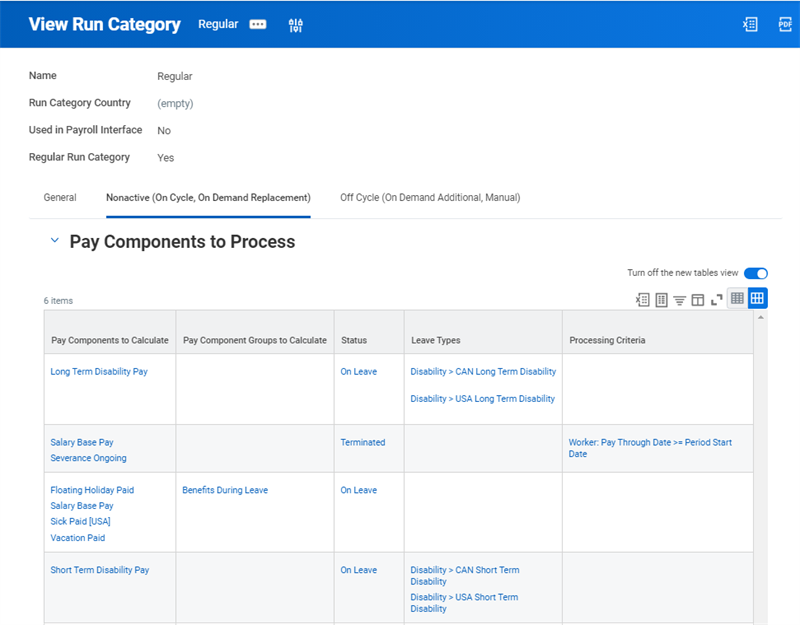
View Run Category - Nonactive Tab
Workday always calculates statutory taxes (employer and employee) for on-cycle and on-demand replacement payments. For the selected nonactive workers who meet pay component eligibility, it also calculates:
- One-time payroll input for the period and one-time or bonus payments from Workday Compensation during on-cycle processing. To process on-going payroll input, select the pay component on the Nonactive tab.
- One-time or bonus payments from Workday Compensation in on-demand replacement payments. To process one-time or ongoing payroll input, select the pay components on the Input grid in theRun On Demand Payment for Workertask.
Review the Nonactive (On cycle, On Demand Replacement) tab fields in the following table.
Field | Value |
|---|---|
Pay Components To Calculate | The pay component must belong to the gross, net, or additional pay components specified on the General tab. |
Pay Component Groups To Calculate | The pay component group must belong to the gross, net, or additional pay components groups specified on the General tab, such as Employer Paid Benefits. If you frequently process the same set of deductions for additional payments, you can create a pay component group and assign it to multiple run categories. |
Status | Specify whether to calculate the component for Terminated or On-Leave employees. The combination of pay component (or pay component group) and status must be unique. |
Leave Types | When the status is On Leave, select the leave types for which to calculate the pay component. Only leave types with the Payroll Effect option enabled are available for selection. To calculate the pay component for all leave types that have the Payroll Effect option enabled, skip this field. |
Processing Criteria | Define criteria for calculating the pay component or pay component group. All criteria in the same row must be met. If you define criteria in separate rows (using OR logic), criteria in at least one row must be met. If you do not define processing criteria for a status, Workday processes the pay component for all workers with that status. Workday provides many calculations you can use as processing criteria. However, some are too broad to use as processing criteria. Payroll Input Exists for an Earning that is Part of Gross Pay Accumulation for the Run Category is an example. |
Off Cycle (On Demand Additional, Manual) Tab
This tab lists pay components that calculate automatically for additional on-demand payments and manual payments. For instance, Workday will not automatically calculate employee retirement plan contributions on an on-demand additional payment, unless listed on this tab.
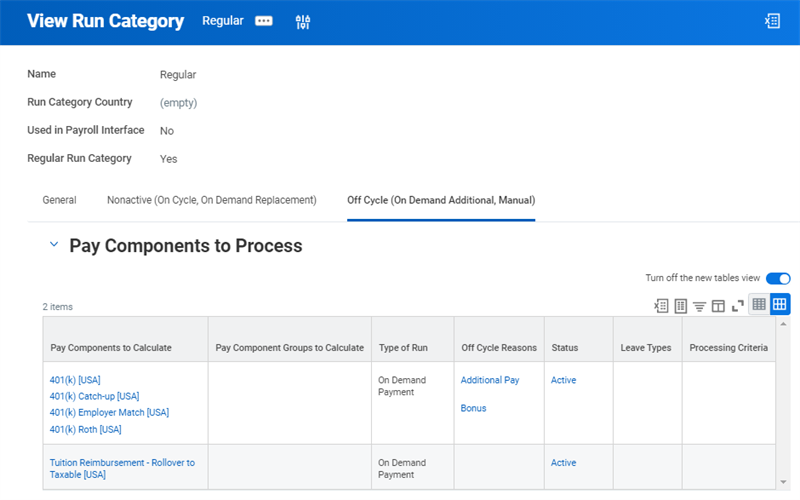
View Run Category - Off Cycle Tab
Example
: You will review examples of off-cycle payments later in the course.Review the fields on the Off Cycle tab in the table below.
Fields | Description |
|---|---|
Pay Components To Calculate | The pay components included on this tab must belong to the gross, net, or additional pay components specified on the General tab. |
Pay Component Groups To Calculate | Select a grouping of earnings or deductions to calculate. Tip : If you always process the same set of deductions for workers on leave, consider creating a pay component group for this purpose. You can assign the same pay component group to multiple run categories. |
Type Of Run | The type of additional off-cycle payments the instructions apply to: Manual Payments or On Demand Payments. |
Off-Cycle Reasons | You can select the reasons listed here when you run on-demand pay calculations. This allows you to resolve the pay component for payments made for specific reasons. These reasons are tenant-specific. |
Status | The status of employees for whom to calculate the pay component or pay component group: Active, Terminated or On Leave. The combination of pay component and status must be unique. |
Leave Types | When the status is On Leave, select to which leave types the pay component applies. Only leave types with the Payroll Effect option enabled are available for selection. |
Processing Criteria | Define criteria for calculating the pay component or pay component group. Workers must meet these criteria in addition to the pay component eligibility requirements defined with the Create Earning or Create Deduction task (Criteria tab).All criteria specified in the same row must be met. If you define criteria in separate rows (OR logic), criteria in at least one row must be met. |
Pay Accumulations
A pay accumulation is a set of earnings, deductions, pay component-related calculations, pay component groups, or other pay accumulations for which Workday can calculate a total. You specify which values add to or subtract from the pay accumulation.
Use accumulations to:
- Sum the value of a group of earnings, deductions, pay component-related calculations, pay component groups, or other pay accumulations.
- Add the value of some payroll elements to the total pay accumulation value while subtracting the values of others.
Workday delivers several predefined pay accumulations, such as:
- Federal Taxable Wages by Company
- Local Withholding Subject Wages by Company
- EI Wages by Company
- Gross Wages (T4) by Company/Province
- GBR Gross
- GBR Net
When defining run categories, remember that Gross and Net pay are specific types of accumulations.
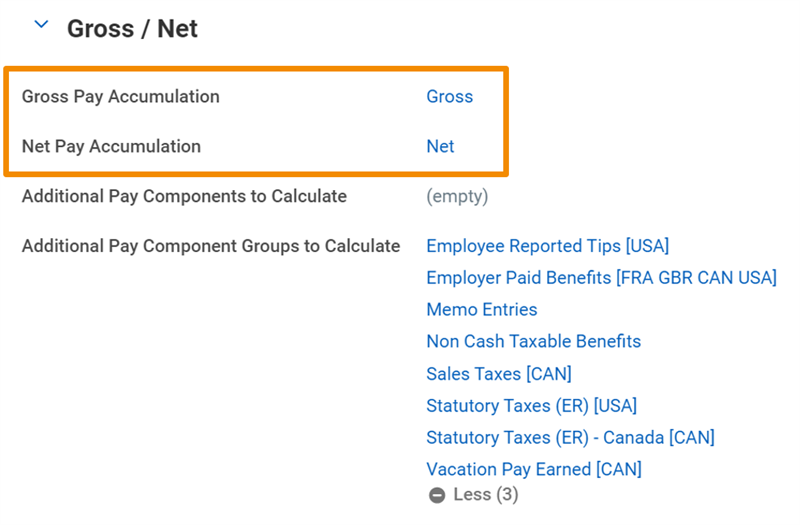
Reminder
: All run categories must be associated with Gross and Net pay accumulations.Pay Component Groups
Like pay accumulations, pay component groups (PCGs) play an important role in the definition of run categories. A PCG is a set of related earnings, deductions, and pay component-related calculations that return an aggregate value for use in payroll calculations and reports.
Workday uses pay component groups for calculations and reporting. Workday delivers pay component groups for deductions, such as for taxes and withholding orders, and others for earnings, such as Adds to Gross and Employer Paid Benefits. You can also create your own PCGs to facilitate calculations.
When you create new earnings, deductions, or pay component-related calculations, remember to add them to the appropriate PCGs. Associate additional pay components or pay component groups with a run category to calculate the value of earnings/deductions that:
- Do not reduce gross pay.
- Are calculated for or in relation to the employee.
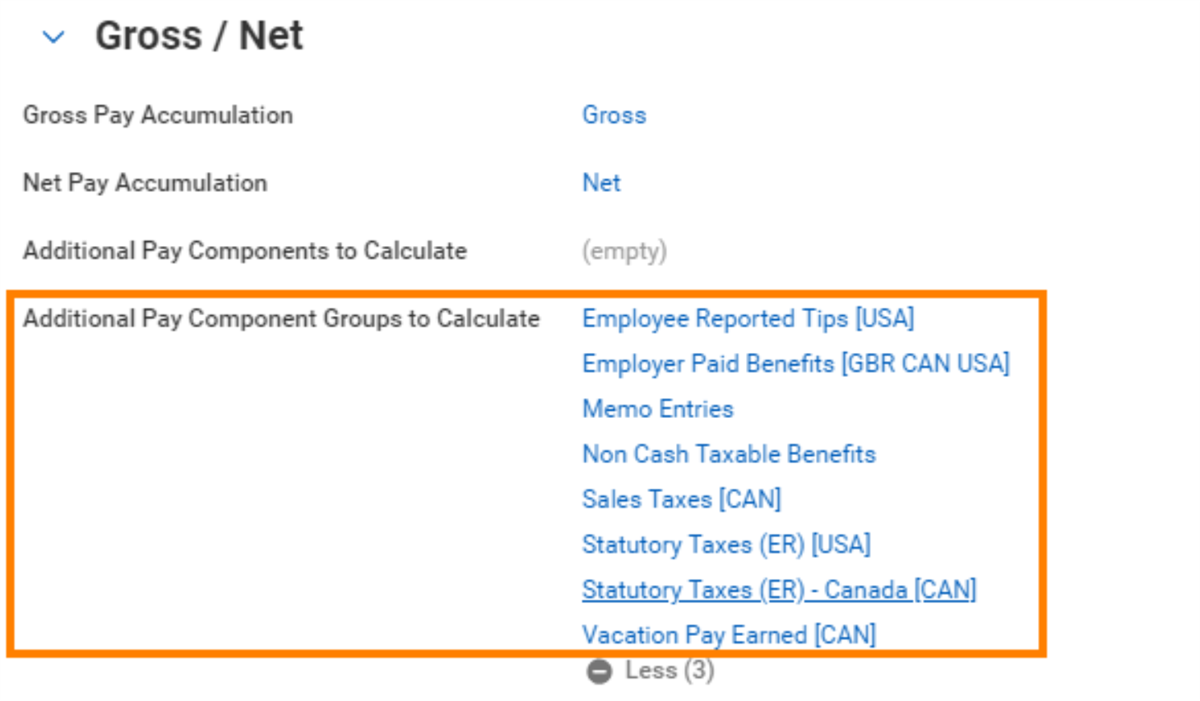
Additional Pay Component Groups to Calculate
Payment Election Rules
Access the
Maintain Payment Election Rules
task to configure payment election rules for each run category defined in Workday.Important
: If you do not configure payment election rules for a run category, you will receive an error when you process payees in that run category. Additionally, you will not be able to complete the payroll.Payment election rules control how to pay workers for each type of pay they receive. They define:
- The payment types, such as check and direct deposit.
- The number of elections allowed for each pay type.
- Payment distribution among split payment elections.
- The payment options that an employee can select on their own behalf.
- The payment options that an administrator can select on behalf of a worker.
After you configure payment election rules, payment elections are maintained by:
- The worker through self-service, if you enable self-service for the worker.
- The payroll administrator or payroll partner, who can:
- Add or upload initial payment elections.
- Update existing payment elections for the worker.
Resource
: For details on the Maintain Payment Election Rules page, search the Workday Administrator Guide for the Maintain Payment Election Rules
topic.Pay Group Configuration
Workday uses pay groups to group workers for payroll processing. Consider the following:
| 
|
Pay groups can also govern what payments workers can receive. You can make earnings and deductions available to workers in selected pay groups. For example, pay groups can help to define pay group eligibility for earnings, deductions, and other components of pay.
Note
: You can only have one run category per pay group defined as Regular.Example
: Although Workday runs tax filing by company, it processes workers by pay group. You may divide workers into pay groups by criteria, such as:- Shared period schedules.
- Shared work schedule.
- Exempt and nonexempt status.
Pay Group Visibility
When creating the organization type of Pay Group, you have the option to select the visibility to specify who can view the pay group and its members.
Group | Pay Group Visibility |
|---|---|
Everyone | The organization is public and visible to everyone. |
Role Assignees | The organization is visible to all workers assigned to a role in the pay group. |
Role Assignees and Members | The organization is visible to all workers and members assigned a role in the pay group. |
Pay Group Details
The Pay Group Details section of the
Create Pay Group
task is where you assign one or more run categories (and corresponding period schedules) to the pay group. For example, this pay group includes a regular run category and a (nonregular) quarterly bonus run category, each with its own period schedule.Override First Processing Period
Use this field to:
- Specify the initial processing period for the pay group.
- Specify the initial period for parallel testing (payroll consultants only).
During midyear payroll deployments, you may need to import historical data into the system for periods that precede the go live date. In this situation, you should set the initial processing period to the first nonhistorical period processed by Workday Payroll. In other words, the period following the last period for which you imported historical data.
Example
: Consider the following example for a U.S. deployment:- The Workday Payroll go-live date is April, 2024.
- You load historical data for payees for 2024, as needed.
- The company uses a monthly payroll calendar.
When you set up the pay groups, select the appropriate pay period in April in the Override First Processing Period field. This will be the first pay period that Workday Payroll will calculate and process.
Days from Payment Date to Display Payslip
Enter a number in the Days from Payment Date to Display Payslip field to specify when payslips become viewable via employee self-service. The number can be positive or negative. However, the payroll status must be Complete for the payslip to be viewable.
Pay Run Groups
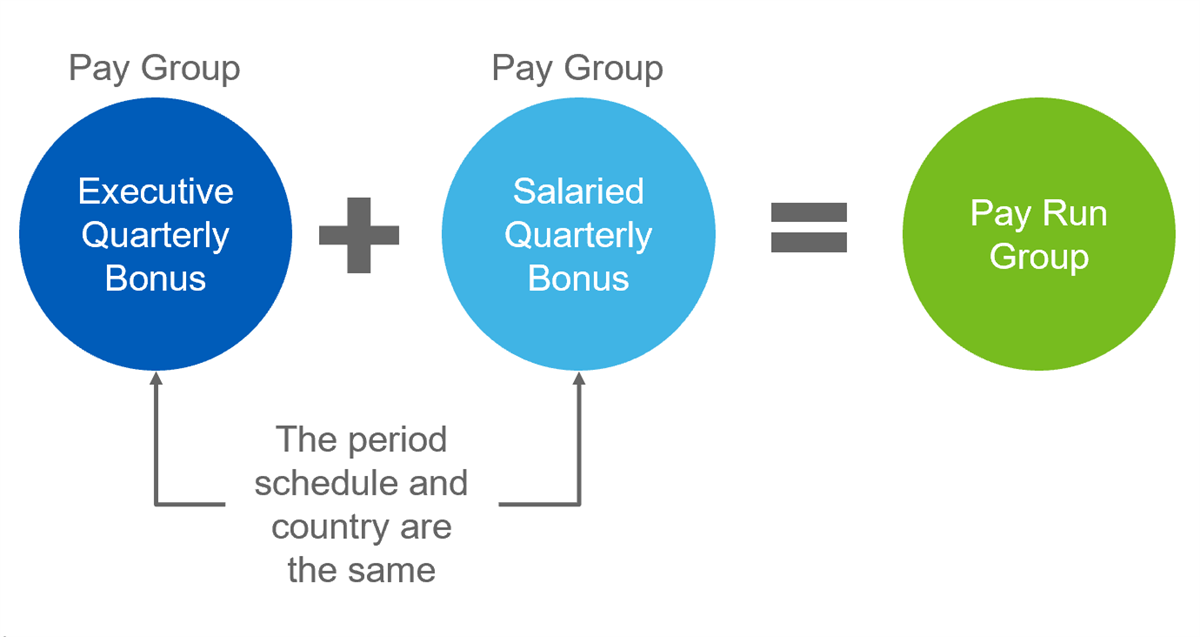
Pay run groups are an optional convenience feature. A pay run group associates a set of pay groups with selected run categories. You can process and run reports on them together. When you calculate payroll or run reports, you can select the pay run group rather than the individual pay groups. You can also complete all pay groups within the same pay run group at once, saving time. Pay run groups must share a period schedule and be in the same country.
Business Process Framework
The Workday business process framework defines and deploys business processes to suit the way a company works. You choose the tasks that compose a business process, and the completion order. While you cannot create brand new business processes, you can create different versions of the same business process for different organizations. You can define custom business processes for any supervisory organization. The business process logic is inherited. Therefore, subordinate organizations automatically use a business process defined for a superior organization, unless the subordinate organization has its own definition of the process.
The business process framework uses security groups to control who performs the tasks with a business process event. Tasks are associated with specific roles, not specific people, therefore, workers can move in and out of roles without disrupting the business process logic.
Business process definitions determine:
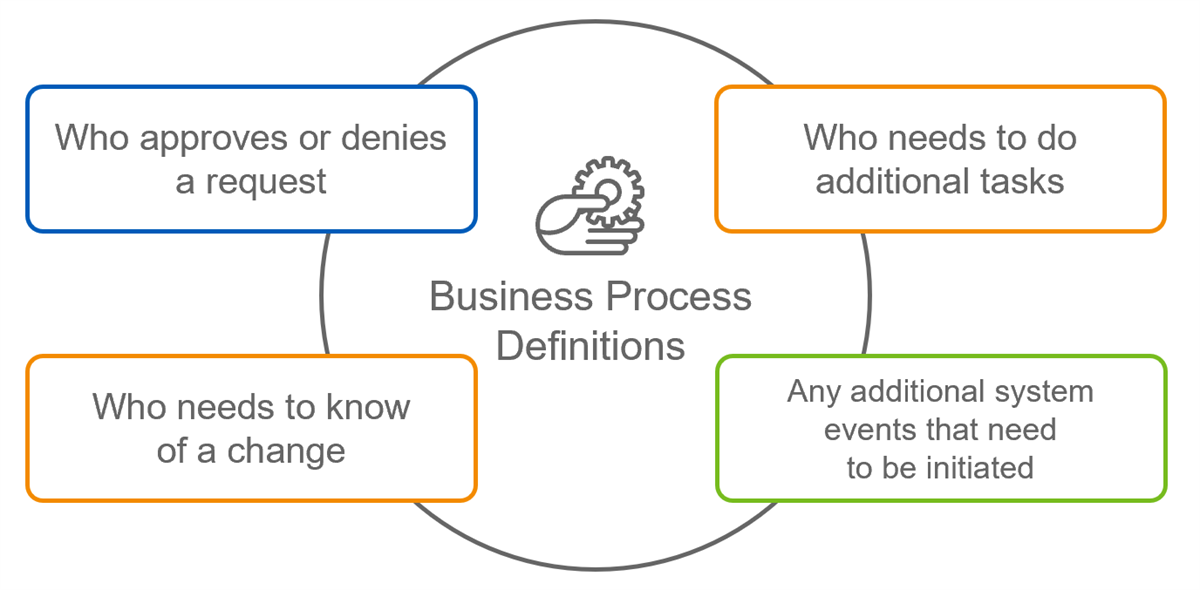
You create business processes using a combination of actions, approvals, approval chains, to-dos, and checklists. An action can be a single task or it can be a subprocess, which is also a combination of actions, to-dos, and checklists. Within the process, you can define conditions that determine if the business process initiates a step. You can also define notifications to notify a Workday user of the process status.
Pay Group Assignment and the Hire Business Process
You can assign workers to pay groups using several methods.
- Manual pay group assignment.Assign Pay Groupis a standalone business process that allows you to manually assign the pay group to a worker. You can also use this process to assign the pay group to worker and position if using Multiple Job functionality.
- Subprocess of a staffing transaction.Assign Pay Groupbusiness process as a subprocess to a staffing transaction.
- Automatic pay group assignment.Note: You can assign one active pay group rule per pay group. In other words, five pay groups require five rules. A best practice is to define a pay group automatic assignment rule when you create the pay group. For details, see Workday Community.
- Mass load pay group assignments.You can assign or change pay groups for multiple workers in cases such as promotions, reorganizations, or mergers and acquisitions using the EIBAssign Pay GroupWeb Service.
Important
: You can only assign a worker to a pay group after you assign the worker to a company. The company is the primary organization for Workday Financial Management and plays an important role for payroll, as this is the location of the tax identification number.Resource
: Search Workday Community for more information about pay groups.Payroll-Specific Business Processes
You can access the
Business Process Definitions
report or the Default Business Processes
report to view payroll-specific business processes.Some business processes, such as the Hire business process, include payroll business processes (Assign Pay Group) or impact payroll (Edit/Assign Organization).
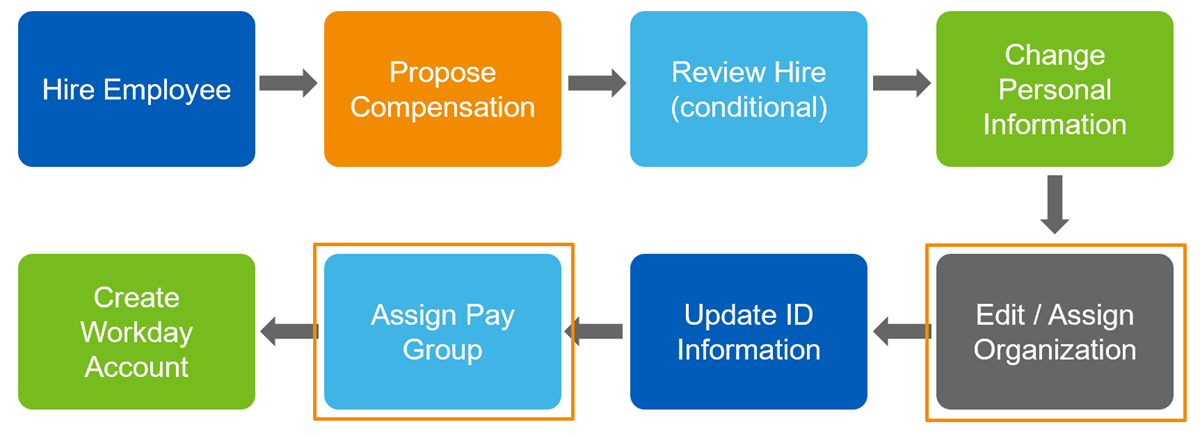
To run payroll, you must assign workers to a company organization. Using one of the following methods:
- Set up a default company for each supervisory organization.
- Associate a position with a company.
- Use the Assign Organization subprocess.
If defaults are set up at the supervisory organization level, then the Assign Organization subprocess is only needed to edit the defaults for an individual worker. If defaults are not set up, it is important to include the Assign Organization subprocess in the Hire business process.
Another important subprocess is Assign Pay Group. You must assign workers to a pay group to include them in payroll processing. Workday can auto-complete a worker's pay group when:
- Workday can determine the pay group based on Pay Group Auto Assignment rules.
- You have configured the Assign Pay Group subprocess as a step in the Hire business process.
- You have selected the Enable Autocomplete checkbox on the business process definition.
Enable the option to skip tasks by adding optional steps to the business process. Workday lists the step task in the user's Inbox and displays a Skip This Task button. If the user assigned to the role skips the step task, the business process then proceeds to the subsequent step.
Note
: You can configure ongoing payroll inputs to automatically end as part of a termination. Use the End Payroll Inputs business process (secured to the Core Payroll functional area) that you configure on the Termination business process.To learn more, search Workday Community for: Steps: Set Up End Payroll Inputs for Terminated Workers
Edit a Pay Group
To edit a pay group, access the pay group's Related Actions menu and select Organization > Edit Organization. Remember, pay groups are a type of organization in Workday.
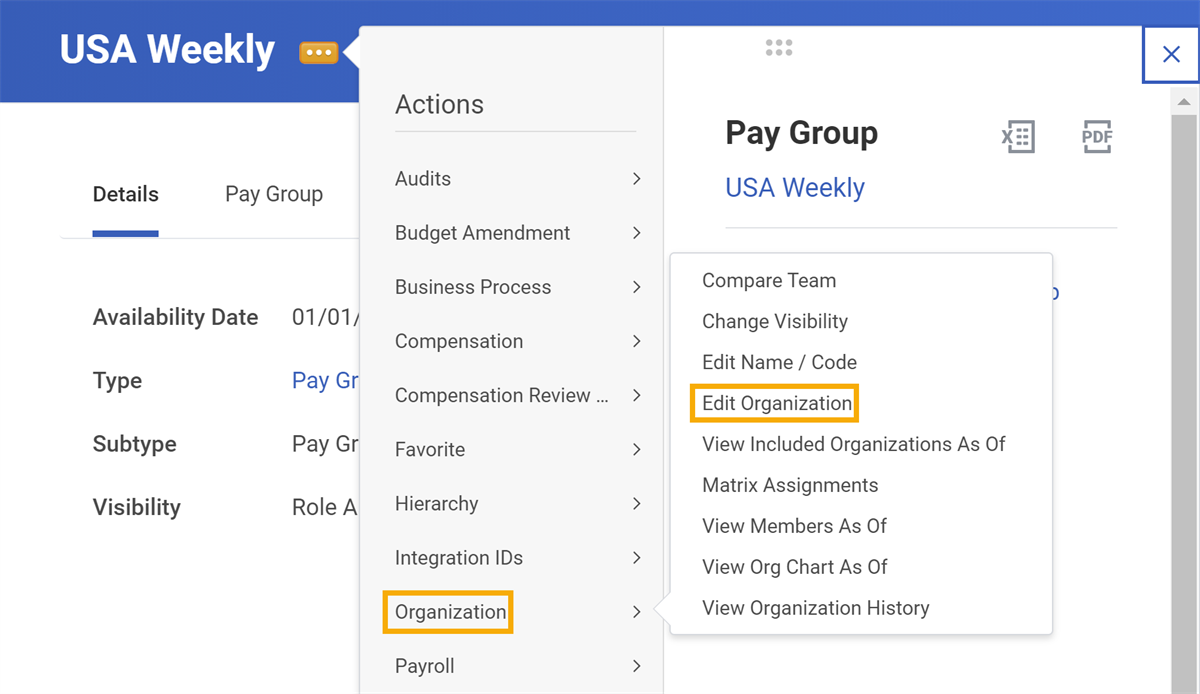
You may need to edit a pay group if there is a change to the first processing period date. Payroll history is payroll data for periods before the value in the Override First Processing Period field. Update the Override First Processing Period before calculating any payroll. After calculating the payroll, you can no longer change the first processing period date.
Roles and Security
Workday application data is accessible only through the configurable security structure enforced by the Workday Object Management System (Workday OMS). As such, Workday users cannot view data outside of their security group.
For example:
- A person in the Security Administrator security group can grant passwords to gain access to the Workday system.
- The Security Administrator can only see compensation data if they also have the role of Compensation Partner.
The pay group organization drives the business process events for payroll. You can secure pay groups to organization roles such as Payroll Partner or other custom roles that determine who can oversee, set up, and run the payroll process.
Security groups also drive business process management. With Workday, you can configure which security groups and roles participate in a business process, and which security groups can grant access to tasks and reports.
Organization Roles and Role-Based Security Groups
There are two types of role-based security: constrained and unconstrained.
Role-based security group (constrained) indicates that role access is limited by the relationship to the objects. For example, access for the HR Partner is limited to the supervisory org or locations that they support.
Role-based security group (unconstrained) has no constraint based on organizations the role supports. A manager in an unconstrained role-based security group has security access to all workers - not just workers in the organizations that they manage. This role is similar to the user-based security group administrator roles, but is dynamic.
An organization role, such as Payroll Partner or other custom roles, determines who can oversee, set up, and run the payroll process.
- The Payroll Partner has authority only over their assigned, specific pay groups.
- One or more Payroll Partners can manage the payroll process for a pay group. The same payroll partner can have responsibility for multiple pay groups.
Examples of role-based security groups:
- HR Partner
- Payroll Partner
- Security Partner
- Manager
- Recruiter
- Facilities
- HR Analyst
- Compensation Partner
- Benefits Partner
User-Based Security Group
In a user-based security group, you add workers directly as members. Using the security group to grant workers access to a security policy, all the users in the group have that permission. You can edit and create user-based security groups.
This setup is the least restrictive group and it is not context-sensitive. It makes no attempt to match the context of the workers in the group (organization or ownership) with the context of the secured item. Use user-based security groups for administrators who you want to have global (enterprise-wide) access.
Assign administrative roles at the worker level. You can directly add members to a user-based security group by using the Related Action off the worker's name (Security Profile > Assign User-Based Groups). Multiple people can be members of the same user-based security group. Use this type of security group to grant administrators global (enterprise-wide) access across the system. Examples of Workday User-Based Security Groups:
Group | Description |
|---|---|
Payroll Administrator | The Payroll Administrator may be the payroll manager and:
For example, they can:
|
Payroll Calculations Administrator | Create and maintain payroll calculations regardless of organization. For example, they can create and maintain earnings, deductions, balances, pay component groups, and accumulators. Payroll Calculations Administrators are not able to view Payroll results and have no approval authority. |
Payroll Auditor | View all payroll setup and operational data regardless of organization. View all payroll business processes. |
Finance Administrator | Create and maintain all financial setup data regardless of organization. Examples include: financial institutions, financial accounting data, ledgers, journal sources, account control rules, fiscal schedules, items, and taxes. Finance Administrator can Run Pay Accounting task. No approval authority. |
Settlement Administrator | Create and maintain all settlement setup data regardless of organization. Examples include: financial institutions, bank accounts, payment types, bank routing rules, and bank reconciliation. No approval authority. |
Report Writer | Create and maintain custom reports and calculated fields. |
Pay Component Security Segment
The
Create Pay Component Security Segment
task defines pay components that nonpayroll users, such as managers and benefits administrators, can view. For example:- Enable managers to view hourly pay and overtime pay for employees in their organization.
- Enable benefits administrators and partners to view benefit deductions only.
When you set up a pay component security segment, you have the ability to specify which earnings and deductions to include in the security segment. Additionally, you can specify which groups or roles have the ability to view the pay components included in that segment. For example, you could set up a security segment for Benefit Partners that enables them to view all benefit deductions for the workers for which they are responsible.
Workday provides the ability to create security segments in different areas, including the following:
- Business Processes
- Compensation
- Integrations
- Pay Components
- Worker Documents