
Payroll Accounting Setup
Overview
This chapter describes payroll accounting setup, reviews the process to generate accounting results, and explores methods to allocate costing.
Objectives
After completing this chapter, you should be able to:
- Describe the payroll accounting setup steps.
- Set up payroll accounting for a company.
- Map a pay component to an existing accounting posting rule.
- Run payroll accounting.
- Describe costing allocations.
- Modify the available costing worktags.
- Change the costing allocation for a worker and for a deduction.
Payroll Accounting Setup Steps
Before you can pass payroll expenses to Workday Financial Management or a third-party system and create and post financial transactions, you need to set up financial accounting details for each company.
The following table lists the required accounting setup steps. After completing these tasks, you can process on- and off-cycle payrolls to generate accounting entries and review accounting results. In addition, you can correct posting, ledger period, and other accounting errors.
Note
: In the table below, the Requires Maintenance column indicates whether a step requires maintenance on an on-going basis.- Consultants typically perform the initial payroll accounting setup.
- After initial setup is complete, Payroll Administrators perform certain maintenance tasks on an on-going basis.
Step | Task Description | Details | Requires Maintenance |
|---|---|---|---|
1 | Define ledger account types. | Use the Maintain Ledger Account Types task to set up all available account types in the Balance Sheet and Income Statement sections. | |
2 | Define parent and child account sets. | Use the Create Account Set task to specify each ledger account type used by payroll. | Yes |
3 | Define default accounts for posting. | From the account posting rule set, select the Edit Default Ledger Accounts button to select the default ledger account. | |
4 | Define posting rule conditions. | From the account posting rule set, select the Edit Posting Rule button to:
| Yes |
5 | Define a fiscal schedule. | A fiscal schedule is the general calendar that your company can use and share for financial accounting and reporting purposes. Use the Create Fiscal Schedule task to define a fiscal schedule. | |
6 | Define posting intervals. | Posting intervals are the chronological periods that divide your calendar. These periods are what make up a fiscal schedule. Use the Maintain Fiscal Schedule Posting Intervals task to define posting intervals. | |
7 | Define initial fiscal year. | Use the Create Initial Fiscal Year task to define the initial fiscal year. | |
8 | Define subsequent fiscal years. | Use the Create Next Fiscal Year task to define as many subsequent years as needed. | Yes |
9 | Associate accounting components with a company. | Use the Edit Company Accounting Details task to specify the fiscal schedule, account set, and the account posting rule set. | |
10 | Define ledger types. | Use the Maintain Ledger Types task to define at least one ledger type. For Workday Payroll Accounting, best practice is to define an Actuals ledger type. | |
11 | Assign a ledger type to each company. | Use the Create Ledger task to assign a ledger type to each company. Available ledger types are the ledgers defined in step 10. | |
12 | Define ledger years and periods for a company. | Use the Create Ledger Year and Ledger Periods task to define ledger years and periods for a company. Define ledger years and periods for each company ledger defined in step 11. | |
13 | Open ledger periods. | Use the Mass Update Ledger Period Status task to set the ledger period status to Open. | Yes |
Important
: When you set up payroll accounting without Workday Financial Management, Workday recommends that you also discuss the following impact areas with your financial team or consultants:- Account posting rules
- Account sets
- Company currency
- Fiscal schedules
- Journal summarization
- Worktag balancing
Step 1 – Define Ledger Account Types
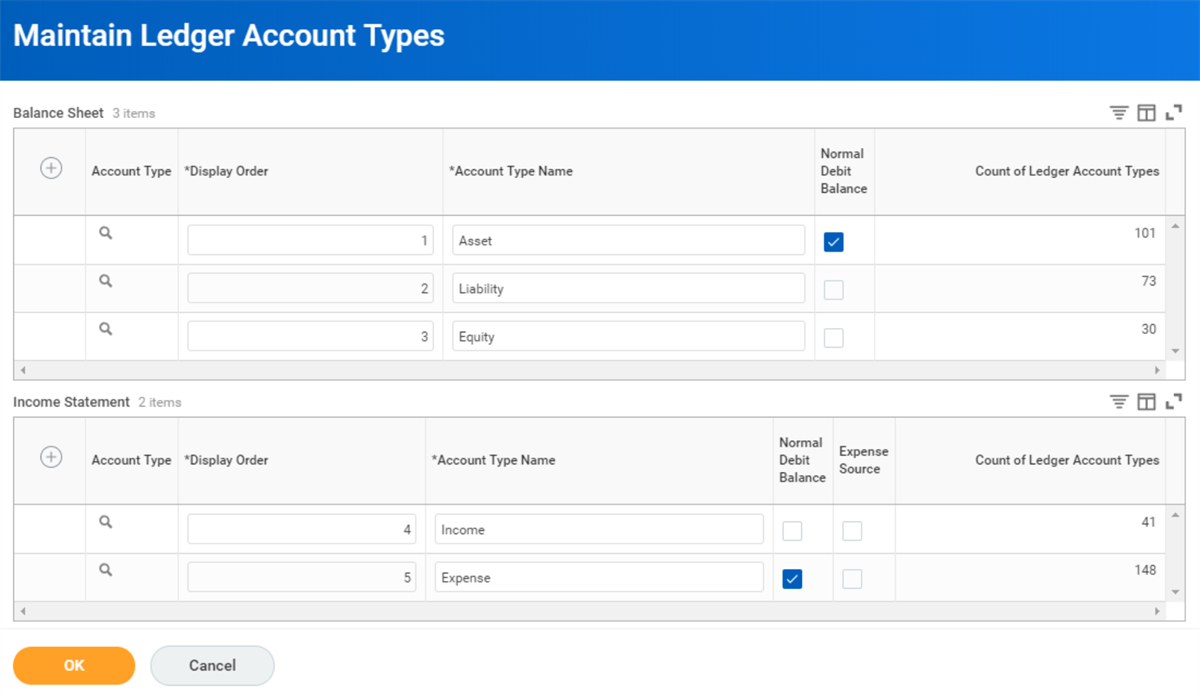
You use the
Maintain Ledger Account Types
task to set up all available account types in the Balance Sheet and Income Statement sections.Workday Payroll uses only Asset, Liability, and Expense account types. However, best practice is to set up all available account types in the Balance Sheet and Income Statement sections.
Step 2 – Define Parent and Child Account Sets
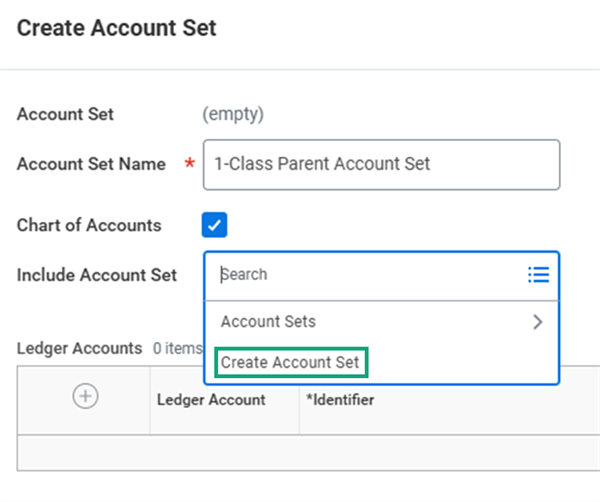
To allow for flexibility in general ledger integrations and changes to the Workday Financial Management Chart of Accounts, the best practice is to create a parent-child account set. To create the parent account set, use the
Create Account Set
task.- Select Chart of Accounts to make the payroll account set available in the Account Set selection list on the Create Account Posting Rule Set page (steps 3, 4).
- In the Include Account Set field, use theCreate Account Settask to create a child account set.
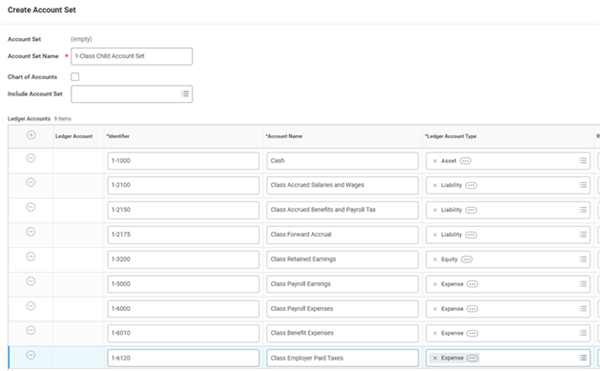
When creating the child account set, do not select the Chart of Accounts checkbox. For each row in the Ledger Accounts table, specify an Identifier and an Account Name for each Ledger Account Type used by payroll.
The following table outlines the relationship between the parent and child account sets.
Account Set | Chart of Accounts | Details | Summaries | Include Account Set |
|---|---|---|---|---|
PARENT | CHECKED | NONE | YES | CHILD |
CHILD | UNCHECKED | ACCOUNTS | NO | EMPTY |
Suspense Accounts
A suspense account is an account temporarily used to carry doubtful receipts and disbursements or discrepancies pending their analysis and permanent classification. It can be a repository for monetary transactions (cash receipts, cash disbursements, and journal entries) entered with invalid account numbers.
It is best practice to use a suspense account when using Workday Payroll. If you do not define suspense accounts and there are unassigned transactions, you will need to stop your payroll cycle and resolve the issue before continuing. Discuss and review the use of suspense accounts with financial accounting resources within your company to ensure awareness of the configuration.
Set up suspense accounts when you create the parent/child account sets (Step 3 above). The table below lists common suspense account naming conventions. The identifier values must be unique for each account name. Common practice is to use the value 99999 and append a unique numerical value for each account name.
Account Name | Identified | Account Type |
|---|---|---|
Earning Suspense | 99999.1 | Expense |
Deduction Expense | 99999.2 | Liability |
Net Pay Suspense | 99999.3 | Liability |
Step 3 – Define Default Accounts for Posting
To create a new account posting rule set, use the
Create Account Posting Rule Set
task. To view an existing account posting rule set, use the View Account Posting Rule Set
task.You can define ledger accounts for each account posting type used by payroll:
- Cash
- Payroll deduction
- Payroll earnings
- Payroll expense (employer deduction, such as matching retirement contributions and employer taxes, that do not affect an employee's net pay)
- Payroll forward accrual
- Payroll net pay
- Retained earnings
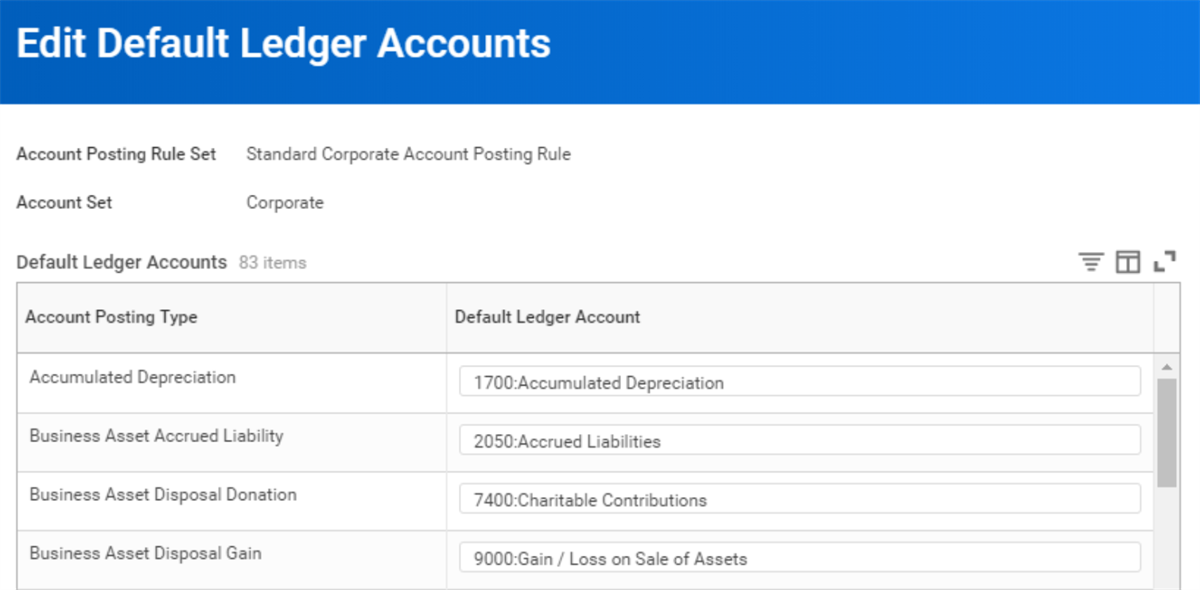
Select the Edit Default Ledger Accounts button to select the default ledger account to which to post accounting entries for each payroll account posting type.
Note
: If using suspense accounts, you can designate the suspense accounts as default ledger accounts.Step 4 – Define Posting Rule Conditions
From the View Account Posting Rule Set report, select the Account Posting Rule Set and select OK. This page contains all the account posting rules associated with the account posting rule set.
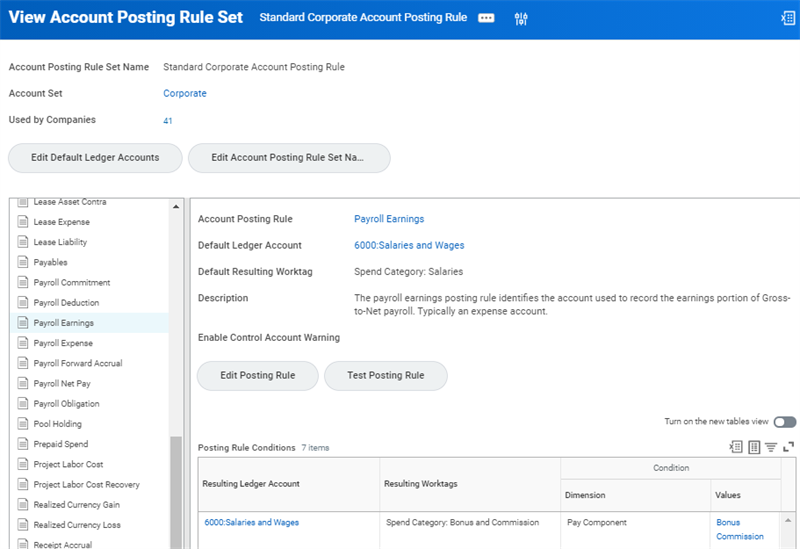
Select the Account Posting Rule you want to modify. Then select the Edit Posting Rule button to define the posting rule conditions.
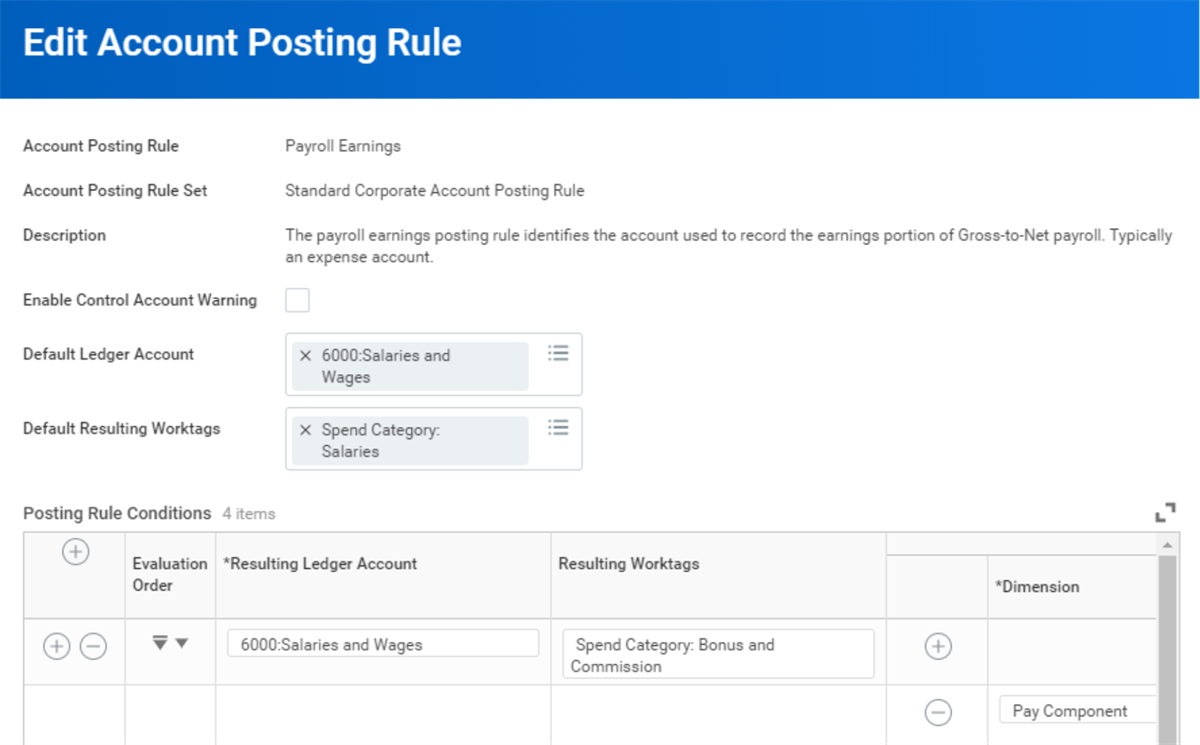
To determine where to post a pay component, Workday:
- Compares the characteristics of the component against criteria specified in each row of the posting rule (from top to bottom).
- Stops at the first row that returns a match.
- Uses the ledger account associated with the first matching row as the posting account.
If Workday cannot find a matching row, it posts results to the default ledger account specified in the Default Ledger Account field.
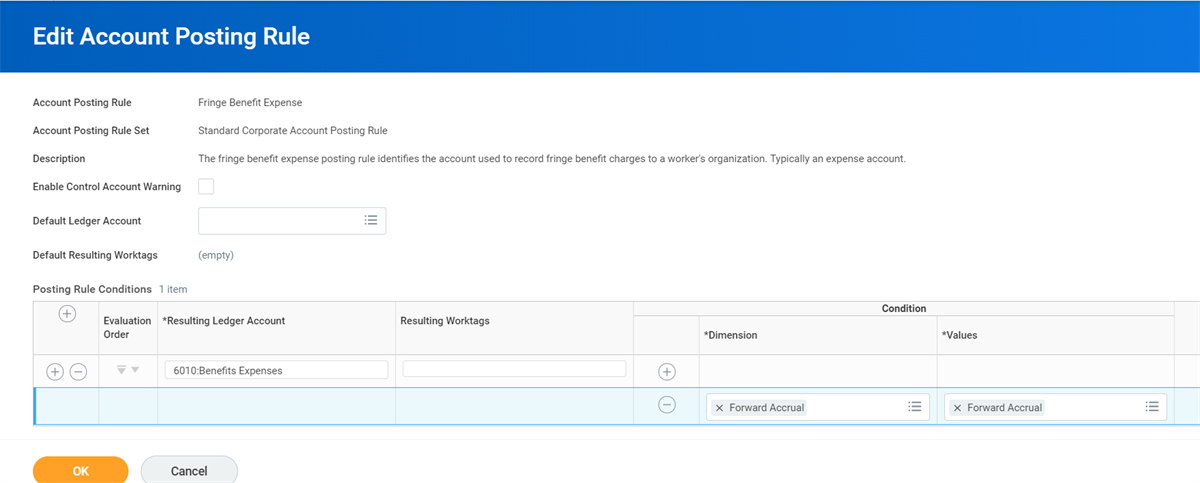
For payroll earnings and expenses, you can direct a forward accrual to accounts other than payroll actuals by using Forward Accrual for both the Dimension and Value. For example, the Fringe Benefit Expense posting rule in the image below directs benefits expenses to forward accruals.
0 ( )
Step 5 – Define a Fiscal Schedule
A fiscal schedule is the general calendar that the company can use and share for financial accounting and reporting purposes. Fiscal schedules are a required component of the payroll accounting process.
To define a fiscal schedule, you must specify the Fiscal Year Start Date and the Fiscal Year End Dates using the
Create Fiscal Schedule
task. To view an existing fiscal schedule, access the View Fiscal Schedule
report.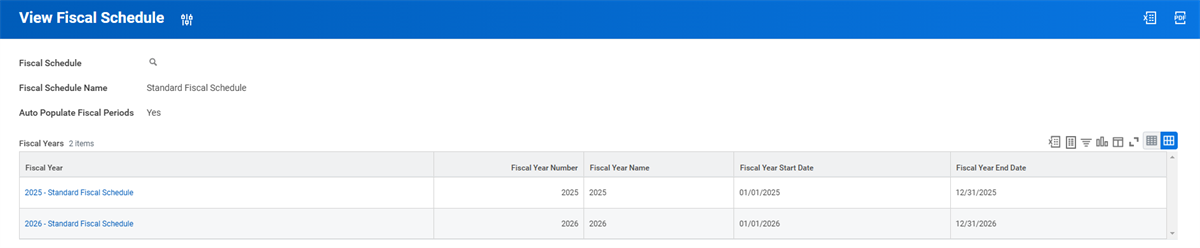
Step 6 – Define Posting Intervals
A fiscal schedule includes posting intervals, which are the defined calendar chronological periods. Use the
Maintain Fiscal Schedule
Posting Intervals
task to set up these posting intervals.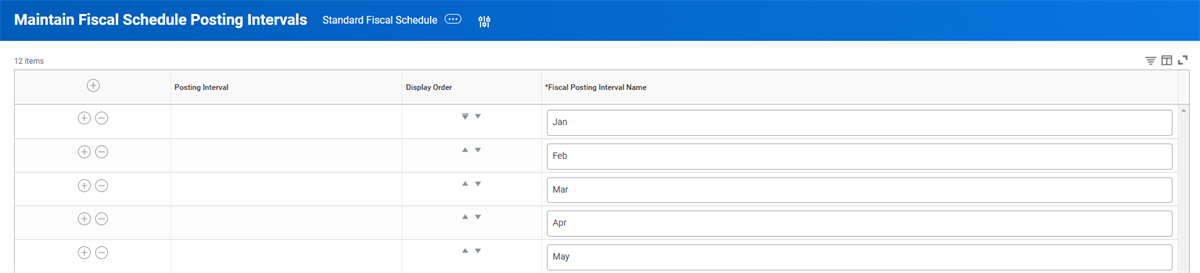
Step 7 – Define Initial Fiscal Year
Use the
Create Initial Fiscal Year
task to define the initial fiscal year.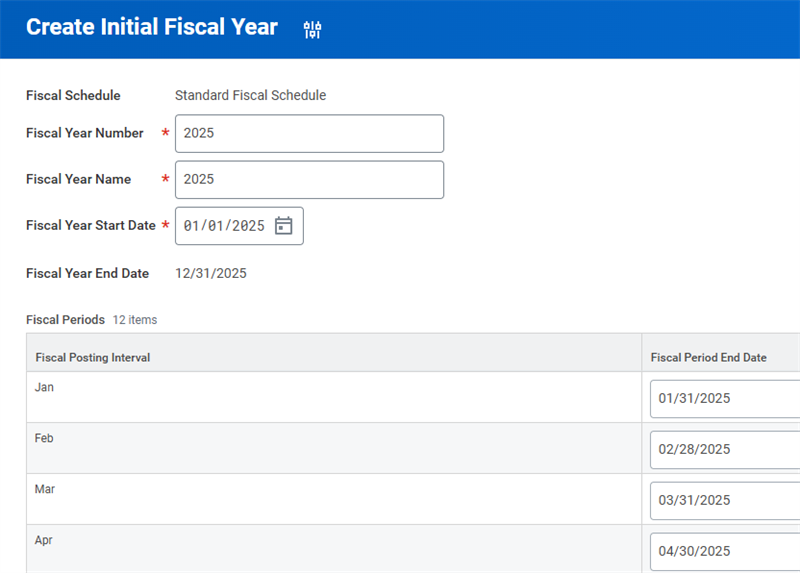
Step 8 – Define Subsequent Fiscal Years
Use the
Create Next Fiscal Year
task to define as many subsequent years as needed.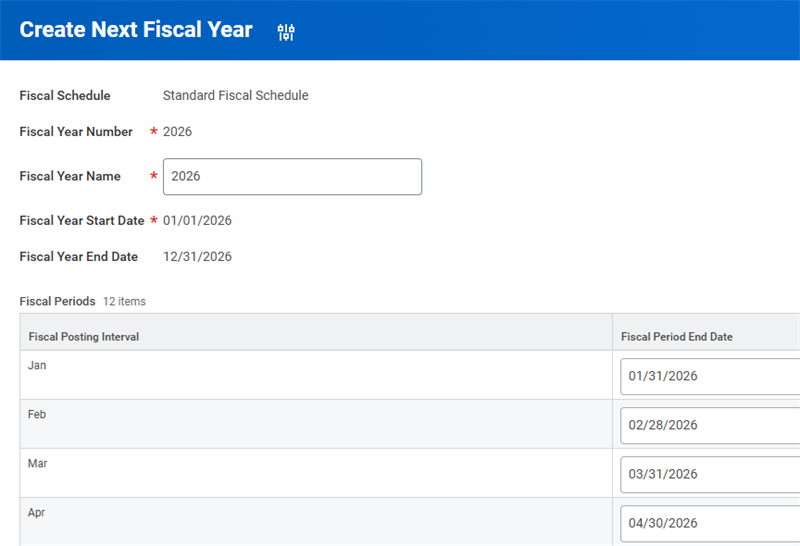
Step 9 – Associate Accounting Components with a Company
Use the
Edit Company Accounting Details
task to specify the fiscal schedule, account set, and the account posting rule set. You cannot change these settings after you post payroll accounting results.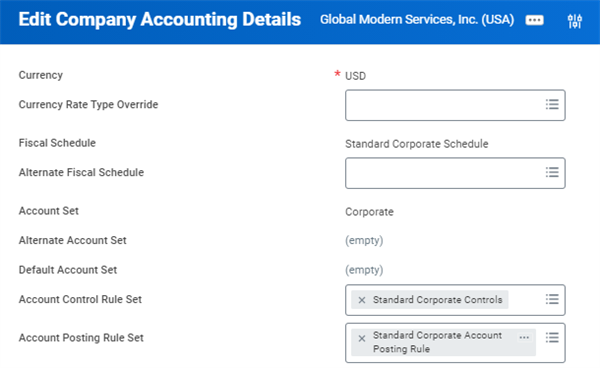
Step 10 – Define Ledger Types
Use the
Maintain Ledger Types
task to define at least one ledger type. Best practice for payroll accounting is to define the ledger type Actuals.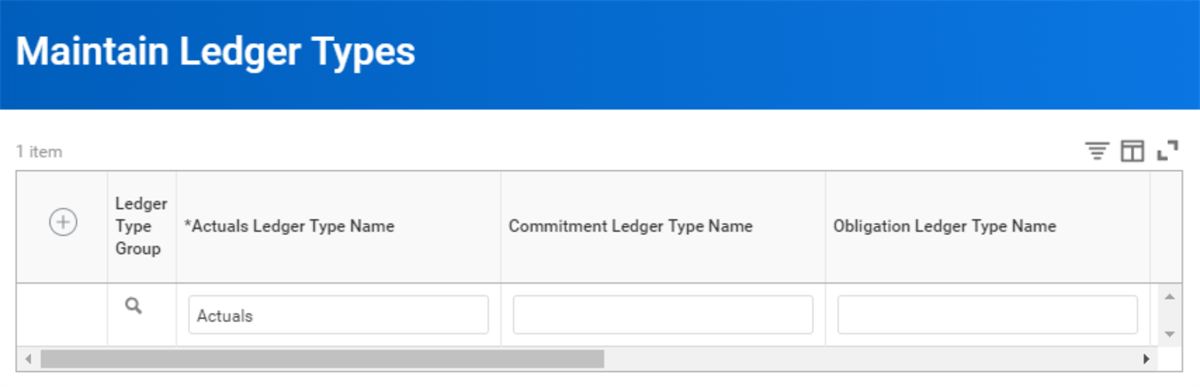
Step 11 – Assign a Ledger Type to Each Company
Use the
Create Ledger
task to assign a ledger type to each company. Available ledger types in the Ledger Type field are the ones defined in step 10.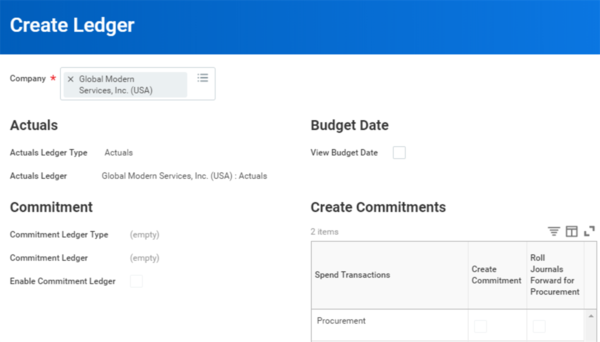
Step 12 – Define Ledger Years and Periods for a Company
Use the
Create Ledger Year and Ledger Periods
task to define ledger years and periods for a company. Define ledger years and periods for each company ledger defined in step 11.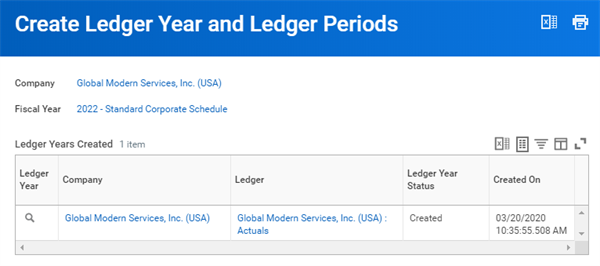
Step 13 – Open Ledger Periods
Use the
Mass Update Ledger Period Status
task to set the ledger period Status to Open.Important
: You must open the ledger period to generate payroll accounting results. You can open the ledger periods anytime in advance.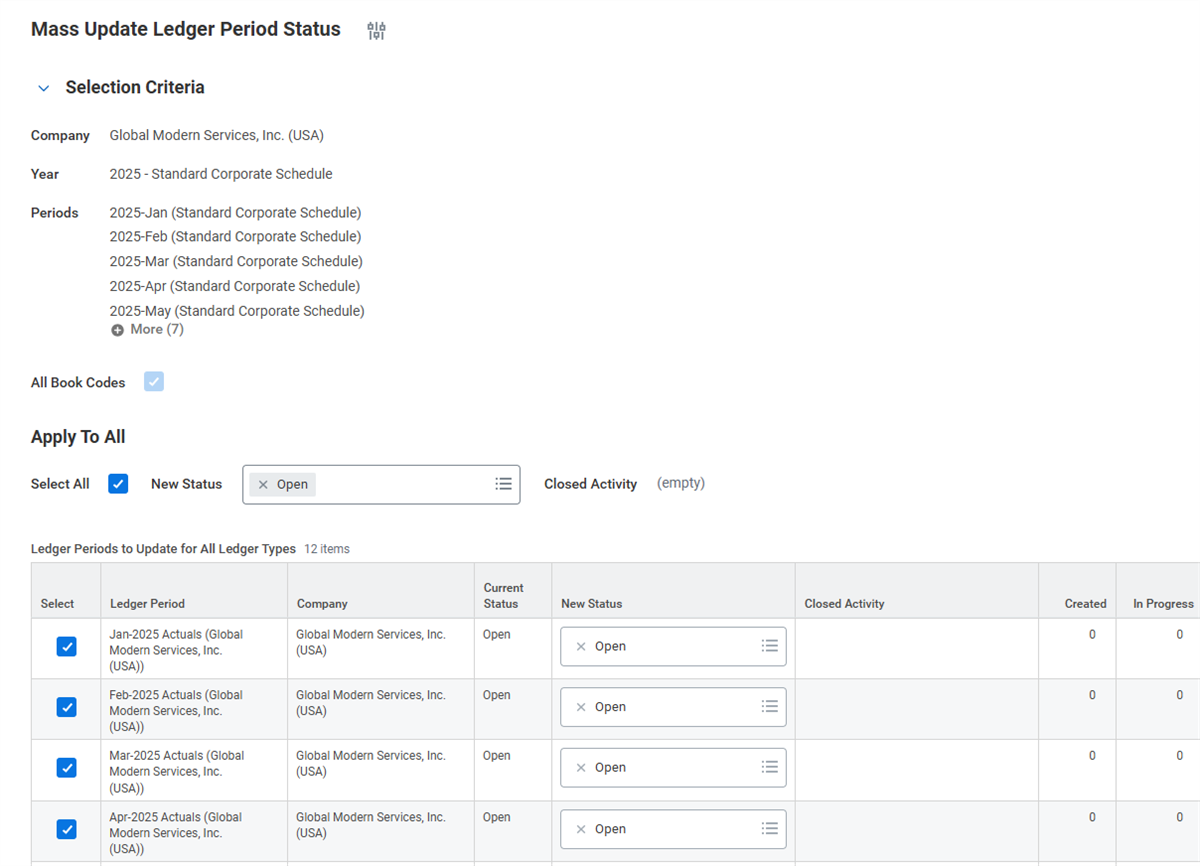
Workday uses ledger periods to generate payroll accounting transactions. You close ledger periods to control journal entry and posting, as well as calculate period and year-end actual and budget account balances for reporting.
It is a good practice to close old ledger periods at least annually. Close old ledger periods to reduce:
- Risk of inadvertently processing transactions against old ledger periods.
- Clutter in the tenant for any accounting reports.
Note
: If your company does not use Workday Financial Management, it is not critical that you close ledger periods used for payroll. However, best practice is to close and open the periods regularly and fix any operational journals that are in error. If your company does decide to deploy Workday Financial Management, you minimize the risk of having journals in error.Maintain Journal Source Mapping to Operational Transactions
Operational journals are the journals that Workday creates automatically for operational transactions (i.e., Payroll) that you enter through the various Workday transaction tasks. Mapping transactions to journal sources tells Workday which journal source to assign to operational journals that it automatically creates for transactions.
Use the
Maintain Journal Source Mapping to Operational Transactions
task to:- Initially define the journal source by transaction type.
- Remap the journal source that Workday applies to journal entries for all new transactions that you process.
Existing journal entries retain their original mapping.
Maintain Payroll Journal Options
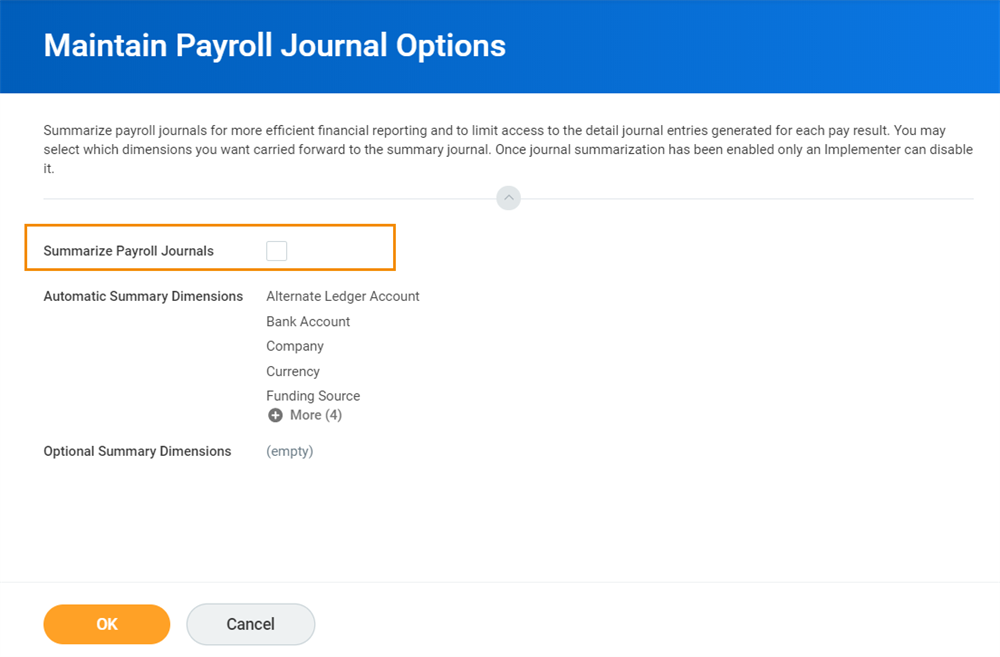
For better performance and more efficient financial reporting, check the Summarize Payroll Journal Options checkbox. This option will consolidate the payroll journals before sending results to the General Ledger. Summarize payroll journals to prevent exposing payroll employee data to users with access to journal lines.
Use the
Maintain Payroll Journal Options
task to:- Select the checkboxSummarize Payroll Journals.
- Select Cost Center in the Optional Summary Dimensions field.
Accounting Results
Workday automatically generates payroll accounting entries as part of the calculation process for on- and off-cycle payrolls. You do not need to run a separate process to generate accounting results.
If you have already run the calculation process and want to regenerate just the accounting entries without having to recalculate payroll, use the standalone
Run Pay Accounting task
.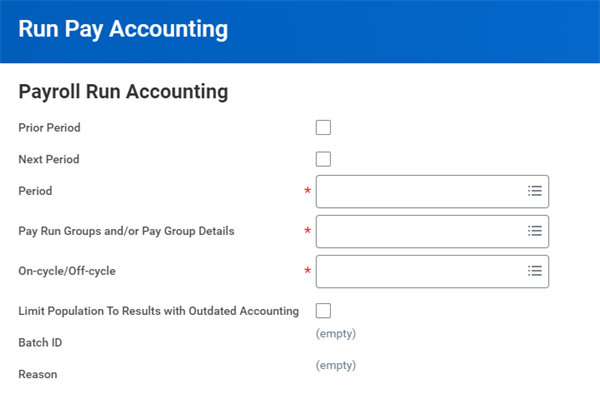
Run Pay Accounting
Workday creates accounting entries based on the last set of payroll calculations that you generated.
How Workday Generates Accounting Results
The process you use to generate accounting results depends on the type of payroll you run.
Payroll Type | Generate Accounting Results Process |
|---|---|
On-Cycle | Use the Run Pay Calculation task to generate accounting results for on-cycle payrolls. |
Off-Cycle | For off-cycle payrolls, depending on the type, use one of the following tasks:
|
If you calculate payroll, and then modify the account posting rules or other accounting setup, you can use the
Run Pay Accounting
task to regenerate the accounting entries only. You do not have to rerun the payroll calculation process.If there are errors in the payroll results, the accounting entries will reflect those errors.
Review Accounting Results
Once the payroll process is complete, you can no longer correct accounting errors. Therefore, you should review accounting results and correct errors after you review and reconcile payroll calculations, but before completing the payroll.
In some cases, you may need to recalculate payroll after making corrections. In other cases, you can regenerate accounting entries.
When to Recalculate Payroll
For example, the following errors require that you recalculate payroll to regenerate both payroll and accounting entries:
- Updating the definition of an earning
- Assigning an optional balancing worktag to a transaction
- Redefining an account posting rule
- Changing a worker's default organization to a different cost center or location
- Correcting a worker's cost center or other costing dimension
When to Recalculate Accounting
Examples of errors that require you to only rerun accounting include:
- Posting a special allowance to the wrong account
- Posting to a ledger period that was not opened
You can rerun the pay calculation and payroll accounting processes as many times as necessary after correcting accounting errors.
Limit Accounting Population Based on Calculation Criteria
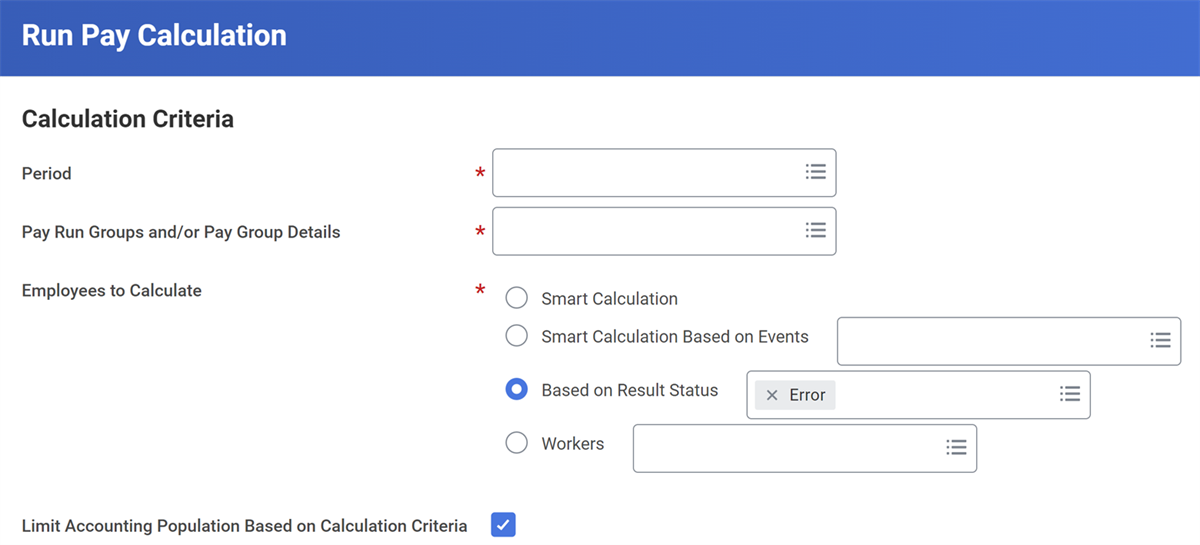
When recalculating payroll, select the Limit Accounting Population Based on Calculation Criteria checkbox to optimize calculation times by only processing accounting results that meet your calculation criteria.
Example
:As a payroll administrator, you use Run Pay Calculation to calculate regular pay for 100 workers. The results are 95 In Progress and 5 In Error. After fixing the errors, you want to recalculate only the five results that were in error. You select Error from the Based on Results Status prompt. You also select the Limit Accounting Population Based on Calculation Criteria checkbox.
When all five results are In Progress, you want to run the pay calculation for all workers. You use Run Pay Calculation and clear the Limit Accounting Population Based on Calculation Criteria checkbox to refresh accounting for all 100 workers.
When you are ready to complete payroll, clear the checkbox to include recent costing allocation changes and refresh accounting for the entire population.
Accounting Results Reports
Run the following reports to view payroll accounting results:
Report Name | Description |
|---|---|
Payroll Accounting By Company/Period | Use to view both high-level and detailed accounting information by Company and Period. This is the primary report for viewing accounting results. |
Payroll Accounting By Period/Pay Group | Use to view high-level accounting results by period and pay group. |
Pay Calculation Results for Worker | Use to view accounting results for an individual worker on the Actuals and Other Accounting tabs. To access the View Payroll Results report, select the magnifying glass icon in the Pay Results column of the Pay Calculation Results for Group of Workers or Pay Calculation Results for Worker report. |
Payroll Accounting Transactions Preventing Period Closure | Use to identify open payroll accounting transactions for a selected ledger period. |
Identify and Fix Operational Journals With Errors
Workday will flag operational journals that do not meet any conditions or do not have a default ledger account as an error. This is advantageous because it indicates when you should create a new condition to capture a transaction. Workday makes it easier to find and fix such errors than to discover them and reclassify the journal entries.
To identify and fix operational journals with errors:
- Access theFix Operational Journals with Errorstask.
- Identify the journals with errors and fix the data that caused the errors.
- Click the Select button on a row to regenerate the accounting results for a specific journal after correcting the problem.
- Click the Select All button to regenerate on- and off-cycle accounting results for operational journals with errors all at once after correcting the problems.
Note
: To fix errors, you must be assigned the Accountant or other authorized role.You can also use the
Run Pay Accounting
task to regenerate accounting results for all journals, regardless of whether they contain errors.Rerun Payroll Accounting
Each time you run the pay calculation to process on- or off-cycle payroll, Workday calculates payroll results and generates accounting entries in Draft status. Regular on-cycle runs only generate forward accrual and forward accrual reversal entries, based on the forward accrual dates on the period schedule.
After reviewing and correcting any accounting errors, you can run the
Run Pay Accounting
task to generate new accounting results for a pay group or pay run group without recalculating payroll.Costing Allocations
Cost accounting establishes the actual cost of operations for a cost center. Workday assigns workers to a cost center, grant, fund, etc., by position at 100%. You can override the posting defaults (related to the worker) by rules established for costing allocation overrides. Costing overrides allows for the grouping of costs according to their common characteristics and allow for percentage splits.
Configuring Costing Allocations
Use the
Change Organization Assignments
task to define cost centers and regions and assign them to supervisory organizations.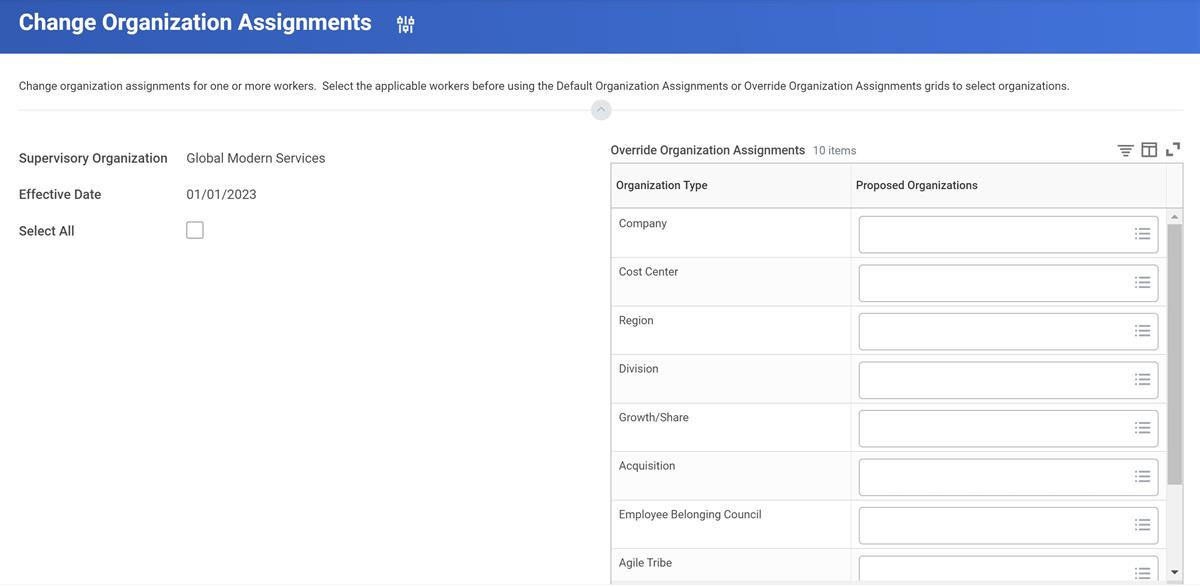
Change Organization Assignments
Payroll Costing Worktags
Worktags are keywords that you can assign to transactions and supporting data to make their business purposes clear and establish common relationships through classification. Use the
Maintain Worktag Usage
report to set up worktag types that are allowed, required, or primary.Follow these steps to select the worktags that you can use for payroll costing allocation:
Note
: In the GMS tenant, you must hold the role of Accounting Manager to set up worktag types.- Access theMaintain Worktag Usagereport.
- Select Payroll Costing Allocation from the panel on the left.
- Select the Edit Worktag Usage button to add or update the worktags you want to enable as primary or additional worktags.
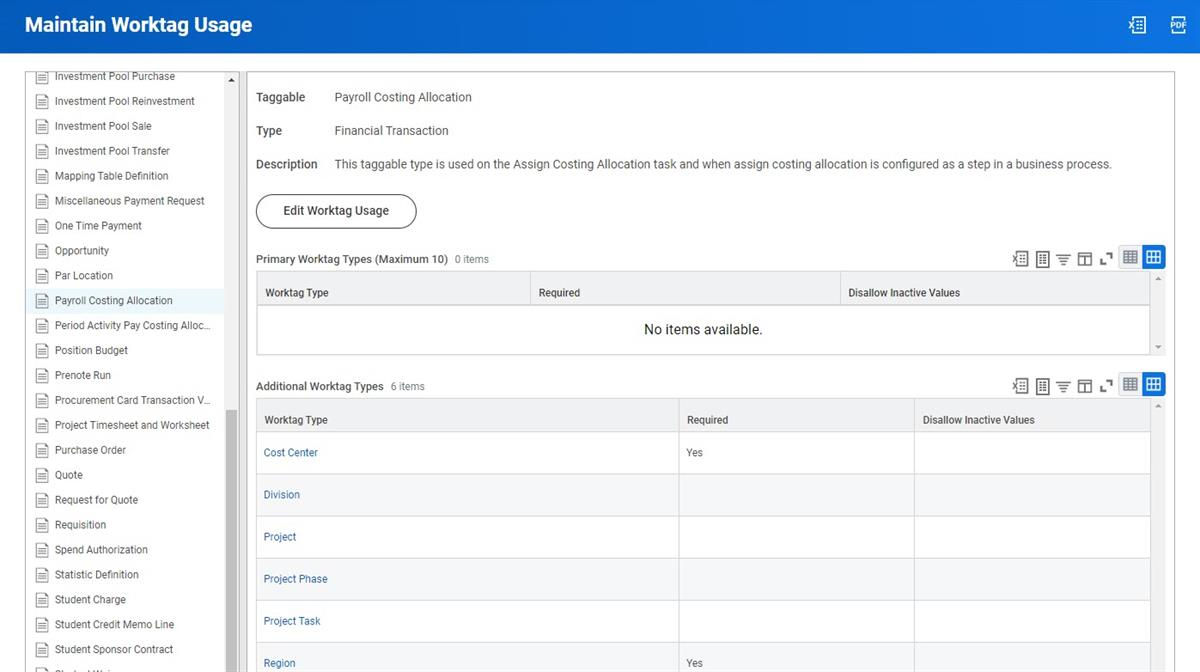
Maintain Worktag Usage
4. Add worktag types to the grid to make them available as worktags in financial transactions.
Additional actions you can take within the
Maintain Worktag Usage
report include:- Add the Primary Worktag Types to provide a separate field for the worktag on the transaction (up to 10 are available).
- Add the Additional Worktag Types to list all the worktags in alphabetical order and allow you to choose them from the list.
Note
: The Available for Payroll Costing Allocation category on the Maintain Organization Types
report makes worktags available for payroll costing allocation.- Select the Required checkbox to make the worktag required for payroll costing allocation.
- Select the Disallow Inactive Values checkbox to exclude inactive worktags for payroll costing allocation.
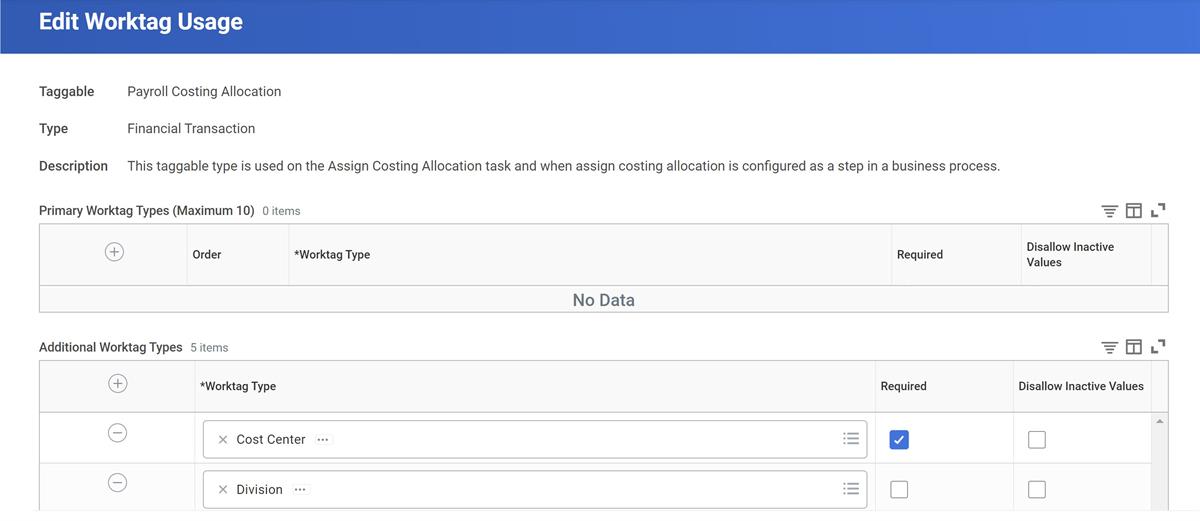
Edit Worktag Usage
Related Worktags
For more control and flexibility with worktags, you can specify configuration options for allowed and required related worktags for costing allocations. To enable this feature:
- Access theEdit Tenant Setup - Payrolltask.
- In the Costing Allocations section, select Enable Related Worktags for Payroll Costing Allocation.
Once enabled, you can configure related worktags.
- Access theMaintain Related Worktag Usagereport.Note: In your GMS tenant, you must hold the Accounting Manager role to configure related worktags.
- Select the worktag (e.g., Cost Center, Region) on the left.
- Select the Edit Worktag Usage button.
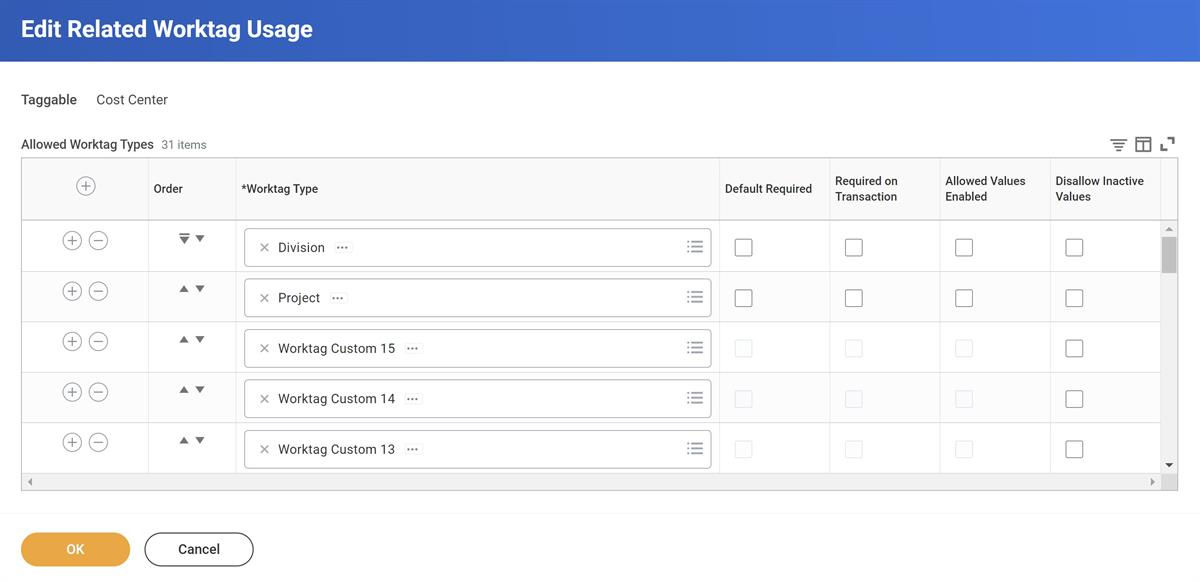 Edit Related Worktag Usage
 - For each worktag, select or clear the following available options:TermDefinitionDefault RequiredSelect to use as a default worktag on setup tasks. During data entry, Workday validates the worktag values workers enter.Required on TransactionSelect to require the worktag type on transactions that use the worktag type.Example: For the Cost Center worktag, you select the Required on Transaction checkbox for the Division worktag type. On theAssign Costing Allocationtask, when you select the Cost Center worktag, Division is required.Allowed Values EnabledSelect to limit the values allowed on worktag types.Example: For the Cost Center worktag, you select the Allowed Values Enabled checkbox for the Division worktag type. On theEdit Cost Centertask, you can select the Allowed Worktags values, which are selectable on theAssign Costing Allocationtask.Disallow InactiveSelect to disallow inactive worktags values for cost centers, regions, locations, pay groups, custom organizations, or supervisory organizations. Workday prevents inactive values from being selectable as allowed values or displaying in searches for allowed values.
- The results of your selections will affect the worktags that appear on the Assign Costing Allocations page. When you configure related worktags for a specific worktag, Workday uses your configuration to control which worktag types are available to assign defaults and allowed values.
Note
: The allowed and required functionality respects the worktag usage configuration on the following reports or tasks:- Maintain Related Worktag Usage
- Maintain Worktag Usage> Payroll Costing Allocation
Costing Allocation Options
Use costing allocations to:
- Allocate earnings for a worker or position.
- Allocate earnings, deductions, and employer-paid expenses for all workers.
Allocate Earnings for a Worker or Position
Use the
Assign Costing Allocation
task to specify how to allocate earnings for a worker or position (position restriction). You can specify allocations across:- Cost centers
- Regions
- Programs
- Funds
- Gifts
- Business units
- Grants
- Projects
- Locations
- Custom organizations
Note
: If you enable Multiple Jobs functionality on your Workday tenant using the Edit Tenant Setup - HCM
task, workers can have cost allocations that differ by position.- Access theAssign Costing Allocationtask.
- The Include Existing Allocations section allows you to filter for a specific date range.Note: To disable the date fields on the Edit Tenant Setup - Payroll task, select the Disable Date Selection for Existing Allocations checkbox. Workday recommends enabling this feature for improved performance.
- Select the worker in the Worker Costing section.
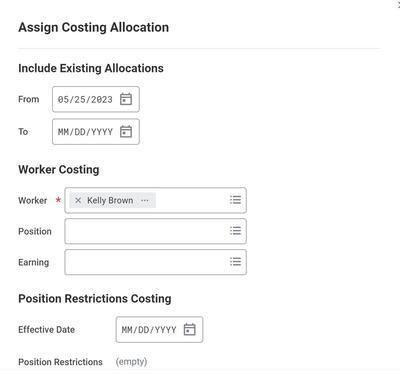 Assign Costing Allocations
 - Select OK.
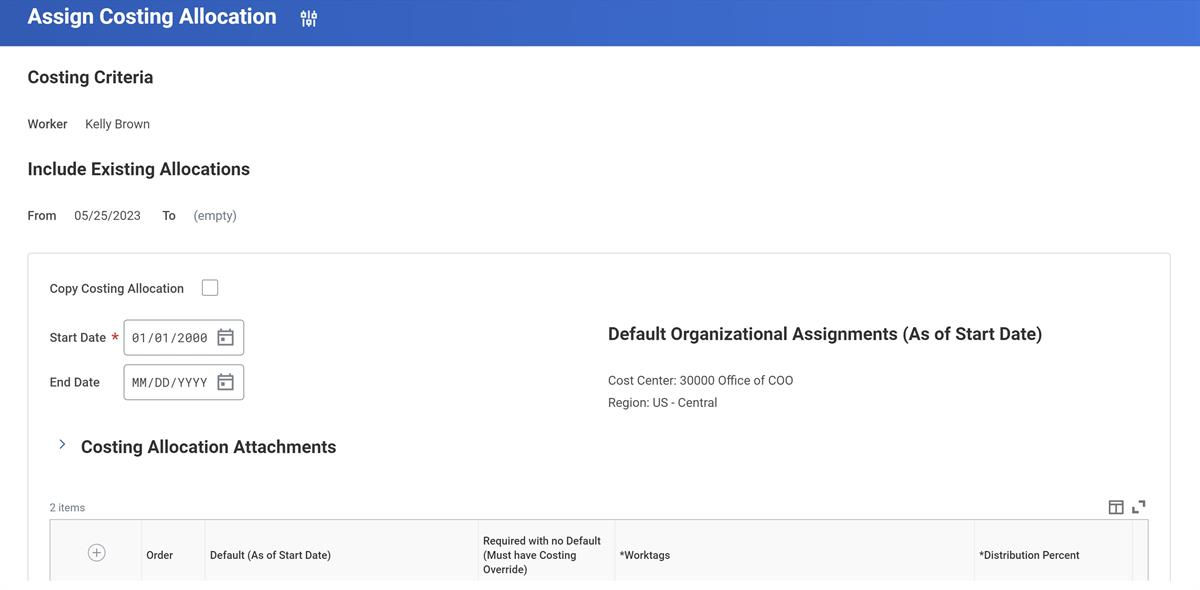 Assign Costing Allocation - Kelly Brown
 - If you enable worktags for costing, Workday automatically assigns employee earnings to an organization associated with the supervisory organization.
Allocate Earnings, Deductions, and Employer-paid Expenses for All Workers
Use the following tasks to specify how to allocate earnings, deductions, and employer-paid expenses for all workers:
- TheEdit Earning and Employee Deduction Costing Allocationtask.
- TheEdit Employer Paid Expense Costing Allocationtask.
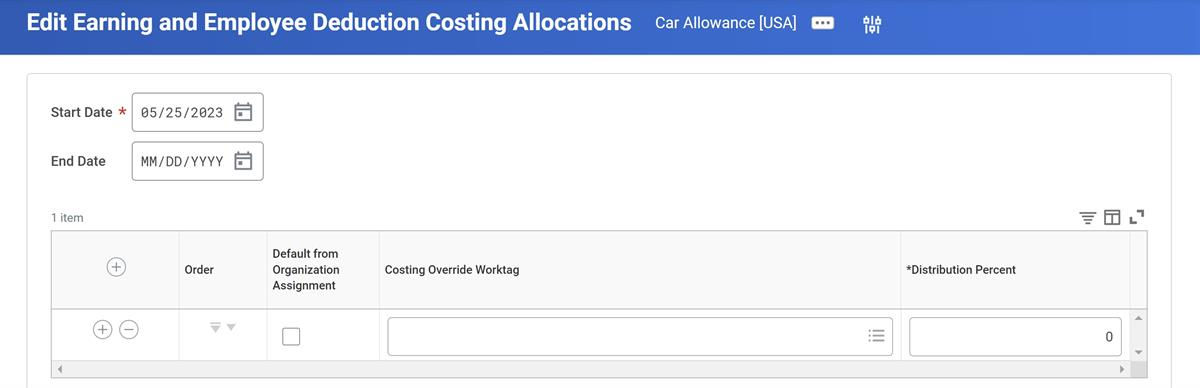
Edit Earning and Employee Deduction Costing Allocations
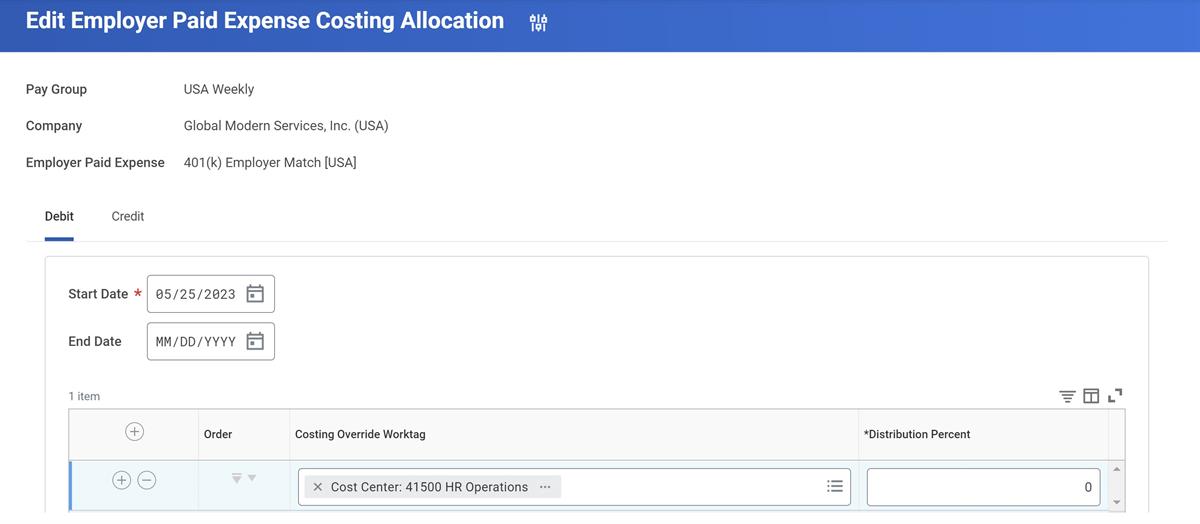
Edit Employer Paid Expense Costing Allocation
You can specify allocations across:
- Business units
- Cost centers
- Custom organizations
- Funds
- Grants
- Object classes
- Programs
- Projects
- Regions
Reminder
: You can audit your costing setup with the following standard reports:- TheAll Earnings and Employee Deductions Costing Allocationsreport
- TheAll Employer Paid Expense Costing Allocationsreport
- TheAll Workers Costing Allocationsreport
Processing Priority of Costing Instructions
Workday Payroll applies costing overrides to a worker's earnings in the order shown below.
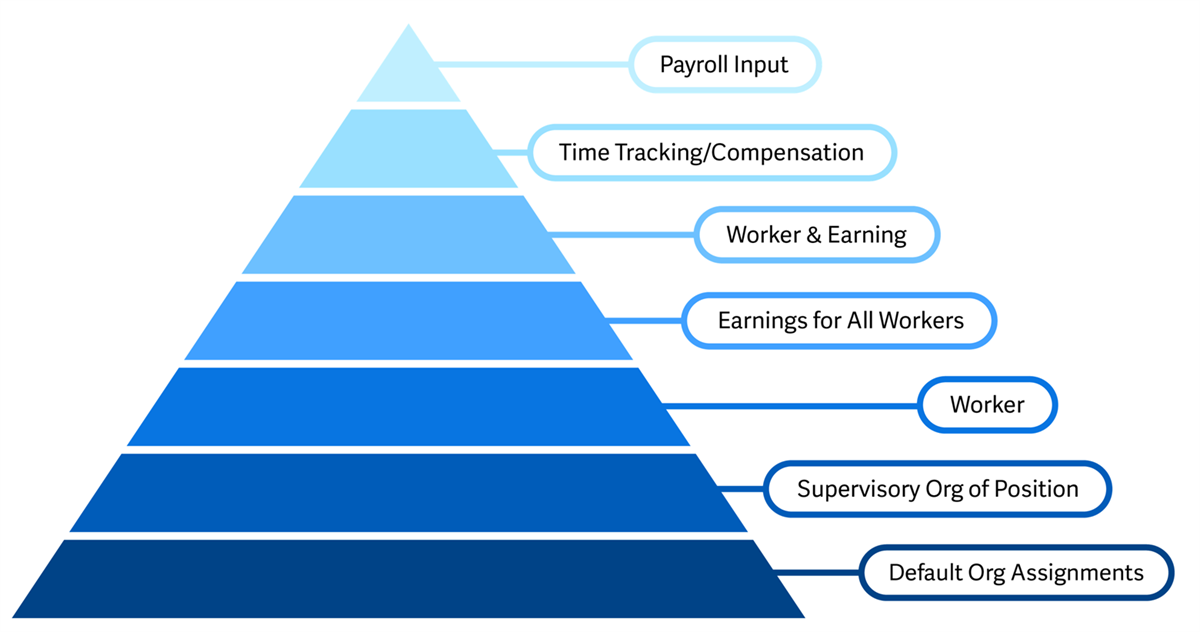
The highest priority items flow from top to bottom as follows:
- If there are no overrides, Workday uses the default cost center and region defined for the worker's supervisory organization.
- If there is a single override at any level, the override takes priority over the worker's default cost center and region.
- If there are multiple overrides, Workday applies the override with the highest priority based on the following logic:
- Add Payroll Input for Worker supersedes overrides at any other level.
- Worker-earning overrides have the next highest priority. Workday applies worker or earning overrides if there are no overrides at the payroll input for worker level.
- Earning-level overrides have the next highest priority. Workday applies earning-level overrides if there are no overrides at the payroll input for worker or worker-earning overrides.
- Worker-level overrides have the lowest priority. Workday applies worker-level overrides only if there are no overrides at any higher level.
Earning Example
The following example illustrates how the accounting process allocates earnings for a worker.
The default cost center for a worker's supervisory organization is CC 100. In addition to their base pay, they receive a housing allowance and car allowance. Multiple allocation instructions exist for base pay and the housing allowance. You also entered a cost center override through payroll input.
Type of Allocation | Base Pay | Housing Allowance | Car Allowance |
|---|---|---|---|
Payroll Input | CC600 | None | None |
Worker Earning | CC400 | None | None |
Earning | CC300 | CC300 | None |
Worker | CC200 | CC200 | None |
Default | CC100 | CC100 | CC100 |
The accounting process allocates:
- Their base pay to CC 600, because override instructions entered as payroll input have priority over all other allocation instructions.
- The housing allowance to CC 300, because allocations entered for an earning have priority over allocations specified for a worker.
- The car allowance to CC 100, the cost center for his organization assignment, because no other allocation instructions exist.
Processing Priority for Workers with and without Multiple Jobs
If more than one set of cost allocation instructions applies to a worker's earnings, Workday applies costing instructions in the sequence shown in the following table.
Processing Sequence without Multiple Jobs | Processing Sequence with Multiple Jobs Enabled |
|---|---|
|
|
Cost Allocation Validation
You can create custom cost allocation validation rules to ensure you have set up cost allocations correctly.
Create Custom Cost Allocation Validation Rules
Using the
Maintain Payroll Costing Validations
report, you can create rules with two different severities:- Warning: Displays a warning message; however, you can still enter the item.
- Critical: You must correct the item causing the error to save the entry.
This validation occurs on both the standalone
Assign Costing Allocation
business process and when you use the business process as a subprocess.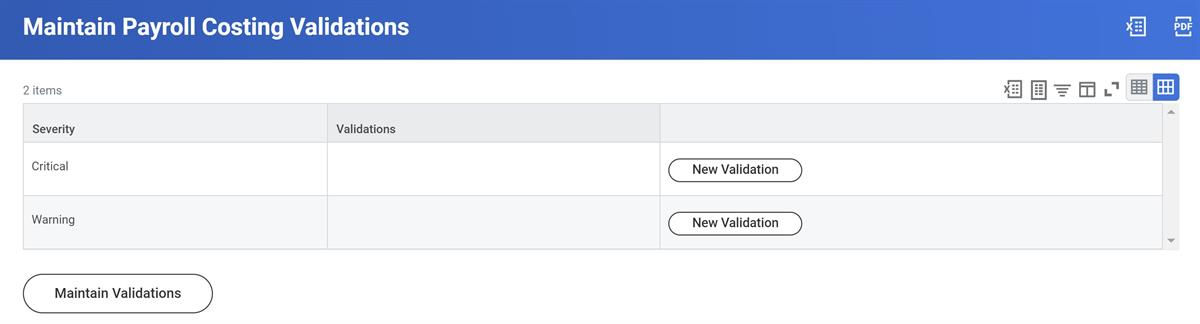
Maintain Payroll Costing Validations
Select the Maintain Validations button and select the condition rules for each of the severity rules (critical and warning).
Reviewing Cost Allocations
After the payroll process calculates distributions, review them on these reports:
- ThePay Calculation Results for Workerreport
- ThePayroll Accounting by Period/Pay Groupreport
- ThePayroll Accounting by Company/Periodreport
Copy Costing Allocations
The
Assign Costing Allocation
task has a Copy Costing Allocation option that allows you to copy costing allocations for a worker.Copying is helpful when you have workers with many different costing allocations broken out in very small percentage amounts. The copy function allows you to copy all the allocations for a worker, and then enter the appropriate changes, without having to re-enter everything.
Inter-Company Accounting
If enabled in your
tenant
, you can charge worker payroll expenses to multiple companies. This option is helpful when you manage your payroll costing across multiple companies within an organization.With intercompany costing:
- Taxation lies with the company location of the worker's position.
- Workday creates the appropriate intercompany receivables and payables.
- Intercompany settlement becomes optionally available.
- Payroll commitments respect the costing company, if specified.
To enable intercompany accounting:
- Enable the option inEdit Tenant Setup - Payrolltask.
- Specify companies eligible for intercompany accounting in theEdit Company Intercompany Profiletask.
Enable Intercompany Accounting
In the
Edit Tenant Setup - Payroll
task, under the Payroll Accounting > General section, select the Intercompany Accounting - Enable checkbox.Important
: Once you select and save the option to Enable Intercompany Accounting and run payroll or commitment processes, you will not be able to disable this option.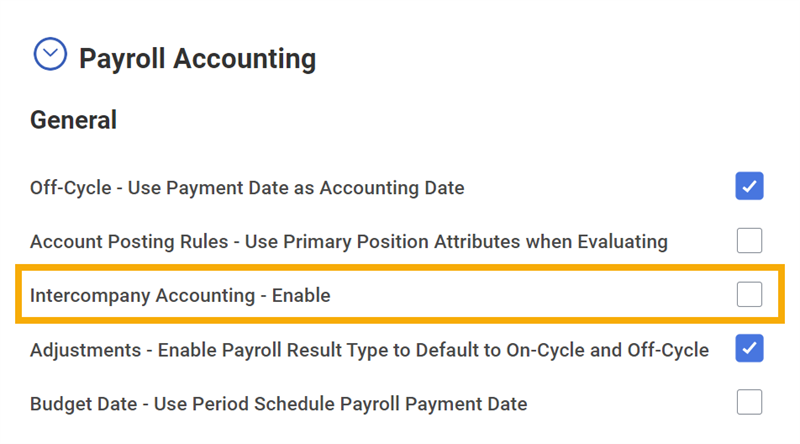
Configure Intercompany Profiles
You can use intercompany accounting with any company that shares an account set. Access the Edit Company Intercompany Profile task to initiate a company for intercompany accounting and define the payment methods for intercompany settlement.
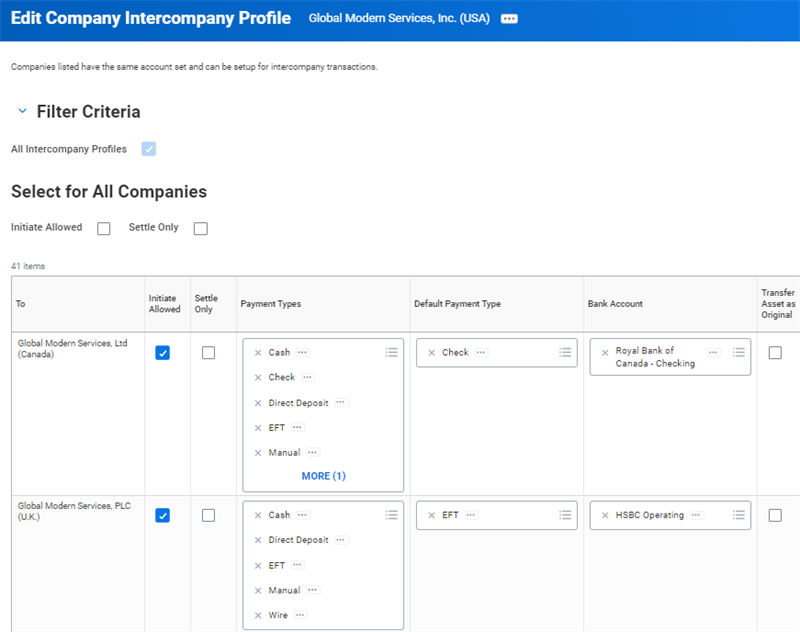
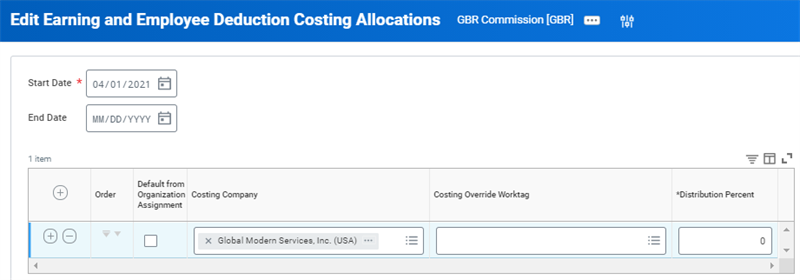
If you enable intercompany accounting, the Costing Company column displays in several reports and tasks, so that you can assign and audit company costing allocation.
Resource
: See Workday Community for details on intercompany accounting and intercompany settlement.Currency Conversion
Currency converts after net pay validation. If the pay group and company accounting are set to different currencies, Workday:
- Calculates payroll in the pay group currency.
- Passes the results to accounting in both currencies.
Calculation results are then available for reporting.
Workday bases its currency conversion rates on the Default currency conversion rate that you set as of the period end date. Use the
Maintain Currency Conversion Rate
task to manage these rates. Rates display with 12 decimal precision.Report | Description |
|---|---|
Currency Rates As Of Date | View a list of all currency rates at a specific date and time. |
Historic Currency Rates | Report displays currency rates sorted by Rate Type and Effective Date. Prompts user for Source, Target currency and optional Rate Type and From Date. |
Note
: Workday does not convert currency for pay balances, arrears, commitments, obligations, and fringe benefits actual.Forward Accruals for Fringe Benefits
Workday allows you to create accruals and reversals for fringe benefit expenses. This eliminates the need for manual fringe benefit forward accrual calculations and helps ensure more accurate fiscal reporting.
You can create forward accruals and reversals for fringe benefit expenses on the
Edit Tenant Setup - Payroll
task. In the Payroll Commitments section, select the Enable Forward Accruals for Payroll Fringe Benefit Expenses checkbox.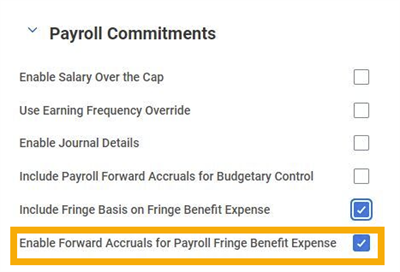
Enabling this option allows you to view all the fringe forward accruals journal lines on the Other Accounting tab of a payroll result.
Payroll Commitment Accounting Overview
Payroll commitment accounting is a budget management process that continually compares budget-to-actual payroll expenditures. You would use this process to track and control payroll costs for filled (obligations) and unfulfilled positions (commitments). It is also referred to as encumbrance accounting.
Commitment accounting enables you to mark (encumber) budgeted funds so that they cannot be used for other purposes. This feature gives you improved accuracy and visibility over the actual state of your budget, in real time. You will also be able to make more informed decisions for your organization, as you will have a view of your committed and actual spend.
The following budgetary equation represents the payroll commitment accounting flow. The commitment/obligations element represents the creation of a spend authorization in Workday. The expenditure circle represents payroll expenses. Subtracting the commitments and expenditures results in the value of the available budget.
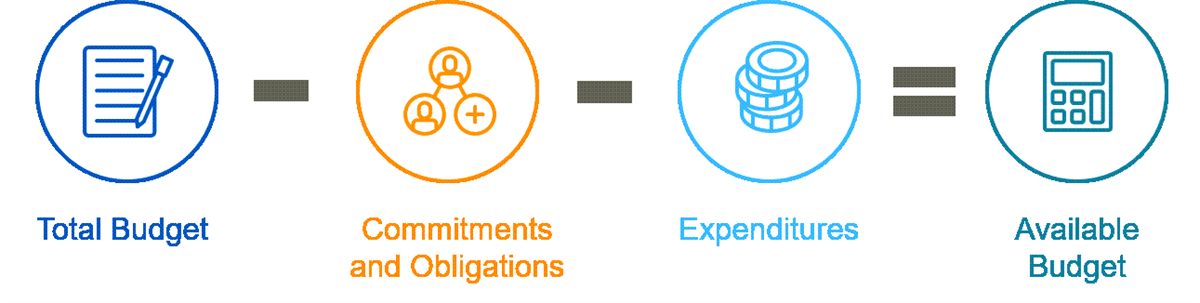
Commitment Accounting Budget Flow
Commitment accounting provides you with data to:
- Manage payroll expenditures.
- Avoid budget overspend.
- Predict cash flow.
- Perform financial and resource planning.
- Administer appropriations and obligations.
- Manage reserved funding and grants management (applicable to the higher education industry).
You must configure payroll commitment accounting before you can use it in Workday. Work with Workday HCM, Workday Financial Management, and payroll teams to ensure that period schedules, commitment rules, and business process align with requirements.