Earnings and Deductions
Overview
You have learned that earnings and deductions are payroll-specific calculations. In this chapter, we explore these pay components in more detail.
Objectives
After completing this chapter, you should be able to:
- Recognize sources of payroll calculation values.
- Create and edit earnings and deductions.
- View net pay validation.
- Specify limits for recouping arrears.
Common Sources of Payroll Calculation Values
You can configure Workday Payroll to easily retrieve values from other functional areas within Workday, reducing the risk of errors and reducing manual entries. Workday provides numerous data retrieval elements to pull these values into payroll calculations.
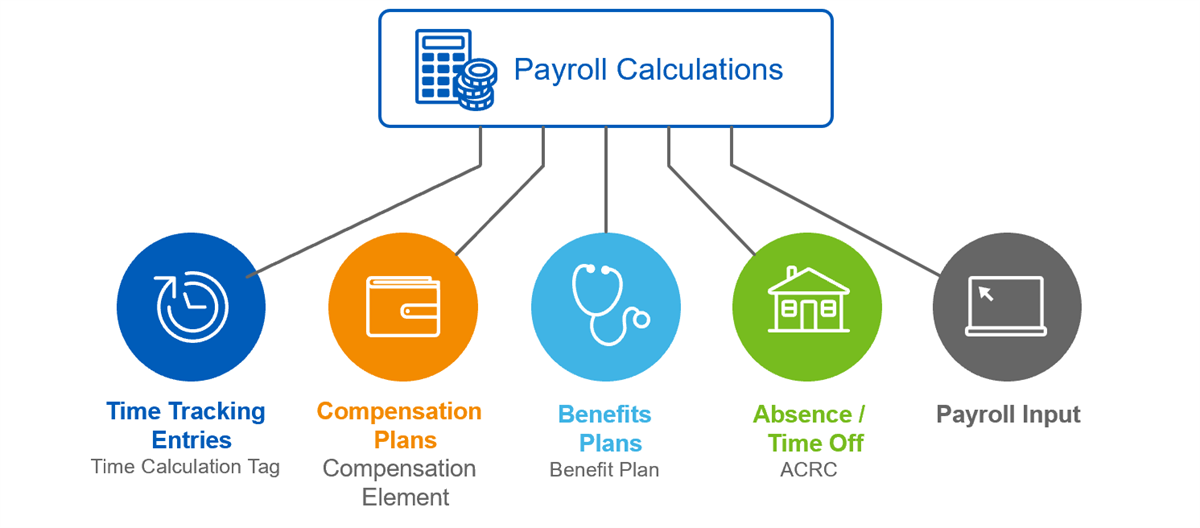
Review these common sources of values used in payroll calculations.
Earnings
There are one-time earnings and recurring earnings. You set up earnings to retrieve the value of:
- Base pay or allowance
- Benefits, such as employer contributions to health care or insurance
- Gross up earnings
- Paid and unpaid time off
- Hours from Workday Time Tracking.
- Payroll input.
Earnings Prerequisites
Earnings prerequisites depend on the type of earning you are creating:
Earning Source | Prerequisites |
|---|---|
Time Tracking | Set up time calculation tags. |
Compensation | Set up compensation elements, such as:
|
Benefits | Set up benefit plans, such as:
|
Absence/Time Off | Set up time off plans. |
Position-Based | Configure tenant to support multiple jobs. |
Payroll Input | None |
Create Earnings
To create an earning, you specify information, such as:
- Whether it adds to gross or net.
- Whether it should appear on the payslip.
- Whether it calculates hours or dollars.
- When and how to prorate.
- When to calculate (by default, it calculates all the time).
- Whether it calculates for salaried or hourly workers.
- Whether to pay standard hours for full-time employees but not part-time employees.
When creating an earning, there are three sections to complete:
- General Information:Specify the name and code of the earning.
- Effective Dated tab:Specify eligibility criteria, scheduling, limits, comp element (if applicable), and the calculation details.
- Non-Effective Dated tab:Specify PCGs, benefits (if applicable), and costing.
We will review each of these sections in detail, and then you will practice creating an earning.
General Information
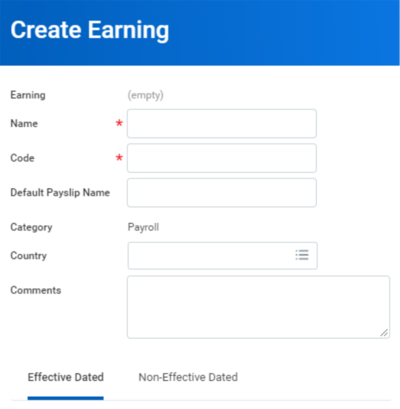
When creating an earning, you must specify the name and code. All other fields in this section are optional.
Field | Description |
|---|---|
Name | Enter the name of the earning. The name should clearly reflect the purpose of the earning. |
Code | Enter a unique value of up to 20 characters. Workday integrations use this value for loading large amounts of payroll input using an EIB. |
Default Payslip Name | You can override this default on Maintain Payroll Payslip Configuration. |
Country | If you specify a country, only that country can use the earning. If you leave the field blank, any country can use the earning. |
Effective Dated Tab
You provide an effective date when you first create an earning and have the option to add a new effective date when you edit an earning. Effective dating allows you to change your earning definition as of a specific date. For example, you might:
- Change a rate used in a calculation, as of a specific date.
- Change worker eligibility for the earning, starting with a new plan year.
- Move a bonus earning out of your Regular run category and into a separate Bonus run category, as of specific date.
Workday uses the most recent effective-dated definition that is the same as or earlier than the pay period end date. If you add or edit an earning or deduction in the middle of a pay period, it applies to the whole pay period. Workday does not prorate effective dating.
Important
: If you add or edit an earning definition with a retroactive effective date, it resolves for workers with supported retroactive events. However, it does not cause a retroactive event.The Effective Dated tab for earnings is organized into the following sections:
- Criteria
- Calculation Details
- Limits
- Compensation Element
- Time
Criteria
Set up deductions and earnings using precise criteria because it allows the calculation engine to function most efficiently. If you do not set up pay component eligibility, Workday tries to calculate the payroll for every run category, pay group, worker, and for all pay runs.
When specifying the worker eligibility and scheduling criteria, you can use a Workday-owned calculation or create your own. View available calculations on these reports:
- All Instance Set Comparison Calculations
- All Instance Value Calculations
- All Logic Calculations
- All Value Comparison Calculations
To create your own rules, select Create from the Worker Eligibility prompt or the Scheduling prompt. You can create true or false calculations:
- Create Instance Set Comparison Calculation
- Create Logic Calculation
- Create Value Comparison Calculation
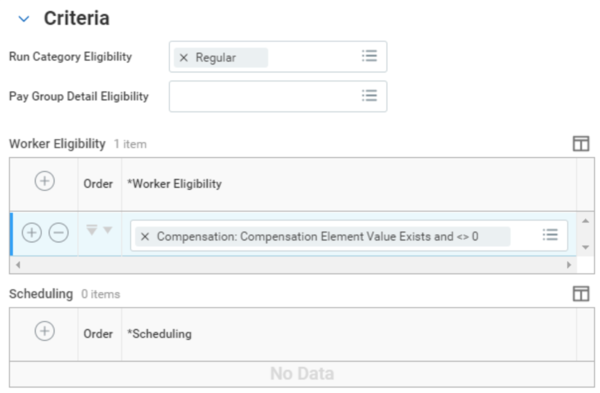
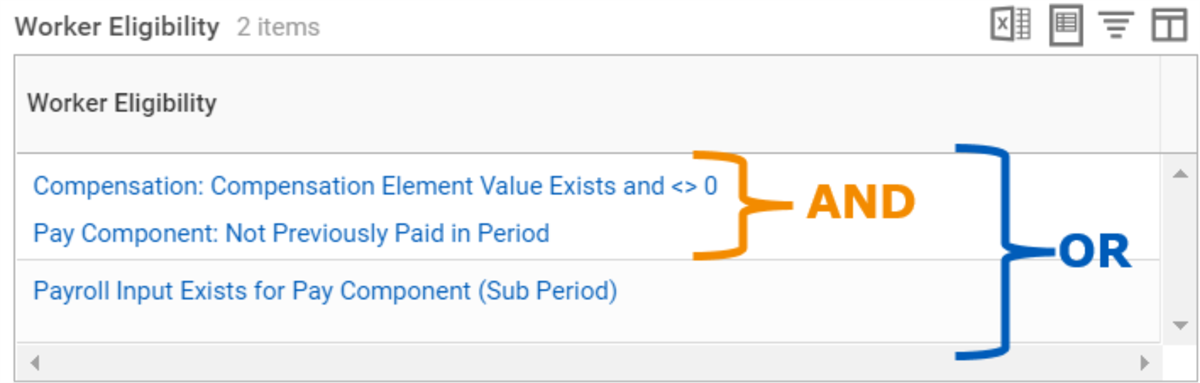
When specifying the Worker Eligibility and Scheduling criteria, all criteria that you specify in the same row must be met (AND logic). If you define criteria in separate rows, the criteria in at least one row must be met (OR logic).
Example
: Below is the Worker Eligibility criteria for the Car Allowance [USA] pay component. This earning will resolve if one of the two criteria is met:- The Car Allowance compensation element value exists in the worker's compensation record AND the pay component has not already been paid in this pay period. OR
- Payroll input exits for car allowance in the period or sub period.
Calculation Details
In the Calculation Details section, you construct the payroll calculation that returns the final earning value. Known as related calculations, the operands of the calculation can be nested calculations. Workday delivers many calculations and related calculations that you can select, such as Hours (prorated) * Rate. You can also create your own calculations and related calculations.
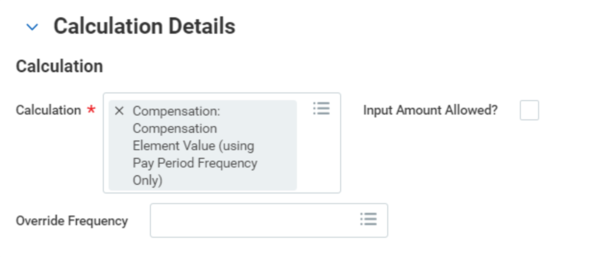
In the following example, the calculation retrieves the value of the worker's compensation element value. The specific compensation element is in the Compensation Element section (shown later). This value can be base pay or an allowance plan, such as the one we created for mileage allowance.
Field | Description |
|---|---|
Calculation | Calculates the earning amount. |
Input Amount Allowed | If the amount does not come from compensation, a benefit plan, or time tracking and the amount is variable, select Input Amount Allowed. You can enter the amount through payroll input. If the calculation is more than one operand and you want to allow payroll input, select Input Allowed in the related calculations section for each operand. Note : Workday recommends selecting either Input Amount Allowed for the flat amount or Input Allowed for related calculations, but not both.Important : If you do not select this option, you cannot enter or override the value of an earning on the Add Payroll Input by Worker page. You will need to enter input as a Special Entry. |
Override Frequency | Enables you to set a frequency, such as Annual or Bi-weekly. If you leave this field blank, Workday calculates the earning based on the worker's pay group frequency. |
Workday offers the following optional features that affect pay component calculation:
Section | Description |
|---|---|
Calculation Proration | Certain events, such as a hire or termination, can cause Workday Payroll to divide a period into subperiods. Specify in the pay component if you want the earning or deduction prorated for the subperiod. |
Events Causing Pay Component Proration | Select the events that cause proration for the pay component. Review the Proration topic that follows for more information on how Workday processes proration in different situations. |
Gross-Up Calculation (For Supplemental Earnings Only) | Select Always Gross Up to enable Workday to gross up the earning. Each country has unique methods to gross up earnings. Select the Gross-Up Type appropriate for the country where the earning is paid. Note : Workers may have multiple gross ups in a pay period. Access the Maintain Payroll Gross-Ups Configuration task to set priorities. |
Retro Calculation | Select the Do Not Recalculate During Retro option if you need to exclude the pay component when processing retro calculations. |
Calculation Worktag | Enter a worktag to associate the earning or deduction with other related earnings, deductions, pay accumulations, pay balances, or payroll input with related information for the pay calculation. If your tenant is configured to support multiple jobs, the Position worktag is an option in the list. |
Calculation Details - Proration
In Workday, proration is the creating of subperiods in response to a midperiod change. There are two types of proration:
- Pay component proration: Occurs in response to events such as a change in a worker's compensation. Workday creates subperiods within a single pay result.
- Gross-to-net proration: Occurs in response to events such as tax location changes. Workday creates subperiods that each have a separate result and payment.
For both types of proration, you can enable your pay components to return a prorated amount for each subperiod. You can choose to prorate by:
- Days worked
- Calendar days
- Annual working days
The following table shows a list of midperiod changes that cause proration:
Type of Change | What is Prorated |
|---|---|
Hire Worker | Gross-to-Net |
Terminate Worker | Gross-to-Net |
Switch Primary Job | Gross-to-Net |
Pay Group | Gross-to-Net |
Company | Gross-to-Net |
Primary Work State | Gross-to-Net |
Leave Request (Worker-Based Leave) | Gross-to-Net |
Leave Return (Worker-Based Leave) | Gross-to-Net |
Compensation Change | Pay Component |
End Of One Disbursement Plan Period And Beginning Of Another (For Academic Contract Pay | Pay Component |
Note
: To enable pay component proration for leave of absence events, access the Maintain Payroll Proration Override
task.Payroll Input
Payroll input does not cause proration. One-time payments are made in full for the pay period with the specified end date. Workday does prorate ongoing input when a supported midperiod data change occurs, if the earning is defined for proration.
On-Demand Replacement Payments
Workday prorates replacement payments the same as the on-cycle payments they replace.
On-Demand Additional Payments
Workday does not prorate on-demand additional payments.
For gross-to-net proration, create a separate payment for each sub period. Enter the prorated values and subperiod target date for each payment.
For pay component proration, create a single payment. Enter the prorated value for each subperiod on a separate row in the Input grid. Complete the corresponding End Date field to target each row of input to the appropriate subperiod.
Manual Payments
Workday does not prorate manual payments. You must manually calculate and enter the prorated amount for each sub period, as you do for on-demand additional payments.
Proration of Costed Earnings
Workday prorates the costs for earnings that are subject to pay component proration when:
- Midperiod costing is enabled on your Workday tenant, and
- A worker's cost allocations change midperiod.
An earning proration method determines if costs are prorated based on calendar or workdays. Select this option from the Calculation Proration section on the Effective Dated tab of the Create Earning task.
Workday assumes that workdays are Monday through Friday:
- When no proration method is selected, or
- If proration is based on days worked and a worker has no shift assignment.
Calculation Details – The Related Calculations Grid
Use the Related Calculations grid to retrieve values from other calculations and build more complex calculations. A related calculation used in the definition of an earning or deduction is a Pay Component Related Calculation (PCRC). PCRCs are available for display on payslips and in other payroll reports. You can use the same PCRC in multiple earnings and deductions.
The following screen displays the Double Time [CAN] earning calculation Hours (unprorated) * Rate, which comprises two related calculations:
- Hours (unprorated)
- Rate
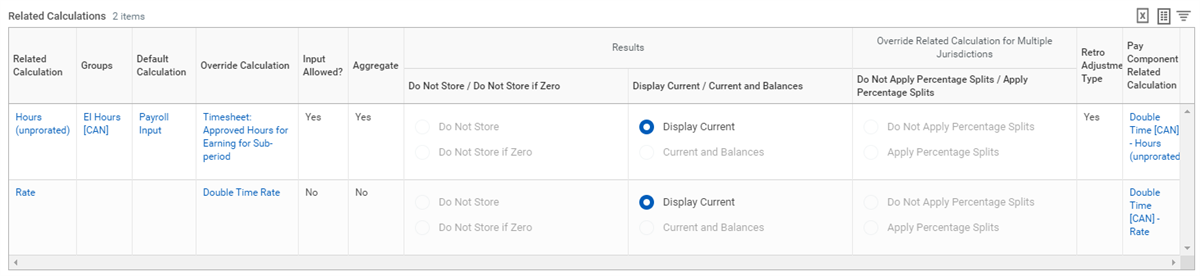
For hours-related calculations, you can configure Workday to aggregate hours from payroll input and time blocks into condensed result lines. Aggregation can improve the performance of payroll calculations and enhance the readability of payroll results. To enable aggregation, select the Aggregate checkbox in the Related Calculations grid. To configure aggregation for multiple pay components, access the
Maintain Pay Component Related Calculations for Aggregation
task.Resource
: The Related Calculations grid is powerful and complex. Search the Workday Administrator Guide for the Set Up Pay Component Related Calculations
topic for a description of each option in the grid. For more information on aggregating hours, see the Concept: Hours Aggregation on Pay Results topic.Limits
Workday can apply limits when calculating a worker's pay. You can:
- Define one or more limits for earnings or deductions.
- Apply a limit to the combined value of multiple pay components.
- Override a limit for an employee.
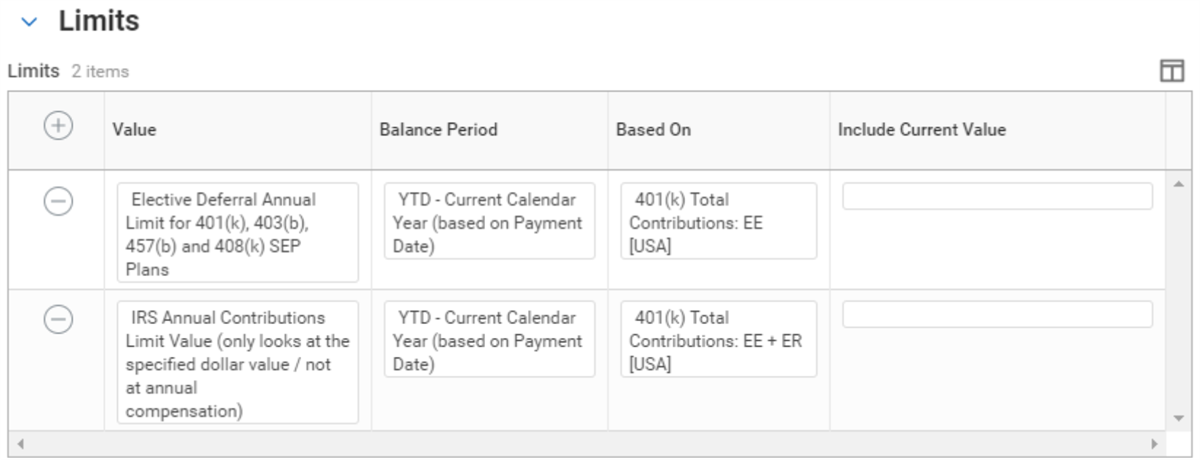
The following example shows the limits for a 401(k) retirement deduction in the U.S. Based on these limits, Workday deducts the 401(k) pretax employee contribution up to the IRS 401(k) and 415(c) annual limits.
Resource
: Search the Workday Administrator Guide for the Set Up Earning or Deduction Limits
topic for details and examples.Compensation Element
Map the payroll earning to a compensation element so that Workday Payroll knows from which plan to pull compensation values.
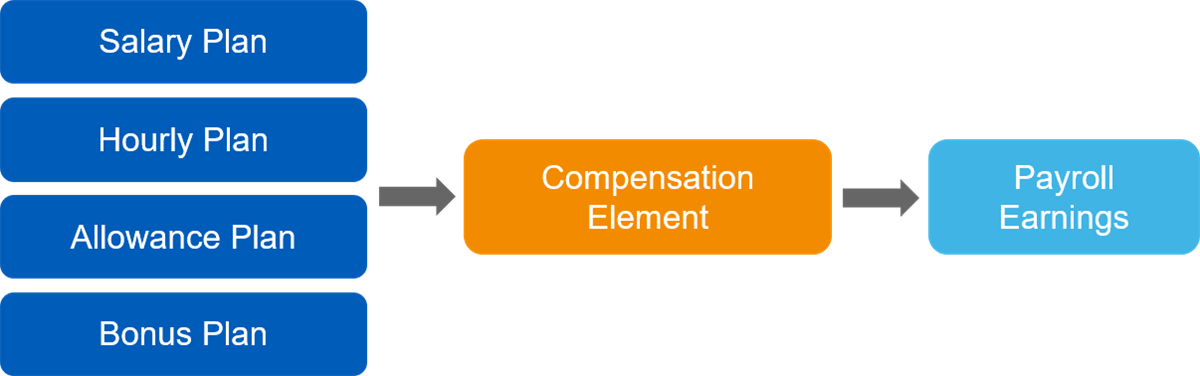
When creating an earning that is retrieving a value from Compensation, you map the earning to the compensation element on the Effective Dated tab.
Touchpoint
: When you create an earning, the Compensation Element section of the Effective Dated tab enables you to map the earning to one or more compensation elements so that Workday can retrieve the correct amounts, percentages, or rates.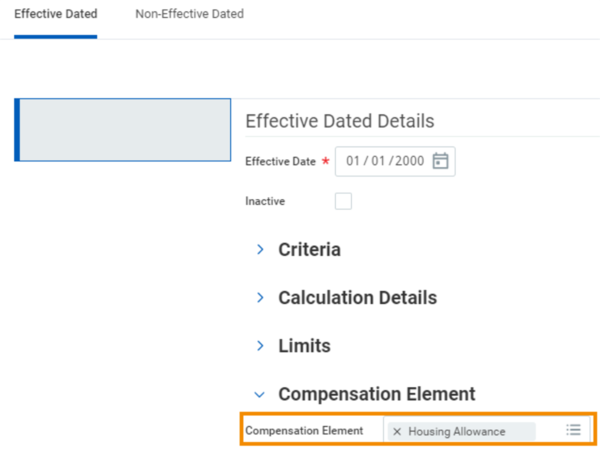
Time
You can map an earning to a time calculation tag so that payroll retrieves approved, calculated time from Workday Time Tracking.
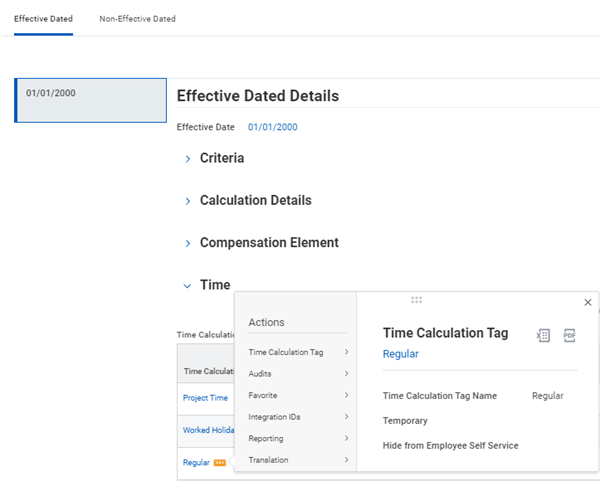
Touchpoint
: For earnings that pay hours entered through Workday Time Tracking, specify which hours to retrieve in the Time Calculation Tags field, linking the earning to the time.Non-Effective Dated Tab
Some things in an earning or deduction definition do not have an effective date. The sections of the Non-Effective Dated tab include:
- Groups
- Benefits
- Costing
- Pay Component Security Segments
- Usage
Groups
In Workday, we refer to earnings and deductions as pay components. So, an earning is a pay component and a deduction is a pay component. A group of them is a pay component group (PCG).
You can group pay components together into PCGs. Each PCG sums the values of the earnings or deductions it contains. Then, you can display PCG values on payslips and reports. Examples of PCGs include:
- Adds to Gross
- Pre Tax Deductions
- Post Tax Deductions
- Employer Paid Benefits
For a list of PCGs delivered by Workday, access the
All Pay Component Groups
report.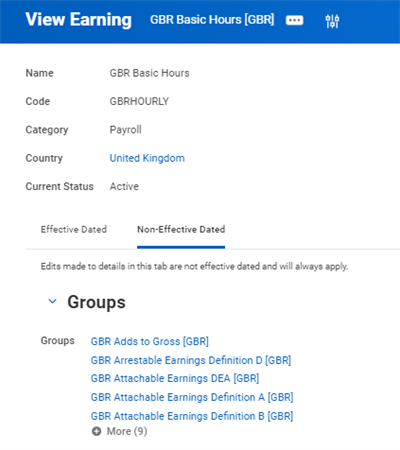
| Important! You must select the appropriate PCGs from the Group prompt when you create your earnings and deductions for the pay component to calculate and display on results.Access the Create Pay Component Group task if you need to create a pay component group that is not yet available. |
Benefits
You can map benefit pay components to a benefit plan. The connection between a pay component and its corresponding plan enables Workday Payroll to retrieve the correct values based on the worker's benefit elections.
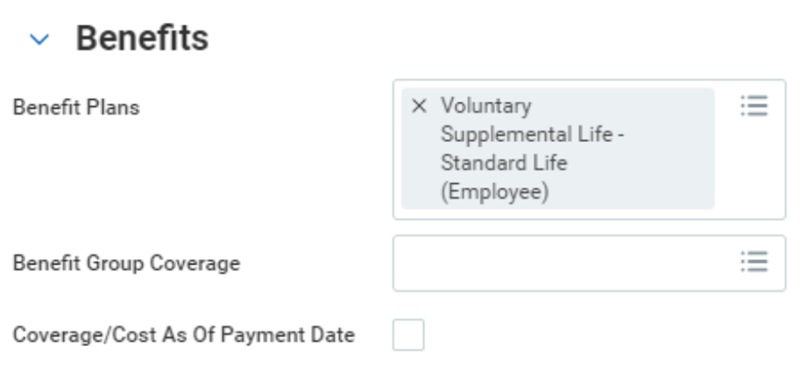
Field | Description |
|---|---|
Benefit Plans | Specify the benefit plans mapped to this earning. |
Benefit Group Coverage | Select the group the plan covers. |
Coverage/Cost as of Payment Date | Specify whether the calculation engine will look at the coverage/cost as of "payment date," instead of the default period end date. |
Costing
By default, a worker's earnings and deductions are allocated to the:
- Cost centers, projects, grants, and other organization types associated with the worker's supervisory organization.
- Worker's location, if you enabled these worktags for payroll costing.
Resource
: For a table that lists how Workday allocates labor costs for workers by default, and which types you can reallocate, search the Workday Administrator Guide for the Concept: Allocation of Payroll Costs topic.You can override the default allocation for all instances of a given earning by configuring the Costing section of the earning. You can specify how to allocate the earning across:
- Cost centers
- Projects
- Grants
- Other organization types and locations
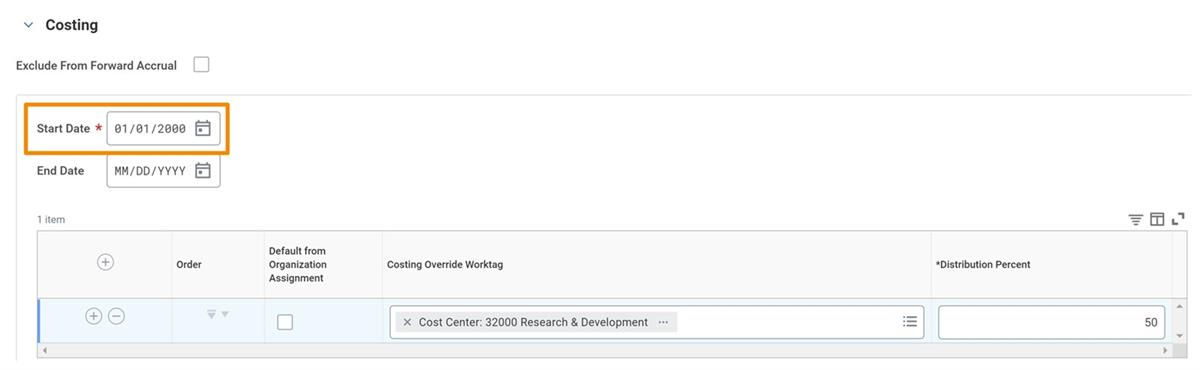
Field | Description |
|---|---|
Exclude From Forward Accrual | Overrides a forward accrual for a pay period that spans multiple financial reporting periods. |
Start Date End Date | Enter the start date and optional end date for the allocation. Dates must not overlap previous or future instructions. |
Default from Organization Assignment | Used to allocate a percentage of the earning to the cost center, fund, or other organizations assigned to the employee. |
Costing Override Worktag | Used to allocate a percentage of the earning to other organizations. |
Distribution Percent | Specifies the percentage of distribution. |
Allocations Based on Pay Period End Date
Workday applies the allocation instructions in effect on the pay period end date to the entire period, unless you select the Enable Mid Period Costing checkbox on the
Edit Tenant Setup - Payroll
task. When instructions span pay periods, the available values are those in effect on the end date of the last pay period included in the instruction's Start and End dates.Example
: The current pay period is January 1 to January 31. Amanda has worker overrides for January 10 to January 15. Because the pay period end date falls outside of the override dates, Workday applies the organization assignment defaults. If you change the allocation end date to February 15, Workday applies the allocation instructions to the January pay period.Proration and Midperiod Changes to Cost Allocations
If you select Enable Mid Period Costing on the
Maintain Payroll Proration Override
task and change costing allocations midperiod, Workday prorates costs for:- Earnings based on the proration method (calendar days or days worked) displayed on the Calculation Details tab of theView Earningstask if you select Causes Proration on the Compensation Element tab.
- Earnings based on calendar days when a proration method is not specified for the earning or Causes Proration.
- Deductions for employer-paid expenses based on calendar days.
When Workday Payroll passes costs to Workday Financial Management, it also passes the end date of the costing allocation as the budget date. Workday recognizes midperiod costing allocation for these organizations:
- Business Unit
- Cost Center
- Custom Organizations
- Fund
- Grant
- Location
- Program
- Project Plan Phase
- Region
Note
: Changes to a worker's default organization assignments do not cause costed earnings to prorate. Forward accruals use the costing allocations in effect on the period end date.Pay Component Security Segment
The Pay Component Security Segment area appears when you secure specific pay components to specific security segments. You can create security segments to make pay components viewable for others (managers, benefits partners) who may need to see the resolved value of an earning or deduction. The values are inaccessible to these roles without the security segments.
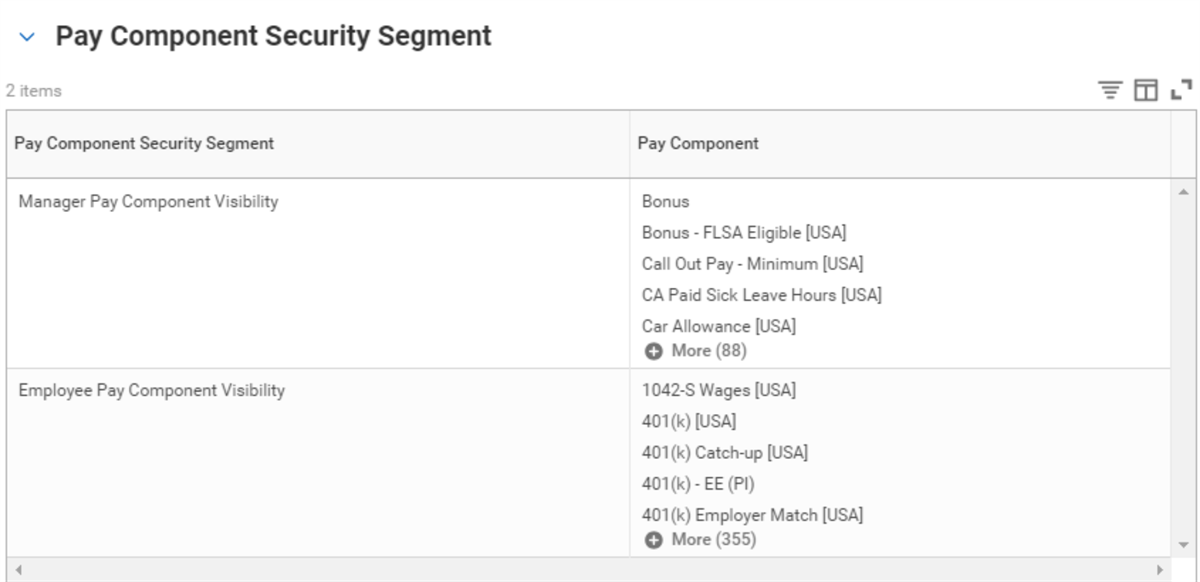
Usage
The Usage section identifies where the earning is used, as shown below.
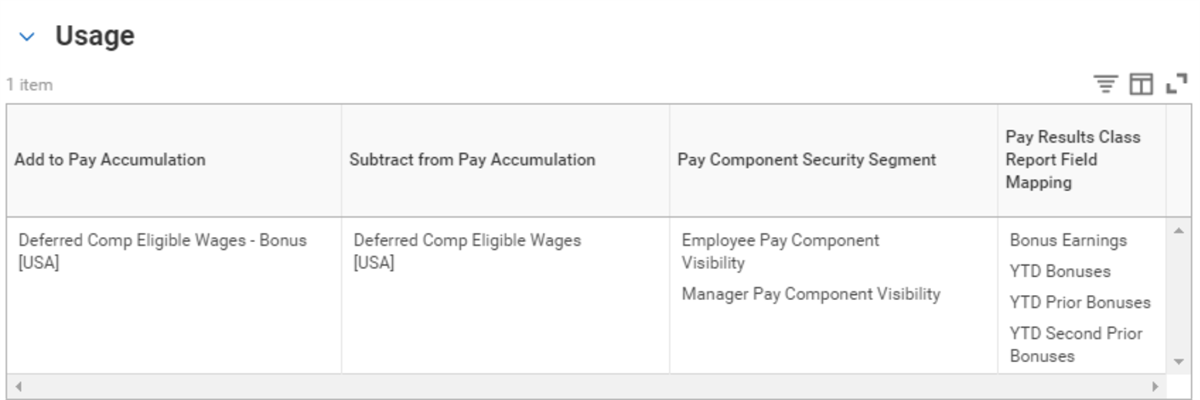
Deductions
You set up deductions to retrieve values, such as:
- Withholding taxes.
- Employee medical contributions.
- Absence deductions.
- One-time and recurring deductions from payroll input.
Deductions Prerequisites
Deductions prerequisites depend on the type of deduction you are creating.
Deduction Source | Prerequisites |
|---|---|
Benefits | Set up benefit plans, such as:
|
Position-based | Configure your Workday tenant to support multiple jobs. |
Create Deductions
Creating a deduction is like creating an earning, with a few exceptions. The Create Earning page and the Create Deduction page are the same, except for the following sections.
Earnings-specific sections | Deductions-specific section |
|---|---|
| Net Pay Validation/Arrears
This section appears when a deduction is subject to net pay validation. You can track and recoup arrears only for deductions with assigned priorities. |
Minimum Net Pay and Arrears Processing
Workday Payroll allows you to set a minimum net pay amount for employees and set deduction priorities so that high priority items deduct first. For example, this process is helpful when looking at employees who defer a large part of their salary to a retirement plan. You can adjust deduction priorities and track deductions to recoup arrears.
The result of setting up deduction priorities is that Workday reduces or eliminates deductions to restore net pay in reverse order of the rows in the grid. Additionally, it recovers arrears amounts in the same order as the rows in the grid.
Arrears limits control the amount of arrears that you can recover, and the net pay available to cover arrears.
Initial Gross-to-Net Calculation
To adjust net pay during payroll processing, Workday first performs an initial gross-to-net calculation (excluding arrears amounts). This calculation verifies that an employee's net pay is at, or above, the net pay minimum (0 by default).
For example, when calculating net pay, Workday deducts only the current period values of deductions A, B, and C (100 + 50 +25), not the arrears amounts.
Deduction | Current Amount | Arrears Amount |
|---|---|---|
A | 100 | 50 |
B | 50 | 25 |
C | 25 | 10 |
For employees with positive net pay (net pay > minimum net) and no arrears, there are no subsequent calculations. In this example, only the initial calculation applies.
Subsequent Calculations When Initial Net Pay Is Above the Minimum
For employees with positive net pay (net pay > minimum net) and outstanding arrears, Workday:
- Recoups the arrears based on the deduction priorities defined by theMaintain Deduction Prioritiestask (subject to applicable arrears limits).
- Performs multiple iterations to reduce pretax deduction arrears. After each loop, Workday modifies the applicable deduction (based on priority) by adding the positive net value to the deduction value and redetermining net pay. Once two loops produce the same net value, the iterations stop.
- Generates new gross-to-net results.
Subsequent Calculations When Initial Net Pay Is Below The Minimum
For employees with negative net pay (net pay < minimum net) and outstanding arrears, Workday:
- Reduces or eliminates deductions based on the deduction priorities defined by theMaintain Deduction Prioritiestask and puts them into arrears.
- Recalculates taxes, if the net pay validation forces the reduction or elimination of pretax deductions (from the Pretax Deductions pay component group).
- If Workday recalculates taxes and takes a partial amount for a pretax deduction, it adds the negative net value to the deduction until net pay reaches the minimum net amount. This process produces the same net value in two loops, or completes 50 loops and then places the pretax deduction into arrears.
- Generates new gross-to-net results.
Note
: The Run Retro Pay Calculation
task does not put deductions into arrears or attempt to recoup arrears generated for a completed pay calculation.The following reports are useful for auditing net pay validation and arrears balances:
- Net Pay Validation and Arrears Rules
- Net Pay Validation and Arrears Rules (filtered by priority)
- Pay Calculation Results - Outstanding Arrears Balance Composite
Minimum Net Pay Setup
Workday allows you to set a minimum net amount for employees. You define the minimum net amount on the Edit Run Category page.
Important
: Workday will not enforce the minimum net amount defined on the Run Categories page until you define deduction priorities on the Maintain Deduction Priorities page.Net Pay Validation and Arrears Tracking and Recouping
You can configure Workday to take high-priority deductions and place lower-priority deductions in arrears to bring net up to the minimum amount. Follow these steps:
- Define deduction priorities and arrears handling.
- Set arrears limits.
Deduction Priorities and Arrears Handling
When performing net pay validation, Workday Payroll compares the worker's net pay to the minimum net amount:
- If their net pay falls below the minimum net amount, Workday reduces or eliminates deductions to restore net pay based on the priority order specified on the Maintain Deduction Priorities page.
- Reduces or eliminates deductions beginning with the lowest priority deductions and ending with highest priority deductions.
Below is an example of the
Maintain Deduction Priorities
page. The highest priority deductions are at the top of the grid and the lowest priority at the bottom.Following are descriptions of each option.
Field | Description |
|---|---|
Do Not Take Partial Deduction | Select Do Not Take Partial Deduction to prevent the deduction if net pay falls below the net pay minimum. |
Deduction Impacts Other Deductions | Select to recalculate deductions based on a specific, prioritized deduction if the prioritized deduction is reduced or eliminated due to insufficient net pay. |
Deduction Impacts Addl Pay Components/Groups | Select to recalculate additional pay components and pay component groups in the run category, if Workday reduces or eliminates the prioritized deduction due to insufficient pay. |
Track Arrears | Select Track Arrears to keep a record of any deduction amount not taken due to insufficient net pay. |
Recoup Arrears | Select Recoup Arrears to track and recoup the arrears amount for a deduction. Arrears amounts recoup on all Gross To Nets (checks) received in the period. Workday recoups arrears in direct order of priority. The highest priority deductions appear in the top rows and the lowest priority deductions appear in the bottom rows. Note : Select the Track Arrears checkbox to recoup arrears. |
You do not need to track or recoup arrears for every deduction that you select for net pay validation. For example, you may decide to reduce or eliminate deductions from payroll calculations in a specific order. However, you do not need to recover these deductions in subsequent payroll calculations. For deductions that you do not want to recoup in subsequent calculations, do not select the Recoup Arrears checkbox.
Arrears Limits
For each deduction configured to recoup arrears, select the deduction's Related Actions icon, and then select
Deduction
> Edit Net Pay Validation/Arrears
to establish the arrears limits.Important
: Using the Related Actions icon for the deduction is the only way to access this task. You will not find it by searching.Use the Edit Net Pay Validation/Arrears page to:
- Set default limits on the amount of the arrears balance to recover in a payroll run (required).
- Place conditional limits on the amount of the arrears balance to recover in a payroll run based on pay group, run category, or other customer-defined criteria (optional).
Conditional limits have priority over default limits; if Workday cannot find a matching limit based on pay group, run type or other criteria, it applies the default limit.
Workday evaluates the deduction against the rule conditions defined in each row (from first to last) of the grid in order to determine the limits to apply.
The following image is an example of the Edit Net Pay Validation/Arrears page showing both default and conditional arrears limits.
The following are descriptions of the fields in Default Recoup Arrears Limits section.
Field | Description |
|---|---|
Unlimited For Current Deduction | Select to recoup the total arrears amount in the current period. Example : Assume that the current amount of a deduction is 200 USD, and that the total arrears amount is 400 USD.If you select Unlimited for Current Deduction, Workday will:
|
Percent Of Current Deduction | Select to define a limit equal to a percentage of the current deduction and specify the percentage value. Example : Assume that the current amount of a deduction is 100 USD, and that the total arrears amount is 200 USD.If you enter 50% in the Percent of Current Deduction field, Workday will:
|
Flat Amount For Current Deduction | Select to recover a flat amount and specify the flat amount value. Example : Assume that the current amount of a deduction is 100 USD, and that the total arrears amount is 100 USD. If the flat amount value is 25 USD, Workday will eliminate 25 USD of the arrears balance while taking the full amount of the current deduction (100 USD). |
None of the Above | Select to use an override to arrears. When you select this option, Workday recommends that you also enter a value in the Flat Amount Limit (When No Current Deduction) field to ensure arrears recouping. |
Flat Amount Limit (When No Current Deduction) | Enter a flat limit amount on the arrears recovery when Workday can't process the deduction for a period. Example : Assume a worker loses eligibility for medical coverage after changing pay groups. As a result, they receive no medical deduction in the current period. When the arrears amount is 100 and the Flat Amount Limit is 50, Workday deducts 50 in the current period to cover arrears. |
Important
: These limit options apply only when the deduction is in the current payroll period. Workday applies the flat amount limit defined in the Flat Amount Limit (When No Current Deduction) field if:- A payee becomes ineligible for a deduction with an outstanding arrears balance.
- The deduction cannot process in the current period for any other reason.
Below are descriptions of the fields you can specify for each row in the table.
Field | Description |
|---|---|
Run Category Eligibility | Select the run category or categories to which the unlimited, percentage, or flat amount limit applies. |
Pay Group Eligibility | Select the pay group or groups to which the unlimited, percentage, or flat amount limit applies. |
Additional Criteria | Define any additional required criteria for the limit to apply, including eligibility conditions, scheduling conditions, or both. |
Unlimited for Current Deduction Percent of Current Deduction Flat Amount for Current Deduction Flat Amount Limit (When No Current Deduction) | Define the limit that applies to deductions meeting the run category, pay group, and other criteria defined in the current row of the grid. |
Workday uses the following logic to determine the arrears limits for a deduction:
- If there are conditional limits based on an employee's pay group, run category, or other customer-defined criteria, Workday applies the conditional limits.
- If there are no applicable pay groups, run category, or other conditional limits defined in the Arrears Criteria grid at the bottom of the page, Workday applies the default limits.
Important
: Conditional limits have priority over default limits. If Workday cannot find a matching limit based on pay group, run type, or other criteria, it applies the default limit.Pay Component Copy Feature
Build new pay components by copying an existing pay component, and then editing the values. To copy a pay component, select the pay component's Related Actions menu, and then select Calculation > Copy.
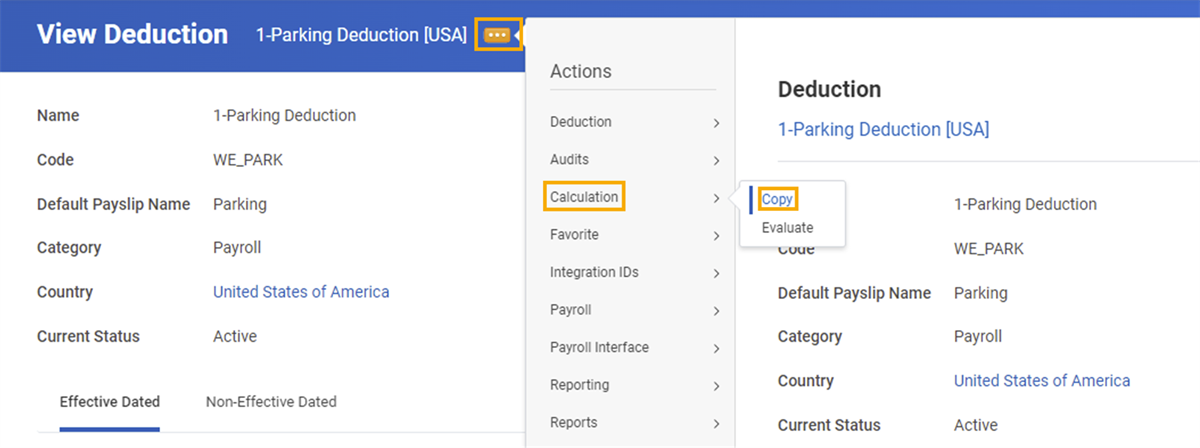
If multiple effective dated snapshots of the source pay component exist, select the specific effective dated snapshot to copy, and then select OK.

The new pay component is created in the Copy Pay Component page. The name is the same as the source pay component with the text "Copy" at the end.
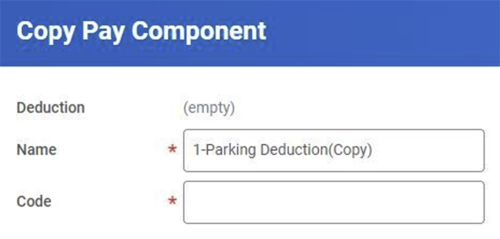
Rename the new pay component as necessary. Most of the original data from the source pay component, as of the snapshot you selected, is available for you to edit as necessary. However, pay component security segment does not copy.
Pay Component Maintenance
Over time, you will need to manage pay components as your organization changes. For example, you may need to add a new benefit plan or change pay component eligibility. You can also inactivate old pay components and delete unused pay components.
Effective Dates
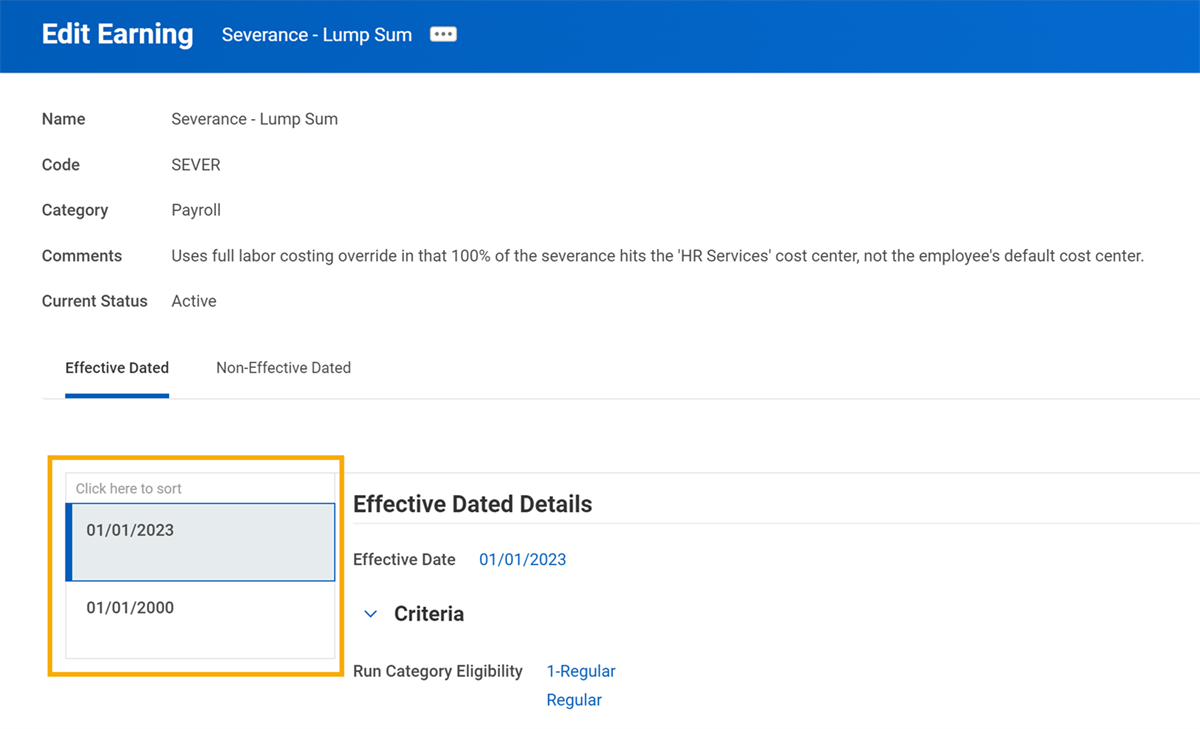
When you edit a pay component, you have the option to add a new effective date to create a new pay component definition as of the effective date. If you edit an earning or deduction in the middle of a pay period, the change applies to the whole pay period.
Subtabs will display for each pay component definition of the Effective Dated tab.
Inactivate Pay Components
To inactivate an earning, select the Related Action icon on the pay component and then select Earning > Edit As Of. Select the effective date and select OK. Scroll down to the Effective Dated tab and set the earning to Inactive.
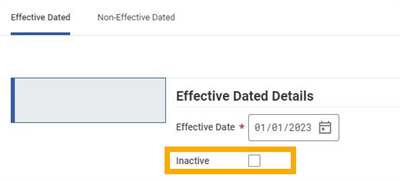
There are some considerations you should be aware of when inactivating a pay component.
- If you inactivate pay components in the middle of the pay period, they are inactive for the entire period and any subperiods.
- Midperiod changes are inactive for the entire period, with no proration.
- The word "Inactive" displays in prompt fields (e.g. Add Payroll Input) for pay components that are inactive as of the current date.
- Pay balances include inactive earning and deduction amounts where there is an amount persisted, regardless of the status of the pay component.
- Inactivation of a deduction does not stop the collection of arrears if an arrears balance exists. You can update arrears balances for inactive deductions.
- Use caution when retroactively changing the status of an earning or deduction. Retroactive changes to pay components can create retro difference for workers.
Delete Unused Tenanted Pay Components
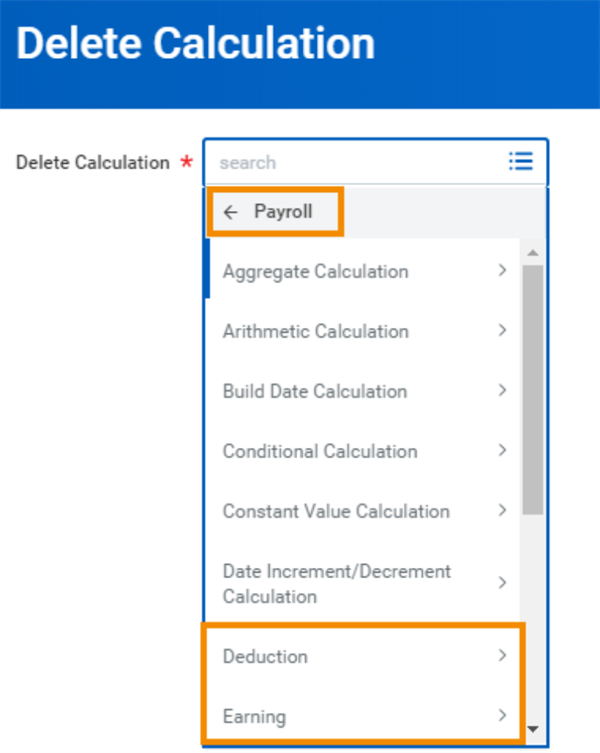
Access the
Delete Calculation
task to remove pay components not in use.- You cannot select a pay component for deletion if usage exists.
- If there is no usage, you can delete the pay component and its related PCRCs.