
Banking and Settlement
Overview
To complete the payroll cycle, you need to establish how payments will be made.
Objectives
After completing this chapter, you should be able to:
- Describe how to configure banking and settlement.
- Settle payments.
- Review payment elections.
- Enter payment elections for a worker.
Prerequisites to Banking and Settlement Configuration
Before setting up banks and other financial institutions, you must define:
- Companies
- Payment types
- Company hierarchies, if the Pay Group includes more than one company
Banking and Settlement Configuration
There are multiple steps to banking and settlement configuration.
Banking configuration includes:
- Defining the business entities that provide company financial and banking services and hold physical bank accounts.
- Defining branches of a financial institution.
- Establishing standard bank accounts at a financial institution.
- Optionally, associating an official logo with the financial institution so that it displays in preview windows and pages.
Settlement configuration includes:
- Defining the valid ways to make payments, such as cash, check, or electronic transfer.
- Defining each bank account to use for routing payments during a settlement run.
- Defining bank routing rules for each company to control which bank accounts the settlement process uses to route payments that you initiate in Workday.
- Setting up organization-level definitions for business processes associated with settlement runs.
- Optionally, you can define settlement run custom filters to specify which types of payments to include in the settlement run.
In this chapter, we review the configurations listed below. Additional, country-specific configuration information is in the country-specific payroll training.
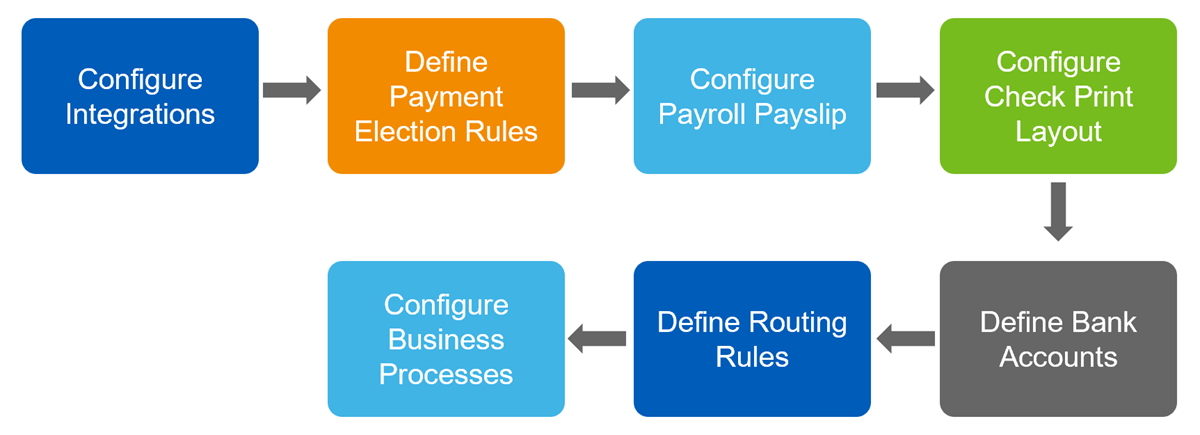
Configure Integrations
You must integrate Workday with bank accounts for settlement processing and check printing. You create one or more integration systems for each combination of bank and payment type. The integration system specifies:
- Which payment protocol to use.
- How to format the payment data to meet your bank's requirements.
- Whether to encrypt the file or generate a unique file name each time the integration runs.
- Where to deliver the payment file.
The integration systems that you assign to a bank account drive the generation of payment files for settlement processing. If you have two accounts at the same bank, and each uses the same payment type, you can use the same integration system for both. You can also assign multiple integration systems to a single bank account for payments of the same type in different categories or countries.
Resource
: Workday provides enhanced performance templates for faster integration processing. Review the following topic in the Workday Administrator Guide for details:Steps: Set Up Bank Integrations for Settlement Processing
Define Payment Election Rules
You define the rules that determine how workers set up their payment elections through self-service. Additionally, these rules also determine how administrators and partners make elections on their behalf.
Access the
Maintain Payment Election Rules
task to configure payment election rules for each run category defined in Workday.Important
: If you do not configure payment election rules for a run category, you will receive an error when you process payees in that run category. Additionally, you will not be able to complete the payroll.Payment election rules control how to pay workers for each type of pay they receive. They define:
- The payment types, such as check and direct deposit.
- The number of elections allowed for each pay type.
- Payment distribution among split payment elections.
- The payment options that an employee can select on their own behalf.
- The payment options that an administrator can select on behalf of a worker.
After you configure payment election rules, payment elections are maintained by:
- The worker through self-service, if you enable self-service for the worker.
- The payroll administrator or payroll partner, who can:
- Add or upload initial payment elections.
- Update existing payment elections for the worker.
Resource
: For details on the Maintain Payment Election Rules page, search the Workday Administrator Guide for the Maintain Payment Election Rules
topic.Configure Payroll Payslip
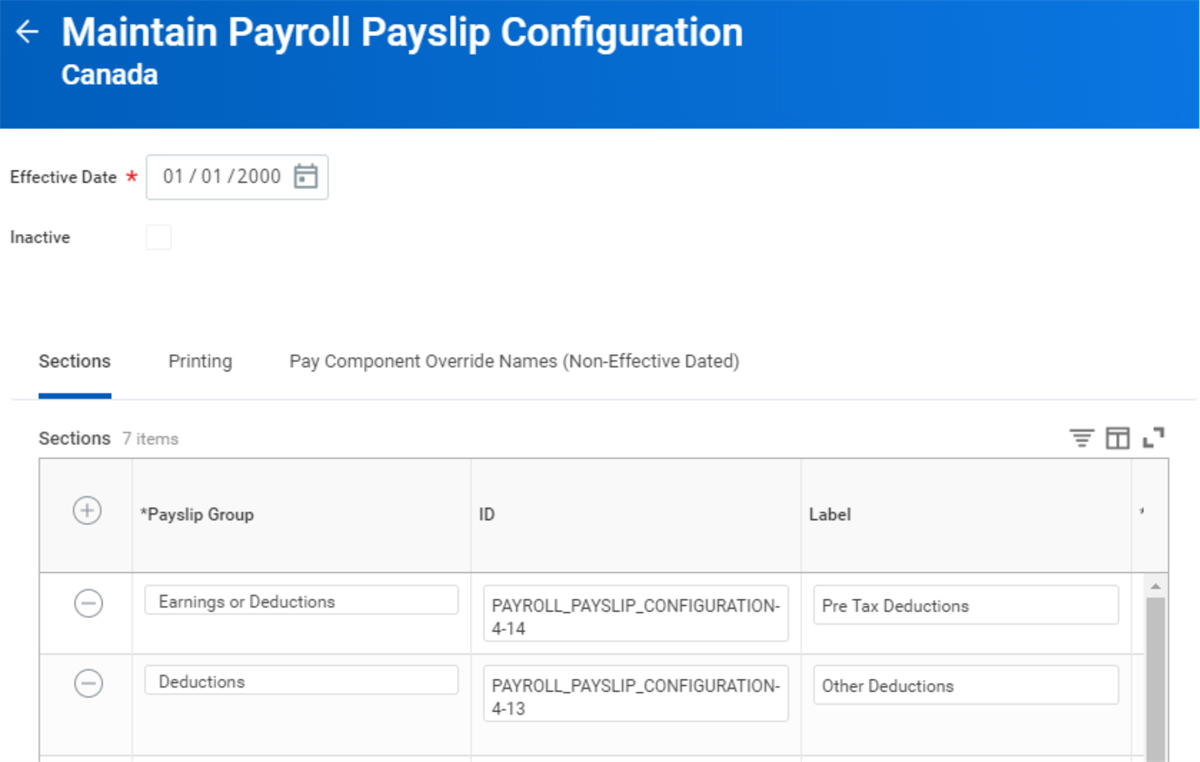
Workday allows you to configure unique payslips for each country. Use the
Maintain Payroll Payslip Configuration
task to control what information appears on worker payslips. You can choose to display any pay component, including earnings, deductions, pay component groups, and related calculations.Below is an example of the Maintain Payroll Payslip Configuration for Canada. The Payslip Calculations prompt selections are unique to each country.
Configure Check Print Layout
You can generate checks and advices with either a delivered or custom business form layout. You can attach a report design configuration with your own customized format and position of fields.
When you complete a settlement run, Workday prints any required checks or advices using different layouts based on your configuration. You can print:
- Physical paychecks for employees.
- Payroll advices for employees who receive payment by direct deposit.
- Advices for expense account payments made by electronic payment methods.
- Final checks for terminated employees.
- Checks for supplier payments.
- Checks for customer refunds.
To customize payslips and check print layout, use Workday's BIRT (Business Intelligence Reporting Tools) reporting tool. BIRT creates custom business form layouts using Workday Studio Report Designer. You can create a custom layout for payslips or check print layout, and design the form in Workday Studio. Once the design is complete, consult Community for details on configuring Workday to use the custom forms.
Note
: You can override the standard Workday MICR (Magnetic Ink Character Recognition) format, which combines the bank ID, bank account, and check number. Customize the MICR in the Formatted MICR field from the Create Bank Account
or Update Bank Account
tasks.Your bank may be able to provide you with a MICR ruler/gauge to assist with lining up your check layout to the bank's specifications.
Define Bank Accounts
Workday ties bank accounts to financial institutions and allows you to:
- Create, make, and receive payments.
- Reconcile the books.
- Manage cash.
Tip
: Before creating a bank account, you must define the financial institution used by payroll and set the default currency for each company.
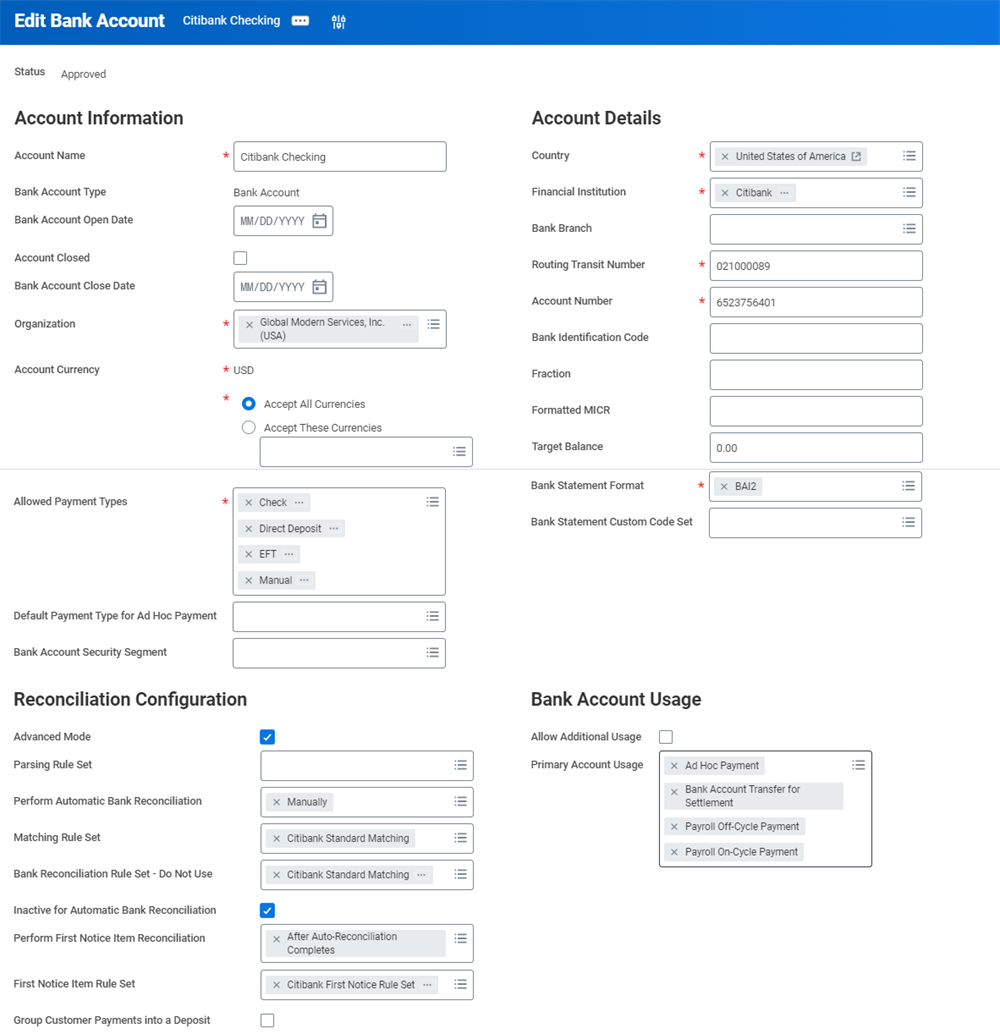
When you create a bank account you:
- Provide bank details, such as bank name and routing number.
- Select an account usage to indicate the purpose of the account.
- Configure reconciliation details.
- Select check options.
- Define settlement details.
The following is a bank account setup for Citibank in the United States.
Bank Account Usage
When you define a bank account in Workday, you must select an account usage to indicate the purpose of the account. For example, you can set up accounts to make payroll, supplier, expense account, or to receive customer payments. The same account can have multiple uses.
Note
: Only bank accounts with Ad Hoc Payment usage selected will be available in the Bank Accounts for Cash Transactions prompt list on the Create Ad Hoc Bank Transaction page.To use a bank account for payroll payments, select Payroll Off-Cycle Payment and/or Payroll On-Cycle Payment in the Primary Account Usage field.
Allowed Payment Types
When you define bank accounts in Workday, you must specify the allowed payment type for that account. These payment types can be direct deposit, check, cash, or any other authorized means of making payments from that account. For example, you can set up an account to cover payroll expenses that allow only payments in the form of a check or direct deposit.
For payroll, you most likely need to set up Direct Deposit or Check payment types.
Note
: Use the Maintain Payment Types task to define payment types. Make sure that these payment types match:- The ones enabled for employees to select on the self-service payment election pages.
- The ones that administrators can select on behalf of an employee.
In the Settlement Setup section, specify the integration system to use when routing electronic payments from this account to an employee's bank account during settlement processing.
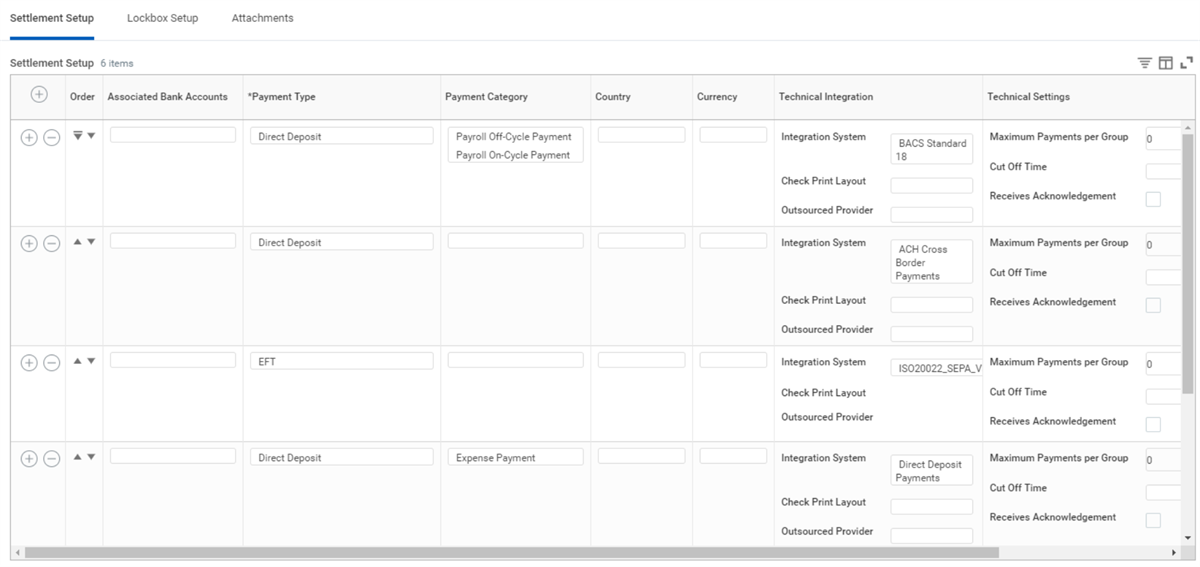
To integrate Workday with bank accounts for settlements processing, create one or more integration systems for each combination of bank and payment type.
Define Routing Rules
Use routing rules to specify the accounts for payroll, supplier, and expense payments made through the Workday settlement engine.
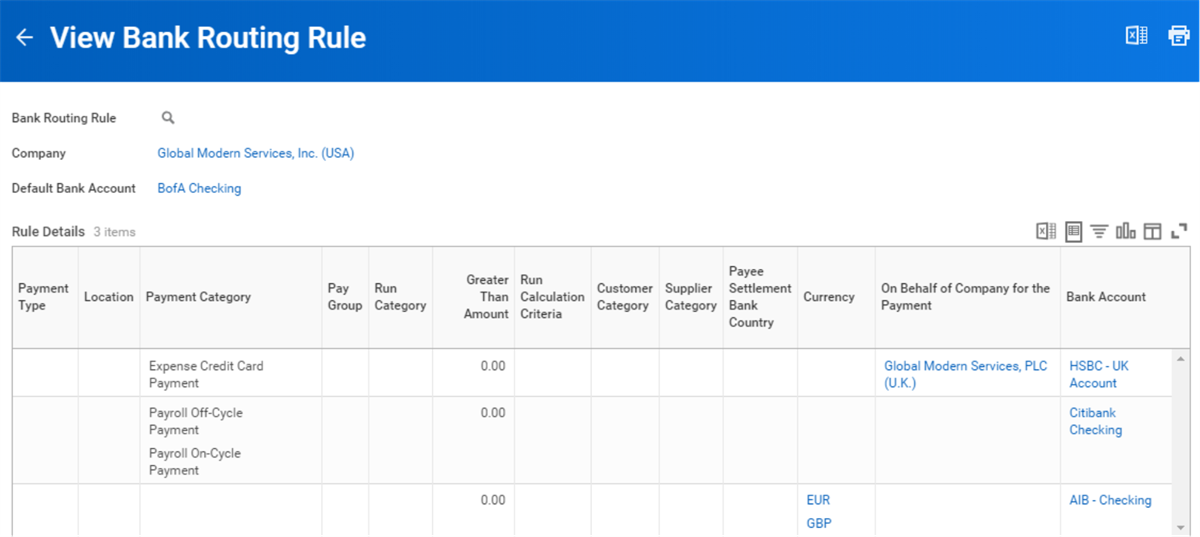
The following table lists some of the criteria that are available for defining routing rules.
Routing Criteria | Usage |
|---|---|
Payment Type | Payment types are means of making payment such as direct deposit or check. |
Location | You can define routing rules based on business locations. |
Payment Category | Examples of payment categories include payroll, supplier, or expense payments. |
Pay Group | You can define routing rules based on pay group, for payroll payments. |
Run Category | You can define routing rules based on run category, for payroll payments. |
Greater Than Amount | Enter a greater than amount to route payments based on the amount of the payment. For example, instruct the settlement process to make expense account payments:
|
Run Calculation Criteria | You can define routing rules based on run calculation criteria, for payroll payments. Run calculation criteria are calculations that return a value of true or false. If the calculation returns a value of true, Workday uses the designated source bank account. |
Note
: Routing rules apply only to the source account used to make payroll, supplier, or expenses account payments through the Workday settlement engine. You cannot define routing rules to control which depository accounts receive customer or other payments.Configure Business Processes
Configuring business processes is the final step when setting up banking and settlement. Configure the following business processes:
- Settlement Run Event
- Payment Release Event
- Payment Printing Event
Security Roles
There are several roles in Workday available for a variety of security needs. Consider your overall security structure, but two of the more common roles used for banking and settlements are:
- Settlement Specialist
- Payroll Settlement Specialist
You will learn about setting up the business processes and security in another chapter.
Settlement
Workday Payroll uses the same settlement engine used to process all payments generated in Workday, including: expenses, supplier payments, employee reimbursements, and customer refunds. As a result, you do not need to set up, or maintain, multiple payment systems, or re-enter duplicate information to process different kinds of payments.
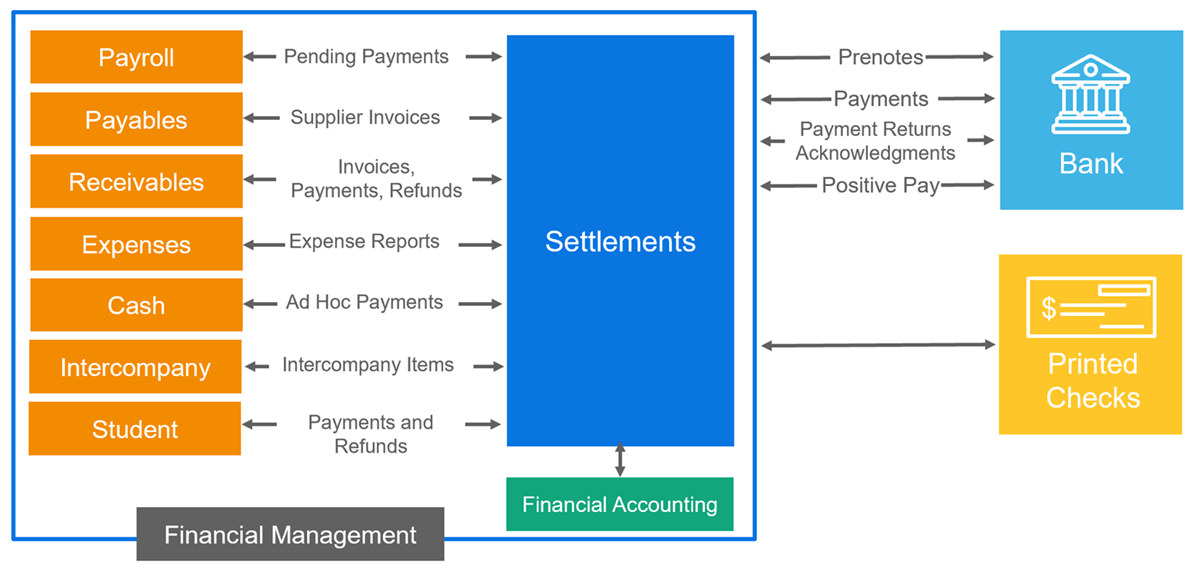
Settle Payments
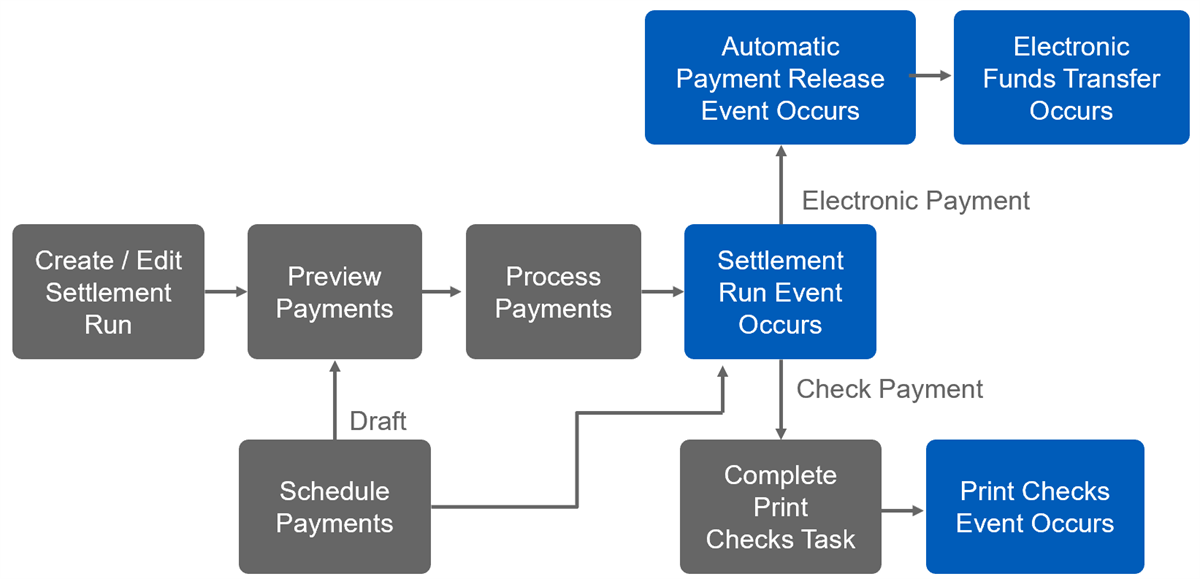
Workday settlements processing hinges on the concept of a settlement run. A settlement run is a group of open items treated as one unit during the selection and settlement of payments. It can include:
- Unpaid items such as supplier invoices and expense reports.
- Payments for payroll and ad hoc suppliers.
A single settlement run could contain any or all supplier invoices, ad hoc supplier payments, expense reports, and payroll payments. After you create a settlement run of open items and payments, you edit and process that settlement run as a single unit. Payment groups are created as a result of a settlement run.
Configure Settlements
Complete the steps below to configure the settlement process.
- Optionally, you can create custom filters for a settlement run to specify what types of payments to include in the settlement run. Access theCreate Settlement Run Custom Filtertask or theEdit Settlement Run Custom Filtertask to establish any needed custom filters.Note: Workday provides predefined system filters for many common settlement run business cases, including one designed to select all available pay groups. If the system filters do not meet your needs, you can define custom filters to pinpoint the open payments that you want to capture in the settlement run.
- Set up organization-level definitions for each of the following business processes associated with settlement runs:
- Settlement Run Event
- Payment Release Event
- Print Checks Task
- Payment Printing Event
How to Run the Settlement Process
Follow these steps to run and complete the settlement process:
- Access the Settlement dashboard, and then select theCreate Settlement Runtask.
- Select the Company or Company Hierarchy. The currency defaults.
- Enter Settlement Run Name. Best practice is to include the company and date.
- Enter Settlement Run Date. This is the payment date of the payroll period.
- Optionally, you can select Auto Select Filters.Note: The filter All Available Pay Groups picks up on-cycle payments. The filter All Available Pay Group Exceptions picks up off-cycle payments.
- Select OK to progress to the View Settlement Run page.
Note
: If you do not use Auto Select Filters, select open items and pending payments to include in the settlement run. Select the Add button to choose the type of open item or payment you want to process. For payroll payments, the following options are available:Type of Payroll Payment | Description |
|---|---|
Pay Groups | Search for and select the pay groups that include payroll payments to settle. These are payments from on-cycle processing. The settlement process, when run, settles each of these pending payments separately. |
Pay Group Exceptions | Search for and select pay groups that contain payroll exception payments to settle. Payroll payments with exceptions include: Off-cycle payroll payments that are not part of a regular pay cycle, such as those related to termination and manual pay. On-cycle payments that you completed after regular payroll processing because the payments contained errors or other exceptions that prevented you from completing them as part of the batch. |
Pay On-Demand | Search for and select period, pay group or worker to settle the Pay On-demand payments. These are payments from approved employee requests to access a portion of their earned wages before the payment date. This is an optional feature using the Pay On-Demand business process. |
- After selecting the type of payroll payment option, select OK to return to the View Settlement Run page.
- Select the Process button to settle payments in the run.Note: If you include an unpaid open item or pending payment in a settlement run, you cannot add it to another settlement run unless it has a remaining balance or you cancel the first settlement run.
- Complete electronic payments using theMass Payment Updatetask.
- Access thePrint Checks Work Areato print checks.
To edit a draft settlement run, use the
Find Settlement Runs
report. If necessary, change the Settlement Run Name or Payment Date. The payment date is the date of the settlement that displays on checks and advices for payments included in the run. For electronic payments, the payment date is the date that you process the settlement run.Settlement Payment Acknowledgement
After a settlement run is complete, electronic payments have a status of Awaiting Acknowledgement if you enable the status option. Workday receives payment acknowledgments in different ways, depending on the payment type:
- Credit card payment acknowledgments load automatically through integration with Cyber Source.
- For other types of electronic payments, use the Enterprise Interface Builder to upload payment acknowledgement files from your bank.
Workday matches acknowledgements to payments based on the payment ID and stores both high-level acknowledgement files and individual payment acknowledgements. These acknowledgements give customers visibility into payment status so that they can confirm when transactions have cleared or take corrective action when transactions are rejected.
Acknowledgement Statuses
- Received: The payment was received but has not yet been fully processed by the financial institution. When the payment acknowledgement is in this status, the corresponding payment has a status of Payment Received.
- Accepted: The payment has been accepted by the financial institution. When the payment acknowledgement is in this status, the corresponding payment has a status of Complete. If Workday cannot match the payment acknowledgement to its corresponding payment, you can assign the acknowledgement to a worker for review.
- Rejected: The payment was rejected by the financial institution. When the payment acknowledgement is in this status, the corresponding payment has a status of Rejected. You can cancel the payment, or reprocess the payment after you correct the problem that caused the payment rejection.
Payment Acknowledgement Report
You can view a list of all payment acknowledgements, or optionally filter acknowledgements by date, status, or payment ID on the
Find Payment Acknowledgement
report. It shows the original payment date, acknowledgement status, and matching customer payment. By selecting the acknowledgement, they can:- Access payment-level details.
- Assign the acknowledgement to another worker for review.
- Cancel the payment.
- Reprocess rejected payments.