
Workday Learning Components
Overview
In this chapter, you will explore the learning components, which are the foundation for building learning content in Workday Learning. Learning components include standalone lessons, courses, and programs, which display in a learning catalog. Organize learning components by topic, which users can use to search and browse for learning content. You can schedule course offerings for blended courses with an instructor-led lesson for enrollment to occur.
Objectives
By the end of this chapter, you will be able to:
- Identify compatible media file types to build learning content.
- Create learning components to build a catalog: topics, standalone lessons, courses, and programs.
- Create course offerings.
Learning Content Media Files
There are many ways to create learning content in Workday Learning, including packaged content, instructor led offerings, and media files. You can use media files to create digital learning content, such as standalone lessons and courses.
You can store media files to support the creation of learning content using Workday Drive. Use Drive to upload, download, or access files, like videos or documents to create lessons and courses. Drive integrates with Media Cloud, which allows you edit your content by adding interactions, making video content accessible through captions, and setting playback options to individual media files.
Examples of common media file types compatible with Workday Learning, include:
• DOC
• JPEG
• HTML
• PDF | • PNG
• PPT
• XLS
• MP4 |
Workday Learning component, such as topics and learning content, will not accept image files directly from Workday Drive. If you store images on Drive, download them to your local device, then upload them to Workday Learning when creating a learning component. You can use the images to create topics, standalone lessons, courses, and programs.
Tip:
Reference Workday Community or the Administrator Guide for the most up-to-date list of allowed file types. All the files you need to complete this course have been preloaded on Workday Drive.Drive requires a Workday Media Cloud Terms and Conditions order form to support all media files, including videos and packaged content.
Resource
For more information about managing media files in Workday Learning, access the Workday Media Cloud Guide on Workday Community.Image Settings
When creating learning components, you have the option to associate an image with a standalone lesson, course, program, or topic. Use any image that meets your company's requirements. You can only associate one image per individual learning component. Reuse Workday-delivered or organization-specific images across multiple learning components.
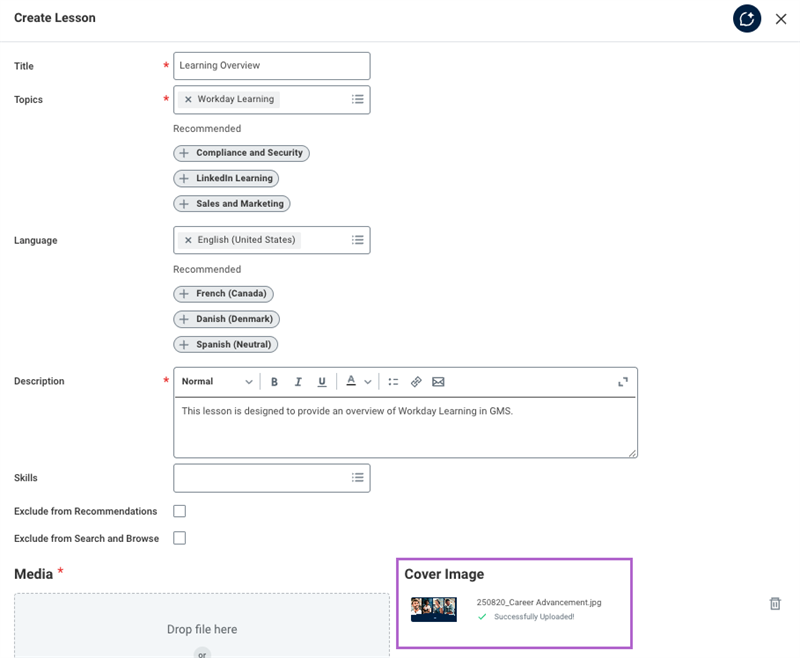
Additional image considerations include:
- Workday suggests using an image with a total pixel size of 1427 x 803 for your images.
- You may use an image aspect ratio of 16:9 (in case of 1366 x 768), and 4:3 (in case of 1024 x 768).
- Images should be under 10MB.
- You can crop a larger image if it exceeds the recommended parameters for it to display properly.
Learning Components
Learning components are the building blocks of learning content. You can create the following:
- Individual standalone lessons
- Multiple course lessons within digital and blended courses
- Programs that include existing standalone lessons and courses
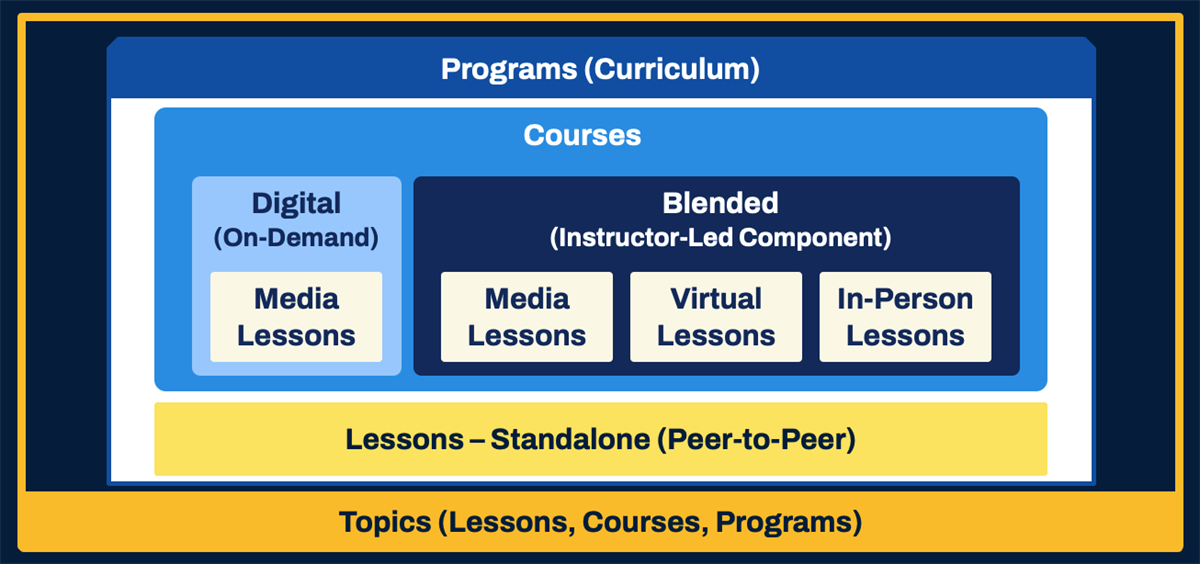
All learning components requires at least one topic designation. This enhances the learner's browsing experience in the learning catalog to find standalone lessons, courses, and programs, as illustrated in the diagram above.
The Learning Admin Dashboard
Only learning administrators have security permissions to create topics, courses, and programs. Use the Learning Admin application to navigate to the
Learning Admin
dashboard. The Learning Admin
dashboard is configurable. You can display important tasks, reports, and links necessary for the creation, management, and delivery of learning content. This dashboard's menu is broken into three sections, inlcuding:- Create: Lesson, Course, Survey, Program
- Management: Manage Topics, Manage Learning Content, Manage Enrollments, Manage Waitlisting
- Learning Campaign: Campaign Dashboard
Report
: The Manage Learning Content
report and Manage Topics
report provide an overview of all the topics and learning content available in your tenant.Topics
Topics are a required field when building learning components. Use topics to organize learning content and build your learning catalog. Topics enable and improve the browsing experience for learners.
Users can personalize learning content recommendations by topic. You can configure this feature on the
Learning
dasboard's Learning Home menu page. Locate the Personalize Your Learning spotlight card and select the Personalize Preferences link.The learning administrator can use the
Create Learning Topic
task and Manage Topics
report to create and maintain topics. Workday delivers many standard topic images. You can enter a maximum of 50 characters in a topic title. Example
: Business learning topics might include human resources, finance, and compliance.Topics are organization-specific. Organizations can control who can access learning content by topic through segmented security.
Security Note
: Learning security segments secure topics. Therefore, add any newly created topic to a new or existing security segment to ensure it displays for learners.Resource
: For the most current information on learning topics, refer to the Administrator Guide and search for Concept: Learning Topics.Standalone Lessons
Standalone lessons are single media files available on-demand and do not require enrollment. Workday recommends using standalone lessons to support peer-to-peer learning. By default, anyone within an organization can create a standalone lesson, also known as user-generated learning content (UGC). The option to create a standalone lesson makes it easy for employees to share essential knowledge with others. Workday delivers immediate access to the user-generated content (UGC). This allows organizations to keep institutional knowledge within the organization.
Example
: An organization specializes in shipping. A manager who oversees the shipping of pharmaceuticals creates a job aide that details quality assurance checks of the organization's standard operating procedures. The manager uploads this job aide as a standalone lesson to use for future worker instruction and reference within the organization.Important
: Peer-to-peer learning, by default, allows all workers to create and share standalone lessons and is a part of the Manage Lesso
n business process. Your organization should consider adding an approval or review step to this business process. To eliminate peer-to-peer learning functionality, edit the business process security policy and remove the Employee As Self security group from the Initiating Action: Create Lesson.When creating a standalone lesson, use media files to build this learning component. Workday limits media file sizes to 10 MB or less. There are some restrictions when creating standalone lessons to consider:
- Cannot use the same title as another standalone lesson. Titles must be unique.
- Cannot use the same media file as another standalone lesson.
- SCORM or AICC packaged content is not compatible with standalone lessons.
It is important to understand that standalone lessons are different from the lessons within a course. You can use the same learning content and media files for course lessons, even if they associate with a standalone lesson. However, existing standalone lessons cannot be used as a course lesson. While standalone lessons cannot reuse other standalone lesson titles, you can reuse the standalone lesson title when building a course lesson, as they are separate learning components.
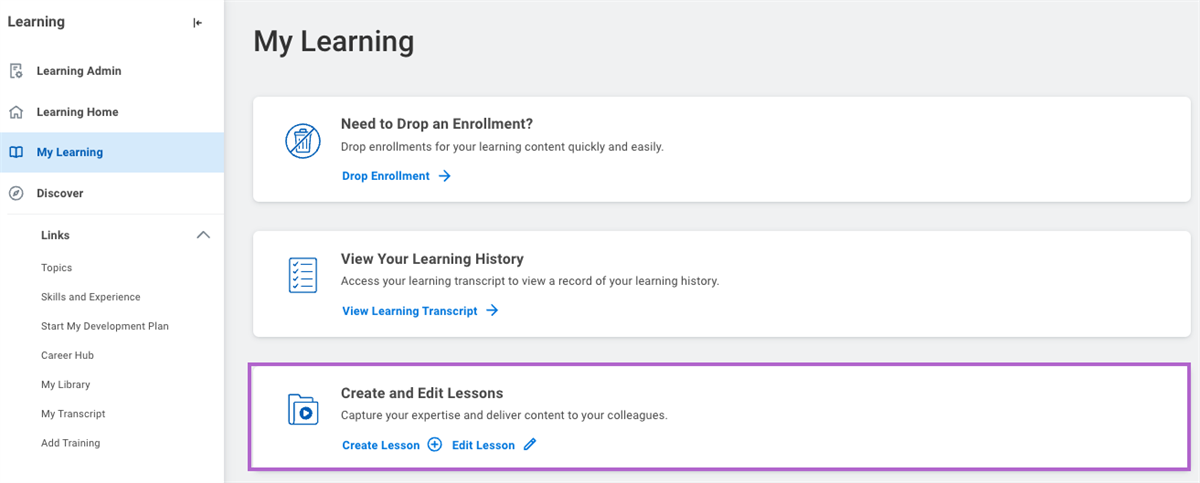
Workers can create standalone lessons in the following ways:
- Search forCreate Lessontask orEdit Lessontask to create or edit a lesson.
- TheLearningdashboard > My Learning menu page > Create and Edit Lessons spotlight card, as highlighted in the image above.
- TheLearning Admindashboard > Create menu section > Lesson, depending on security permissions.
Example
: Standalone lessons should have a narrow focus. Examples include: course guides, job aids, recorded lectures, demonstrations, and videos.Defining Standalone Lesson Fields
The following table describes fields specific to standalone lessons and the impact of each field:
Field / Sections | Required | Definition |
|---|---|---|
Course Title | X | The title of the course that displays to the user. |
Description | X | A statement about what the course covers. |
Topics | X | Assign one or many topics associated with a learning component. All standalone lessons must designate a topic. |
Field / Sections | Required | Definition |
|---|---|---|
Skills | Associate learned abilities to standalone lessons, courses, and programs to organize learning content. Learners can discover recommended learning content by skills. If your company uses Skills Cloud, you can use machine-learning to access recommended skills. | |
Language | The language that the learning content is available in. You can offer material in multiple languages and search for learning content based on learners' language associations. | |
Exclude from Recommendation | A field that, if selected, excludes the course from the machine-learning assessment. Workday will not recommend this course based on role, security, location, and more. Use this field for required compliance training that is not relevant to career or other interests. | |
Exclude From Search and Browse | A field that, if selected, excludes the learning content from the Global Search results and the Browse Learning Content report. Administrative reports, like the Manage Learning Content report, still display the learning content. | |
Content URL | X | Workday automatically populates a link to navigate to and share learning content. Workday populates learning content links for standalone lessons, digital courses, blended courses, and programs. This field is not editable. |
Media | X | Upload or attach a media file from your computer or Drive. Workday will automatically scan for viruses anytime you upload a media file or image. When you upload a file from your computer, Workday will automatically save a copy to Drive. |
Cover Image | An image associated with the learning component. | |
Acceptable Use Policy | Workday links the Acceptable Use Policy to reference when uploading content. |
Courses
Courses combine one or more pieces of learning content. Learning administrators can create multiple course lessons for each course. However, you cannot incorporate existing standalone lessons into a course or course lesson, as these are separate functionality. Workday Learning supports two course types: digital and blended.
Digital courses include media, external content, and survey course lesson types. It does not include instructor-led or training activity course lesson types. Course offerings do not apply to digital courses. Digital courses are available on-demand and may or may not require enrollment.
Note
: In Workday, media course lesson types can include recorded webinars, documents, quizzes, tests, videos, software simulations, and more.Blended courses include an instructor-led or training activity course lesson type. All instructor-led and training activity course lessons require a scheduled course offering, including date, time, and location for enrollment to occur. Designate a location as either a physical training room or a virtual classroom link.
Create or edit courses using the
Create Course
task or the Edit Course
task. If you view a course as a learning administrator, then you will have the option to edit the course, based on your security permissions.Defining Course Fields
Workday Learning applies machine-learning that evaluates many course fields to populate and recommend learning content on
Learning
dashboard sliders. Be intentional about which fields you populate. Workday denotes all required fields. Unless an optional field meets your business requirements, do not populate that field. The following table describes the fields that display when you build a blended or digital course:Field | Required | Description | Machine-Learning Input |
|---|---|---|---|
Course Title | X | The title of the course that displays to the user. | X |
Skill Level | An optional field for potential learners to gauge the difficulty of a course: beginner, intermediate, or advanced. |
Field | Required | Description | Machine-Learning Input |
|---|---|---|---|
Description | X | A statement about what the course covers. | X |
Topic | X | Assign one or many topics associated with a course. All courses must designate a topic. | X |
Skills | Associate learned abilities to standalone lessons, courses, and programs to organize courses. Learners can discover recommended learning content by skills. If your company uses Skills Cloud, you can use machine-learning to access recommended skills. | X | |
Language | The language that the learning content is available in. You can offer material in multiple languages. Learners can search for learning content based on language preference. | ||
Security Categories | The customer-defined security category determines which security groups have access to the course. This is controlled by a learning security category. | ||
Exclude from Recommendation | A field that, if selected, excludes the course from the machine-learning assessment. Workday will not recommend this course based on role, security, location, and more. Use this field for required compliance training that is not relevant to career or other interests. | ||
Exclude From Search and Browse | A field that, if selected, excludes the learning content from the Global Search results and the Browse Learning Content report. Administrative reports, like the Manage Learning Content report, still display the learning content. | ||
Inactive | A field that, if selected, disables a course. For example, deactivate a course if licensing limits the number of individuals who can enroll. It will not display for new enrollments. If cleared, the course will display again. | ||
Course Number | An identifier useful for tracking courses with a custom report. Organizations manually input and track any alphanumeric codes to meet their business needs. | ||
Contacts | Personnel to contact for additional help or information. | ||
Time Value | The approximate time it takes to complete the course in minutes, hours, days, or weeks. | ||
Total Course Duration | The unit (minutes and hours) for the Time Value field. Workday recommends using the smallest unit, minutes, to calculate time values. | X | |
Requires Enrollment | A field available for digital courses that routes the enrollment through the Enroll in Course business process. By default, digital courses are on-demand. For example, enable this option when you have purchased limited licenses to a digital offering. |
When building a course, you can also configure expiry periods, add units and competencies, and associate costs to meet business requirements. The following table defines these fields:
Field / Sections | Definition | Machine-Learning Input |
|---|---|---|
Expiry Period | The expiration date or duration on learning content when the learner needs to re-enroll in learning content. The learner's transcript lists the expiry period. Configure reminders to drive learning content completions. | |
Advanced Learning Expiration Rules
| Expiration rules that set a different expiration for specific worker groups. For example, an HR partner may have to take a Harassment Avoidance class annually, but workers in IT may take that class every two years. | |
Units | A predetermined number of Continuing Education or Continuous Professional Development credits for a course. An organization determines which additional unit types to use. |
Field / Sections | Definition | Machine-Learning Input |
|---|---|---|
Competencies | Associate competencies with learning content to define proficiencies workers use to achieve role objectives. Learners can view their competencies on the Competencies tab on the Performance menu page of the Worker Profile. For each competency, the View Competency report displays:
| |
Cost | A monetary fee or cost for the course. | X |
Enforce Lesson Order | Select the checkbox to ensure that learners complete any mandatory course lessons in the designated sequence, determined by the Lesson Order field. You must have at least 2 mandatory course lessons, and one of them must be self-directed to use this functionality. | |
Add Lesson (Course Lesson Type) | You can add media files, external content, instructor-led lessons, training activities, or existing surveys as course lessons. All digital and blended courses require one course lesson type. The delivery mode drives machine-learning input. | X |
Save for Later | An option to save your partially developed course to complete later. If you select Save for Later > Done, the course displays in your My Tasks, alerting you to complete it. The course will not display on your Manage Lessons and Manage Courses report until complete. |
Types of Course Lessons
Build courses by creating course lessons within Workday Learning or import them from outside sources. When building a course, determine whether it will be a digital or blended course. The type of course determines the available course lesson types.
You can add the following course lesson types:
Learning Content Type | Description | Digital Course | Blended Course |
|---|---|---|---|
External Content | Enter an external link address. Workday Learning does not track external link completions. Therefore, the lesson will automatically complete once the learner selects the link. | X | X |
Instructor Led | Create a course lesson with instructional delivery by an instructor. Designate this course lesson as In Person Classroom or Virtual Classroom. | X | |
Media Files | You can upload media files, such as documents, manuals, images, diagrams, and video files from Drive or a desktop. You can reuse the files from standalone lessons. You can also incorporate packaged content (SCORM or AICC), such as software simulations, recorded webinars, and quizzes (all built using third-party software). | X | X |
Survey | Incorporate an active Workday survey as a course lesson. | X | X |
Training Activity | Create a course lesson with an on-the-job observation, demonstration, or assessment led by an assessor. | X |
Packaged Content as a Course Lesson
Workday Learning supports the upload and playback of SCORM and AICC packaged content for desktop and mobile. Workday supports the following versions:
- AICC 2.x
- SCORM 1.2
- SCORM 2004 (2nd, 3rd, and 4th Edition)
Important
: Workday recommends testing whether the packaged content is standards-compliant in SCORM Cloud as a part of any organization's content creation process. Additionally, this is a step in troubleshooting SCORM and AICC packaged content issues.Your packaged content files must meet the following requirements to be compatible with Workday Learning:
- Maximum extracted file size of 20GB.
- Maximum of 100,000 extracted files.
- Maximum zip file upload size, using Drive or Learning file picker, of 4 GB.
- Maximum zip file upload size, using Media Importer service, of 20 GB.
You can add packaged content to courses as a media course lesson type. You can import packaged content into Workday in the following ways:
- Upload packaged content files to Drive.
- Use Media Importer to bulk upload external learning content.
- Upload the packaged content file directly to a Media course lesson from your desktop when you select the Select File button.
Consider the following limitations of packaged content:
- 4GB is the maximum video size file for packaged content.
- Cannot use packaged content in standalone lessons.
- You can only update enrollment results for courses with packaged content that have a completion status of Not Started or In Progress.
Important
: Learners should disable pop-up blockers, which can impact the interactions between packaged content and Workday.Tracking Packaged Content
The integration of packaged content enhances the learner experience, provides a variety of learning content available for consumption, and aligns reporting and completion tracking. You can track packaged content according to completion status or as a lesson within a course. To enable packaged content tracking, navigate to the
Edit Tenant Setup - HCM
task to select the Enabled Packaged Content Interaction Reporting checkbox.Workday tracks the completion status (Not Started, In Progress, Completed) for each package you launch. When you launch packaged content that contains a scoring element or assessment, Workday will track the summary data (pass/fail, score).
Important
: If you use packaged content as a course lesson, select the Provide Course Grade checkbox when configuring a course. This will track any quiz or knowledge check requirements built into the package. Workday will use this data to calculate course completions.While you can configure Workday Learning to track packaged content, the logic built into the package by its author determines the completion status for the packaged content. You can configure the package to send the completion status at any point during user consumption or upon user exit. Regardless of when the package sends the completion status, if you enable interaction reporting, by default, the lesson completion status updates when the learner exits the course. You can enable the completion without exit functionality for AICC, SCORM 1.X, and SCORM 2004 packaged content from the
Edit Tenant Setup - HCM
task. This allows the lesson completion status to immediately update when Workday receives the packaged content's status.If your Workday session times out before you complete the packaged content, Workday still saves your progress. It updates the learner's completion, scores, and success rates of the latest interactions. When you sign back into Workday, Workday directs you back to the learning page to re-launch the packaged content.
For the highest reliability, Workday recommends that the tracking logic in your packaged content sends the completion status as early as makes logical sense.
You can view existing learning reports to view tracking data. Here are some reports that relate to tracking packaged content consumption:
Reports or Dashboards | Considerations |
|---|---|
Innovation Services Summary | View service opt-in status and last-modified information and access service descriptions on Workday Community. |
Learner Engagement | View enrollments and completions to evaluate learner engagement. |
My Team's Learning | View a summary of learning progress for all direct reports, including pre-hires. |
External Content as a Course Lesson
You can add an external content course lesson to a digital or blended course. Types of external learning content include:
- Cloud Connect for Workday Learning, like LinkedIn Learning.
- Adding an external learning content lesson link to outside materials via the external content's URL.
When the learner opens an external content course lesson, Workday launches the URL, and the material displays in its own browser window. Learners are still responsible for any sign-ins that the external content requires. When the learner finishes reviewing the learning content via the link, they may close the window and continue with the other course lessons.
Workday tracks learners' internal learning content progress, but excludes external learning content from completion calculations. Therefore, as soon as a learner accesses the external link, the completion status updates to Completed.
The exception is material imported via Cloud Connect. To track this material, you must subscribe to the additional Cloud Connect functionality. This subscription service is additional to Workday Learning, and therefore not covered in this course.
Digital Courses
Digital courses include one or many course lessons taken on-demand without an associated learning trainer, instructor-led course lesson, or training activity. You do not schedule course offerings for digital courses. If necessary, a digital course can require enrollment, initiating the
Enroll in Content
business process.Digital courses have no effective date or versioning. Changes and updates apply immediately. You cannot pre-configure expiry periods for digital courses, but learning administrators can inactivate digital courses at any time.
Blended Courses
Blended and digital courses share many similar fields. The following table lists the fields unique to blended courses:
Field/Sections | Definition | Impact |
|---|---|---|
Disable Express Interest | A field that, if selected, removes the option for students to express interest by requesting a different time or location for a course offering. | Workday Learning will not report expressed interest on this learning content. |
Effective Date | The date the course becomes effective in a catalog and is available to schedule an offering. The date defaults to current date unless manually updated. | You cannot update or edit this field after initial creation. You can set this field to a past or future date. Enrollment cannot occur until the effective date. |
Version Schema | An option to automate the versioning process for blended courses. This field displays to learners, if populated. | Setup is required. If you do not use the Version Schema functionality, you will need to manually version your learning content. All version schema information will display on the Version tab on the course details page. |
Custom Version Label | The iteration of your course. Useful for identification and updates when scheduling an offering. This field displays to learners, if populated. | All course versions display on the Version tab on the course details page. |
Version Notes | The information explaining updates made to the course version. | All course version notes display on the Version tab on the course details page. |
Field/Sections | Definition | Impact |
|---|---|---|
Enable Auto-Enrollment from Waitlist | Automatically adds waitlisted learners to the course offering when someone drops from offering's enrollment. If you select this option, learners on the waitlist auto-enroll in the order they waitlisted (i.e., on a first come, first served basis). If cleared, the learning administrator can manually move waitlisted individuals into the class regardless of their place on the waitlist. | Determines how waitlisting management occurs. |
Minimum Enrollment Capacity | Defaults to zero, but you can set it to the number your company requires to conduct the class. Workday Learning does not notify the learning administrator if a course does not reach minimum capacity. | Administrators must manually monitor enrollment and cancel under-filled offerings. Likewise, learners do not automatically receive a cancellation notice, so the learning administrator needs to inform learners of any changes by configuring notifications. |
Maximum Enrollment Capacity | Indicates the maximum allowed learners before enrollment closes or a waitlist generates. | Certain mass enrollment types will adhere to the maximum limit when enrolling learners into the course. This is a required field, unless you select the Unlimited Capacity checkbox. |
Waitlist Capacity | Limits the number of accepted learners on a waitlist. If you leave this at zero, the waitlist does not exist. | A number greater than zero activates waitlisting. |
Unlimited Capacity | Allows for no maximum enrollment limit, for such instances like large conference sessions or on-the-job training activities. |
Field/Sections | Definition | Impact |
|---|---|---|
Status | Indicates the availability status for the course offering as: Open, In Progress, or Closed. | Only certain mass enrollment types can enroll into In Progress or Closed statuses. |
Allowed Instructors | A pool of available instructors to lead in-person or virtual course offerings. You can leave this field blank to flexibly add instructors at a later date. | Once you select instructors, you can only select instructors from this field when scheduling offerings. |
Allowed Assessors | A pool of available assessors to lead on-the-job training activity lessons in courses. You can leave this field blank to flexibly add assessors at a later date. | Once you select assessors, you can only select assessors from this field when scheduling offerings. |
Location | A pool of Business Site locations, where in-person course offerings can occur. You can leave this field blank to flexibly add locations at a later date. | Once you select locations, you can only select locations from this field when scheduling offerings. |
Add Lesson (Course Lesson Type) | An option to add media, external learning content, a survey, a training activity, an in-person classroom, or a virtual classroom lesson that builds the course. |
Course Offerings
All in-person classroom, virtual classroom, and training activity course lessons in a blended course require scheduled offerings for enrollment to occur. You can designate asset details, like instructors, assessors, and locations at the course level and at the offering level, as illustrated in the diagram below.
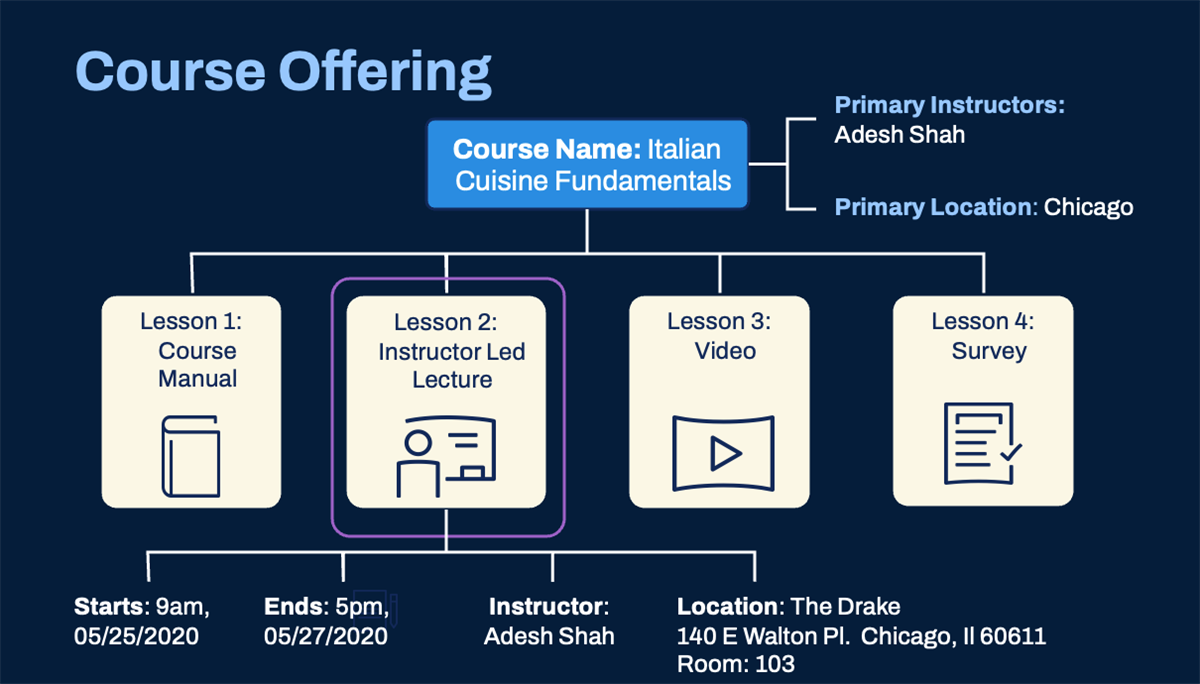
Define learning trainers (instructors and assessors) and locations at the course level so they are available to schedule in a course offering. At the course level, create a pool of available assets on the blended course to use when scheduling course offerings. Schedule each individual offerings for that course using the pre-determined pool of assets.
Important
: The learning administrator can create multiple offerings for a blended course based on your organization's needs and schedule. Therefore, learners enroll in the course offering, not the course.Use the
Schedule Course Offering
task to create offerings for a blended course. Designate a learning trainer, a location (depending on delivery method), date, and time on a course offering to enable learner enrollment. Until you schedule an offering, you have not committed either the learning trainer or location in Workday. Once you create a course offering, then you have committed the resources.Important
: While Workday recommends entering course offering details, such as any applicable instructors, assessors, or locations, it will not prohibit you from creating an offering. You can still schedule an offering for a blended course and enter these details later.Digital courses and standalone lessons are on-demand, therefore they do not require course offerings.
View all upcoming offerings by navigating to the
Upcoming Course Offering
report. Additionally, you can configure this report to display on the Learning Admin
, Learning
, and Learning Trainer
dashboards.Assign Assets to a Course Offering
Learning Trainer Assets
Consider how you want to manage offering assignments. You can:
- Assign a pool of allowed instructors and assessors at the course level and solely schedule from that pool.
- Leave the Allowed Instructors or Allowed Assessors fields blank at the course level to schedule any learning trainer in your tenant at the offering level.
When you schedule course offerings by assigning learning trainers from the Allowed Instructors or Allowed Assessors pool at the course level, you must schedule from that pool of learning trainers. You do not have to assign all learning trainers in a pool, but you cannot use any learning trainers outside that pool. If you need to use an unlisted resource, edit at the course level to add the learning trainer before scheduling an offering.
Additionally, you have the option to leave the Allowed Instructors and Allowed Assessors field blank at the course level. This provides the flexibility to assign any designated learning trainer in your organization at the offering level.
Though assessors differ from instructors, assign assessors to training activity course lessons in a blended course. In Workday Learning, training activities can be on-the-job observations, demonstrations, or assessments. Training activities behave similarly to instructor-led course lessons.
There are two types of instructors or assessors to assign on each instructor-led or training activity offering. These types are primary and lesson level. Designate a primary instructor or primary assessor for each offering.
- The primary instructor or assessor has access to all course grades and attendance, even if they did not deliver the offering. They can review grades and override results, if necessary.
- Lesson-level instructors and assessors enter grades and track attendance at the lesson level.
Assign one or several instructors or assessors to courses and course offerings. One or more can be primary. One or more can be lesson level. Your Workday Learning configuration drives this functionality.
Tip
: Initially, you may find it easier to assign the same instructors and assessors at both the primary and lesson level.Location Assets
Designate in-person classroom locations for each offering using the course level Allowed Locations pool. At the offering level, assign a primary location. The primary location defines the business site location for the offering, which will populate any existing training room locations at the offering level.
If an existing training location does not meet your needs, you can identify an ad hoc location. Ad hoc location information is manual data entry, including the address, room, and time details. Configure a time zone that corresponds to the ad hoc location where the instructor will deliver the learning content. You cannot store ad hoc locations in the tenant for future use.
For virtual classroom offerings, assign URLs and passwords to facilitate virtual classroom delivery. Provide additional directions and information to learners in the Login Details and Additional Information fields.
Resource
: Virtual classroom integrations are available for Microsoft Teams and Zoom. For the most current information, refer to the Administrator Guide and search for Virtual Classroom Integration.While virtual classroom lessons do not have locations, you will need to specify a time zone where the instructor will host the lesson. Identify the time zone in the Time Zone field located in the lesson details. Workday automatically configures the offering dates and times for learners to the specified time zone. View the start and end dates and times for a course offering on the Advanced Details tab.
Important
: You can schedule a course offering without designating a location at the course or course offering level. However, Workday recommends entering this information as soon as available.Programs
Similar to how you would build courses by creating course lessons, you can build programs with existing standalone lessons and courses.
Programs enable you to combine standalone lessons and courses into a curriculum that learners can locate, enroll in, and complete. As learners complete a program, Workday tracks their progress. Programs do not designate a mandatory order, so learners can complete the learning content in any sequence. A learner's
My Transcript
report will track the completion status of both the program and each learning component within the program.Tip
: Consider configuring prerequisite rules if you wish for learners to enroll or complete specific courses before accessing other courses in a program.While creating programs are similar to creating other learning components, programs provide additional features that allow learning administrator better management and control over how learners access and engage with learning programs.
By default, business processes do not occur during programs, since they contain courses that already use the
Enroll in Content
business process. However, you can select the Requires Enrollment checkbox, which enables the Enroll button and ensures any business process approvals occur before a worker can start the program. If you do not require enrollment, a Start Program button displays.Additionally, you can select the Skip Enrollment Approvals checkbox for any learning component in a program. This allows learners to bypass any additional approval steps in the
Enroll in Content
business process, creating a better learner experience. Learners will still adhere to any approval steps associated with the program enrollment.Workday recognizes equivalent courses that learners have already enrolled in or completed in a program. You can set reminders to prompt students to complete any program enrollments.
To create a program, you will need to complete many fields similar to courses. Some additional fields to consider when adding learning content include:
Field | Description |
|---|---|
Add Content | Select to add existing standalone lessons, digital courses, and blended courses to a program. |
Field | Description |
|---|---|
Skip Enrollment Approvals | Allows learners to bypass any additional enrollment and approval steps in the Enroll in Content business process for any selected learning content in a program. You can apply this field to each item in a program. The learner still needs to adhere to any enrollment or approval steps at the program level. |
Requires Successful Completion | Indicates whether the standalone lesson or course is a mandatory item to successfully complete the program. |
Recognize Course Expiration Dates | Indicates whether Workday recognizes already established expiry period rules on the course. The program will not move to a completed status until the learner completes the learning content based on the expiry period requirements. |
Recognize Previous Completions | Indicates whether the program recognizes previous completions of the learning content item. When you select this option, you will need to specify the following:
|
Note
: It is important to understand that if you select the Recognize Previous Completions option and the learner has previoulsy completed all required content items, the program automatically completes upon their enrollment. Therefore, the Completion Date is set to the moment the learner completes the last program item, rather than the date of enrollment. This allows your organization to maintain accurate completion and expiration records to support compliance and retraining needs.Depending on your role, consider the following program recommendations:
Role | Consideration |
|---|---|
Learning Administrator |
|
Learner |
|
Tip
: Programs are ideal for defining a curriculum of standalone lessons and courses to complete learning certifications and enroll learners into learning campaigns.Configuration Considerations
Machine-Learning
As you begin to build learning components by inputing data into fields, consider enabling machine-learning to enhance the learner experience. This feature uses associated data such as designated topics, skills, and competencies to suggest other relevant learning content.
Important
: The data you enter into fields when building learning content impacts how machine-learning features function. Entering more data creates better learning content results for learners.To enable this feature, access the
Innovation Services and Data Selection Opt-In
report. In the Innovation Services Opt-In task, locate the Available Services tab in the HCM section. Select the HCM Machine Learning GA Features service. Once complete, navigate to the Maintain Innovation Services Data Selection Opt-In
task and filter for HCM: HCM Machine-Learning GA Features and select ML for Learning Core to opt in to learning data, worker profile data, skills data, and user feature delivery data to meet your needs.Note
: You can exclude countries from Worker Profile data. Therefore, machine-learning recommendations on the Recommended for You slider will not display for workers with a primary location from the excluded country. Configure security in the Manage: Innovation Services domain in the Innovation Services functional area. Then access the
Edit Tenant Setup - HCM
task and select the Enable Content Recommendations checkbox to display the related learning content to all learners. This configuration enables machine-learning for the following:Machine-Learning | Location | Configuration |
|---|---|---|
Based on Skills to Develop | Learning Dashboard | Displays as a worklet or slider. This option displays recommendations using associated skills on learning content, based on machine-learning and the learner's skill interests. |
Recommended for You | Learning Dashboard Worker Profile | Displays as a worklet or slider. This option displays relevant learning content based on previous completions, Worker Profile data, and learning patterns. |
Machine-Learning | Location | Configuration |
|---|---|---|
You Might Also Be Interested In | Learning Dashboard | Displays as a worklet or slider. This option displays related learning content that learners indicate interest in when they access or complete a course. Workday uses machine-learning to identify related learning content based on characteristics such as the title, description, skills, and topics. |
Suggestions For You | Learning Paths | Displays as a learning path. Select the Enable Learning Paths checkbox on the Edit Tenant Setup - HCM task to enable this feature.This option displays learning content recommendations for a learner to add to an existing learning path. You must have at least one piece of learning content in your path to receive machine-learning suggestions. |
Workday updates machine-learning data every 24 hours, Monday through Friday.
Packaged Content
To upload packaged content to a course, you need to enable and configure packaged content in your tenant. Access the
Edit Tenant Setup-HCM
task and locate the Packaged Content section. In the Packaged Content section, consider the following selections:Consideration | Description |
|---|---|
Enable Packaged Content | Enables you to upload packaged media content in course lessons. |
Enable Packaged Content on Mobile | Enables users to view packaged content for learning lessons on Android and iOS devices. |
Enable Packaged Content Interaction Reporting | Enables you to report on learner responses in courses that contain packaged content course lessons. This setting applies to interaction response data for new completions of packaged content. |
Enable Completion Without Exit for SCORM 2004 | Enables the course lesson completion status to update to Completed as soon as Workday receives the status event from any SCORM 2004 packaged content. |
Enable Completion Without Exit for SCORM 1.X | Enables the course lesson completion status to update to Completed as soon as Workday receives the status event from any SCORM 1.X packaged content. |
Enable Completion Without Exit for AICC | Enables the course lesson completion status to update to Completed as soon as Workday receives the status event from any AICC packaged content. |
Align Workday and Packaged Content Sessions | Enables you to align Workday and packaged content tracking so both remain active while learners consume packaged content. |
Note
: Workday does not optimize packaged content videos for playback.Supported Versions of Packaged Content
There are currently four different versions of SCORM in use. Workday supports SCORM HTML5 on desktop and mobile devices. Some older versions of SCORM use Flash, which is not compatible with mobile devices. Workday Learning supports packaged content for an iPad and iPhone using iOS11 or later and Android devices running 5.0 or later.
The table below identifies the types of packaged content that Workday supports:
Version | Release Date | Widely Used | Cross Domain | Supported |
|---|---|---|---|---|
AICC HACP (aka AICC 2.x) | Feb 1998 | Yes | Yes | Yes |
SCORM 1.2 | Oct 2001 | Yes | No | Yes |
SCORM 2004 (V2-V4) | Jul 2004-Mar 2009 | Yes | No | Yes |
Virtual Classroom Platform Integration
Workday Learning integrates with the following virtual platforms:
- Microsoft Teams
- Zoom
These platforms enables large, geographically diverse populations to join virtual classes for instructor-led training.
Microsoft Teams Integration
Integrating Microsoft Teams allows you to create course offerings that include virtual locations for instructor-led course lessons. To configure this integration, all virtual classroom integrations require an Integration System User (ISU) and Integration System security group. Each integration must establish a unique ISU that is separate from an administrator.
To create an ISU, use the
Create Integration System User
task and select the Do Not Allow UI Sessions checkbox. Workday will assign the ISU to the Microsoft Teams security group. You will need to create a corresponding security group to configure access to the following:- Integration Security domain
- Security Configuration domain
- Manage: Learning Virtual Classroom Integration domain
- Integration Build domain
- Business Process Administration domain
- Manage: Business Process Definitions domain
Once you establish security access, use the
Create Integration System
task and the View Integration System
report to configure integration. You will need to populate these fields:- Client ID: From your Microsoft Azure setup.
- Client Secret: From your Microsoft Azure setup.
- Tenant: Your Microsoft tenant ID.
- Mailbox: To generate the Microsoft Teams link.
Lastly, you will need to edit all associated business process definitions to add a new integration step and create an integration condition rule.
Resource
: For additional information about the Microsoft Teams integration, reference the Administrator Guide to search for Steps: Set Up Virtual Classroom Integration with Microsoft Teams.Zoom Integration
When you integrate Zoom with Workday Learning, it enables you to automatically create Zoom meeting links when scheduling virtual classroom lessons in course offerings. This will improve the learning admin experience for scheduling virtual classroom lessons and enhance the learner experience globally.
To establish Zoom as a virtual platform in Workday Learning, you need to create and activate a server-to-server OAuth application in Zoom before enabling in Workday Learning.
Resource
: For more information about these prerequisites, reference the Administrator Guide and search for Steps: Set Up Virtual Classroom Integration with Zoom.Once you have met the above prerequisites, you can complete the following to establish a Zoom integration:
- Navigate to theCreate Integration System Usertask and create an integration user, such as Learning_Integrations_User as the username.
- Access theCreate Security Grouptask. Create an unconstrained security group and then update the Security Configuration domain with this group.
- Access theMaintain Permissions for Security Grouptask to update the domain security policies.
- Access the Manage: Learning Virtual Classroom Integation domain and update security group with View and Modify permissions and run theActivate Pending Security Policy Changestask.
- Access theManage Course Offeringbusiness process and edit the business process definition to add a new Integration type step. Select your Zoom integration and select OK.
- From the business process, select the Maintain Step Conditions option to create a new condition rule.And/OrSource External Field or Condition RuleRelational OperatorComparison TypeComparison ValueAndIntegration Systems - Proposedany in the selection listValue specified in this filterZoom Integration SystemOrIntegration Systems - Currentany in the selection listValue specified in this filterZoom Integration System
- Access theEdit Tenant Setup - HCMtask and in the Select Virtual Classroom Integration field, select the Zoom integration you want to use.
With the Zoom integration, Workday Learning will automate any attendance information, reducing manual effort. You can establish threshold percentages for partial and full attendance in the
Edit Tenant Setup - HCM
task. The attendance duration will be reflected in the Attendance Duration Percentage field in the Manage Grading and Attendance
task.Resource
: For additional information about the Zoom integration, reference the Administrator Guide to search for Steps: Set Up Virtual Classroom Integration with Zoom.Workday-Delivered Reports
Workday Learning delivers several analytical reports. You can use these reports to build and manage learning content and enrollment. Below are Workday-delivered reports related to topics discussed in this chapter.
Report Name | Description |
|---|---|
Learning Calendar Integration Status | Displays the status of the any learning calendar integration in your tenant. |
Manage Topics | Lists all topics in Workday Learning with an option to edit an existing topic or create a new topic. |
Schedule Offering | Lists courses with scheduled offerings, which you can filter by topic, delivery mode, allowed location, instructor, or language. |
Topics | Displays all the topics and topic images in Workday Learning, based on the learner's security permissions. |
View All Learning Catalogs | Lists all existing learning catalogs in Workday Learning. |
View Learning Topic | Enter the topic to display the topic details and the associated image. |
Note
: For the most up-to-date list of Workday-delivered Learning reports in Workday, search for Workday Standard Reports
report and select Learning in the Report Categories field.Chapter Summary
You can create internal learning content and import external learning content via Cloud Connect or with external links for workers to consume. Either way, the fields you populate for each learning component is impactful. Therefore, be methodical in how you populate a field. Machine-learning uses learning content fields to generate sliders, which showcase learning content to workers on the
Learning
dashboard. These sliders are an essential component to building a strong learner experience.Additionally, ensure that learning content meets company requirements by adding approval steps to learning-specific business processes, such as the
Manage Lesson
and Manage Course
business processes. This allows greater control and oversight of how learning content is created and reviewed.