
Configure Workday Learning
Overview
This chapter explores how to navigate and configure Workday Learning functionality. Workday Learning has three primary dashboards:
Learning Admin
, Learning
, and Learning Trainer
. These dashboards are the basis for navigating, performing learning tasks, creating learning content, and managing enrollments. Configure worklets, sliders, spotlight cards, branding, and links to customize Workday Learning for your organization.Objectives
By the end of this chapter, you will be able to:
- Identify Workday Learning applications and dashboards.
- Configure Workday Learning dashboards to enhance the learner experience.
- Create Workday Learning assets.
Learning Applications and Dashboards
Workday Learning cannot deploy without or before Workday HCM. The touchpoints from Workday HCM to Workday Learning include important search criteria, like worker data, locations, and learning trainers. Workday Learning uses dashboards for learning-specific search and navigation functionality. These capabilities primarily route through the three Workday Learning applications. You can use these applications to navigate to the following dashboards:
- Learning Admin
- Learning
- Learning Trainer
Access to each Workday Learning dashboard is security-driven. A user's security permissions determines which applications and dashboards are available to them.
Example
: Learning trainers, such as instructors, have access to the Learning Trainer
dashboard because they are members of the All Internal Learning Instructors security group.You can access the following functionality and security considerations on each dashboard:
Workday Learning Dashboards | Functionality | Configurable Security Groups |
|---|---|---|
Learning Admin | Provides an administrative view of learning content with access to essential tasks and reports. These tasks and reports enable you to maintain the learning catalog, monitor learner completion statuses, and gain insights into the value and effectiveness of training. | Learning Administrator |
Learning | Learners can browse and enroll in learning content, build learning paths, create peer-to-peer learning lessons, and complete required compliance training. A learning administrator can configure custom sliders, spotlight cards, and links on the Learning dashboard to promote learning consumption. | All Learners |
Learning Trainer | Enables trainers to view delivery schedules, manage training activities and waitlists, submit grades and attendance, and enroll workers into learning content. |
|
Important
: For Workday Learning to recommend courses, customers need to sign the Innovation Services Agreement (ISA) at the time of purchase to use the HCM Machine Learning GA features.Configure Applications
Administrators and workers can configure the applications that display in the Global Navigation menu.
Organizations can determine which applications display on the
Home
dashboard and the Global Navigation menu for all workers. On the Maintain Dashboards
report, select the Required checkbox next to the desired worklets. On the Global Navigation menu, individual users have the option to add, remove, and arrange other optional applications.Individual workers can personalize the order of the applications in each section and which applications display, as long as an administrator does not require them.
From the Global Navigation menu, you can select the Add Apps button or the Edit button at the bottom to achieve the following:
Personalization Options | Description |
|---|---|
Add Apps | Workers can personalize their menu with useful applications. Use the Find Apps search box to locate specific applications or select any of the recommended applications. Select the plus icon to add the application to their Global Navigation menu. |
Edit | Workers can remove optional applications from the menu and rearrange the order the applications display in each menu section. |
Learner Experience
The learner experience is how workers can browse and consume learning content on the
Learning
dashboard. It is important to consider this experience by displaying learning content to meet your organization's needs. You can configure dashboards and menu pages to display sliders, spotlight cards, links, branding, and worklets. How you configure these pages can enhance a learner's browsing experience by highlighting required learning content, of interest learning content, and learning content recommendations. Apply segmented security to configure different learner experiences for different groups of workers.Use the
Edit Tenant Setup - HCM
task to enable the following Learner Experience options:- Course and lesson rating
- Packaged content
- Learning paths
Security Note
: To configure the learner experience, you will need access to the Edit Tenant Setup - HCM
task, Maintain Dashboards
report, and Maintain Learner Experience
task. However, access to these functionalities will depend on your organization's security configurations.Learner Experience Considerations
When setting up the learner experience on the
Learning
dashboard, you need to consider the worker's mobile and desktop experience. Each experience uses separate functionality.Use the
Maintain Learner Experience
task to customize each menu page on the Learning
dashboard, including Learning Home, My Learning, and Discover. You can configure these menu pages and who has access to each item. This task creates a robust learner experience on a desktop or browser.You can configure any dashboard using the
Maintain Dashboard
report. This drives the learner experience on the Workday mobile application. It is important to note that the mobile Learning
dashboard is limited to six sliders and will only display one centralized Learning page.Important
: You can separately determine security for the mobile and desktop experience. However, it is best practice to align the security between the two experiences for a consistent approach.Configure the Learning Dashboard
Workday delivers the
Learning
dashboard and menu pages. These menu pages cannot be changed. You can customize what displays on each menu page by adding links, sliders, spotlight cards, branding, and announcements, as highlighted in the image below.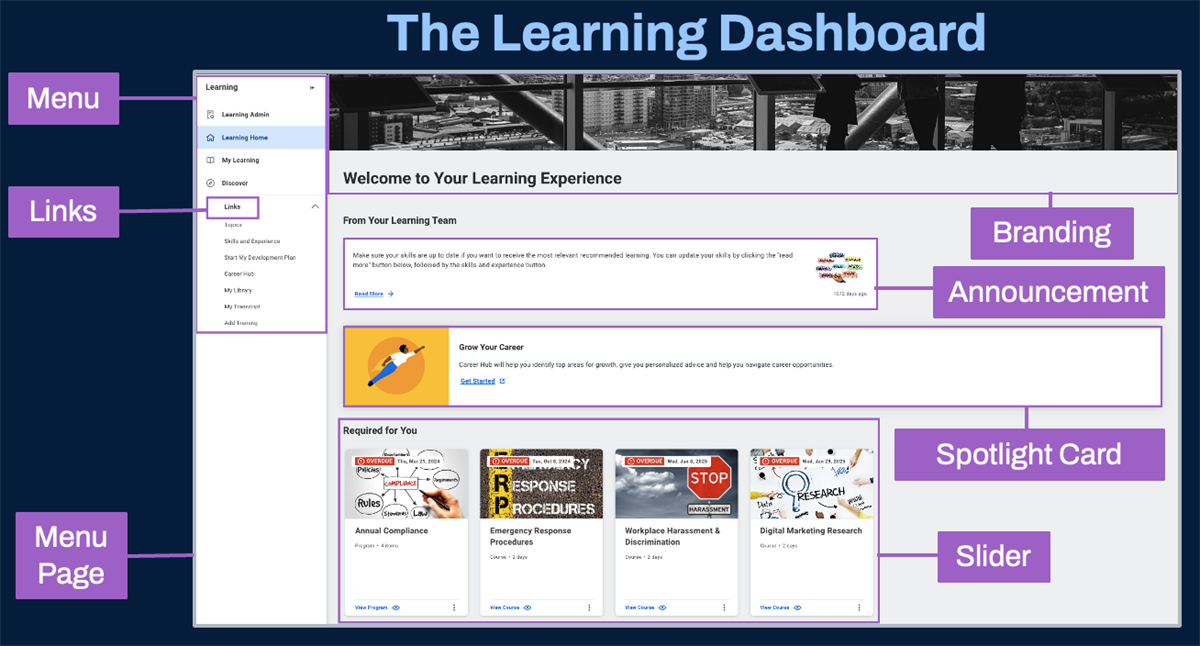
Based on your security access, configure the following to display on the
Learning
dashboard menu pages:Term | Definition |
|---|---|
Announcements | Configure announcements to alert learners to new learning content, training deadlines, and any learning content or enrollment updates. Configure a rule to display the announcement to a specific audience. |
Branding | Configure branding images, banners, and text to display on the Learning dashboard. You can apply conditions rules to each banner and text. |
Dashboards | Dashboards consolidate key information and actionable items into a single location. Dashboards contain menu items and menu pages. You can customize dashboards and dashboard menu pages with announcements, sliders, spotlight cards, and links. |
Links | Configure links to display on announcements, dashboards, or menu pages. These links can be internal or external. Configure dynamic external links, such as SAML single sign-on (SSO) links or Quicklinks. |
Term | Definition |
|---|---|
Menu | The menu organizes items into high-level categories. When you select a menu item, the menu page will display with any customizations. What displays on each menu page is based on the worker's security permissions. Workday delivers the Learning Home, My Learning, and Discover menu pages. |
Sliders | Sliders categorize and display learning content for a specific purpose, such as "Recommended for You" or "Based on Your Interests." If learning content meets the slider criteria, it will display within the slider. You can configure sliders as a worklet on the Maintain Dashboards report. |
Spotlight Cards | Spotlight cards are configurable elements to highlight specific tasks, reports, or external learning content to learners. |
Worklets | Worklets are reports and charts on dashboards that provide quick, visual snapshots of important data, like "Highlight Courses." |
Security Note
: To configure and customize the Learning
dashboard, you will need the appropriate security permissions, which is configured by your organization.Branding for Learning
You can customize the
Learning
dashboard's Learning Home menu page with a customized banner, including an image and text. Use the Configure Tenant Branding
task, and select the Other tab. In the Product Branding Configurations grid, locate the learning item and select the Rules button. You can add multiple images and text, and apply condition rules for each to display to different worker groups.When adding images and text, consider the following:
- Recommended banner size is 1440 x 193 pixels.
- Enter a maximum of 70 characters for the header text.
- Due to accessibility standards, Workday recommends that you do not place text over banner image.
By customizing the
Learning
dashboard with a banner, you create a more personalized and consistent learner experience that improves recognition and trust among learners.Resource
: For more information about branding for Learning, reference the Administrators Guide and search for Configure Branding for Learning.Announcements
Use the announcement functionality to alert learners to new learning content, training deadlines, and any overall learning content or enrollment changes.
Use the
Configure Announcements
task and select the intended learning dashboard for the announcement to display. Display an announcement on the Learning
, Learning Admin
, or Learning Trainer
dashboards.Determine the intended audience, expiration date, and message. Elect to display a worker profile image, custom image, or video within the announcement. Additionally, display and link tasks, custom reports, and external links for quick navigation.
Learning Links
Workday provides the ability to link internal reports and tasks or external URLs to the Links menu on the
Learning
dashboard. Workday provides two external link options:- Quicklinks
- SAML single sign-on (SSO) links.
Quicklinks and SAML single sign-on (SSO) links are not unique to Workday Learning. Use the
Maintain Learner Experience
task to create internal or external links and access existing links.Resource
: Within Workday, use the Create SAML SSO Link
, Edit SAML SSO Link
, and Maintain Quicklinks
task, as needed.For more information about establishing links, search in Workday Community for Create External Links to Third-Party Systems.
Sliders
Sliders enable access to personalized learning content. You can use the following slider types:
- Workday-delivered
- Machine-learning
- Custom
You can configure Workday-delivered sliders and opt into Workday machine-learning services to automatically populate learning content into specific sliders. Workday automatically delivers all machine-learning sliders once you sign the Innovation Service Agreement for Workday Learning at the time of purchase.
Note
: You can configure learning content recommendations to display in a learner's preferred language by selecting the Enable Language Preferences checkbox in the Edit Tenant Setup - HCM
task. Learners can set their language preferences using the Learning Preferences
task.Additionally, create custom sliders using the saved search functionality for reports to display personalized learning content on the
Learning
dashboard menu pages. Use the Maintain Learner Experience
task to add and update custom sliders, and designate which menu pages for display. Add up to three custom sliders to the Discover, Learning Home, and My Learning menu pages.Security Note
: To view a slider, learners must have necessary security permissions to access the slider's data.Workday delivers many sliders that you can display across the
Learning
dashboard menu pages, with some limitations. The table below lists a few examples:Slider | Slider Type | Definition | Considerations |
|---|---|---|---|
Based on Your Interest | Workday-delivered | Displays learning content based on learner-selected topics with the Learning Preferences task. Workday displays the learning content by:
• Creation, date, and third-party external learning content publication date.
• Only displays standalone lessons, courses, and programs. | Configure the Manage Learning Preferences spotlight card using the Maintain Learner Experience task. |
Based on Skills to Develop | Machine-Learning | Displays recommendations and learning content relevant to the skills a worker wants to develop or improve. Workday reviews courses you enroll in to help make this determination. | No restrictions. |
Continue Learning | Workday-delivered | Displays in progress, not started, and unsuccessfully complete learning content to learners. | Learning administrators can add this slider to the Learning Home and My Learning menu pages. |
Highlights | Workday-delivered | Displays learning content configured by the learning administrator using the Configure Learning Content Highlight task. | Learning administrators can only add this slider to the Learning Home menu page. The learning administrator must manually manage this slider. |
Slider | Slider Type | Definition | Considerations |
|---|---|---|---|
Most Popular | Workday-delivered | Displays learning content based on:
| Learning administrators can add this slider to the Learning Home and Discover menu pages. |
Popular in Your Role | Workday-delivered | Helps workers discover courses popular with other workers with similar job profiles (roles). Workday determines popularity by:
| Not available to Extended Enterprise Learners. |
Recently Added | Workday-delivered | Learning content added through the user interface or web services, and ordered by creation date. | Learning Administrators can add this slider to the Learning Home and Discover menu pages. |
Recommended for You | Machine-learning | Displays relevant learning content by pulling data from Workday Learning and Workday HCM. | This slider is available because of the signed Innovation Services Agreement. |
Related Content | Machine-learning | Displays learning content that contains similar material from the same subject area as current In Progress learning content. | This slider is available because of the signed Innovation Services Agreement. |
Required for You | Workday-delivered | Displays required learning content to the learner based on:
| No restrictions. |
Resource
: Reference the most recent list of Workday-delivered sliders in the Administrator Guide by searching for Reference: Learning Content Organization.Highlights Slider
Workday delivers and recommends configuring the Highlights slider, which promotes key learning content. Configure this slider to display on the Learning Home menu page on the
Learning
dashboard.Manually manage this slider by navigating to the
Configure Learning Content Highlights
task. You can define rules to specify the audience for the learning content you want to highlight on the Learning Home menu page, as shown in the image below. Consider the order, audience (rule), display time frame, and learning content. Once the learner completets learning content that displays on the Highlights slider, Workday automatically removes learning content from the Highlights slider once a learner completes any learning content in that slider.Upon completion, add the
Highlight Courses
worklet to the Learning
dashboard using the Maintain Dashboards
report. Then navigate to the Maintain Learner Experience
task to add the Highlights worklet to the My Learning tab grid.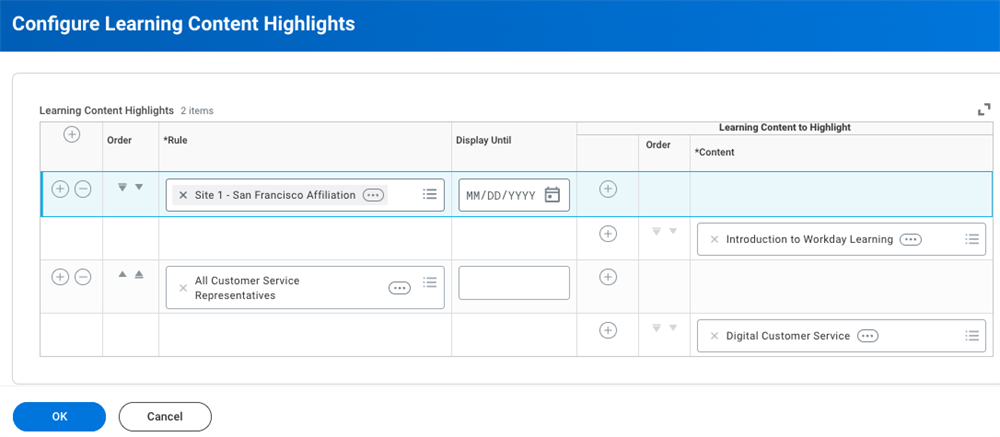
Spotlight Cards
Spotlight cards highlight specific tasks, reports, and external content to defined groups of learners. Use the
Maintain Learner Experience
task to add spotlight cards to a dashboard. You can create custom cards in the Create Learning Spotlight Card
task.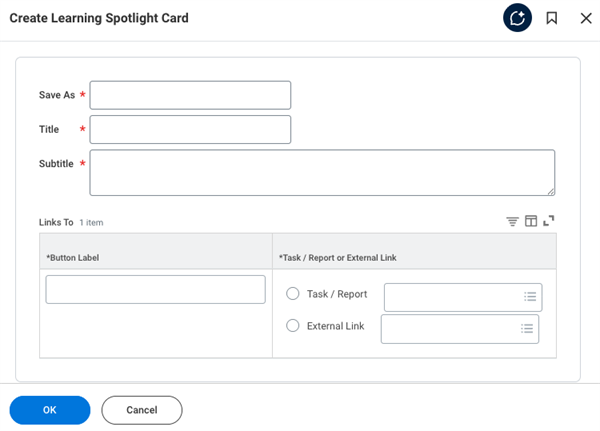
For performance optimization purposes, you can add a maximum of three spotlight cards per menu item to each of the
Learning
dashboard menu pages.You can use spotlight cards to:
- Promote a task, report, or external learning content.
- Add links to relevant learning content or resources.
- Enable learners to share their learning paths with others.
Configure spotlight cards with the fields below:
Term | Definition |
|---|---|
Save As | The identifier for the Put Spotlight Cards web service that can load the card into Workday. If you are not using a web service, you can make the Save As field and the Title field the same. |
Title | The name that displays to the learners. |
Subtitle | Describes the purpose of the card. The description limit is 120 characters. |
Button Label | Displays to learners an action on the spotlight card. There is a text limit of 26 characters or less. Example: Add 'Open Video' when you link to an external video. |
Task/Report | Select the option that supports the spotlight learning content: a task or report within Workday. |
External Link | Select the option that supports the spotlight learning content: an external link outside of Workday. Use the Maintain Quicklinks task to manage external links. |
Manage Spotlight Cards
Use the
Manage Learning Spotlight Cards
task to update an existing card. Two tabs display:- Custom Cards
- Delivered Cards.
On the Custom Cards tab, you can edit custom card details, such as title, subtitle, button label, and the task, report, or external link. You also have the option to create a new spotlight card.
On the Delivered Cards tab, all Workday-delivered spotlight cards display. These cards are typically delivered as is.
Worklets
Workday-delivered dashboards include delivered worklets. You can copy and modify delivered worklets and reports to create custom worklets. You can add worklets to any of the security-driven learning dashboards.
Resource
: Custom worklets are not unique to Workday Learning. For more information about configuring worklets, reference the Administrator Guide and search for Concept: Custom Worklets.Configuration Recommendations
There are many ways to configure Workday Learning to meet your organization's needs. Consider the following:
Location | Configuration |
|---|---|
Learning Home Menu Page | Workday recommends adding the following configurations to enhance the learner experience:
Workday delivers the following spotlight cards, which you can display a maximum of three spotlight cards per menu page:
|
Location | Configuration |
|---|---|
My Learning Menu Page | Workday recommends adding the following configurations to enhance the learner experience:
Workday delivers the following spotlight cards, which you can display a maximum of three spotlight cards per menu page:
|
Discover Menu Page | Workday recommends adding the following configurations to enhance the learner experience:
|
Resource
: To learn more about how to configure the learner experience, reference the Administrator Guide and search for Setup Considerations: Learner Experience.Additional Configuration Considerations
Currently, Workday does not deliver the following functionality by default. However, you can apply these configurations to a dashboard depending on your organization's needs.
Configuration | Definition |
|---|---|
Learner Schedule Calendar | Displays a schedule of learners' upcoming blended course offerings. |
My Certifications | Displays certifications learners have earned within Workday Learning. |
My Learning Paths | Displays learner selected standalone lessons, courses, and programs into groups based on a learner's interests, such as career or personal growth. |
My Waitlisted Courses | Displays waitlisted courses for which the learner is waiting for an available seat. |
Opportunity Graph | Proposes potential career paths based on historical job profile movement for every job profile in the tenant. This also serves as a touchpoint of Workday Talent, as Workday Learning helps learners identify learning content rankings by position. |
Progress Bar | Merged into the Continue Learning slider. |
Related Content Recommendations | Resides on a course. Note : This slider requires 24 hours to display related learning content as a part of the signed Innovation Services Agreement. Set up the functionality in the Edit Tenant Setup - HCM task, and select the Enable Related Content Recommendations checkbox. |
Saved for Later | Displays learning content that a learner bookmarks without any defined grouping (learning path). To enable this feature, access the Maintain Learner Experience task on the My Learning tab and add the My Library spotlight card or the Saved for Later slider. |
Top Learning Content for a Competency | Displays top learning content for a given competency. This slider requires the Talent and Performance application and configuration to display. |
Important
: Configuring dashboard content is not the same as configuring security. Dashboards are an access point to tasks, reports, and external links. Users can still navigate to learning content, even if you disable that navigation on the Learning
dashboard.Identify Learning Assets
Workday Learning enables the identification of learning assets, such as instructors, assessors, and training locations. You can grant security permissions to various learning trainer security groups to assign course offerings, manage grades, and track attendance. Create training room sites to track business assets and work spaces to conduct blended courses with an in-person course lesson type.
Instructional Delivery
Assign learning trainers to deliver in-person, virtual, or training activity course lessons. Learning trainers can be instructors or assessors.
You can assign internal or external instructors to lead your instructor-led classroom training. Internal instructors are workers in your organization, while external instructors work for an outside contracting agency. When creating instructors, there are two distinct tasks:
- Create Internal Learning Instructortask
- Create External Learning Instructortask
Both types of instructors can track attendance, enter grades, and manage the enrollment roster.
Assessors are similar to instructors. They manage onsite or on-the-job training activities, not classroom trainings. It is the assessor's role to observe or evaluate learner performance. Assessors are typically workers in your organization, like managers, where assessing job performance is a part of their job description. You also have the option to designate external learning assessors for specific on-the-job training, such as CPR training. You can also assign multiple assessors to a learner's enrollment in a course training activity lesson.
To designate workers as assessors, use the
Create Internal Learning Assessor
task, which uses the Manage Internal Learning Assessor
business process. To create external learning assessors, use the Create External Learning Assessor
task.Before building a course, determine your pool of available instructors and assessors to lead instructional delivery. By designating personnel as an internal or external instructor or assessor, they automatically become members of Workday-delivered security groups. They will receive the permissions of that group, including the
Learning Trainer
dashboard.External Learning Trainers
The process to add external instructors and assessors is different from internal learning trainers because they are not employees of the company. They must have an external learning user account. Until Workday identifies them, you cannot add the necessary external learning security permissions to their profile. When you add an external learning trainer, you can configure an expiration date and designate an associated learning vendor, as necessary, to their external instructor profile.
External learning trainers have limited access to Workday.
They cannot:
- Enroll in courses unless they are also an external enterprise learner.
- View worker profiles, except for information considered relevant to a course the worker enrolls in.
Resource
: For the most current information on this topic, refer to the Administrator Guide and search for Steps: Set Up Learning Instructors.Training Locations
Locations allow organizations to track their business assets and work spaces. In Workday Learning, you can assign a location to a course offering. Every location has a defined location usage, such as a business site, training room, or workspace. To deliver in-person instruction, schedule the offering at:
- An ad hoc location
- An existing location
To schedule at an existing location, create the location with a Location Usage value of Training Room, and idenitfy the new training location's superior (business site) location.
The
Create Location
task establishes new training room locations. These locations require a Superior Location that controls the time profile, time zone, and locale information for course offerings on the Details tab. On the Contact Information tab, add a separate phone number or an address that is specific to the training room location. Enter specific information pertaining to the training space, such as equipment, directions, and capacity on the Training Room Details tab. You can note training locations on an instructor-led course lesson. However, the primary location still associates with the business address. If you leave the Contact tab blank, the superior location's information will default.Important
: The information you enter on the Training Room Details tab, in the capacity field, is informational. It will not validate the capacity of the training location when building a course offering.Ad Hoc Locations
If a business site is unavailable or a course offering is at a temporary location, configure an ad hoc location for the course offering. For ad hoc training locations, you must enter the location details each time you want to use the space for each course offering. For more permanent or repeatedly used locations, consider creating a new location with the Location Usage value of Training Room.
Ad hoc locations require designated time zones.
Configuration Considerations
Dashboard Recommendations
Using the
Maintain Dashboards
report, consider configuring the learning dashboards in the following ways:Dashboard | Configuration Considerations |
|---|---|
Learning | Configure worklets to display recommendations and required or optional learning to learners. You can configure the Discover menu, but Workday strongly recommends that you leave the basic elements of the menu as delivered. |
Learning Admin | Configure worklets for specific administrative tasks and reports, such as a task for maintaining the learning catalog or a report that tracks the value and effectiveness of training. Workday delivers the menu on the Training Activities and Campaigns dashboards. |
Learning Trainer | Enables learning trainers access to manage parts of Workday Learning, such as enrollment for course offerings and waitlisting. |
My Library | Enables learners to manage their leaning paths and create a personalized curriculum to meet their professional development needs. |
Career for Worker Profile | Configure the My Transcript report as a worklet to enable learners and managers to access their learning history on the Career menu of the Worker Profile. |
Security
Learning dashboards consolidate administrative tasks and reports into a single location. Users access these dashboards based on configurable security. To customize dashboards, configure security for the following:
- Set Up: Learner Experience domain in the Learning Core functional area
- Set Up: Tenant Setup - Worklets domain in the System functional area
Report
: Use the Functional Areas
report and filter for Learning Core to view learning-specific business processes and domains to support any configuration.When configuring learning trainer access, Workday automatically assigns an appropriate security group. To further configure customer requirements, consider the following:
Configuration | Consideration |
|---|---|
Business Processes | Use the Manage External Learning Instructor and Manage Internal Learning Instructor business processes to add approvals or additional steps when creating an internal or external instructor. |
Domains Security Policies | Access the Self-Service: Learning Instructor domain in the Learning Core functional area and Self-Service: Certifications domain in the Worker Profile and Skills functional area to configure relevant security policies. |
Dashboard Content | Configure the following worklets to the External Learning Instructor as Self and Internal Learning Instructor as Self security groups:
|
When setting up the learner experience, configure security in the following domains:
Domains | Considerations |
|---|---|
Learning Access | Enables users to view learning content information and learning content progress. Workers with access to this domain can search the learning catalog, view course information, set lerning preferences, and view learning content progress. |
Manage: Share Learning paths | Enables users to share their learning paths with others. |
Set Up: Tenant Setup - Worklets Set Up: Learner Experience | Enables users with access to these domains to configure the learner interface. |
Workday-Delivered Reports
Workday Learning delivers several analytical reports. You can use these reports to build and manage learning content and enrollment. Below are Workday-delivered reports related to topics discussed in this chapter.
Report Name | Description |
|---|---|
Manage Learning Spotlight Cards | Lists all custom and delivered spotlight cards, and provides the option to create a spotlight card. |
View External Learning User | Search for all existing external learning users in Workday Learning. |
View Learning Assessor | Search for all existing internal assessors in Workday Learning. |
View Learning Custom Slider | Prompts one for the desired slider to display details. |
View Learning Instructor | Search for all existing internal and external instructors in Workday Learning. |
Note
: For the most up-to-date list of Workday-delivered Learning reports in Workday, search for Workday Standard Reports
report and select Learning in the Report Categories field.Chapter Summary
The learning dashboards consolidate important administrative learning tasks, while driving the learner experience. Workday delivers a default configuration and interface that organization's can elect to customize. How you configure the Workday Learning dashboards dictates how workers will consume learning and how an organization manages and tracks learning initiatives.
Customize your organization's learning experience using the
Maintain Dashboards
report. This determines what worklets, tasks, and reports display to workers and who has access to each item.Consider configuring different interfaces and branding for different audiences. This will create a tailored experience based on worker characteristics, like job profile, or target learning content to a specific group of learners.