
Workday Drive and Media Cloud
Overview
Drive is the Workday file management system used to collaborate, store, and share files using the Workday security framework. It enables users to organize Drive content into folders and quickly attach content, such as documents and media files, to build learning components. Drive integrates with Media Cloud to share files, enhance media with video interactions and captions, and configure playback settings.
Objectives
By the end of this chapter, you will be able to:
- Manage and share Drive files.
- Create video interactions and configure video playback settings.
- Manage video captions.
Workday Drive and Media Cloud
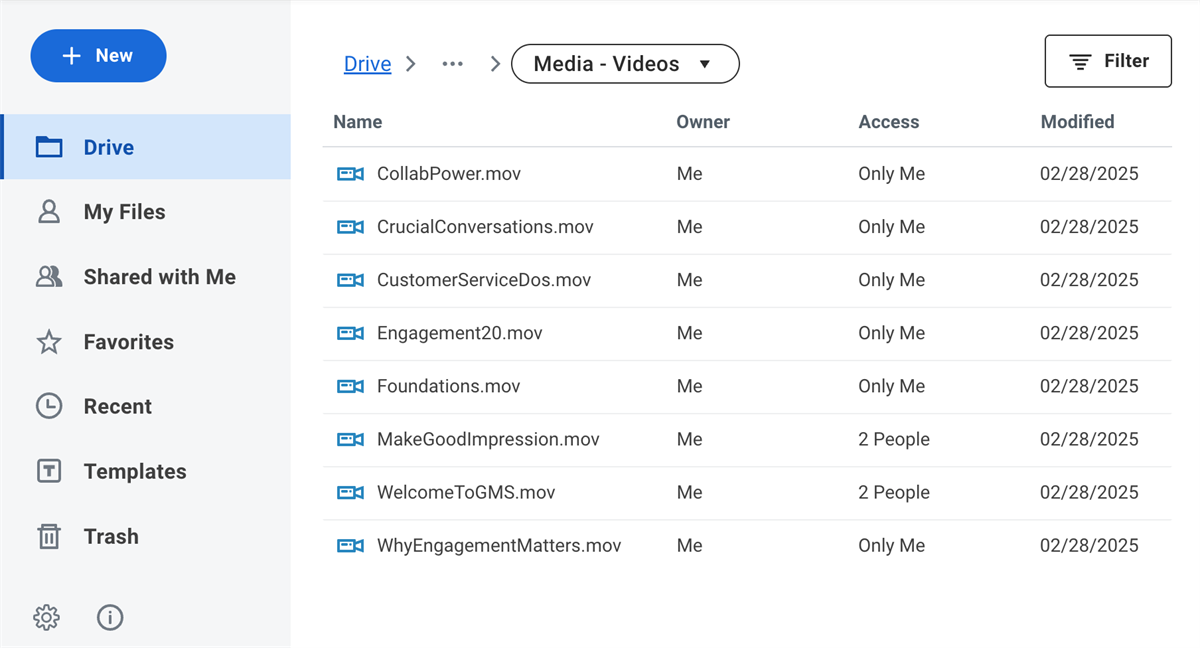
Workday Drive is a file management system that integrates with Media Cloud. You can upload, share, and manage files by accessing Drive. Use Drive to organize, download, or share files. You can share files with view, edit, or comment permissions for groups or individuals. When you open a video file, Media Cloud supports the playback and editing of these files.
Workday Learning requires Media Cloud, and is included in the order form by default. Media Cloud allows you to add interactions to a media file and make video content accessible through video captions.
When you upload a file into learning content, the file becomes available in Drive. Workday stores these files with the cloud data center provider. You can upload files to Drive in the following ways:
- While creating a standalone lesson or course
- As a direct upload into Drive
- Using a web service.
Resource
: For the most current information about managing media in Workday Learning, refer to Workday Community and search for Workday Media Cloud Guide > Workday Media Cloud - FAQ.Manage Media Access
Workday Learning and Drive enables the sharing and restricting of files. Examples of common file types include:
• DOC
• JPEG
• HTML
• PDF | • PNG
• PPT
• XLS
• MP4 |
You can share files with individuals or security groups with the permissions of Can View, Can Edit, or Can Comment. When sharing with individuals, you can compose a message that displays in the worker's notifications with a button to view the shared files.
Note
: Can Comment permissions only apply to Worksheets and do not apply to all media files.Workday also allows you to configure your sharing options. Sharing with security groups requires tenant configuration. Consider the following Drive domains in your security configuration:
Domain | Type of Access | Description |
|---|---|---|
Drive | General User | This domain provides access to the new Drive user interface to create and manage Workday files associated with workbooks and media files. |
Drive Administrator | Administrative | This domain provides access to audit-related tasks for Drive items, such as viewing all user items, transferring ownership, and removing sharing data for terminated or inactive accounts. |
Reports: Drive Admin | Administrative | This domain provides Admin-level access to view report fields related to Drive. It enables access to all Drive items in tenant, and from all Workday Accounts enabled for Drive. |
Reports: Drive User | General User | This domain provides User-level access to view report fields related to Drive. Drive item owners can share Drive items access with other users. |
View File and Media | General User | This domain provides a user with access to files or media items shared from Drive, without requiring that the user has access to the Drive domain. The access level depends on the access permissions for the Drive items when they were shared. |
Drive Web Services (optional) | Administrative | This domain provides access to web service tasks for Drive items, such as viewing all user items, creating new items for users, and removing data for users. |
Security Note
: Limit Drive security permissions to the following security group types:- Public groups
- Role-based (constrained) groups
- Unconstrained groups
Restrict Media Access
Based on your security access, you can restrict media that your organization classifies as sensitive or confidential. You can base restrictions on key IP addresses or authentication rules. Media files can span multiple courses, so set restrictions at the media level for greater control. Media restrictions apply to videos, documents, and packaged content stored on Drive.
To restrict media, you need an authentication policy. Workday uses this policy as a restriction filter. Creating authentication policies is existing functionality and is not unique to Workday Learning.
Resource
: For the most current information on restricting media, refer to the Administrator Guide and search for Restrict Access to Learning Media or Restricting Media.To restrict media access, navigate to the
Manage Authentication Policies
report and select the Add Authentication Policy button to create the restriction conditions.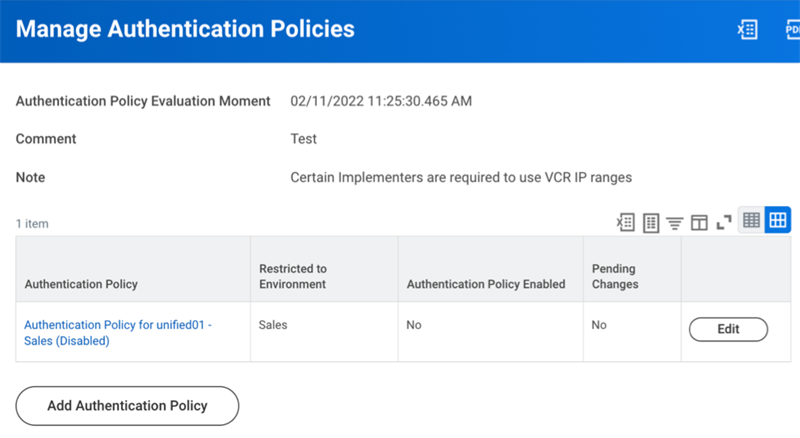
Specify which media to restrict access to by selecting the restrict media flag at the media level. You can accomplish this via:
Access Point | Navigation |
|---|---|
A Video in Drive | For media files and SCORM files, you can set the flag from within Drive. Navigate to Drive and select the video you want to restrict. When the video displays, select the Edit Media option. Navigate to the Settings tab to select the Restrict Access checkbox. Select the Publish button to save. |
The View Media report | Search for the View Media report. Filter for the name of the media file , not the course name. When the media preview displays, select Edit Media. Navigate to the Settings tab to select the Restrict Access checkbox. |
Within a Course | From within a course, access the lesson with the media you want to restrict. Select the View Media button. When the Media Preview displays, select Edit Media and navigate to the Settings tab. Select the Restrict Access checkbox. |
Additionally, Workday enables you to tag media as sensitive. This prevents individuals from viewing these files outside of your organization.
Note
: When using the View Media option, enter the media name, not the course name when restricting media. If you enter the course name, the media file will not display.Configuration Note
: Use the Put Media Settings and Get Media Settings web services to restrict media as a bulk action. You can find these restrictions on the Manage: Media Settings domain. You do not need ownership of the media to restrict access using the web service bulk action.Video Interactions
Video interactions, like multiple choice questions, pop-up text, and open response questions, help engage learners. You can add interactions to any video file you load into Workday Learning. Using Media Cloud, you can configure interactions throughout a video or stack together.
You can use interactions in the following ways:
- Acknowledgments
- Evaluations
- Question stacks
- Knowledge quizzes
After you add interactions, save the file to use in any standalone lesson or media course lesson.
Tip
: Once you save an interaction to a video, it remains on that file. Workday recommends making a copy of the original video file in Drive before applying interactions.Add Video Interactions
You can add interactions to any video file you upload into Workday Learning, as shown in the image below. You can add the following types of interactions:
- Multiple Choice
- Text Note
- Open Response
- Checkbox
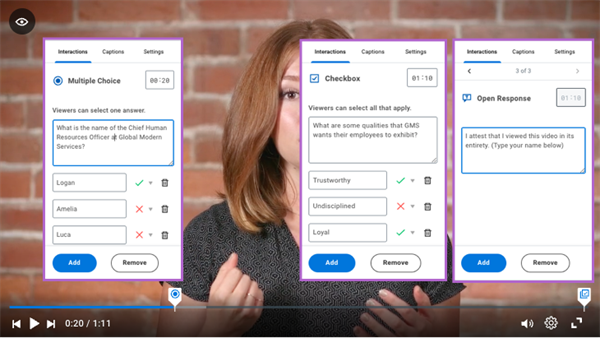
To add interactions to a video, the user needs Can Edit permissions to open the video file for editing on Drive. Once you open a video in Drive, you can select the Edit Media button.
The Edit menu provides the user access to the following tabs to edit video files:
- Interactions
- Captions
- Settings
The Can Edit permissions enable the following functionality:
Element | Definition |
|---|---|
Preview icon | Displays existing and new interactions before publishing. |
Timeline | Displays your current position in the overall video and enables you to add interactions at a specific time. |
Publish | Allows you to publish the video for consumption. This will update the current version of the video file. |
Revert | Allows you to delete current changes in edit mode and revert back to the last published version. |
Save Draft | Allows you to save the current version to make additional changes without publishing. |
Interaction | A type of question, text, or response that displays on top of the video. An adjustable marker displays on the timeline where the interaction occurs. |
Interaction: Multiple Choice | Displays a question and possible choices. The user will select an answer before the video continues. |
Interaction: Text Note | Displays a text pop-up that provides a fact or additional information. |
Interaction: Open Response | Displays a question and text entry box that the user will respond to. |
Interaction: Checkbox | Displays a question that requires the user to select multiple choices. |
Video Playback Settings
You can configure video playback settings on the individual file and establish video playback quality for your tenant.
To configure video playback settings for individual video files, open the file in Edit mode and access the Settings tab. From here, you can configure the following:
Playback Setting | Definition |
|---|---|
Skip Restrictions | Prohibits learners from skipping forward. They can still review previously watched segments. |
Limit Question Attempts | Viewers can submit questions once. This setting auto-enables skip restrictions. |
Passing Score | Determines a percentage of questions a viewer must answer correctly to pass the lesson. |
Restrict Access | Restrict access to the media file based on the authentication policy in Workday Learning only. |
To establish the video playback quality for your tenant, navigate to the
Edit Tenant Setup - System
task. From here you can configure the default quality of the video playback based on your organization's requirements. The default video playback applies to all video playback in Workday on Android devices and desktops, but does not apply to iOS devices or within packaged content. Workday recommends leaving Auto as the default setting. The Auto setting checks for the best quality given the current bandwidth and initial video quality.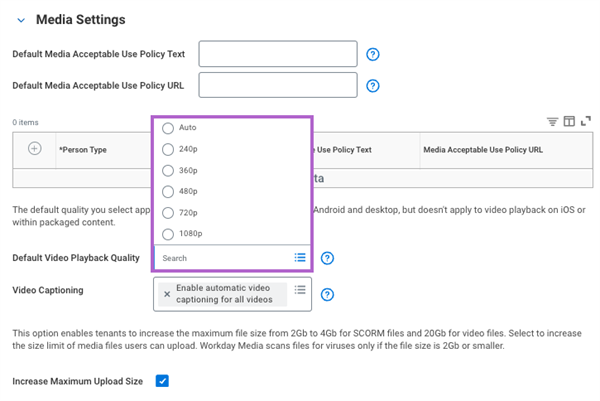
Tip
: You can eliminate video buffering from the Edit Tenant Setup - System
task. In the Default Video Playback Quality field, reduce the size and quality of the video.View Video Interaction Results
When you create a video with interactions, Media Cloud records each learner's answers. While Workday does not deliver a standard report to view the results, you can create a custom report.
To configure this custom report, use Media Tracking in the Data Source and Primary Business Object fields. The Media Tracking data source displays the video interaction response fields: question, answer, and whether the learner correctly answered the question, if applicable.
Additionally, you can configure supplemental information to display, such as the learner name, learning content title, and learning content completion status. Video interaction results allow learning administrators to manage learning content engagement and consumption.
Note
: Workday delivers the Learning Compliance
dashboard as a packaged solution. The Learning Compliance
dashboard provides customers with reporting and analytics to track learning compliance, including custom reports related to video interaction results.Video Captions
A caption file is a textual representation of a video's audio content. You can use a caption file to display the following on a video file:
- Closed captions at the bottom of the video screen.
- Transcriptions below the media screen.
Media Service's captions and transcription features are accessibility enhancements that allow the learner to read what is being said. You can configure both captions and transcriptions with the same caption file. You can upload the following caption file types: .srt, .ttml, .xml, .dfxp, .vtt.
You can either manually upload caption files or Workday will auto-generate files for videos that are shorter than four hours. Additionally, you can automatically translate these files into other languages. However, to display multiple language options on the video file, you will need to download the caption file to your computer and then re-upload the file to the video file.
Note
: There is no limit to the number of caption files or languages you can upload for each individual video file.To configure video captions from the Edit Media page, select the Captions tab. While in Edit Media mode, learning administrators can enable video captions functionality via machine-learning.
To enable automatic video captioning in your tenant, navigate to the
Edit Tenant Setup - System
task. When enabled, Workday automatically transcribes the audio of any media video file in Media Cloud, when you upload the video file into Drive with little noticeable time delay. When you access the video file in Media Cloud, a machine_en.vtt file displays on the Captions tab for you to use, download, or delete. The Media Cloud agreement includes the automatic video captioning feature when you subscribe to Workday Learning.Additionally, Workday offers multilingual captions in Spanish, French, and English. For example, if a video file's speech is in Spanish, the multilingual captions feature will automatically generate a Spanish captions file.
Generated video captions:
- Are only available for videos shorter than four hours.
- Vary in quality, depending on the clarity of speech in a video.
Note
: If you want to make corrections to video captions, you must have the appropriate software to open SubRIP Subtitle files and download a copy of the file. Make the necessary edits and upload the file in Edit Media mode.You can also display additional video transcriptions in different languages to create video captions for individual media files. Workday recommends naming the video caption files specific to the language.
When your learners open the video, they can select the CC icon or the gear icon. From there, you can set the Caption or Transcription option to the appropriate language tag on the video control bar when viewing that media file. Captions text will display across the bottom of the video, while transcription text displays in a text box below the video. Viewers can use the Search Transcript field to locate words in the video transcription and simultaneously advance the video file to that moment. The transcription files are available for users to download.
Learners can determine whether to turn on the video captions, transcriptions, or both in their preferred language while viewing a video file. These video captions help learners who need or prefer to use closed captioning. Video captions allow customers to meet compliance obligations, create accessibility, and meet the language needs of all workers.
Report Video Issues
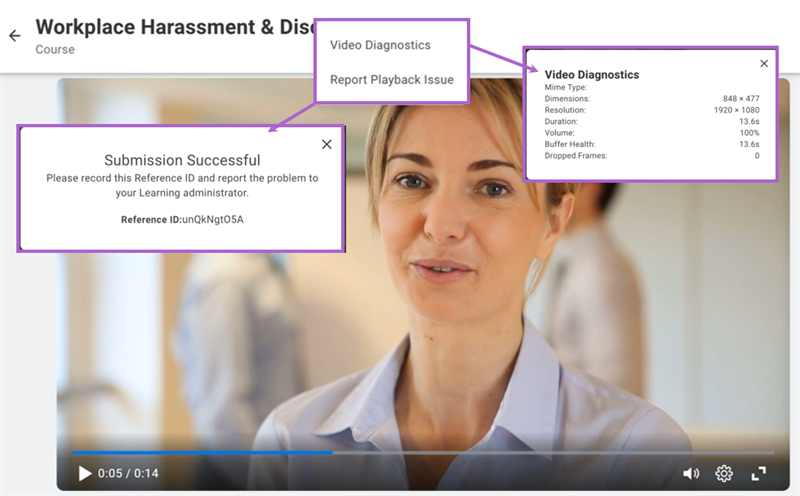
Workday Learning offers a quick and easy way to receive video diagnostics. If you encounter a video that is not responding properly, right-click or press Shift+F10 on the video.
A diagnostic menu pop-up displays, as highlighted in the image below, displaying two options:
- Video Diagnostic: to get feedback on how your video is behaving.
- Report Playback Issue: to obtain a unique Reference ID.
If the problem persists, select the Report Playback Issue option, which will populate a unique Reference ID. Even though a Submission Successful pop-up window displays, it only provides the Reference ID. When you contact Workday, report the Reference ID. Workday Video Support will use the ID to determine how to best resolve your situation.
Resource
: For more information about video playback and diagnostics, refer to Workday Community and search for Workday Media Cloud - FAQ > Support and Availability.Configuration Considerations
Workday Drive Group Sharing Setup
You can enable group sharing within Workday Drive. This will allow self-service users to share items of specific types with one or more security groups.
To configure this setup, use the following steps:
- Navigate to theConfigure Group Sharing in Drivetask.
- In the grid, add each item that you want to be shareable and define the security group. By default, after you select the item type, all security groups with access permission for that item type automatically displays. You can remove any security groups to meet your business needs.Note: You have the option to select the Only Admins Can Group Share checkbox. When selected, the configuration you set up in the grid below will only apply to Drive administrators and group sharing will not be visible to self-service users.
This table identifies common Workday Learning item types and which type of security group you can enable for group sharing:
Item Type | Security Group |
|---|---|
Discovery Board | Any security group in the tenant. |
File | Any unconstrained group added to the security policy for the Drive domain. |
Folder | Any unconstrained group added to the security policy for the Drive domain. |
Media | Any unconstrained group added to the security policy for the Drive domain. |
Resource
: For the most current information about group sharing on Workday Drive, refer to the Administrator Guide and search for Set Up Group Sharing for Drive.Media Cloud
Media Cloud is an optional service that enables you to upload, store, and consume media content. You can use published video and packaged content files in the various Workday product, including dashboards. Workday recommends uploading smaller videos with lower resolutions to provide the smoothest video streaming.
Workday requires an optional Media Cloud agreement to enable this service. You can configure tenant-wide options for Media Cloud in the Media Settings section of the Edit Tenant Setup - System task. This table denotes some Media Cloud security considerations:
Domain | Functional Area | Consideration |
|---|---|---|
Drive | System | Enables you to upload, edit, and share media files in Drive. |
Manage: Media | Backpack Hub Service | Enables you to edit and publish videos in Drive. For example, you can manage video interactions, captions, and transcriptions. Drive permissions and these domain security policy permissions must align. Even if you assign edit permissions to Drive media files, users will not be able to use the edit functionality until security permissions align with this domain. |
Manage: Media Import | Backpack Hub Service | Enables you to import and manage large volumes of media files. |
Manage: Media Settings | Backpack Hub Service | Enables you to manage tenant-wide options for Workday Media. |
View Drive File and Media | System | Enables users without access to the Drive domain to view media files that other users share from Drive. For example, a pre-hire can view an onboarding video by adding them to the View Drive File and Media domain, without granting them access to the Drive domain. |
Workday-Delivered Reports
Workday Learning delivers several analytical reports. You can use these reports to build and manage learning content and enrollment. Below are Workday-delivered reports related to topics discussed in this chapter.
Report Name | Description |
|---|---|
Drive Item History | View information about actions taken on a Drive item by a particular Drive user, such as download, open, replace, and update. |
Drive Items Permission Audit Report | View information about the permissions for a particular Drive user for specific Drive items. |
View Drive | View all files on Drive available to that user. |
View Drive Items for User | View a user's access to different files and items on Drive by permission type. |
View Shares for Drive Item | View share permissions of a file item by the item owner. |
Note
: For the most up-to-date list of Workday-delivered Learning reports in Workday, search for Workday Standard Reports
report and select Learning in the Report Categories field.Chapter Summary
While Workday Drive and Media Cloud are not specific to Workday Learning, they are important complimentary components. Workday Drive allows you to store and share files for building learning content. Media Cloud supports the upload, playback, and customization of video media files. It will deliver the media content across all Workday-supported browsers and mobile devices. Therefore, it is important to understand the role that Workday Drive and Media Cloud have in supporting and maximizing Workday Learning's value.