
Maintain Learning Content and Course Offerings
Overview
As processes and procedures change, so must your training materials. You can enhance learning content with skills, competencies, units, costs, and surveys. This chapter will also demonstrates how to update and maintain different learning content versions and how learning content changes impact course offerings. It will also review how to manage and update course offerings to meet your business requirements.
Objectives
By the end of this chapter, you will be able to:
- Inactivate learning content.
- Edit learning content.
- Update learning content versions.
- Edit and manage course offerings.
- Create surveys.
Inactivate Learning Content
You cannot delete learning content due to historical tracking. However, you can inactivate standalone lessons, courses, or programs by selecting the Inactive checkbox. An alert displays, cautioning that learners will be unable to locate or enroll in inactive learning content.
When inactive, Workday removes the learning content from the catalog for new enrollments and it will no longer display in the Global Search. Currently enrolled learners still have access to the course or program page and can view the learning content on the
My Transcript
report. However, learners cannot review the learning content or complete In-Progress or Not Started completion statuses.To make learning content active again, clear the Inactive checkbox.
Important
: When inactivating learning content, it applies to all instances of that learning content. For example, if you inactivate a course that is also in a program, Workday removes the course from the catalog and within the program.Edit Learning Content
Workday enables the updating of learning content. Edit existing learning content or add new learning content to a standalone lesson, course, or program. To update an existing learning content, use the following:
- Standalone lessons: Use theEdit Lessontask, the Edit Lesson link on the Create and Edit Lessons spotlight card or the Edit button from the Admin View mode of the lesson page.
- Courses: Use theEdit Coursetask or select the Edit button from the Admin View mode of a course page.
- Programs: Use theEdit Programtask or select Edit Program from the More (three dots) icon menu in the Admin View mode of a program page.
When you edit or update a blended course or program, Workday recommends you also update the version of the learning content. The learning content versions directly impact how you schedule course offerings. Any edits to a standalone lesson or digital course will immediately uptake when you select the Submit button.
Update Learning Content Versions
When editing learning content, you can update a past or current version, or add a future version of your learning content.
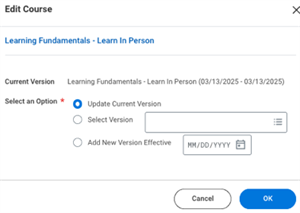
You can categorize learning content updates by field type. Each type of update will be considered either:
- A non-effective dated change
- An effective dated change
Non-effective dated changes automatically update all past, current, and future learning content versions. Effective dated updates include blended course fields and need further action and consideration. Standalone lessons and digital courses are on-demand, therefore changes are effective immediately. Workday automatically updates the following non-effective dated fields on all learning content versions, even existing enrollments:
- Course Title
- Skills
- Competencies
- Description
- Topics
- Inactive
- Cover Image
Effective dated fields are specific to programs and blended courses and oftentimes have existing offerings that require consideration. When editing a blended course you can update the current version, select a previous version, or add a new version with a future effective date. Workday recommends advancing the learning content to a new version when you update the following effective dated fields:
- Contacts
- Cost
- Expiry Period
- Units
- Update or add a course lesson
This recommendation includes advancing the version number and adding version notes explaining any changes. If offerings already exist, you will need to determine whether to update any existing offerings to the new version.
Version Effective Dates
When you update to a new version with an effective date, the system applies an expiration date (end date) to the current version. The effective date identifies when the new version launches (future-dated start date). You can update any version of a course or program, including future-dated versions.
Important
: Any new offerings will uptake the version of the course that currently displays. If you want to create an offering for a previous version or future version, select the View button of that version on the Versions tab before scheduling.If you update the current version with a non-effective dated change, the course and all current enrollments will automatically uptake that change.
To create a future-dated version of a course, navigate to the
Manage Learning Content
task or use the Edit Course
task and select the course. When prompted, select the Add New Version Effective option and enter a start date for this new version. Workday recommends identifying updates with a version number and notes.Note
: You cannot add an effective date to a digital course. Effective dates only apply to blended courses or programs.Non-Effective Dated and Effective Dated Fields
As training requirements change and evolve, you will need to update learning content fields. It is important to be mindful of the following when editing:
- Whether the field is a non-effective dated or effective dated field?
- If it is an effective dated field, do you need to advance the learning content version? And if so, when will the new version take effect?
- Do you manually manage versioning or do they uptake the Version Schema functionality for blended courses?
- Are there any existing offerings that need to be updated to the new version?
The following fields are examples of how non-effective dated and effective dated fields impact versioning: skills, competencies, units, and costs.
Non-Effective Dated Fields: Skills and Competencies
You can use competencies and skills to track worker capabilities. Workers can gain capabilities from:
- Education and professional development
- Certifications
- On-the-job trainings
You can use skills or competencies, or both depending on your business needs, however each framework provides different approaches to administrative control, worker development, configuration, and versioning. Skills and competencies are non-effective dated fields and any changes to this field will immediately update in courses, program, and any existing course offerings.
Skills
Skills describe what abilities workers need to perform a job. Skills are specific learned abilities and are a part of a worker's career profile. Associate skills to standalone lessons, courses, or programs for learners to become proficient, as highlighted in the image below. When you edit learning content with skills, these changes will uptake immediately across all types of learning components, as it is a non-effective dated change.

Assign skills in the following ways:
Option | Definition |
|---|---|
By Category | To access pre-existing skills in an organization's tenant. |
Recommended Skills (Skills Cloud) | To access skills based on title and learning content description through Skills Cloud. |
Create Maintained Skill | Create a new skill in the tenant. |
Important
: Skills Cloud is a remote collection of skills. Skills Cloud uses machine-learning to suggest skills based on the assigned skills or recommended skills of completed learning content. Sign the Innovation Services Agreement to opt into Skills Cloud at the time of purchase of Workday Learning.Resource
: For more information on comparing skills and competencies, refer to the Administrator's Guide and search for Concept: Skills and Competencies Comparison.Consider the following when adopting a skills framework:
Consideration | Impact |
|---|---|
Administrative Control | A worker-driven approach to understanding the capabilities of your workforce. Enable Skills Cloud to organize your skills catalog with less administrative maintenance. Skills Cloud contributes to machine-learning products and functionality. |
Functionality | Mark skills as critical for employees based on supervisory organization, job family, and job profile. You can assign skills as critical to workers, set skill level ratings, and add a Get Feedback step in an employee review business process to include skill ratings. The skills within Skills Cloud use skills that are widely understood in the market. |
Maintenance | Maintenance depends on whether you enable Skills Cloud.
|
Use Cases |
|
Worker Development | Skills support the discovery and growth of your workers. Skills allow employees to:
|
Competencies
Competencies describe how well workers perform a job. Workday Learning enables you to assign competencies in courses and programs. Workers use these proficiencies to achieve role objectives. You can use competencies to track the gained capabilities user's acquire to build talent, promote innovation, build results, and enhance leadership. Competencies do not contribute to machine-learning algorithms.
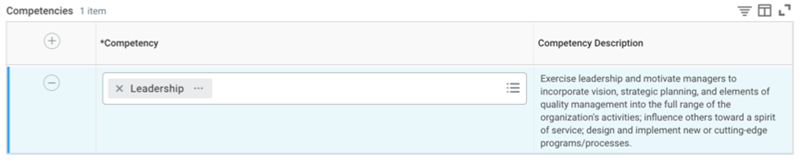
When you create or edit a course or program, locate the Competencies grid to add a row and select a competency to associate with the course. Learners can use competencies as a search filter to locate learning content.
Touchpoint
: The Competency description is a touchpoint of the Talent product, as shown in the image above. Preconfigure competencies in Workday Talent before using them in Workday Learning.Consider the following when adopting a competencies framework in Workday Learning:
Consideration | Impact |
|---|---|
Administrative Control | Provides a high degree of control defined by the organization and relies on administrative configuration to maintain the competency catalog. |
Functionality | You can assign competencies or set rating targets based on a worker's compensation grade or management level. You can organize competencies by class and category. |
Maintenance | Manually maintain the competency catalog in your tenant. You can set effective dates for any changes. |
Consideration | Impact |
|---|---|
Use Cases |
|
Worker Development | Helps improve evaluations, including:
|
Effective Dated Fields: Units and Costs
In Workday Learning, a unit represents a degree of measurement associated with a certification, re-certification, or even an academic institution. Add units to programs, digital and blended courses, and course offerings.
Cost is an expense you associate with a course. Configure costs to digital courses, blended courses, course offerings, and programs. Costs enables learning administrators to itemize and track internal course offering costs. Example of costs inlclude renting a room, equipment, course materials, instructor costs, and catering. The total cost of the sales items that you add is visible to learners when browsing learning content.
The Units and Costs fields are both effective dated fields.
The price is what you charge for a course externally and may differ for each customer. Workday enables the configuration of pricing for courses. It is a feature commonly associated with external training, and therefore Workday Learning Extended Enterprise. However, this course focuses on units and cost.
Touchpoint
: Course costs are a touchpoint with Customer Accounts. Customers do not need to subscribe to Workday Financial Management to use course costs in Workday Learning.Apply Units and Costs
In Workday, the Units grid enables learning administrators to track continuing education credits or continuous professional development credits for a digital or blended course.
The Cost grid combines hosting fees for courses and programs, including: course materials, instructor fees, certification fees, room, or location rental fees. Use these totals to help generate an overall course cost that displays when learners view the course.
When you create or edit a course, it is optional to define the units and costs in the associated tables. When you edit a course's units or cost, these are effective dated changes and Workday recommends updating the learning content version and considering the impact on any existing course offerings.
Security Note
: You must have the appropriate security permissions (via the View: Sale Item
domain and the Set Up: Sale
Item domain) to update the units or costs of a course. If you do not, you can only view these items. Check with your finance department before creating or using this functionality.Edit Offerings
When you edit blended courses, you must consider the impacts to any existing offerings associated with that blended course. Therefore, when editing offerings, you have the following options:
- Manually editing individual offerings
- Copy course offerings
- TheUpdate Offering to Versiontask
- TheUpdate Offering to Online Onlytask
- Cancel course offerings
To manually edit individual offerings, navigate to the course details page and locate the Scheduling tab. Then select the desired offering. At the bottom of the course offering page, use the More (three dots) icon to select the Edit option. Notice the Edit Course Offering header at the top to edit or update any necessary fields. When editing offerings, you can update details such as location, dates, times, instructors, assessors, time zone, capacity, and more. However, be mindful that any manual change to a indivudal course offering will only apply to that course offering and any enrollments in that offering.
Note
: It can be easy to confuse a course page with a course offering page. To locate a course offering, first navigate to the course. When the View Course page displays, select the Scheduling tab. Locate the scheduled offering, and select the offering. If you notice the Enrollments tab or a Course Date field displays, you are viewing the course offering. The Scheduling tab indicates you are viewing a course page.Copy Course Offerings
Scheduling offerings and its details can be repetitive. You can copy existing offerings to efficiently create new offerings by locating the offering's Related Actions and selecting the
Copy Course Offering
task. The Copy functionality copies all fields, creating a duplicate offering. Confirm or edit any details in the course offering copy before submitting.To configure this functionality, consider the following:
- Grant access in theManage Course Offeringbusiness process security policy.
- Navigate to the Edit Business Process Security Policy page and add the intended security groups to the Copy Course Offering initiating action.
- Use theActivate Pending Security Policy Changestask to enable these security changes.
Update an Offering to a New Version
When making effective dated changes to existing learning content within a course, Workday recommends updating the course to a new version. Some of these effective dated changes include:
- Contacts
- Cost
- Expiry Period
- Units
- Update or add a course lesson
This recommendation includes advancing the version number and adding an explanation of changes.
Important
: When creating a new course offering from the course page, the offering will reflect the course version effective at the time of creation. To create an offering on a previous or future version of the course, select the version first before scheduling. Use the Update Offering to Version
task to update offerings to the current version.By design, Workday does not automatically update existing course offerings to the current course version.
If a new version of the course exists, consider updating future-dated offerings to the newest version. From the Admin View, select the More (three dots) icon from the new course version, then select the
Update Offering to Version
task. The Update Offering to Version functionality updates any selected existing course offerings to the version of the course selected. If you are working with multiple versions or if the updates do not apply to an offering, then manually apply new course versions to individual offerings. Be mindful of the following enrollment scenarios when you update an offering to version:- If the learner is already enrolled in a previous version offering, then theUpdate Offering to Versiontask will update the learner's offering version to the current version.
- If the learner is in progress with a media course lesson prior to version update, then theUpdate Offering to Versiontask will update the media lesson to the current version and the learner may need to start the media file from the beginning.
The
Update Offering to Version
task updates an offering's course version number and notes, contacts, expiry periods, costs, and units. It will add, remove, and replace all media, external learning content, and survey course lessons. This process does not update any changes to new instructor-led or training activity course lessons, or resolve course lesson order conflicts. Such revisions require manual updates to individual course offerings.Scenario
: Your organization adopts a pre-course guide to accompany the course. In this scenario, add the new media lesson to the course and update the number order to avoid an order conflict. Update the version number and notes.Since you labeled the version number, you can easily identify each version and determine which scheduled offerings to push the updated information to. From the new course version, select the More (three dots) icon >
Update Offering to Version
task and select the specific offerings to update to the new course version.Scenario
: You need to update a course to include a training activity lesson and expiry rule. Due to the additional fields required at the offering level for training activities, these lesson types will not transfer with the Update Offering to Version
task. To update these other changes, from the new course version select the More (three dots) icon > Update Offering to Version
task. Select the specific offerings to update to the new course version and submit your changes. All offerings update with the new expiry rule.Finally, to manually add the training activity lesson, select the Scheduling tab, and locate the updated offerings. From the course's Related Actions, select Course > Edit. While it may seem like you are updating the course, you are actually editing the offering. Open the offering and make the necessary lesson updates for the training activity lessons and lesson order. Make sure to save your work. This also applies for instructor-led lesson types.
Update an Offering to Online Only
In addition, you can update an existing in-person classroom offering to a virtual classroom offering using the
Update Offering to Online Only
task from the course offering's Related Actions. This option is helpful when circumstances require a last-minute change. Select the desired course offering's Related Actions > Course > Update Offering to Online Only.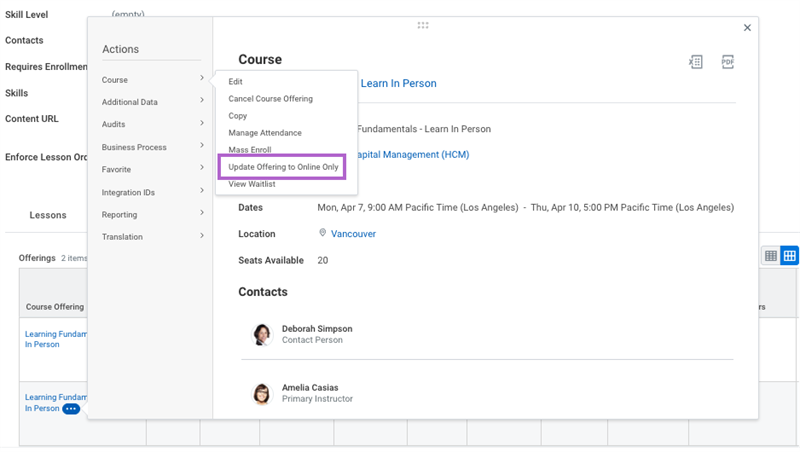
Workday supports your change by requiring new data, including the Webinar URL (web link).
Workday does not eliminate the initial location from displaying to learners. You need to manually delete the location by editing the course. Use the
Edit Course Offering
task to remove the value from the Primary Location field.Note
: Converting an In Person Classroom offering to Virtual Classroom is an efficient approach when you have unforeseen circumstances. Workday does not recommend this method to build virtual courses.Blended Course Versioning Schema Setup
Workday enables organizations to create version schemas for blended courses to meet compliance and auditing requirements. This allows you to consistently and automatically version your learning content and provide multiple course versions to learners. Additionally, it enables you to track and report important details, such as learner consumption, for each course version. You can apply version schemas to specific blended courses or all blended courses, providing greater control over versioning.
To take advantage of the Version Schema functionality, use the
Create Version Schema
task. You can create multiple version schemas to apply to blended courses. Consider the following fields when configuring this setup:Field | Required | Description |
|---|---|---|
Schema Name | X | The name of the schema. |
Prefix | An optional custom label to identify different business areas, countries, or languages. | |
Major Version | X | Workday recommends that you set the starting point to one. The number will display before the decimal point. |
Increment | X | The increment that the learning content will automatically update to when a new version exists. For instance, if the current version is set to 3 and the increment is 1, the next version will be 4. |
Postfix | An optional custom label that automatically populates in the Schema Preview field. | |
Allow Minor Version | A checkbox that creates a minor version increment of the major version, such as version 1.1. If selected, the minor version will display in the Schema Preview. | |
Inactive | A checkbox to inactivate the version schema. Workday Learning will revert back to the previous versioning functionality. | |
Schema Preview | Displays the version's informational text a learner will view. This is a combination of the Prefix, Major Version, and Postfix fields. |
Once the version schema setup is complete, you can access the new version schema on any blended course page in edit mode. Navigate to the Versioning section to configure the following fields:
Field | Description |
|---|---|
Version Schema | Select the version schema to apply to the blended course or create a new schema. |
Schema Preview | Automatically populates the schema label, a combination of the Prefix, Major Version, and Postfix fields, to display to learners. |
Display Schema Label to Learners | Select the checkbox to display the schema label to learners on the learning content. |
Custom Version Label | An optional override for learning administrators to display to learners rather than the schema preview. Use this field when you do not apply a version schema. |
Version Notes | Optional text to identify the version. |
All existing versions of the learning content will display on the Versions tab. Any learning content versions existing prior to the version schema will not uptake the version schema, and will exist on the previous version functionality. Learners can view the version information on the Additional Course Details tab on the course page.
View Course Versions
On the course details page, you can select the Versions tab to view all course versions and related notes to track versioning. To confirm which version you are viewing, use the Advanced Details tab. To switch between course versions, select the Versions tab to select and view a different version of the course. Select the Scheduling tab to view the version of each offering. Take advantage of version numbers and notes to easily distinguish and track course versions.
Cancel Course Offerings
The Cancel Course Offering is an optional feature that enables you to differentiate between closed offerings and canceled offerings.
Course offerings automatically close after the scheduled date occurs. Situations under which you may need to manually cancel an offering include:
- Someone created the course offering in error.
- There are not enough enrollments to justify the offering.
- The learning trainer or location becomes unavailable.
- The course material is invalid.
To cancel an offering, locate the course offering's Related Actions > Course > Cancel Course Offering.
To configure your organization's cancel reasons, use the
Maintain Cancel Course Offering Reason Categories
task. To send notifications, configure the Cancel Course Offering
business process. Your company can configure custom notifications to this business process to immediately notify the learner, the learner's manager, the learning trainer, and others.To activate this functionality, you must:
- Enable theCancel Course Offeringbusiness process.
- Configure custom Notifications.
Note
: Canceling an offering does not remove the learning content from the learner's transcript. The transcript will display: Course Offering Name - Canceled. Learners need to manually drop the course offering to remove it from their transcript and enroll in an alternate course offering. Surveys
Surveys gather meaningful insights and opinions from learners that you can use to improve your learning content. Surveys help you:
- Understand the employee learning experience
- Gauge learning content effectiveness
- Drive decisions.
You can create campaigns that deliver surveys to a target audience or add an active survey to a blended or digital course. You cannot use surveys as an assessment, as it does not calculate scores or track grading requirements.
Resource
: To learn more about using Campaign functionality with surveys, reference the Administrator Guide and search for Steps: Set Up Survey Notifications and Campaigns.To add a survey as a course lesson within a course, navigate to the
Learning Admin
dashboard. Under the Create menu, select the Survey option to create a new survey. Create new surveys or copy existing surveys to meet your needs. Use the Survey Details tab and Questions tab to configure a survey to meet your requirements.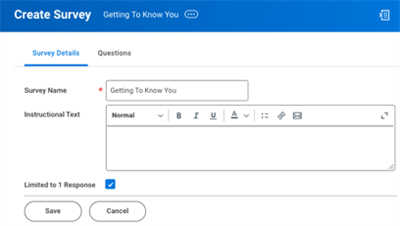
You cannot currently use web services to load surveys.
Important
: If you select the Limited to 1 Response checkbox, Workday limits a single worker to submitting that survey one time. Therefore, if you use a survey in more than one course, that worker will not be able to submit that survey again for a different course.Survey Questions
Currently, you can create the following survey questions:
Survey Question Type | Definition |
|---|---|
(Multi-Select) Checkbox | Creates a question with multiple checkboxes. Each checkbox has an answer option. Specify how many correct answers the learner will select. |
(Multi-Select) Pill | Creates pill-shaped answers or options that contain up to 25 characters of text for multi-select questions. |
(Single-Select) Radio Button | Creates a series of options, each associated with an answer, for questions with one response. |
(Single-Select) Dropdown | Creates a list of options that display for the user to select one response. |
Date | Creates a question that only accepts an answer in a calendar format. |
Number | Creates a question that only accepts an answer in numeric format. |
Text | Creates a text box response to the question. |
Manage Survey Statuses
From the
Surveys
dashboard or the Survey Home
report, view any active, draft, or closed surveys.Worklet | Option |
|---|---|
Active Surveys | Use the Active Surveys grid to manage the following:
|
Worklet | Option |
|---|---|
Draft Surveys | Use the Draft Surveys grid to edit, delete, share, or send your survey.
|
Closed Surveys | Displays closed surveys and final results. Navigate here if you want to reopen a closed survey. |
Share Surveys
To share a survey, navigate to the
Surveys
dashboard and select the Draft tab. Select the Share button for the Survey you want to activate. This activates the survey and moves the survey from the Draft grid to the Active grid on the Surveys
dashboard. You can only add active surveys to a course.Share surveys with users using two different levels of access:
Access | Definition |
|---|---|
Edit and Manage | This enables users to view, edit, copy, share, launch, close, and reopen the survey. |
Manage Only | This enables users to view, launch, close, and reopen the survey. They cannot edit, copy, share, or delete the survey. |
Important
: Using surveys for feedback about learning content has limitations. You cannot share surveys with a security group. You can only share surveys with individual users in Draft mode. Once activated, you cannot share the survey with additional workers. This results in other course creators not being able to access existing surveys to add to a course.Close Surveys
Close a survey on the
Surveys Dashboard
. Navigate to the Active Surveys grid and locate the desired survey. Select the arrow on the right-side of the Close button. Two options display:Option | Description |
|---|---|
Close Now | Deactivates the survey immediately. |
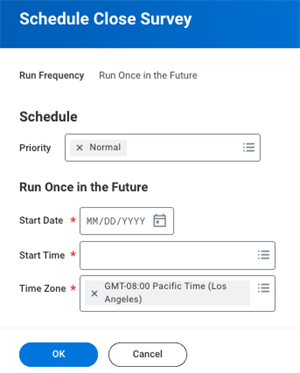
Close Later | Deactivates the survey at a future pre-determined date. The Schedule Close Survey pop-up displays to configure the start date, start time, and time zone fields, as shown in the image below. |
Configuration Considerations
Skill Level Setup
Skills Cloud is a machine-learning remote collection of skills for workers that makes it easier to maintain skills data. You can use Skills Cloud to associate skills with learning content and populate sliders on the
Learning
dashboard.Important
: Once you enable Skills Cloud, you cannot disable it or reverse this process.With Skills Cloud, you can enable Workday to calculate skill levels for worker skills. Use the
Maintain Skill Level Setup
task to configure the weightings that Workday will use to calculate skill levels. Configure permissions in the Person Data: Skill Level domain and the Self-Service: Skill Level domain.Optionally, you can enable workers to self-rate their skill levels when you enable skills self-assessment.
Units
Workday Learning delivers standard unit types that you can associate to courses and course offerings in the Units grid. If your organization needs additional unit types, you can create and manage units using the
Manage Other Unit Types
task. When you add units to a course or course offering, the units display on the View Course report. The standard unit types include the following:- Continuing Education
- Continuous Professional Development
- Course Units
After adding units to a course or course offering, use the Advanced Details tab on the course or course offering page to review.
Optional Fields for Course Offering Management
Administrators can configure the
Configure Optional Fields
task to require users to define specific fields when building a course offering. You can require the following fields:- Instructor Led Lesson - Instructor
- Instructor Led Lesson - Location
- Training Activity Assessor
- Virtual Instructor Led Lesson - Instructor
- Language for Learning Course Offering
When you select these fields in the Required for All column, they display as required when building a course offering. You can select the Enforce Required in Web Services flag to require the field when creating a course offering via the Manage Course Offering and Put Learning Course Offering web services.
Important
: By default, Workday does not require these fields.Primary instructors, primary assessors, and primary locations are not supported fields in the
Configure Optional Fields
task. To require these fields, you will need to configure a custom validation on the Manage Course Offering
business process.Workday-Delivered Reports
Workday Learning delivers several analytical reports. You can use these reports to build and manage learning content and enrollment. Below are Workday-delivered reports related to topics discussed in this chapter.
Report Name | Description |
|---|---|
Manage Learning Content | A search report that displays all learning content, including inactive content. Use the search bar or facets on the left to filter for learning content. |
Survey Home | Navigates to the Survey Home dashboard where users can create and manage surveys. |
View Other Unit Types | Provides a list of unit types, including the number of active learning content using that unit. |
View Version Schema | A report that displays the associated fields with an existing version schema. |
Note
: For the most up-to-date list of Workday-delivered Learning reports in Workday, search for Workday Standard Reports
report and select Learning in the Report Categories field.Chapter Summary
Workday Learning allows you to create and edit learning content to meet your business requirements. The ability to update learning content to different versions keeps your learning content relevant and effective. When evaluating learning content fields, be methodical in deciding which fields to use and the inputs for each field. Each field impacts the learner experience and reporting. For example, skills impact machine-learning outputs, which affect how learning content displays on the
Learning
dashboard and how you version your learning content. The ability to manage and update course offerings is also an important feature of Workday Learning. Anytime you edit or create new course versions, you need to consider the type of updates and whether these updates apply to existing course offerings. You can manage and track learning content versions and offerings by running reports or viewing versions and version notes on the course Versions tab. Workday Learning is a flexible learning management system that allows you to maintain and manage your learning and development initiatives.