
Manage Learner Enrollment
Overview
Workday Learning supports the enrollment of learners into learning content. Learners can enroll into blended course offerings or digital courses and programs that require enrollment. Learners can browse learning content on the
Learning
dashboard and view enrollments on the My Learning menu page.If current offerings are full, learners can add themselves to pre-configured waitlists during the enrollment process. Learners can drop enrollments and specify drop reasons for learning administrators to track. Workday Learning enhances the learner experience by creating an interactive learning environment. Learners can rate and comment on learning content, create learning paths, and express interest in offerings, which allow learning administrators to track and meet the needs of workforce demands.
Objectives
By the end of this chapter, you will be able to:
- Browse and enroll in learning content.
- Drop learning content enrollments.
- Rate and comment on learning content.
- Create learning paths.
- Express interest in courses.
- Describe waitlisting options.
Learner Enrollment
Learners can enroll in course offerings associated with blended courses, and digital courses or programs requiring enrollment. Standalone lessons by default, are available on-demand and do not require enrollment. Learners can browse for learning content on the
Learning
dashboard.When learners find learning content that requires enrollment, they can directly enroll in the learning content. They can then view their enrollment statuses on
Learning
Dashboard sliders or the My Transcript
report.Discover Learning Content
From the
Learning
dashboard, learners can locate learning content in the following ways:- TheBrowse Learning Contentreport
- TheBrowse Topicsreport
- Sliders and spotlight cards
If customers sign an optional Innovation Services agreement, Workday applies machine-learning to analyze the user's job role, interests, and past courses. Machine learning helps Workday determine and recommend courses for a given user, such as the Recommended for You and Based on Your Interests sliders.
Enroll in On-Demand Learning Content
Standalone lessons and many digital courses do not require enrollment, as they are available on-demand. Learning administrators can require enrollment for digital courses by selecting the Require Enrollment checkbox. This functionality creates an enrollment record to support reporting.
If you notice a Start Course button instead of an Enroll button, the course is a digital course that does not require enrollment. Begin the course at any time by selecting the Start Course button. When you open a standalone lesson, you will access the learning content immediately, as it is a single piece of learning content.
Enroll in Offerings
Learners enroll in blended courses by selecting a course offering. Blended courses within a program require a separate enrollment into a course offering. Programs guide learners to consume the learning content in the designed order. Workday tracks each program item, such as courses, individually through the Enroll in Content business process. Workday tracks each program item, such as courses and standalone lessons, individually on the learner's
My Transcrip
t report.Learners can complete program learning content in any order, except when the learning content has a prerequisite rule. When you select the Recognize Previous Completions option on a program item, any previous learning content completion will still count toward the program completion.
Learning administrators need to determine how to manage enrollments, waitlisting, and notifications. Configure the Enroll in Content business process to create enrollment condition rules or add approvals to this workflow. Workday recommends configuring custom notifications to inform learners of enrollment status.
Note
: Since programs can contain multiple learning contents, transcripts will show each component as a learner completes it, in addition to the program's overall completion status.Calendar Events
Configure calendar events for when learners enroll in course offerings. A learner can initiate a calendar event download for course offering enrollments. Workday supports two types of configurations:
- Static calendar events
- Dynamic calendar events.
You can use one or the other, but not both.
Static Calendar Event
Once learners enroll in a course offering, the Add to Calendar button on the View Course page displays. Select this option to generate a static .ics calendar event file to download to your device and open in your calendar.
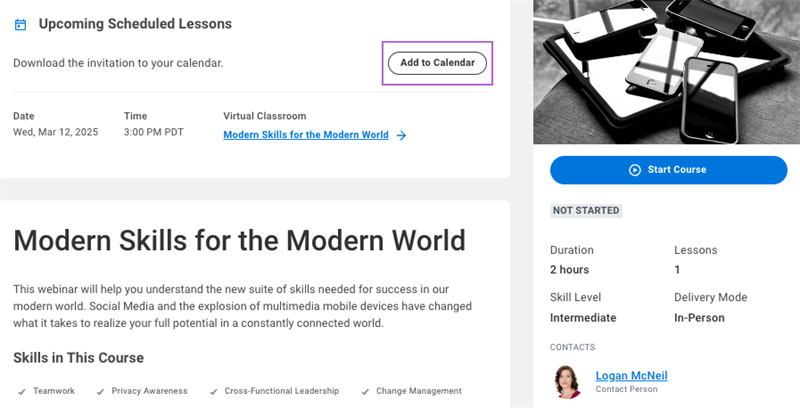
If an .ics file is not compatible with your organization's calendaring software, this functionality will not work.
Important
: Static calendar events download once and will not update information on the learner's calendar regardless of any changes to the learner's course offering or enrollment. To have dynamic reminders with synchronous updates, configure the dynamic calendar functionality.Dynamic Calendar Event
A dynamic calendar event integrates with Microsoft Outlook or Google Calendar and will update calendar events as enrollments and course offerings change. It ensures that learners have the most up-to-date information in their calendar. You cannot retroactively apply this functionality to existing course offering calendar events. The activation of the dynamic calendar event feature suppresses the static .ics file download option.
Note
: For dynamic calendar events, Workday checks a learner's schedule when they submit an enrollment request. If their approved time off conflicts with the course offering, Workday displays a warning validation message. If a manager or learning administrator tries to enroll learners, they will receive the validation. The alert is only a warning and does not stop learner enrollment.Dynamic calendar events respect the learner's time zone and display accordingly. Workday limits email generation to 9,900 emails over a 24-hour period, and no more than 500 attendees on a single invite. Workday will automatically create a new invitation when you reach this limit.
To use this feature, select the Calendar Integration option in the
Edit Tenant Setup - HCM
task and apply the appropriate security and integration steps.Resource
: For more information about configuring this option, refer to Administrator Guide and search for Configure Microsoft Outlook Calendar for Learning or Configure Google Calendar for Learning.Enroll in Programs
Learning administrators can elect to require enrollment when configuring a program. You can select the Require Enrollment checkbox to trigger the
Enroll in Content
business process.By default, any courses in a program that require enrollment will also trigger the
Enroll in Content
business process. However, learning administrators can streamline any course enrollments in a program to create a more efficient enrollment process.When configuring a program consisting of courses that already adhere to the
Enroll in Content
business process, learning administrators can select the Skip Enrollment Approval checkbox for each applicable course. This allows learners to bypass any additional enrollment and approval steps for any learning content associated with the program, by displaying the Start Course button.The learner will still adhere to any enrollment and approval steps at the program level. Additionally, the learner will still need to enroll in any offerings associated with a blended course in a program, by displaying the Select Offering button.
Note
: For reporting purposes, use the Skip Enrollment Approval reporting field on the Learning Program Content business object to view which content in a program uses the Skip Enrollment Approval field.Completion Statuses and The My Transcript Report
Workday delivers a learning transcript called the
My Transcript
report for each learner's learning content enrollments and completions. Locate your transcript on your Worker profile, under Career. Navigate to the Learning tab to display the My Transcript
report details. Workday categorizes the learning content into three grids based on completion status:- Not Started
- In Progress
- Learning History (Completed)
The
My Transcript
report displays the following data:Learning Content Data Type | Description |
|---|---|
Attendance Status | Displays the following statuses, depending on whether the learning administrator selects the Track Attendance checkbox on an instructor-led course lesson:
|
Learning Content Data Type | Description |
|---|---|
Completions Date and Time | Displays the date and time stamp of completion in the Learning History grid. |
Content Type | Defines the learning content type as: Lesson, Digital Course, Course Offering, or Program. |
Date Enrolled | Displays the corresponding date of when the learner selects the Start Course button after selecting the Enroll or Select Offering button. If a date does not display, the learner did not enroll due to an equivalent completion. |
Expiration Date | Displays a corresponding expiration rule date if the learning content has a configured expiry period. If a date does not display, then an expiry does not exist for that learning content at the time of enrollment. |
Grade | Workday delivers the following statuses in the Learning History grid:
|
Learning Content Data Type | Description |
|---|---|
Record Type | Displays the following statuses in all grids:
|
Registration Status | Displays the status of the enrolled learner when the Requires Enrollment checkbox is selected on digital courses, blended courses, or programs. If a status does not display, then the learning content does not require enrollment. |
Score | A corresponding number to measure if the learner met the requirements for completion in all grids. Your organization will determine the scoring criteria to meet this requirement. This is an optional and informational field that does not impact the learner's completion status. A zero defaults regardless of whether you select the Track Grades checkbox on the learning content. |
Version | Displays the learning content version number for a blended course or program in all grids. If a version number does not display, then the learning content does not use versioning. |
Completion Status for Digital Learning Content
Even though you cannot enroll in standalone lessons, many digital courses, and external course lesson links, Workday still displays the Not Started, In Progress, and Completed completion statuses. A learner can consume this learning content immediately with the Start Course button. When the learner selects the Start Course button, the completion status displays Not Started. Once the learner selects the media file, the completion status updates to In Progress or Completed depending on the media file type.
When a digital course requires enrollment, Workday will display a Not Started completion status and an Enroll button on the course page. Workday only considers a video media lesson complete when a learner watches the entirety of the video content.
When a digital course requires enrollment, Workday tracks the completion of all course lessons. Once learners complete all mandatory course lessons, all other optional course lessons update to Completed, even if they were skipped, and the overall course completion status updates to Completed.
If the digital course contains a packaged content file, it will display the Provide Grade checkbox. By selecting this field, Workday interacts with the packaged content to track any grade or score requirements for completion. Learning administrators and learning trainers do not need to manually enter grades or attendance.
Resource
: The Learning tab on the Worker Profile is configurable. To learn more about how to configure the Worker Profile, enroll in the Configure the Worker Profile (Subscription) Learn On-Demand course.Completion Status for Blended Courses
Workday tracks the completion for blended courses with the following statuses: Not Started, In Progress, and Completed. When a blended course has a course offering, Workday prompts learner enrollment with the Select Offering button.
Workday displays a Not Started completion status until the offering start day and time, even if the learner completes other course lesson types, such as media course lessons. The completion status updates to In Progress once the course offering begins.
The selection of Track Attendance or Track Grades on a course offering determines the Completed completion status:
- If you do not elect to track grades and attendance, the course completion updates at the end date and time of the last course offering.
- If you elect to either track grades or track attendance, or track both, a course completion will not update until a learning trainer or learning administrator submits all the course lesson and overall course grades and attendance.
Depending on the data input of the grades and attendance when selected, learners can receive the below outcomes:
Outcome | Description | Re-Enrollment Options |
|---|---|---|
Completed | Displays for the following conditions:
| Upon a successful completion, learners have the option to replay the course. The replay feature allows learners to review course material by selecting the View Course Again link on the course page. This option does not affect course completion or grade statuses. |
Unsuccessful | Displays for the following conditions:
| Upon an unsuccessful completion, learners have the option to retake the course to improve their grade and status. The Retake Course button displays to prompt the learner to enroll in a new course offering. This option resets the learner's completion status to Not Started. |
Note
: When an Unsuccessful indicator displays on the learning content page, the learner's completion status remains In Progress until the learner successfully completes the course's mandatory requirements for completion.Completion Status for Programs
If a learner does not have any previous completions for a program's learning content item, like a course or standalone lesson, the completion status states Not Started. Workday updates the status to In Progress when the learner accesses any of the media content or when the start date and time of a course offering occurs.
Program completion updates to Completed when a learner completes all mandatory program items, including any learning content that Workday recognizes as previously complete within the designated time frame.
Workday determines the overall completion status of programs with enrollments, when you select the following checkboxes:
- Recognize Course Expiration Dates
- Recognize Previous Completions
- Requires Successful Completion
Consider the impact of each selection on the program completion status:
Completion Status Consideration | Impact |
|---|---|
Recognize Course Expiration Dates | Recognizes expiry periods on any course program items. If the course expiry occurs, the program status updates to In Progress until the learner completes the course again. |
Recognize Previous Completions | Recognizes any previous completions of program learning content items. If selected with the Recognize Course Expiration Dates, Workday will only recognize previous completions until the expiry period occurs. |
Requires Successful Completion | Recognizes the grading and attendance requirements for a successful program completion. A learner's program completion status will not update to Completed unless they successfully complete the completion requirements of the learning content item, like a blended course. |
If a learner unsuccessfully completes a program learning content item, the program remains in-progress until the learner successfully completes the item.
Note
: When you rescind an enrollment using the Enroll in Content
business process for a mandatory course in a program, Workday updates the completion status to In Progress.Drop Enrollment
Learners have the option to drop any non-required enrollment in courses and programs. They can achieve this in the following ways:
- From the learning content page, they can select the Drop Course or Drop Program link.
- From theLearningdashboard > My Learning menu page, locate the Need to Drop an Enrollment? spotlight card to select the Drop Enrollment link.
Establish Drop Reasons
You can configure drop reasons for learners to select from, enabling you to track why workers drop a course. This allows learning administrators to understand potential issues hindering their learners from completing courses. Workday does not deliver default drop categories or reasons.
Learning administrators can create and manage drop reasons using the
Maintain Drop Course Event Categories
task. You can add categories and create drop reasons within each category to meet your organization's requirements. You can require drop reasons, ensuring that learners select a drop reason when they drop an enrollment. Use the
Configure Optional Fields
task and designate Learning Core as the functional area to select the Drop Learning Enrollment option. From the Configure Optional Fields by Task page, you can add the Learning Drop Course Reason to the grid and select Require For All in the Criteria column. Additionally, select the Enforce Required in Web Services checkbox to require drop reasons when using an EIB to drop enrollments.Learner Experience
Enhance Workday Learning by configuring key learner experience features. In addition to customizing sliders, spotlight cards, dashboards, and links, you can provide a tailored interactive learner experience to meet the needs of your organization. Learners can rate learning content, tag learning content comments, create learning paths, and express interest in courses. These optional features facilitate an engaging and communal learning experience to promote learning content consumption.
Rate and Comment on Learning Content
After a learner completes a course, they are able to rate and leave a comment about their experience on the course for others to observe. When leaving a comment, learners can tag other workers in the comment. The comment will then display in that worker's notifications. Learning administrators can view ratings and comments to gain insights about the learning content and learner experience.
Rate Learning Content
Learners can rate learning content using a 5-star rating system at the conclusion of a standalone lesson, course, or program.
To enable Rating functionality, navigate to the
Edit Tenant Setup - HCM
task. In the Learning section, select the Enable Rating on Learning Content checkbox, as sown in the image below. This functionality is not enabled by default.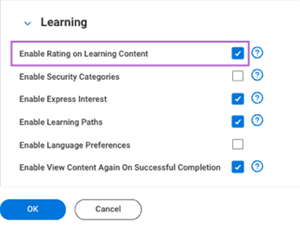
Comment on Learning Content
Learners can comment on learning content and tag peers to receive notifications about a given comment. All tagged and non-tagged comments display about the course in the Comments section.
Learners can tag comments to display in a specific worker's Workday Notifications by tagging the @ symbol and entering and selecting a worker's name from the predicitve results. The tagged comment and a button to the associated learning content will display in the notification.
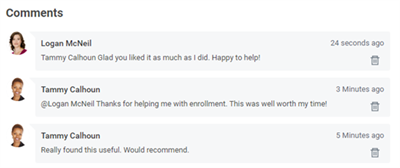
Anyone with direct access to the learning content can view these comments. Learning content that requires enrollment will only display comments in the Activity Stream to other learners enrolled in that content. You can use this feature to monitor learners' experiences with the learning content.
By default, only the commenter and learning administrator can delete learner comments by selecting the trash icon.
Important
: Workday Learning uses Generative AI to highlight valuable comments, categorize feedback, and provide valuable insights to improve learning content. There must be five feedback comments over 20 characters for the Generate Summary button to display. You can view summarized feeedback on the AI Summarized Feedback tab on digital content pages and course offering pages in Admin View.To enable commenting functionality in the Activity Stream, use the
Edit Tenant Setup - System
task. In the Activity Stream section, add Enrollable Learning and Learning Lesson to the Selected Objects for Activity Stream field.Report
: For additional information about the Generative AI Summarize Content Feedback feature, refer to Workday Community and search for AI Summarization of Content Feedback.Learning Paths
Learning paths can organize potential learning content for a future date. You can set up learning paths and path sharing functionality to enable the learner to:
- Create a personalized curriculum from a learning catalog.
- Save learning content to view at a future date.
- Categorize learning content into learning paths.
- View and save learning paths that others have shared.
- Manage privacy settings to enable others to view and share their learning paths.
Adding learning content to a learning path is simple; navigate to a standalone lesson, course, or program of interest, and select the Save option. From Save, you can create the following learning paths:
Learning Path | Definition |
|---|---|
Career Hub Plan | Learners can select learning content to display in a plan on their Career Hub to help grow their career. You can configure the Grow Your Career and Learning Items in Your Career Hub Plan sliders to display learning items in a worker's Career Hub plan and learning suggestions on the Learning dashboard's Learning Home menu page. |
Created By You | Learner created and managed paths. Each path displays a name, creation date, and associated share permissions. You can create multiple learning paths. |
Saved By You | Peers create shared learning paths. When a worker accesses a shared path, it displays in the Saved By You section of their learning path. These paths display the name and a small image of the path creator. |
Learners can access learning paths through existing worklets on the My Learning menu page or through configured custom sliders, spotlight cards, and links.
Share Learning Paths
Learners have the option to share an established learning path with other workers within their organiztion. By default, only path owners have access and edit privileges to a learning path.
Learners can update these settings to share a learning path. Once learners update the privacy settings of a learning path, only then can they share their path with other workers. Learners can use the Share Path link to create and copy the link to their saved learning content. They can share the link with other workers, who can then access and save that learning path.
Express Interest in a Course Offering
Learners can signal interest in blended courses when there are:
- No offerings available
- No available course offerings meet their needs
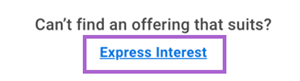
When a learner navigates to a course that requires enrollment in an offering, an Express Interest link displays. In addition, once a learner selects the Select Offering button they can select the Express Interest link if no offerings meet their needs. Select the Express Interest link to indicate your preference for location, start date, and end date. If you enter a start date, then the end date field becomes required. You can enable the Express Interest functionality from the
Edit Tenant Setup - HCM
task within the Learning section.Note
: Workday does not notify learners who express interest in a course offering when that offering becomes available.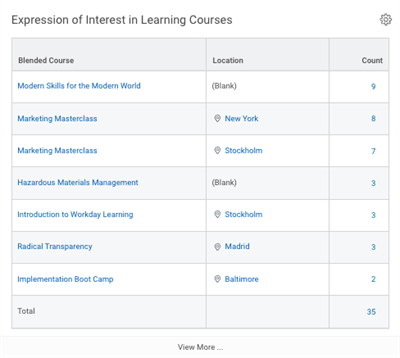
Report
: Workday compiles expressed interest requests, and displays them on the Expression of Interest in Learning Courses
report, as shown in the image below. You can configure this report to display on the Learning Admin
dashboard to monitor course offerings and drive decision making.Waitlisting
Learning administrators can configure waitlisting for blended courses offerings when enrollment reaches maximum capacity. When creating a course, update the Waitlist Capacity field to a value other than zero to enable waitlisting functionality. You can configure the following waitlist types:
- Auto-Enrollment waitlist
- Manual waitlist
To enable auto-enrollment waitlisting, select the Enable Auto-Enrollment from the Waitlist checkbox. Workday automatically enrolls waitlisted learners in the order learners display on the waitlist. If you do not select the Enable Auto-Enrollment checkbox, the learning administrator must manually enroll waitlisted learners into a course. When manually promoting a learner from the waitlist, the learning administrator can select which learner to enroll in the course offering.
For manual waitlists, waitlisting defaults as a self-service task. Therefore, only a learner can add themself to a course offering waitlist, unless you enable the Auto-Enrollment functionality. When a course offering reaches maximum capacity, an alert will display indicating that the course is full. The learner can select the Add to Waitlist checkbox. Once the learner submits their request, the
Enroll in Content
business process initiates. Depending on course capacity limitations and how your organization configures this business process, the following will occur:- Workday will automatically add the learner to the waitlist.
- Workday will notify their manager to review and approve the enrollment request.
As spots become available in a course with a waitlist, Workday notifies learners of their enrollment. They can view their course enrollment status by:
- Viewing theMy Transcriptreport
- TheLearningdashboard's Continue Learning slider
- TheMy Learning Coursesreport, as shown in the image below.
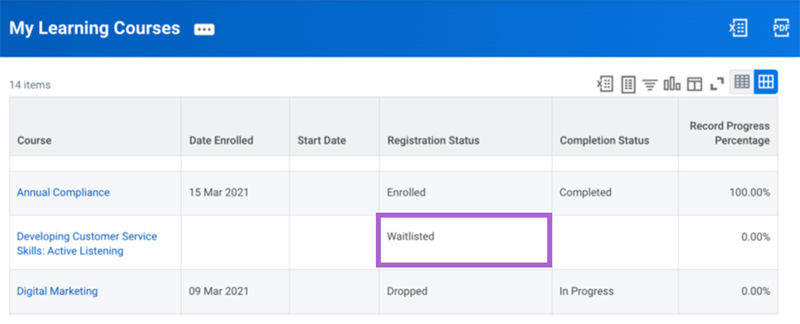
Learners can elect to leave the waitlist by selecting the Leave Waitlist button on the course offering page.
Configuration Considerations
Learning Calendar Integrations
Integration with a learning calendar automatically syncs and updates Workday Learning course offerings and enrollments events to the learner's calendar. You can integrate Workday Learning with the following learning calendars:
- Microsoft Outlook
- Google Calendar
Integration with a learning calendar automatically syncs and updates Workday Learning course offerings and enrollment events to the learning calendar events. This integration allows learners to have the most up-to-date information in their calendar and receive enrollment notifications to their email.
To configure this integration, you will need to configure access to the Public Reporting Items domain and the Set Up: Learning Catalogs domain.
Security Note
: If you are an existing Integration System User (ISU), you will not need access to these domains to run the integration. You can use the Edit Tenant Setup - HCM
task to enter a value for the ISU to assign to the Learning Administrator security group.Use the
Edit Tenant Setup - HCM
task and enable a learning calendar integration by selecting the Enable Calendar Integration checkbox. Then select a calendar provider and system integration user. Additionally, you will need to enter the following values depending on the type of learning calendar integration:- Client ID (Microsoft Outlook)
- Client Secret (Microsoft Outlook)
- Mailbox (Both)
- Tenant ID (Microsoft Outlook)
- Service Owners Key (Google Calendar)
Lastly, you must configure the
Manage Learning Calendar Message Templates
task to create and manage content for your message template. You can also limit any notifications to a specific environment.Important
: A learning calendar integration will not complete until you configure message templates. This prevents learners from receiving empty calendar invites.Resource
: For more information on calendar integration setups, reference the Administrator Guide and search for the Configure Microsoft Outlook Calendar for Learning or Configure Google Calendar for Learning. Learning Calendar Message Templates
For dynamic calendar events, Workday Learning integrates with Microsoft Outlook and Google Calendar, allowing real-time updates on blended course offering enrollments. You can configure learning message templates with an integrated learning calendar by accessing the
Manage Learning Calendar Message Templates
task, as shown in the image below. All message templates will apply to all email invites as a result of a learning calendar integration.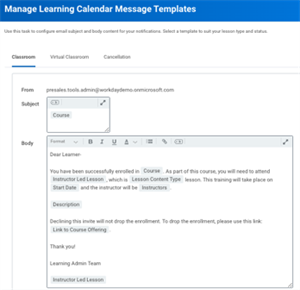
You can create message templates for the following:
- Classroom tab: In-Person blended course offering
- Virtual Classroom tab: Virtual blended course offering
- Cancellation tab: Cancel course offering
To configure a message template, consider the following:
Considerations | Description |
|---|---|
From | The default email account that the message sends from. |
Subject | Configure a dynamic message subject that updates with offering enrollment data when you embed a tag. |
Body | Configure a dynamic message that updates with offering enrollment data when you embed a tag. |
Tag 
| Select this icon to automatically embed an applicable Workday field. The tag populates specific course offering enrollment data into the message. |
Note
: Use the Instructor Led Offering business object to add dynamic fields to learning calendar email templates.Report
: View the Learning Calendar Integration Status
report to:- Check the status of a learning calendar integration.
- The number of invites sent in the past 24 hours.
- View related course offerings for any pending invites.
Successful Completions Configuration
Consider whether you want learners to be able to view successfully completed learning content again. By default, the Enable View Content Again on Successful Completion checkbox is selected on the
Edit Tenant Setup - HCM
task. This functionality includes:- Display a View Course again button when a learner successfully completes a course.
- Display a Retake Course button when a learner fails a course.
- Enable learners to select the lesson once they have active enrollment.
Clear this checkbox to maintain the previous behavior:
- Workday displays the Retake Course option regardless of whether the learner passes or fails.
- Lesson lists are not interactive.
Learner Experience Configurations
To enable learning path, express interest, and activity stream functionality, you must configure the following:
Functionality | Tasks | Security | Recommendations |
|---|---|---|---|
Learning Paths | Navigate to the Edit Tenant Setup - HCM task and select the Enable Learning Paths checkbox. | Update permissions in the Tenant Setup - HCM domain and the Manage: Share Learning Paths domain to enable the sharing feature. | Use the Maintain Learner Experience task to display learning paths on the My Learning dashboard. |
Express Interest | Navigate to the Edit Tenant Setup - HCM task and select the Enable Express Interest checkbox. You can disable this function at the course level by selecting the Disable Express Interest checkbox. | Update permissions on the Learning Access domain and enable in the Edit Tenant Setup - HCM task. | Add the Expression of Interest in Learning Courses report to the Learning Admin dashboard. |
Rate Learning Content | Navigate to the Edit Tenant Setup - HCM task and select the Enable Rating on Learning Content checkbox. | Available to all workers when configured in the Edit Tenant Setup - HCM task. | Enables users to rate standalone lessons and lessons in courses that they enroll in. |
Comment on Learning Content | In the Edit Tenant Setup - System task, scroll down to the Activity Stream section. In the Selected objects for Activity stream field, add Enrollable Learning and Learning Lesson. | Update permissions to the Self-Service: Activity Stream and Administer Activity Stream domains. | You can view comments directly on the course or lesson activity stream. |
Security Note
: Changes to the activity stream in the Edit Tenant Setup - System
task take effect after you sign out and back in to Workday.Workday-Delivered Reports
Workday Learning delivers several analytical reports. You can use these reports to build and manage learning content and enrollment. Below are Workday-delivered reports related to topics discussed in this chapter.
Report Name | Description |
|---|---|
Browse Learning Content | Learners can browse all active learning content. Learning content details the description, associated ratings, and time lengths. Use facets to refine the list. Learning content excluded from search and browse will not display. |
Completed Learning | Learners view a list of all completed learning content. |
Enrolled | Learners view a list of all learning content enrollments and completion status of that learning content. |
Expression of Interest in Learning Courses | Learning administrators view a table of blended courses that learners have expressed an interest in taking. Learning administrators can analyze the number of learners interested in that learning content by location to inform future decisions in regard to course offerings. |
In Progress Learning | Learners view all learning content enrollments with a completion status of In Progress. |
Learner Schedule Calendar | Learners view their course offering enrollments in a calendar format. View the calendar by day, week, or month. |
Learning Content by Rating | Learning administrators can view the number of standalone lessons, courses, and programs associated with that overall rating. The report displays as a pie chart of learning content by rating. |
My Transcript | Learners view all learning content enrollments by completion status: Not Started, In Progress, Learning History. |
Not Started Learning | Learners view all learning content enrollments with a completion status of Not Started. |
Required Learning | Learners view all of their required learning content enrollments and their associated due dates. |
Waitlisted Learning | Learners view a list of all waitlisted learning content enrollments for a learner. |
Note
: For the most up-to-date list of Workday-delivered Learning reports in Workday, search for Workday Standard Reports
report and select Learning in the Report Categories field.Chapter Summary
There are many things to consider when evaluating the learner experience. Be methodical in the fields you use when developing learning content. Each field can impact how the learner enrolls and consumes learning content and how learning administrators and learning trainers manage completion statuses. As an organization, decide whether to use static calendar events or create integrations for dynamic calendar events. Configure message templates and notifications to inform and remind learners of pending enrollments.
Additionally, the learner experience includes how your organization decides to take advantage of the Rate and Comment, Learning Path, and Expression of Interest functionality. Decide how each functionality meets your organization's requirements. Each functionality is a choice that requires additional configuration and management in Workday Learning, but can also enhance decision making and meeting workforce demands.