
Administer Learning
Overview
Workday Learning provides many features for managing learning enrollments, such as distributing and assigning learning content, managing waitlists and enrollments, learning assignments, and completions.
There are many different ways to distrubute and assign learning content in Workday Learning. While individual learners can enroll themselves in learning content, learning administrators, managers, and other configured security groups can also manage the learning enrollment process. Learning administrators can leverage the Learning Mass Enrollment or Campaigns functionality to assign and distribute learning content to learners. Managers can enroll workers using the Enroll My Team functionality. You can also configure other security groups, such as learning trainers, to enroll learners with the Learning Facilitated Enroll functionality.
The
Manage Waitlists
report allows learning administrators to manually manage course offering waitlists and make informed decisions about scheduling future offerings to meet learner demand. This chapter also explains the difference between dropping and canceling enrollments, waiving learning assignment records, and managing enrollment exceptions.Objectives
By the end of this chapter, you will be able to:
- Describe different mass enrollments.
- Build and distribute learning campaigns.
- Cancel enrollments.
- Manage waitlists.
- Describe enrollment exceptions.
Assign and Distribute Learning Content
There are several options available for distributing and assigning learning content, depending on a role's security permissions.
When you use a mass enrollment option, you have the option to require the learning content and assign a due date. Optionally, you can configure the due date as a duration or a calendar date. When you configure a learning content due date, Workday recommends you associate learning content reminders.
Example
: Consider using mass enrollments for the following business needs:- Legally required compliance courses, such as workplace violence prevention.
- Learning content that the company or a manager wants their department to take, such as how to complete expense reports.
- Learning content to align company terminology and talking points about products, services, and technology, like Artificial Intelligence.
Consider the following options to determine which enrollment type meets your business needs:
Option | Performed by | Definition | Generates Learning Assignment | Benefits |
|---|---|---|---|---|
Learning Campaign | Learning Administrator | A task for learning administrators to assign large groups of learners through a custom report into related learning content on a defined delivery schedule. Learning administrators can build campaigns with standalone lessons, courses, notifications, and programs to distribute to learners. The assigned learning content will display in the learner's Required for You slider. | Automatically requires learning content and creates a learning assignment for each worker in the campaign audience. | Consider the following benefits:
• Easily create large audiences (up to 100,000 workers) from a saved search report with the ability to dynamically add and remove workers.
• Create custom reports to track data for any compliance or mandated trainings.
• Distribute learning content on a defined schedule. You can configure each campaign item to send independently or relative to other delivered items.
• Configure the distribution schedule to ensure learners complete learning content in a specific order.
• Configure reminder notifications to send automatically to individuals with incomplete learning content. |
Option | Performed by | Definition | Generates Learning Assignment | Benefits |
|---|---|---|---|---|
Learning Mass Enroll | Learning Administrator | A report for learning administrators to enroll individuals or groups of learners into individual learning content. Learning content will display in the My Transcript report.This functionality does not associate with the Mass Enroll business process. However, the Enroll in Content business process will execute with the ability to bypass all constraints. | Option to require learning content | Consider the following Learning Mass Enroll benefits:
• Can quickly identify workers for enrollment and select the learning content.
• Can require the learning content and set a due date.
• Can exceed capacity limits, validations, and any existing learning rules associated with the learning content.
• Can enroll into in progress and closed offerings. |
Enroll My Team | Manager | A task used by a manager to only enroll direct reports using the Mass Enroll business process. The Enroll My Team link displays on a learning content page for any worker who is a member of the Manager security group. | Option to require learning content | Consider the following Enroll My Team benefits:
• Can quickly enroll direct reports into learning content.
• Can require the learning content and set a due date.
• Managers can monitor learning content completion using the My Team's Learning report.
• Routes enrollments for approval.
• Adheres to course capacity limits, validations, and learning rules. |
Learning Facilitated Enroll | Constrained or Unconstrained security groups | A report for nonmanagers, such as learning trainers or the management chain, to enroll learners directly into learning content. This enrollment uses the Find Workers to Enroll report and the Mass Enroll business process. | Option to require learning content | Consider the following learning facilitated enroll benefits:
• Can quickly identify workers for enrollment and select the learning content.
• Can require the learning content and set a due date.
• Can configure other necessary security groups with enrollment capabilities.
• Routes enrollments for approval.
• This mass enrollment compliments the Learning Mass Enroll report, but adheres to the course constraints, validations, and rules. |
Mass Enroll by Role | Role-based security group with constrained access | A task for constrained security groups to enroll supervisory organizations, location hierarchies, or extended enterprise affilitations into learning content using the Mass Enroll by Role task. | Option to require learning content | When evaluating your business requirements, consider the following Mass Enroll by Role benefits:
• Can quickly enroll large groups of workers organized by supervisory organization, location, or extended enterprise affiliations.
• Can require the learning content and set a due date.
• Can exceed capacity limits, validations, and any existing learning rules associated with the learning content.
• Can enroll into in progress and closed offerings. |
Important
: Learning content assigned via a campaign do not display on the My Transcript
report until the learner enrolls or starts the learning content. It will display on the Required for You slider, prompting the learner to complete.Report
: You can create custom reports for mass enrollments using the Learning Enrollments and Learning Assignments Records data source.Campaigns
Campaigns enable you to automate the delivery of learning content to a target audience. You can send multiple campaign items on a pre-determined schedule, limiting manual delivery. Some features of campaigns include:
- The combination of standalone lessons, digital courses, blended courses, programs, and notifications into a single campaign for a learning administrator to assign.
- Learners cannot search for campaigns.
- Learning administrators control the order of the campaign items and designate it as optional or required learning.
- Examples of campaigns include compliance training and new hire onboarding.
Workday Learning provides these campaign types:
Campaign Type | Definition |
|---|---|
Learning | Administrators can designate a variety of learning components into a single campaign, and assign the learning content as required learning. You can configure reminder notifications to automatically send to individuals who do not complete the training by the targeted completion date. |
Survey | Administrators can gain insight about the usefulness of recent learning content or learning opportunities by sending surveys to attendees. |
If you require the learning content in a learning campaign, it will display for the learner in the Required for You slider. Create custom sliders to display other campaigns.
Note
: Campaigns are a call to action for learners. A campaign pushes learning content to learners. Learners still need to enroll themselves in any blended course offering or digital courses requiring enrollment, even if they are campaign items. The Campaign Process
From the
Learning Admin
dashboard, select the Campaigns
dashboard to manage the campaign process, such as:- Create campaign audiences
- Builds campaign content
- Distribute learning campaigns
- Maintain campaigns.
Build your learning campaign by selecting the Required Learning option in the Category field in the
Create Campaign
task. Use the Campaigns
dashboard to manage all aspects of the campaign process.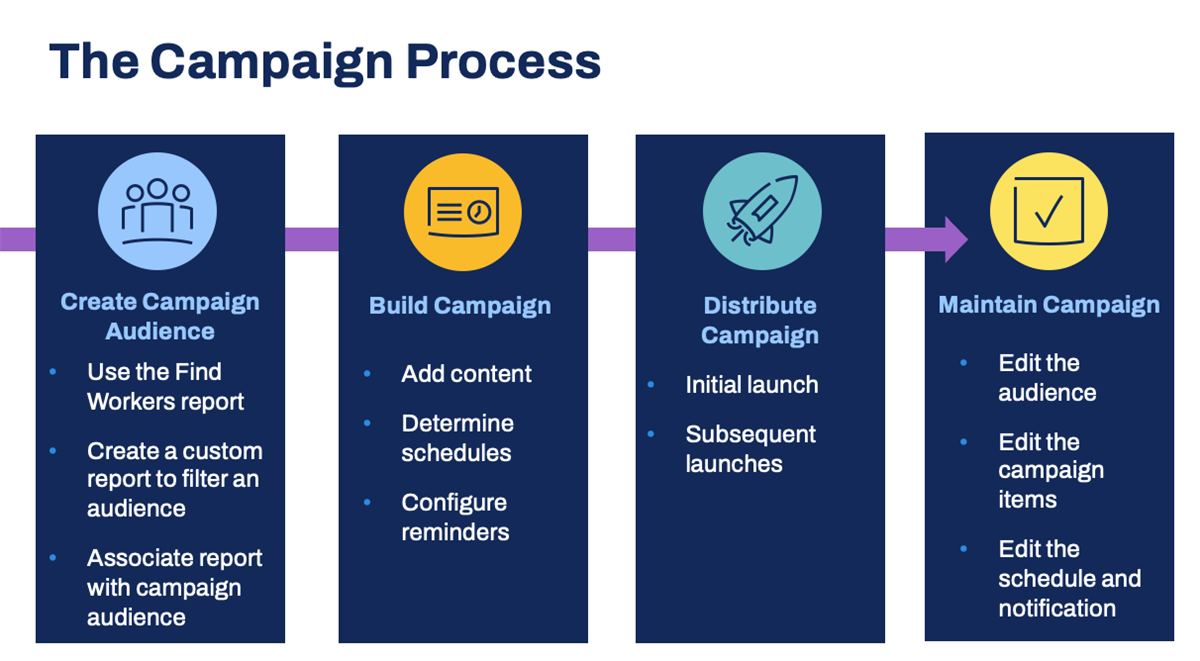
Tip
: Build a program with all the intended campaign learning components. Use the single program in a learning campaign as a call to action for learners.Create Campaign Audience
Before you deliver your campaign in Workday Learning, consider the campaign audience size before creating the campaign audience.
Examples of large volume campaigns include:
- Audience sizes over 100,000 workers.
- Frequent dynamic audience additions of over 100,000 workers.
- Over 100 scheduled campaigns per day.
Tip
: To avoid delayed notifications and other system processes, Workday recommends that you contact the Workday Production Readiness team to help test and prepare to run large volume campaigns in production.There are many ways to build a campaign audience. You can build campaign audiences in the following ways:
- Custom reports
- Organization
- Saved search
- Succession Pool or Talent Pool (static only).
To build a campaign audience from a saved search, use the
Find Workers
report to identify who receives the campaign. The saved search acts as a campaign filter.Select the facets that meet your criteria, then name and save the search filter. Every time you run the filter, the report collects anyone who matches the filter's criteria. Additionally, if the facets from the
Find Workers
report do not meet your business needs, you can use custom reports to build a campaign audience. Available filter options depend on the filters your company configures. You can reuse existing saved searches or create new ones.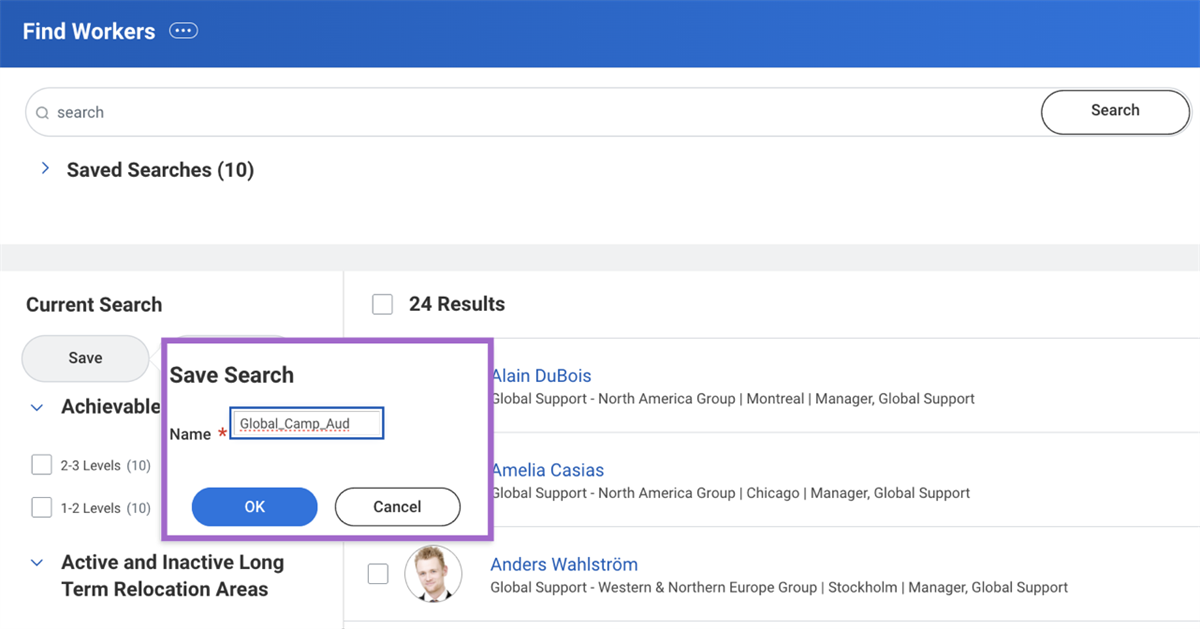
Use the campaign filter (saved search) with the
Create Audience
task to generate a list of workers who will receive the learning campaign content. These individuals make up your campaign audience. In the Create Audience
task, select the campaign type as Learning Campaign and the category as Required Learning.When you select a campaign type, you associate a category with the audience so that you can use the audience exclusively with campaigns of the same category. When a worker meets the audience requirements for an active or scheduled campaign distribution, Workday sends out notifications according to the defined campaign schedule.
Use the
Manage Audiences
task to deactivate audiences.Important
: Campaigns and audience types must match. If you create a required campaign, you must pair it with a required campaign audience. If you try to search for an audience with a required campaign and your audience is not required, then the intended audience will not display. The same is true in the reverse. If the campaign is optional, the audience must match.Build Campaign
Use the
Create Campaign
task to build and organize campaign items and the delivery schedule of each item. Campaign items can include standalone lessons, courses, programs, notifications, and surveys.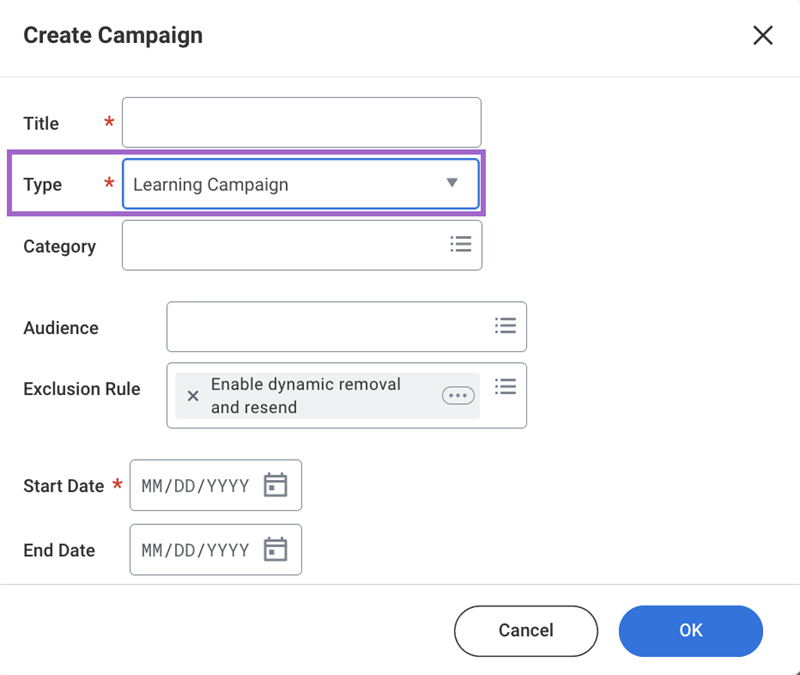
When the Create Campaign page displays, use the following fields to build a campaign:
Term | Definition |
|---|---|
Title | Name of the campaign. This is a required field. |
Type | Select Learning Campaign, as highlighted in the image above. This is the default type for Workday Learning. This is a required field. |
Category | Select Required Learning (Learning). This field assigns an assignment record to the learning content. Note : The category selected when creating the audience and campaign must match, including the requirement setting. If they do not match, your intended audience does not display when you build the campaign. |
Audience | Specifies the campaign audience category and the type of functionality to build the audience. You can build campaign audiences with a custom report, a saved search, by organization, a Succession Pool, or a Talent Pool. |
Term | Definition |
|---|---|
Exclusion Rule | When you enable dynamic updates for campaign audiences, it achieves the following:
Select the Enable dynamic removal and resend option on the Exclusion Rule prompt on the Copy Campaign task, Create Campaign task, or Edit Campaign task. This option is a default option. |
Calculated as User | The security profile of the campaign creator determines the users included in the audience based on the search criteria or custom report parameters. |
Override Default User | Select a worker who has sufficient security access to run the linked custom report that defines the audience. This is an optional field. |
Start Date | Enter the date the campaign begins. This date is an effective date and does not determine when you launch the campaign. This is a required field. |
End Date | Enter the date the campaign will end. This is an optional field. |
Scenario
: Your organization is running a campaign that focuses on workplace safety. There are three courses associated with this campaign. All workers with an office location must complete this training. The campaign has an overall due date of three weeks. Each campaign item will run relative to completing the previous campaign item. However, you realize that you forgot to include an office location in your campaign audience. If you add the location to the previous campaign and re-launch, it will deliver all campaign items at one time, instead of on the previous schedule. Alternatively, you can create a different campaign with a new campaign audience, which includes the forgotten office location.Campaign Items
When you build a campaign, you will need to add campaign items, by selecting the Add Item button. For each campaign item, you will complete the following fields on each campaign tab:
Campaign Tab | Field | Description |
|---|---|---|
Item Details | Title Content Type | You will create a unique title for the campaign item and select an existing learning component as the campaign item. |
Setup | Channels | You can select the channels in which you will send notifications. These include email and mobile push notifications. The option you select determines the fields that display in the Message tab. |
Message | Message | Compose a message that will be sent to workers in the campaign audience. |
Send Date | Date Due Date | Select an option for the campaign item to send. This can be a calendar date, a completion date, or relative to a different campaign item. You can also establish a due date for the campaign item. However, you are required to schedule reminders when a due date exists. |
Review | A summary of the completed fields from the previous campaign tabs. Once you confirm the information, you can select the Save button. |
Campaign Schedules
For each campaign item, you can determine a distribution schedule and a due date. If you set a due date, you are required to schedule reminders.
You can configure a campaign item to distribute by the following options:
- Send on (specific calendar date)
- Send immediately upon completion (specific campaign item)
- Send relative to item (specific campaign item)
Important
: When you trigger another campaign run, all eligible campaign items send. Campaign items do not distribute to learners according to the pre-determined schedule.When setting a due date, you can establish a relative due date using the following fields:
Field | Description |
|---|---|
Relative Due Date Checkbox | Select this checkbox to establish a due date, however you will be required to schedule reminders. |
Due (Numeral) | The number of days or weeks in relation to the criteria in the field below. |
Due (Criteria for Number) | The criteria relative to the due date. You can select from the following options:
|
Note
: All campaigns can contain email and push notifications, but you cannot add a survey to a learning campaign or a learning component to a survey campaign.Campaign Reminder Notifications
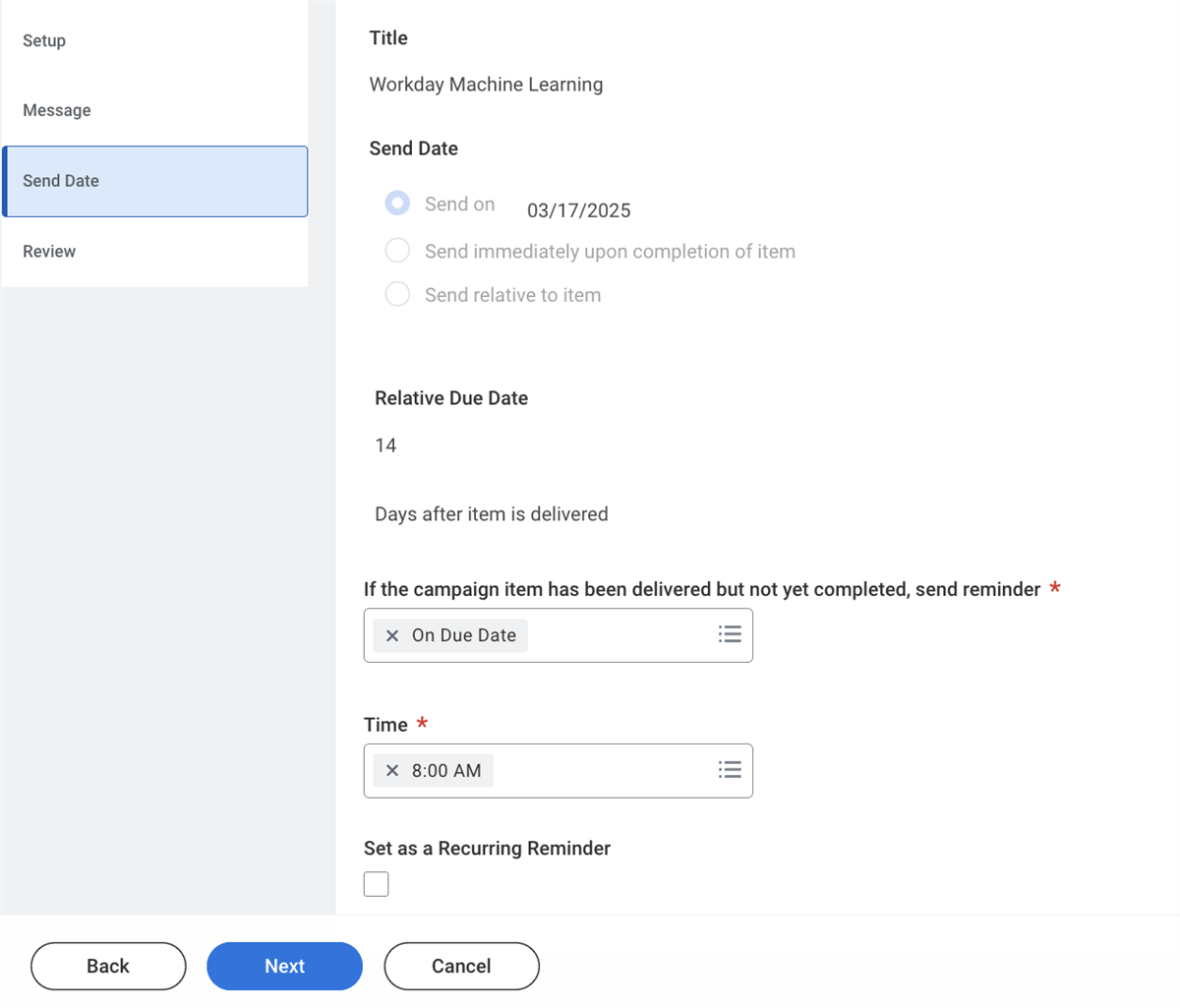
You can define campaign messages, reminders, and schedule delivery details while you build campaign learning content. This enables you to send robust, consistent messages to a campaign audience, as shown in the image below.
Tip
: Use the Message and Email Templates functionality to create notification message templates to streamline this process.Configure reminder notifications based on the campaign. You send reminder notifications based on the:
- Due date
- Relative to the due date in days or weeks
- On a recurring schedule by days or weeks, up to 50 times.
The campaign uses whichever date occurs first. If the campaign has no end date, select the relative due date option. You can configure up to three separate reminder notifications per campaign item. You can configure a different delivery schedule for each reminder notification on the same campaign item.
Once you establish the time and date to deliver the reminder notification, Workday adjusts the reminder notification to align with the recipients' time zone.
Workday will not send campaign reminder notifications after the campaign end date or the maximum number of recurring reminders send.
Note
: Activate reminder functionality in the Edit Tenant Setup - Notifications
task, within the Reminder Settings section, select the Enable Reminders checkbox.Security Note
: To schedule future notifications using the Create Scheduled Distribution
task on a campaign, grant security permissions to the Security: Administer Scheduled Distributions domain.Distribute Campaign
The campaign framework determines when to run all campaigns, even campaigns for other Workday applications. Workday prioritizes when campaigns run. You can override this automatic feature by launching the campaign manually.
To run a campaign, use the
Launch/Schedule Campaign
task available on the Campaigns
dashboard.Once you select your campaign, indicate the run frequency. To override typical campaign prioritization, select the Run Now option. If you select the daily or the weekly recurrence options, your campaign runs at a future date. Additionally, select the run priority of your campaign: Critical, High, Normal (default), or Low. This will prioritize the campaign over other processes.
It is important to note the difference between the
Launch/Schedule Campaign
task and the Schedule Campaign Run
task.- TheLaunch/Schedule Campaigntask enables you to create an individual schedule for a single campaign.
- TheSchedule Campaign Runtask enables you to create a tenant-wide default schedule for all campaigns. Campaigns will launch automatically.
Important
: Nothing happens with your campaign until you actually launch the campaign, regardless of whether you scheduled it for today or for a week after the first item arrives. If you want to ensure everything occurs on the pre-determined schedule, set your campaigns to run daily. If you do not mind them running within a few days of your schedule, set your campaign to run weekly. You can also manage campaigns manually, using the Run Now option.Touchpoint
: The Omnichannel Engagement touchpoint allows customers to send notifications and campaigns.Learning Mass Enroll
Learning administrators have the option to enroll workers into learning content using the
Learning Mass Enroll
custom report. This custom search report allows learning administrators to enroll anyone within their organization into digital courses, blended courses, and programs. The benefits of this type of enrollment include the following:- You can enroll over the defined maximum enrollment limit.
- You can also enroll learners into closed or in-progress courses.
- You can bypass any prerequisite or equivalency rules or custom validations.
- You can designate learning as optional or required.
Important
: This is not associated with the Mass Enroll
business process. The learning administrator can bypass any established learning content rules, such as prerequisites.Learning administrators can set due dates for required learning and track worker completion. You can customize notifications to remind learners about required learning. Learning administrators can also drop learners from courses.
You can use the
Learning Mass Enroll
report's search facets to determine your audience, as shown in the image below. Consider filtering your search by location, job profile, worker type, and more to meet your desired result.
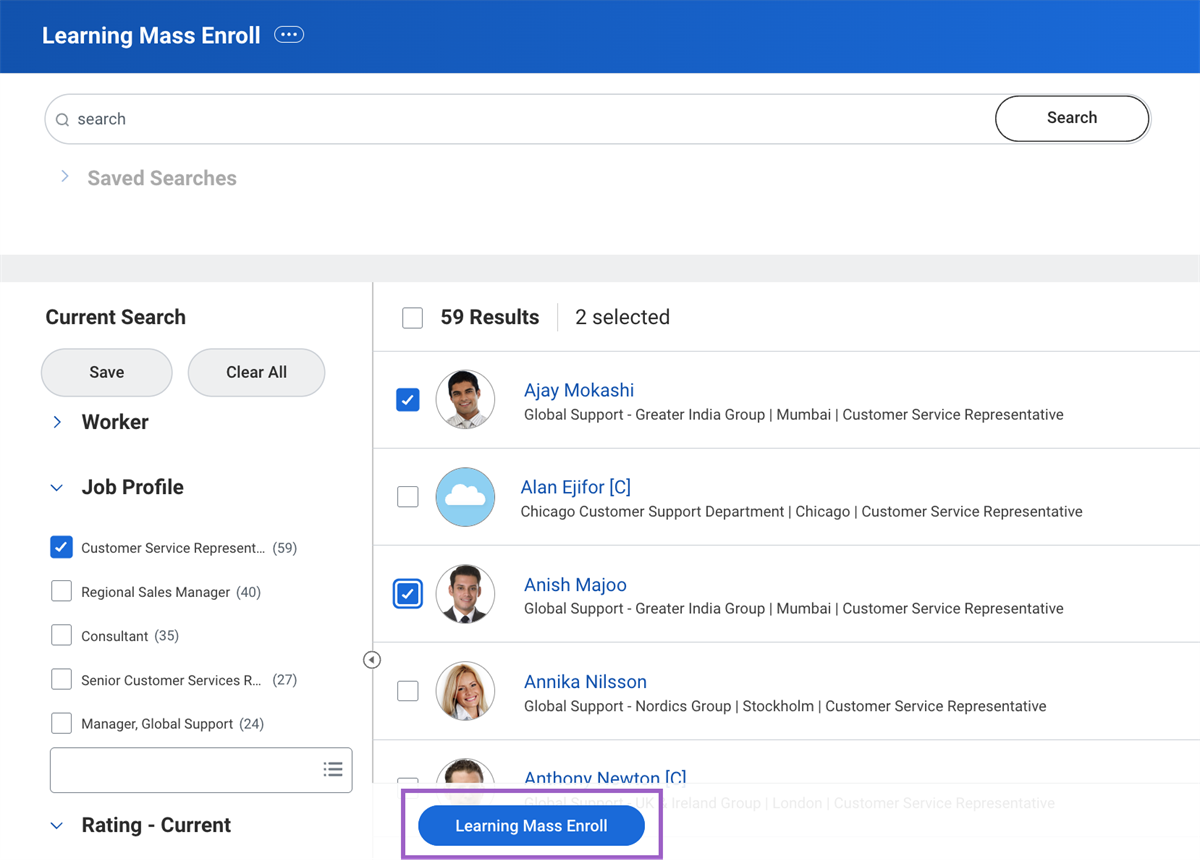
Select and confirm the target learners, and use the Learning Mass Enroll button to begin the enrollment process. Then you can indicate the desired learning content. You will select an available course offering when you mass enroll into a blended course.
Note
: When learning administrators use the Learning Mass Enroll functionality, they can exceed the course capacity and enroll learners into in-progress or closed course offerings. This feature does not eliminate any physical constraints of the classroom space, so be mindful when exercising this option.Enroll My Team
Managers can enroll their direct reports into learning content by selecting the Enroll My Team link on a learning content page. This task is only available to managers. Managers have the option to require enrollment.
Your organization can determine how managers enroll, but often, their enrollments are:
- Constrained by course capacity
- Limited to their direct reports.
- Routes for any approvals on theMass Enrollbusiness process.
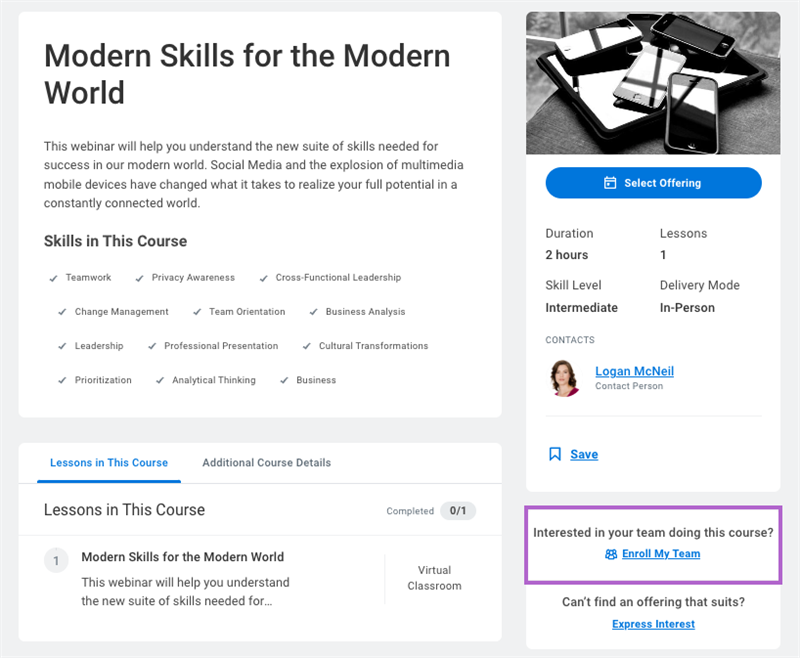
A manager's mass enrollment cannot override course capacity. Since waitlisting is a self-service task, managers cannot add their direct reports to a waitlist. When a course is full, managers should request their direct reports to add themselves to the waitlist or request a learning administrator to override course maximums.
Because digital courses do not typically have enrollment limits, the manager can enroll their entire team. You can configure additional approvals to the
Mass Enroll
business process depending on your organization's business requirements.Manager Mass Drop
Members of the Manager security group can drop any worker they enroll in a blended or digital course. Managers can select the drop option, which individuals to drop, and submit to initiate the
Drop Learning Enrollment
business process.Learning Facilitated Enroll
You can grant access to constrained and unconstrained security groups, such as nonmanagers, to use a facilitated mass enroll action.
Example
: Some common security groups that use the facilitated mass enroll action include: instructors, assessors, manager's manager, management chain, HR partner by location, learning partner, or a project resource manager.A facilitated enrollment mass action enrolls workers using the
Find Workers to Enroll
report. This report allows nonmanagers to select workers to enroll in learning content with restrictions. These restrictions include:- Adhere to capacity limits.
- Respect custom validations and prerequisite rules.
- Configure theMass Enrollbusiness process to route enrollment approvals.
To configure this access, you must add the target security group to either domain, depending on the security group type:
- Add unconstrained security groups to the Manage: Mass Enrollments domain and to theMass Enrollbusiness process security policy.
- Add constrained security groups to the Manage: Facilitated Enrollments domain and to theMass Enrollbusiness process security policy.
Workday recommends configuring both the Learning Mass Enroll and the Learning Facilitated Enroll actions in a single report, as they complement each other. In certain scenarios, a learning administrator will use a facilitated enroll mass action because the enrollment requirements need to adhere to prerequisites or capacity limits.
Note
: If you grant access of the facilitated mass enroll action to an instructor or assessor security group, they will be able to enroll any worker within the confines of the Find Workers to Enroll
report into any course offering. They will not be constrained to the courses or course offerings that they deliver.Resource
: For additional information about this feature, refer to the Administrator Guide and search for Mass Enroll Learners.Cancel Enrollments
Dropping enrollments and canceling enrollments differ by role and purpose, and depend on whether a learning assignment record is associated with the enrollment.
The creation of a learning assignment record for a learner's enrollment depends on the type of enrollment functionality. These learning assignment records generate as a result of the following assignment mechanisms:
- Required learning
- Campaign
- Mass enrollment
- Assign learning content as required via a manager enroll
- Configured retrain window on learning content
When a learning assignment associates with an enrollment, it is best practice to cancel the enrollment and then waive the learning assignment. It is important to understand the differences between dropping and canceling enrollments and the sceanrios for each.
Drop Enrollment
Anyone can drop an enrollment that has a status of: Not Started or In Progress, as it is a self-service task. Drop an enrollment when there is not a learning assignment record association. When dropping a course, consider the following:
- Learners should drop an enrollment when they can no longer attend the course.
- The enrollment will reflect as a dropped course.
- Dropped learning content is removed from the Continue Learning slider and theMy Transcriptreport.
Example
: A manager enrolls a direct report into a non-required virtual classroom blended course. However, the direct report is unable to attend the offering. Since this learning was optional and did not produce an assignment record, the direct report can drop the learning content.Mass Drop
As a learning administrator, there are several ways you can remove a learner's enrollment from learning content.
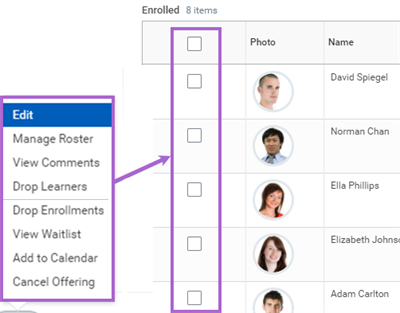
In Admin View on a digital course or blended course, you can select the More (three dots) icon to view two options:
Option | Description |
|---|---|
Drop Learners | Drop Learners removes the learner from the course offering and Manage Roster functionality for that offering. This will update their enrollment status on the course offering's Enrollments tab to Dropped. |
Drop Enrollments | Drop Enrollments allows you to drop learners from Open, In Progress, and Closed offerings. |
Use the Drop Learners and Drop Enrollments options for learners with the following enrollment statuses:
- Enrolled
- Enrolled - Pending Prerequisite
- Waitlisted
From the Course View page, you can also select the Batch Drop Enrollment link, and then select the offering and individuals you wish to drop from an enrollment.
Cancel Enrollments and Waive Learning Assignments
Consider canceling an enrollment for the following:
- The enrollment was in error
- The learner no longer needs to complete the learning content
- There is an assignment record associated with the enrollment
Example
: The learning administrator launches a required campaign with a two-month completion window. One member of the campaign audience takes a leave of absence and does not complete the campaign. For reporting purposes, the learning administrator cancels that learner's enrollment and then waives the assignment record.If you want to completely eliminate an enrollment from the learning assignment record, you must cancel the enrollment and waive the learning assignment record. The
Waive Learning Assignment
task only works with the cancel functionality.Consider setting up a notification to alert learners of the cancellation.
Important
: You cannot cancel an enrollment if the learner has completed the course or if the course is part of an equivalency or has a pricing record.Enrollment cancellations use the
Cancel Learning Enrollment
business process. It will remove an open or in-progress assignment record for a learner's enrollment. Learning administrators can cancel:- Enrollments in upcoming course offerings and add reasons for the cancellation.
- Incomplete enrollments that are linked to open learning assignment records.
Mass Cancel Learning Enrollments
When canceling multiple enrollments for one or more offerings, use the
Mass Cancel Learning Enrollments
task. The Mass Cancel Learning initiation step alerts Workday to multiple cancellations by defining the learning content, the completion status, or the learners, including any waitlisted learners if necessary. This task initiates the Mass Cancel Learning Enrollments
business process, which includes the required Cancel Learning Enrollments
sub-process step.Note
: You can create custom notifications on the Mass Cancel Learning Enrollments
and Cancel Learning Enrollment
business processes. You can use the Learning Enrollment business object on the report fields for learning content.Waive Assignment Record
You can waive learning assignment records if the learner no longer needs to complete the learning content. You can only waive learning assignment records with a status of Open. The assignment status of Open means that the leaner needs to consume the learning content.
Workday creates learning assignment records for required and non-required learning content. This learning content includes:
- A learning campaign
- ALearning Mass Enrollevent
- AManager Enrollevent
- A retrain window
- An Expiry Period due date
- A mass enrollment type selects the Assign as Required Learning checkbox
When you waive a learning assignment, the enrollment remains Open and active until either:
- The learner drops the enrollment.
- The mass drop functionality drops the learner.
- The enrollment is canceled.
When the learning assignment status remains Open despite a learner's dropped enrollment, use the
Waive Learning Assignment
task to manually waive the assignment record. This task will display all eligible assignments and ineligible assignments. By selecting a learner's learning content, you will remove the learning content from the Required for You slider. This will update the assignment record status and the Assignment Cancellation Date field on the learning assignment record.Use the
Manage Learning Assignment Waive
task by identifying the learning content, learners, and assignment mechanism to rescind waived learning assignments completed in error or on a temporary basis.You can configure the
Waive Learning Assignment
and Mass Waive Learning Assignments
business process to add approval and review steps.Use the
Maintain Learning Assignment Waive Reasons
task to configure waive reasons to report on and meet the needs of your organization.Report
: On a course page in Admin View, you can select the Assignments tab or use the Find Learning Assignments
report to review any learner enrollments with an assignment status.Mass Reset Learning Due Dates
When learning content is assigned to a learner using an assignment mechanism, administrators have the option to reset a learning due date for a specific learner.
Example
: A learner takes an extended leave of absence. You can use the Mass Reset Learning Due Dates functionality to extend the time to complete the required learning content.You can use the
Reset Learning Due Dates
task to filter by learner or learning content. Determine which reset method meets your needs:- Select a new date (calendar date)
- Extend the current due date by duration (days, weeks, months)
This task will update the Required for You slider, and will show there was a manual expiration override on any reports.
Manage Waitlisting
You can enable waitlist functionality on courses and course offerings when creating learning content or updating learning content to meet learner demands. Enter a number other than zero into the Waitlist Capacity field to establish a waitlist. You can configure waitlists for:
- Manual enrollment
- Auto-enrollment
Waitlists will default to manual enrollment, unless you select the Enable Auto-Enrollment from the Waitlist checkbox on the course and course offering.
When a seat opens up in a full course offering, Workday reviews the course offering waitlist configuration. For the system to take action, it will determine if the auto-enrollment functionality is enabled and if there is a waitlist. If you configure the waitlist to auto-enroll, Workday moves the next person on the waitlist into the enrollment process. The specific status of enrolled or pending approval, depends on how your organization configures the
Enroll in Content
business process.If the auto-enroll functionality is not enabled, the learning administrator will need to manually manage the waitlist from the
Manage Waitlists
report. Use the Manage Waitlists
report to monitor and take action on waitlist items. When offerings meet the waitlist requirements: seats available and learners on the waitlist, the course offering will display at the top of the Manage Waitlists
report. The learning administrator can take action in the Waitlists Requiring Action grid. Use the Manage button to enroll learners. The order of learners on the waitlist does not apply on manually managed waitlists. Learning administrators can enroll whomever they select.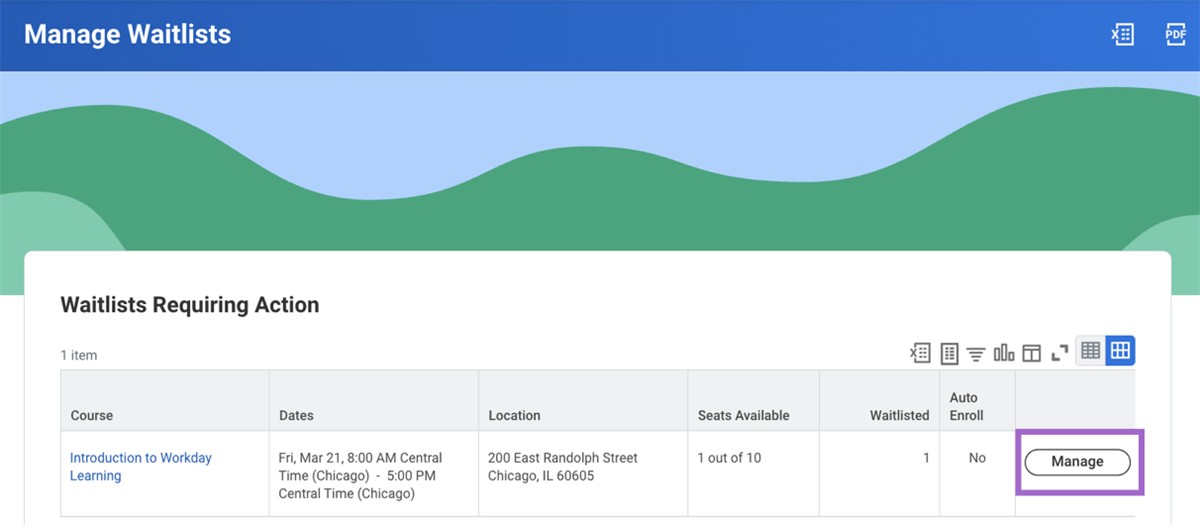
Once you manage a waitlist, Workday moves the waitlist back to the All Other Waitlists grid and changes the waitlist status button from Manage to View.
Enrollment Exceptions
A learning administrator can perform enrollment exceptions, including:
- Enroll learners into in-progress or closed courses or course offerings.
- Override course and course offering maximum enrollment capacity.
- Manage completions.
Late Enrollments
Add learners to in-progress or closed learning content when a learner's initial enrollment fails to complete. Use the
Learning Mass Enroll
report and select the In Progress/Closed tab to access the late enrollment options. If the tab does not display, there are no offerings currently with a status of In Progress or Closed.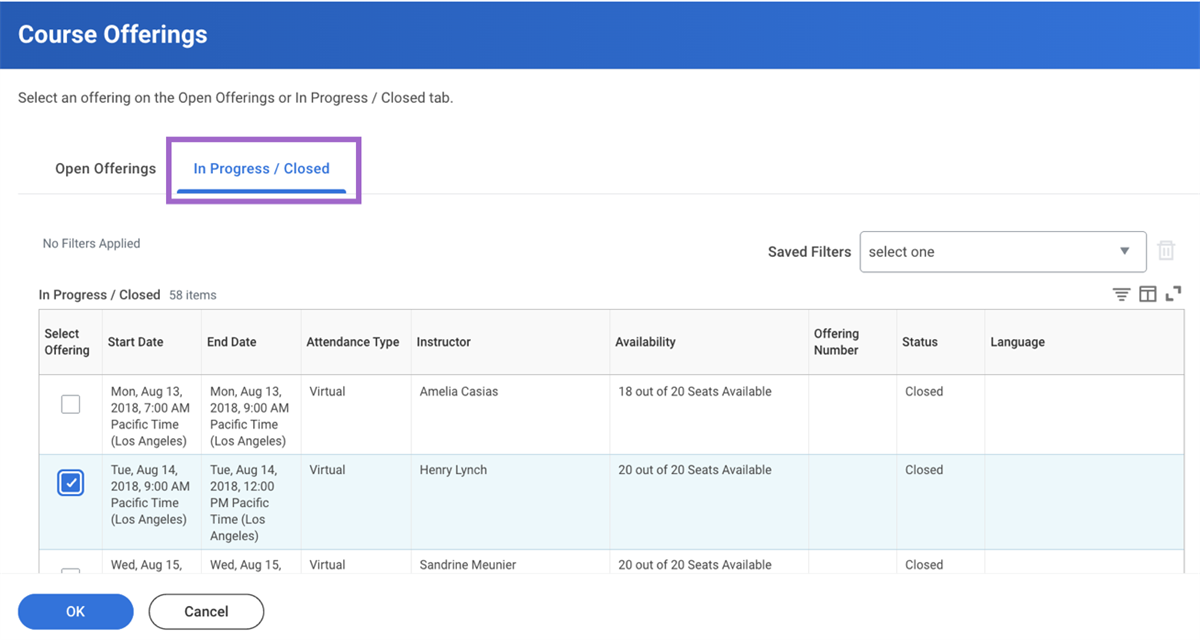
Override Maximum Enrollment Capacity
Learning administrators using the Learning Mass Enroll functionality can enroll learners into open, in-progress, or closed offerings that disregard capacity limits on a course or course offering. The learning administrator will receive an alert indicating that the number of selected learners exceeds the number of available seats. This is only a warning. The enrollment process can continue. Learning administrators should keep the offering's location and physical resources in mind, ensuring it can accommodate additional learners.
Manage Completions
Learning content can fail to track in Workday Learning for a number of reasons. Some of these reasons include:
- A corrupted video file did not properly track the student's completion.
- A network connectivity issue prevents a SCORM course from updating.
- The learning trainer did not enter grades and attendance for the student.
- The learner did not select the final screen or sign out properly.
As a consequence, the completion results do not update when learners consume blended or digital courses with instructor-led course offerings, packaged content, video files with interactions, or survey course lessons.
If a completion status continues to display Not Started or In Progress, the learning administrator can manually force completion for a learner after entering any corresponding grades and attendance.
You cannot use the
Manage Enrollment Completion
task to complete or enter results for instructor-led lessons. Use the Manage Grading and Attendance
task to manually complete instructor-led course lessons. The completion status will automatically update to a Completed status for that learning component. An overall completion status depends on the completion of all required learning components in a course or program.Important
: Before forcing completion on an instructor-led course lesson, confirm or enter all grades and attendance before managing the completion status.View the
Course Completion Status
report to locate a course offering, digital course, or program with a Not Started or In Progress status that requires manual completion management. On the View Learning Enrollment page, select the Manage Completion button to update a Not Started or In Progress completion status to Completed.For each required media or survey lesson, the
Manage Enrollment Completion
task enables you to:- Mark the lesson as complete by selecting a tracking status.
- Enter a score and grade, if applicable.
- Enter a completion date and time (required).
Important
: When managing completions, you can only amend results for courses that have a status of Not Started or In Progress. You cannot amend enrollment results or grades and attendance once the completion status updates to Completed.Configuration Considerations
Campaign Configuration Considerations
Use the
Edit Tenant Setup - Notifications
task to enable campaign reminders and configure the notification channels and frequency when sending a campaign.Security Note
: Configure the following domains in the system functional area for campaign functionality:- Administer Campaigns
- Set Up: Campaign Type Categories
- Set Up: Message Templates
Configure the
Campaign Event
business process to meet the needs of your organization. You can add the following step types:- Approve
- Copy
- Create
- Edit
- Rescind
- Submit
- View
You can send survey and learning campaigns to internal audiences through a custom report. However, Workday recommends that you use a custom report with an indexed data source, since the data source determines the business object. The business object of the custom report is dependent on the campaign or distribution type to return an audience. The custom report option allows you to set parameters on the report filters and specify the values in the Report Criteria grid. You can also build a campaign audience by organization, a saved search, a Succession Pool, or a Talent Pool.
Note
: Workday supports static Talent Pool types. Dynamic Talent Pool types do not return an audience.Create a Message Template for Campaigns
Send automatic messages to learners as your campaign runs by using the message template option. Navigate to the
Campaigns
dashboard. From the Message Templates menu, select Create Message Template to configure the message that will send to the campaign audience.Message templates are not exclusive to Learning campaigns. Create or edit a message template to use when building a campaign. When building the campaign, you can select any existing message template to use or update for each campaign. How you configure a message within a campaign determines when the message sends to the campaign audience.
Learning Mass Enroll Report
To facilitate the Learning Mass Enroll functionality, copy and customize the
Find Workers
report to include your targeted enrollment audience. Workday recommends naming this custom report, Learning Mass Enroll
. You can determine which facet filters display on this custom report. When configuring this custom report, use the Share tab to select who can access this report:Options | Circumstances |
|---|---|
Do not share report definition | Leave this default if you do not plan on sharing this report with any other users or security groups. |
Share with all authorized users | Select this option to share this report with all authorized users. You can potentially grant access to more security groups than intended with this option. |
Share with specific authorized groups and users | Select this option to share with a specific group, such as HR administrator. Workday recommends this option if you plan to share this report with specific security groups and users. |
On the Advanced tab, designate the
Learning Mass Enroll
report as a mass action. Differentiate and reuse this custom report from other enrollment types by naming it intuitively.Once configured, Workday recommends adding this new report to the
Learning Admin
dashboard > Management section within the dashboard menu.If you lack authorization to certain facet filters, you will receive an error message. Resolve the error by eliminating those facets from the report. A red border surrounds each of the groups, and the error message displays until you remove all restricted filters. If you are unsure if you have eliminated these facets, select OK again. An error message will reappear. The red border refreshes to show any remaining facets to eliminate.
Example
: In our training environment, Logan McNeil lacks authorization to modify any of the Academic and Student filters. Therefore, you have to remove these facet filters to save the configured report definitions.Use the following steps to create a
Learning Mass Enroll
report and configure it to the Learning Admin
dashboard:Configure Learning Admin Dashboard
- Navigate to theMaintain Dashboardsreport.
- Select theDashboardcolumn header.
- In the Value field, selectLearning Admin.
- Select theFilterbutton.
- Select theEditbutton.
- On the default Usage tab, locate Menu and select thearrowto expand.
- In the Section Label column, locate Management. To the right, select theAdd Rowicon.
- In the Custom Report field, enter and selectLearning Mass Enroll.
- SelectDone.
- Navigate to theLearning Admindashboard. Notice on the right within the Management menu, the new Admin Mass Enroll report displays.
Workday-Delivered Reports
Workday Learning delivers several analytical reports. You can use these reports to build and manage learning content and enrollment. Below are Workday-delivered reports related to topics discussed in this chapter.
Report Name | Description |
|---|---|
Campaign Email Analytics By Item | Track data related to configured campaign emails, such as the rate in which recipients open campaign emails or the campaign items delivered through email. |
Campaign Status by Category | Lists the number of In Progress versus Total campaigns by campaign category. |
Courses and Lessons Created (Last 12 Months) | Displays a chart and list of lessons, digital courses, and course offerings created in the last 12 months. |
Find Learning Assignments | A search report that lists all the workers and learning content with a learning assignment record. |
Find Learning Enrollments | Learning administrators can view a list of all learning enrollments and details such as status, assignment record, and drop data as applicable. Use facets to refine the list. |
Find Workers to Enroll | Learning administrators can view a list of all workers eligible for enrollment into learning content. Use facets to refine the list. |
Learner Engagement | Lists all learners, their employee IDs, and enrollments displayed by completion status. |
Learning Campaign | Lists all Learning campaigns in Workday Learning. |
Learning by Length of Service | Displays a chart and table of worker enrollment by length of time with the organization in years within a specified enrollment date range. |
Report Name | Description |
|---|---|
Manage Waitlists | Lists all offerings with a configured waitlist. Learning administrators can view these waitlists by Waitlists Requiring Action and All Other Waitlists. This report is also available to learning instructors on the Learning Trainer dashboard. |
My Team's Learning | Lists a manager's direct reports and their enrolled learning content. Managers can view the learning content, registration date, attendance status, completion status and date, and grade and score if available. |
My Team's Learning Assignments | Enables manager access to all of their team's learning assignments. |
My Team's Peer Learning Content | Lists the peer learning content in standalone lessons created by members of their team. |
View Audience | Prompts for one of the campaign audiences and displays the audience details. |
View Campaign | Prompts for one of the learning campaigns and displays the campaign details. |
View Cancel Course Offering Reason Categories | Lists all configured categories and reasons for canceling an offering. |
View Cancel Enrollment Reason Categories | Lists all configured cancel enrollment reasons. |
View Learning Assignment Waive Reasons | Lists all the learning waive assignment cateogories and reasons of each category. |
View Message Template | Prompts to select a desired message template from a campaign and displays the Message template details and message. |
Note
: For the most up-to-date list of Workday-delivered Learning reports in Workday, search for Workday Standard Reports
report and select Learning in the Report Categories field.Chapter Summary
The enrollment of learners into learning content and the management of learning content completion is an important function of Workday Learning. It allows learning administrators to effectively meet compliance requirements and deploy important learning initiatives. With any mass enrollment, it is important to evaluate each enrollment type's strengths when deciding which enrollment type will best meet your business needs.
The ability to manage waitlists, late enrollments, and course completions facilitates learning content consumption. This allows learning administrators to efficiently report and analyze the effectiveness of learning and development initiatives.