
Define Workday Learning Business Processes and Security
Overview
This chapter introduces you to key learning business processes and security considerations for learner enrollment and learning content management. You can secure Workday Learning with business processes, learning validations, and segmented security. It is helpful to understand how learning business processes and the associated business process security policies maximize Workday Learning's value. Additionally, you can apply learning validations to learning business processes to control the enrolling or dropping of learning content. This chapter also introduces the concept of segmented security, which allows granular access of learning content to a select group or segment of workers.
Objectives
By the end of this chapter, you will be able to:
- Identify Learning business processes.
- Configure a Learning validation.
- Describe segmented security.
Workday Learning Business Processes and Domains
Workday delivers standard business processes, domains, and security groups that you can use to configure Workday Learning.
Domains are collections of items that share the same security (e.g., tasks, delivered reports, report data sources, web service operations). Workday determines the secured items within each domain. Workday Learning contains its own learning-specific domains. These domains provide users access to:
- Learning content via self-service tasks and reports
- Learner enrollment
- On-the-job training tasks and reports
- Learner transcripts
- Reports on learning campaigns
Business process types represent events or transactions in Workday. Workday determines the available business process types. You can configure the business process definition by adding and routing steps, such as approvals and actions, to specific security groups. Workday Learning business processes provide the ability to create and edit learning content, enroll in and drop a course, and cancel course offerings. You can configure business processes to be simple or complex based on your business requirements.
Secure business processes and domains with configurable security policies that grant access to security groups.
Example
: You can control the approval and review process for when individual employees create standalone lessons with the Manage Lesson
business process.The table below defines common security terminology:
Term | Definition |
|---|---|
Business Process | A workflow that includes ordered actions, as well as who performs and approves them. A business process security policy secures the steps and process-wide actions including to view, rescind, cancel, and correct. It specifies which security groups have access to each action. |
Domain | A collection of items (e.g., tasks, delivered reports, and report data sources) that share the same security. Workday determines the items in each domain. Every domain has its own domain security policy that grants security groups access to secured items. |
Security Group | A set of workers grouped in a user-based security group or based on security group worker criteria, such as job profile, organization membership, or role within an organization. |
Security Policy | A set of rules that determine which security groups can access secured items in a domain or business process. |
Note
: Domain security, security groups, and business processes are configurable elements and not unique to Workday Learning. Search Workday Community for these terms or contact your Workday Consultant for more information on deployment.The Business Process Framework
Workday Learning uses several key business processes to direct and manage workflows. Some of these business processes support Workday Learning directly. Others support Workday Learning from within other functional areas. Some business processes may span many functional areas.
Use the
Business Process Security Policies for Functional Area
report, filtered for the Learning Core functional area, to review the list of security policies for each Workday Learning business process.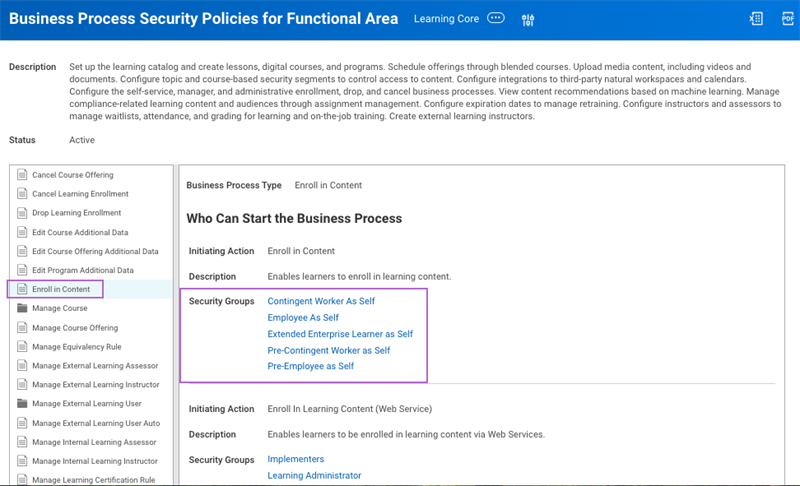
From the business process, you can access and manage the security groups associated with the workflow, as shown in the image above. To edit a business process, from the definition's Related Actions, select Business Process > Edit Definition.
The business processes you configure will dictate:
- What actions to perform.
- What order to perform the actions.
- Who will perform the actions.
- When to complete the tasks.
While you cannot create your own business process type, you can create and tailor delivered business process definitions to meet your organization's needs. You can modify steps, specify security permissions, and configure a number of features, including condition rules, notifications, and step labels.
Note
: You will set an effective date when configuring a business process. Effective dates control when changes to the definition or business process event take effect.Condition Rules
One way to configure business process definitions is to apply condition rules to business process steps. Condition rules allow a business process step to behave differently in certain situations.
A common type of condition rule used with Workday Learning is entry conditions. These entry rules follow logical statements to determine if an event meets a specified condition to initiate that business process step. Entry conditions help create efficient business processes that avoid unnecessary steps in a workflow.
Example
: When a direct report enrolls in a course, your organization requires their manager's approval. However, when a manager enrolls in a course, they do not require an approval. Therefore, configure an entry condition on the approval step that evaluates whether Workday executes the step or not, based on who is enrolling in the course.Some common condition rules to consider include:
Business Process | Condition Rule Description |
|---|---|
Campaign Event | Approval by a learning administrator when a campaign is submitted by a lesser role, like a Learning Partner. |
Drop Learning Enrollment | Worker can drop on-demand courses without a manager approval for required learning. |
Drop Learning Enrollment | Approval for dropping learning content when the initiator was a learning administrator or manager. |
Drop Learning Enrollment | Approval for dropping required learning content. |
Enroll in Content | Worker who initiates the learning enrollment is a manager or higher, then there is no approval requirement. |
Business Process | Condition Rule Description |
|---|---|
Enroll in Content | Learning content approvals trigger when the learner goes on the waitlist only when a course with an enabled waitlist is full. When a seat opens up, the learner enrolls without approval. |
Enroll in Content | Workers skip any approvals for digital courses. Consider whether digital courses have a cost association before configuration. |
Manage Course/Course Offering/ Program | Validation to require the following fields: Course Duration, Course Number, Allowed Instructors/ Assessors, Primary Instructors. |
Manage Course Manage Course Offering Manage Program | Approval by a learning administrator when the learning content is created by another, more restricted role like a learning partner or content creator. |
Mass Enroll | Initiator is the worker's manager or manager's manager. |
Rescind Learning Business Processes
You can rescind successfully completed learning business processes. Some common learning business processes to consider are:
Business Process | Rescind | Result |
|---|---|---|
Manage Course Offering | Navigate to the Archive tab on your Inbox to locate the Manage Course Offering event. From the View Event page, select the Rescind button at the bottom > Submit. Before submitting you are required to enter a comment. | The offering is removed from the Scheduling tab on the course page. Learners can no longer view this course offering. |
Enroll in Content | Navigate to the enrollment via the Find Learning Enrollments report or the Enrollments tab of the course offering. Select the Related Actions > Business Process > Rescind > Submit. Before submitting you are required to enter a comment. | The learner is removed from the Enrollments tab of the course offering, the Find Learning Enrollments Report via the View Enrollments Report button, and the My Transcript report. |
Important
: You can only rescind a course offering if no enrollments exist in the offering. If enrollments exist, you must rescind any enrollments before rescinding the course offering.Learning Validations
Workday Learning offers the option to configure validation rules. Validation rules use the same condition rules framework as in a business process. These validations monitor for specific situations, and grant or prevent the action based on a pre-determined set of parameters. This automation reduces the number of situations that require an additional review or approval in a business process.
In Workday Learning, use the
Maintain Learning Validations
report to configure validation rules, as shown in the image below. There are two validation types:- Drop Content
- Enroll in Content
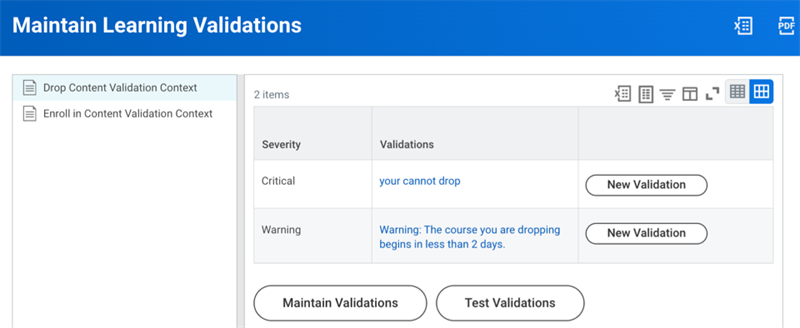
After you select one of these validation types, determine the severity level. A critical validation prevents users from dropping or enrolling in a course. A warning validation alerts the worker but allows them to continue. Select the appropriate New Validation button to create a validation rule with a corresponding message.
This table describes the fields and examples of condition rules for configuring validation rules:
Field Name | Description | Example: Cannot Drop Specific Course | Example: Cannot Drop Specific Topic |
|---|---|---|---|
And/or | The logic between conditions. | And | And |
Source External Field or Condition Rule | The field or condition rule used to validate the condition. | Learning Content Title | Topic |
Relational Operator | Determines how to compare the source to the comparison values you chose. | Equal to | Equal to |
Comparison Type | Determines whether to compare the source to another field or a value that you enter in the Comparison Value column. | Value specified in this filter | Value specified in this filter |
Comparison Value | A comparison field or values to compare to the source. | Customer Service: A Key to Success | Compliance Course |
You can edit existing enroll or drop validations by selecting the Maintain Validations button. After building a validation condition rule that initiates an error or alert, add a validation message to assist the learner in understanding the specific reason and next steps.
These rules run in the background when a student tries to enroll or drop a course or program. When a learner triggers a learning validation, you can expect the following:
- Warning: A Workday-delivered orange alert appears to advise the learner. However, learners can still proceed.
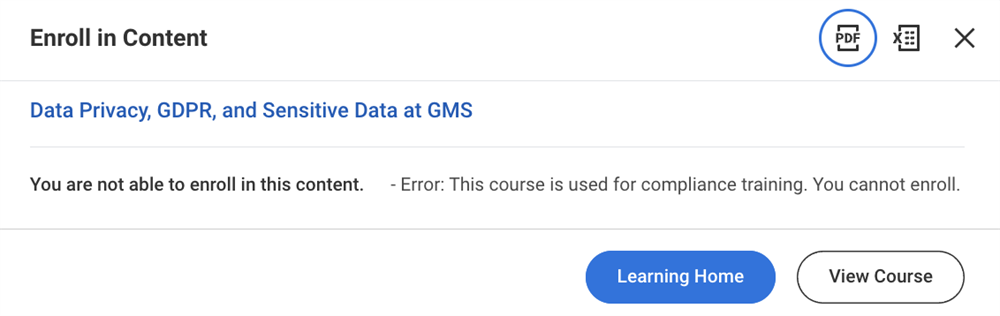
- Critical: The drop or enroll page displays with the associated critical message in red. The page does not allow you to proceed and it prompts you to return to theLearning Homedashboard.
Resource
: For more information on learning validation condition rules, reference Workday Community and search for Learning Validation Rule.Configurable Security
Workday provides a security framework that enables you to configure what a worker can view and take action on in the system. Through security group configurations, a worker can navigate and access Workday-delivered items, such as reports and tasks within domain and business process transactions.
Individual workers become part of security groups through manual assignment or by meeting certain criteria. You can assign security groups to business process and domain security policies. The table below describes different types of security groups:
Security Group Type | Description | Example |
|---|---|---|
Workday-delivered | Workday automatically assigns a worker to a security group based on a process. | Workday assigns all new hires to the Employee-as-self and All Employees security groups to perform self-service tasks and access public information. |
User-Based | The least restrictive security group type, which provides members with unconstrained access to secured items in the tenant. The security permissions assigned to the worker stay with the worker regardless of role or location until manually removed. | The Learning Administrator security group has system-wide access to administer and manage their areas of responsibility. |
Role-Based | A security group whose membership is dependent upon a worker's position. The security is a part of the position and therefore stays with the position if the worker changes roles. | The Manager security group is a role-based security group. A manager only has access to the Enroll My Team task as long as they remain in the manager position. |
Segment-Based (Tenanted) | Organizations can create specific segmented security groups to meet their needs. Segment-based security allows specific security groups isolated access to pre-determined information. In Learning, you can configure segmented security for catalogs, topics, programs, and courses via categories. | The HR Staff segmented security group only has access to the HR Learning topic and its associated learning content. |
Domain security policies determine which security groups can access items in a domain. They can also control the type of access each security group has to those items (e.g., view-only vs. view/modify permission). Domain security policies include Integration permissions of Get and Put access.
Example
: Loading SCORM packages into Workday Learning requires Put access permissions. This provides access to load data into Workday, via a web service operation.Business process security policies allow you to determine who can participate in a business process. These permissions define who can initiate, take action, approve, cancel, and rescind business process events.
Configurable security allows organizations to control who can access secured items by assigning security groups to the corresponding security policy.
Learning Security Groups
Workday Learning relies on key learning-specific security groups for the access, administration, and deployment of business processes, including:
Security Group | Security Group Type | Role in Workday Learning |
|---|---|---|
All Learning Assessors Learning Assessor as Self | Workday-delivered Workday-delivered | Leads On-the-Job training activities. They can upload materials, enter grades, take attendance, and enroll learners into training activities. |
Employee as Self | Workday-delivered | Defaults for all employees with enroll, drop, rate, and comment capabilities. This security group can create standalone lessons by default. |
Learning Instructors Internal Learning Instructors as Self All Internal Learning Instructors | User-Based Workday-delivered Workday-delivered | Leads in person and virtual course offerings. Enters grades, tracks attendance, and can view rosters. |
Security Group | Security Group Type | Role in Workday Learning |
|---|---|---|
Learning Administrator | User-Based | Maintains Workday Learning and has the most access to Learning functionality. Creates and manages learning content, enrollment, offerings, messages, reminders, etc. |
Manager Manager's Manager | Role-Based (Constrained) Workday-delivered | Enrolls their team into course offerings, as needed. Reviews and approves enrollment requests from their team members. This functionality only applies to managers with direct reports. |
Security Administrator | User-Based | Manages the changes to security and the maintenance of Workday Learning. |
Add these security groups to business process and domain security policies to meet the needs of your organization.
Segmented Security
In addition to domain and business process security policies, Workday helps refine what your learners view and take action on with segmented security.
Segmented security enables you to provide designated workers with access to learning components within specific catalogs, topics, programs, or courses. This ensures confidentiality of sensitive learning content. For example, you can create a security category segment based on a worker's location, role, organization, or job.
Example
: Secure access to sales training to workers in the Sales department.Segment-based security groups grant membership based on existing security groups. You will need to verify the members of the existing security group before adding that group to a learning security category or segment.
Before configuring security segmentation, consider if your company wants to:
- Control access by assigning different learning administrators for different groups, like sales, human resources, finance, etc.
- Limit some course content to specific learner populations, like only managers or IT.
- Give learning administrators access to all topics.
- Limit which groups can access which topics.
Learning Security Segments vs. Learning Security Categories
In Workday Learning, there are two ways to apply segmented security:
- Learning Security Segments: Apply to specific topics or learning catalogs, which include all applicable standalone lessons, courses, and programs.
- Learning Security Categories: Apply to programs and courses by directly associating a security category segment to the learning content. The learning security category defines who can view the learning content.
Important
: To enable learning security categories on a course or program, you need to navigate to the Edit Tenant Setup - HCM
task. Scroll down to the Learning section to select the Enable Security Categories checkbox. Workday will display the Security Category field on a course or program page once:- You select the Enable Security Categories checkbox
- At least one valid security category exists.
To create a security category, use the
Create Security Category
task.You can use a combination of learning security segments and learning security categories when configuring access to learning content. However, access to a course or program with a learning security category takes precedence over access to a catalog or topic with learning security segments.
Important
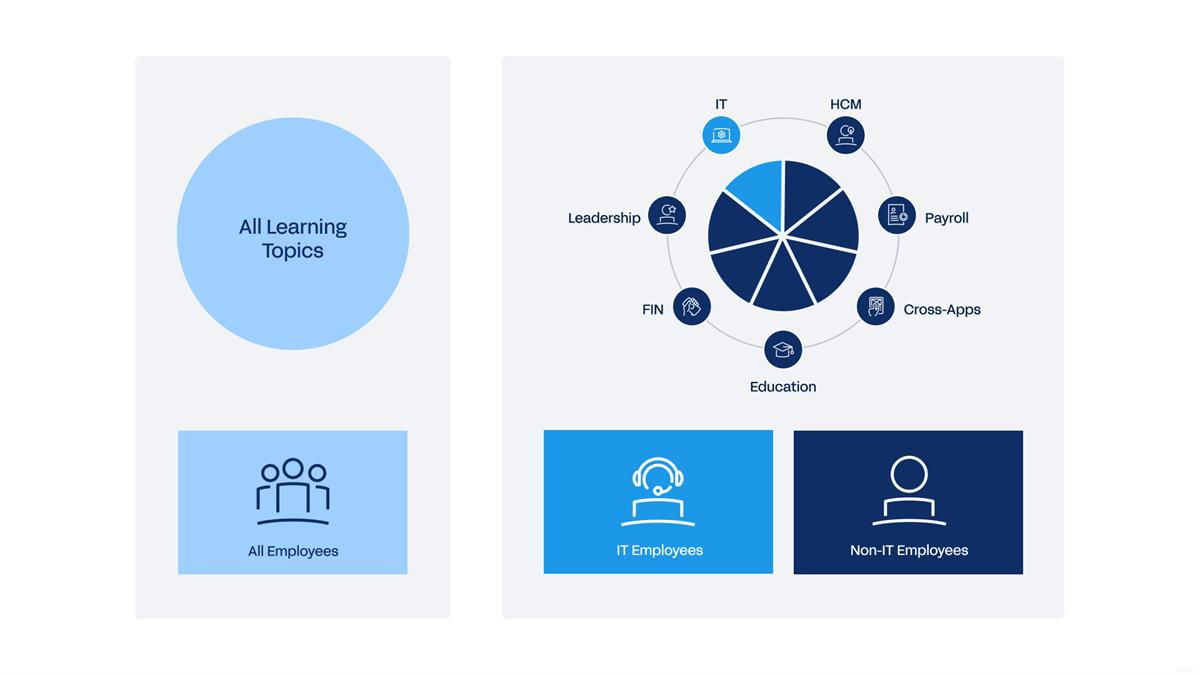
: Once you segment a topic from all other general topics, you must create a second segment. This provides access to the entire workforce on the remaining general topics. Once you apply segmented security to one topic, the access to all other topics stops being accessible. Therefore, create a second 'general' topics security segment so the general workforce will not lose access to all learning topics and associated learning content.Segmented security group members can belong to multiple groups with access to multiple security segments. For example, only members of the IT organization can access the learning content in the IT learning topic.
Important
: Be mindful when securing a topic to a learning security segment, as it is the least restrictive. Access to a topic will override the restriction of a topic with a learning security segment.For example, a course associates with multiple topics. However, one of the topics has a learning security segment. Learners can still access the course through the other topic unless that topic is also secured.
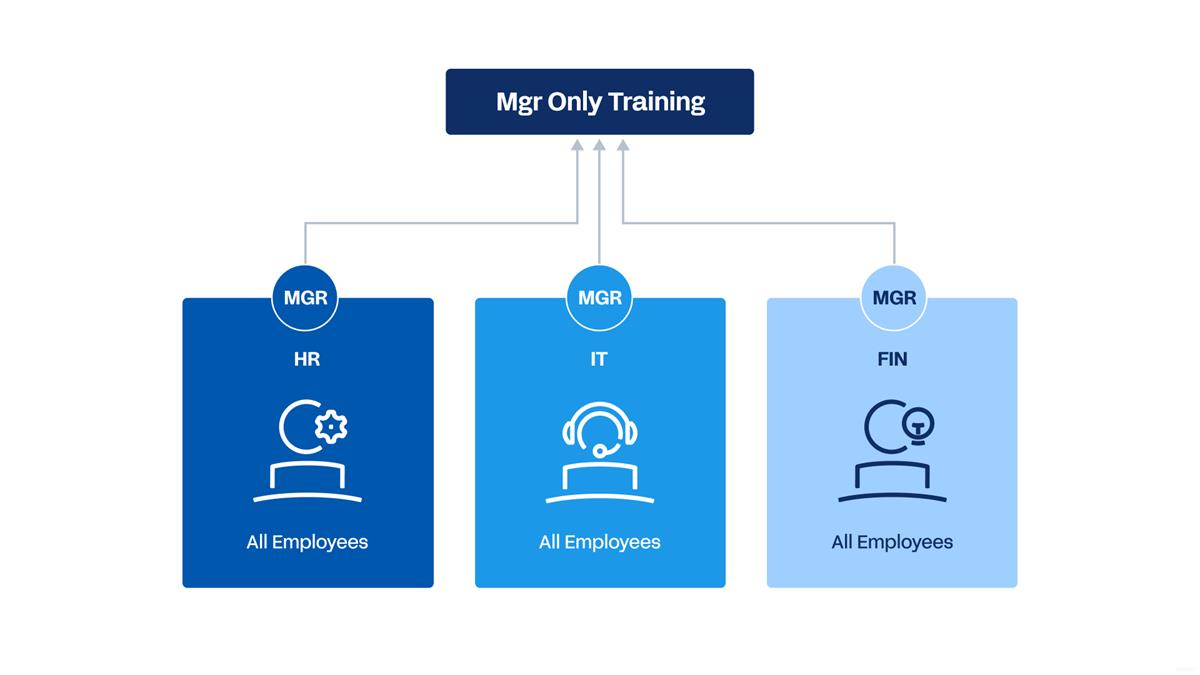
Similarly, all employees from a company's IT, finance, and payroll divisions could initially access courses about managing performance and compensation. You can limit access to these courses by applying a learning security category segment that restricts these courses to members of the Manager security group.
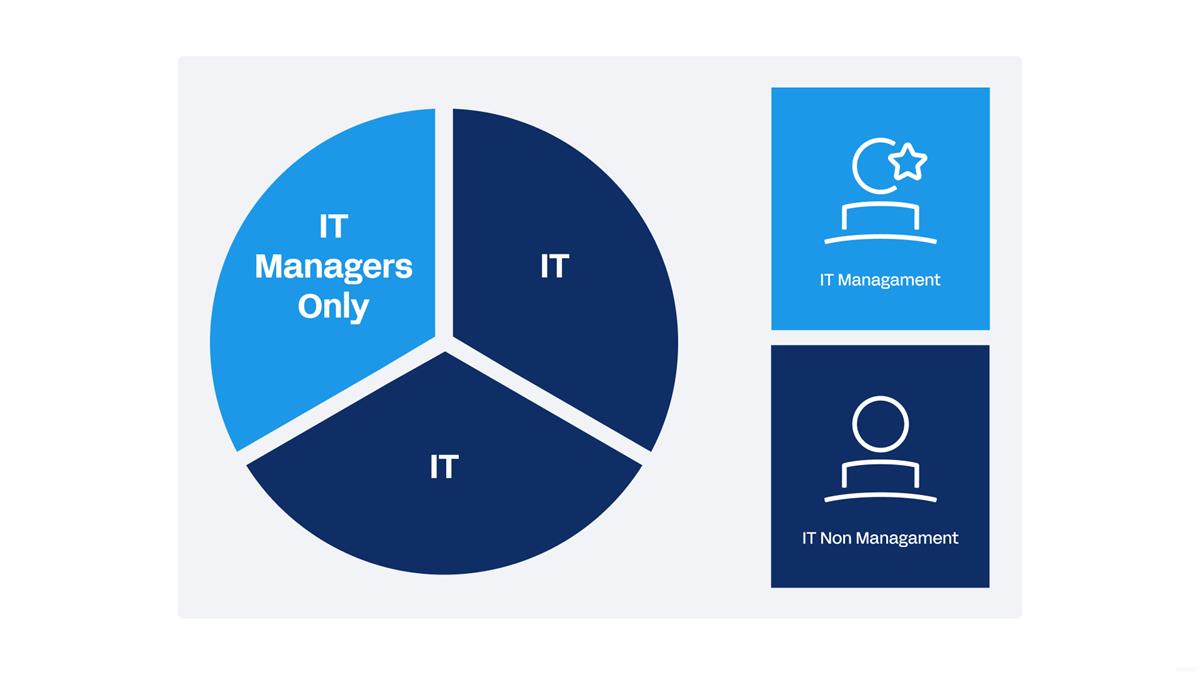
You can also combine both options. Start by limiting who can view or access a topic, such as IT. Next determine which unconstrained security groups should access a set of courses within IT, such as limiting Manager Fraud Awareness training to only IT managers.
Tip
: Be methodical when configuring security. Build iteratively to ensure appropriate access before granting additional permissions. An incremental approach makes troubleshooting manageable during testing.Configuration Considerations
Learning Business Processes
Workday delivers standard business processes, domains, and security groups that you can use to configure Workday Learning.
Secure business processes and domains with configurable security policies that grant access to security groups.
Example
: You can control whether individual employees can enroll in courses by updating the Learning Access domain, the Enroll in Content
business process, and the All Employees security group.Use the
Business Process Definitions
report, filtered for the Learning Core functional area, to review the most current list of business processes for Workday Learning. While you cannot create your own business process types, you can create and tailor delivered business process definitions to meet your organization's needs. You can modify steps, specify security permissions, add approvals steps, and cconfigure condition rules and notifications.Consider the following when configuring learning business processes:
Learning Business Process | Considerations | Allowed Subprocess for |
|---|---|---|
Cancel Course Offering | Initiates when you cancel a course offering. Configure custom notifications using the report fields for learning content on the Learning Course Offering Management Event business object. | |
Cancel Learning Enrollment | Initiates when you cancel an enrollment for a course offering. Configure custom notifications using the report fields for learning content on the Learning Enrollment Event business object. | Mass Cancel Learning Enrollments |
Drop Learning Enrollment | Initiates when learners drop an enrollment for a program, course offering, or digital course requiring enrollment. You can configure a Questionnaire step for learners to complete. |
Learning Business Process | Considerations | Allowed Subprocess for |
|---|---|---|
Edit Course Additional Data, Edit Course Offering Additional Data, Edit Program Additional Data | Initiates when you grant select security groups permissions to approve the addition of learning course fields. | |
Cancel Course Offering | Initiates when you cancel a course offering. Configure custom notifications using the report fields for learning content on the Learning Course Offering Management Event business object. | |
Cancel Learning Enrollment | Initiates when you cancel an enrollment for a course offering. Configure custom notifications using the report fields for learning content on the Learning Enrollment Event business object. | Mass Cancel Learning Enrollments |
Drop Learning Enrollment | Initiates when learners drop an enrollment for a program, course offering, or digital course requiring enrollment. You can configure a Questionnaire step for learners to complete. | |
Edit Course Additional Data, Edit Course Offering Additional Data, Edit Program Additional Data | Initiates when you grant select security groups permissions to approve the addition of learning course fields. | |
Enroll in Content | Initiates when learners enroll in course offerings or digital course requiring enrollment. If a course is full, the Waitlist in Course initiating action enables learners to waitlist until a seat is available. Configure custom notifications using the report fields for learning content on the Learning Enrollment Event business object. You can also configure a Questionnaire step for learners to complete. | Mass Enroll |
Manage Course Offering | Initiates when you create or edit learning content or update offerings to a new course version. Configure the following initiating actions in the business process security policy:
| |
Manage Equivalency Rule | Initiates when you create or edit equivalency rules. | |
Manage Internal Learning Instructors | Initiates when you create or edit internal learning instructors. | |
Manage Learning Certification Rule | Initiates when you issue or update certifications for learning content. | |
Manage Lesson | Initiates when you create or edit internal standalone lessons. | |
Manage Program | Initiates when you create or edit learning programs and manage their versions. | |
Mass Cancel Learning Enrollments | Initiates when you cancel multiple enrollments for one or more course offerings. Configure notifications using the report field for learning content on the Learning Enrollment business object. | |
Mass Enroll | Initiates when:
Configure the following business process security policy's initiating actions:
|
Note
: To add a Questionnaire step to the Enroll in Content
or Drop Learning Enrollment
business processes, you will need to use an existing questionnaire. Use the Create Questionnaire
task to create questionnaires in Workday.Segmented Security Configuration
To configure security segments, you need to decide on what type of configuration meets your business needs:
- Learning security segment (catalog and topic)
- Learning security category (courses and programs)
- Both
Each configuration type requires you to identify the audience, learning content, and any dashboards or sliders that the learning content displays.
Configure Learning Security Segments
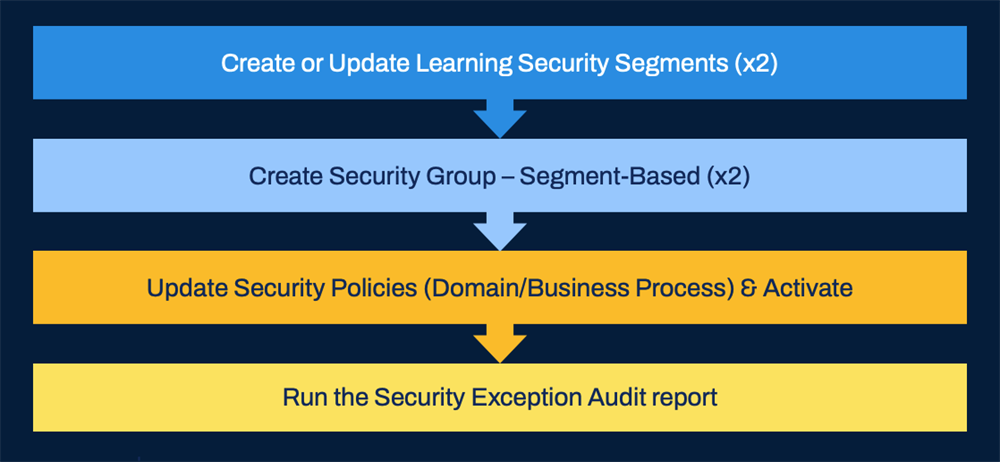
To establish a learning security segment, you need to begin by identifying the learning topic and creating or updating a learning security segment to associate with that learning content. You can use the
Create Learning Security Segment
task to create new learning security segments. Workday requires a minimum of two learning security segments to establish this type of segmented security.Important
: Learning content can associate with more than one learning topic. If you secure a learning topic, ensure that all learning content in that topic does not associate with other topics.Once learning security segments exist, you can create specific segment-based security groups to establish access to the learning security segments. Once complete, update any applicable learning domains and business process security policies, such as the Learning Access domain, and activate any pending security policy changes.
Workday recommends running the
Security Exception Audit
report to identify any other necessary changes, like dashboard and slider updates.Tip
: Run the Security Exception Audit report, before making any segmented security changes. Then run this report again, after to notice and correct any changes.Configure Learning Security Categories
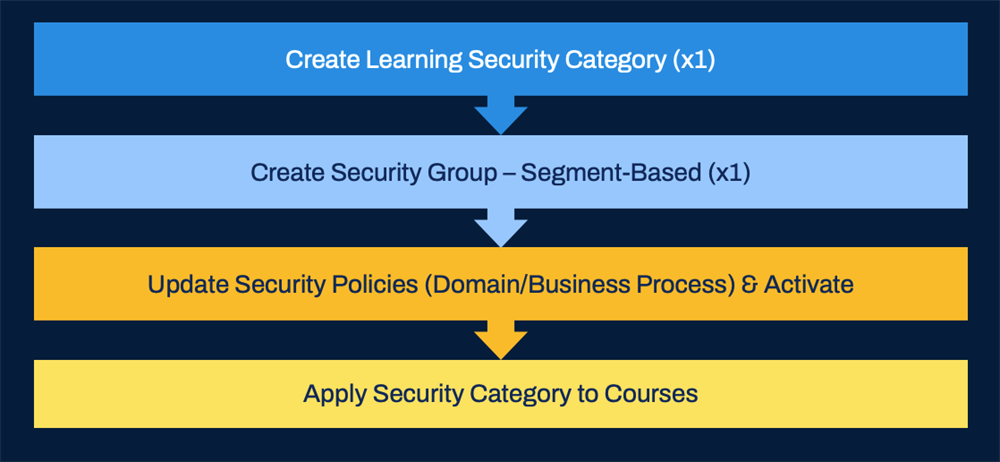
To secure individual courses and programs, you will need to enable this feature. Navigate to the
Edit Tenant Setup - HCM
task and select the Enable Security Categories checkbox. A new field, the Security Category field, will now display on all courses and programs in Admin view. Use the Create Learning Security Category
task to create a learning security category.Tip
: Workday recommends being specific with any security category naming conventions. For example, create a category for managers by naming it Manager Only Content.Once you establish a learning security category, you can create a segment-based security group that will access the learning security category content. Update any domains and business process security policies that may be impacted by this security change, then activate the pending security policy changes. Workday recommends to run the
Security Exception Audit
report to identify any other necessary changes.Once you establish a learning security category, you can apply this security category to any course or program in the learning catalog. Access the desired course or program in Admin View to select the corresponding security category in the Security Category field. Workday recommends you test any security configurations in a sandbox tenant before configuring in a production tenant.
Update Dashboards and the Learner Experience with Segmented Security
Organizations can use segmented security to secure learning content by catalog, topic, program, or course. When you initially apply segmented security to a catalog or topic, any security segment restrictions apply to all learning content contained by that topic or catalog.
Once you update the Learning Access domain with new security changes, any previous security configurations on dashboard worklets will not align until updated with the corresponding security changes. This includes any learning content that populates in dashboard worklets or sliders configured with the
Maintain Learner Experience
task. To update any corresponding sliders or worklets, use the following steps:- Navigate to theMaintain Learner Experiencetask.
- Locate all the sliders with previous security configurations.Note: You cannot update spotlight card security.
- Under the Required for Groups column header, remove any existing security groups and update with new security segments.
- Locate the My Learning and Discover tabs to repeat this process in the Required for Group column.Security Note: When we update the learner experience, we update the associated security. However, dashboards and the learner experience share functionality and their security must align, like the Required for You slider. To resolve this issue, you must update all affected dashboard worklets with the new security configurations or the functionality will not work.
- Navigate to theMaintain Dashboardsreport. Filter for theLearningdashboard and select Edit.
- Locate the Worklets header to locate any worklets that display previous security configurations.
- Update any worklets by removing previous security configurations and updating with new security segments.Important: Other Workday dashboards can be configured to display learning content. You will need to update these dashboard security configurations. Error messages will display, identifying any remaining dashboards.
- Select Done.
- Navigate to theSecurity Exception Auditreport.
- In the Domain Security Policy column, locate Learning Access. Notice any warnings in the severity column. The warnings indicate any remaining worklets, sliders, or custom reports with invalid security groups.
- Repeat this process with the Security Group Exceptions tab to identify any further invalid security groups.
Manage Catalogs
Workday Learning allows you to deliver learning components to workers through learning catalogs. Learning catalogs organize programs, courses, and standalone lessons by topic. Your organization can create multiple learning catalogs, containing specific topics that you can organize into a hierarchy using segmented security. This enables you to easily manage an organization's catalogs and simplifies how Workday applies security to your learning content. To create a learning catalog, use the
Create Learning Catalog
task. Select each topic that you want to associate to a learning catalog. You can assign a single topic to multiple catalogs.Use the
Maintain Learning Catalogs
task to set up a learning content hierarchy for your learning catalogs by applying segmented security to a desired catalog. Organizing your learning catalogs into a hierarchy simplifies how Workday applies security to your learning content.You can apply a single security segment to either a learning catalog or a learning topic, but not both. Use the
Create Learning Security Segment
task to set up segmented security for a learning catalog. Any security segments applied to a topic will override any catalog security segments. Designate catalogs as inactive to prevent Workday from using them for security evaluations.Workday-Delivered Reports
Workday Learning delivers several analytical reports. You can use these reports to build and manage learning content and enrollment. Below are Workday-delivered reports related to topics discussed in this chapter.
Report Name | Description |
|---|---|
Business Process Configuration Options | View a specific business process and how it can be used. Details include whether the business process is a subprocess only, for what business processes it is allowed as a subprocess, organizational types for which it is valid, approval options, whether it allows Mass Approval steps, and the allowed actions. Enables you to determine how a business process can be configured by detailing the options available and any restrictions. |
Business Process Security Policies for Functional Area | View the security configuration for each domain security policy in the specified functional area. |
Domain Security Policies for Functional Area | View the security configuration for each domain security policy in the specified functional area. |
Manage Learning Security Segments | Lists all learning security segments and learning security categories, and editable details about each segment, such as learners with access, topic, status, and security associations. |
View Learning Security Category | Lists all learning security categories and editable details, such as domain and security associations. Prompts the user to select a Learning Security Category to run the report. |
View Security Group | Filter by specified security group to view security group type, context type, members, and associated domain and business process security policy permissions and other usages. |
Note
: For the most up-to-date list of Workday-delivered Learning reports in Workday, search for Workday Standard Reports
report and select Learning in the Report Categories field.Chapter Summary
When you configure Learning-specific business processes, validations, and security, you need to be mindful of how to use these components to meet your business requirements. For business processes, only establish business process steps, such as approvals and entry conditions to meet specific requirements. When considering security, evaluate whether a learning validation or segmented security will best meet your needs. Learning validations applies a general rule in all contexts of the rule's design. Whereas segmented security can establish a more granular approach to securing specific topics, programs, and courses. As a best practice, only apply security where it is necessary. It is important to understand the role and value of business processes, validations, and security in Workday Learning, as it determines the level of control of how you manage learning content and learner enrollment.