
Learning Content Rules
Overview
In Workday Learning, you can establish learning content rules, which provide additional control and oversight in the enrollment and completion of learning content. These learning content rules, which include prerequisite, equivalency, learning certification, and expiration associate with specific learning content so you can meet your organization's business requirements.
Objectives
By the end of this chapter, you will be able to:
- Determine prerequisite and equivalency rules.
- Create learning certification rules.
- Establish expiry periods for retraining.
Manage Learning Content Rules
You can create and manage prerequisite, equivalency, learning certification, and expiration rules to support curriculum planning, ensure compliance, manage the learning catalog, encourage skill development, and meet retraining needs.
You can apply the following rules:
Rule | Definition |
|---|---|
Prerequisite | Define the requirement of enrollment or completion of one or more learning components before enrolling in desired learning content. |
Equivalency | Designate learning content to be the same as one or more other courses to satisfy learning completion requirements. |
Learning Certification | Issue and renew certifications learners receive upon completing the associated learning content. |
Expiration | Define an expiration date, duration, or recurrence frequency that specifies when the learner needs to re-enroll to manage the retraining of specific learning content. |
Prerequisite Rules
You can create prerequisite rules that define the enrollment or completion of one or more courses or programs as a condition to the enrollment or consumption of other learning content. Prerequisites enable you to manage the order of learning content completion in a learning catalog. You can apply prerequisite rules to digital courses, blended courses, or programs. Use the
Create Learning Prerequisites Rule
task to build prerequisite rules.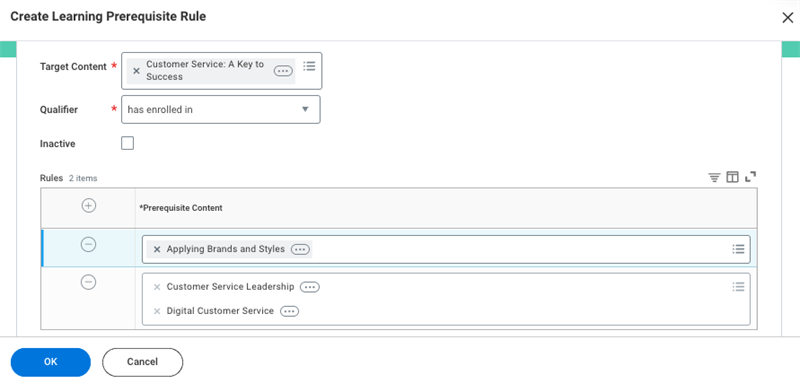
To configure a prerequisite rule, consider the following fields:
Field | Description |
|---|---|
Target Content | Identifies the learning content that the prerequisite rule applies to. |
Qualifier | Select if the learner needs to complete or enroll in the prerequisite content to access the target content. |
Inactive | Select the Inactive checkbox to inactivate a prerequisite rule so it no longer applies to the target or prerequisite learning content. |
Prerequisite Content | Identifies the learning content that a learner must enroll or complete before the learner can access the target content. |
When you establish a prerequisite rule, Workday replaces the enrollment option with a View Prerequisites button. Learners must meet the qualifier (prerequisite) criteria before they can enroll in the target (desired) learning content. Workday displays a Pending Item button on the target learning content until learners meet the enrollment or completion criteria of the prerequisite learning content.
For multiple prerequisites, determine if learners must enroll or complete at least one or all of the prerequisites before taking the target learning content.
Important
: Your decision determines how to add the prerequisite learning content to the Rules grid:- If you require at least one prerequisite, enter each course in its own row.
- If you require all prerequisites, enter all courses in a single row.
Manage Prerequisite Rules
To modify an existing prerequisite rule, use the
Manage Learning Prerequisite Rules
report.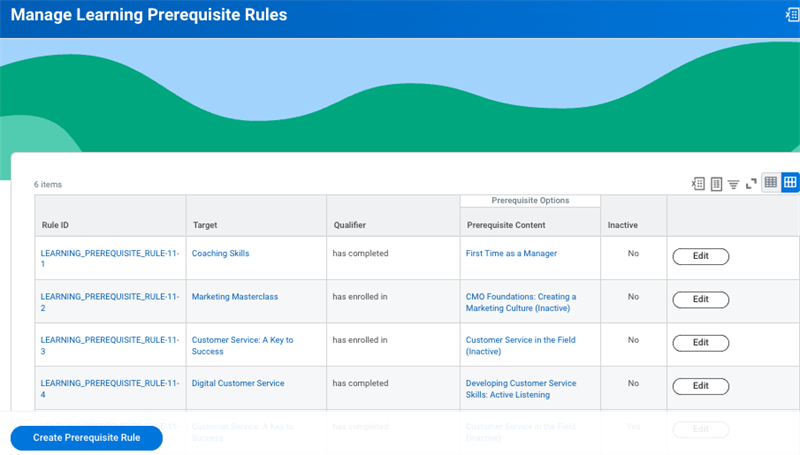
To modify a rule, locate the rule and select the Edit button.
To create additional prerequisite rules, use the following:
- TheCreate Learning Prerequisite Ruletask
- From theManage Learning Prerequisites Rulereport, select the Create Prerequisite Rule button.
- Target content's Related Actions > Learning Prerequisite Content > Create Learning Prerequisite Rule.
Note
: For reporting purposes, you cannot delete prerequisite rules from a tenant. You can only inactivate prerequisite rules. Workday recommends that before you configure a prerequisite rule, that you test to ensure it meets your requirements.Equivalency Rules
Create equivalency rules to define one or more courses as equal to each other. Equivalency rules help manage high-demand courses and provide other learning content opportunities to satisfy learning requirements. You can display equivalent learning content on a course details page or on a learner's transcript. You can apply equivalency rules to digital and blended courses.
The learning administrator determines if learning content has:
- A singular equivalency
- A two-way equivalency
- A group equivalency
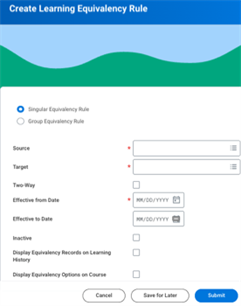
When creating an equivalency rule, identify the target (desired) learning content and the sources that will fulfill the same learning requirement.
Determine how to configure an equivalency rule using the following fields:
Term | Definition |
|---|---|
Singular Equivalency Rule | Enables you to add multiple learning contents into the Source and Target fields. For example, if learning content taught in a course is part of a larger course, you can make the larger course equivalent to the smaller one. The smaller course is not equivalent to the larger course, therefore it would be a one-way equivalency. |
Group Equivalency Rule | Enables you to make multiple learning contents equivalent to each other, so learners can gain equivalencies in multiple learning content. For example, a course may exist in different course formats: in-person classroom, virtual classroom, and digital course. Each format delivers the same content and is therefore equivalent. |
Source | The learning content that learners must complete to achieve an equivalency in the Target (desired) learning content. Enter a single learning content item in the row to specify that learners must complete one source of learning content to meet the equivalency rule. Create separate rules of single learning content items if you want to provide learners with a choice of equivalency options. Enter multiple learning content items in the same row to specify that learners must complete all source items to meet the equivalency rule. |
Target | The desired learning content for which learners achieve an equivalency to for completing the Source learning content. |
Two-Way Equivalency | Indicates that learners can take learning content in the Source or Target fields and achieve an equivalency in either. This option applies only to singular equivalency rules. For example, you have a course available in two separate languages. You can create a two-way equivalency, where either course fulfills the business requirement. |
Display Equivalency Records on Learning History | Displays both the source and target learning content on the learner's transcript once they complete the source learning content. |
Display Equivalency Options on Course | Displays the source learning content on the target learning content page. If you have a group equivalency, all learning content in the group display on the alternate learning content as equivalent. This helps learners view all their learning options. |
When learners complete source learning content that is equivalent to the target, an equivalency status displays on the target learning content image. This status indicates that the learner has completed the source learning content, therefore satisfying the target requirement.
Report
: View the Manage Learning Equivalency Rule
s report to view or edit equivalency rules.Learning Certification Rules
The Learning Certification functionality enables you to issue and renew learning certifications to learners based on the successful completion of relevant learning content. Learning certification rules provide more control over how to manage, monitor, and track certification statuses for learners in your organization. Managers can also view their team's certifications with this feature. Certification improves learner engagement by encouraging skill development and tracking compliance. You cannot apply a single certification rule to more than one course or program at a time.
Important
: Both the Manage: Learning Certifications domain and the Manage Learning Certification Rule
business process must be active. The corresponding web service, Get Learning Certification Rules, is part of the Manage: Learning Certification domain.Create Learning Certification Rule
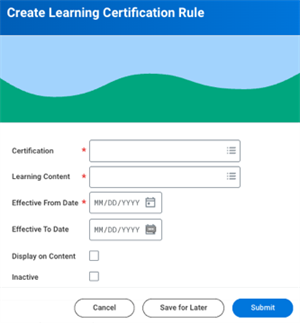
To create a learning certification rule, use the
Create Certification
task to identify the issuer and certification name. Add other details including country information, duration of the certification, or copy an existing certification. Once a certification exists, you can create a learning certification rule using the Create Learning Certification Rule
task. Define the learning content and effective date. Decide whether to display the certification on the learning content page by selecting the Display on Content checkbox.Consider the following fields in your configuration:
Field | Required Field | Description |
|---|---|---|
Certification | X | Populate the certification from the Create Certification task to identify the issuer of the certification. |
Learning Content | X | Populate the learning content that the learner will complete to earn the certification. |
Effective From Date | X | The date establishing when the certification's effectiveness begins. |
Effective To Date | The date establishing when the certification's effectiveness ends. | |
Display on Content | Display related certification information on the learning content overview and completion pages to inform learners of the associated certification upon completion. | |
Inactive | Select to inactivate the association between the learning content and the certification. |
Security Note
: Manage security access for Learning Certifications in the Manage: Learning Certification domain.Tip
: To simplify this process, you can create a certification during the Create Learning Certification Rul
e task. In the Certification field, populate the certification from the Create Certificatio
n task.Workday determines the learning certification expiration through the associated learning content expiration rule. Learners must complete the learning content within a learning certification's effective date range to receive the certification. Equivalent courses will not have an associated expiration date for the certification.
If you rescind a certification rule, Workday removes the achievement. However, the certification remains in the tenant for reporting purposes.
Locate Learning Certifications
Learners locate their learning certifications on their Worker profile or using the
View Certification
report. From the Worker profile, select Career > Certifications tab. The All Certifications
report displays the type of certification, the issuer, issue date, and expiration. Workers cannot remove learning-issued certifications from their profile.As a learning administrator, view course or program certification rules on the course or program details page. If a certification rule exists, locate it under the Certification Rules tab. Additionally, navigate to the
Manage Learning Content
report or Browse Learning Content
report, search for learning content with the Certification facet. This facet narrows searches to display courses or programs with certifications.Tip
: Configure the Manage Learning Certifications Rules
report to display on the Learning Adm
in dashboard to effectively manage learning content and effective dates for learning certifications.Expiry Periods
If you need learners to re-enroll in courses or programs for compliance or to meet local regulations, consider configuring an expiry period. Expiry periods enable you to manage retraining needs across your organization for courses and programs. Expiry periods apply to the last completed learner enrollment, not the course offering or learning content.
Important
: You can require workers to retake learning content for a variety of reasons. Workday recommends only configuring expiry periods for required learning content or to meet your business requirements.To establish an expiry period, you can configure the following types of expiration rules:
Expiration Rule | Description |
|---|---|
Advanced Learning Expiration Rule | Define expiration rules for specific groups of worker. If a learner does not meet the rule conditions of the specific group, then the default expiration rule applies. You can configure a date, duration, or recurrence frequency default expiration rule. |
Default Expiration Rule | Enables workers to retake learning content to meet your business requirements. You can configure a date, duration, or recurrence frequency default expiration rule. You can only configure one type of default expiration rule at a time. A default rule is not required if you configure advanced rules. |
Retrain Window | Configure a retrain window to specify a time period to display retraining content on the Required for You slider. This notifies the worker of retraining requirements and is designed to coincide with Recurrence Frequency expiration rules. |
You can configure default expiration rules in addition to, or with advanced expiration rules and retrain windows.
Example
: Apply expiry periods for compliance mandates and certifications. Possible examples include annual harassment prevention, safety training, or a consultant certification in a subject like Workday HCM.If changes in regulations or certifications impact your original expiration dates, you can edit these dates. When updating the default or advanced expiration rules for a course, any completed enrollments that use these rules will also update. Mass reset expiration dates on enrollments with a future expiration date or add an expiration date to learning content using the
Reset Expiration Date on Learning Records
task.Default Expiration Rules
To set a default expiration rule, you need to:
- Specify the expiration rule type
- Determine if you require a retrain window
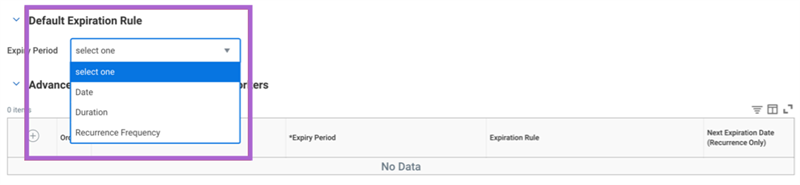
If your business needs require a default expiration rule, consider the following types:
Term | Definition | Business Case | Retrain Window Considerations |
|---|---|---|---|
Date | The learner's enrollment validation expires on a specific calendar date after the learner's initial completion. The expiration date automatically displays on the learner's history after the learner completes their enrollment. Note : The fixed date applies one-time and needs to be manually updated after the date occurs. | Generally, this applies to one-time use cases. For example, workers need to complete a training on a new company policy. | Retrain windows with date expiry rules will be specific to each learner's completion.
Workday recommends configuring notifications. |
Duration | The learner's enrollment validation expires in days, weeks, months, or years after the learner's initial completion. The expiration duration is dynamic and automatically calculates a calendar expiration date relative to the date the learner completes their enrollment. Note : Learners will have different expiry dates relative to their completion date. | Recommended for courses with flexible completion occurrences. Each worker needs to complete a safety training within a calendar year. | Retrain windows with date expiry rules will be specific to each learner's completion.
Workday recommends configuring notifications. |
Term | Definition | Business Case | Retrain Window Considerations |
|---|---|---|---|
Recurrence Frequency | The learner's enrollment expiration reoccurs at a set frequency. The expiration recurrence frequency calculates the next expiration date based on the current expiration date at the preferred recurrence frequency. Configure the recurrence by months or years. The expiration will recur until manually updated. A recurrence frequency expiration rule is a fixed expiration that applies to all learners and is dynamic. | Intended for specific trainings that need to occur during specific time frames on a recurring basis. Teachers need to complete a safety training each year during the pre-service week before the first day of school. | Workday recommends configuring a retrain window if you want workers to complete learning content during a specific time frame to meet compliance requirements. This results in all learners having the same expiration. |
Report
: View any expiry periods on a course or program's details page on the Expiration tab or on a learner's My Transcript
report. Workday automatically runs a daily background job to recalculate expiration dates on enrollments based on your expiry period settings.Recurrence Frequency Expiration Rule
Recurring frequency expiration rules are an efficient and automatic process to manage worker retraining needs. Learning administrators can configure a recurrence frequency expiration rule for courses and programs on a regularly recurring cadence.
By configuring recurring frequency expiration rules, training windows open and expire on a set schedule. Recurring frequency expiration rules can coincide with advanced expiry rules. This functionality enables a learning administrator to apply recurring expiration dates to specific groups of workers with different expiration parameters.
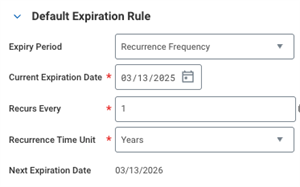
Enter the following required information, as shown in the image above, to configure a Recurrence Frequency:
Field | Definition |
|---|---|
Expiry Period | Select Recurrence Frequency as the type of default expiration rule. |
Current Expiration Date | Sets the initial expiration date. The recurrence rule will default from this date. |
Recurs Every | Enter a number in relation to the Recurrence Time Unit. |
Recurrence Time Unit | Select the Months or Years option for the desired recurrence frequency. |
Next Expiration Date | A new expiration date auto-populates each time the expiration occurs. |
Important
: Anytime learning content has a recurrence frequency expiration rule, you can only satisfy the learning assignment when the learning content completes during the retrain window. Thus, for a learner to gain a valid completion that updates to the next expiration date, the learner must complete their enrollment within the retrain window.Example
: To stay in compliance with OSHA, your organization requires workplace safety training annually. All employees must complete it by January 31. The learning administrator configures a recurring frequency expiration date of January 31, recurring every 12 months. In this case, configure a retrain window to open 4 weeks before the expiration date occurs on January 31. Once the training window expires, the next cycle automatically generates. The next cycle reopens the training window for 4 weeks before the expiration date of January 31 the following year. Fixed recurring expiration rules will continue to auto-generate until manually changed.Retrain Window
Workday recommends configuring retrain windows to encourage learners to complete learning content within a configured time frame. You can configure a retrain window on each default expiration rule type. This ensures learners complete their retraining within the retrain window to meet compliance, regulatory obligations, or business needs.
The retrain window's time period is defined by a specific number of weeks or months before the expiration occurs. Retrain windows trigger learning content to display on
Learning
dashboard sliders for a specific time period before an expiration occurs. Where learning content displays, depend on your configuration:- If you require learning content, it will display on the Required for You slider.
- All other learning content will display on the Continue Learning slider.
When the learning content displays on the slider, it will also display a due date that corresponds with the expiry period. Once the due date occurs, the slider will continue to display the learning content with an Overdue indicator. The learning content will display in the slider until the learner completes the learning content.
Once the retrain window closes, the next retrain window automatically populates new dates. Workday recommends configuring reminders to coincide with retrain windows. Learners must complete their retraining assignment within the retrain window to view the next expiration date.
Important
: Failure to configure a retrain window or set reminders to coincide with an expiry period, runs the risk that learners will fail to notice their retraining requirements.Workday displays the learning content on a slider for retrain windows on the earliest of these dates:
- Start of a retrain window
- Course reminder date
- Content expiration date
Advanced Expiry Rules
Different roles may require training at different intervals or frequencies. You can create advanced expiration rules to define the retrain conditions for a specific learner group.
Example 1
: Human Resource workers may need to complete harassment prevention training annually. Other departments need to complete the training once every two years.Example 2:
Your company conducts disaster drills. Your general employees may need yearly basic safety training. Your safety leaders require training every six months.Create condition rules or use existing condition rules to define the targeted learner group. In the Learner Group Rule field, select the
Create Learner Group Rule
task to create a condition rule. Workday automatically adjusts the expiry period for the learners of the specified condition rule. Use the table below to configure condition rules:Field Name | Description |
|---|---|
And/or | The logic between conditions. |
Source External Field or Condition Rule | The field or condition rule used to validate the condition. |
Relational Operator | Determines how to compare the source to the comparison values you chose. |
Comparison Type | Determines whether to compare the source to another field or to a value that you enter in the Comparison Value column. |
Comparison Value | A comparison field or values to compare to the source. |
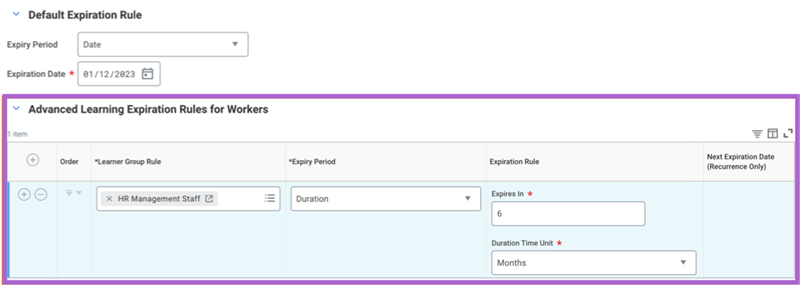
The default expiration rule will apply to learners that do not meet the conditions of the advanced expiration rule learner group. However, advanced expiration rules can exist independently from default expiration rules.
Important
: You can set more than one advanced expiration rule on learning content. If a learner meets more than one condition, the system will uptake the first rule that displays in the Advanced Learning Expiration Rules for Workers grid. Therefore, the order of the advanced learning expiration rules determines how the system applies the rules to workers. Workday recommends that you display specific rules first and build to more general rules.Example
: You have two advanced expiration rules: Workers in Canada and Individual Contributors. The location facet is more specific than the job profile facet. Therefore, it is best practice to display the Workers in Canada rule before the Individual Contributor rule.Expiry Period Reminders and Indicators
Workday recommends configuring reminders for workers to complete learning content with an associated expiry period. Reminders automatically notify learners about impending expiry periods on any enrollments. Configure reminders on the expiration date or on dates relative to the expiry period. Additionally, you can configure reminders to reoccur on a schedule to meet your business requirements.
Note
: Workday does not send reminders after the course or program expiry period occurs.When you configure a reminder to a course or program with an expiry period, Workday displays the required learning content on the Required for You slider. Reminders trigger the learning content to display the following indicators to the learner:
Indicator | Definition |
|---|---|
Due | Displays the status Due with the associated due date. The due date will always be the day before the expiration date. |
Overdue | Indicates that their previous completed enrollment has expired and they need to re-enroll in the learning content. Once the expiration date occurs, the enrollment is overdue. |
Workday displays an Overdue status on learning content after the expiry period occurs. To configure reminders to warn participants of an upcoming expiration, navigate to the course or program details page. Then use the More icon > Create Reminder or Manage Reminders option to associate reminders with the learning content. Workday will not send reminders once the enrollment's expiration occurs.
You can configure reminders to recur on a schedule by selecting the Set as Recurring Reminder checkbox and define the reminder frequency. You can resend the reminder daily or weekly and determine the maximum number of reminders that will send. This ensures that the learner receives reminders on enrollments with upcoming expiry or due dates and encourages learning content completion.
Important
: Once you establish the time and date to send the reminder, Workday adjusts the reminder to align with the recipients' time zone.Multiple Learning Rule Considerations
Expiry periods affect equivalency and prerequisite rules. It is important to understand these impacts:
- Retraining affects equivalency records. When an enrollment expires, even if the enrollment is for an equivalent course, the equivalency record will also expire. This aligns the two record types. The expiry period on the source course affects the retraining. It does not account for any expiry rules on target content.
- Prerequisite rules only apply to the initial completion of the learning content. For example, course A is a prerequisite to completing course B. An expiration rule is configured to course B. Therefore, the learner needs to complete course A before they can complete course B, adhering to the expiration rule. However, if the expiration rule reoccurs, the learner does not need to complete course A again before completing course B. The prerequisite rule only applies to the initial completion. The learner only needs to complete course B.
When adding multiple learning content rules to a single piece of content, it is best practice to test and evaluate learning rule interactions on enrollments and completions in a testing environment.
Configuration Considerations
Security Considerations for Learning Content Rules
When establishing course rules, you need to provide the appropriate security permissions to modify and view. If you do not properly configure the security permissions, it can cause your learners to lose visibility to learning content or hinder your configuration. Configure reports to the
Learning
or Learning Admin
dashboards to manage learning content rules effectively.Consider the following when establishing prerequisite, equivalency, and learning certification rules:
Learning Content Rule | Business Process Security Policy | Domain | Report |
|---|---|---|---|
Prerequisite Rules | Prerequisite rules act as a condition rule on the Enroll in Content and the Mass Enroll business process. You can configure two options:
• An 'Or' prerequisite rule where learners select between two or more options.
• An 'And' prerequisite rule where learners must complete the required option. | Configure the Manage: Learning Content domain and the Set Up: Learning Catalo g domain to establish prerequisite rules. | Configure the View Learning Prerequisite Rule report or the Manage Learning Prerequisite Rules report to view and edit all prerequisite rules. |
Equivalency Rules | Configure the Manage Equivalency Rule business process security policy. | Configure the Manage: Learning Content domain and the Set Up: Learning Catalog domain to establish equivalency rules. | Configure the Manage Learning Content report or the Manage Learning Equivalency Rules report to view and edit all types of equivalency rules. You can use the Learning Equivalency Record data source to create custom reports. |
Learning Content Rule | Business Process Security Policy | Domain | Report |
|---|---|---|---|
Learning Certification Rules | Configure the Manage Learning Certification Rule business process security policy. | Configure view permissions for the All Employees security group and modify permissions for the Learning Administrator security group for the Manage: Learning Certifications domain. Additional security considerations include the Learning Access domain. | Configure the Manage Learning Certification Rules report to the Learning Admin dashboard. Learning reports will not display certifications with inactive learning content or inactive certification rules. If you rescind a certification rule, Workday removes the achievement but does not delete the certification for reporting purposes. |
Touchpoint
: You can create and manage Talent certifications and Learning certifications through the Manage: Learning Certifications domain.Reset Expirations
You can use the
Reset Expiration Date on Learning Records
task to mass reset future expiration dates on enrollments to extend the expiration occurrence. You can reset by learning content, learner, or supervisory organization.To reset the expiry period on completed enrollments, select the checkbox for one or more enrollments and clear the Expiry Period value. Workday removes the expiry periods from the selected enrollments. You can mass reset expiration dates for courses and programs.
Workday automatically runs a daily background job to recalculate expiration dates on enrollments based on your expiry period settings. This update does not apply to the expiration dates you reset manually using the:
- Reset Expiration Date on Learning Records task.
- Put Learning Enrollment web service operation.
When loading enrollments using the Put Learning Enrollment web service operation, the Manual Expiration Override flag indicates the following:
- Allow the job to override the expiration date. Set the flag to N (false).
- Prevent override. Set the flag to Y (true).
When the expiration date is in the past, the background job sets the expiration date to today's date.
Workday recommends using this functionality sparingly and for worker-specific use cases.
Example
: A worker is out on maternity leave and unable to complete required learning content. You can reset the expiration date for that worker to avoid inaccurate or non-compliant reporting. Important
: While this functionality allows you to reset a past expiration date, it is not best practice. Expiration rules are designed for reporting. If you need to reset or change your expiration rules frequently, then review and redefine the expiration rules to better meet your needs.Workday-Delivered Reports
Workday Learning delivers several analytical reports. You can use these reports to build and manage learning content and enrollment. Below are Workday-delivered reports related to topics discussed in this chapter.
Report Name | Description |
|---|---|
Manage Learning Certification Rules | Lists all learning certification rules. Learning administrators can manage details such as associated learning content, effective dates, and status. |
Manage Learning Equivalency Rules | Lists all singular and group equivalency rules for learning content. Learning administrators can manage details such as target and source learning content, effective dates, statuses, and display options. |
Manage Learning Prerequisite Rules | Lists all prerequisite rules for learning content. Learning administrators can manage details such as target and qualifier learning content and status. |
View Learning Certification Rule | View a specific learning certification rule and its associated details. |
View Learner Group Rule | Lists any learner group rules and details that you can use to build conditions. |
Note
: For the most up-to-date list of Workday-delivered Learning reports in Workday, search for Workday Standard Reports
report and select Learning in the Report Categories field.Chapter Summary
You can apply learning content rules to your learning content to provide more control over how learners enroll and complete learning content. You can apply prerequisite, equivalency, learning certification, and expiration rules on courses and programs. Prerequisite, equivalency, and learning certification rules can impact expiry periods. Therefore, it is important to recognize and understand these impacts before enrollments occur. Workday recommends thoroughly testing these rules before applying tenant-wide.