
Introduction to Workday Learning
Overview
Workday Learning offers employees flexible professional development through a personalized and contextual learning experience, providing agility and insight to drive workforce readiness. This foundational chapter defines Workday Learning functionality, outlines Workday-delivered configurations, introduces Workday Learning touchpoints, and explores high-level terminology.
Objectives
By the end of this chapter, you will be able to:
- Define Workday Learning.
- Recognize Workday-delivered functionality for Workday Learning.
- Explore Workday Learning touchpoints.
- Navigate Workday Learning.
Define Workday Learning
Workday Learning creates the future of work by powering workforce readiness. It is a flexible, employee-centric learning management system, which allows business leaders to simultaneously invest in their workforce and use learning insights to increase business agility. Workday Learning meets the worker where they are by delivering a personal and contextual learning experience based on skill development, interest, and professional growth.
Administrators can create and manage learning content, enrollments, and delivery, enabling an organization's skill development for a changing workforce. Unified with Workday HCM, Workday Learning streamlines Learning-specific business processes and configurable security for an efficient experience. Learning dashboards and reports help organizations track compliance and learning metrics to drive business decisions and optimize the employee's learner experience.
The Cloud
Workday Learning exists in the cloud. Remote servers store data. This information includes Workday Drive, Media Cloud, Skills Cloud, learner libraries, transcripts, and more.
You can upload files, such as documents or video, through Workday Drive. Drive will store your content in the Media Cloud.
When learners enroll in learning content, Workday Media Cloud sends the media file to the learner's Workday in a format compatible with their device. Workday via Media Cloud, will send the highest format possible for the requested content based on the original quality format and the learner's device and bandwidth.
Note
: Media Cloud was previously named Backpack. The original name is still relevant, as you may still find the term Backpack within parts of Workday.Workday Learning Functionality
Workday Learning supports professional development, peer learning, and compliance requirements to create powerful learning experiences. These learning experiences align employee skills, interests, and competencies to maximize user engagement and completion rates. Workday Learning supports:
- The creation and delivery of learning content.
- The customization of learning-specific business processes, security configurations, and Workday-delivered reports.
- The management of learning content, enrollments, and completions.
Some highlights of Workday Learning include:
Term | Definition | Features |
|---|---|---|
Build Learning Content | Workday Learning arranges learning content into customizable catalogs, categorized by topic. You can either create learning content directly within Workday Learning or import materials. | Workday Learning organizes learning content into components. This includes standalone lessons, courses, and programs. |
Maximize Workday Functionality | Workday Learning enables administrators and organizations to customize learning-specific business processes and security, and use Workday-delivered reports to analyze workforce skills and compliance. | Workday delivers specific learning business processes, domains, security groups, and reports. You can configure these features to meet the business needs of your organization. |
Term | Definition | Features |
|---|---|---|
Manage Learning Content | Workday Learning, a touchpoint of Workday HCM, delivers various security-driven Learning dashboards to manage the learning experience. You can use Campaign and Mass Enroll functionality to distribute to distribute learning content and manage learning content completions. |
|
Workday Learning Components, Learner Experience, and Assets
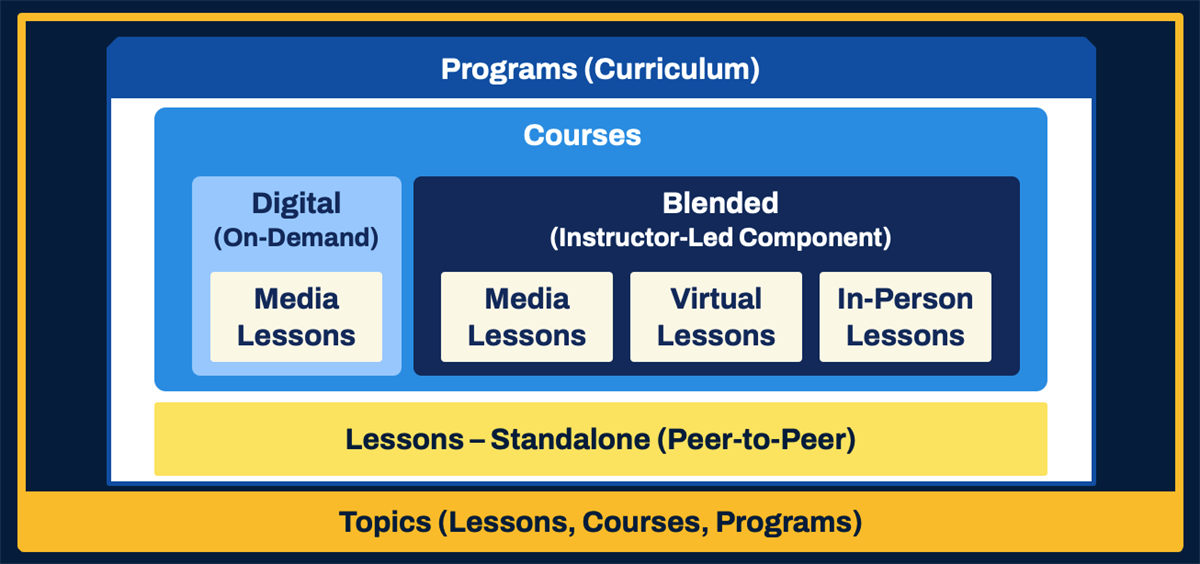
Workday Learning uses learning components to build learning content into learning catalogs. The relationships among the different learning components are the building blocks of Workday Learning.
The learning components include the following:
Learning Components | Definition |
|---|---|
Catalog | All the learning content for your organization. Organize the learning content into multiple catalogs as needed. Workday recommends not exceeding 250,000 courses in a learning catalog. |
Course | A combination of course lesson items. Courses can be digital or blended. Digital courses combine digital learning content, such as media files and external links, that you can consume on-demand and do not require a learning trainer. Blended courses can contain digital learning content, but must include an instructor-led or training activity course lesson. |
Course Offering | The date, time, and location of a course. Offerings only associate with blended courses with instructor-led lessons. Learners enroll in offerings, not courses. |
Program | A combination of standalone lessons and courses into a single curriculum that learners can search and enroll in. |
Standalone Lesson | A single piece of learning content, which can consist of a document, recording, video, job aid, or audio recording. Standalone lessons can be standalone or used in a program or campaign. |
Topic | The categorization of learning content: standalone lessons, courses, and programs. Topics improve the search and browsing experience for learners in a learning catalog. Machine-learning uses topic associations as one of many key indicators to recommend, suggest, and promote learning content to workers. |
Resource
:
Learners can search for learning content in learning catalogs using the Browse Learning Content
and Topics
report.Workday Learner Experience
Workday Learning tailors learning experiences for users. Access the
Maintain Learner Experience
task to configure the following types of customizations:- How and where learning content displays.
- Emphasize learning components based on machine-learning.
- Configure different applications for various audiences.
- Personalize a user's browsing experience.
Additionally, Workday Learning facilitates learner interactions through learning paths, surveys, skills, and peer-to-peer learning lessons.
Assets
To deploy Workday Learning, an organization should evaluate available assets, including personnel and locations. It is important to establish these assets for the deployment and management of Workday Learning within your organization:
- Learning Administrators
- Instructors
- Assessors
- Training locations
- Virtual platforms
Business Processes, Domains, and Security
Workday provides a security framework that enables an organization to configure what displays to a worker. Through security group configurations, a user can navigate and access Workday-delivered items via domains, such as reports and tasks, and the ability to participate in business process transactions. You can configure security access to Learning-specific domains and business processes in Workday.
Example
: Organizations can control whether individual employees can search the learning catalog, view course information, indicate their learning preferences, and complete learning surveys. Learners can enroll themselves in standalone lessons and courses using the Enroll in Content
business process. The Learning Access domain provides viewing permissions for learners to monitor their learning content progress.Resource
:
To view the most current Workday-delivered domains and descriptions, search the All Domains
report and filter for Learning Core under the Functional Areas header. To view a business process definition as of a certain date use the Business Process Definitions
report.Navigation Basics
Many navigation capabilities available in Workday HCM are applicable to Workday Learning. You can use Workday Learning-specific prefixes and contextual searches, facet-based search reports, and security-driven dashboards for navigation. Workday recommends the following to browse learning content:
- Predictive search results
- Browse Learning Contentreport
- Learningdashboard
Predictive Search Results
Predictive results are a quick way to search in Workday. You can use predictive results by entering a key term in the Search box. Additionally, you can configure contextual search results, like the Learning button, to prioritize your results when you enter a search term into the Search box.
To restrict search results specifically to Learning, precede your search with the following search types in the Search box:
- Prefix Search - Lrn: (search term)
- Contextual Search - the Learning button or Learning: (search term)
Browse Learning Content Report
The
Browse Learning Content
report is a search report that learners can use to filter and browse all available learning content in your organization's catalog. You can access this report in the following ways:- In the Search box, enterBrowse Learning Contentreport.
- The Browse Learning Content spotlight card on theLearningdashboard.
On the
Browse Learning Content
report, use the facets on the left to refine your search. Filter search results by access type, certification, content type, rating, skills, and more.Important
: You can secure learning content by topic or at the course or program level with segmented security. This will prevent access to specific learning content by certain groups of workers, including on the Browse Learning Content
report.Learning Content Indicators
Workday uses images and icons to identify different types of learning:
Icon | Definition |
|---|---|
Computer | Identifies programs and courses. |
Doc | Identifies a document file in a standalone lesson. |
Media | Identifies a media file and duration in a standalone lesson. |
Learning Content | Identifies the type of learning component: program, course, lesson. |
Workday identifies learning content with icons and words to reflect the status and additional identifying information for the learner. Statuses include: Completed, In Progress, and Not Started.
Workday displays other banners to indicate important details about a learning component or offering. These details include: Due, Overdue, and relative due dates.
The Learning Dashboard
The
Learning
dashboard applies to all employees in an organization's workforce and allows workers to enroll and manage their learning requirements and preferences to attain professional goals. Learners can browse and enroll in learning content, create learning paths, and access and complete required training.The
Learning
dashboard delivers three menu items: Learning Home, My Learning, and Discover. You can configure these Workday-delivered menu pages with branding, sliders, spotlight cards, worklets, and links to meet an organization's business needs. The Learning
dashboard menu pages use machine-learning to recommend, suggest, and display learning content. You can configure each menu page in the following ways:Menu Page | Description |
|---|---|
Learning Home | Configure spotlight cards and sliders, such as the Highlights slider, to highlight learning content to meet worker preferences. |
My Learning | Display required and in-progress learning content, along with saved learning content in a learning path. |
Discover | Organize learning content to drive learning consumption. You can configure sliders that adopt machine-learning, such as:
|
Learning Key Terms
The table below lists and defines common terminology used in Workday Learning.
Term | Definition |
|---|---|
Application | Displays an icon that provides access to Workday dashboards from a user's Home page or the Global Navigation menu icon. These applications link to learning-specific dashboards such as Learning, Learning Admin, Learning Trainer, and more. |
Assessor | A type of learning trainer who administers or leads on-the-job training activities in a blended course offering. |
Browse Learning Content | A search report that locates active standalone lessons, courses, and programs in the learning catalog. Results are based on security and learning content configurations. |
Campaign | A combination of standalone lessons, courses, and programs that learning administrators define for a specific group of users. Learners cannot search for campaigns. You can configure campaigns to send notifications. |
Catalog | A list of all your standalone lessons, courses, and programs. You can create multiple learning catalogs in Workday Learning. |
Certification Rule | Associate learning content with certifications to acknowledge a learner's successful learning content completion. |
Competencies | Associate learning content with competencies when you create or edit a course or program. Users can search for learning content by competency. |
Course | A course can be digital or blended. Digital courses combine digital learning content, such as media files and external links, and do not include a scheduled instructor-led course lesson item. Blended courses can include digital learning content, but should include a scheduled instructor-led or training activity course lesson item. |
Course Lesson | A single piece of learning content added to a digital or blended course. Course lessons include media, external content, in-person classroom, virtual classroom, survey, and training activity lesson types. |
Term | Definition |
|---|---|
Dashboard | A page with several pre-configured applications specific to a functional area, often partially customizable. Access to Workday Learning dashboards is dependent on your security. Workday Learning delivers the following dashboards: Learning , Learning Admin , and Learning Trainer . |
Drive | Encompasses an organization's files, including videos, PDFs, documents, and packaged content. You can use these files to create standalone lessons and courses. |
Equivalency Rule | Allows you to define learning content as equivalent to one or more other learning content. This improves compliance management, supports curriculum planning, and simplifies how learners find equivalent learning content to satisfy learning requirements. |
Expiry Rule | A retraining mechanism that specifies a learning content expiration date or duration for learners to re-enroll in the learning content. When specifying an expiry period for a course or program, you can select an expiry date, duration, or recurrence frequency. You can establish advanced expiry rules for specific audiences. |
Functional Area | A collection of domain or business process security policies that relate to the same set of product features, like the Learning Core functional area for Workday Learning. |
Highlights Slider | A manually managed slider that promotes key learning content on the Learning dashboard. Workday automatically removes completed learning content from this slider based on each learner. |
Instructor | A type of learning trainer who delivers the instruction of course materials and manages course completions, like attendance and grades. |
Learning Assets | Personnel (instructors and assessors), physical locations (training rooms and ad hoc locations), necessary for instructional delivery. |
Learning Content | All the learning components that deliver instruction to learners. |
Learning Components | All the learning content in a catalog, standalone lessons, courses, and programs and organized by topic. |
Learning Path | Enables learners to create their own personalized curriculum from the learning catalog to consume at their choosing. |
Learning Trainer | The person who delivers instruction or monitors training activities. A learning trainer is either an instructor or assessor. |
Learning Validation | Sets limits to the Drop Learning Enrollment and Enroll in Content business processes. A warning or error message will inform learners of these limits. |
Mass Enroll | Enrolls individual learners or groups of learners into learning content through the Learning Mass Enroll, Manager Mass Enroll, or Facilitated Mass Enroll functionality, depending on security permissions. |
Media Cloud (formerly Backpack) | A data storage application where users can upload, store, encode, enhance, and deliver media content to Workday applications. |
Offering | The date, time, and location details of an instructor-led course lesson (in-person or virtual) in a blended course. Learners enroll in course offerings to consume this type of learning content. |
On-the-Job Training Activity | Assessments, observations, or demonstrations where a learner demonstrates a manual training skill that is evaluated by an assessor. A training activity can be a single course lesson or combined with other course lessons in a blended course. |
Prerequisite | Defines required learning content, such as courses or programs, for learners to complete or enroll in before a learner can access other learning content. |
Program | Groups standalone lessons and courses to create a single curriculum for a group of workers to search for and enroll in. |
Quicklink | Links external websites or SAML single sign-on links to dashboards, announcements, and worklets for quick navigation. |
Recurring Frequency Expiry Period | Set an enrollment on learning content to expire automatically on a recurring scehdule. Workday recommends configuring a retrain window to ensure learners complete the learning content within a desired timeframe. |
Skills | Identifies which tasks a worker can do well. Skills Cloud is a machine-learning remote collection of skills. You can elect to use Skills Cloud to associate skills with learning content. |
Slider | An information worklet displaying categorized learning content on the Learning dashboard menu pages. You can configure sliders to the Learning Home, My Learning, and Discover menu pages. |
Spontaneous Training | A type of blended course with a single training activity course lesson, without a date or maximum capacity. This allows assessors the flexibility to enroll, train, observe, and track attendance and grading as needed. |
Spotlight Card | Highlights specific tasks, reports, or external learning content to learners. You can configure different spotlight cards to deliver information to specific groups of learners. |
Standalone Lesson | A single piece of learning content. Standalone lessons do not require enrollment and contains a single media file. You can configure standalone lessons for peer-to-peer learning by subject matter experts to share institutional knowledge. |
Survey | An opinion poll you can attach to a digital or blended course as a course lesson to gather learner feedback. |
Topic | Enables the categorization of learning content, including standalone lessons, courses, and programs. Topics improve the search and browsing experience for learners in a learning catalog. |
Unit | A finite measurable item defined by your organization. Units define the measurement for continuing education or professional development credits. |
Version | When updating effective dated blended course fields, Workday recommends you update the version number and notes to easily track learning content changes. |
Worklet | A report that displays as an icon on a dashboard or landing page providing easy access to regularly used data and information. |
Chapter Summary
Workday Learning easily and efficiently distributes learning content to learners to help meet your business needs. With Workday Learning you can build learning content, manage enrollments and completions, and maximize Workday functionality through a seamless integration with Workday HCM. The user experience combines machine-learning and learner interactions, which drive and tailor the learner experience. You can manage and facilitate Learning through intuitive navigation and the learning dashboards, and use learning-specific reports to drive professional development initiatives.