
The Learning Trainer
Overview
You can configure access for instructors and assessors to manage the delivery and completion of learning content in the
Learning Trainer
dashboard. Depending on their role and security permissions, learning trainers can view their schedule, manage training activities, manage course waitlists, and manage completion statuses by entering grades and attendance. Customize the Learning Trainer
dashboard and menu items to maximize learning content delivery and completions. Objectives
By the end of this chapter, you will be able to:
- Distinguish between the role of instructor and assessor.
- Describe and configure theLearning Trainerdashboard functionality.
- Manage course completion by entering grades and attendance.
- Manage training activity course lessons.
The Learning Trainer
Security groups grant access to each corresponding learning dashboard. Workday secures the
Learning Trainer
dashboard to the Self-Service: Learning Instructor and Self-Service: On the Job Training domains, which delivers access to the following security groups:- All Internal Learning Instructors
- All External Learning Instructors
- Internal Learning Instructor as Self
- External Learning Instructor as Self
- Learning Assessor as Self
- External Learning Assessor as Self
Access and security permissions to the
Learning Trainer
dashboard is configurable to meet your organization's requirements.The
Learning Trainer
dashboard provides the necessary tools to manage and deliver learning content and on-the-job training activities to learners. This allows learning trainers to access the course roster, enter grades, and manage attendance. Additionally, you can configure the Learning Trainer
dashboard so learning trainers can manage their offerings, training activities, and enrollments, if necessary.Instructors and Assessors
Instructors and assessors primarily use the
Learning Trainer
dashboard to complete learning transactions. It is important to understand the differences between both roles and their responsibilities, such as:Role | Responsibilities |
|---|---|
Instructor |
|
Assessor |
|
Learning Trainer Dashboard
The
Learning Trainer
dashboard provides access to the functionality unique to instructors and assessors, including:Function | Definition | Instructor | Assessor |
|---|---|---|---|
My Course Offerings | A worklet that displays a list of all offerings assigned to an instructor or assessor. | X | X |
Manage My Training Activities | Navigates to the assigned offerings for assessors to manage on-the-job training activities. | X | |
Manage Enrollments | A facilitated enrollment type that links to a modified version of the Find Workers report. This enables learning trainers to enroll learners based on the security configurations and restrictions of your organization. | X | X |
Manage Waitlists | Navigates to the Manage Waitlists report. Based on security configurations, a learning trainer can manually enroll learners on waitlists requiring action. | X | X |
Instructor Schedule Calendar | Returns the instructor's calendar schedule. Displays the instructors offerings by day, week, or month. | X | |
Manage Grading and Attendance | Navigates to the assigned offering so learning trainers can enter grades and attendance. | X | X |
Configure Learning Trainer Dashboard
Workday delivers the
Learning Trainer
dashboard. You can customize the dashboard and menu items to consolidate learning trainer tasks, reports, and external links to meet your organization's needs.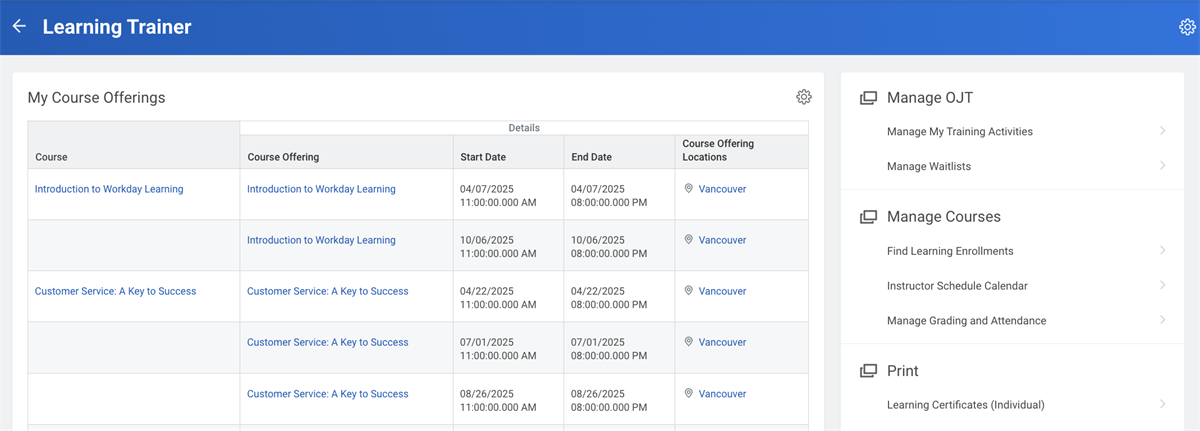
To accomplish this, access the
Maintain Dashboards
report and filter for Learning Trainer, then select Edit to configure worklets and menu items. You can also add existing or custom reports as worklets and designate which groups can view each item. Optionally, you can add tasks, custom reports, and external links to the menu. Your organization can decide what functionality to make available to learning trainers, such as the Manage Waitlists
report.Instructor Schedule Calendar
You can configure the Instructor Schedule Calendar to the
Learning Trainer
dashboard. This feature provides instructors with a calendar view of their course offering schedule. They can view this calendar by day, week, or month. This feature is only available for learning trainers that are instructors who lead instructor-led course offerings. The Instructor Schedule Calendar is secured to the Self-Service: Learning Instructor domain. Internal and external instructors inherit permissions to this domain when a learning administrator completes the Create Internal Learning Instructo
r task or Create External Learning Instructor
task for that worker.Manage Waitlists
Depending on your organization's configuration preferences, you can grant instructors and assessors permissions to manually manage waitlists. Learning trainers can access this functionality by selecting the Manage Waitlists menu item on the
Learning Trainer
dashboard. Workday secures waitlists to primary instructors, but this is configurable. Instructors can view and manage waitlists for any course offerings displayed on the Manage Waitlists
report.Manage Course Completions
From the
Learning Trainer
dashboard, instructors and assessors can manage course offerings by entering grades and tracking attendance for their assigned offerings, using the Manage Grading and Attendance
task. When courses require grading and attendance information, this information must be entered before the completion status updates to Completed.Manage Grading and Attendance
The Manage Grading and Attendance functionality allows learning trainers (instructors and assessors) to mark attendance, enter scores, and designate an overall pass or fail grade on course offerings. How you configure an instructor-led or training activity cours elesson determines the Manage Grading and Attendance functionality. Select either the Track Attendance field or Track Grade field when adding instructor-led course lessons to enable the
Manage Grading and Attendance
task. The assigned primary and lesson level instructor or assessor fields determine who can enter and track grades and attendance.Role | Permissions |
|---|---|
Learning Administrator | Access to manage grades and attendance for all courses and offerings. |
Primary Instructor or Assessor | Tracks attendance and grades at the course and lesson levels for all offerings, even if not assigned. |
Lesson Level Instructor or Assessor | Tracks grades and attendance only for their assigned course lesson at the lesson level. |
A learning trainer can access the Grading and Attendance functionality in the following ways:
- From theLearning Trainerdashboard
- TheManage Grading and Attendancetask and selecting a course offering.
Learning trainers can enter lesson level grades and attendance daily or all at one time at course completion.
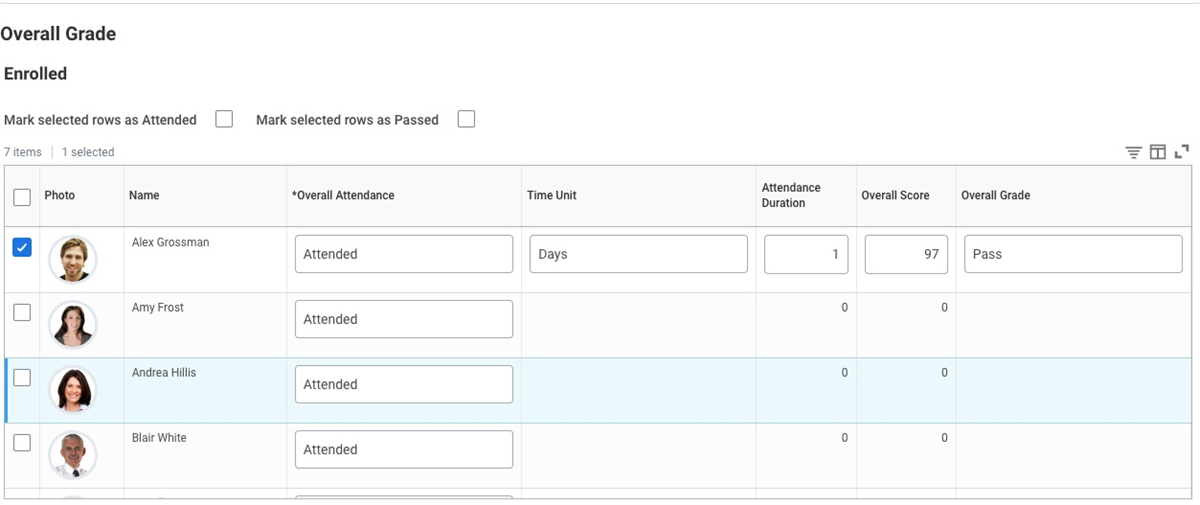
Learning trainers can enter grades and track attendance, depending on their course assignment and security policy permissions. From the Grading and Attendance tab of the course offering, select the Manage Roster button to access the
Manage Grading and Attendance
task. Then, you can enter respective grading and attendance results. The Overall Grade tab, as shown in the image above, enables the course offering's primary instructor or learning administrator to enter attendance, scores, and grades for each enrolled learner of the course offering. You can also enter results for each course lesson on the Lessons tab. Learning trainers can determine the following fields:Attendance and Grading Fields | Definition |
|---|---|
Overall Attendance | Instructors indicate whether a learner attended the course. They can populate: Attended, Partially Attended, Did Not Attend, or Not Entered. If applicable, an instructor can selec the Mark Selected Rows as Attended checkbox. This field directly impacts the completion status. |
Time Unit | Captures the length of time for attendance in minutes, hours, and days or weeks. |
Attendance Duration | Relates to the time unit and indicates the length of time a learner attends the course through a numeric value. |
Overall Score | Instructors enter the overall score of the learner. Determine the overall score by the course's grading rubric. The column title displays 'Overall Score' for a course and 'Score' for a course lesson within a course. |
Overall Grade | Instructors select Pass or Fail for the learner based on their company's grading criteria. If applicable, an instructor can select the Mark Selected Rows as Passed checkboxes. This field directly impacts the completion status. |
When you select either the Track Attendance checkbox or Track Grades checkbox on instructor-led lessons in a course offering, Workday considers the student's course participation complete when:
- All required lessons within the course are complete.
- All required grades and attendance for the learner are entered.
Based on the overall grade criteria, the student's completion status will change to Completed or Unsuccessful. A status of Unsuccessful will prompt the learner to retake the course.
Learning trainers can return to the course offering page to update or edit any attendance or grades for the overall course. This includes if the course has a completion status of Completed. However, you cannot modify the completion status once the learning content has Completed.
Manage Training Activities
Blended courses by definition contain both media and instructor-led course lessons. Another available course lesson type within a blended course is a training activity. A training activity allows a learner to learn and practice new on-the-job skills while an assessor observes or evaluates the learner. Training activities can be assessments, observations, or demonstrations.
Assessors deploy training activities and can manage training activities in the following ways:
- Add or remove learners from their own assignments.
- Upload attachments or modify documents for their individual training sessions.
- Enter grades, attendance, and comments at the course lesson level.
- Filter grading and attendance by the following enrollment statuses: In Progress and Completed.
- Assessors can use theAssessor Self-Assigntask on the mobile application to assign a learner.
Note
: You can assign multiple assessors to a learner's enrollment in a training activity course lesson. This allows organizations to conduct observations over a longer period of time.Types of Training Activities
There are two types of training activities you can deploy:
Type | Definition |
|---|---|
On-the-Job Training Activity | Configure on-the-job training activities as individual course lessons within a course with other course lesson types. |
Spontaneous Training Activity | Configure spontaneous training activities as a single training activity course lesson in a blended course, and select the Unlimited Capacity checkbox. |
Training Activity Course Lessons
Training activities are scheduled on-the-job training course lessons in a blended course that designate dates, times, locations, and capacity.
Scenario
: A nurse is taking a course on bedside manner. Part of her course includes a training activity course lesson. The nurse first completes the in-person classroom course lesson with an instructor.Then the learning administrator assigns an assessor to facilitate the training activity course lesson. The assessor evaluates the nurse on her bedside manner. The assessor provides notes and comments, tracks attendance, and assigns a pass/fail grade.
When creating a training activity, determine whether to allow assessors the assign grades and take attendance security permissions on the Manage: On the Job Training domain. These settings are configurable.
Spontaneous Training Activities
Spontaneous training activities are flexible non-scheduled on-the-job training course lessons. Spontaneous trainings occur at both the convenience of the assessor and the availability of the learner, which is why you leave these lesson types unscheduled with unlimited capacity.
You can create spontaneous training events as a single training activity course lesson within a blended course. When you create an unscheduled training activity with unlimited capacity, an assessor can spontaneously select available workers to observe, assess, or evaluate on a flexible schedule. Optionally, assessors can schedule a specific time as well.
Scenario
:GMS has several call centers and they decide they need more on-the-job training. Logan builds a spontaneous training activty in a blended course. Logan assigns every manager in the call center as an assessor by assigning them to the Allowed Assessors pool for the course. Then, she assigns the Quality Assurance staff as the primary assessors so they can move assignments between managers, as necessary.
As work volume permits, managers pull representatives from the call center queue to conduct demonstrations on active listening, greetings, and branding. Afterwards, workers return to answering calls. Managers can then evaluate how they integrate the training skills through an observation. This scenario is an example of a spontaneous training activity with two training activities: a demonstration and an observation.
Configuration Considerations
Learning Trainer Security Considerations
A learning trainer is a valuable resource for delivering and managing Workday Learning. You can configure their access for the following:
Access | Learning Trainer Type | Considerations |
|---|---|---|
Restrict Access to their Assigned Courses | Instructor | Add the Internal Learning Instructor as Self or External Learning Instructor as Self security groups to the Self-Service: Learning Instructor domain. You can also restrict course content based on other criteria, such as the learning trainer's location. |
Allow Access to All Courses | Instructor | Add the All Internal Learning Instructors or All External Learning Instructors security groups to the Self-Service: Learning Instructors domain so instructors can view or modify enrollment, waitlists, and grading and attendance. |
Allow Access to Roster Management Reports and Tasks | Instructor | The Self-Service: Learning Instructor domain provides access to roster management reports and tasks. This includes instructor schedules, grading and attendance for course offerings, and waitlists. |
Access | Learning Trainer Type | Considerations |
|---|---|---|
Allow Learner Enrollment | Instructor and Assessor | Add the All Internal Learning Instructors, All Learning Assessors, or the All External Learning Instructors security groups to the:
Access to this report can be constrained or unconstrained. Constrained access limits a learning trainer's access to their assigned offerings. Unconstrained access enables the instructor or assessor to access any course offering. |
Allow the Conversion of Instructor-Led Classroom Offerings to Virtual Classroom | Instructor | Add the Internal Learning Instructor as Self or External Learning Instructor as Self security groups to the Manage Course Offering business process security policy. |
Allow Access to Waitlist Management | Instructor | Add the All Internal Learning Instructor security group to the following domains that align with the Manage Waitlists report:
|
Workday-Delivered Reports
Workday Learning delivers several analytical reports. You can use these reports to build and manage learning content and enrollment. Below is a Workday-delivered report related to topics discussed in this chapter.
Report Name | Description |
|---|---|
Assessor Dashboard | Displays a menu of actions assessors can perform, such as manage grading and attendance, manage training activities, and find workers to enroll. |
Find Workers to Enroll | Learning trainers can view a list of all workers eligible for enrollment into learning content. Use facets to refine the list. |
Instructor Schedule Calendar | Learning instructors can view their course offerings for instructional delivery schedule by day, week, or month. |
Manage Waitlists | Lists all offerings with a configured waitlist. Learning trainers can view these waitlists by Waitlists Requiring Actions and All Other Waitlists. |
Note
: For the most up-to-date list of Workday-delivered Learning reports in Workday, search for Workday Standard Reports
report and select Learning in the Report Categories field.Chapter Summary
The learning trainer is a valuable asset in the delivery and management of learning content. When designing courses, consider the type of learning trainer and how the learning trainer will deliver instruction. The type of course configuration will determine what type of learning trainer to assign to the instructional delivery. For example, learning administrators will assign assessors to courses with training activities. All assessors will need the corresponding security permissions to access and manage training.
In addition, the learning trainer can contribute to managing course completions in Workday Learning. When you configure learning content to track either grades and attendance, a learning trainer or learning administrator will need to enter this information to update the completion status. It is important to configure the
Learning Trainer
dashboard and provide learning trainers with the corresponding security permissions to access these functions and meet any necessary business requirements.