
Validations in Workday
Overview
Validations are a useful configuration to ensure data is correct before submitting a business process. In this section, you will explore how to create custom validations in Workday. You will learn about the two options of validation conditions: warning and critical. Warning messages allow users to bypass and move on with the workflow. Critical messages prevent users from submitting the task until the data is valid.
Objectives
By the end of this chapter, you will be able to:
- Apply validation condition rule logic to enhance business processes.
- Configure custom validation conditions for critical and warning messages on a business process initiation step.
Maintain Validations
Some examples of custom validations include:
- Prevent workers from submitting time off requests without selecting a time off type.
- Prevent workers from submitting expense reports with an invalid date.
- Alert approvers when events need more careful review.
Workday denotes required fields with a red asterisk. If a user leaves these fields blank, an error message appears. These errors generate when the process encounters either a default or a custom validation condition.
There are two levels of severity to a validation in Workday: Warning and Critical.
- Warning validations will produce a warning message when triggered, alerting the user to some aspect of the transaction they are completing. The user can still complete the task with no additional changes. This is appropriate for alerting users that a task will route in a specific way, or that a value entered within the task is out of the ordinary.
- Critical validations will produce an error message in the task, preventing the user from completing the task or transaction at all. Use this type of validation to prevent users from completing a task incorrectly.
Validation Message | Description |
|---|---|
Default: Warning | Workday-delivered and appears as an orange alert. You can move to the next step even with the alert. |
Default: Critical | Workday-delivered and appears as a red alert. Correct the error to move on. |
Configurable | Can be a combination of text and dynamic fields. You can choose whether the validation is critical or a warning. Use the Maintain Custom Validation task to create a validation condition and message. |
Note
: Use the Configure Optional Fields
task to configure which optional fields are hidden or required by the task.You can configure validation messages on the Initiation and Review business process steps.
Condition Rule
Each custom validation checks a transaction against a set of conditions that are defined when creating the validation. If the condition returns true, a warning or critical message will appear.
For each custom validation in your system, you can define a custom validation message as the warning or critical error that displays when a user triggers a validation.
Configure Optional Fields
You can hide or require fields depending on business requirements. The hide and require functionality provides an experience where users view relevant fields only and have a clear indication of required fields. Use the
Configure Optional Fields
task to specify optional or required fields for certain users based on business process or functional area.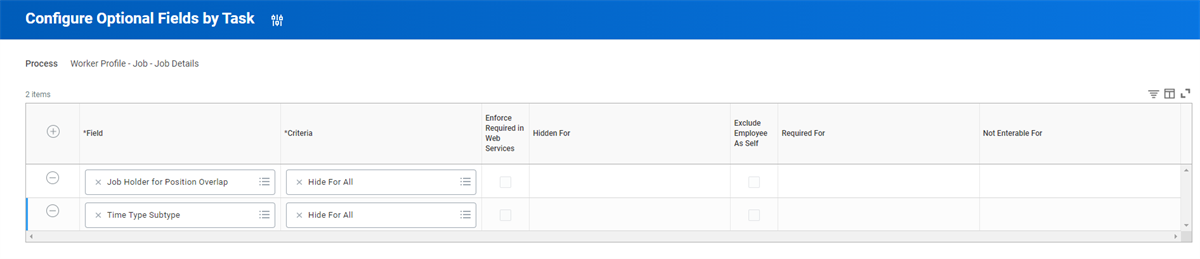
Configure Optional Fields for Job Profile.
Hide and require is based on either country or security group. You can hide or require fields for all users or for specified security groups. This configuration prevents downstream impacts due to incomplete data.
Description | Definition |
|---|---|
Field | Available options depend on the business process or task of the functional area you select. |
Criteria | Select the security group or groups for which you want the fields hidden or required. |
Enforce Required in Web Services | Select this checkbox to enforce required fields on all web services within the functional area. Clearing it enables you to correct data without populating every field on the web service. |
Note
: The Set Up: Configure Optional Fields domain secures the Configure Optional Fields
task.Chapter Review
You can use validation rules to ensure the data is correct before a user can submit a transaction. There are two types of validation rules available: warning and critical.
Place a condition rule on a step that allows data entry, such as an initiation or review step, to maximize data integrity. If the data does not fulfill the condition requirements, either a warning or a critical message will display to the system user.
Users can bypass warning messages, while critical messages create a hard stop and require correction before the user can submit the task. You can configure a custom message to assist the user in addressing the data issue.