
Termination and Business Process Templates
Overview
The
Termination
business process type allows customers to define the workflow for when employees separate from the organization. This process is complex and may require involvement from multiple organizations, such as human resources, payroll, and information technology. In this section, you will explore some of the unique requirements of this business process. Topics include managing My Tasks items for terminated workers, assigning roles, and using business process templates. You will also learn about how to hire into positions available for job overlap.Objectives
By the end of this chapter, you will be able to:
- Recognize the features and capabilities of theTerminationbusiness process in Workday.
- Demonstrate how to maintain termination categories and reasons based on requirements.
- Configure and test termination business process based on requirements.
- Explain the job overlap process and when to use it.
- Configure business process templates and domain security related to terminations.
- Create a new security group, modify a security policy, and grant permissions to conduct a termination.
Termination
Termination ends the active working relationship between the enterprise and the employee. You can initiate the
Termination
business process from the worker's Related Actions.Keep the following considerations in mind when terminating:
- Terminationis a configurable business process that uses a guided editor and template-driven UI.
- Up until midnight on the day of the termination, the individual appears in the system as an active employee. The individual appears as terminated immediately following midnight in the individual's time zone on the day of the termination. For example, if a worker has a termination date of March 28, their status changes to terminated at 12:00 AM (00:00:01) on March 29.
- You can indicate if the employee is eligible for rehire.
- You can specify a termination as regrettable or not regrettable, and use that information for turnover analysis.
- TheTerminationbusiness process can include questionnaires to capture information such as exit interviews.
- You can configure notice periods in theTerminationbusiness process.
- You can attach documents during theTerminationbusiness process.
Initiating a Termination
You can initiate the
Termination
business process using several different methods in Workday:- Use theTerminate Employeetask. Search for the task, or select the worker's Related Actions, and selecting Job Change > Terminate Employee.
- Enable theSubmit Resignationbusiness process to let workers initiate their own termination event. You must include the Review Worker Initiated Termination step in theTerminationbusiness process to link these processes together.
- Use the Severance functionality in combination with theTerminationbusiness process.
Each method incorporates the
Termination
business process and has a unique set of reasons. When initiating a termination, you enter data using the Guided Editor framework, which displays data in sections based on your security policy.Example
: You might only let HR partners and HR administrators indicate whether a terminated employee is eligible for rehire. In this case, you would secure the Eligibility section to those security groups and exclude any other (e.g., Manager).You can configure the following termination sections:
- Reason
- Notice Period
- Details
- Regrettable
- Eligibility
- Position Details
Note
: You can also configure the Termination
business process to hide entire sections based on security group.Resignation
Providing employees the ability to resign has a number of benefits. Most importantly, self-reported resignation allows for timely termination reporting. If a manager does not properly report or initiate a termination, you may overpay the employee or grant the employee system access for too long.
The Workday resignation functionality lets the employee formally report their intention to resign. Based on the resignation reason the employee selects, you may have their manager or HR partner approve the resignation. Employees can locate this task from their Related Actions, then Job Change > Resign.
Severance
Workday provides a framework for calculating and processing a severance package as part of a termination. Severance defines the money provided to an employee who is ending employment due to reasons including layoff, job elimination, or mutual agreement. Severance lets you calculate an employee's severance duration and amount based on the company's policy.
The Severance Matrix table drives the initial default values on notices and ongoing severance payments. The Severance Package incorporates the severance matrix and four delivered sections to determine the specific pay components of the employee's severance. The standalone
Severance Worksheet
business process contains review, send back, and approval steps allowing for iterative adjustments to the default calculations. The severance information links to the termination process through the Severance Worksheet and sent to either Workday Payroll or Workday Payroll Interface.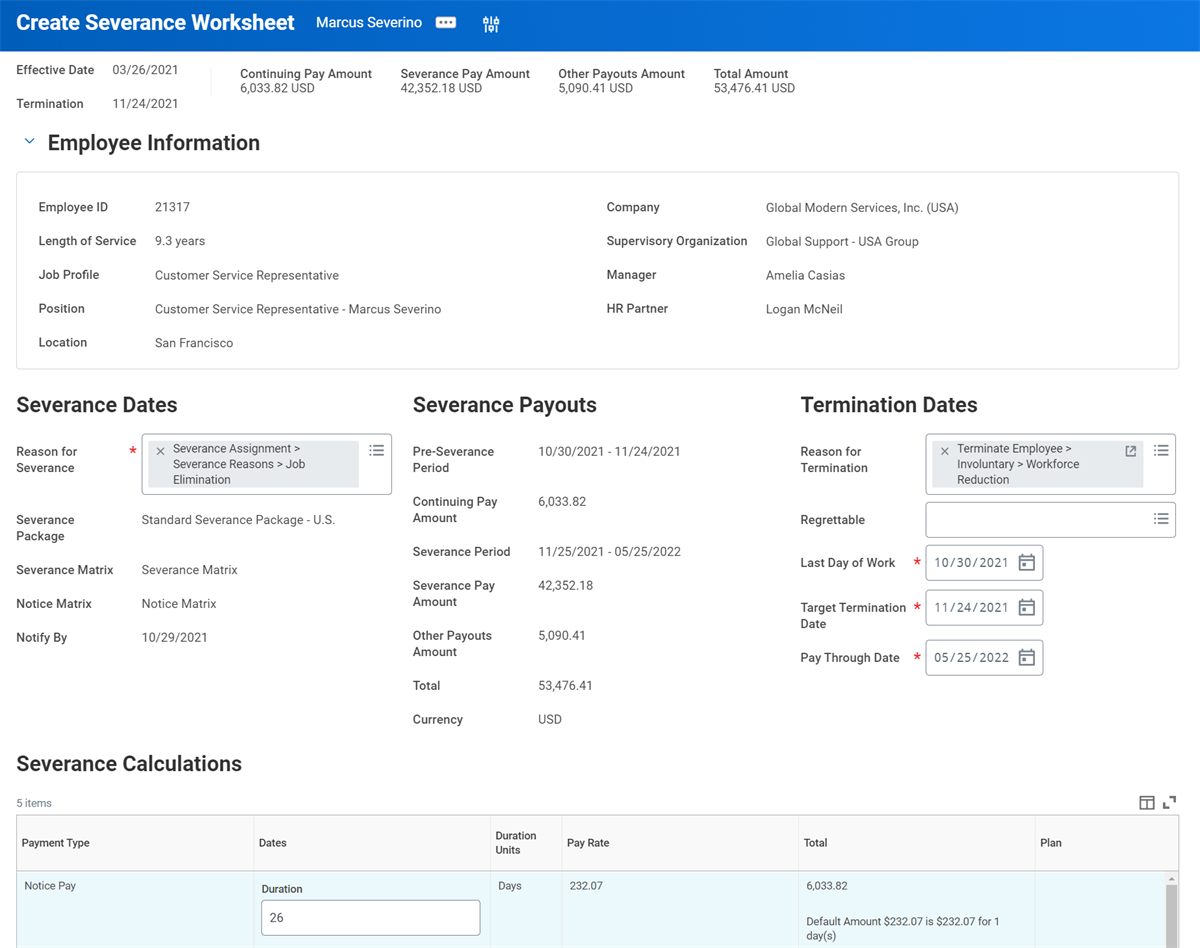
An example severance worksheet.
When you initiate the
Termination
business process, basic severance package details display alongside the following information, which populate from the Severance Worksheet:- Reason for Termination
- Last Day of Work
- Pay Through Date
- Notify By Date
Depending on which method you use, certain termination-related dates may auto-populate or need to be carefully reviewed and possibly edited.
The effective date of a termination is the last day of employment. For example, if this coming Friday is the last day of employment, then enter Friday's date as the termination date. The termination will go into effect as of midnight. Additionally, keep in mind that time zone factors into viewing a termination. A terminated employee located in London appears in the system as terminated five hours before a terminated employee located in New York.
Maintain Termination Reasons and Categories
Termination Reasons
Termination can occur for many reasons, and your ability to track and report based on this information is critical to understand turnover rates. Depending on what method of termination you use, and how you configure termination reasons, you may enter more than one termination reason for a single termination event.
Set up reasons for the
Terminate Employee
and End Contingent Worker Contract
business processes using the Maintain Termination Categories
task. You can group individual reasons into categories. You can also select the following checkboxes for each reason:Checkbox | Description |
|---|---|
Involuntary | Indicates an employee's involuntarily termination (e.g., workforce reduction, poor job performance, disciplinary). |
Retirement | Indicates the reason is associated with a retirement status. You can use business process condition rules to set retiree status. |
Inactive | Inactivates a reason. |
Manager Reason | Indicates that a manager can choose this reason when terminating an employee. |
Keep in mind that your entire organization uses the reasons configured in the
Maintain Termination Categories
task. Depending on your business needs, you may need specific reasons for a country or country region. Use the Maintain Local Termination Reasons
task to create termination reasons that reflect local requirements. You can also configure the Local Termination Reason field as required or optional, using the task Maintain Localization Settings
. For example, you can require the field for workers terminated in Canada, but keep it optional for workers in the USA.If you use the severance or worker resignation options, make sure to configure additional reasons for these events using the
Maintain Event Categories and Reasons
task. Additional reasons can include:- Severance assignment
- Worker resignation
Notice Periods and Termination Dates
Notice Periods
Configure notice periods to automatically calculate a proposed date for voluntary and involuntary terminations when users initiate the
Submit Resignation
or Termination
business processes. Additionally, you can create notice period rules to automatically update an employee's proposed termination date based on employment milestones (e.g., probation end, length of service, job changes).To streamline managing notice periods for new hires or job changes, configure
Edit Notice Periods
as a subprocess of the Hire
or Change Job
business processes.Termination Dates
Date | Description |
|---|---|
Notice Periods | View and edit an employee's notice period. Use notice periods in the Submit Resignation and Termination business processes. Manage default notice periods by country. Create and manage notice period eligibility rules to calculate different notice periods for voluntary and involuntary terminations using report fields. |
Termination Date | Set the effective date of the termination. The termination date is the employee's last day of employment. If you already entered the termination date on a severance package, you cannot change the date when initiating a termination event. |
Last Day of Work | Defaults to the termination date, but can be edited. |
Pay Through Date | Defaults to the termination date. Edit the Pay Through Date if any pay continues past the termination date, and should be paid through Workday Payroll or payroll integration. |
Resignation Date | Does not auto-populate. If an employee submits their resignation, they must manually populate the Resignation Date field. Not available if Severance Worksheet is used. |
Notify By | If a recommended minimum notice period is configured for the terminated employee's country, the Notify By date will automatically display the recommendation. |
Last Date for Which Paid (Canada only) | Defaults from Pay Through Date (only available for terminating employee located in Canada). |
Expected Date of Return (Canada only) | Date must be equal to or greater than the Last Date of Work (only available for terminating employee located in Canada). |
Manage Items for Terminated Workers
You can control all business processes related to a worker with the
Manage Business Processes for Worker
task. The task provides access to the areas in the table below.Area | Description |
|---|---|
My Tasks Items Assigned to Worker | Lists all tasks assigned to a worker. You can cancel or reassign the task. |
Business Process about the Worker | Lists business processes where the worker is the target object. You can cancel any process. |
Delegations to the Worker | Lists all delegations and related Inbox items assigned to the worker. |
The
Manage Business Processes for Worker
task is also available as an Action step for the following business process types:- Change Job
- Terminate Employee
- End Contingent Worker Contract
- Request Leave of Absence
You can also configure the Auto-Manage Business Processes Service step with automation rules that manage steps automatically.
Additional Training
: Review the Automatically Manage Business Processes for a Worker (Subscription) Learn On-Demand course for more information.Manage Roles for Terminated Workers
The
Assign Roles
business process allows users to change organizational roles and receive approval as part of an event.Staffing business processes, like
Change Job,
Divide Organization
, and Request Leave of Absence
, often use Assign Roles
as a subprocess. When used as a subprocess, the Inbox task will also display a summary of previous organizational changes in the parent process. You can transfer, copy, or remove role assignments as part of the Assign Roles
process.Disable Account for Terminated Workers
You have the ability to deny a worker access to the Workday system. That activity is separate from the Termination event. From the worker's Related Actions, select Security Profile > Edit Workday Account. You can either enter an Account Expiration Date and time, or select the Account Disable checkbox.
The
Termination
business process can include the automatic disabling of a Workday account by including the Terminate User Account step in the Termination
business process. Once you add the step to the business process, you still need to configure it.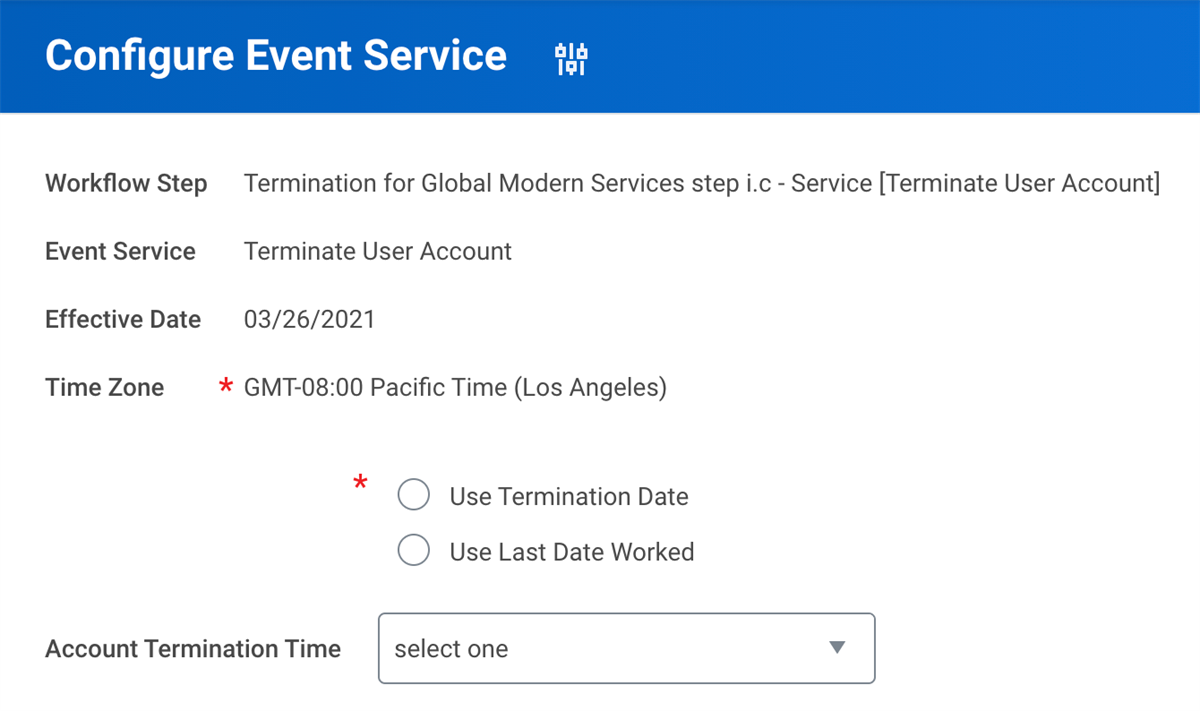
The Configure Event Service page for a step in the Termination process.
Job Overlap
Job overlap functionality lets two workers occupy the same position for a limited period of time. Job overlap is useful for training a replacement for a worker leaving their position, or backfilling a position while a worker takes a leave of absence.
You can also choose to hire the overlap worker for a position before that position has a vacating event. To do so,
Edit Position Restrictions
and set the Available for Overlap
field to yes.Enable job overlap functionality in your tenant from the
Edit Tenant Setup - HCM
task. Once you enable this functionality, you can hire, contract, add job, change job, or start an international assignment for a worker into an already filled position.Review the following job overlap requirements:
- The position is in an organization using the position management staffing model.
- You are not closing the position as part of the future-dated staffing event.
- You are not moving the position to a different organization using theChange Jobbusiness process.
- The position is not overlapped by another position.
- The position does not overlap another position.
Review the following job overlap terminology:
Term | Definition |
|---|---|
Principal worker | Original jobholder |
Overlap worker | Secondary jobholder |
Overlapped position | Original position |
Overlapping position | Secondary position |
Enabling job overlap in your tenant will allow you select whether a position is available for overlap during several business processes, including:
- Change Job
- End Additional Job
- End Contingent Worker Contract
- End International Assignment
- Termination
In the
Edit Tenant Setup - HCM
task you can also configure the setting: Automatically Select Is This Position Available for Overlap on Vacating Events
.When hiring, you can view available overlap positions from the Position field > Filled Positions Available for Overlap menu options.
Security Implications
Overlap workers share all security roles associated with the position restrictions during their tenure in the overlapped position, including the Manager role. When a job overlap exists for a position assigned to a supervisory organization as a manager, business processes that route to the Manager role route to both the overlap and principal worker. Both managers can view worker data and initiate actions secured to the Manager role. If the organization has the Include Manager in Organization Name checkbox selected, both managers display in the organization name, and both managers appear when previewing the supervisory organization.
Job Overlap Routing Exclusion
Workday provides business process routing flexibility for workers in a job overlap position. Using Job Overlap Routing Exclusion rules, you can configure condition rules to specify the job overlap positions you want to exclude from a business process routing. This functionality reduces the number of notifications and My Tasks items a worker receives when they are inactive in the job overlap position.
To configure Job Overlap Routing Exclusion rules, you need to access the
Edit Tenant Setup - HCM
task. Select the Enable Job Overlap on Position Restrictions checkbox, and once you have enabled this functionality, the The Enable Job Overlap Routing Exclusion Rules checkbox displays. After enabling it, you will configure the Set Up: Job Overlap Routing Exclusion Rules
security domain to allow job overlap routing. Then, you will use the following tasks to manage the exclusion rules:- Maintain Job Overlap Routing Exclusion Rules
- Create Job Overlap Routing Exclusion Rules
- View Job Overlap Routing Exclusion Rule
- Edit Job Overlap Routing Exclusion Rule
- Delete Job Overlap Routing Exclusion Rule
Job Overlap Routing Exclusion rules apply to role-based security groups only.
Organization Assignments
With job overlap, Workday does not synchronize organization assignments across positions and position restrictions as it does with nonoverlap positions. Organization changes only apply to the position or position restriction you take action on. You need to update the other position or the position restrictions separately. This behavior applies to both individual and mass organization changes.
Reporting Implications
When you search by position ID or view organization members, both the principal and overlap workers display. The following reports, however, count only one position when a job overlap exists:
- FTE Report
- Headcount & Open Position Analysis
- Headcount Report
- Open Position Summary
Correct Termination
You can correct the
Termination
business process if entered information needs to change. Consider correcting instead of rescinding. If you rescind the termination, you will need to enter all information a second time.Examples of data that you can correct include: changing termination dates and reopening a position that was closed as part of the termination event.
No Show
A "no show" is a hired worker who does not report for their first scheduled day of work. The Workday-delivered
No Show
business process allows managers to indicate that a "no show" has occurred, but without the added responsibility of managing downstream processes that may block a resulting termination. Security permissions control who has visibility into those blocking events (e.g., payroll, procurement, onboarding). Using the No Show
business process can also lessen the need to pay a worker for one day. However, the ability to cancel payroll events is also dependent on several factors, including:- Dates of payroll periods
- Status of payroll event
- Timing ofNo Showbusiness process completion
- Update frequency to third-party payroll systems
After the
No Show
business process completes, the worker will not appear in headcount reports. Additionally, if you use Workday Recruiting, you can reinstate requisitions and positions.Report
: Run the Workday-delivered No Show Event Detail
report to display all no show events.Business Process Templates
Certain Workday business processes use templates to streamline data entry for users. Processes including
Onboarding
, Change Job
, Propose Compensation
, Requisition Event
, and Termination
allow templates. Some business process templates use a guided editor or an enhanced user interface to present data. Similar to business process security policies, templates are specific to the business process type, not an individual business process definition.Business process templates include these configurable areas:
- Section Groups
- Section Group to Call for Validations
- Task Security
Report
: Use the View Business Process Template
report to view a list of all business process types that use templates. Also, you can view section groups, instructional text, and task security applied to the templates.Section Groups
Section groups are groups of tasks included as part of the business process. Workday delivers the tasks and determines their order within a business process template, and you cannot change them.
Configure help text for sections and individual tasks on the Section Groups tab of the business process template.
Task Security
On the business process template's Task Security tab, you can update domain security policies related to the tasks in the template to include necessary security groups. This tab lists the security groups that have View or Modify permissions to individual domains.
Security Note
: If a business process uses a template, you may need to configure both the business process security policies and the domain security policies the template uses. The Task Security tab does not display business process security policies. Assess whether you need to update the business process security policy by reviewing the security groups allowed to act, like to Approve.Report
: Run the Template-Driven Business Process Security
report to view every security group with access to the business process and domain security policies for a business process type. Also, view their permissions.Templates and Domain Security
You can use the Related Actions for these security domains to control who in your organization can modify or view certain information within a task.
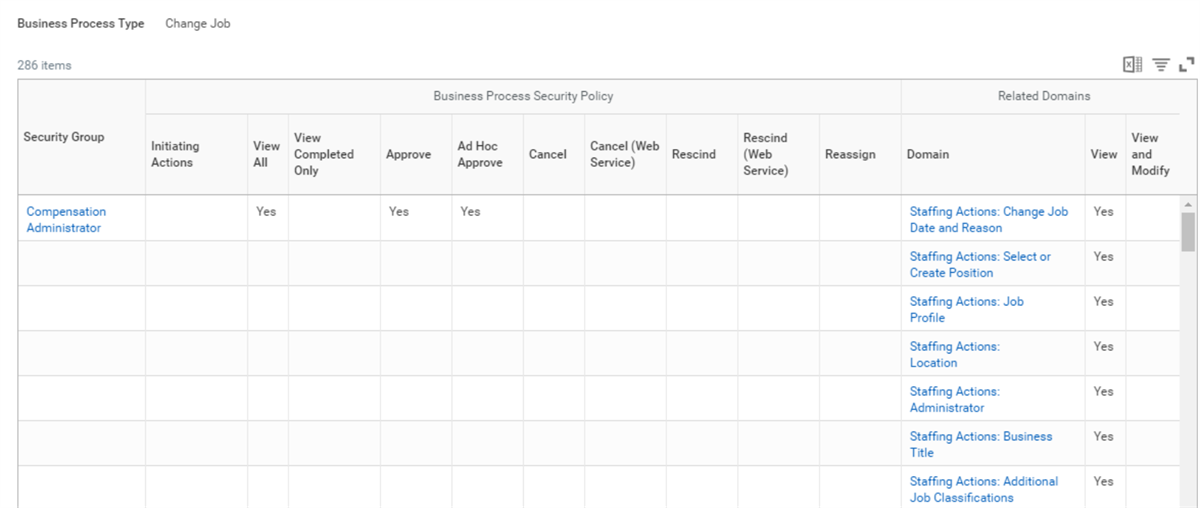
Configuring Security in a Business Process Template
Chapter Review
The
Termination
business process ends the employment relationship between the worker and the organization. Terminations can be voluntary or involuntary. You can initiate a termination several ways, for example:- From an employee's Related Actions.
- From an employee submitting their resignation.
- Through the severance process, if configured as part of termination.
You must have termination reasons configured in the tenant. Three termination reason fields are available, which allow for a primary and secondary reason as well as a country-specific, local termination reason. Additionally, you must configure resignation and severance reasons if enabling that functionality.
The termination date is the effective date of the termination. The employment relationship ends at the end of the termination date at midnight in the employee's time zone. You can configure notice periods so that the termination date will calculate using notice period rules. You can modify the recommended termination date, if necessary.
In progress business process events assigned to or about the terminating worker may require a review, and either reassignment or cancellation. Similarly, security group assignments, delegations, and access to Workday need review as part of the termination process. The
Termination
business process generally includes steps to review role assignments and to terminate a user's Workday account.Training a replacement worker is often critical. You can enable the job overlap functionality to allow both the terminating worker and the worker replacing them to hold the same position for a duration of time. Job overlap has significant impact on security and reporting. Consider each of these impacts before deploying job overlap.
When a new hire does not show up for their first day of work, you can use the
No Show
business process as an alternative to termination. This process prevents paying the person for one day of work and from including the person in headcount reports.The user interface of the
Termination
business process is template-driven. The template provides greater flexibility in streamlining data entry, securing data, and defining help text. When a business process type uses a template-driven interface, you must configure both the business process security policies and domain security policies correctly. Domain security controls user access to each section of a termination data entry page.