
Advanced Business Process Configurations
Overview
In this chapter, you will configure business processes to meet the changing needs of Global Modern Services. You will use several advanced features to improve efficiency and effectiveness of processes. You will learn how to streamline business processes to enhance a system user's experience by consolidating approvals. You will also use notifications to better support and communicate with workers involved in business process events.
Objectives
By the end of this chapter, you will be able to:
- Summarize use cases for default, organization-specific, and rule-based business process definitions.
- Apply advanced configuration options on business processes, including routing restrictions, step delays, and condition rules.
- Use the condition rule tester to troubleshoot condition rule issues.
- Create a custom notification.
- Configure consolidated approvals and approval chains on business processes.
- Configure a complexHirebusiness process to meet requirements.
Business Process Configuration Options
Each business process type has different allowed configurations. You can view the allowed features for each type in the
Business Process Configuration Options
report.Use this report to plan and configure your business processes. The report provides information on process configuration, including:
- Organization types for which the business process is valid
- Allowable actions and approvals
- Options on saving after an available action
- Restrictions; for example, you cannot have aChange Benefits for Life Eventsubprocess before the completion step
- Prerequisite actions
- Business processes that are strictly subprocesses
- Allowed subprocesses for business process types
- Allowed mass actions, like rescind, correct, cancel, and approve.
- Incomplete business processes that are cancelable
Business Process Definitions: Default, Organization-Specific, and Rule-Based
Business Process Inheritance
You can decide how to use business process definitions. While we recommend you configure and use a default business process definition, it is occasionally necessary to create organization-specific definitions. In some situations, it is preferable to create separate definitions for different organizations if the execution steps vary greatly.
Compare default and organization-specific processes below:
Default Business Processes (Recommended)
Pros | Cons |
|---|---|
Maintenance is easier and more straightforward. | Complex condition rules in business process definitions can slow processing. |
Organization-Specific Business Processes
Pros | Cons |
|---|---|
Cleaner and easier to analyze. | Maintenance is more challenging if you use common steps are across all copies. |
Better performance with complex conditions. | Testing the right business process definition may be a challenge if you have multiple copies. |
When you create a copy of a business process definition for an organization, you can edit the steps independently of the copied definition. You can add steps and logic that pertains to the organization-specific business process. You can also link a definition to multiple organizations so that they share the same configuration.
Note
: You will not often copy or link business process definitions unless the execution steps vary greatly for a particular organization.Since you can configure organization-specific business processes in addition to the default definition, Workday uses a process hierarchy to determine which business process to use.
When you initiate a business process, Workday checks for a unique business process associated with the organization the transaction is for.
- If there is a specific business process for that organization, then Workday will use that definition.
- If no specific business process exists for that organization, Workday will check for a unique definition for the superior organization.
- If there is no unique business process for any superior organizations in the hierarchical chain, Workday will use the default business process definition.
Workday will not use a business process definition if it contains errors. If the business process for a specific organization contains errors or is inactive, inheritance will determine which business process to use.
You can have multiple definitions for one business process type in Workday, including the default and organization-specific ones. The illustration below demonstrates how Workday evaluates and executes a business process based on which organization the transaction is for.
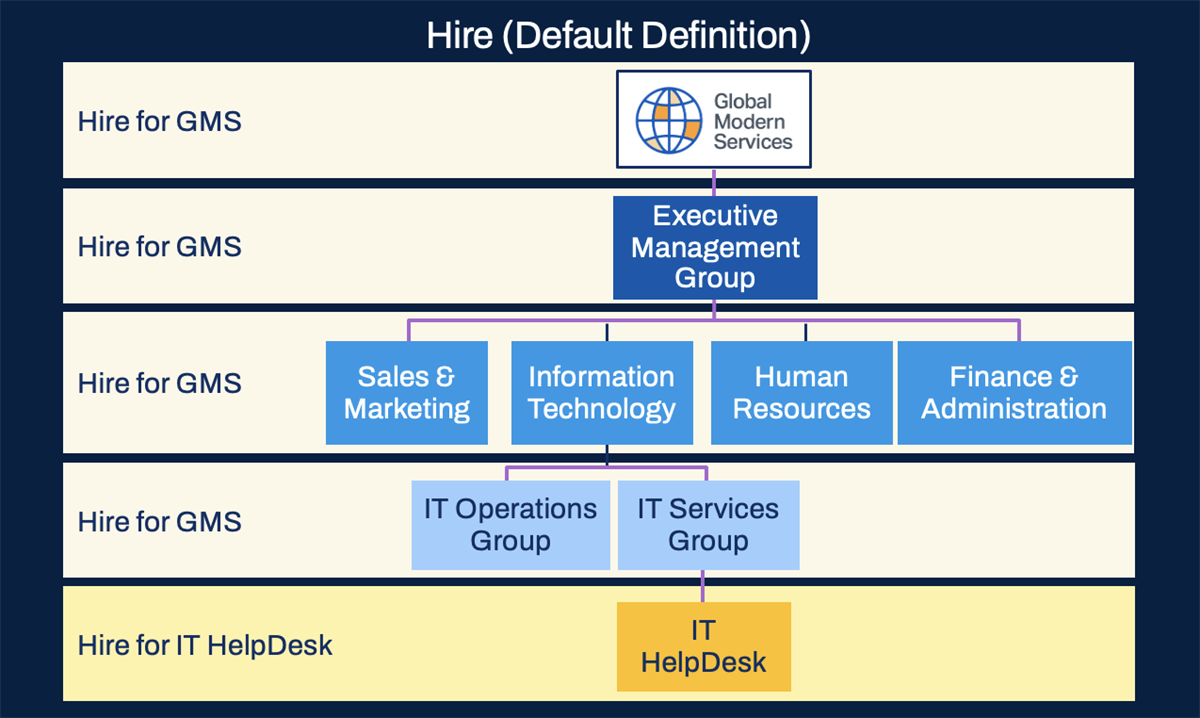
An example of the Hire (Default Definition) business process inheritance.
In the above example, if an employee in the IT HelpDesk department hires a new employee, Workday will use the
Hire for IT HelpDesk
business process definition. If an employee in the Sales & Marketing organization hires a new employee, Workday will use the Hire for GMS
business process definition.Tip
: To determine what business process definition an object uses, navigate to the business object and choose Business Process > Business Process Definitions for Business Object.Rule-Based Business Process Definitions
Rule-Based Method
In addition to a default definition, you can create several rule-based business process definitions that use condition rules to efficiently accommodate different use cases for the same business process type.
Benefits
Rule-based business processes offer several benefits over using one default business process definition or multiple organization-specific ones.
Benefit | Explanation |
|---|---|
Improved Performance | Workday evaluates condition rules when a user initiates a process to select the correct business process definition. As Workday only needs to evaluate a rule once at the start, instead of multiple times throughout a business process, it decreases system processing time. |
Clearer Process History | If you use one default definition with many condition rules, a completed process's steps and routing can be unclear. Rule-based definitions have fewer skipped steps and less routing, providing a simpler auditing trail. |
Enhanced Visibility | In progress business processes are clearer as fewer steps skip or reroute, simplifying troubleshooting. |
Straightforward Maintenance | As rule-based definitions apply to different use cases, you can easily locate and maintain business process definitions for a given scenario. Additionally, you can update one rule-based definition without affecting others. |
Use Cases
In some cases, adding one or two condition rules on individual steps within a default business process definition meets your needs. However, you should consider using rule-based definitions if you:
- Use the same condition rule in three or more steps. It takes time for Workday to process condition rules, so having fewer condition rules improves performance.
- Have multiple paths depending on who initiates the business process or users' locations. Maintaining a business process definition with many branching steps and condition rules is often more complicated than using several, simple rule-based definitions.
Configuration Tips
When configuring rule-based business process definitions, keep in mind:
- Only use one condition rule per definition. You can add as many nested conditions and calculated fields to the condition rule as necessary, but you can only use one condition rule.
- Only use fields available at the Initiation step in your condition rule. You need to use fields that will have a value at the moment the event initiates, otherwise your condition rules will not work correctly.
Business Process Definition Overview
Business process definitions include many different characteristics. The header section displays the effective date, security groups allowed to initiate the process, and a button to view a visual representation of the process flow. The body of the business process definition includes the following tabs of information:
Tab | Definition |
|---|---|
Business Process Steps | This tab defines the order of steps that will execute. Use alphabetical ordering for ease of maintenance. Steps can be sequential or happen in parallel. |
Notifications | You can send notifications to participants specified in the definition or other system users and security groups based on configuration. This tab displays both system and custom notifications for the business process. You can configure notifications to trigger on process status changes, or upon entry or exit of a step in the workflow. Notifications can also send to the user's email, or within Workday, based on configurations and preference settings. |
Allowed Actions by Role | This tab lists the actions (e.g., review, subprocesses) allowed in the business process. |
Allowed Services | This tab lists the services (e.g., create or reset Workday accounts) allowed in the business process. |
Related Links | Related links reference to external web pages. This tab lists the external links. |
Available Rules & Fields | This tab lists the condition rules and fields that you can use in conditional rule logic on the business process. |
Below is an example:
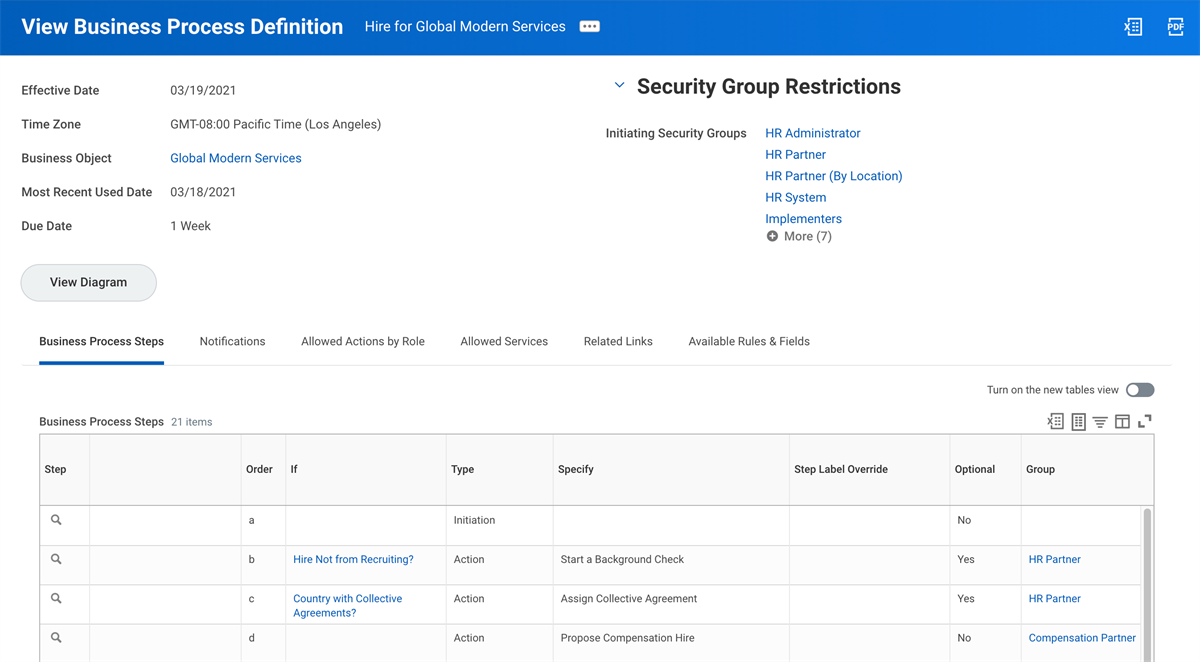
An example of the Hire for Global Modern Services Business Process Definition.
Business Process Columns
You can configure the same fields for all business processes, though fields may not appear in the definition if you do not use them. For example, only a business process with documents configured will have the Documents Included field in its definition. These are common business process fields:
Field | Definition |
|---|---|
Step | Lists the tasks in the business process. |
Order | Identifies the order of execution for steps within a business process. |
If | Lists conditions that the event must satisfy for the step to occur. |
Type | Identifies the type of step (e.g., Action, Service, or To Do). |
Specify | Further defines certain step types (e.g., Action - Propose Compensation Hire). |
Optional | If selected, this allows the assigned user to skip the step. The next step will not begin until the user completes the optional step or marks it as skipped. |
Group | Identifies security groups responsible for the step. The business process security policy limits the available security groups. |
All | If selected, this requires all users in the security group to approve the step. |
Run As User | Identifies the user for a Batch or Integration step type. |
Due Date | Identifies the elapsed time from step initiation until completion. Workday does not automatically enforce due dates. |
Due Date is Based on Effective Date | Identifies the elapsed time from the event effective date until completion. If there is no specified due date, the date references the business process initiation date. |
Complete | Identifies the completion step and makes the business process data available to other systems, like payroll or general ledger. |
Business Process Step Types
Business process framework groups common step types into one of three categories, based on their purpose.
Important
: The step type categorization in this course is a resource for you to understand the different step types. This classification does not exist in Workday.Business processes use different step types to accomplish tasks in Workday. Not all step types are available on every business process type.
Report
: The Business Process Configuration Options
report displays the step types available for each business process type.Step Type | Definition |
|---|---|
Initiation | Defines who can start the business process. It is always the first step in a business process and you cannot remove. |
Action | Either prompts users to review the process or initiates a subprocess. |
Approval | Allows the user to approve, send back, or deny the entire business process, depending on the business process configuration. Approval step recipients cannot edit any information. Note : On all approval-related steps, including consolidated approvals and approval chains, if an approver denies the approval, they deny the entire business process. |
Approval Chain | Seeks approval up a management hierarchy or organization, starting with users in the assigned security group. The chain continues until it reaches the top or meets an exit condition. A common exit condition requires approval from only two workers in the management chain. |
Batch/Job | Runs the selected batch process as a business process step. |
Checklist | Sends selected users a collection of To Do steps. |
Complete Questionnaire | Distributes questionnaires to gather information relevant to the business process. Not available on all business process types. |
Consolidated Approval | Combines multiple approvals for the same worker into a single approval task notification. Approvers can view simplified information for each step with a link to further details if needed. |
Consolidated Approval Chain | Combines the properties of an approval chain with a consolidated approval. |
Edit Additional Data | Allows assigned users to provide data for custom fields within the context of a business process. Note : Business process validation rules do not apply to this step. |
Integration | Triggers a Workday system operation that transfers data to or from an external application. An Integration step also initiates a separate processing thread. |
Report | Runs a report to inform your users' business decisions. The report appears in My Reports for the assigned users. You can also use a To Do step to consolidate links to one or more reports for the business process. |
Report Group | Functions the same as a Report step, but for a report group, which allows multiple reports (e.g., financial reports) to run as a single unit. |
Review Documents | Distributes documents to workers, including custom or standard reports. You can require electronic signatures or acknowledgment. |
Service | Starts a separate processing thread for a Workday-delivered service (e.g., the creation of a Workday user account). |
To Do | Sends an Inbox task to the assigned workers with instructions for a task inside or outside the Workday system. Workday does not deliver To Dos, so configure your own as needed. |
Mass Approval | Provides a dashboard for multiple approvals from a single process. This step is only available for processes that deal with multiple organizations, like bonus, merit, and salary actions. |
Shared Participation | Notifies and requires several workers to complete specified actions. Each of these actions is a participant detail event. |
Basic Step Types
Action steps either send users reviews of information or start a subprocess. Review steps allow the user to edit the business process data and approve it.
Examples
:- In theExpense Report Eventbusiness process, the expense partner reviews every fifth expense report.
- In theCustomer Invoice Email Eventbusiness process, the accounts receivable specialist reviews the customer invoices.
- In theChange Organization Assignments for Workerbusiness process, the employee (Employee As Self) changes their benefit elections if there is also a company change.
- In theChange Business Titlebusiness process, the manager reviews a change in a worker's title before the HR partner's approval.
To Do steps are reminders or activities that the worker must do inside or outside Workday. You can add, configure, and delete To Dos with the
Maintain To Dos
task.Examples
:- In thePeriod Close Eventbusiness process, the accounting manager has to close ledgers for operational transactions.
- In theHirebusiness process, an employee (Employee As Self) has to submit a W-4 form.
- In theChange Jobbusiness process, the security administrator has to review any changes to user-based security group assignments.
You can embed Workday tasks in To Do steps. The To Do step will provide a link to the task in the recipient's Inbox.
Security Note
: You can assign To Do steps to any active security group in the tenant; they do not need to be on the business process security policy. However, if you associate a Workday task with a To Do, verify that the assigned security group can access the task.You can include Security Assertion Markup Language (SAML) links in your To Do steps as well. SAML links have additional security authentication. For example, an SAML link in a recruiting business process can automatically sign a user in to a job website and fill in relevant data from Workday.
Resource
: For more information, navigate to the Administrator Guide and search for the topic on SAML configuration.Run the
To Dos
report to view which business processes use which To Do steps.You will frequently use Approval steps in business process definitions to share data with and get approval from necessary users. There are several different types of Approval steps:
- Approval
- Approval Chain
- Consolidated Approval
- Consolidated Approval Chain
- Mass Approval
Approval steps allow the assigned user to approve, send back, or deny a task, depending on the business process configuration. As always, you can check what options a business process type allows with the
Business Process Configuration Options
report.Note
: Approval steps do not allow the user to edit any of the business process data. An Action: Review step allows for both editing and approval.A Service step starts a Workday-delivered, automated process as part of the business process.
Examples
:- The Create Workday Account service automatically creates a user account and emails a temporary password to the new user.
- The Document Delivery service transports an integration output file to an external server.
Parallel Steps
You may want to run several steps simultaneously. Use the same letter to order each step you want to complete in parallel. Users can complete parallel steps in any order, but all steps must complete for the next step to start.
Note
: Business processes allow for ordering parallel steps. You can configure parallel steps to appear in a specific order in an employee's Inbox. For more information, navigate to the Administrator Guide. Then, search for the topic on defining the order of parallel steps in an Inbox.Maintain Advanced Routing Restrictions
Use routing restrictions and alternate routing to further control who interacts with a business process. To configure these advanced routing options, select a business process step's Related Actions, then Business Process > Maintain Advanced Routing.
Routing restrictions secure and streamline business processes. Compare the three routing restriction options in the chart below.
Routing Restriction | Definition | Example |
|---|---|---|
Exclude Initiator | Excludes the worker who initiated the event | If the Supplier Administrator creates a supplier request, they should not receive it for approval. |
Exclude Prior Approvers | Excludes any workers who previously approved any step of the process | If a worker already approved compensation details for a new hire, they do not need to additionally approve the entire hire event. |
Exclude Event Subject | Excludes the worker if they are the event's target object | If a company terminates the HR partner, the HR partner should not review their own termination. |
If routing restrictions exclude all assigned workers from a step, the process skips the step.
Note
: You cannot route Initiation and Checklist steps.Important
: Though similar, you should use routing restrictions, not condition rules, if you need to designate an alternate or exclude based on a user's interaction with the event. Use condition rules to exclude users and groups regardless of a specific event's details.Alternate Routing
Once you configure a routing restriction, you can designate an alternate security group to complete the step instead. The process will only send the step to the alternate security group if it excludes the original assignee. Explore the configuration below.
Option | Description |
|---|---|
Relative to the transaction | Specify an alternate security group based on the event (e.g., Manager of the target worker). |
Relative to the excluded user(s) | Specify an alternate security group based on the excluded user (e.g., if the event excludes the initiator, route to their Manager). |
One User Per Group Per Organization Required | Require interaction from only one user per security group, if you required multiple security groups on a step to interact with it. |
Routing Restrictions vs Condition Rules
Though similar, routing restrictions and condition rules have different purposes.
Use routing restrictions to exclude individuals from a business process step based on their interaction with the event, like if they initiated the event. Routing restrictions also enable you to easily designate an alternate security group for the step. Designating an alternate using condition rules requires more complex configuration.
Use condition rules to exclude security groups and individuals from steps regardless of the users involved in a specific business process event.
Maintain Step Delays
You can configure a business process step to pause the process for a specified amount of time, known as a step delay. Use step delays for steps that take several days or more to complete.
Step delays do not contradict the order of the business process. For example, if step b has a delay of 20 days, step c will not run for at least that 20-day period.
From the Related Actions of any business process step, access the
Maintain Step Delay
task. You can trigger a delay to start based on the prior step completion date, process initiation date, or an external field. The Recalculate Delay on Correct setting accounts for any corrections to the process and adjusts the step delay. Use the Maintain Calculated Dates
task to configure the names of calculated dates.Managing Step Delays
If you want to cancel or change the business process event during a step delay, use the
Reschedule Delayed Business Process Transactions
task. Enter the following information:- Business process event
- Business process type
- Start date
- End date
The scheduled completion date of the delayed step must be between the start and end dates you enter. In the Reschedule to Date prompt, select when you want the delayed step to complete.
Rule-Based Calendars
You can accommodate work and holiday schedules in business processes using rule-based calendars. If configured, step delays and due dates will adjust to the calendars. The business process will first determine the work schedule, then account for any holidays.
You can configure a rule-based calendar by selecting the business process's Related Actions, then Business Process Type > Rule Based Calendar Configuration.
You can only associate rule-based calendars with a business process type, not individual definitions. Use condition rules to specify when the business process should use certain calendars. For example, a condition rule about location would ensure that business processes from Canadian centers do not use Indian holiday calendars.
If you do not configure a rule-based calendar, or the event does not meet any of the condition rules, the business process will use the default calendar.
Important
: To work together, rule-based calendars, step delays, and due dates must use days as their unit. For example, use seven days instead of one week.Business process events will note which calendars they use in the Calendars in Use field.
Resource
: For additional information, navigate to the Administrator Guide. Then, search for the topics on time zones and rule-based calendars.Effective Dates and Time Zones
While configuring and running business processes, you will frequently set an effective date. Effective dates control when changes to the definition and business process events take effect.
Effective Dates in Business Processes
Effective dates apply to both business process definitions and events. Compare the two in the table below.
Effective Dates for Business Process Definitions | Effective Dates for Business Process Events |
|---|---|
The date when Workday will start using your updated business process definition. If you choose a date in the future, the proposed change will not take effect until then. | The date when you want the central activity of the business process to take effect. For example, the event effective date is when you want a budget amendment to take place. |
Effective Date Behavior
When you initiate an event, Workday uses the business process definition effective at that moment. If there is a business process definition with a future effective date, Workday will not use it.
By default, subprocesses use the definition that is effective when the parent process initiates.
Tip
: In some situations, it may make more sense to use the subprocess initiation date instead of the parent event initiation date. The Maintain Business Process Definition Selection
task provides the option to use the subprocess's initiation date as its effective date.Consider how initiation dates and effective dates interact.
Business Process Definition Version | Effective Date |
|---|---|
V1 | June 3 |
V2 | June 5 |
V3 | June 16 |
Event Initiation Date | Event Effective Date | Business Process Definition Used |
|---|---|---|
June 14 | June 29 (future hire) | V2 |
June 3 | June 1 (retroactive hire) | V1 |
June 30 | June 14 (retroactive hire) | V3 |
Time Zones
For effective dates, time zones allow you to consider the global impact of your changes to the business process. For example, you can set business process changes to take effect only after employees in another region end their day.
If you enter the current date, the changes take effect immediately across all time zones.
If you enter a future date, the changes take effect that day at midnight in that time zone, and concurrently everywhere else.
In the
Edit Tenant Setup - System
task, you can choose one of three time zone configurations:Configuration Option | Details |
|---|---|
Workday Default Time Zone Settings (PST) | Based on Pacific Standard Time |
Tenant Default Time Zone Setting | Based on the time zone configured in the Default Timezone field |
Event Related Time Zone | Based on the time zone of the target worker or, if there is no target worker, the initiating user |
Business Process Notifications
System notifications inform you when tasks appear in your Inbox.
To disable system notifications, go to the definition's Notifications tab and select Maintain System Notifications. Then, select the Disable checkbox.
Workday can send notifications through the following delivery methods, also known as notification channels:
- Apple Push notifications
- Daily digest emails containing all notification types for a day in one email
- Google cloud messages
- Immediate emails
Note
: You can configure business process definitions to not send push notifications to workers for related custom and system business process notifications. This prevents notifications outside of working hours.Configuring Notifications
Make sure to configure the following settings in the
Edit Tenant Setup - Notifications
task to suit your organization:- Default Email Settings
- Email Compliance
- General Email Notification Settings
- Mobile App Notification Settings
- Notification Delivery Settings
- Parent / Child Notification Type Configurations
Security Note
: The Set Up: Tenant Setup - BP and Notifications domain controls access to the Edit Tenant Setup - Notifications task.Resource
: For more information, please navigate to Workday Community and search for the topic Edit Tenant Setup - Notifications.Then, create notifications from a business process definition's Related Actions. The Preview option allows you to view a sample of the configured notification in your Inbox. The sample notification contains field names, not values. You can configure these fields when creating a notification.
Field | Description |
|---|---|
Override Email Template | Use the Maintain Email Templates task to designate Default and Active email templates. |
Do Not Include Notification Details Link | Select this option if the recipient does not have a Workday account. The details link navigates the recipient to sign in to Workday. |
Triggers | Specify if the status of the business process as a whole triggers the notification, or when the business process begins or exits a specific step. |
Conditions and Rules | Specify condition rules in addition to the notification triggers. Both must be met before the notification sends. |
Email Options | Change the email options for all custom notifications defined for one or more business process types with the Mass Update Email Address Option on Notifications task. Recipients of business process notifications do not automatically receive access to the business process itself. |
Custom Notifications
Workday can send notifications when the status of a business process changes, or upon entry or exit from a step. Notifications appear in a user's Workday Notifications or an outside email account.
To create custom notifications, use both static text and dynamic fields.
You can configure the message content section to include specific text or report fields, such as Hire Date or Amount. Workday evaluates security permissions to determine if notification recipients have access to the report field. If recipients do not have access to the report field, [not available] appears.
Notifications appear in Workday on the Notifications icon, shaped like a bell, next to the worker's Profile photo.
Using custom notifications does not automatically disable system-generated notifications.
Locating Business Process Events
There are four tools to locate specific business process events in Workday.
Resource | Description |
|---|---|
Find Events report | Run the Find Events report and filter by the worker you would like. The report provides information on the event's status and participants. |
My Tasks Archive | If applicable, search your My Tasks Archive for any events assigned to you. There, you can access the Full Process Record of the event. |
Worker History | From an employee's Related Actions, go to Worker History. This shows you the business process events involving that worker. |
"Event:" search prefix | Use the "event:" search prefix to find events whose object you know, like event: Dion Jackson. The search results include events about that worker. |
Approval Chains and Consolidated Approvals
Approval Chain Steps
Approval chains behave similarly to individual Approval steps, but require several users in a management chain or organization to complete the step. Once the first worker approves, the step continues to require approvals until it reaches the top of the hierarchy, or meets an exit condition.
The approval chain sends everyone in its security group an Approval step, then moves up the management hierarchy or organization. You can require approval from all members of that security group, or have the step complete once one member approves.
Confirm an employee's management chain from the Job section of their worker profile.
Approval chains only seek input from workers in the same supervisory organization management chain. Use separate, sequential Approval steps if this does not work for you.
Consolidated Approval Steps
Consolidated Approval steps behave the same as Approval steps, but workers can approve multiple things at once. This step generates an approval page with data from all items that need approval. The recipient can then approve or deny everything in one place.
Example
: In the Hire business process, the HR Partner security group may have to approve compensation, worker, and location information. Instead of approving three separate steps, they can approve this information in one Consolidated Approval step.You can configure a Consolidated Approval step on any step except Initiation. However, a consolidated approval only includes steps before it, not after. If your business process consisted of steps a through f, with step d as a consolidated approval, you could only include steps a through c in the approval.
Consolidated Approval Chain Steps
A consolidated approval chain routes multiple approvals up a supervisory organization management hierarchy as one Inbox item. Start by creating an Approval Chain step. In View mode, go to the step's Related Actions > Configure Consolidated Approval Chain.
Condition Rules and Validation Conditions
Condition rules allow you to configure a business process to behave differently in certain situations. The rules use logical statements connected to data in Workday to determine when an event meets the specified criteria. As shown below, there are four types of condition rules.
Condition | Description |
|---|---|
Entry Conditions | Determine whether a step needs to occur. If the condition applies, the step runs. If not, the process skips this step. You can configure an entry condition on all step types, excluding initiation steps. |
Validation Conditions | Check the accuracy of data in Workday. If any condition applies, the process will not continue. If no conditions apply, the step exits, and the process continues. Only Initiation and Action steps can have a validation condition. |
While Running Conditions | Only available on Approval Chain and Consolidated Approval Chain steps. While running conditions determine whether the next user in the management chain needs to approve the step. If they do not, the process skips that user and evaluates the next. |
Exit Conditions | Determine whether a step should complete. If the condition applies, the step completes, and the process continues. If not, the step continues. Only Approval Chain, Consolidated Approval Chain, and Integration steps can have exit conditions. |
Some business process steps have Workday-delivered entry conditions that you cannot edit. However, you can configure additional entry conditions for these steps. The process evaluates both the Workday conditions and your conditions, skipping any step that does not satisfy all entry conditions.
To add or change the conditions on a business process step, navigate to the business process in View mode. From the desired step's Related Actions, select Business Process > Maintain Step Conditions.
Condition Rules
Creating Condition Rules
When you create a condition rule, it can include one or more "and/or" statements. These statements may be complex and can include parentheses to control the order of operations.
Complete the following fields to control the behavior of the condition rule:
Field Name | Description | Example |
|---|---|---|
And/Or | Logic between conditions | And |
Source External Field or Condition Rule | The field or condition rule used to validate the condition | Worker Location |
Relational Operator | Determines how to compare the source to the comparison values you choose | in the selection list |
Comparison Type | Determines whether to compare the source to another field or to a value that you enter in the Comparison Value column | Value specified in this filter |
Comparison Value | A comparison field or values to compare to the source | Sweden |
Completion Step and Proposed Fields in Condition Rule Logic
Completion Steps
The completion step designates when to save or commit information to Workday. The process may contain other steps after the completion step, but the status of the business process will change to Successfully Completed.
Completion makes the data in the business process available to other areas of Workday.
Example
: A person will list as "hired" even if they have not yet done several new hire To Do steps so long as the completion step has successfully finished.Keep in mind:
- All Approval steps and Review steps must come before the completion step.
- You cannot have more than one completion step in a business process.
- If there is no completion step, the business process marks as complete when the last step finishes.
Set the completion step by selecting a step's Related Actions, then Business Process > Set As Completion.
Proposed Fields and Condition Rules
In Workday, you must understand the context of the business process event when making configurations. While some information about a pre-hire or candidate may already be in Workday, additional information is still "proposed" when initiating an employee hire. Before the hire event is complete, the data collected are proposed values in Workday.
For example, an employee's location is "proposed" before the hire event reaches the completion step. An employee's job profile is also "proposed" before the hire event reaches the completion step. Once the employee's hire event is successfully complete, then this information saves in Workday as the system of record. Therefore, during the
Hire
business process, condition rules that execute before the completion step often use "proposed" fields in the conditional logic.Condition Rule Tester
You can troubleshoot condition rules with the
Rule Tester
task. Access the Rule Tester
task through a business process event's Related Actions > Business Process > Test Rule. You can only access this task from events that use a condition rule. You will also need access to the Business Process Administration domain.The
Rule Tester
task displays:- A description of the condition rule.
- An evaluation grid for each condition in the rule.
- Whether other rules use it as a subrule.
- Creation details of the condition rule.
- Which business processes use the condition rule.
Troubleshooting Tips
When condition rules do not act as you expect, consider the following:
- Always build and test one condition at a time.
- Find available fields through theBusiness Object DetailsorWorkday Data Dictionaryreport.
- Choose specific fields that narrow down your condition rule as much as possible.
- Run theReport Fields and Valuesreport to determine what fields have values at the time an event executes.
Chapter Review
The
Business Process Configuration Options
report provides information about the rules associated with each business process type. These rules include available actions, services, prerequisite steps, and indicate if you can cancel, rescind, or correct the business process type.You configure the default definition of each type of business process initially. You may use organization-specific business processes or rule-based business processes to address unique requirements of subordinate organizations or system performance issues.
Workday uses inheritance to determine which business process to execute. You assign security groups to business process steps in the business process definition. Advanced routing enables Workday to skip a step or route to an alternate security group based on configurations. Alternate security groups are optional.
Steps trigger once one or more steps with the letter immediately before it completes (e.g., step c triggers once step b is complete). You can also configure parallel steps.
Step delays allow for a step to delay and trigger later to meet unique process flow requirements. Configurations include how Workday should calculate the step delay, whether the calculation should exclude holidays and/or non-workdays, and in which time zone the delay is based.
Business process definitions often change. When you edit a business process definition, you must also indicate the effective date for the changes. Workday uses the business process definitions that drive the workflow based on when you initiate the transaction, not by the effective date of when you modify a definition.
Workday will not consider any changes to a definition after the initiation date of a business process. As an alternate configuration, customers may choose to use the initiation date of the subprocess to determine which business process definition Workday will use for that subprocess.
Workday delivers system notifications. You can also create a custom notification to notify status changes, such as complete, cancel, or correct. Notifications can trigger when an ad hoc approval occurs or when entering or exiting a specific step in the workflow. Notification messages are a combination of fields and text.
Approval chains, consolidated approvals, and consolidated approval chains provide enhanced approval configuration. Approval chains allow for consecutive approvals up a management hierarchy. Consolidated approvals allow multiple action steps to be in one My Tasks item. Consolidated approval chains enable approval of multiple action steps consecutively up a management hierarchy.
You can use condition rules to limit when a specific step on a business process definition triggers. Workday offers four different types of condition rules: entry, validation, while running, and exit. Typically, you use exit condition rules on approval chains and consolidated approval chains to prevent transactions from consistently routing to the top level of the organization. Use proposed fields when writing condition rules that evaluate before the process reaches successfully complete since that data has not yet written back to the worker's record.