
Change Job Configurations
Overview
The
Change Job
business process template allows customers to complete promotions, demotions, transfers, lateral moves, and changes to position data and worker location changes within a consolidated workflow. The Change Job
workflow is complex and may require involvement from multiple organizations, such as human resources, payroll, and information technology, and the enhanced template provides simplicity and efficiency to this robust business process.In this section, you will become familiar with the purpose and function of
Change Job
. You will also explore the configuration and deployment of the Change Job
business process template for better understanding.Objectives
By the end of this chapter, you will be able to:
- Recognize the deployment and purpose of theChange Jobbusiness process template in Workday.
- Configure and test theChange Jobbusiness process template based on requirements.
Change Job
The
Change Job
business process template supports promotions, demotions, transfers, lateral moves, and changes to position data and location. As with all business process templates, you can configure the template to include consolidated tasks, available fields, help text, and coordinated security policies.Workday enhanced the user interface of the
Change Job
business process template to provide a seamless end-to-end process to make staffing movements simple and intuitive. The process guides managers and other workers through job change details in a familiar pattern, increasing their success rate and reducing the need for HR support.Guided Editor
The
Change Job
business process template uses a guided editor to allow users to easily enter data.You can consolidate tasks within a guided editor, as well as some tasks available for Manager Self-Service, with other business process types. The consolidated tasks display on a single screen for a convenient user experience.
For example, you could consolidate tasks from the following subprocesses:
- Assign Employee Collective Agreement
- Change Organization Assignments for Worker
- Propose Compensation Change
Then, when a user initiates the
Change Job
business process template, they can view tasks in the following sections on one screen: Getting Started, Job Details, Additional Details, Organizations, Collective Agreement, and Compensation.Use the
Maintain Change Job Templates
task to configure for templates to support various change job actions, such as promotions and transfers. Change Job Security
The
Change Job
business process template uses several security domains that give you field-level control over what managers and administrators can view or modify. Use the following tasks to review security configurations to ensure functionality meets your business needs:- Configure Optional Fieldstask.
- Maintain Localization Settingstask.
- Change Jobbusiness process security policy.
Coordinate your business process and domain security policies to ensure that security groups who can access business process actions can also access the data. There are additional security domains that provide access to fields in the
Change Organization Assignments
and Propose Compensation Change
subprocesses on consolidated templates.Help Text
You can configure Quick Tips and Help Text to assist users as they complete tasks in the business process template. Configure the tips and help text on the steps of the
Change Job
business process. Maintain Event Categories and Reasons
Reasons and change types are a key component of
Change Job
functionality. Use the Maintain Event Categories and Reasons
task to create and map tenanted reasons to Workday-delivered job change types (e.g., Transfer, Promotion, Lateral Move, Demotion, and Data Change). You can specify which reasons apply to employees or contingent workers and which reasons to show to managers. Workday suggests maintaining a short list of reasons to reduce confusion and simplify selection.Configuring Initiating Actions
Use the
Maintain Change Job Templates
task to provide a consistent, simplified change job experience. The Change Job
template applies to the following initiating actions:- Change Contingent Worker Details
- Change Job
- Change Location
- Mass Actions
- Request Transfer
- Start Job Change
Workday provides an enhanced UI for the
Change Job
business process template. From the Maintain Change Job Templates
task, you can determine which fields, sections, subprocesses, reasons, and help text display on the Start page of the Start Job Change
task. You can also configure condition rules to control which Change Job
templates a security group will have permission to select.Additionally, you can configure multiple reasons for new or existing templates to provide greater flexibility and eliminate the need for duplicate templates. If you configure multiple reasons, Workday will display the "Why are you making this change?" field on the change job event. While you can configure multiple reasons, users can still only select one reason for the change job.
If you do not configure multiple reasons, a manager who initiates a job change will view the "What do you want to do?" field prompts. The manager can select from the list of configured templates to which they have access. The selected template determines the fields that display on the following initiation page.
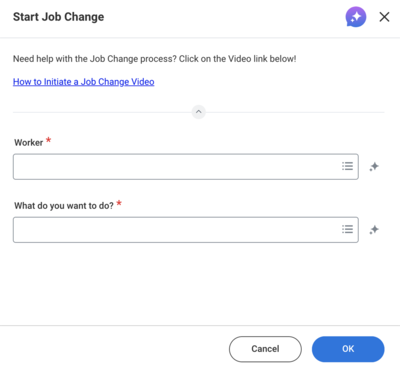
An example Change Job process initiated from the Start Job Change task.
The Start page includes a series of questions, including the effective date of the job change and information about the worker's team or location. If you select an organization that has multiple managers, all managers display.
Once the manager submits the job change request, the process routes to the appropriate users to complete any additional information for the transaction. For example, you might configure the
Change Job
process to have the receiving manager initiate a transfer, the HR Partner review administrative information, and the Compensation Partner review compensation information. If you select the Apply Template for Review/Approve Steps checkbox (in Maintain Change Job Templates
), the necessary security group will receive the configured template when reviewing or approving the job change.You can include a Start Job Change card to display on the Worker Profile, using the
Configure Profile Summary
task. Using the Maintain Change Job Templates
task, you can order your change job templates. The first five templates will display as buttons, based on the security of the user viewing the worker's profile. Users can also choose an additional template by selecting View All Options from the Start Job Change card on the Worker Profile.Initiating a Job Change
A worker can initiate a job change from two tasks:
Start Job Change
or Transfer, Promote or Change Job
. The task available to the worker depends on the worker's role and your Change Job business process template configuration.Typically, managers use the
Start Job Change
task, which prompts them with simple questions based on a configured template. Administrators and other initiating users can use the Transfer, Promote, or Change Job
task. This task guides users through additional fields and sections for processing the transaction, depending on the user's security permissions. Both tasks launch the Change Job
business process template.You can initiate the
Change Job
process from the following locations:- Search box
- A worker's Related Actions > Job Change
- My Team Managementdashboard
Transfer, Promote or Change Job
Transfer, Promote or Change Job
is a more robust task that administrators and other users can use to initiate the Change Job
business process template. Depending on the reason selected, Workday displays a series of questions on the Start page. After submitting the Start page, a guided editor takes users through each section of the job change individually. Users can see all relevant fields and complete them in smaller sections.Security Note
: All sections (e.g., Job, Location, Details, Attachments, Organizations, Compensation) are controlled by domain security. You can secure each section separately and adapt the process for different roles in your organization.Here is an example of the Start Page for the
Change Job
business process template: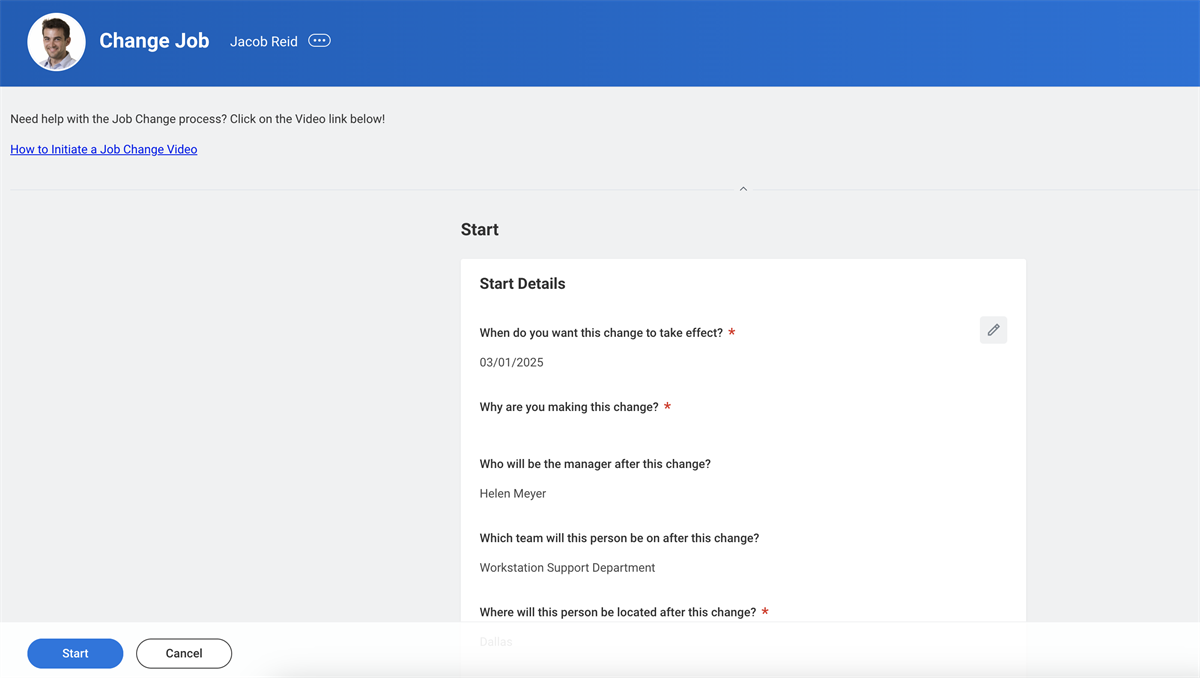
An example
Change Job
process initiated from the Transfer, Promote or Change Job
task.Here is an example of the guided editor for the
Change Job
business process template.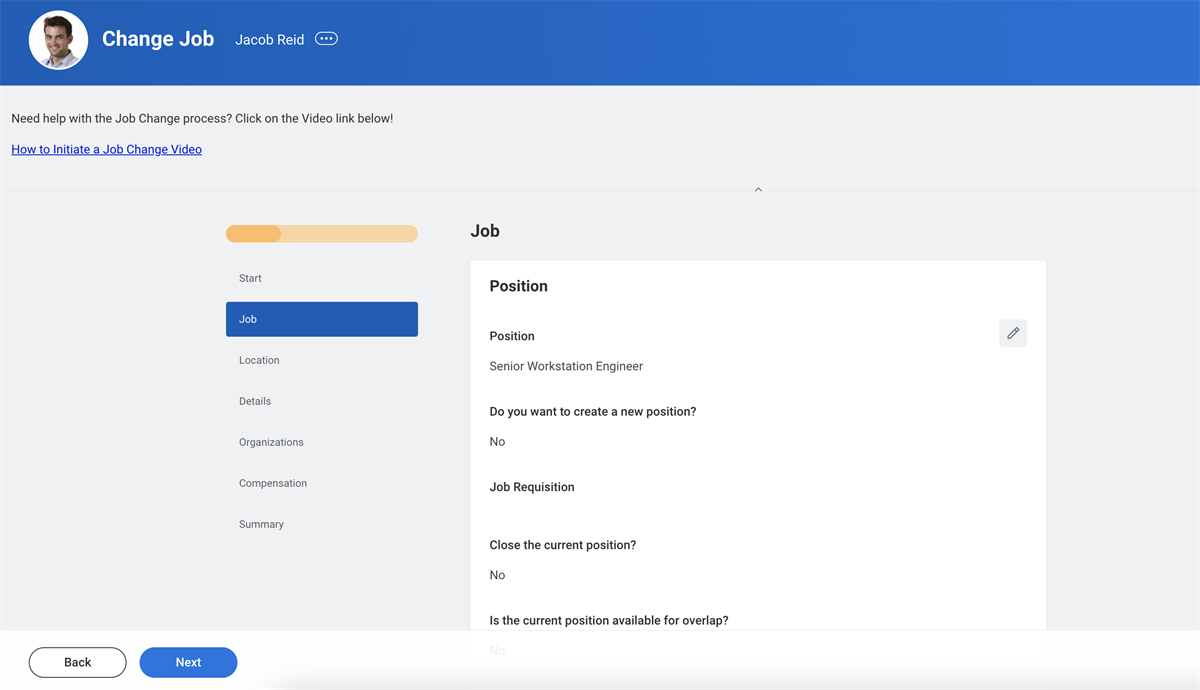
Micro-Tasks
The
Change Job
business process security policy lets you configure smaller tasks. These smaller tasks provide a simplified page with only the fields needed for the transaction. Users access these smaller tasks through the Change Job menu. Review the following micro-tasks:- Change Location: This initiating action only displays the necessary fields for changing a location.
- Change Contractor Details: This initiating action only displays the necessary fields for changing a contingent worker contract.
- Request Transfer: This initiating action lets a security group that does not have direct access to the worker initiate a transfer. Managers that want to transfer an employee from outside their organization into their organization often use this initiating action. If the security group has direct access to the worker, it should use theChange Jobworkflow.
Moving a Manager's Team
When you move a manager to a new organization using the
Change Job
business process template, you can also move the teams that report to that manager. The Move Team section displays:- The person who will manage the teams if you do not move the team with their current manager.
- The eligible teams to move.
- Any ineligible teams due to a future-dated change.
You can move all eligible teams or leave all teams behind, but you cannot move some teams and not others.
After you complete the
Change Job
transaction, Workday initiates a separate Assign Superior
subprocess for each eligible team with its own workflow and approvals. You can cancel, rescind, or correct the individual Assign Superior
subprocesses as needed.Create a New Supervisory Organization
When requesting the transfer of a new manager, you can create a new supervisory organization for the worker to manage by adding the
Create Subordinate
subprocess to the Change Job
business process. To do this, add a condition rule to the Create Subordinate step that determines when to initiate the step. You also need to assign the step to an HR role.Job Management Organizations
At the tenant level, you can determine how Workday handles a worker's position during a staffing movement when using job management. The "Change Job Use Default Orgs for Job Management" checkbox in the
Edit Tenant Setup - HCM
task keeps positions in their current organizations when workers move to a new organization with the same staffing model. Organization assignments default from the worker's new supervisory organization, but you need to reassign roles to the worker's new position. If you clear this checkbox, positions always move with workers to their new organization and workers keep their current role assignments.Assign Roles as Part of Change Job
Assign Roles - Change Assignments for Worker
is a subprocess in the template-based Change Job
business process. Use this streamlined subprocess to adjust role assignments when a worker leaves their position. To use this feature, edit the Assign Roles business process security policy to include the appropriate security groups on the Assign Roles - Change Assignments for Worker initiating action.When this subprocess is configured in the enhanced
Change Job
experience, a Summary of Changes section displays before the Assign Roles grid. You can collapse this section; however, it provides useful context for the user if they did not initiate the Change Job
process. The Summary of Changes section shows key values that will change during Change Job
process, including:- Position
- Leader/Manager
- Supervisory Organization
- Location
The user responsible for the
Assign Roles
task can use this information to determine whether or not to process a role assignment change.The Summary of Changes also provides options to prepopulate the role assignment grid. The options that display depend on whether the worker is moving to a new position as part of the
Change Job
, or staying in the same position. The user can choose from the following actions for the new and old role assignments:- Transfer role assignment
- Copy role assignment
- Remove role assignment from the old position
- None of the above (no changes to role assignments)
Also note that if you rescind the
Change Job
business process, the Assign Roles -
Change Assignments for Worker
subprocess does not automatically rescind as well. Any new role assignments will persist.Chapter Review
Use the
Change Job
business process template to complete promotions, demotions, transfers, lateral moves, and changes to position data and worker location changes.In the enhanced experience, the
Change Job
provides a configurable consolidated template and a guided editor user interface. You must configure both the relevant business process security policies and the supporting domain security policies to ensure the Change Job templates meet your business needs.You also learned about key configuration options for
Change Job
, including:- When you move a manager, the manager's team can move with them or can remain in the current organization.
- When a transaction creates a new manager position, you can create a new supervisory organization for that new manager as part of the change job process.
- The change job functionality includes several micro tasks that require limited data to initiate the process. Simplified data entry pages are available for micro tasks, such as change location and request transfer.
- Job changes from a job management organization may optionally retain organization assignments and role assignments.
- Managing role assignments can be a subprocess to ensure roles are correct as part of the overall transaction.