
Prepare for Hire
Overview
In Workday HCM, you cannot hire employees into supervisory organizations until other staffing actions are complete. For example, if the supervisory organization uses the position management staffing model, you need to create unfilled positions first. If the the supervisory organization uses the job management staffing model, you must set hiring restrictions first. If you have not completed these staffing prerequisites, the
HireEmployee
transaction will not be available on the supervisory organization.Create Position
and Hiring Restrictions
are staffing actions that use business processes. In this section, we will explore these staffing actions and their underlying business process types.Objectives
By the end of this chapter, you will be able to:
- Recognize the business process framework.
- Locate and manage events using rescind, cancel, and correct actions.
- Create positions and set hiring restrictions.
- Review and explain job requisitions.
Defining Business Processes
A business process controls what needs to happen, who does it, and when they do it to accomplish a transaction in Workday.
- What: Tasks, actions, and subprocesses
- Who: Workday security groups
- When: Defined time frame and order
Some common business processes help you hire workers, generate expense reports, and review data entered in Workday.
Business Process Terminology
The table below outlines key terms related to business processes.
Term | Definition |
|---|---|
Business Process Type | A kind of workflow delivered by Workday, like Hire, Terminate, or Expense Report Event |
Business Process Definition | A configuration of a business process type, like Hire for Global Support |
Business Process Event | An occurrence of a business process definition, like Hire: Logan McNeil |
Step | A task, subprocess, or other action that a user or Workday itself must complete during an event, like Propose Compensation |
Initiator | The user that starts the business process event |
Target | The subject of a business process event, like new hires, supplier invoices, and expense reports |
Overview of Staffing Business Processes
Workday delivers many default business process definitions for you to use as examples for configuring your own processes. You can configure the default definitions to meet your business needs.
Here are several examples of delivered business process definitions that you can configure:
Staffing
- Create Position
- Job Requisition
- Contract Contingent Worker
- End Contingent Worker Contract
- Transfer Contingent Worker
- Hiring Restrictions
- Edit Hiring Restrictions
- Edit Position
- Change Job
- Termination
- Hire
Compensation
- Request One-Time Payment
- Request Stock Grant
- Request Bonus Payment
- Request Employee Merit Adjustment
- Request Compensation Change (ad hoc)
- Propose Compensation Change (within a staffing event)
- Propose Compensation Hire (within a hire event)
Benefit Events
- Change Benefits
- Change Benefits for Life Event
- Change Benefits for Open Enrollment
- Change Retirement Savings
Time Off / Leave Events
- Request Time Off
- Request Leave of Absence
- Correct Time Off
- Request Return from Leave of Absence
Talent Management Events
- Start Performance Review
- Start Development Plan
- Start Performance Improvement Plan
- Start Disciplinary Action
Personal Data Events
- Photo Change
- Personal Information Change
- Edit ID Information
- Marital Status Change
Contact Information Events
- Legal Name Change
- Change Primary Address
- Preferred Name Change
- Change Emergency Contacts
HCM Business Processes
In this course, you will focus on four specific staffing business process definitions, which are defined in the table below. In this chapter, we will explore the
Create Position
and Hiring Restrictions
business processes, and we will discuss the other business processes in a later chapter.Business Process | Definition |
|---|---|
Create Position | Before you can hire into a position management enabled supervisory organization, there has to be an open, unfilled position available. This business process drives the workflow and any required approvals in order to create an open position. |
Hiring Restrictions | Before you can hire into a job management enabled supervisory organization, you must establish hiring restrictions. This business process drives the workflow and any required approvals in order to set hiring restrictions on the organization. |
Hire | This business process drives hiring employees into a supervisory organization regardless of which staffing model you assign and use. |
Propose Compensation Hire | This business process allows compensation components, such as packages, grades, and plans to default in for employees you hire. When hiring employees, Propose Compensation Hire is the business process Workday uses to assign or default in compensation. |
Change Organization Assignments for Worker | This business process allows the change of organization assignments for an individual worker or a position. |
Find and Manage Business Process Events
When you initiate a business process, Workday creates an event, or instance. In some cases, you might need to cancel an event or make corrections to data entered into Workday.
Effective Dating
Many Workday business objects let you specify an effective (or "as of") date when you create or edit them. Changes to the business object take effect on the effective date/time, rather than the date/time you actually enter the data changes.
Business Cases
:- You need to hire a worker retroactively.
- You request a compensation change on the first day of next year.
Workday never prompts you for the data entry date; instead, the system stores the data entry date. Tracking the effective date and the data entry date allows for various types of reporting.
Find an Event
Before you make changes to an event, you first need to find the event in Workday.
Review the following methods for finding events:
Method | Description |
|---|---|
Search | Use the "event:" search prefix in the Search bar. |
My Tasks Archive Tab | Use your My Tasks Archive tab to find events that you were part of in the last 90 days. To view historical events older than 90 days or during a particular time period, use either the Archive tab > Advanced Search or search for and use the View More Processes report. |
Worker Profile | From a worker's Worker Profile, navigate to the Job section > Worker History tab. Note : Configure the Worker History report on the Job for Worker Profile section group to access this information. |
Related Actions | From a worker's Related Actions, select Worker History > View Worker History. |
Find Events Report | Use the Workday-delivered Find Events report to view events by business process. This report allows for facet filters. |
Security Note
: Your ability to access an event depends on your organization and administrative roles. For example, a manager can view the Hire event of a worker in the organization they manage. However, if the worker transfers to a different organization, the manager can no longer view that worker's events.Process History
Locate the business process, then expand the Details and Process section, and select the Process tab. The information on this tab shows the status of each individual step, as well as whether it is awaiting action from an individual. The Process tab provides information about who did what and when.
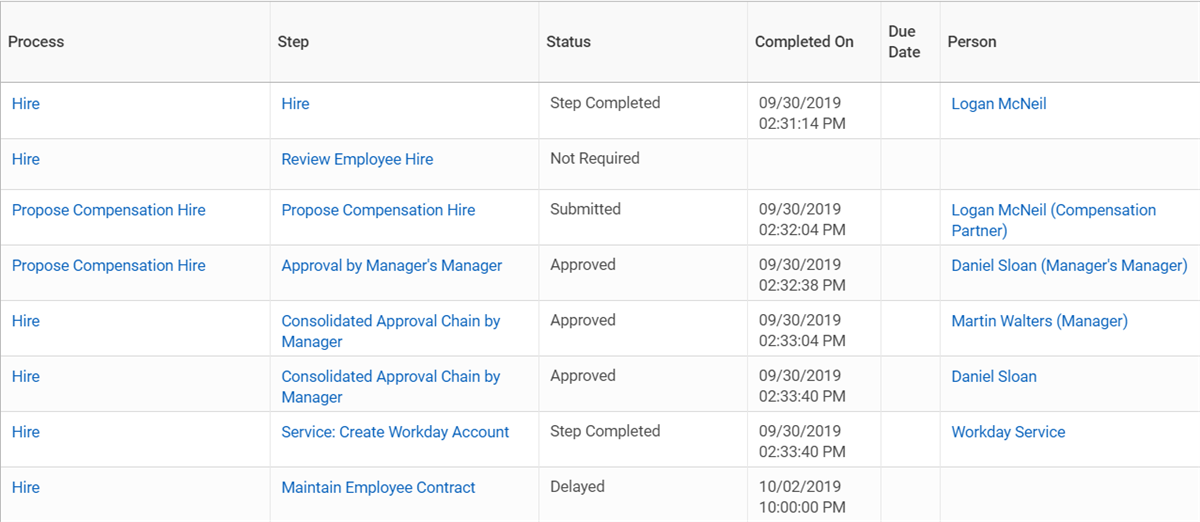
An example of the Hire business process history.
Manage Events From The Related Actions
You can perform the following troubleshooting tasks from the Related Actions on the business process event:
- View Definition: Determines which business process definition Workday initiated for the transaction.
- Full Process Record: Provides a view of the entire business process, including generated notifications.
- Test Rule: Tests condition rules within the business process definition.
- Report Fields and Values(within the Reporting menu): Lists all fields available to the event, including the field names, values, field types, related business objects, categories, and descriptions.
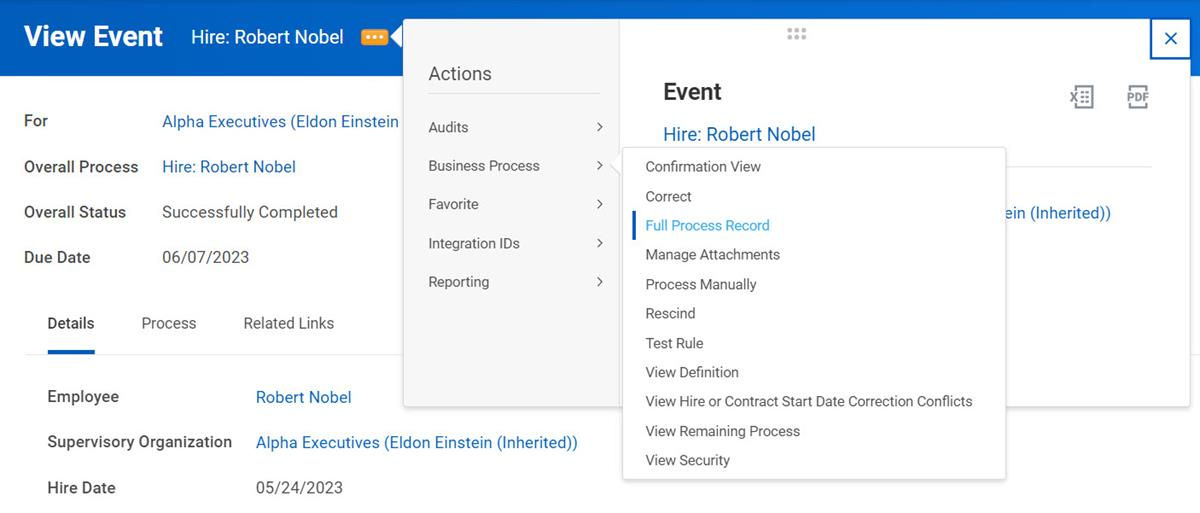
View Event's Related Actions Menu to Access the Full Process Record
Correct Business Processes
After you initiate a business process, you may need to make corrections. With Workday, you can correct over 80 business processes related to staffing, compensation, contact information, talent management, and more.
Use the
Correct
task to change information entered during the business process initiation. This task is administrative, so approval is not necessary. However, Workday requires a comment and confirmation for audit purposes. When you correct a business process, the same fields available during initiation are available for correction. You can correct in-progress or completed business processes.Security Note
: To correct a business process, the appropriate security groups must have permissions for the Correct action on the business process security policy.Out of Order Correction and Effective Dating
Workday uses effective dates in staffing events, giving you flexibility to insert and correct staffing events out of order. You can correct most out-of-order staffing events as long as the change does not affect a worker's organization or position. Review the following list of some processes that allow out-of-order corrections:
Hiring
- Add Additional Job
- Contract Contingent Worker
- Hire Employee
- Start International Assignment
Job Change
- Change Job
- End Additional Job
- End International Assignment
- Promote Employee
- Terminate Employee
- Transfer Employee
Note
: To correct the supervisory organization on the Hire
business process, enable the tenant setting in Edit Tenant Setup - HCM
task.When you make a correction, Workday displays a supporting information section that lists later staffing events, moves, and reorganizations in a worker's history. Review this information to determine the impact of your correction so that you can fix the later events, if necessary. The supporting information section also includes Workday system-generated events. These events reflect changes that occur when Workday converts and defaults data during previous updates. You can drill into the event details and rescind these events, if necessary.
If you correct the date of a staffing event, the new effective date cannot be earlier than the previous event or later than the next event in a worker's history. Keep all staffing events, moves, and reorganizations in the same order.
If you correct a completed event, Workday does not validate your changes against the hiring restrictions for the worker's job or position.
Note
: Workday does not apply corrections to later events for you. Anyone who has security permission to correct a staffing event can make an out of order correction. Workday strongly recommends that you restrict corrections to administrators.Cancel and Rescind Business Processes
You can rescind or cancel most business processes. There are two primary differences between rescind and cancel:
- Rescind
- Use when the process has an overall status of Successfully Completed.
- Security groups with appropriate permission can rescind.
- Cancel
- Use when the process has an overall status of In Progress.
- Security groups with appropriate permissions, as well as the worker who initiated the process, can cancel.
Business process administrators, and other users with the appropriate permissions, can rescind or cancel a business process from the business processes' Related Actions > Business Process.
Set Hiring Restrictions and Create Positions Recap
There are items that you need to understand and address before you can begin creating positions or setting hiring restrictions in supervisory organizations. Those items include:
- Defining staffing models on supervisory organizations.
- Understanding hiring restrictions available for use.
- Configuring staffing business process definitions.
Hiring Restrictions Recap
Hiring restrictions set controls on how you hire into your position or job management supervisory organizations. Hiring restrictions control recruiting and target hire dates, as well as various employment conditions such as location and time type.
Where you set the hiring restrictions depends on the staffing model of the supervisory organization:
- Position management: Set the hiring restrictions on every individual position.
- Job management: Set the hiring restrictions on the entire organization.
Defining hiring restrictions is mandatory for both positions and job management supervisory organizations. If you choose not to identify specific hiring restrictions (aside from the required Availability and Earliest Hire Date fields), you must select the No Job Restriction checkbox.
Review the following list of available hiring restrictions. The same hiring restrictions are available regardless of staffing model:
Field | Description |
|---|---|
Job Family | Limits what job profile you can select. Only job profiles in the selected job family are available. |
Job Profile | Limits what job profiles you can select. If you set only one job profile as a hiring restriction, you cannot change the job profile during hiring. |
Location | Limits what location you can select. If you set only one location as a hiring restriction, you cannot change the location during hiring. |
Worker Type | Select from employee or contingent worker. If you select employee, the Contract Contingent Worker task will not be available. |
Worker Sub Type | Only available if you first select a Worker Type. Select from a tenanted list. Values could include regular, casual, fixed term contract, seasonal, or intern. |
Time Type | Limits what time type you can select to either full-time, part-time, or variable time. |
No Job Restrictions | Select this checkbox to allow for any combination of attributes during staffing transactions. |
The system enforces hiring restrictions during staffing transactions like
Hire
, Contract Contingent Worker
, and Change Job
. For example, if you restrict a position to a location of San Francisco, when you hire a worker into that open position, the location of that worker must be San Francisco. You cannot change the location at the time of hire.The system also enforces the job profile restriction during certain job changes, such as transfers. The system does not enforce job restrictions during the
Edit Position
staffing event.Create Positions Recap
Before you can hire into a supervisory organization that uses the position management staffing model, you must have an open position available.
The
Create Position
task has four required fields: Job Posting Title, Number of Positions, Availability Date, and Earliest Hire Date. You also have the option to set hiring restrictions on the positions. You must select at least one restriction, or select the No Job Restrictions checkbox.Aside from hiring restrictions, you can populate the following information when creating a position:
Field | Description |
|---|---|
Position Request Reason | The reason for creating a position. Reasons are customer-defined. |
Job Posting Title | How you communicate the open position externally. |
Number of Positions | The number of positions you want to create. You can create multiple unique positions with the same characteristics. The system appends a number to the end of each title to identify them as unique positions. |
Information included on the position or job profile defaults during the
Hire
and Contract Contingent Worker
processes.Note
: If information, such as a job description or qualifications, exists on both the position and job profile, the position information overrides the job profile information. Workday prioritizes the position information since it is specific to the unique position and worker.Set Hiring Restrictions for Job Management Organizations Recap
Before you can hire into a supervisory organization that uses the job management staffing model, you must set hiring restrictions. These restrictions apply to the entire supervisory organization, which allows for efficient staffing requirements.
When you establish hiring restrictions at the supervisory organization level, those restrictions apply to all workers you bring into the organization. For example, if you set a supervisory organization with a hiring restriction on the employee worker type, then you can only bring employees into the organization. This restriction does not allow for contract contingent workers to be in that supervisory organization.
The job management staffing model does not impose a limitation of the number of jobs available in the organization. Therefore, once you set restrictions, you can hire, contract, or transfer as many workers that meet the hiring criteria. This enables speed and flexibility for staffing. Keep in mind that once a worker transfers or terminates, the job they occupy does not remain in the supervisory organization.
Like position management, job management requires you to select at least one restriction, or select the No Job Restrictions checkbox. The restrictions you set apply to the entire supervisory organization, not just the individual position.
Modifying Positions and Hiring Restrictions
There may be scenarios wherin you need to modify hiring restrictions for jobs and positions. Workday provides these tasks to facilitate changes:
- Edit Hiring Restrictions
- Edit Position Restrictions
- Edit Job
- Edit Position
For example, if you need to modify the hiring restrictions that limit staffing of a job or position management organization, use the
Edit Hiring Restrictions
(Job Management) or Edit Position Restrictions
(Position Management) tasks to change job profiles, locations, time types, or worker types. These changes do not affect the current incumbents. These tasks do facilitate changes for future hires.Similarly, you may need to update information related to a worker's current job or position, such as job profile, worker type, time type, location, job classifications, and work shift. Use th
Edit Job
(Job Management) or Edit Position
(Position Management) tasks to access Job Details and Additional Information to revise the current worker's information. Generally, use these tasks for administrative changes.Job Requisitions
You may require a job requisition before moving a worker into an open position. If you use Workday Recruiting, job requisitions are required. If you do not use Workday Recruiting, you can enable job requisition functionality in your tenant. If you require job requisitions, consider adding the Create Job Requisition step to business processes that vacate jobs or positions, such as
Termination
and End Contingent Worker Contract
.Job requisitions are compatible with both position management and job management supervisory organizations:
- Position management: You can make job requisitions required or optional during staffing events, based on business process rules andEdit Tenant Setup - HCMconfiguration options. If you require job requisitions, you must have an open job requisition when moving a worker into a filled or unfilled position, so you can recruit and hire for the position.
- Job management: Job requisitions are optional for the job management staffing model. However, you can configure rules on fill events to specify when the Job Requisition field is required.
- Both staffing models: When you create job requisitions for any supervisory organization, Workday automatically populates qualifications, education, competencies, and much more from the associated job profile.
When creating a job requisition, you can either create a new position or attach the job requisition to an existing position. When you create a job requisition for an existing position, Workday populates fields based on the associated position and position restrictions (position management) or the associated job profile (job management).
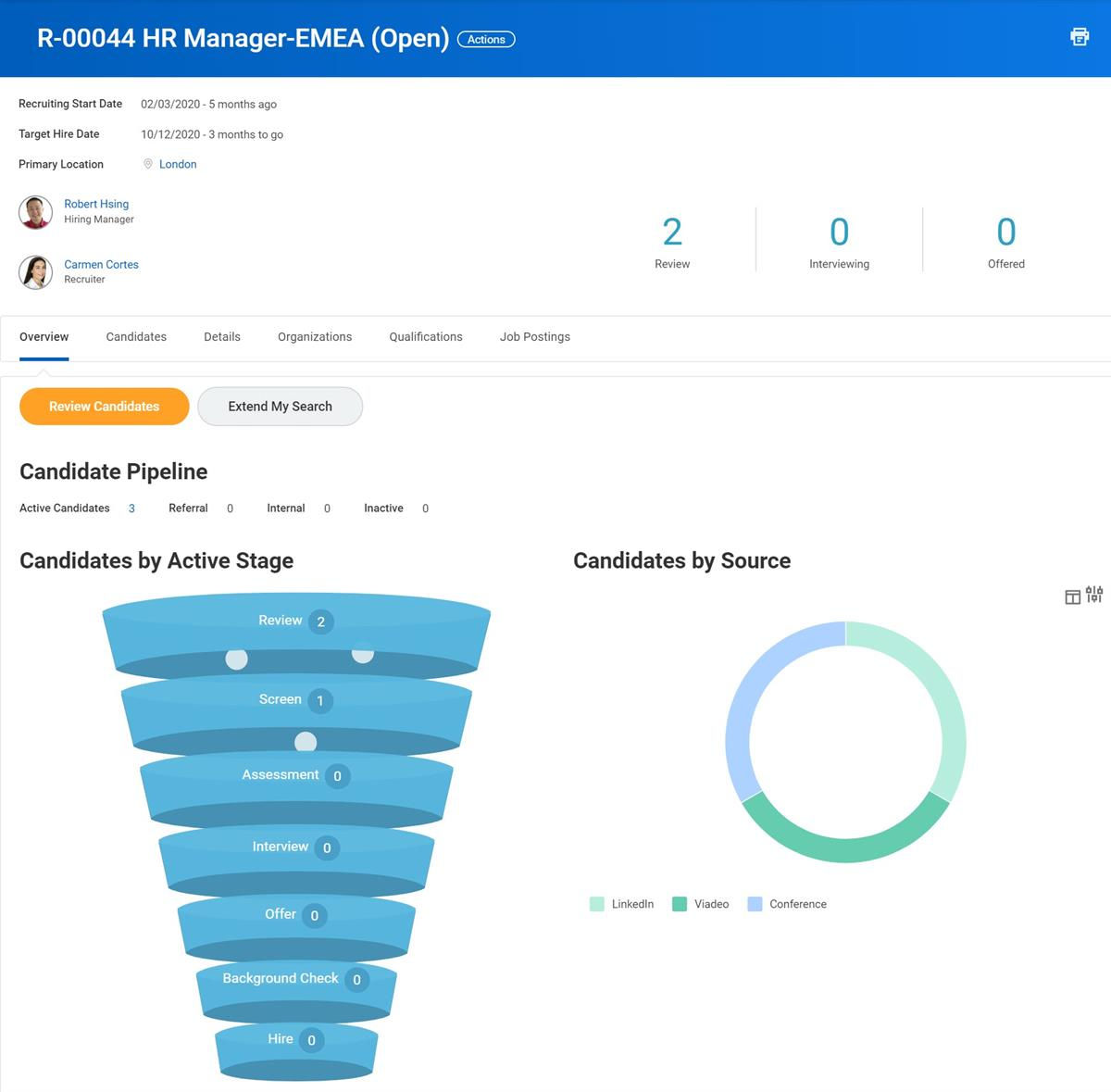
An example of the HR EMEA Job Requisition
Tenant Setup
Use the
Edit Tenant Setup - HCM
task to enable job requisition functionality for your tenant.The following information details additional job requisition-related functionality that you can configure using this task.
Enable Organization Defaults on Create Job Requisition
You can default organization data (e.g., company and cost center) from the supervisory organization linked to the requisition. Use
Edit Tenant Setup - HCM
> Job Requisitions. Select the Enable Organization Defaults on Create Job Requisitions checkbox.Position Management Staffing Model
If you create job requisitions for supervisory organizations using the position management staffing model, select the
Edit Tenant Setup - HCM
task > Enable Job Requisitions Position Management > select one of the following three options:- Require Job Requisitions for all Position Management staffing events
- Enable Job Requisitions for Position Management based on rules
- None of the above
Job Management Staffing Model
If you create job requisitions for supervisory organizations using the job management staffing model, select the
Edit Tenant - HCM
task > Enable Job Requisitions for Job Management checkbox.Configure Defaulting Behavior
For position management organizations, when you use the
Create Job Requisition
task, you can configure how the following hiring restrictions default (there is only one value per field):- Job Profile
- Primary Location
- Time Type
- Worker Type
- Worker Sub-Type
Using the
Edit Tenant Setup - HCM
task, you can enable Defaulting Behavior for Position Management Job Requisitions. There are two options to select from:- Default from most recent filled position on Create Job Requisition
- Default from Position Restriction on Create Job Requisition
Default Job Description and Job Description Summary from Job Profile
When you create a job requisition for an existing position, you can enable the job description and job description summary to default from the job profile. From the
Edit Tenant Setup - HCM
task, select the Default Job Description and Job Description Summary from Job Profile checkbox.Chapter Summary
Business process definitions are the workflow required to accomplish a task. Workday delivers various staffing business processes, such as
Create Position
or Job Requisition
, to meet your business needs. Workday creates an event when a business process executes. Based on security permissions, you can cancel or correct in-progress events, and you may rescind or correct completed events.Before you can hire any worker into the Workday enterprise, you must prepare for hire. For example, to hire into a position management enabled supervisory organization, you must create a position first. Before hiring into a job management enabled supervisory organization, you must set hiring restrictions. The
Create Position
and Hiring Restrictions
tasks initiate business processes.You may also need to periodically update hiring restrictions for jobs and positions. You can edit or adjust positions, jobs, and hiring restrictions using different tasks, such as
Edit Position
or Edit Job
. The Edit Position Restrictions
and Edit Hiring Restrictions
tasks facilitate changing hiring restrictions for future hires.