
Configurable Security Framework
Overview
Workday provides a security framework that enables you to configure what users can view and what actions they can take in the system. The system is organized into functional areas. Functional areas are divided into domains and business processes. These functional areas, domains, and business processes are Workday owned and delivered. Customers cannot add, remove, or rearrange these, but they can configure user access by creation and configuration of users and security groups.
Domains secure tasks and reports that are functionally similar. Their security policies control the access to tasks, reports, data, and web services. These permissions define who can run a report, view the data within a report, or complete a task in Workday.
Business processes contain security policies, configuration options, and workflows within a functional area. Business process security policies allow customers and implementers to determine who can participate in a business process workflow. These permissions define who can initiate, approve, cancel, and rescind business process events.
Through security group configurations, a user can navigate and access Workday-delivered items, such as reports, tasks, and business process transactions.
Objectives
By the end of this chapter, you will be able to:
- Summarize the structure of configurable security and its implications.
- Evaluate and modify configurable security on domains and business processes.
- Activate security policy changes to create a new security evaluation moment.
- Recognize the function and use of Workday-assigned, user-based, and role-based security groups.
- Differentiate between constrained and unconstrained access.
- Create security groups and test permissions.
Configurable Security Framework
Security Groups
A security group allows you to grant Workday access to a collection of system users. To add users to security groups, you can either:
- Assign users to security groups manually.
- Derive membership based on information about users, such as their role assignments, job profiles, or organization memberships.
Functional Areas
At the highest level, Workday delivers the application in functional areas (e.g., Staffing, Benefits, Core Compensation, Financial Accounting, Procurement). Each functional area contains domains and business process types.
Domains
Domains are collections of items that share the same security (e.g., tasks, delivered reports, report data sources, web service operations). Workday determines the secured items within each domain, and a given item may be in more than one domain. You cannot change the delivered items in each domain.
Business Process Types
Business process types represent events or transactions in Workday. Workday determines the available business process types. You can configure the business process definition steps, such as approvals and actions, and which security group each step routes to.
Security Policies
Security groups gain access to domain and business process types in Workday via security policies. Add security groups to a domain security policy to grant access to the secured items within the domain. Add security groups to a business process security policy to grant ability to participate in (e.g., initiate, rescind, approve) that type of business process.
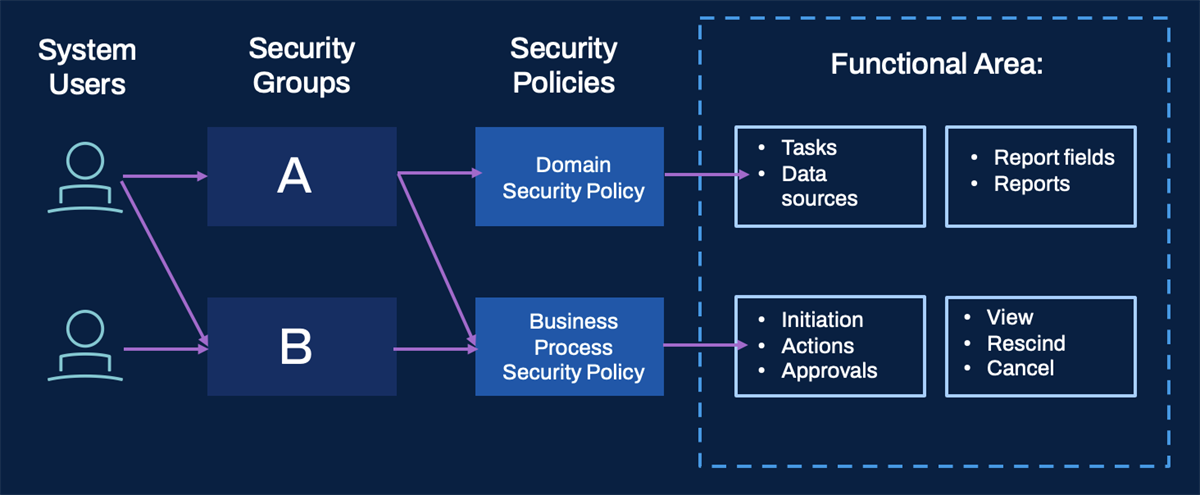
Illustrative example of the configurable security framework.
Cross-Application Framework
Important
: All Workday applications (e.g., Workday HCM, Workday Financial Management, Workday Time Tracking) in your tenant use the same security configuration. Therefore, security changes made to one Workday application may affect other Workday applications.For example, suppose you remove the Report Writer security group from the Custom Report Creation domain security policy. Members of this security group can no longer create custom reports, regardless of the functional area they typically create reports for.
What Can Be Configured?
What Can Be Configured: | What Cannot Be Configured: |
|---|---|
|
|
Note
: Workday provides 200 custom domains in the System functional area that allow you to configure security permissions for custom items, such as custom dashboards and custom objects.Steps for Configuring Security
In order to gain access in Workday, a user must be included in a security group with permissions to security policies. You can use delivered security groups or create your own as needed using the
Create Security Group
task. You control what domain or business process security policies a security group has access to.When changes are made to a security policy, those changes are saved but are pending until the
Activate Pending Security Policy Changes
task is run. Once you activate those changes, be sure to test access thoroughly. If you add a user to a security group that already has security policy permissions, you do not need to activate changes.Steps for configuring access can be summarized as follows
:- Identify users
- Create security groups
- Edit security policies
- Activate Pending Security Policy Changes
- Test changes
Enabling Functional Areas
Depending on the scope of your Workday deployment, not all functional areas will be enabled. For example, your deployment may occur in multiple phases. One of these phases could include deployment of the Advanced Compensation functional area. This would require you to enable the new functional area and any security policies for secured items you want to provide access to.
Use the
Maintain Functional Areas
task to enable or disable functional areas. This task displays the Workday-delivered functional areas and the domains and business process types in each. Select the checkbox under the Enabled column to enable or disable a functional area.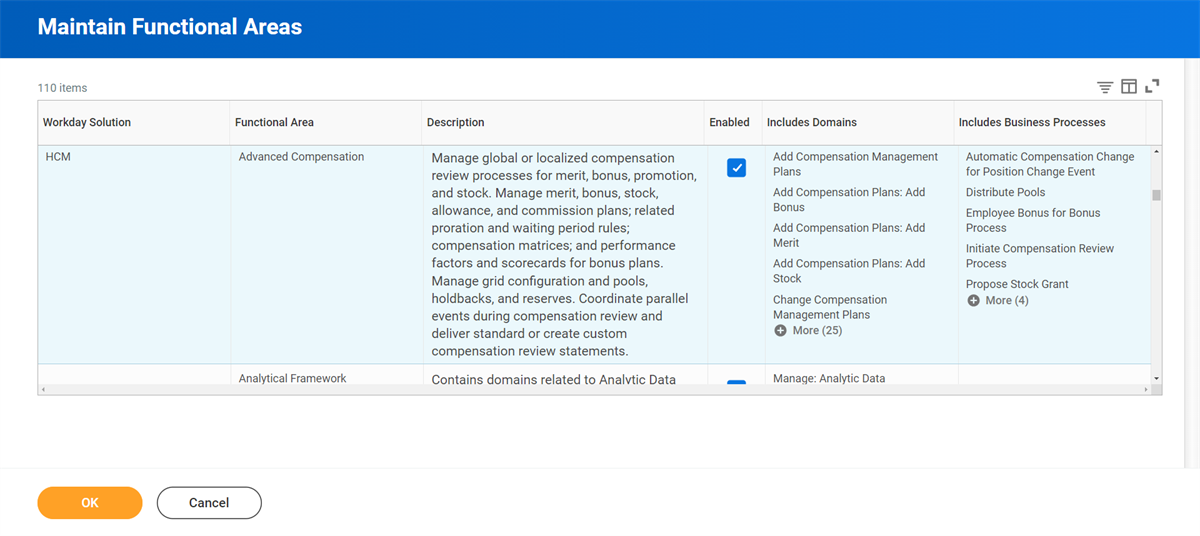
Report
: You can also use the Functional Areas
report to access an overview of the Workday-delivered functional areas and the domains and business process types in each.Enabling New Domains
During a deployment, or when you create new security domains in Workday, you may run into times when a security domain is not enabled or configured. This can be problematic when the domain secures a task or data that you need access to. In these cases, enable a security domain and configure the permissions on that domain.
If a security domain has a status of "Suspended - Policy not enabled," enable it to be able to grant access to the items it controls.
From the domain security policy's Related Actions, select Domain Security Policy, and then Enable.
You confirm the change and then select OK to enable the domain. After you enable the domain, you can edit the permissions to grant View and View/Modify access to the appropriate security groups in your system.
Important
: Enabling a security domain, like any other security change in your system, requires activation. Anytime you enable a security domain, be sure to use the Activate Pending Security Policy Changes
task to activate your changes.Important
: While Workday may release a new domain in an existing functional area, we rarely deliver new domains already enabled or with security groups in place. We give you the framework. You decide if, when, and how you want to uptake that framework.When Workday pre-enables new domains, we will specify whether you must set up permissions. If we ran conversions to set up the permissions, we will share our default assumption of access as a starting point. That way, you can decide if you need to take further action.
Enabling New Business Process Types
If there are new business process types delivered in an update, you may need to create the business process security policy and set up the permissions. You will also likely need to create the default definition.
Security Groups
The following table displays the three ways users become members of security groups in Workday:
Method | Security Group Type Examples | Security Group Examples |
|---|---|---|
Workday-assigned | Self-service, public | All Employees, All Contingent Workers, Employee As Self |
Manually assigned | User-based, integration system | Report Writer, Payroll Administrator, Finance Administrator |
Derived (Membership is based on security group criteria) | Role-based, job-based, location membership | HR Partner (role-based), VPs (job-based), U.S. Locations (location membership) |
Constrained and Unconstrained Target Access Types
Each security group type has a predefined context type: constrained, unconstrained, or mixed. For example, the user-based security group type has a context type of unconstrained. Members will not have a context or constraint enforced on what target data they can view when accessing permitted items.
Examples of security group types with constrained context include:
- Self-service groups constraining members to their own instance of data.
- Role-based groups constraining members to target instances in assigned organizations.
- Segment-based groups constraining members to values in defined segments.
The following table summarizes the available context types:
Context Type | Definition |
|---|---|
Unconstrained | Users can access all target instances of a securable item. |
Constrained | Users can access a subset of data when accessing a securable item. Which target instances they can view is typically based on organization. |
Mixed | Users can access a subset or all data when accessing a securable item, depending on the combined constraints in intersection or aggregation security group types. |
Workday-Delivered Security Groups
Workday owns and automatically assigns some security groups. For example, when you create a new Workday account for a new hire, Workday automatically assigns self-service (e.g., Employee-as-self) and public (e.g., All Employees) security groups to the account. These security groups allow the user to perform self-service tasks and to access public information.
Examples of Workday-delivered (Workday-assigned) security groups include:
Public | Self-Service | Other |
|---|---|---|
|
|
|
You can also run the
View Security Group
report and select Workday-Delivered Security Groups from the prompt to see the complete list.Self-Service
Self-service security groups, such as Employees As Self and Contingent Worker As Self, provide users with constrained access to only their own instance of data. Workday automatically assigns these security groups to workers in order to provide them with access to self-service tasks.
Some examples of domain security policies that self-service security groups may have access to include:
- Self-Service: Home Address
- Self-Service: Emergency Contacts
- Self-Service: Beneficiaries
- Self-Service: Expense Report
Public Groups
Public security groups, such as All Employees and All Retirees, provide users with access to public data appropriate for their employment status. Workday automatically assigns these security groups to workers in order to provide them with access that all members need.
Some examples of domain security policies that public security groups may have access to include:
- Worker Data: Public Worker Reports
- Worker Data: Worker Summary Reports
- Worker Data: Organization Information
- Worker Data: Management Chain
User-Based versus Role-Based
There are many different security group types that support unique business requirements; however, user-based and role-based are two common types. In Workday HCM, you will configure and use both types to secure different areas of the system, including access to tasks, reports, and data.
User-Based
- An administrator type security group.
- Access is system-wide.
- Assign directly to a worker.
- Target access is always unconstrained.
Role-Based
- A partner or leader type security group.
- Access is specific to one or more organizations.
- Assign directly to a job or position.
- Can have either constrained or unconstrained target access.
User-Based Security Groups
User-based security groups are the least restrictive security group type, providing members unconstrained access to items in permitted security policies. This security group type is appropriate for administrators or specific individuals who need system-wide access for their areas of responsibility. If you manually assign user-based security groups to a user, they stay with that user regardless of position or job changes, until manually removed.
Examples of user-based security groups include:
- HR Administrator
- Payroll Administrator
- Finance Administrator
- Security Administrator
- Report Writer
- Auditor
Workday provides several default user-based security groups as a starting point. You can also create your own user-based security groups, as needed.
Create User-Based Security Groups
Below are the high-level steps to create a user-based security group:
- Create a user-based security group.
- Configure the security group on security policies.
- Activate pending security policy changes.
- Assign users to the security group.
- Test configurations.
Who Can Assign Users
You can assign users to a user-based security group under one of two conditions:
- If you are a member of a security group with Modify access to the User-Based Security Group Administration domain, you can assign users to any user-based security group.
- If you are a member of a security group included in the Administered by Security Groups field, you can assign members to that particular security group.
Assign Users
If authorized, you can assign users to user-based security groups in several ways:
- Run one of these delivered tasks from the Search box:
- Assign Users to User-Based Security Group.
- Assign User-Based Security Groups for Person.
- View a user-based security group and use the Related Actions to select User-Based Security Group > Assign Users.
- View a user and use their Related Actions to select Security Profile > Assign User-Based Groups.
- Use a web service with Put permissions. Two web services are available:
- Put Assign User-Based Security Group: Replaces all users in the specified user-based security groups with the configured users.
- Put User-Based Security Assignment: Replaces all user-based security groups for the specified users with the configured security groups.
Update User-Based Security Group Assignments
You can also use the following tasks to assign user-based security groups to users via workflows:
Task | Usage |
|---|---|
Update User-Based Security Group Assignments | Modify user-based security groups for a user via workflow. |
Update User-Based Security Group Membership | Modify the users in a user-based security group via workflow. |
When enabled and configured, these workflows allow you to create your own approval processes for the assignment or removal of user-based security groups. Initiate these workflows through the Workday user interface or with a web service task.
With a configurable review process, a security administrator can assign themselves additional user-based security groups. The approval/review can then route to another security administrator to ensure compliance with security procedures. The below steps explain how to set up these workflows:
- Enable theProcess: User-Based Security Group Eventdomain security policy in the System functional area.
- To configure theUpdate User-Based Security Group Assignmentstask, do the following:
- Run theCreate Business Process Definitiontask.
- For Business Process Type, selectUser-Based Security Group Event For User.Note: Contextual routing of constrained security groups is available for the User-Based Security Group Event for User business process. When you configure the business process definition and security policy, you can route to constrained role-based security groups and roles assigned to Company, Company Hierarchy, Supervisory, Cost Center, Cost Center Hierarchy, Custom, and Location Hierarchy.
- Select the Business Process Definition'sRelated Actions, and selectBusiness Process Policy > Edit.
- Update the business process security policy as needed.
- Search for theUpdate User-Based Security Group Assignmentstask. Running this task will trigger the workflow.
- To configure theUpdate User-Based Security Group Membershiptask, do the following:
- Run theCreate Business Process Definitiontask.
- For Business Process Type, selectUser-Based Security Group Event for Group.Note: You can select the User-Based Security Group Administrator security group as the Initiator, Approver, or Reviewer of the User-Based Security Group Event for Group business process. When you update a user-based security group's membership, the User-Based Security Group Administrator group will dynamically route to members of the updated group's Administered by Security Groups field.
- Select the Business Process Definition'sRelated Actions, and selectBusiness Process Policy > Edit.
- Update the business process security policy as needed.
- Search for theUpdate User-Based Security Group Membershiptask. Running this task will trigger the workflow.
- (Optional) You can disable existing tasks for adding members to user-based security groups so that all user-based security group assignment changes go through the new business process.Run theMaintain FeatureOpt-Instask. For the Disable User-Based Security Group Assignment Tasks feature, selectOpt In To Feature.
Role-Based Security Groups
Role-based constrained security groups are used frequently in Workday because they allow you to configure access for your support and leadership staff (e.g., managers, HR partners, accountants, recruiters). You can allow these workers to access needed tasks, reports, and business process steps, but constrain them to just the organizations that they support or lead. Only role-based constrained security groups allow you to individually assign worker positions to a role for a specific organization that they are not in.
Assignable Roles
Role-based security groups use a concept called an assignable role (or "role"). Role assignments involve assigning a role to a worker's position or job for a given organization or role-enabled instance.
You can think of assigning the role to a "chair" that the worker is in, rather than to the worker themselves. Workers become members of a role-based security group when their "chair" (position or job) is assigned to the assignable role referenced in the security group definition.
Some examples of assignable roles and their assignments in GMS are:
Assignable Role | Enabled for Organization Type | Role-Enabled Instance | Position / Job |
|---|---|---|---|
Manager | Supervisory | IT HelpDesk Department | Manager, IT HelpDesk - Jared Ellis |
Accountant | Company, Company Hierarchy | Global Modern Services, Ltd (Canada) | Tax Accountant - Andrew Walton |
Payroll Partner | Pay Group | GBR Monthly | Director, Payroll Operations - Ella Phillips |
Cost Center Manager | Cost Center, Cost Center Hierarchy | 33000 Global Support Center | Vice President, Global Support - Susan Steinberg |
HR Partner by Location | Location Hierarchy | Japan & Asia/Pacific | HR Manager - Fumi Endo |
Create Role-Based Security Groups
Like user-based security groups, Workday delivers some starting role-based security groups. However, you may still need to create your own to fit your unique business needs. While you assign user-based security groups directly to a user, you assign role-based security groups to a job or position through assignable roles. If you need to create a custom role-based security group, there are steps that you need follow.
- Run theMaintain Assignable Rolestask and confirm the assignable role is there.
- Run theCreate Security Grouptask and select either Role-Based (Constrained) or Role-Based (Unconstrained) to meet your needs. Use the desired assignable role.
- Assign workers' positions/jobs to the role for enabled organizations.Important: Maintaining role assignments is an ongoing process.
- Edit security policies to include the security group for desired security permissions.
- Run theActivate Pending Security Policy Changestask.
- Test your configurations.
Maintain Assignable Roles
Define and enable assignable roles for the necessary organization types first, then you can create or work with a role-based security group.
View and Maintain Assignable Roles
Run the
View Assignable Roles
report to access assignable roles already configured in your tenant.Use the
Maintain Assignable Roles
task to add, remove, and maintain assignable roles. The required fields are Role Name, Enabled For, and Assigned by Security Groups.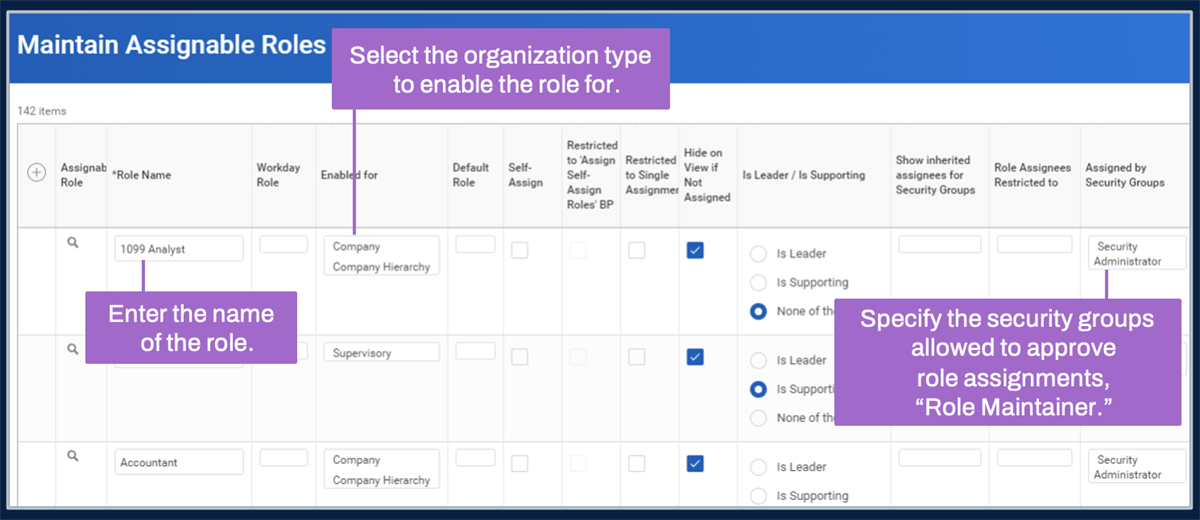
Maintain Assignable Roles
Note
: The Assigned By Security Groups field establishes the role maintainers, which are security groups whose members can approve assignments for this role. Role maintainers can assign members of the role only within the organizations they support.The available fields in the
View Assignable Roles
and Maintain Assignable Roles
tasks are:Field | Definition |
|---|---|
Role Name | This field allows you to provide a name for your assignable role. Common names include the terms "partner," "manager," or "analyst." |
Workday Role (Optional) | There are certain Workday-provided roles, such as the Manager or Benefits Partner roles, that Workday uses for nonsecurity purposes, such as populating worklets or generating reports. Only the roles that appear in the prompt are available to map. Once you have mapped them, they no longer appear in the prompt list. |
Enabled for | This field allows you to select the types of organizations for which you want to maintain and assign this role. Note : Configure a single role for a single organization type, when possible. Configuring a role for multiple organization types can make it difficult to determine how a user is able to access a particular secured item. The exception is for organization types where there is role inheritance between a hierarchy and its included organizations, such as cost center hierarchy and cost center. |
Default Role | An unassigned role can inherit from a superior organization. This field allows you to select another role as the default assignment. Available default roles are other roles that are valid for the same organization type. |
Self-Assign | Select this option to default the role assignment to the organization creator's primary position. If you select Yes for Self-Assign, you can also select the Restricted to 'Assign Self-Assign Roles' BP field. |
Restricted to 'Assign Self-Assign Roles' BP | With this option selected, Workday automatically assigns the creator of an organization to fill the role for the organization they are creating. |
Restricted to Single Assignment | This field allows you to restrict the role assignment to one position. Do not select this option for the Workday Manager role if you wish to allow the assignment of multiple managers to a supervisory organization. |
Hide on View if Not Assigned | When viewing an organization, you can determine the roles enabled for that organization type and the assignments. With this option, you can choose to hide unassigned roles. If selected, noninherited unassigned roles will not display on the following reports:
There is no impact on the Unfilled Assigned Roles Audit report.Do not hide roles you need to audit, such as roles used in your business process routing. |
Is Leader / Is Supporting | Select for roles whose assignees should display as leaders in the organization chart and organization preview. Workers assigned to an Is Leader role display in the supervisory or matrix organization name when you select Include Manager Name. These options also drive the delivered My Leadership Roles and My Support Roles reports. |
Show inherited assignees for Security Groups | Displays all inherited role assignments for the selected security group when viewing the Support Roles page of the Worker Profile and the Roles tab of the organization. |
Role Assignees Restricted to | This field allows you to restrict a given role to members of a defined security group. When assigning the role, only members of the security group specified will be available. |
Assigned by Security Groups | This field allows you to specify all security groups whose members can approve role assignments for this role. Workday automatically assigns members of this designation to the Role Maintainer security group for the given role. |
Assignable Role Usages | This Usage button displays:
|
Role-Based Security Groups | This field contains the number of role-based security groups associated with this role. You may select the number for a list of those security groups. |
Security Note
: The Set Up: Assignable Roles security domain secures the View Assignable Roles
and Maintain Assignable Roles
tasks.Create a Role-Based Security Group
Once you define assignable roles, you then configure the role-based security group to grant members (those users assigned to the role) access in Workday. You can create constrained or unconstrained role-based security groups. Constrained role-based security groups are most common because they limit members' target access to organizations supported in a role.
Assign Roles to Worker's Position or Job
To assign roles directly to a worker's position or job, navigate to their Related Actions, then select Security Profile, and choose one of the following actions:
Related Action | Definition |
|---|---|
Assign Roles - Add/Remove | This option enables you to add roles, remove selected roles, remove all roles, and copy role assignments from another worker. |
Assign Roles - Change Assignments | This option enables you to propose multiple roles for multiple assignees. The role assignment grid initially populates with the worker's primary position, and then you can propose changes. |
These tasks provide:
- Common actions such as add, remove, copy, and maintain roles.
- Visibility into the role assignments of a worker.
- The option to update later-dated assignments.
If the worker assigning the role is not in the Role Maintainer security group, the system routes an approval step for the role assignment to the Role Maintainer.
Note
: Configure security groups permitted to access these actions (and more) by editing the security policy permissions for the Assign Roles
business process.Here is an example of the
Assign Roles - Add/Remove
task: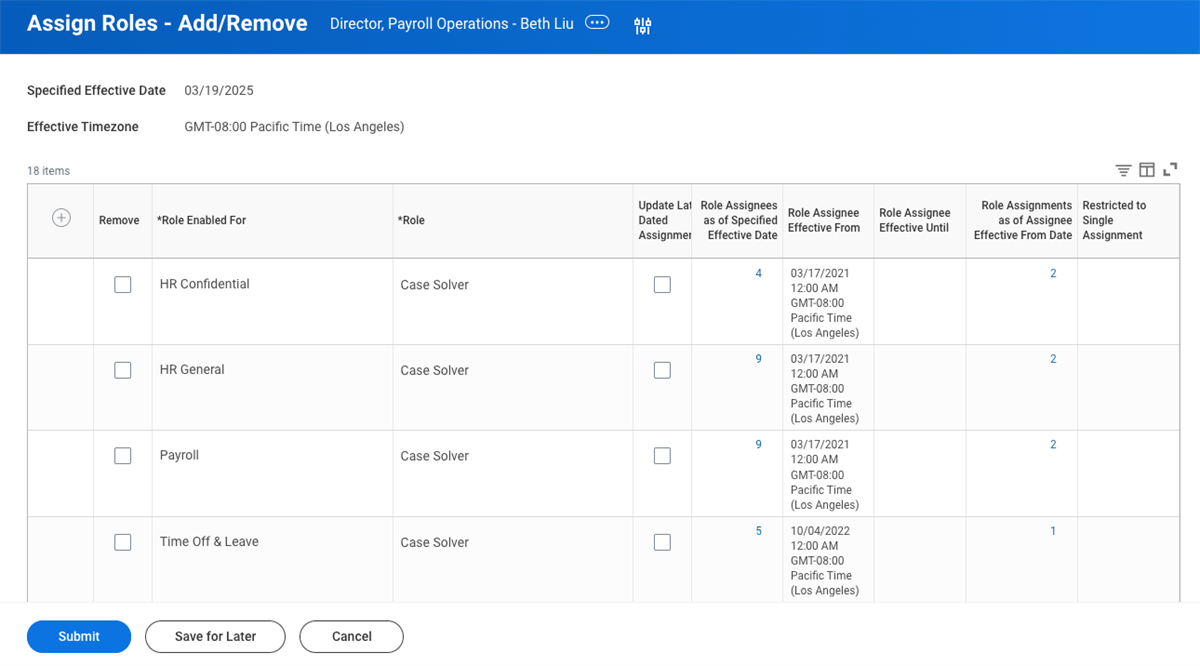
The "Assign Roles - Add/Remove" task for Beth Liu.
Access Rights to Organizations
For constrained role-based security groups, there are four options for configuring access rights to organizations:
Access Rights | Definition |
|---|---|
Current Organization Only (COO) | Constrains members to organizations where they have the role assignment. |
Current Organization and Unassigned Subordinates (COUS) | Constrains members to organizations where they have the role assignment and subordinate organizations that do not have someone assigned to the role. |
Current Organization and All Subordinates (COAS) | Constrains members to organizations and subordinate organizations, regardless of whether they have someone assigned to the role. |
Current Organization and Subordinates to Level | Constrains members to organizations and subordinate organizations, down to a number of levels in the hierarchy. |
Access Rights to Multiple Job Workers
There are three options for configuring access rights to workers who have multiple jobs:
Option | Description |
|---|---|
Role has access to the positions they support | Grants access only for the job or position that you assign to the role in the specified organization. Example: Sarah has a primary position at Company 1 that Mark manages and a secondary position at Company 2 that Susan manages. When you select this option:
|
Role for primary job has access to all positions | Grants access to assignees who have a role in the organization associated with the primary job or position. Denies access to assignees who have a role in the organization associated with an additional job or position. Example: Sarah has a primary position at Company 1 that Mark manages and a secondary position at Company 2 that Susan manages. When you select this option, only Mark can access Sarah's:
|
Role has access to all positions | Grants access to assignees who have a role in the organization associated with the primary or additional job or position. Example: Sarah has a primary position at Company 1 that Mark manages and a secondary position at Company 2 that Susan manages. When you select this option, both Mark and Susan can access Sarah's:
|
Security Policies
Security policies contain various security permissions, based on the policy type. There are two types of security policies within Workday: Domain Security Policy and Business Process Security Policy.
Term | Definition |
|---|---|
Domain Security Policy | Controls which security groups can view or modify data within the domain. |
Business Process Security Policy | Controls which security groups can participate in the business process. |
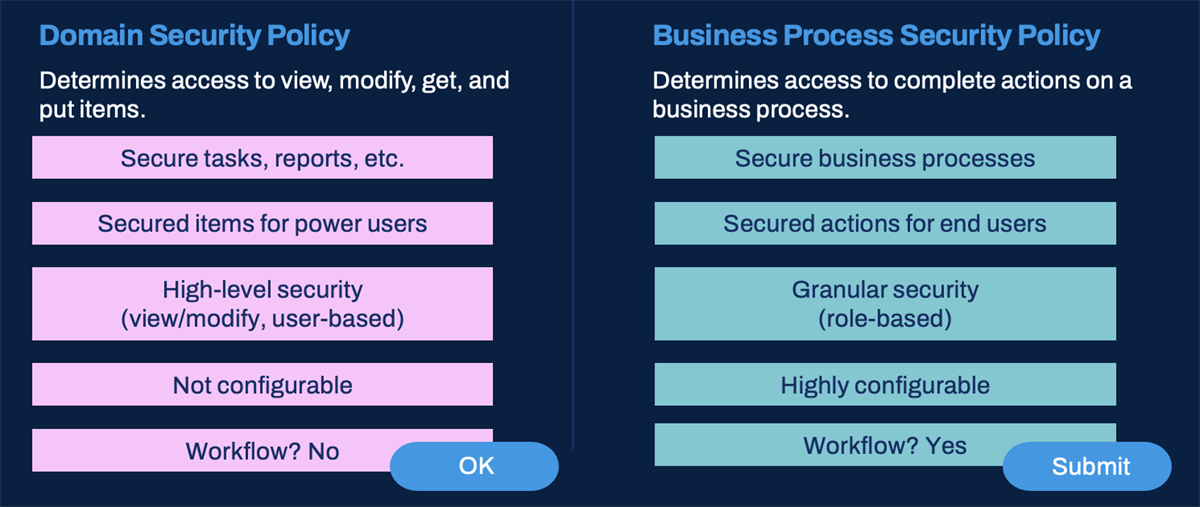
Overview of the Domain Security Policy and the Business Process Security Policy.
Domain Security Policies
Domain security policies allow you to configure which security groups can access the items in a domain. You can also determine what type of access each security group has to those items (e.g., view-only vs. modify permission).
An item may belong to more than one domain. Use the
Secured Items in Multiple Domains
report to see which items are secured to more than one domain.View vs. Modify Permission for Reports and Tasks
You can configure two levels of security group permissions in a domain security policy for reports and tasks:
- View permission: Provides access only to domain items that require View permissions, such as report fields and data sources. View permission does not provide access to domain items that require Modify permissions.
- Modify permission: Provides access to the domain items that require Modify permissions, as well as the items requiring View permissions. Members of security groups with Modify permissions, therefore, can access all of the domain items that require View or Modify permissions.
Example
: Suppose there are 10 items in a domain (3 requiring Modify permissions and 7 requiring View permissions). If you assign a security group View permission to the domain, members of that security group can only access 7 of the items. If you assign another security group Modify permission to the domain, members of that security group can access all 10 items.Get vs. Put Permission for Integrations
Integration permissions are different from report and task permissions. You can configure two levels of security group permissions in a domain security policy for integrations and other web service operations:
- Get permission:Provides access only to domain items that require Get permissions (e.g., access to extract data from Workday via a web service operation).
- Put permission:Provides access to integration domain items with Put permission (e.g., access to load data into Workday via a web service operation) as well as items with Get permissions. Members of security groups with Put permission, therefore, can access all integrations in the domain.
Note
: Some domain actions and reporting items will show a permission of View Get. This permission indicates that security groups with Get permission can also access actions and reporting items requiring View permission, via integrations.View a Domain Security Policy
View a domain security policy by selecting Domain > View Security Policy from the domain's Related Actions.
Workday groups the domain items into categories:
- Securable Actions:Include items such as delivered reports and tasks.
- Securable Reporting Items:Include items needed for custom reporting such as data sources, data source filters, and report fields.
- Securable Integrations:Include web service operations secured in the given domain.
Select each count of securable items to view the details of each item and the permission a user needs to access it.
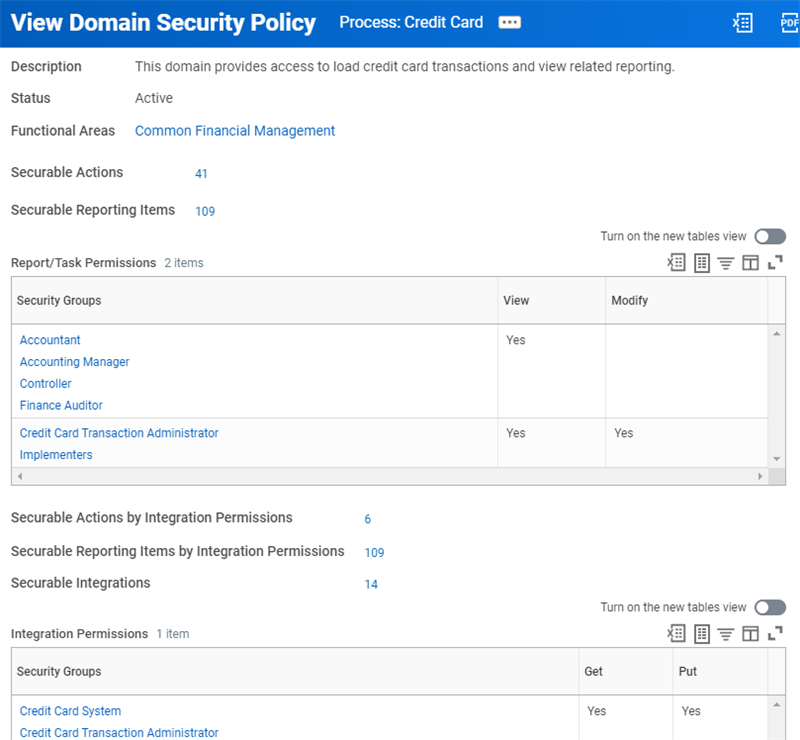
The Process: Credit Card domain security policy with the counts of secured actions, reporting items, and integrations.
Business Process Security Policies
Every business process type has its own business process security policy. Within the security policy, you control which security groups can initiate or take action on the business process. The business process security policy drives which security groups are available to choose from when configuring the business process definition.
You can configure the following types of permissions for a business process type:
- Who can start the business process (including what actions initiate the business process).
- Who can complete action steps in the business process.
- Who can delegate an action to others.
- Who can act on an entire business process.
- Who can view all.
- Who can approve.
- Who can cancel.
- Who can rescind.
- Who can manually advance.
- Who can deny.
Multiple Definitions - Singular Policy
You can have multiple business process definitions for a given business process type, but they will share a single security policy. Each definition can route steps to different security groups, as long as they are included in the security policy for the business process type.
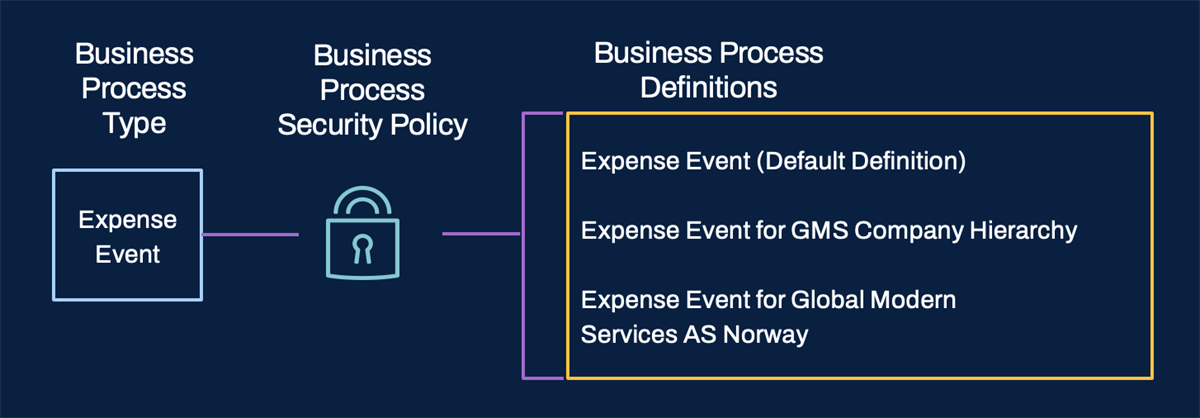
Multiple business process definitions, of the same type, share one security policy, but each may route steps to any included security group.
Example
: The Hire business process security policy lists both the Benefits Partner and Compensation Partner security groups as approvers. The Hire definition for IT Helpdesk may route an approval to the Benefits Partner, while the Hire definition for Sales may route to the Compensation Partner.Editing Business Process Security Policies
Remember, there is only one security policy for each business process type. Edits to the policy will apply to every definition of that type, including organization-specific or rule-based definitions.
You can access the business process security policy in two ways:
- From the business process definition's Related Actions.
- Using theBusiness Process Security Policies for Functional Areareport.
Activate changes to a business process security policy for them to take effect.
Business Process Relationships
What you can configure on a business process definition depends on configuration options and security policies. Workday delivers the different allowed configurations for each business process type. To view the allowed options for a business process type, use the
Business Process Configuration Options
report.Business Process Security Policies for Functional Area Report
The
Business Process Security Policies for Functional Area
report provides a description of the business process type and shows all business processes and sub-processes for that functional area.Note
: There is no inheritance of business process security policy permissions.Activating Security Policy Changes
As you modify your security policies to add or remove security groups or enable or disable policies and functional areas, Workday records the date and time of each change. Workday security evaluates the security configuration as of a timestamp, ignoring any security changes made after that date and time. As you make changes, Workday saves them as inactive, pending changes until you activate them.
To activate your security changes, use the
Activate Pending Security Policy Changes
task. When you activate them, Workday records the timestamp of that moment. If you later discover a problem with your security configuration that you cannot quickly fix, you can use the Activate Previous Security Timestamp
task to activate a previous timestamp while you make the changes needed to fix the configuration. Business Process Security Policies with Pending Changes
and Domain Security Policies with Pending Changes
will allow you to view security policies with pending changes.Note
: Security timestamps are for changes made to domain or business process security policies only. Security timestamps do not affect security group definitions and user assignments. Changes to security groups always take effect immediately and remain as defined, even if you activate a previously time-stamped version of security.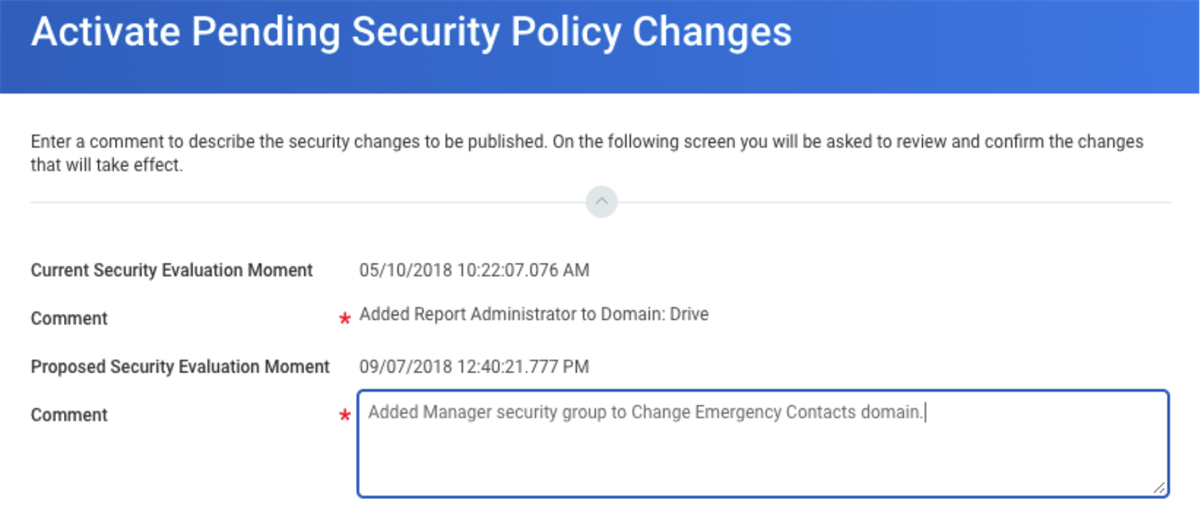
An example of the Activate Pending Security Policy Changes confirmation task page.
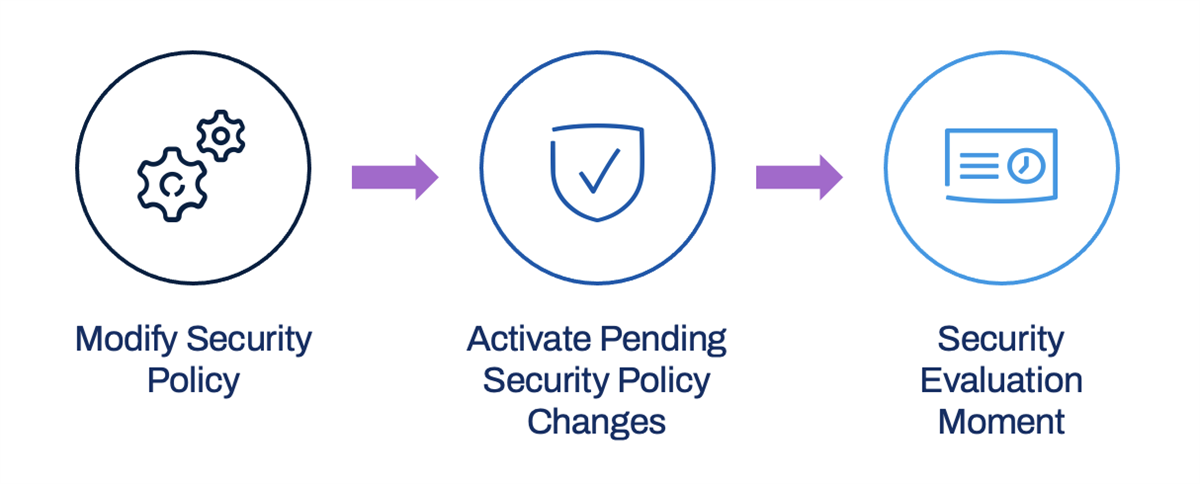
Illustration of the security modification to activation and creation of security evaluation moment.
Security Evaluation Moment
When you change a security policy, Workday displays a message indicating that your changes are saved but will not take effect until you activate the changes. Security policy changes (e.g., adding or removing a security group, changing View to Modify permission) are pending until someone runs the
Activate Pending Security Policy Changes
task. Changes to security groups themselves (e.g., membership, security group definition) do not require activation.Security policy change control serves two purposes:
- It allows you to keep your security policy changes in a pending, or inactive, state until you are ready to deploy them. This process can be useful for complex or far-reaching security changes that require a coordinated activation.
- It allows you to revert back to a previous version of your security configuration, if there are errors, so that you can resolve the errors and reactivate. Use theActivate Previous Security Timestamptask to revert back.
Note
: Security policy change control is not designed to keep alternate, valid security configurations. Once you revert from a security configuration, it is no longer available.Access To Secured Items
Security groups gain access to Workday data through permission to secured items rather than permission to the data itself. Secured items include such things as tasks, reports, dashboards, reporting items, and business process actions.
To access a secured item, a user must be a member of a security group with permissions to a security policy for the domain or business process containing that item.
View Security for Securable Item
The
View Security for Securable Item
report shows how Workday secures a given item. To quickly locate this report, in the Search box, try entering the shortcut "secura."Enter a string of text, with a minimum of three characters, in the Securable Item report prompt. The report returns items matching the text string, grouped into sections (e.g., Tasks, Reports, Report Fields, Data Source Filters, Data Sources). Select the View Security button to view the security policy for an item and the currently configured security groups.
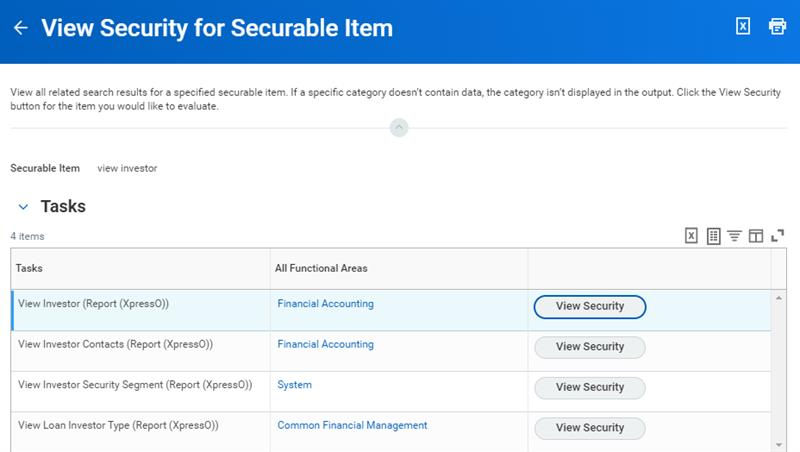
View Security for Securable Item report.
Items are either secured to domains or business process types. However, an item can be secured to more than one domain. You can drill into the details and also edit the permissions of the security policy from this report.
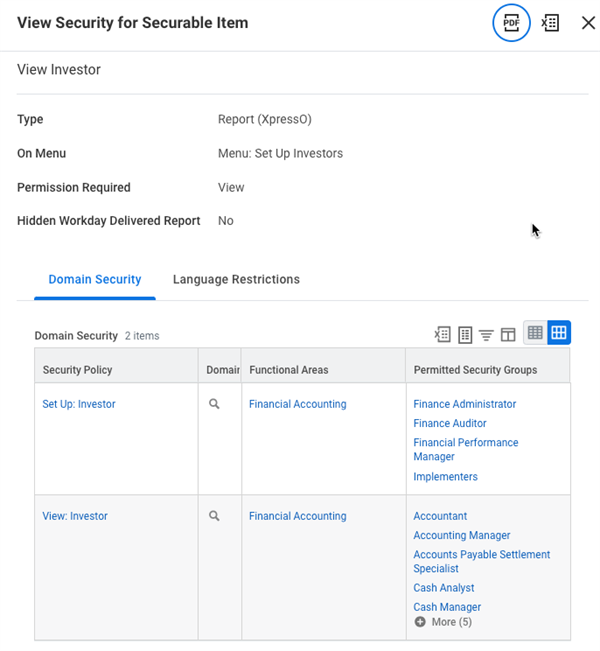
View Security for Securable Item example.
Chapter Summary
The configurable security framework in Workday provides a comprehensive and intuitive model for access across the system. Security determines what users can view and what actions they can take.
Workday delivers functional areas that contain domains and business processes. You can enable or disable functional areas in the system. Each domain and business process type has a security policy. Workday organizes domains in hierarchies with parent and child policies. Child domain security policies inherit permissions from the parent, but you can modify them if needed.
Each business process type has a specific business process security policy that defines permissions. Sub-processes do not inherit the security policy permissions from the business process they are in. You need to configure each business process security policy individually.
By associating security groups to domain security policies, you control view and modify permissions for reports, reporting fields, and tasks, which are all securable items within domains and sub-domains. In addition, business process security policies enable you to control who can participate in business process events. If you modify security, you must activate pending policy changes.
You assign security permissions to security groups. Workday delivers security groups, but you can modify existing ones, any permissions associated to them, or create new security groups to meet unique business requirements.
Users become members of security groups in three ways:
- Automatically (Workday-delivered groups such as public or self-service, e.g., All Employees or Employee as Self)
- Manually (User-based security groups such as HR Administrator or Talent Administrator)
- Derived based on membership criteria (Role-based security groups, such as HR Partner or Compensation Partner)
You assign user-based security groups directly to workers to provide system-wide access to specific security policies. As user-based security groups move with the worker, it is critical to monitor staffing changes to assure removal of the security group when appropriate.
An assignable role and a security group make up a role-based security group type. Workday allows for the assignment of security roles, which as associated with organizations and a worker's job or position. Workers become members of a role-based security group if the job or position they occupy links to a role assignment. When a worker changes their job or position, their membership in the security group dynamically updates and permissions go away.
There are many useful reports in Workday to support the review and design of business process definitions and configurable security. Some of the most notable reports include:
- Report Fields and Values
- View Security for Securable Item
- Business Process Security Policies for Functional Areas
- Domain Security Policies for Functional Areas
- View Security Group