
Compensation Framework
Overview
The Workday compensation framework lets you track compensation at the enterprise and individual worker level. In this chapter, you will learn about compensation configurations. Compensation in Workday includes:
- One or more compensation packages.
- Compensation grades and grade profiles with defined pay ranges.
- Compensation plan types (e.g. salary, hourly, and allowance).
- Compensation elements.
- Compensation eligibility rules.
Establishing a compensation framework of packages, grades, plans, and eligibility rules automate the assignment of these components to workers during staffing events.
Keep in mind that every customer deployment has unique compensation requirements. Workday enables you to configure compensation flexibly to meet any simple or complex business requirements. After you deploy Workday HCM with a compensation framework, compensation administrators will maintain compensation components for their enterprise as their business changes.
Objectives
By the end of this chapter, you will be able to:
- Define the compensation structure and how the components relate to each other.
- Create and use compensation eligibility rules to default compensation.
- Create compensation grades and grade profiles.
- Create compensation plans.
- Create compensation packages.
Compensation Structure Overview
Workday assigns compensation to an employee through a business process transaction, such as a hire or job change. Eligibility rules drive compensation assignment using worker details such as organization assignments, job profile, location, position, or any other available class report field.
Eligibility rules can also identify populations eligible for a localized profile within different plan profiles and grade profiles. Localization allows for variations in salary ranges and plan targets based on criteria such as a worker's location.
Additionally, compensation assignments can be part of a mass event, such as a rollout process, to a defined population. To automate assignments, you can create compensation eligibility rules to indicate which workers are eligible for certain compensation components.
In Workday, the compensation structure contains the following:
Term | Definition |
|---|---|
Compensation Grades | Provide guidance with reference to pay ranges. |
Compensation Grade Profiles | Allow for localization of grade ranges. |
Compensation Plans | Provide various types of pay components. |
Compensation Packages | Group compensation grades and plans together. |
Compensation Eligibility Rule |
|
To build a compensation structure in Workday that meets your customer's business needs:
- Define compensation elements to make the link between compensation and payroll earnings.
- Create compensation eligibility rules to determine the groups of employees who are eligible for the different compensation plans.
- Define guidelines (grades, grade profiles, and steps) associated with compensation elements.
- Define compensation plans, grades, and grade profiles, as appropriate.
- Add the plans and grades that you want to bundle together into compensation packages.
- Assign compensation eligibility rules to compensation components (packages, grades, grade profiles, and plans) to control which employees are eligible for them.
After you build the compensation components, administrators, partners, and managers will use the plans and rules as a reference to assign and update worker compensation.
Compensation Eligibility Rules
Compensation eligibility rules determine a worker's eligibility for each compensation component during staffing and compensation transactions. You can base eligibility on any combination of organization, job profile, location, or position data, in addition to any other available class report fields.
During staffing transactions, eligibility rules guide the manager or partner entering compensation data. A manager entering data cannot select compensation components the worker is ineligible for. A compensation partner has the necessary security to override defaults, but receives the same guidance a manager does.
Consider the compensation eligibility rule below: Org - Information Technology. If you assign this rule to a compensation package, only workers in the Information Technology supervisory organization hierarchy are eligible for that package.
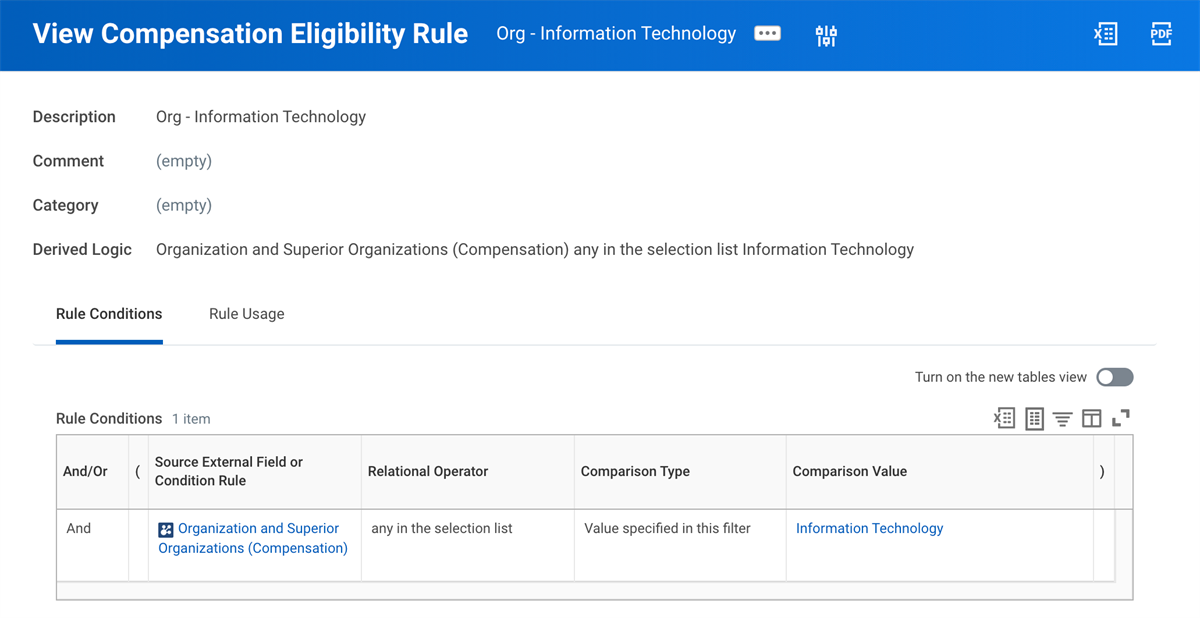
An example compensation eligibility rule.
You can also use compensation eligibility rules to:
- Assign compensation targets uniquely to different employee populations for bonus plans, merit plans, stock plans, and grade profiles.
- Roll out or remove compensation plans (allowance, bonus, commission, merit, stock, and period salary plans) for a target population.
Assign or Default Compensation
Assign Compensation
For compensation components to accurately populate during staffing transactions, you must assign the eligibility rules to compensation components. These include compensation packages, compensation grade profiles, and all plans within the compensation package. To control the compensation components for which workers are eligible, assign eligibility rules to the compensation components using one of the following methods:
- Use theAssign Compensation Components to Ruletask.
- Directly assign rules to each compensation component definition.
Default Compensation
Having compensation components default as part of a staffing activity reduces data entry errors and maintains flexibility for exceptions. When completing compensation staffing transactions, the following criteria often defaults:
- Package
- Grade and grade profile
- Salary and hourly plans
- Allowance plans
- Stock, merit, and bonus plans
Compensation can default using the following methods:
- Eligibility rules
- Grades on job profiles
- Default compensation on position
- Default compensation on job requisition
- Default compensation on offer
To have compensation components populate by default for eligible employees during staffing transactions (hire, job change), you must further assign the eligibility rule to a compensation package and associate the default grade, grade profile, and one or more plans with that package. The rule for plans can be different than the rule for the package the plans are in.
Based on configuration, a number of defaulting behaviors can occur during a staffing event:
- If a worker is eligible for a package, grade, and a plan in the package, defaulting occurs.
- If a worker is eligible for a plan that is not in a compensation package, defaulting does not occur, but the plan is available to select.
- If a worker is not eligible for a plan and the plan is in the compensation package, defaulting does not occur.
- If a worker is eligible for more than one compensation package or compensation grade, these components will not default but the package, grade, and plans will be available to select.
Important
: If you use compensation eligibility rules and default compensation from a position, the default compensation overrides the eligibility rules.Create Compensation Eligibility Rule
When creating a compensation eligibility rule, the rule can contain multiple conditions, as well as And/Or logical statements. Your rules will vary in complexity depending on how you build your compensation structure. Before you start to create compensation eligibility rules in Workday, keep these important questions in mind:
- How does compensation data need to populate in the system? Does it need to default in or will someone manually enter it during compensation and staffing transactions?
- If it is a manual process, who is responsible for entering that data?
- How is the data used?
Common Fields Used in Compensation Eligibility Rules
Workday Field | Definition |
|---|---|
Job Profile | The foundation of each position or job. |
Job Family | A grouping of job profiles that selects all profiles in that job family. |
Organizations | Any organization type such as supervisory, company, or custom organizations. |
Organization and Superior Organizations | An organization and any subordinate organizations that consider it the superior. |
Location | The physical business location of workers. |
Employee Type | Tenanted data that may include Regular, Intern, or Ex-Pats. |
Exempt/Non-Exempt | A checkbox to indicate worker status. |
Management Level | A ranking to determine the management level hierarchy assigned to the job profile. |
Other Rules | Eligibility rules to build more complex eligibility rules. |
There are approximately 50 delivered fields available as criteria for building compensation eligibility rules. You can use selected criteria fields and build "AND" or "OR" logic statements. If you attach two rules to the same compensation component, the system will automatically use "OR" logic between the rules.
The below graphic illustrates an example of the type of information entered into each field when creating a compensation eligibility rule.
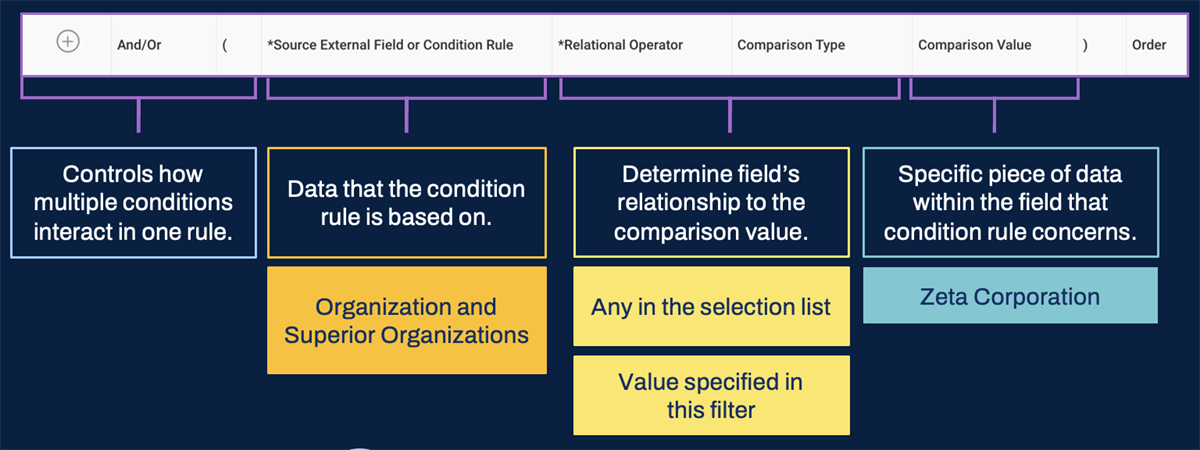
Graphic illustration that defines eligibility rule fields.
Test Compensation Eligibility Rules
Use the
Test Compensation Eligibility Rule
task to select a specific instance, such as an employee's hire event, to run the rule against. If you expect that the employee is eligible for the compensation component the rule is attached to, then the result should be "yes." The results also display where the rule is currently in use.Use the
Employee Compensation Audit
report to analyze which employees are:- Eligible and assigned to a compensation component.
- Eligible, but not assigned to a compensation component.
- Ineligible and assigned to a compensation component.
Use the
Compensation Rule Assignment
report to view the compensation components using the rule. This report also returns a sample population of 50 employees by position that are eligible for these components based on the compensation eligibility rule.After testing and determining that a rule works, review the rule to evaluate its efficiency. There are many factors to keep in mind when creating an optimized eligibility rule:
- Select source fields that have the fewest number of instances.
- The order listed is very important. List conditions that exclude the largest number of instances first. Listing general rules first reduces the number of instances evaluated within each condition. This optimizes the efficiency of your rule.
- Use filters, subfilters, and related objects in your condition rule. This allows you to filter out unnecessary data without using calculated fields.
Compensation Grades and Grade Profiles
A grade is a standard compensation range for a given job or job level. Compensation grades give guidance when entering salary or hourly pay rates by defining a minimum, midpoint, and three, four, or five segments. These segments then provide tertiles, quartiles, or quintiles during data entry. Then, segments can appear in reports. These reports can provide guidance during a compensation change process or compensation review. They can also be helpful when calculating the compa-ratio.
For the Total Base Pay compensation basis, Workday requires a compensation range. You can set up more than one compensation basis and range for a grade. If you enter a salary outside of the pay range, the system generates a warning message but not an error message.
The fields are as follows:
Action | Definition |
|---|---|
Pay Range Segments | Select 3, 4, or 5 to designate the number of pay range segments. |
Base Pay Elements | Select the compensation elements or element groups you want to associate with this grade. |
Eligibility Rules | One or more rules determines who is eligible for the compensation grade. Remember, if the eligibility rule field is blank, you need to associate the compensation grade with a job profile. |
Compensation Basis | A compensation basis can have unique pay ranges. Only two compensation bases will display for an employee: Total Base Pay and the highest ranked basis for which the employee is eligible. Enable the Compensation Basis on the Compensation Package Analytics to view this information on reports and worker profiles. |
Calculate Segments | Select this checkbox to have the system calculate or recalculate each segment. |
Minimum | Enter the minimum of the pay range. |
A compensation grade allows you to define one default pay range for the eligible population. For some deployments, a single population may have variations based on location or some other business-related criteria. The compensation grade profiles define localizations and allow you to assign more granular compensation ranges to employees.
Additionally, these ranges can also have different currencies, allowing one compensation grade for a global population.
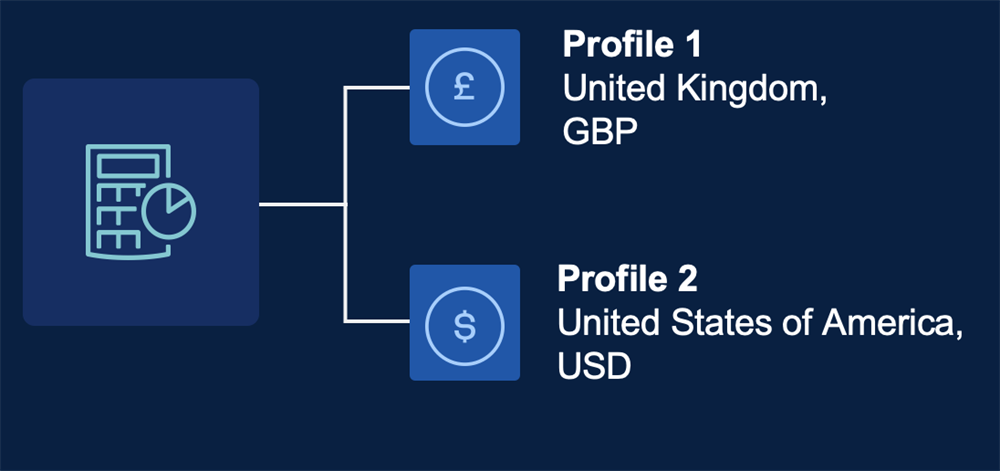
A global example of the relationship between a Compensation Grade and Grade Profiles.
If an employee is eligible for the compensation grade, the default range will provide guidance to enter their salary or hourly rate. If an employee is eligible for the compensation grade and a grade profile, the range of the grade profile will display instead of the default grade.
Tip
: When creating compensation grades with grade profiles, it is common practice to leave the default range at the grade level set as zero to zero. Then, you define salary ranges on each grade profile level to localize the ranges.For example, if Grade 10 has salary ranges for the U.S., Canada, and the UK in their respective currencies. You would create three grade profiles and the default compensation pay range for Grade 10 would use Total Base Pay with all zeros.
Compensation Elements and Payroll
Compensation Elements
Define the compensation element field using the
Maintain Compensation Elements
task. This field:- Maps compensation plans to payroll earnings.
- Defines base pay on compensation grades and grade profiles.
Compensation elements are the integral link between compensation and payroll. In payroll, earnings control tax calculations, the ability to gross up, and scheduling payments. The payroll team on the deployment will create the earnings.
When an element is attached to a plan and the plan is assigned to an employee, Workday recognizes the earnings code to pay the employee for their compensation.
Depending on the type of compensation plan, you may need to create a unique compensation element for each plan. For example, bonus plans may share the same earnings element, but an allowance may be different from one allowance plan profile plan to another. Base pay, car allowance, and commission are all examples of compensation elements.
A compensation element group has several uses within Workday. Use compensation element groups when an amount is a combination of elements. For example, salary could be a combination of base pay and a housing allowance. Even though an element group is more than two elements, it may contain only a single element. Use the compensation element to group what components define Total Base Pay. You then associate that element group with compensation grades and associate grade profiles with different countries or populations.
Compensation Currency Conversions
Currency Exchange Rates
The need to support multiple currencies in a single system is common in the global environment in which you work. No matter how many different currencies you are tracking, you can enter and update this information in Workday. As you manage currency information in the system, consider the following:
- You can add new currencies using theMaintain Currency Conversion Ratestask.
- Exchange rates are effective-dated.
- You can use multiple currencies in an employee's compensation package.
- Workday displays Total Compensation in the employee's compensation grade profile currency.
Additionally, you can configure inbound integrations to automatically import conversion rates.
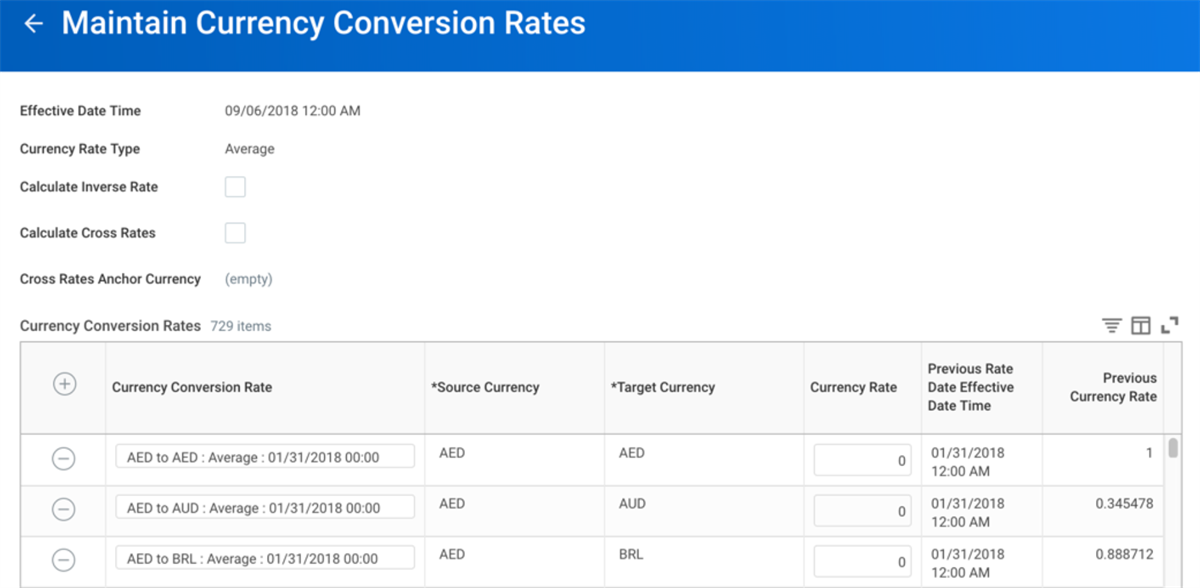
Maintain Currency Conversion Rates task
Compensation Plans
Hourly, salary, period salary, and unit salary plans are associated with an employee's base earnings and appear on their payslips. It is not common for an employee to be associated with more than one type of plan. Workers typically receive an hourly, salary, or period salary plan. There are only a few reasons to have more than one of each type of plan. For example, you may manage currency in the compensation grade and not the hourly, salary, or unit salary plans. In addition, only create plans your compensation structure requires. If you have no hourly employees, then do not create hourly plans. The configuration requirements should be minimal.
Salary and Hourly Plans
Default compensation on a worker's position and the
Hire
and Propose Compensation Change
business processes gather most salary data. For example, information such as the plan's currency and frequency populates based on the worker's compensation grade, not the salary plan. Most system configurations should require only one salary plan.Therefore, when reviewing a salary plan, you only need to consider a few fields:
Field | Description |
|---|---|
Apply FTE% | To prorate compensation for employees assigned to this plan based on their full-time equivalent (FTE) percentage, select one of the following options:
|
Exclude from Merit | Select this checkbox if you do not want this salary plan included as part of total base pay when you initiate the merit process. |
You have more configuration options when setting up hourly plans, such as amount, currency, frequency, and minimum wage equivalency. If you do not enter an amount on an hourly plan, the hourly amount does not default during
Hire
. Instead, you need to enter the amount for each worker when proposing compensation.Allowance Plans
Allowance plans define additional pay that contributes to a worker's overall compensation. For example, allowance plans may compensate a worker for a work phone, safety equipment, or vouchers for movie tickets. There are three types of allowance plans:
Allowance Plan Type | Description |
|---|---|
Amount Based | Enter an exact amount, currency, and frequency. |
Percent Based | Enter a percent and frequency. |
Unit Based | Enter a number of units, frequency, value per unit, and currency. |
When initially creating an amount or unit-based allowance plan, you can select the Reimbursable checkbox. To use this feature, you must enable Workday Expenses. The checkbox indicates that a worker must submit an expense report to receive their pay. The allowance plan provides the ability to track the reimbursement in compensation as part of the compensation package. When you select the reimbursement checkbox, Workday will not require the compensation element field.
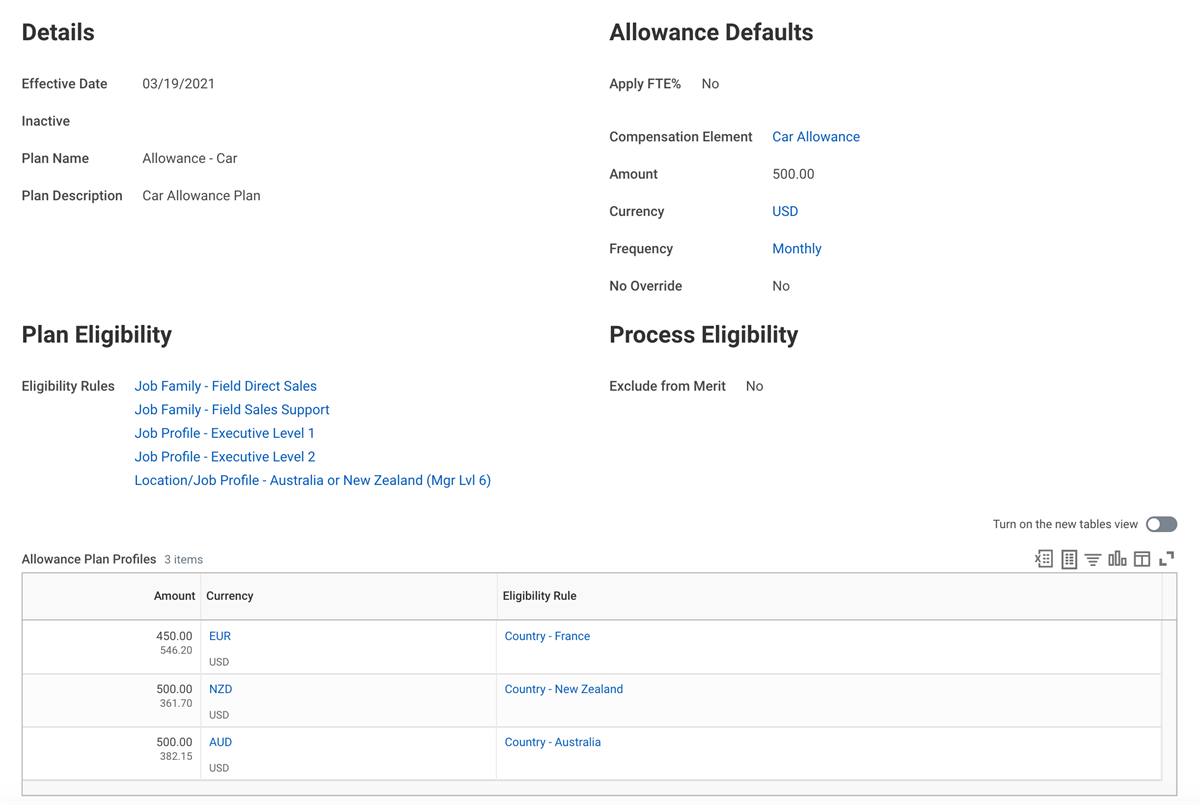
An example of a car allowance plan with defaults, eligibility, and plan profiles for three different worker populations.
You can make adjustments to a unit-based salary, hourly, allowance, and commission plans. Workday will then adjust the compensation amount for all employees in the plan.
Resource
: For additional information on plan adjustments, search for "Set Up Adjustments to Unit Salary, Hourly, Allowance, and Commission Plans" in the Administrator Guide on Workday Community.Compensation Packages
A compensation package is a grouping of compensation grades and plans. The package uses compensation eligibility rules to determine the worker population eligible for its components. The combination of compensation components in a package also enables the system to default a worker's compensation during staffing transactions.
Compensation packages should have a meaningful name applied to them. Typically, customers align their compensation packages and compensation structure with a combination of job profiles, job families, locations, and management levels.
Example
: Consider the following example illustrating how compensation packages and eligibility rules work together to default compensation.- If an eligibility rule makes a worker eligible for two different bonus plans, and both bonus plans are included in the worker's compensation package, then both bonus plans default into the worker's compensation.
- However, if the bonus plans are not included in the compensation package, neither default into the worker's compensation. Instead, you can select the plans when completing thePropose Compensation Hiretask.
Compensation Events
You can initiate compensation as a single event for an individual worker or as part of a staffing change (e.g., hire, transfer).
You can include the following compensation subprocesses in larger staffing events:
Compensation Subprocess | Description |
|---|---|
Propose Compensation Hire | Subprocess of the Hire , Add Additional Job , or Start International Assignment business processes. Defaults compensation components per your compensation structure. Lets you edit any compensation components during the time of hiring. |
Propose Compensation Change | Subprocess of the Change Job business process. Defaults compensation per your compensation structure and lets you edit any compensation components. You can select either the Propose Compensation Change or Propose Base Pay Change initiation steps. |
Propose Compensation Offer/Employment Agreement | Subprocess of the Offer or Employment Agreement subprocesses, which are used in the Job Application business process in Workday Recruiting. Data entered in this step automatically feeds into the Propose Compensation Hire process within the Hire business process. |
Additionally, you can manually initiate a compensation change at any time by using one of the following tasks. Both tasks are available from a worker's Related Actions > Compensation:
- Request Compensation Change: Edit any compensation plan.
- Request Grade Change: Edit the compensation grade or grade profile.
Compensation Event Flow
When you initiate a compensation event, such as
Propose Compensation Hire
, the system evaluates eligibility rules to determine which compensation package and components the worker is eligible for.The following event flow illustrates proposing compensation for a worker during hire:
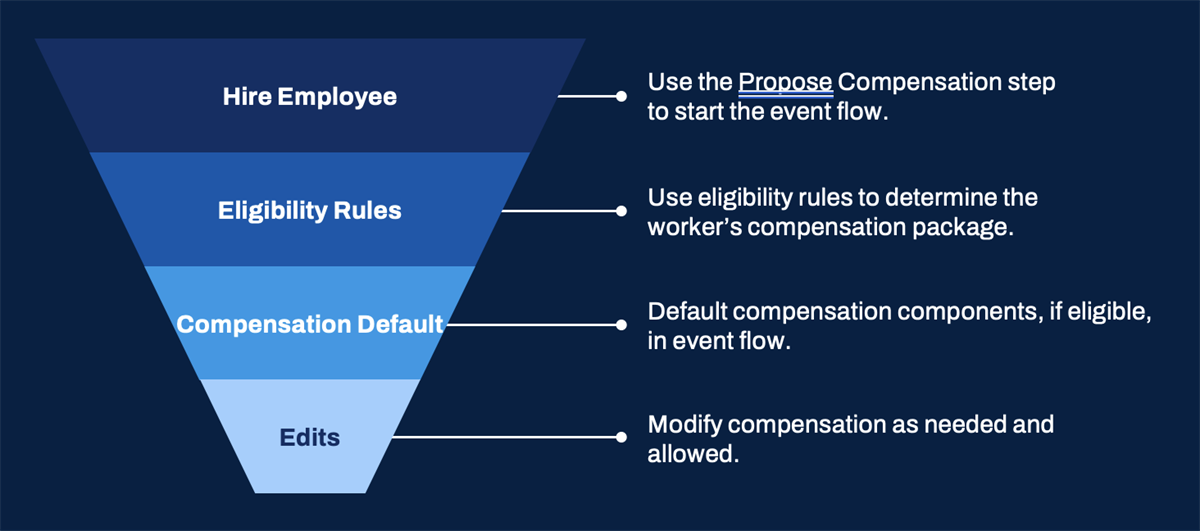
An illustrative example of events for Propose Compensation Hire.
Compensation Example
Let's explore an example of a worker's compensation. The following worker, Logan McNeil, is located in San Francisco. Her position is Vice President, Human Resources.
Available Components in the Management Compensation Package | Offered to Logan | Comments |
|---|---|---|
Salary Grade Range ($105,000 - $170,000 Annually) | $182,500 / annually | Compensation grade provides guidance. A salary should fall within the range but the system allows you to go below or above it. Additional approval can be triggered on this condition. |
Car Allowance ($500 / Month) | $500 / month | An allowance can default with one amount, such as $500, but can be edited for an individual employee at time of hire. |
Housing Allowance ($5000 / Month) | None | Just because an employee is eligible for a compensation component, such as an allowance, does not mean it will be offered. |
Phone Allowance ($150 / Month) | $150 / month | An allowance can default with one amount. If the No Override checkbox is turned on it cannot be edited at the employee level. The defaulted allowance can be removed but not edited. |
Merit (Annual Merit Review) | Annual Merit Review | Potential money entered as a percentage calculation. If a merit plan is part of an employee's compensation when the merit event is launched, it will be included in the process. |
Bonus (10% of Salary) | 10% of salary | Potential money entered as an amount or percentage calculation. If a bonus plan is part of an employee's compensation when the bonus event is launched, it will be included in the process. |
Chapter Summary
The compensation structure includes compensation packages, which group together compensation grades and plans.
Compensation grades provide guidance on salary or hourly pay ranges. The minimum and maximum amounts are guidelines only. You can enter rates below or above the minimum and maximum amounts. Workday recommends that compensation grades tie back to job profiles to support accurate compensation defaulting.
Compensation plans include salary, hourly, and allowance plans. These plans associate eligible employees with the appropriate compensation element (e.g. salary or hourly). Allowance plans provide compensation paid on a regular basis such as monthly cell phone, internet, or car allowances. You can set up percent, amount, or unit-based allowance plans to meet business needs. You can also configure allowance plans to allow for override at time of hire, transfer, or during other compensation-related events.
Compensation can default in during staffing activities using values defined on positions or through eligibility rules. Compensation eligibility rules can control the compensation components for which employees are eligible and default them in during staffing events.
You need to include all plans into a compensation package in order for them to default onto the employee's record during staffing and compensation-related transactions. When a plan that an employee is eligible for is not in the compensation package, the plan will not default to the employee record. However, you can select the plan manually during a staffing event. Based on compensation eligibility rules, employees must be eligible for only one compensation package and compensation grade or defaulting will not occur.
Many compensation components facilitate localizations where pay varies based on location or some other business-related criteria.