
Revenue Recognition
Overview
In this chapter, you will learn how to configure and create revenue recognition schedules. You will also learn how to create revenue recognition accounting.
Objectives
By the end of this chapter, you will be able to:
- Identify revenue recognition domain and business process security policies.
- Maintain schedule types.
- Edit a revenue recognition schedule template.
- Create a revenue recognition schedule.
- Create revenue recognition accounting.
Security Policies
As you deploy Workday Revenue, there are some revenue recognition security policies that you will need to configure to ensure the appropriate security groups have the right permissions.
Domains
Topic | Functional Area | Domain |
|---|---|---|
Revenue Recognition | Customer Contracts |
|
Business Processes
- Revenue Recognition Installment Event
- Revenue Recognition Schedule Event
Revenue Recognition
You can create revenue recognition schedules for invoices and contracts with deferred revenue lines based on contract terms. These schedules identify and drive the accounting for the creation and the appropriate amortization of unrecognized revenue. Revenue recognition operates along with, but separate from, billing processing.
Deferred revenue, or unearned revenue, is an advanced payment to a company for goods and services that will be performed or delivered in the future. It is considered a liability on the balance sheet since the revenue has not yet been earned and the good or service is owed to the customer. As it is delivered, it is recognized as revenue on the income statement.
Workday will generate deferred revenue using the
Generate Revenue Recognition Accounting
task that can be used for deferred revenue on both customer contracts and customer invoices with a deferred revenue item. It must have at least one or more revenue recognition installments to be used.Milestones provide additional control for processing a schedule or specific installment, and you can assign an unlimited number of milestones. You cannot process an installment or schedule with pending milestones.
Conversely, accrued revenue is revenue that has been earned by providing the good or services but no payment has been received yet. It is considered a receivable on the balance sheet showing the customer owes the company money. Accrued revenue is recognized in the period it is earned and can be used in revenue recognition schedules on Usage based (transactional) contracts.
Revenue Recognition Schedules and Installments
Revenue recognition schedules will determine how and when your organization recognizes revenue. You may create schedules for both customer contracts and customer invoices that are not associated with a contract.
A revenue recognition schedule includes one or more installments. Workday creates installments based on the schedule start and end dates, which can be different than the contract line start and end dates.
Each installment line is associated with one or more contract lines, and each revenue recognition installment represents a new revenue operational transaction. Workday creates one installment for each applicable ledger period and the accounting date for each installment is the same as the last day of the ledger period.
Reminder
: If you are creating a revenue recognition schedule for a customer contract, the contract must contain a line or lines flagged for deferred revenue.If needed, you can manually update individual installments. If you use a custom schedule, you can edit all installments at the same time.
When you approve the revenue recognition schedule, its installments become available for revenue recognition. If you add additional contract lines to the schedule, the contract line amount distributes over the unprocessed installments.
Workday assigns an Out of Balance status to the schedule if any contract lines in a noncustom schedule are not exactly scheduled, or if any contract lines are scheduled to be over-recognized in a custom schedule. No revenue will process for a schedule with an out of balance status until the issue is corrected.
You can generally correct the Out of Balance status on the revenue schedule by selecting the Generate Installments button. Selecting the Generate Installments button will redistribute the Out of Balance amounts to the unprocessed revenue installments.
Revenue Recognition Methods
Workday supports the following revenue recognition methods, which you can change throughout the life of the schedule:
- Custom- Use custom installment amounts; Create a new schedule or update a schedule created previously using a different method
- Defined Installment- Use the same amount for each ledger period except the first and last installment amounts, which can be different to support proration
- Number of Days- Recognize revenue for each ledger period based on the number of days in the ledger period, in proportion to the total number of days in the schedule
- Percent Complete- For fixed fee projects with deferred revenue based on the percent complete of the overall project; Applies the percent complete to the project value to calculate the revenue to recognize within the accounting period.
- Spread Even- The contract line amount is spread over a set number of installments.
- Transaction- For transaction-based contract line types such as project time and expense and usage based; With this method, Workday recognizes revenue as service is performed and does not require a revenue schedule.
Configuration in Customer Contracts
Before creating a revenue recognition schedule, you must ensure your customer contract contains a line or lines flagged for deferred revenue.
As you complete the contract header for a deferred revenue customer contract, consider the following:
Field | Description |
|---|---|
Deferred Revenue | Enables you to add the line to a revenue recognition schedule. This flag defaults from the sales item (and you can change), or you can manually flag the contract line as deferred revenue. When you select the option, Workday uses the account posting rule to determine the ledger account for the resulting invoice. Recognize revenue using the revenue recognition schedule. |
Revenue Override Amount | If you selected to defer revenue, you can enter an override amount here. Workday uses this amount in the revenue recognition schedule, versus the Contract Line Amount, which Workday uses for the billing schedule. You can also use the Revenue Override Amount field to record the allocated revenue amount in a multielement arrangement contract. The total of the Revenue Override Amount must equal the total Contract Line Amount. |
Revenue Recognition Schedule Templates
Revenue recognition schedule templates allow you to create revenue installments automatically when you submit a customer contract or a customer invoice. You can configure templates directly on a customer contract or contract line, or they can default from a sales item. On both customer contracts and customer invoices, there must be at least one line item marked as deferred revenue in order to do a revenue recognition schedule or use a revenue recognition schedule template.
Revenue recognition schedule templates require a name, revenue recognition method, and schedule type. You can also choose whether to automatically generate installments and automatically submit the schedule for approval when you submit the contract.
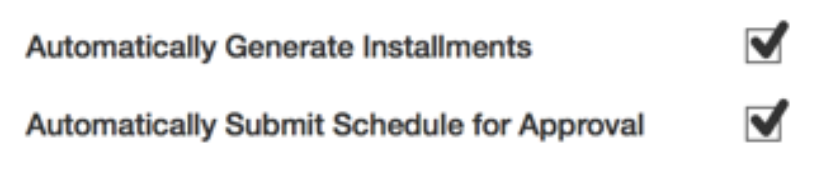
When the template is attached to a contract line, or it defaults from a sales item, the revenue recognition installments can generate and approve automatically, based on your configuration.
Creating Revenue Recognition Schedules
Create Schedules for Customer Contracts
Create a revenue recognition schedule for one or more contract lines from one or more contracts. All lines that you include in a schedule must use the same revenue recognition method.
You can define milestones (such as date, project task, and billing-related milestones) and tie revenue recognition to them. Milestones must be complete for revenue recognition to occur on any installments.
For variable contract line types, the installments remain at zero dollars until you create a custom installment line. For these line types, you can create installment lines as you go. Once submitted, Workday initiates the Revenue Recognition Schedule Event business process for review and approval of the contract-based revenue recognition schedule.
Create Schedules for Customer Invoices
Create a revenue recognition schedule for one or more invoice lines from a single invoice, for an invoice
not
linked to a contract. You can define schedules only for invoice lines that have the deferred revenue checkbox selected. In addition, all lines included in the same schedule must use the same method and end date.You may also create revenue recognition schedules for invoice adjustments.
Considerations
When creating your revenue recognition schedule, consider the following:
Option | Description |
|---|---|
Schedule Type | Define a schedule type for revenue recognition to improve reporting capabilities. |
Schedule on Hold | Select to put the entire revenue recognition schedule on hold if action is needed before you create accounting. When you release the hold, installments become available for revenue recognition accounting the next time you run the task. |
Milestones | Milestones must be complete for revenue recognition to occur on any installments. |
From Date | Specify the date of the first installment. |
To Date or Number of Installments | Specify either the To Date or the specific number of installments. |
Manage Lines | Lines can span multiple contracts but must match the schedule company, customer, and currency. Only deferred revenue lines are available to include in revenue schedules. |
Define Installment Amounts | Enter specific installment amounts for each contract line. Workday uses these amounts when you select the Defined Installment Revenue Recognition Method. |
Customize Installments | If you save your changes, Workday automatically sets the Revenue Recognition Method to Custom. |
Override Currency Rates | Only available for foreign currency revenue recognition schedules with created installments. Select to manage the exchange rates or the company amounts for installments. Workday displays the Maintain Revenue Recognition Schedule Currency Rates task, which displays only those contract lines that you can override. |
Creating Revenue Recognition Accounting
To post accounting for a revenue recognition installment, you need to create the revenue recognition accounting.
You can select the installments for which to create revenue recognition accounting in various ways. For a single installment, use a related task from the installment in a revenue recognition schedule. For multiple installments, use the
Create Revenue Recognition Accounting
task or use the Create Revenue Recognition Accounting
button from the Customer Contract Work Area. For a scheduled job, use the Schedule Revenue Recognition Accounting
task. Any installment with pending milestones is ignored.Accounting is based on your configuration in the account posting rules for revenue and deferred revenue.
Alternate Contracts
Concept: Revenue recognition rules Accounting Standards Codification (ASC) Topic 606 and International Financial Reporting Standard (IFRS) 15 require you to present comparative financial statements. You can replicate your customer contracts as alternate contracts. Alternate contracts enable you to model your revenue based on the current standard or the new standard, for your business transition plan without altering your actual contracts.
Business Processes
- Customer Contract Alternate Event
Key Tasks
- Manage Alternate Customer Contract
- Manage Customer Contract for Revenue Scenario.
- Edit Alternate Contract
- Alternate Accounting
Alternate Customer Contracts enable you to create an alternate view of a customer contract for Revenue Scenario Tools. You can change the view, create revenue allocation and Revenue Recognition Schedules without affecting the original Customer Contract. You can perform some common processing related to revenue using the data from the alternative view. Examples include creating Revenue Recognition Schedules and Multiple Element Allocation. When processing the Revenue Scenarios, if there is an alternative view, use the data from the alternative view, instead of the data from the original Customer Contract.
Additionally, you may use alternate contracts to create accounting based on the new standards for ASC 606 / IFRS 15.
Alternate Contract Process Flow:
- Create Alternate Contract - creates a copy of the original contract for further analysis. Can modify approval steps using the business process: Customer Contract Alternate Event
- Edit Alternate Contract - edit certain fields within the alternate contracts; may route through Customer Contract Alternate Event business process for additional approvals.
- Run scenarios including revenue scenarios and posting accounting.
Create Alternate Contract
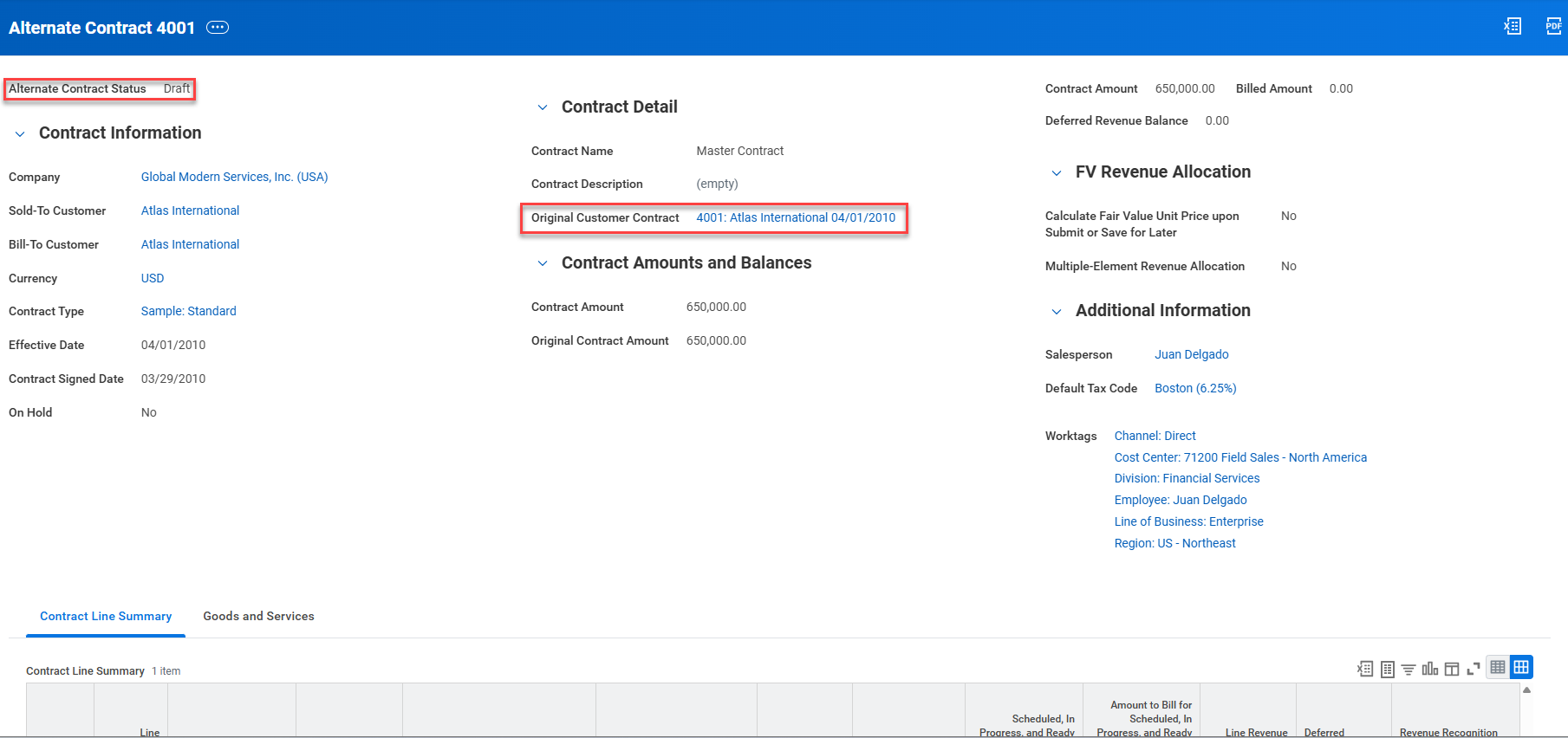
Use the Run Manage Customer Contract for Revenue Scenario task to create Alternate Contracts from an original contract. You may also create a standalone alternate contract. If you have already created an alternate contract, it will refresh. A copy of the original contract is created. The alternate contract uses the same contract numbering scheme as the original contract. For example, Contract 123 is labeled Alternate Contract 123.
A link to the alternate contract will be automatically created on the original contract with the following properties:
- Alternate contracts will have status of Draft.
- Alternate Contracts only have Draft or Reviewed statuses.
- Does not go through the same Business Process as the original contracts.
- Validation triggers on Reviewed status.
- Contract amount in total must remain the same.
You can create an alternate revenue schedule as a Related Action off the alternate contract. Billing schedules are NOT available for alternate contracts.
Revenue Allocation Scenario
The Revenue Allocation Scenario tool allows you to run the allocation in mass for the alternate contract set. If there was no alternate contract for any or all the contracts in the contract set selected, then alternate contracts will be automatically created in this process. The status of these alternate contracts will automatically set to Reviewed status. If alternate revenue recognition schedule was already in existence, it will automatically update the values based on the new revenue allocated amounts. You can run the scenario multiple times, and each run will be time stamped so you can determine when it ran last.
Alternate Contract Accounting
Journal entries can be automatically created from the alternate contract to post accounting under the new revenue recognition standard.
- Create Accounting for Alternate Contracts.
- Post Accounting for Alternate Contracts
- Cancel Accounting for Alternate Contracts.
- Delete Alternate Contract.
If customers would like to model different revenue scenarios, they may do so through the following task:
- Create standalone Alternate Contract.
Base Currency Adjustment
You can create an extra revenue recognition installment line to ensure that the invoiced base amounts equal the recognized revenue base amounts at a specific point in time. Workday determines how much you have invoiced your customers in the base currency by adding up completed installments for a contract line. You can create an adjustment for revenue that may be under-recognized or over-recognized due to exchange rates or currency rate overrides.
Workday displays every fixed amount line requiring an adjustment from the
Manage Lines
task for the revenue recognition schedule. Variable contract lines do not display because the actual base amount billed is already on the installment. Workday shows the Base Amounts at both the recorded and historic rates.Use the task
Create Base Currency Adjustment Installment
from the Related Actions of a submitted revenue recognition schedule. As you complete this task, consider the following:Option | Description |
|---|---|
Accounting Date for Adjustment Installment | You can override the date with any accounting date that is applicable to the entire installment. |
Create Revenue Recognition Accounting | Select this box to run the Create Revenue Recognition Accounting task automatically when you save the current task. Regular posting rules and approvals apply. Workday moves the deferred revenue base amount into the revenue account so that the completed installment now appears on the revenue recognition schedule with the new base amount. |
Base Amount Recorded | Displays the installment amount invoiced to the customer from the revenue recognition schedule. |
Base Amount at Historic Rate | Displays how much the customer has been invoiced in the base currency at the current point in time. Select the amount to preview line details for how Workday calculates the rate. |
Revenue Recognition Adjustment | If the Base Amount at Historic Rate is greater than the Base Amount Recorded, enter a positive adjustment amount to increase the Base Amount Recorded. If the Base Amount at Historic Rate is less than the Base Amount Recorded, enter a negative adjustment amount to reduce the Base Amount Recorded. |
Once complete, Workday creates an installment for the revenue recognition schedule that has no transaction amounts, but includes base currency amounts so you can create revenue recognition accounting.
Reports
Workday Standard Reports
- Deferred Revenue Summary
- Deferred Revenue Scheduled Activity
- Deferred Revenue Roll-Forward
- Deferred Revenue Forecast Report
- Find Revenue Recognition Installments
- Find Revenue Recognition Schedules
- Revenue Recognition Schedule Templates
- Schedule Types
- View Revenue Recognition Schedule Template
Advanced Revenue Scenarios
Before setting up Multiple-Element Revenue Allocation contracts there are various elements that must be set up in Workday. Multiple-element revenue allocation enables you to allocate revenue on customer contracts with multiple performance obligations while ensuring compliance with ASC 606 and IFRS 15. It allows your company to allocate revenue among customer contract lines to meet reporting requirements.
MEA contracts use allocations and fair value price list. You can configure fair value price lists using a percentage of amount depending on whether your company sells items based on a percentage of the list price or a discount from the list price or the average selling price over a period of time.
You can create fair value price lists to associate with your customer contracts. When you add sales items included in the fair value price list to the customer contract, Workday populates the fair values on the line.
Use the
Maintain Fair Value Price List
report to configure fair value price lists by:- Currency
- Contract Effective Date
- Sales Item
- Sales Item Group
- Worktags
The fair value price list can consist of percentage and amount values.
- Percent - Enter a percentage to apply to the list or net item price on the contract line.
- Amount - Enter an amount.
You can associate the fair value price list with customer contracts when you select the Multiple-Element Revenue Allocation checkbox on the contract.
To calculate the relative selling price allocation for a sales item, you can configure Workday to allocate revenue based on a fair value of a sales item using a lower range, midrange, or upper range percentile. These configurations can be set up using the
Set Up Revenue Allocation Configuration
task and can be done on a tenant and company-wide level.You can allocate revenue among multiple customer contracts when you enable linked contracts on your customer contract types. You can then associate multiple customer contracts with a single parent contract and allocate revenue among them. To view the allocation of revenue on customer contracts use the
Carve In/Out
report.Period end revenue accounting enables you to create reclassification adjustments for deferred revenue balances on customer contracts for foreign currency gain or loss adjustments deriving from foreign currency contracts and deferred and accrued revenue adjustments derived from MEA revenue allocations. Using the
Carve In/Out Adjustments
task you can create carve in/ carve out adjustment groups to reclassify deferred and accrued revenue balances. Key reports include:- Carve In/Out
- Carve In/Out Adjustments
- Fair Value Allocation
- Fair Value Analysis
- Run Multiple-Element Revenue Allocation
- Revenue Dashboard