
Other Contract Types
Overview
In this chapter, you will create a Usage-Based contract including the creation of rate sheets and review of usage-based transactions. There will also be demos of other types of contracts.
Objectives
By the end of this chapter, you will be able to:
- Create Usage Based Contract.
- Create Usage Based Billing and Revenue schedules and their respective installments.
Usage-Based Contracts
Usage Based Contracts
Contracts record details of customer sales agreements. These elements go into creating billing and revenue recognition schedules. The Usage Based contract line type tracks billing and revenue recognition of transactions based on customer usage of a product or service.
Usage-based contract lines do not have fixed or defined billing installments. Instead, calculate installments by multiplying a usage rate by a level of customer activity, such as an hourly rate by the number of hours used. Billing amounts then calculate during invoicing of recorded and approved customer transactions.
Business Case: Tech Support Services
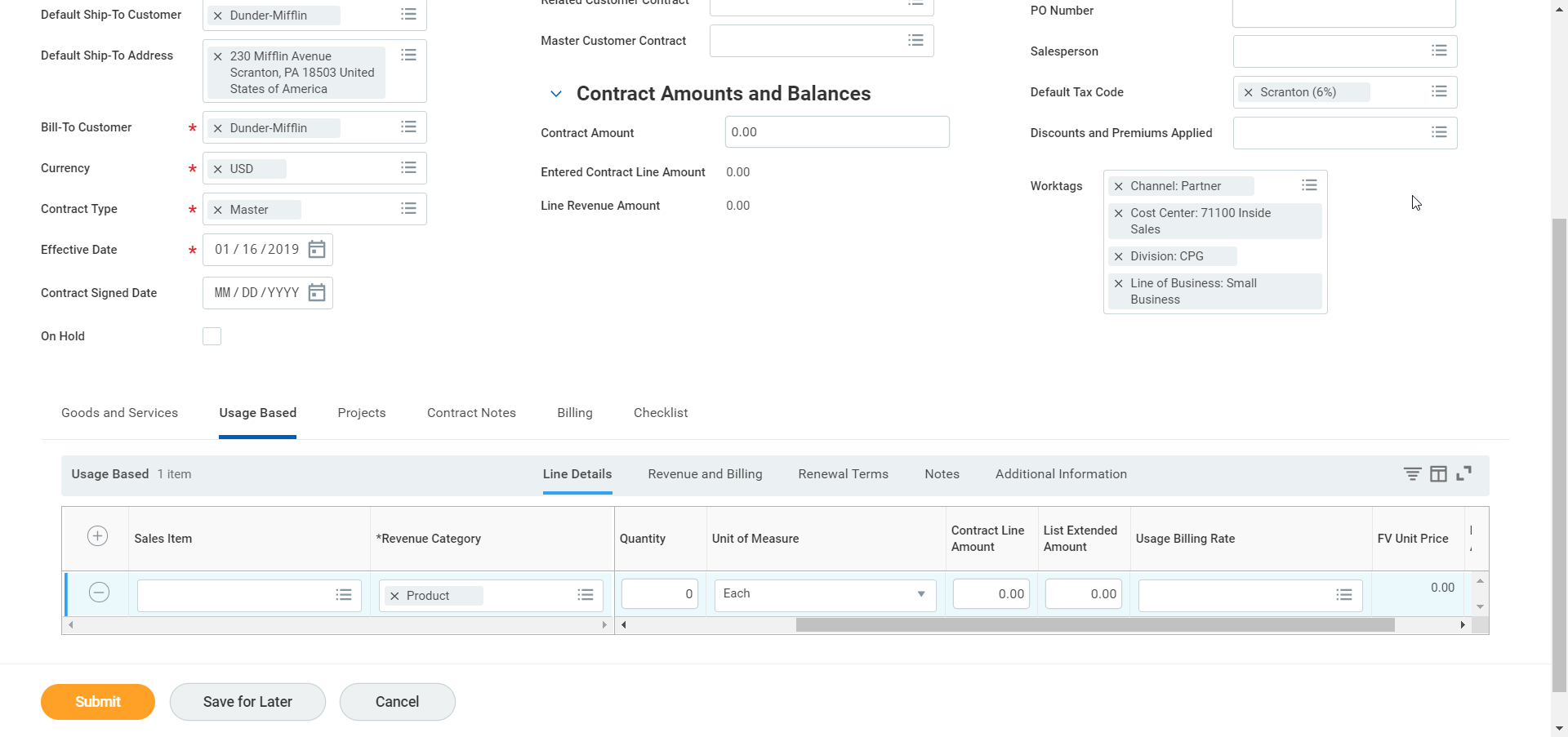
- Create Customer Contract
- Select a company and a customer for the contract
- Select contract type; you can define types in Maintain Customer Contract Types.
- Contract Line section: Select the Usage Based Tab then select the Add Row icon to add a line.
- Revenue Category is required; you may use Sales Item, which always has associated Revenue Categories.
- You can define the line as deferred revenue if necessary.
- Select existing or create a new Usage Billing Rate.
- You can save Usage-Based contracts with a $0 dollar contract amount.
- Usage Billing rates
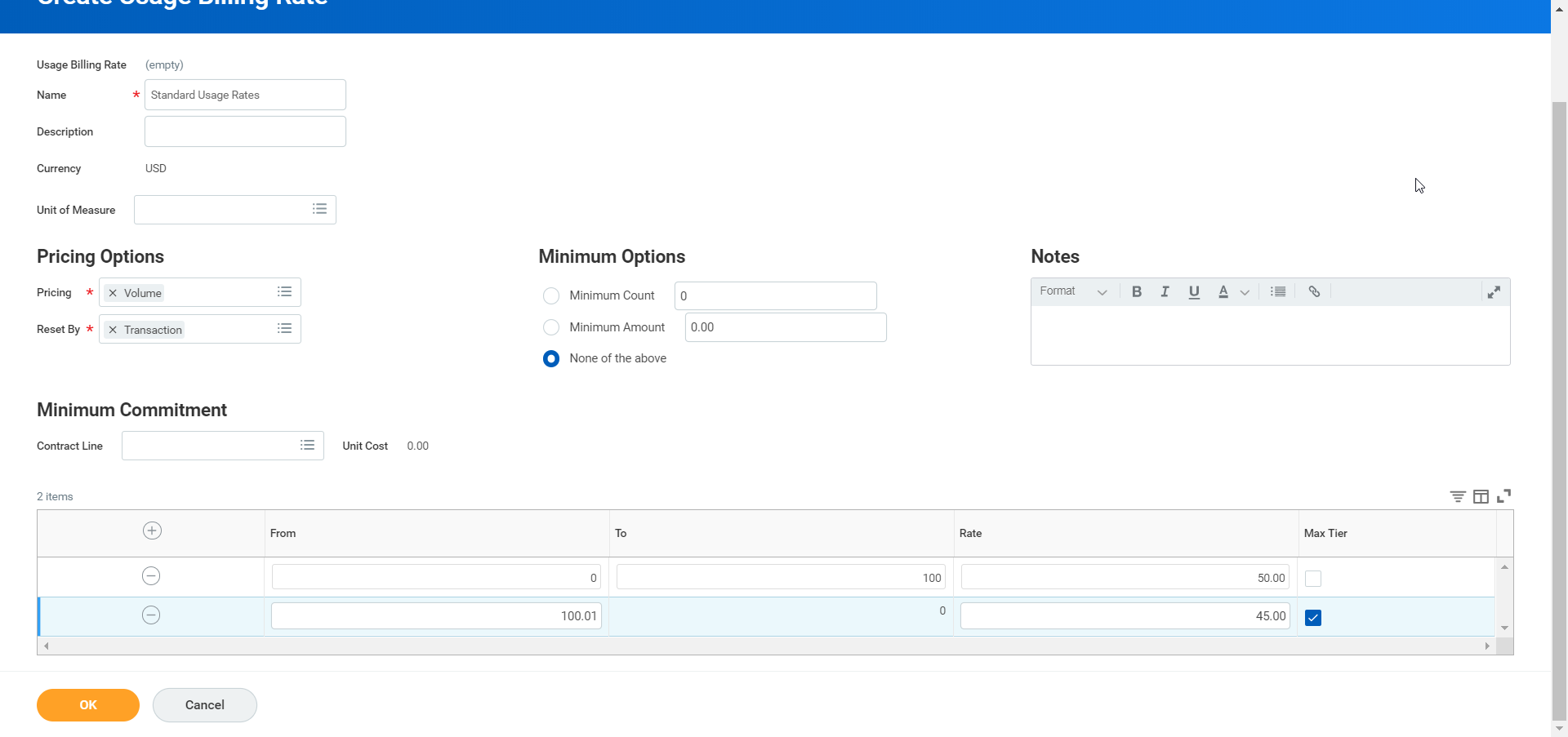
- Create New or select existing billing rates.
- First specify a name and pricing options, tiered, or volume pricing.
- Volume pricing for 150 units would cost (150*45) =$6750
- Tiered pricing for the same tiers pictured would cost (100*50)+(50*45) = $7,250
- Select other options.
- You can use reset options to allow new rates to take effect on a future date; reset each period vs. each transaction.
- Use minimum commitments, such as minimum counts or amounts, to determine minimum dollar requirements until the usage rate levels are reached. Example: At minimum, the customer will pay $5,000 per period for contract. If they exceed that they will pay above the minimum plus additional usage rates.
- The Minimum Commitment contract line option is reserved for Recurring- Fixed Term contract lines.
- Create rate grid.
- Must flag last tier in grid as the maximum rate.
Once you create the customer contract, you will need to create a billing schedule that includes one or more billing installments, per the terms of the agreement.
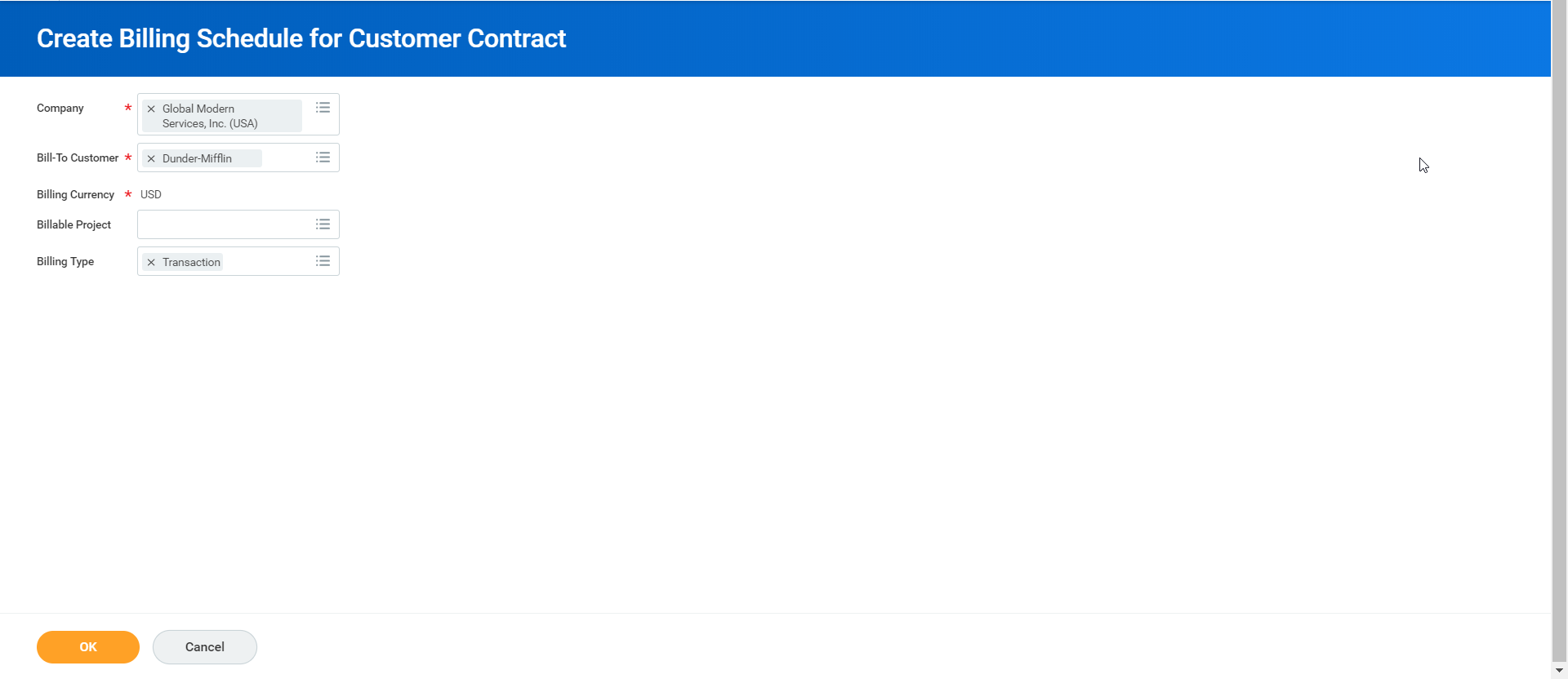
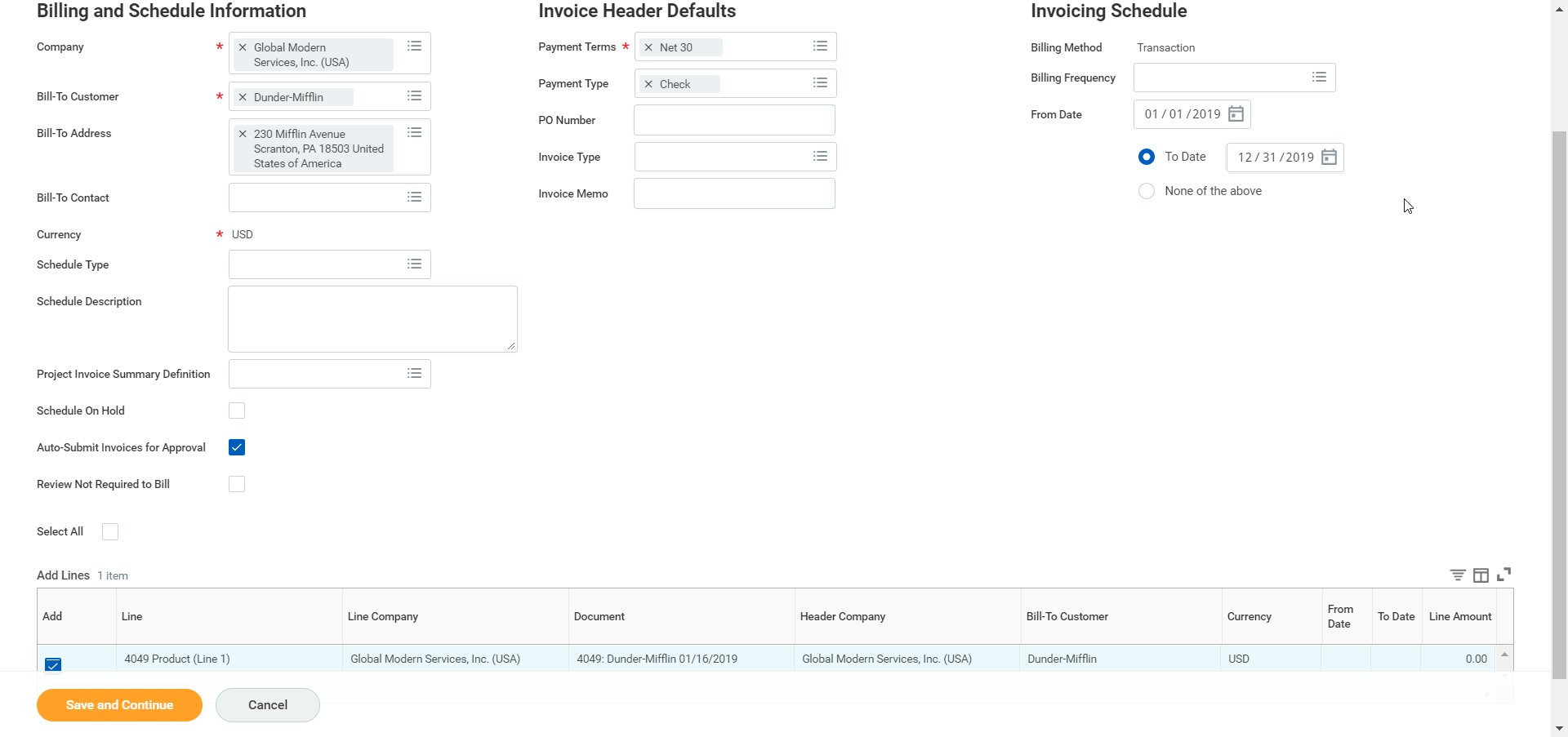
Usage-based lines are transaction-based and will have variable billing installments for the life of the contract. You can create a billing schedule using the
Create Billing Schedule for Customer Contract
task, which manages billing schedules for all customer contract lines. (You can use the Related Action off the contract line to create a billing schedule for the contract).Set the invoicing schedule for whatever you require. Transaction monthly. You cannot add billing installments on the billing schedule as the customer is billed on a transactional basis. Workday derives customer invoices on usage transactions, not billing installments. The completed billing schedule will be added to the contract line.
Record Usage Based Transactions
Once your customers begin using your service, you will need to capture usage activity to ensure proper billing and revenue recognition using the task,
Record Usage Based Transactions
to manually enter transactions incurred.- Workday lets you override the billing rate pulled from the pricing tiers on the Usage Billing Rate sheet by entering a different rate. Leaving the rate blank will use the usage-based rate sheet for transactions. You can record multiple Usage-Based Transactions at the same time, even for the same contract line (like January, February, and March usage all being recorded at once).
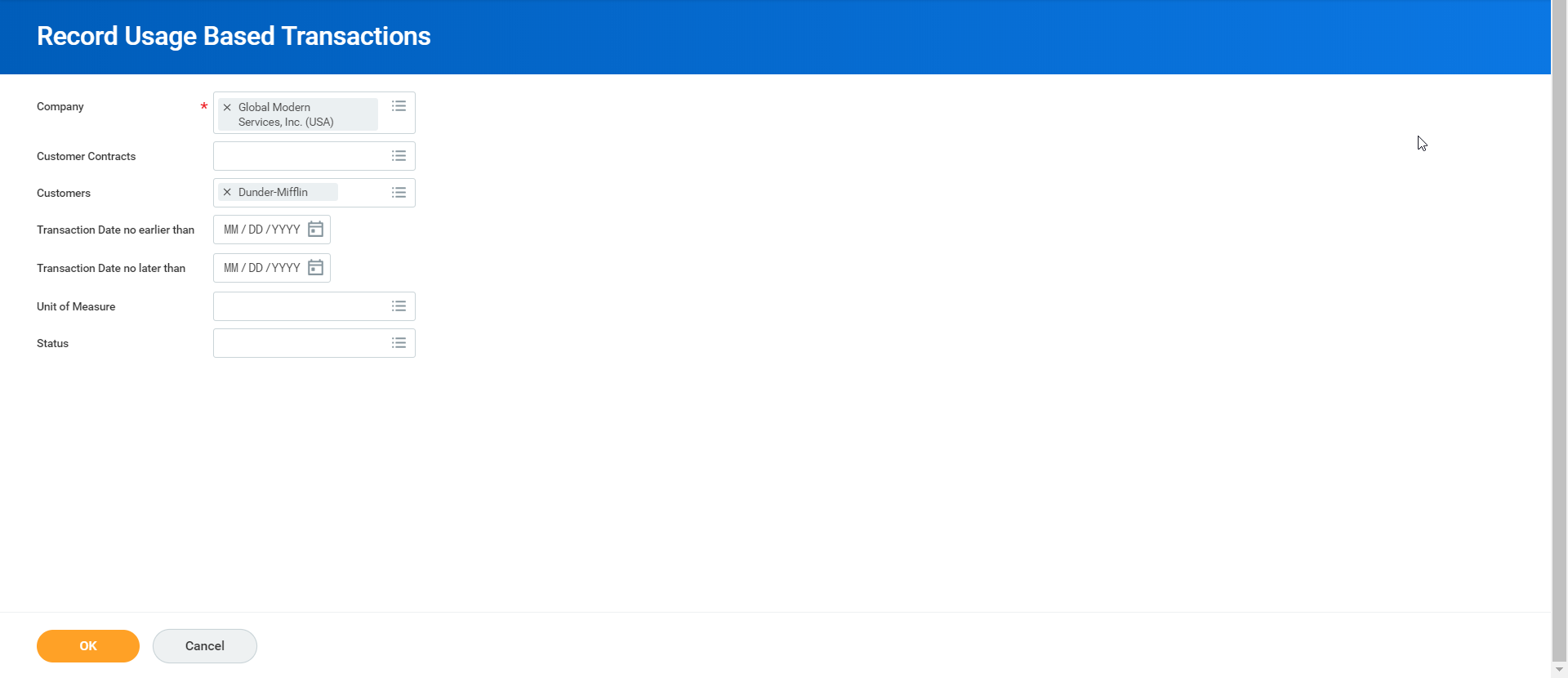
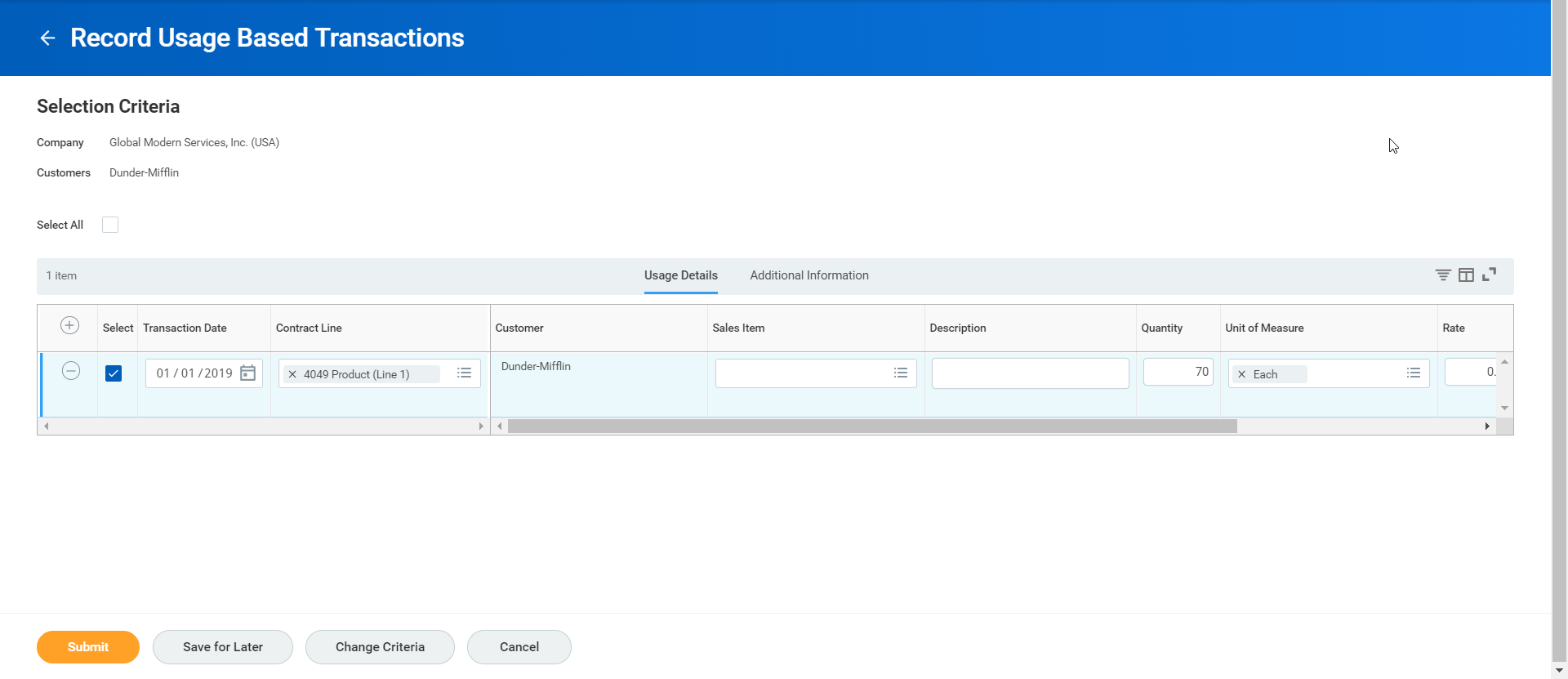
Before you invoice usage-based transactions, you must approve the transactions first. Use the
Review Billable Usage Based Transactions
task to review and approve the submitted transactions. You can review based on the billing status. Review and approve appropriate transactions.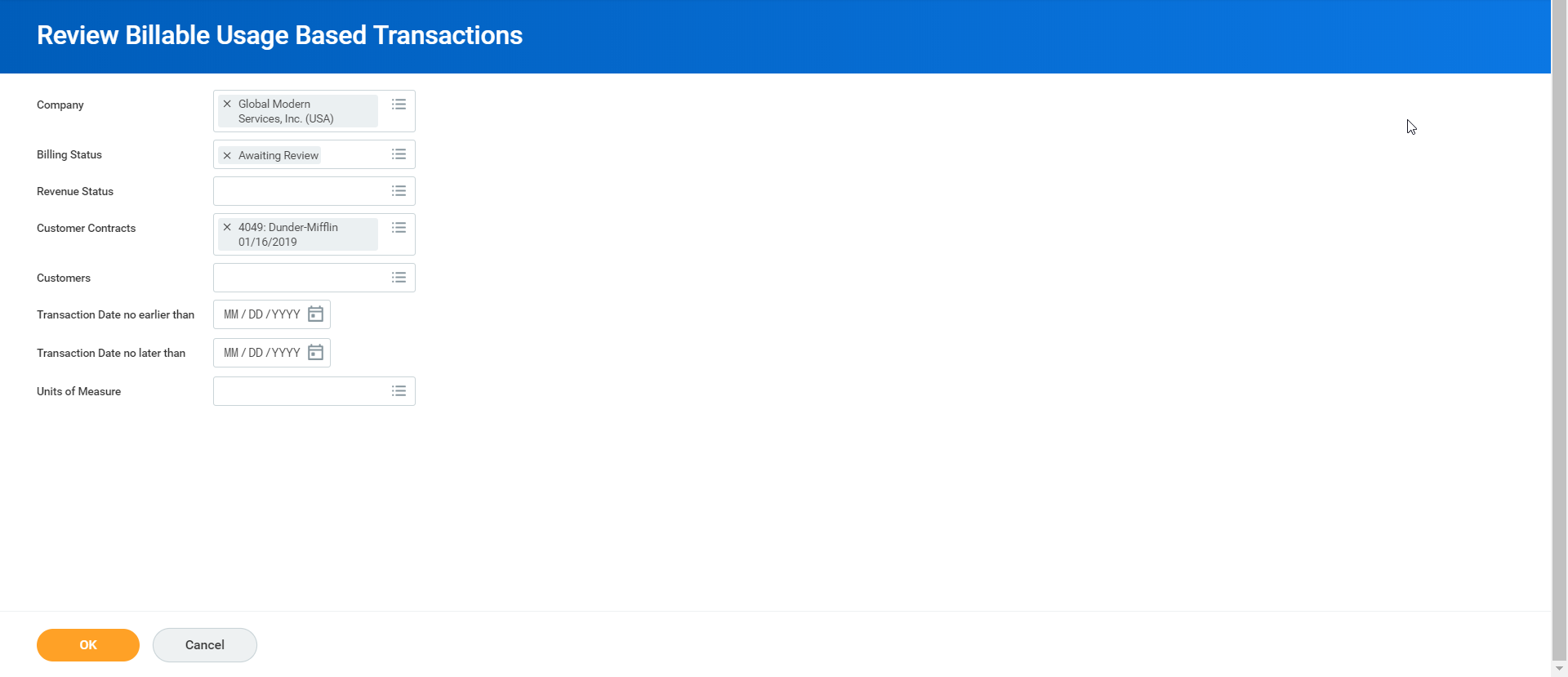
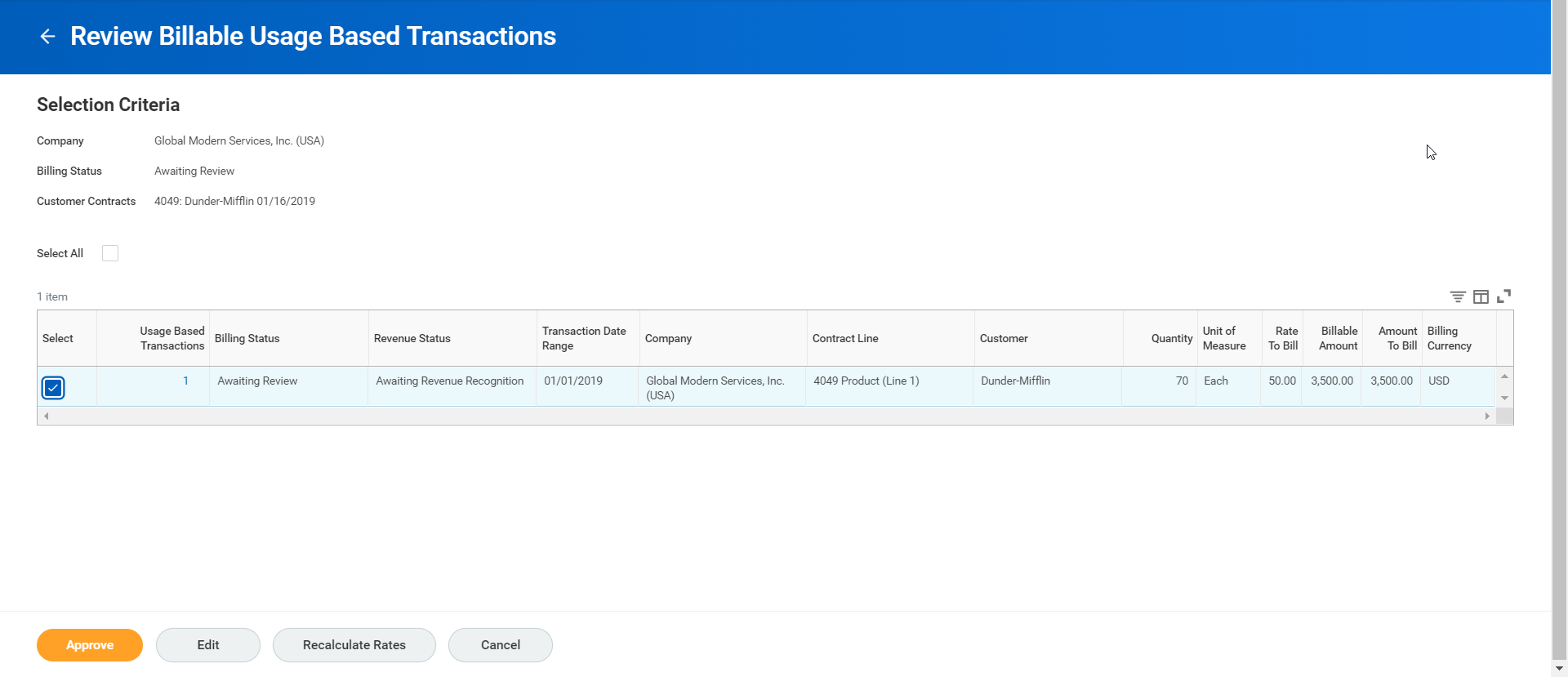
Generate customer invoices for billing once you enter the usage transactions, and after you enter and approve the given contract line. Confirm on the line itself under the Scheduled, In Progress, and Ready to Be Billed amount.
Create Customer Invoices for Billable Transactions
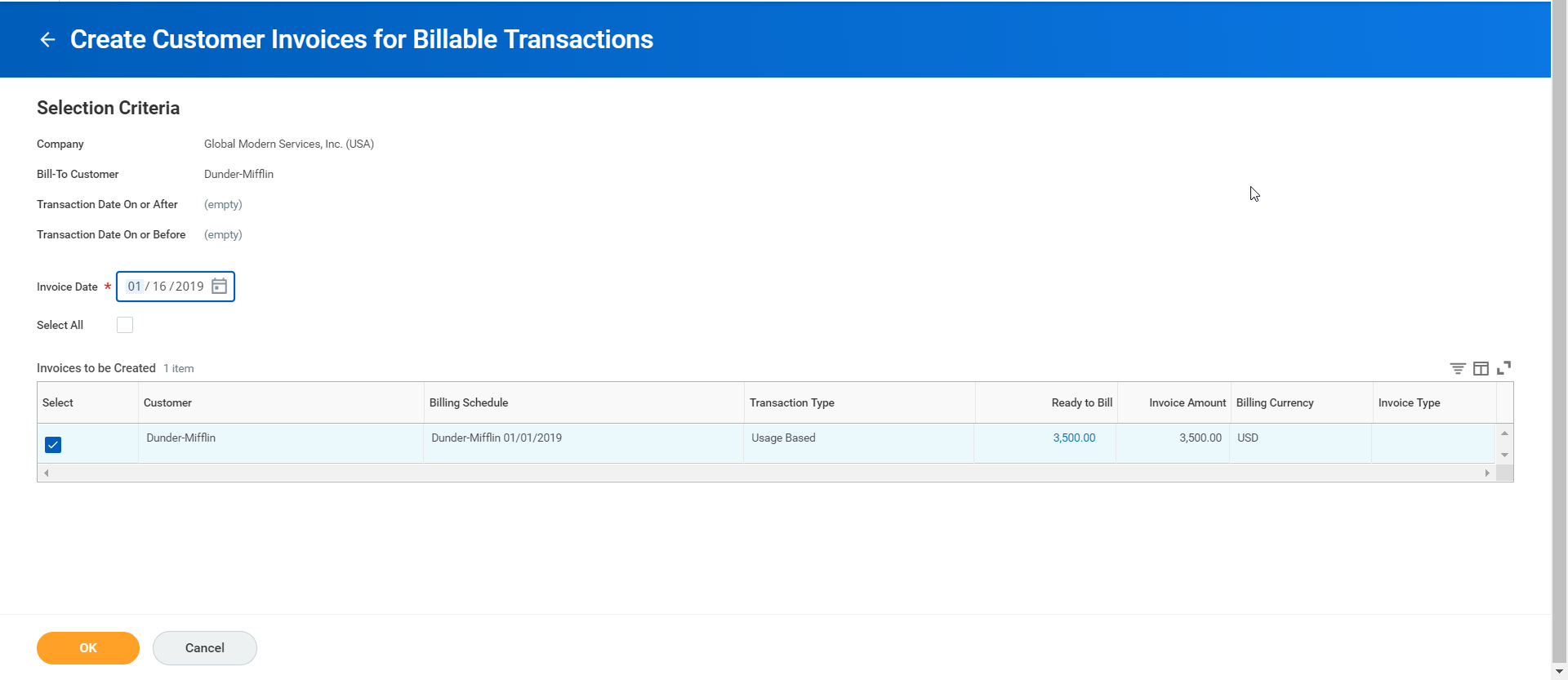
To generate invoices, use the
Create Customer Invoices for Billable Transactions
task. Refresh the process until completed to view the generated invoices.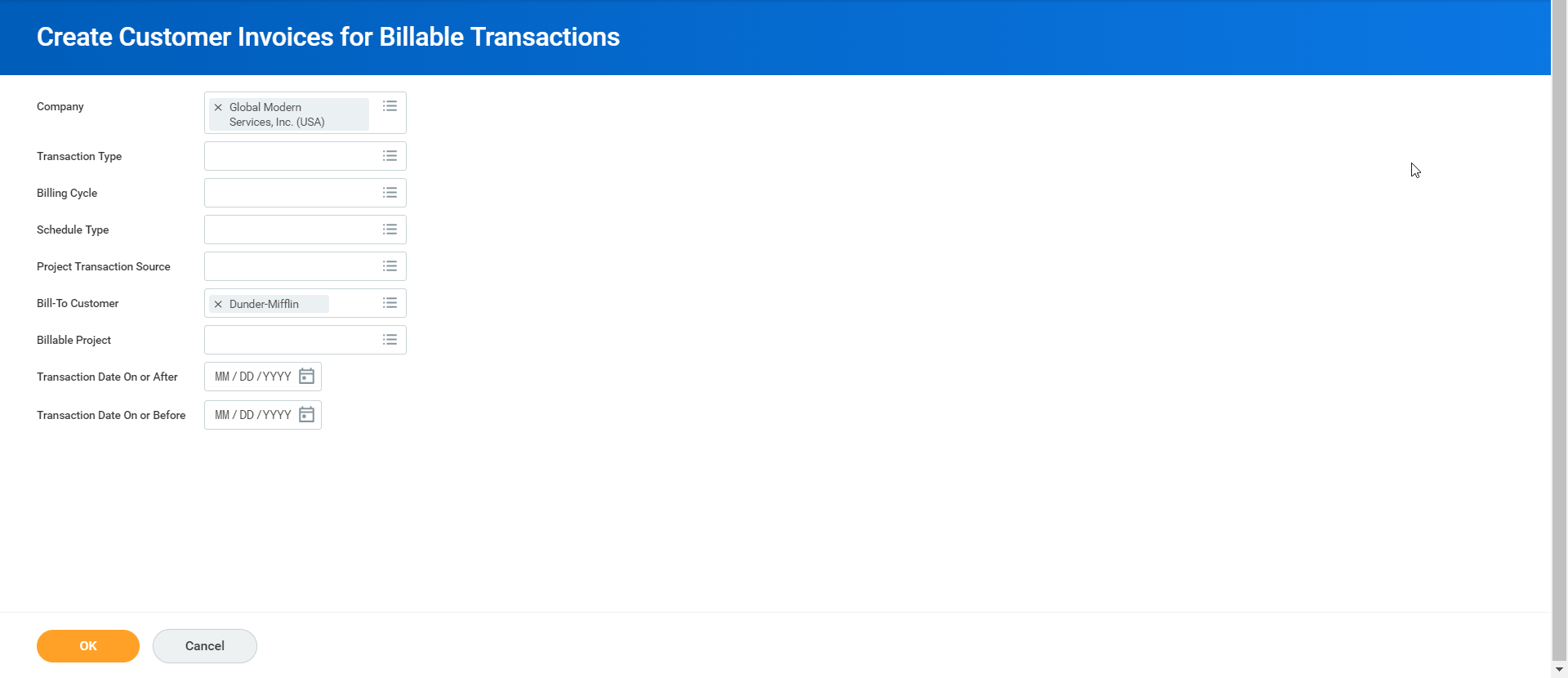
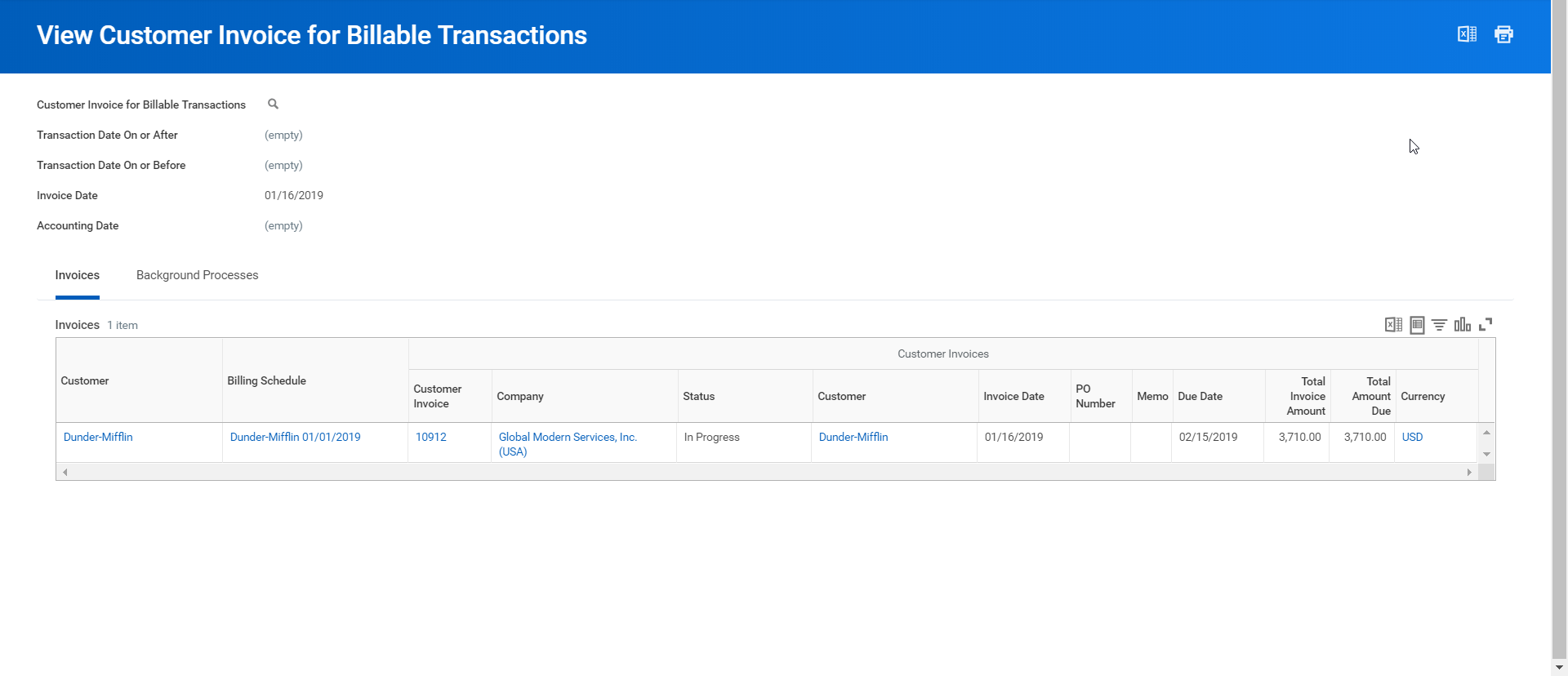
Assuming it was a deferred revenue contract, you can find the revenue balance for the contract, on the contract itself and the line.
Create Revenue Installments for Billable Transactions
Generate revenue from usage-based transactions by using the
Create Revenue Installments for Billable Transactions
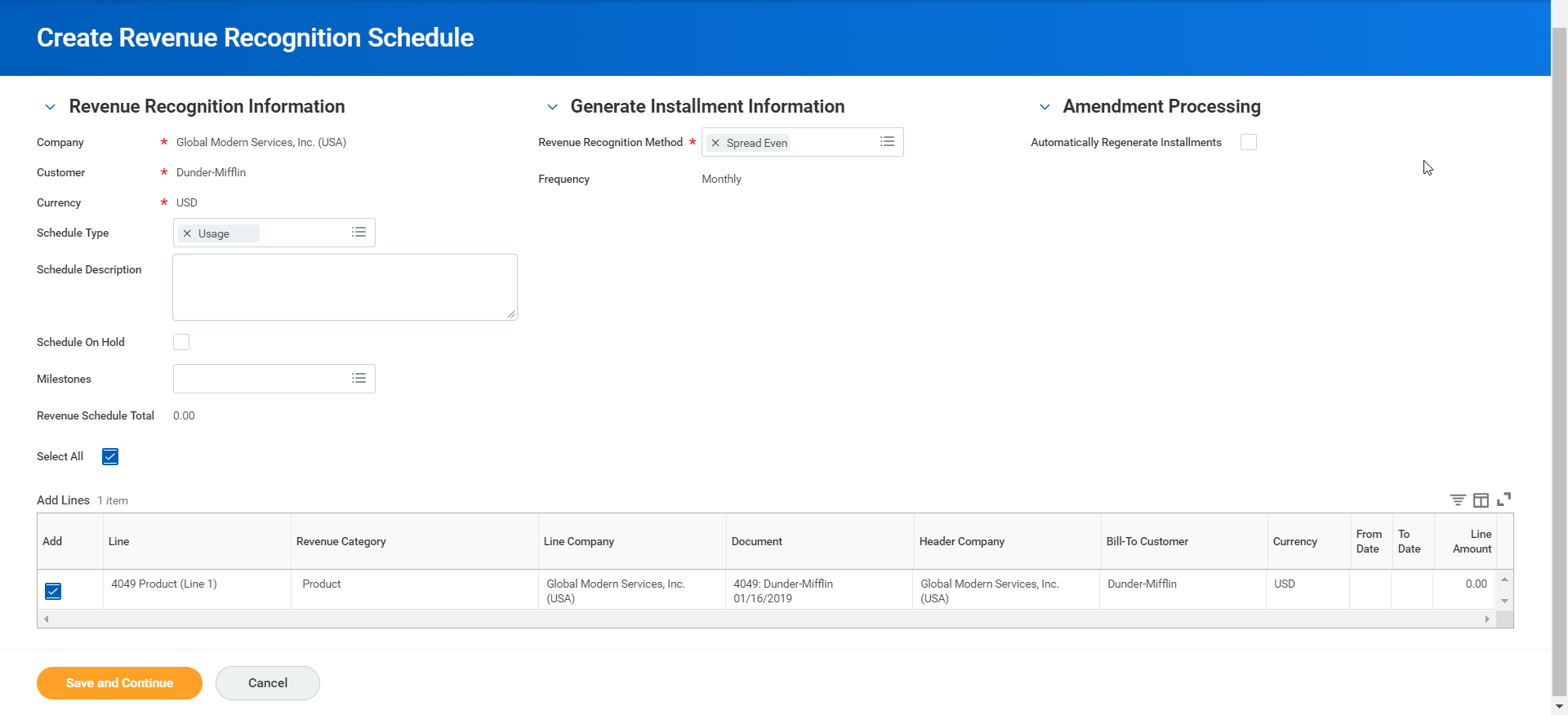
task. First you must create a revenue recognition schedule. You can use the contract's Related Actions or go to the task Create Revenue Recognition Schedule
.Select Usage as the 'Schedule Type' then
OK
. Once submitted, review as necessary. There are no installments for usage-based revenue recognition.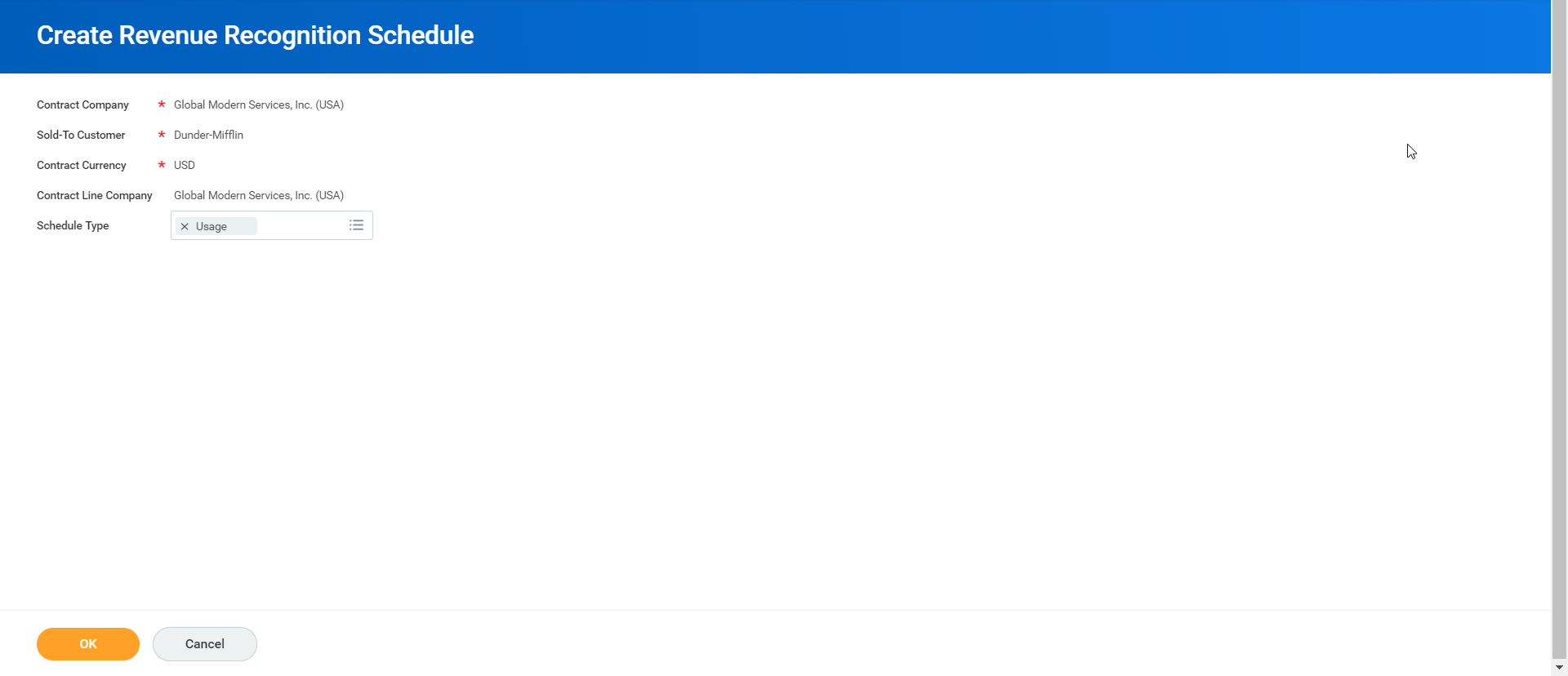
Create Revenue Installments for Billable Transactions
. Under the Transaction Type, there is a Usage-Based option available to select.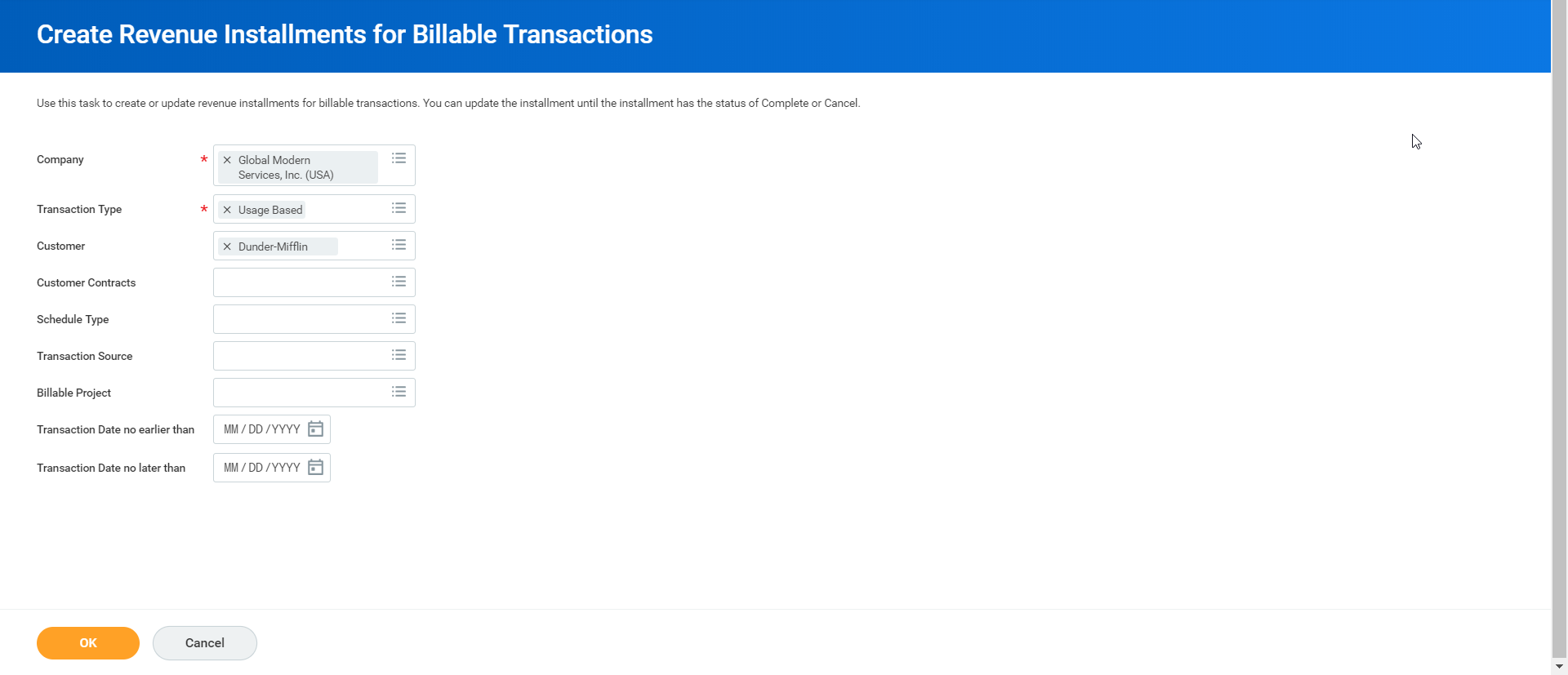
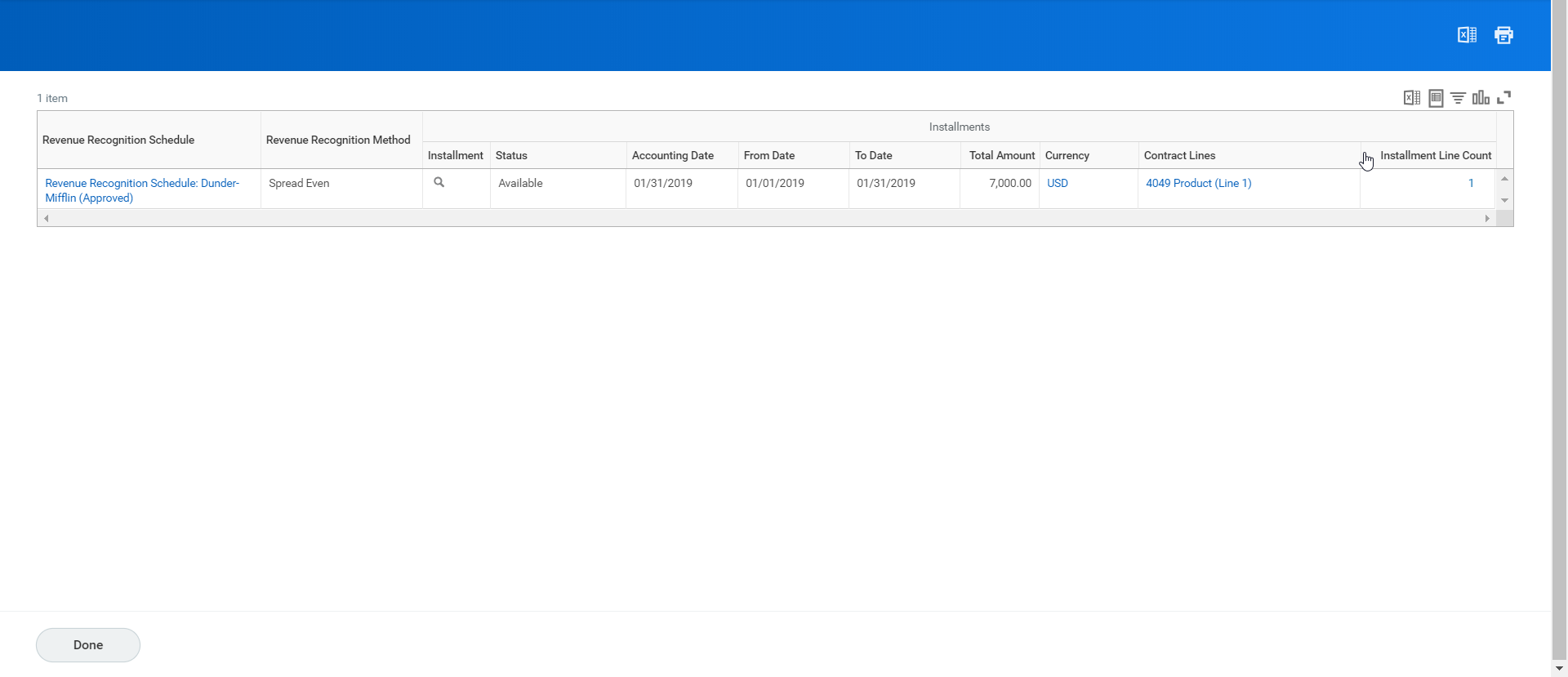
Once the process is complete, you can review the installments. This schedule will grow monthly as new transactions are billed.
Reports
Workday Standard Reports
Analytic Reports
- Customer Accounts Requiring Action
- Customer Activity Details
- Customer Activity Summary
- Customer Balance Details
- Customer Balance Summary
- Customer Deposits Requiring Action
- Customer Invoices Requiring Action
- Customer Open Items
- Customer Payments Requiring Action
- Customer Payment Detail
- Find Customer Deposits
- Find Customer Payments
- Find Customer Write offs.
- Receivables Aging Standard
- Receivables Aging Detail Standard
Setup Reports
- Customer Payment Auto-Application by Reason
- Customer Payment Application Reasons
- Payment Terms
- View Aging Group
- View Collection Code
- View Customer Payment Application Condition Rule
- View Customer Payment Application Rule
- View Customer Payment Application Rule Set
- View Customer Payment Auto-Application Configuration
- View Dispute Reasons
- Workday Delivered Customer Payment Application Rules
Common Reports: Invoicing and Receivables Reports
There are several useful cash-management-related reports in Workday.
Report | Description |
|---|---|
Customer Activity Details | View the transactions for a customer or hierarchy that fall within the specified time range. Details include the transaction, date, type, number, due date, state, increase or decrease, and balance. |
Customer Activity Summary | View the total transaction amounts for the specified customers that fall within the specified time range. Details include the currency, beginning balance, invoice total, adjustment total, payment total, write off total, refund total, and ending balance. |
Customer Balance Details | View the open balance for each customer. Details include currency, reporting transaction, type, number, due date, aging days, original amount, payments applied, discounts, write offs, and open balance. |
Customer Balance Summary | For each customer, view the currency, invoices total, adjustments, unapplied payments, and balance. |
Customer Invoices Requiring Action | View invoices that may require action. Only returns invoices that are late, on hold, in collection, or in dispute. Use this report as the basis for custom reports that meet your specific criteria for invoices that require attention. |
Customer Payment Detail | View all customer payment activity for your company or company hierarchy. Enables you to check the status and details of your customers' payments. You can narrow your report results to specific customers, a payment date range, and other criteria. Details, for example, include payment date, status, type, and amount. You can also find payment application details including customer invoices and adjustments paid, write-offs, and payment amount on account. As Related Actions you can cancel, return, or unapply payments as necessary. |
Customer Statements | View customer statements for the specified customer or hierarchy that apply to the specified company. Details on the Transactions tab include each transaction date, type, number, due date, state, increase, or decrease and balance. These transactions are sorted by currency. Details on the Aging Report tab include, for each customer, the current amount and amounts for different ages, depending on the selected aging group. |
Find Customer Deposits | View all deposits in the specified period. Details on both the Deposits tab and the Deposits Included in Payments tab include the status, customer, date, bank account, deposit amount, and currency. |
Find Customer Invoices for Billable Projects Find Customer Invoices for Company | For the Billable Projects and Company standard reports, you can save and refine your searches after Workday displays your results. For each invoice, this report shows the number, company, status, customer, date, memo, discount date, due date, invoice amount, amount due, currency, adjustment, and adjustment reason (if any). |
Find Customer Write-Offs | For each bad debt write-off, view the status, customer, write off date, and amount. For each bad debt write-off included in a payment, it shows the status, customer, payment date, and amount. |
Receivables Aging Standard Receivables Aging Detail Standard | You can choose to run these reports as operational aging based on the invoice date, or financial aging based on the accounting date by accounting period. For each customer, view the current amount and invoice amounts for different ages, depending on the selected aging group. For operational, the reports display outstanding customer receivable amounts into user defined aging "buckets" for current items and various levels of past due items. Supports up to six aging buckets. Workday displays a warning if an aging group has more than six aging buckets. If you choose to run the aging report as financial aging by accounting period, you can filter by Ledger Period for Receivables Aging. Select either the current period or a specific ledger period by ledger year.Note: Both the operational and financial aging are cumulative in capturing total invoice amounts. Operational aging is useful for tracking your receivables from a collections perspective. Financial aging is helpful for closing your accounting period. Example: A customer invoice with an invoice date of 1/31/25, but an accounting date of 2/1/25, will not display in a financial aging report for January of 2025. It displays in February 2025. An operational aging report displays that invoice in January 2025. Workday only includes transactions with an invoice date that is before the selected report date. The most common aging report shows: Current, 1-30, 31-60, 61-90 and >90. The Detail report breaks down aging by specific invoice transaction. |