
Billing Schedules
Overview
In this chapter, you will learn how to create and change a billing schedule.
Objectives
By the end of this chapter, you will be able to:
- Identify billing schedule domain and business process security policies.
- Define types of billing and installments.
- Configure milestones.
- Create a billing schedule.
Security Policies
As you deploy Workday Revenue, there are some billing and taxes security policies that you will need to configure. This configuration ensures the appropriate security groups have the right permissions.
Domains
Topic | Functional Area | Domain |
|---|---|---|
Billing | Customer Contracts |
|
Business Processes
- Billing Schedule Event
Billing
You can create customer invoices manually or generate them automatically based on a schedule you configure. If you are using a customer contract to generate invoices, you may use information from the customer contract to create a billing schedule based on terms established in the agreement with the customer. Each installment in the billing schedule will create a customer invoice that routes for review and approval.
Billing Schedules and Installments
Billing schedules control which items you bill together for a customer. You can link contract lines that span multiple contracts for the same company and customer to the same billing schedule.
For example, if you want to bill contract line 1 of contract A on the same invoice document as contract lines 1 and 2 of contract B, you can use the same billing schedule to invoice them together.
Each billing schedule has:
- Billing frequency
- Billing method
- Start date
- Either end date or number of installments.
Workday creates installments based on the scheduled start and end dates, which can be different than the contract line start and end dates. Each billing installment ultimately creates a customer invoice and each installment line becomes an invoice line. One contract line is associated with each installment line and many of the installment line attributes are derived from the contract line.
Once you approve the billing schedule, its billing installments become available to create customer invoices.
Workday supports the following billing methods for each billing schedule. You have the flexibility to change the billing method throughout the life of the schedule:
- Defined Installment- Each contract line has a regular installment amount; The first and last installment can be different to support proration.
- Spread Even- Workday spreads the contract line amount over a set number of installments.
- Custom- You can use this method to create a schedule from scratch or update a schedule that you created using a different method.
Workday assigns an Out of Balance status if:
- Any contract lines in a noncustom schedule are not exactly scheduled in installments.
- Any contract lines are scheduled to be over-billed in a custom schedule.
Creating a Billing Schedule
You can create billing schedules using the task
Create Billing Schedule for Customer.
You can also create them for a single contract line by navigating to the contract and selecting the Related Action from the contract header or contract line. When you create a schedule from a contract or for a single contract line, some fields such as Company and Customer populate from the contract.As you create a billing schedule, you have the option to auto-submit invoices for approval. Keep that box checked to enable this functionality. Note that credit adjustments do not update existing billing schedules. This would be a manual process.
Schedule Customer Invoices
If you would like to schedule the processing of billing installments based on criteria you define, use the task
Schedule Create Customer Invoices for Billing Installments
. Workday ignores billing installments with pending or on hold milestones.Using this task, you are prompted to enter the frequency of processing invoices, start time, time zone, and date range of recurrence. As you complete the criteria, consider the following:
Option | Description |
|---|---|
Invoice Date Days Ahead | The Number of calendar days that the run date precedes or follows the invoice date. Example: If the value is 3 and the run date is 1/28, Workday selects all installments with an invoice date greater than or equal to 3 days after 1/28, or 1/31. If the value is -3 and the run date is 2/3, Workday selects all installments with an invoice date greater than or equal to 3 days before 2/3, or 1/31. If there is no value, Workday selects all installments with an invoice date greater than or equal to the run date. |
Billing Method | Custom - Select to generate schedule installments using custom installment amounts.Defined Installment - Select to generate schedule installments using the same amount for each ledger period except the first and last installment amounts.Number of Days - Select to generate schedule installments using the number of days in the billing frequency (for example, monthly).Spread Even - Select to generate schedule installments that spread the amounts evenly across installments. |
Billing Schedule Templates
Billing schedule templates allow you to create a billing schedule automatically when you submit a customer contract. You can configure templates directly on a customer contract or contract templates, or they can default from a sales item. Workday populates the billing schedule with the information that you specify on the billing schedule template. Additionally, you can create billing templates to streamline the consolidated billing schedule creation process for customer contracts. Workday populates the billing schedule with the information you specify on the billing template.
Milestones
Milestones provide the ability to track completion of tasks at the customer level. Milestones also provide additional control for when a billing or revenue recognition schedule, or specific billing schedule installments or revenue recognition installments, process. You can assign an unlimited number of milestones to schedules and installments. If the installment or schedule has any pending milestones, Workday will not process it.
Workday supports the following types of milestones:
- Customer Dates- You configure standard date milestones to use as the basis for creating customer date milestones.
- Project Tasks- You can select project tasks marked as milestones; A common use case is for billing to occur when a project completes.
- Billing Schedule first Invoice- Indicates that billing has started; A common use case is for billing to trigger that revenue recognition can start.
- Use theMaintain Date Milestone Typestask to define standard date, customer date, and milestone types. Use milestone types when creating customer date, and milestones for customer contract billing or revenue schedules.
Standard milestones become customer milestones once you add them to a customer. Customer milestones are unique for each customer and company combination.
To view complete and incomplete milestones along with details about how each milestone is being used, run the report
Find Customer Milestones
. Manage your milestones by using the Create Customer Date Milestone
or Edit Customer Date Milestone
tasks.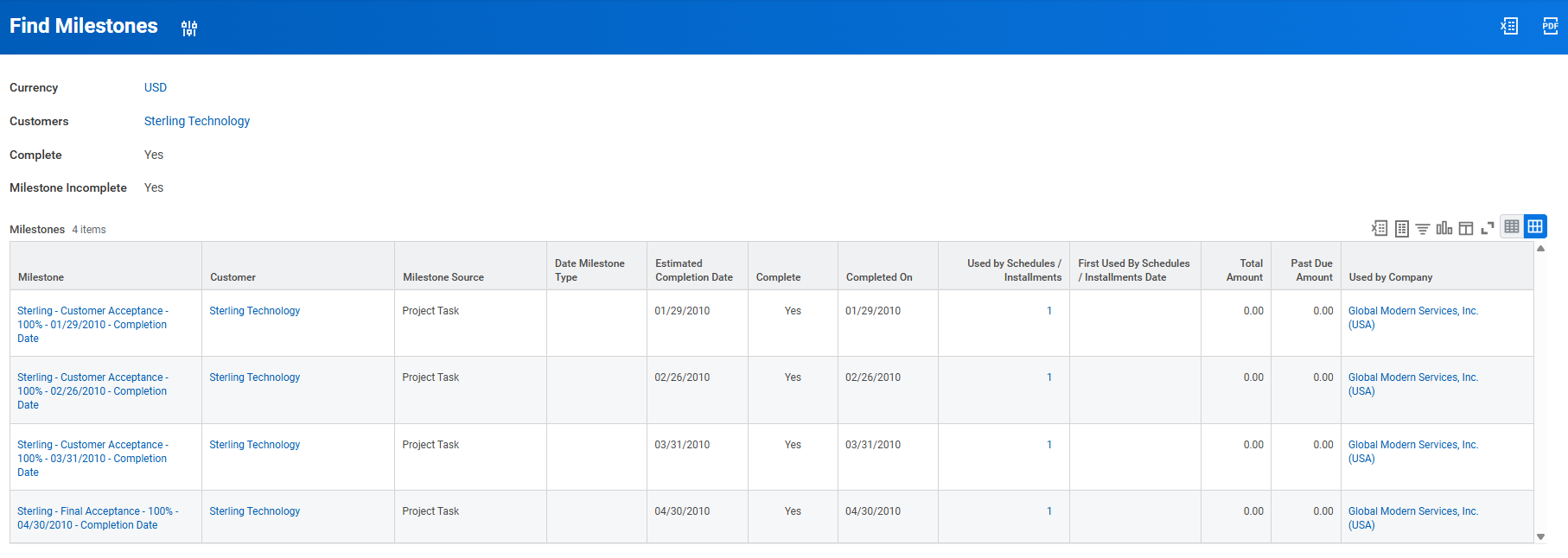
Project Milestone Billing and Revenue Recognition
Project milestones control when project transactions bill and when revenue recognizes. Project milestones can be specific to a project phase or defined for the overall project, to control when transactions for that phase release for billing.
You may select a project task, marked as a milestone, as a contract milestone, which is visible to the project manager. Validations do not allow a project task to be deleted if used on a contract.
Estimated completion date and actual completion date are manually entered and maintained. Billings for a project task can occur once the project task updates to reflect 100% and the project manager has entered an end date (treated as milestone completion date) which precedes the current date.
Auto-Apply Customer Payments
Use the
Auto-Apply Customer Payments
task to apply unapplied payments automatically that you marked as Ready to Auto-Apply while recording customer payments. Typically, you use this task to process a large volume of payments loaded into Workday through integrations or through the Mass Record Customer Payments
task.You can run the
Auto-Apply Customer Payments
task at any time, or you can schedule it to run at regular intervals. To run the task regularly, use the Schedule Auto-Apply Customer Payments
task. Here, you can set the recurrence schedule and the appropriate parameters that Workday uses every time it runs this task.Workday auto-applies payments using processing logic from the delivered preset customer payment application rules. You can apply your payments using these delivered rules or define your own custom rules and conditions.
The payment application engine processes all payments rule-by-rule rather than payment-by-payment. You can view them in the
Workday Delivered Customer Payment Rules
report.Configuring Auto-Apply of Customer Payments
There are options for configuring auto-apply payments in Workday. You can use the Workday delivered payment application rules, or you can set up your own set of advanced rules and reasons. Additionally, we enable you to override the configured customer payment application rule set for a company so that you can schedule multiple rule sets on different frequencies to suit your business needs. This capability provides flexibility convenience, and reduces manual effort by eliminating the need to update the customer payment application configuration for a given company every time a different customer payment application rule set needs to be run.
Customer Payment Application Reasons
The task
Maintain Customer Payment Application Reasons
covers all the reasons for applying unapplied payments, on-account payments, bad debt write offs, and invoice adjustments.Use this task to create or edit names you want to provide for your payment applications. Use a name that describes your payment rule and its associated condition rule. Examples may include
Payment matched to last customer statement, Write-off bad debt <$5,
or Invoice adjustment matched to referenced invoice
.You can add, update, and delete existing reasons.
Customer Payment Application Condition Rules
Workday evaluates the condition rules that you create here, and ensures that they evaluate as true. A condition rule is associated with a customer payment application rule that you will define in the next step.
Define a condition rule by comparing the Source External Field or Condition Rule field value with the Comparison Value field value, using a Relational Operator field option. You can add additional rows for your conditions and determine how Workday should evaluate it in the And/Or field.
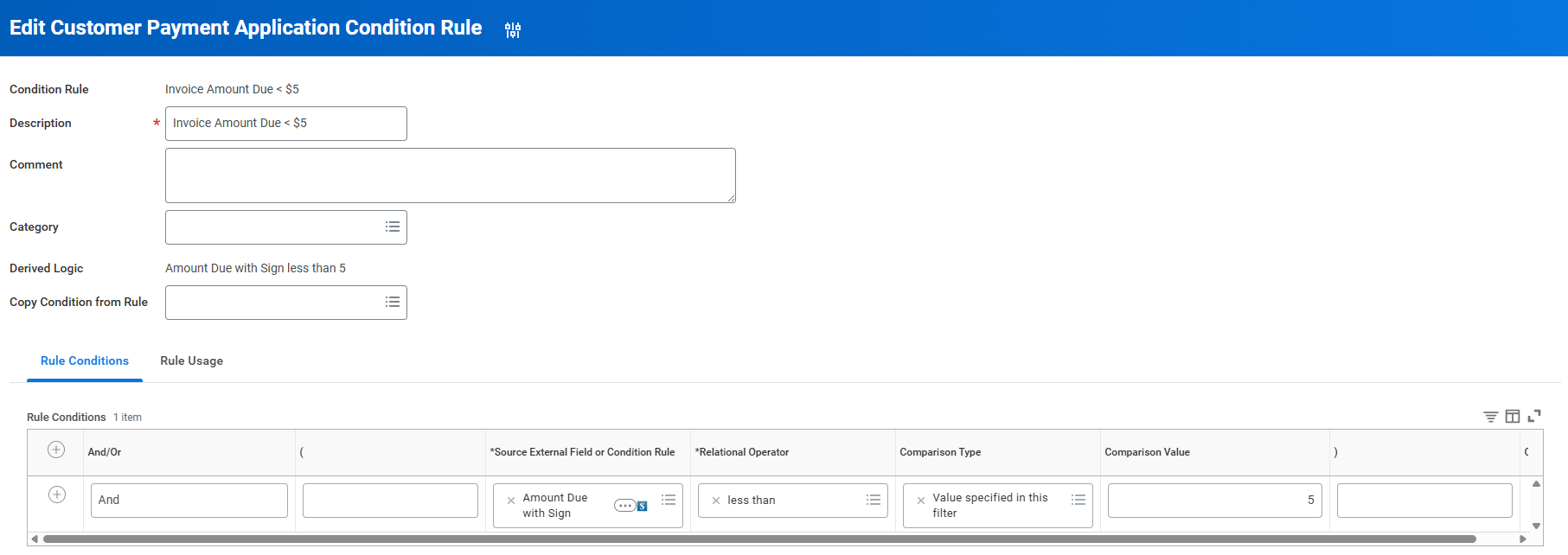
Customer Payment Application Rule Types
Create the payment application rule using the reasons and the condition rules you set up in the preceding steps. There are four Workday Delivered rule application types:
- Invoice Credit- Applies invoice adjustments to invoices
- On Account Payment- Applies invoices to payments with a payment application status ofOn Account
- Unapplied Payment- Applies invoices to payments with a payment application status ofUnapplied
- Write-Off- Performs invoice write offs.
As you create payment application rules, consider:
Option | Description |
|---|---|
Condition Rule | Condition rules drive the selection of specific invoices for payment. |
Payment Application Reason | Every rule must have a Customer Payment Application Reason that identifies which rule Workday uses for payment application. |
Application Type | If you use an application type of Write-Off , Workday evaluates invoices directly, whether you reference them in a payment or not.Example: If you have a rule defined to write off all invoices under $1 over 90 days, this payment rule performs the write offs, even if there are no payments to evaluate. |
Allow Application for Different Customers | The Allow Application for Different Customers checkbox enables Workday to apply a payment where the Remit-To Customer does not match the invoice's Bill-To Customer. |
Leave Application as Draft | The Leave Application as Draft checkbox causes the payments that Workday evaluates to remain in Draft status. Payments are not submitted, and Workday does not create accounting for this payment yet.If you want to review your payment applications performed by the payment rule before submitting them, use this option. |
Put Unapplied Amount on Account | The Put Unapplied Amount on Account checkbox tells the payment rule to put any overpayments automatically on account. |
Note
: If you would like to match a payment by either invoice number or PO number, you can use the Remittance Detail Match Conditions section of the Customer Payment Application Rule task, instead of associating a condition rule. Workday will perform instance-based matching via specific code, which will perform faster than processing condition rules.Customer Payment Application Rule Set
Workday delivers a customer payment application rule set named
Standard Application Rule Set
with multiple rules predefined. This rule set is useful for your starting point.When creating a new rule set, select the rules you want Workday to process during the
Auto-Apply Customer Payments
task, and the order in which you want them executed. The order of your rules is important because Workday will process the first condition met in the list. Include condition rules to determine when each rule will trigger.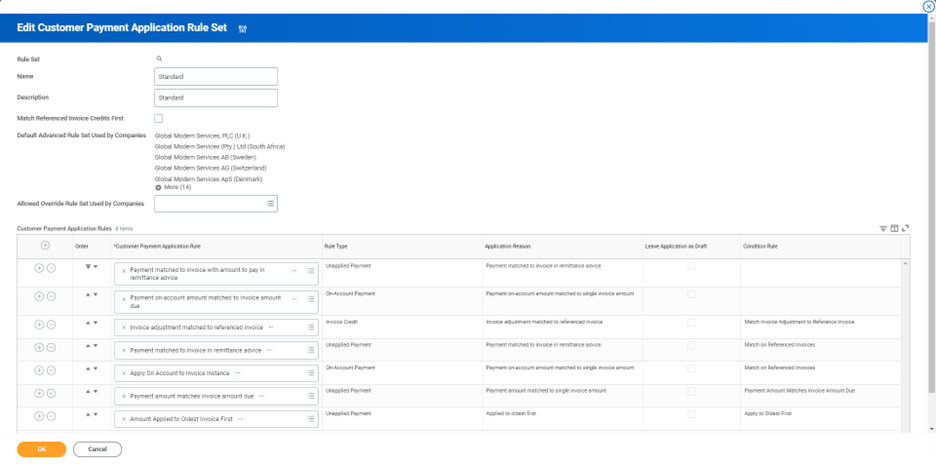
Customer Payment Application Configuration
Configure Workday to use the advanced rule set you created. To enable the use of advanced payment rules, select the Advanced checkbox in the task
Edit Customer Payment Application Configuration
. This task is available as a Related Action off the company.You can only select one rule set per company on the task, but you may override the rule set used by a company by going to Edit Customer Payment Application Rule Set and entering the company into the Allowed Override Rule Set used by Companies field.
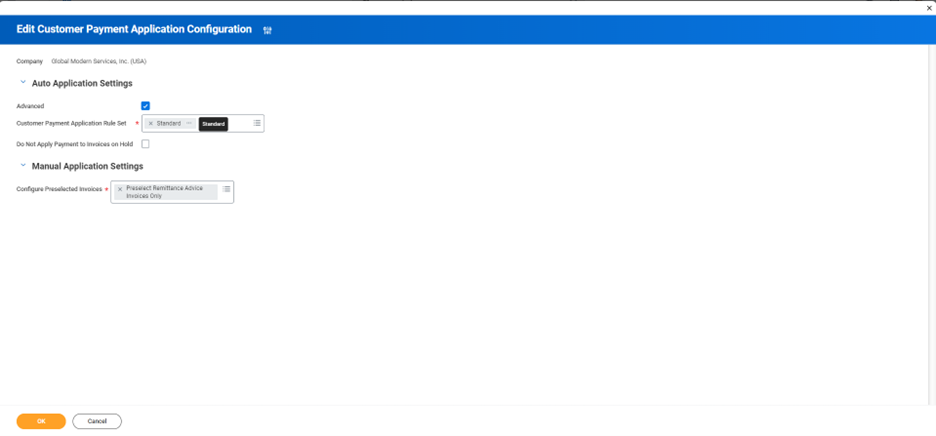
Financial Management Machine Learning
Machine Learning in Workday Financial Management increases productivity and data quality by providing intelligent automation for labor-intensive Financial Management back-office processing tasks and increases confidence in accounting accuracy by providing anomaly detection across critical financial reporting processes.
NOTE: The usage of this service requires a signed Innovation Service Agreement.
Customer Payment Matching
You can enable machine learning to get recommendations for matching payments to customer invoices and adjustments that have little or no remittance advice associated with the payment. The machine learning model uses insights from historical payment application data and also learns from current payment applications to determine invoice recommendations for a given payment. The model ignores:
- Consolidated invoices
- Invoices with term discounts
- Invoices that don't add up to the payment amount when making recommendations.
Intelligent Prompt Recommendations for Customer Overpayments
Workday provides you with machine learning recommendations for customer overpayment reasons and Worktags as part of the Financial Management Learning Generally Available Features innovation service. This improves data accuracy and expedites the process to record overpayments.
Additional Considerations:
You need at least 3,000 customer overpayments created to enable machine learning recommendations for overpayment reasons, cost center or location worktags. Workday displays an error message when you don't meet this requirement preventing you from opting in to this feature.
Reports
Workday Standard Reports
- Billing Cycles
- Billing Schedules Requiring Action
- Find Billable Project Transactions
- Find Billing Installments
- Find Billing Schedules
- Find Contract Rate Sheet
- Find Milestones
- Milestones Requiring Action
- Transaction Tax Liability