
Revenue Framework
Overview
In this chapter, you will learn about the terms and concepts that are critical to basic Revenue functionality. These terms and concepts include:
- Creation and modification of revenue categories and sales items
- Uses of data integrity on revenue categories and sales items
- Association of taxes and tax applicability on given objects.
Objectives
By the end of this chapter, you will:
- Identify Customer Accounts domain security policies.
- Create and modify sales items.
- Create and modify revenue categories.
- Define worktag functionality.
- Associate tax applicability
Security Policies
As you deploy Workday Revenue, there are some basic Revenue security roles and security policies that you will configure. This configuration ensures the appropriate security groups have the right permissions.
Security Groups
The following security roles play an important part in Revenue Management:
- Finance Administrator: This user-based security group can create and maintain all financial setup data, regardless of organization. Examples include financial institutions, financial accounting data, ledgers, journal sources, account control rules, and fiscal schedules.
- Accounts Receivable Specialist- This role can perform the majority of the transactions related to managing customer invoices, including managing customer invoices, customer adjustments, and customer payments. Assign this role at the company or company hierarchy level.
- Accounts Receivable Analyst- This role able to view reports and transactions related to customer accounts for analysis and reporting. Assign the role at the company or company hierarchy level.
- Customer Contract Specialist- This role can perform customer contract management functions for assigned organizations. Examples include maintaining customer contracts and amendments.
- Billing Specialist- This role can perform billing management functions for assigned organizations. Examples include milestone setup creation of billing schedules, and creation of customer invoices from billing schedules.
- Revenue Specialist- This role can perform the majority of revenue-related tasks, including managing revenue recognition schedules and setting up customer contract billing functions for assigned organizations. Examples include maintaining billing schedules and generating revenue installments.
Domains
Topic | Functional Area | Domain |
|---|---|---|
Revenue Categories | Common Workday Financial Management |
|
Worktags | Common Workday Financial Management |
|
Sales Items | Customer Accounts |
|
Custom Validations | Common Workday Financial Management |
|
Tax Applicability | Common Workday Financial Management |
|
Delivered Worktags
Transactional context automatically sets most worktags. For example, when you create a supplier, the supplier name becomes a worktag. There are several ways that worktags associate with a transaction or supporting data:
- Built-in Worktags: Worktags that are so essential to the transaction or supporting data that they are separate fields. For example, the supplier name or spend category on a supplier invoice are built-in worktags.
- Defaulted Worktags: Worktags that Workday automatically assigns to specific transactions based on the worker creating the transaction. For example, an expense report for a worker automatically includes that worker's organization worktags. You can remove them as necessary.
- User-entered Worktags: Ones that you select from a list of Worktag types relevant to the transaction or supporting data.
- Related Worktags: When you set up certain objects, such as custom organizations, customers, and cost centers, you can associate worktags with them. When used in transactions, any worktags associated with the object will automatically carry forward onto the transaction. For example, if you create a customer invoice and that customer has a cost center, that cost center automatically becomes a worktag for the invoice. Related worktags are currently available on the following objects: cost centers, customers, custom organizations, gifts, grants, programs, projects, procurement items, regions, revenue categories, sales items, spend categories, and sponsors.
Data Integrity for Revenue Elements
There are various ways inside of Workday to require, disallow, or restrict worktag usage on different objects and transactions.
Maintain Related Worktags Usage
You can define worktag usage at the transaction level as described in the previous section. Related worktags are related to other business objects in the tenant. For example, on a Cost Center, you can relate a specific Region worktag value. When you use a cost center on a transaction, Workday automatically populates the related Region worktag that you configured using the Maintain Related Worktag Usage task. Below is a list of several objects that you can configure with a related worktag (the list is not comprehensive):
- Cost Center
- Customer
- Project
- Region
- Revenue Category
- Spend Category
Note: When maintaining related worktag usage for a business object such as Customer, it is important to note that you can set the values to
Default Required.
Workday will require a default value for the worktag type in every instance of that object.Additionally, you can set the worktag type to
Required on Transaction,
which will require that a value for that worktag type be on all transactions.Workday Report | Key Aspects | Revenue Element |
|---|---|---|
Maintain Related Worktag Usage |
|
|
Maintain Worktag Usage |
|
|
Maintain Custom Validations |
|
|
Taxes
Set up transaction taxes to capture and report on taxes that you pay and collect for goods and services. Workday supports sales and use tax (SUT) and value added tax (VAT).
Tax Authorities
You can define tax rates for delivered tax authorities. Tax authorities are the cities, states, counties, provinces, countries, and other such districts that collect tax on goods and services sold. In Workday, tax authorities are business entities, which you can use to create customers and suppliers.
Tax Categories
Tax categories indicate the types of tax you collect and pay for tax authorities. Examples include Sales Tax and VAT.
Tax Rates
Define tax rates for each of the tax authorities within a country, and associate the tax rate to a tax category.
Tax Codes
Use the tax rates you set up to configure tax codes. During transaction processing, you select a tax code for each document line that is subject to some type of tax treatment. Workday calculates a separate amount for each tax rate making up the tax code.
Use the task
Maintain Transaction Tax Codes
to enter or modify tax codes in Workday.Tax Applicability
To aid transaction entry and approval, assign a default tax applicability to sales, purchase, and expense items. You can also configure tax rules that specify an override tax applicability that automatically populates onto transaction lines for specific items in specific countries. Specify tax applicability on these types of transaction lines:
- Customer invoices
- Invoice adjustments
- Cash sales
Workday uses the tax applicability and tax code on the transaction line to calculate recoverable and nonrecoverable tax amounts for each tax rate within the tax code. Using tax applicability and tax codes segregate transactions for reporting.
Tax Defaulting
Set up defaulting of tax applicability and tax code into customer sale transactions. These defaults apply to customer contracts, customer invoices, customer invoice adjustments, and cash sales.
Tax defaulting occurs when you set up default tax applicability and tax codes on various areas of the transaction:
Area | Tax Setup |
|---|---|
Revenue Category | Default Tax Applicability |
Sales Item | Default Tax Applicability |
Customer | Default Tax Code |
Third Party Tax Integration
You can use a third-party tax service integration with Workday to calculate, import, and store tax details. A configured inbound integration allows a third-party tax service to calculate taxes for customer and supplier invoices. Using a third-party tax service integration eliminates the need to maintain tax configurations in Workday. It also makes it easier to track and report on third-party tax calculations for supplier and customer invoices.
Your third-party tax service provider deploys the third-party tax service integration to Workday Studio. Then you enable the third-party tax service integration at the company level and create empty third-party tax rates in Workday. The third-party tax service provider calculates and imports the tax details, which Workday stores in the empty tax fields in customer and supplier invoices.
After the third-party tax service provider calculates and imports tax details into Workday, you can generate these reports:
- The Transaction Tax Detail for Tax on Invoice Transactions report gives you a list of all invoices and their tax details.
- The Tax Declaration report gives you a list of all tax declarations.
Navigate to the Companies-related action and select the Edit Company Tax Details option to view the third-party tax integration field location. When you mark this checkbox as
Enabled
, the Create Customer Invoice task will not use Workday tax code or tax applicability fields to calculate taxes.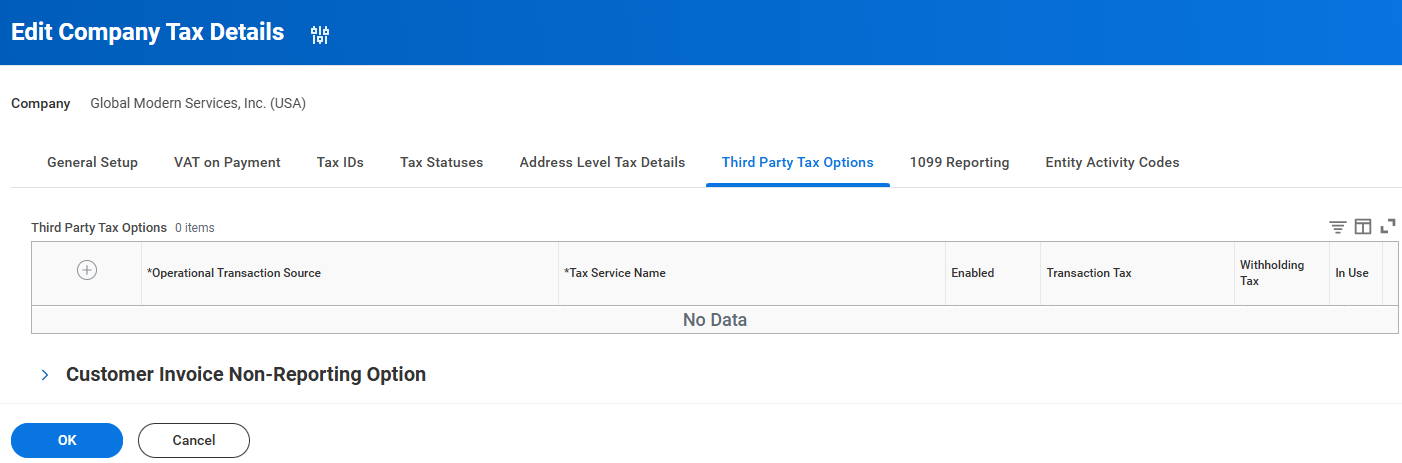
Revenue Categories
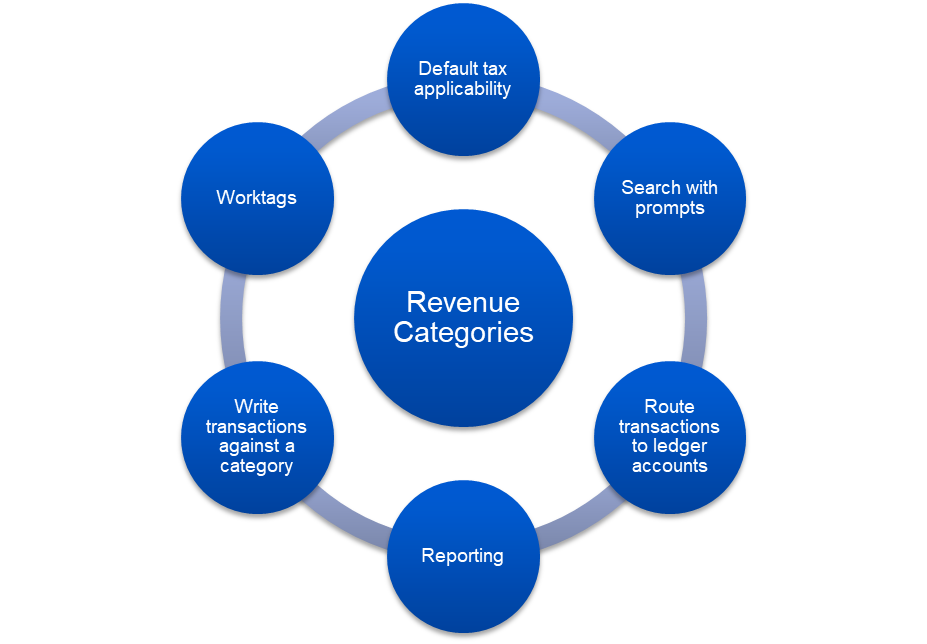
Use revenue categories to group similar types of revenue together, such as Product Sales or Service Revenue. Ways to use revenue categories:
- Search using prompts, according to a specific category.
- Report on everything assigned to a specific category
- Route transactions to the appropriate ledger accounts by using categories as conditions in certain account posting rules.
- Default tax applicability
- Categories as worktags
- Write transactions against a category without having to specify sales items.
For example, when you create an invoice you can write a line and its amount to a general category instead of a specific sales item.
You can also group similar revenue categories into hierarchies for reporting purposes and to ease selection in prompts during transactions.
Revenue Categories
To enable automatic assignment of accounting during transactions, categorize sales items by revenue category. Associate each sales item with a single revenue category. On a customer invoice, you can enter a sales item, a revenue category, or both.
Sales Items
Workday sales items reflect the details of customer contracts and orders. Sales items are goods and services that you sell to customers and are essential to configure billing and revenue accounting in Workday and used on both customer invoices and contracts. To drive both accounting and analysis, it is best to organize sales items into revenue categories and groups. You can also store sales item images, which are available whenever you view an item. Sales items consist of at least a sales item name and revenue category. Workday requires a revenue category on all customer invoices. When using a sales item on a customer invoice, the revenue category will auto-populate in.
Users can create dynamic price lists and apply effective dates to manage sales items. You can base price lists on company size, region, and other dimensions. You can set price lists at a tenant-wide level. Use Maintain Sales Item Price List to create and edit pricing lists. When a user enters the sales item on a contract, Workday reflects the price based on the dimensions selected including tiered pricing lists.
When a company sells products in groupings that include multiple Sales Items (for example, a subscription that also includes maintenance and a warranty) you can bundle multiple Sales Items into a single Sales Item with a single price that displays on the invoice. In this example, each of the items in the bundle can have different revenue recognition rules. Use individual Sales Items within the bundle for revenue allocation and recognition. Once added to a contra ct line, Sales Item bundles will expand into individual Sales Item lines. From here, you can add, remove, or swap them. Contract Line Types that support Sales Item Bundles are Goods and Services contract line types.
Mutually exclusive informational pricing fields for Vendor-Specific Objective Evidence (VSOE), Third-Party Evidence, and Estimated Selling Price can be maintained on sales items and can be used for custom reporting and Multiple-Element Arrangements Contracts.
Vendor Specific Objective Evidence (VSOE)
Vendor-Specific Objective Evidence (VSOE) is a method of revenue recognition allowed by GAAP. It enables companies to recognize revenue on specific items on a multi-item sale, based on evidence specific to a company's delivered product. Companies that sell software products and services in multielement arrangement (MEA) contractsuseVSOE. VSOE focuses on the fair market value of an item sold individually, rather than the assigned sales value of the item sold as part of the MEA bundle. The purpose of VSOE is to reduce fraudulent recognition of revenue too early in a contract making the company appear more profitable. Workday works with accounting standards to ensure MEA contracts meet VSOE requirements.
Sales Item Groups
Optionally, you can also assign sales items to sales item groups to facilitate searching and reporting. An item can belong to more than one sales item group. For example, a laptop could belong to both the Office Supplies and the Laptops and Desktops sales item groups.
Use the
Maintain Sales Item Group
task to create a new group for related sales items. To assign a sales item to an existing sales item group, use the Assign Sales Item Group
task .
You can then select an existing sales item or create a new one from the prompt.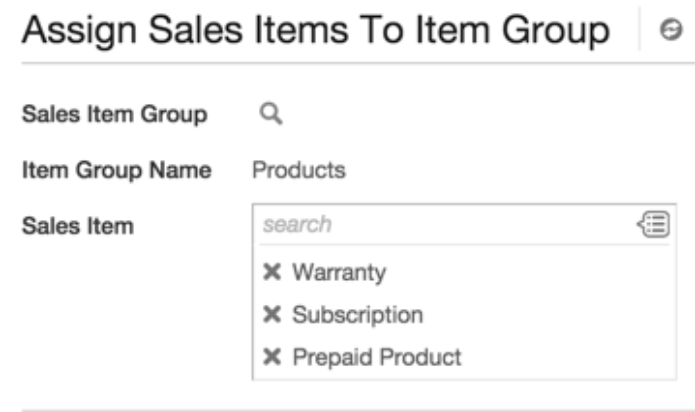
Sales Item Preview
A sales item preview displays on the Related Action menu for every sales item in Workday. The sales item preview includes:
- Year-to-date sales amount for an item
- Last 12 months sales amount
- Top 5 customers for sales item
Use the
View Sales Item
report to access a sales item and its preview. The preview summarizes information from all the companies in an organization.Revenue Category | Sales Item Group |
|---|---|
Required | Optional |
One | Zero-to-Many |
Search | Search |
Report | Report |
Account Posting Rules* | Account Posting Rules* |
Workday Standard Reports
- Revenue by Category
- Revenue Categories
- View Revenue Category Hierarchy