
Customers
Overview
Workday Revenue helps you manage all aspects of revenue from customer creation to sales. Workday Revenue works with your CRM application to complete the opportunity-to-cash business process, including:
- Creating customers.
- Recording customer contracts.
- Billing and invoicing.
- Account receivables and cash receipts.
- Recognizing revenue.
- Providing customer and revenue analytics.
When you sell items to your customers, you can use Workday to:
- Manage the invoices and sales terms.
- Record customer payments and cash sales.
- Make deposits.
- Record invoice adjustments.
- Write off bad debt.
- Place overpayment balances on account.
- Create refunds for invoice adjustments and on account balances.
You can track and analyze your customer account data anytime throughout the cycle. Fundamental integration points give you further flexibility to manage customer revenue.
You can use Workday to:
- Create customers in Workday to manage your customer accounts.
- Enable suppliers, financial institutions, and tax authorities that you have already configured in Workday to be customers.
- Use our Salesforce.com integration to generate customer requests automatically in Workday, and route the requests to administrators for approval.
Objectives
By the end of this chapter, you will be able to:
- Identify customer domain and business process security policies.
- Navigate a customer profile.
- Configure profile groups.
- Maintain customer categories.
- Create a customer.
- Configure bill-to contacts.
- Configure a connection map.
Security Policies
As you deploy Workday, there are some security policies that you will need to configure to ensure the appropriate security groups have the right permissions. This chapter covers security groups, domains, and business processes.
Security Groups
- Customer Administrator: This user-based security group can create and maintain all customer data, regardless of organization.
- Finance Administrator: This user-based security group can create and maintain all financial setup data, regardless of organization. Examples include financial institutions, financial accounting data, ledgers, journal sources, account control rules, and fiscal schedules.
Domains
Topic | Functional Area | Domain |
|---|---|---|
Customers | Customers |
|
Business Processes
- Customer Event
- Customer Summary Change Event
- Customer Credit Change Event
- Customer Payment Change Event
- Customer Banking Change Event
Customers
Customers are the heart of your business and drive revenue. It is critical for you to understand the relationships between your customers and other business entities, such as their suppliers or ship-to connections. Workday allows you to create and manage customer data and take advantage of instant customer flash profiles for up-to-the-minute information. This real-time information includes total revenue, most recent sales, and current receivable aging.
Workday considers customers to be a type of business entity. You can create new customers from scratch or enable an existing business entity (e.g. supplier, financial institution, tax authority) to be a customer.
Customer Profile
The Customer Profile gives you a comprehensive, actionable composite view of your customer. From this view, you can perform multiple actions, including:
- Add customer contact information.
- View and edit the Connection Map.
- Create and manage customer contracts, invoices, and adjustments.
- Record and apply payments, create deposits, and write off bad debt.
- Assign individual workers to job roles for a customer.
- Access recent transactions and related reports
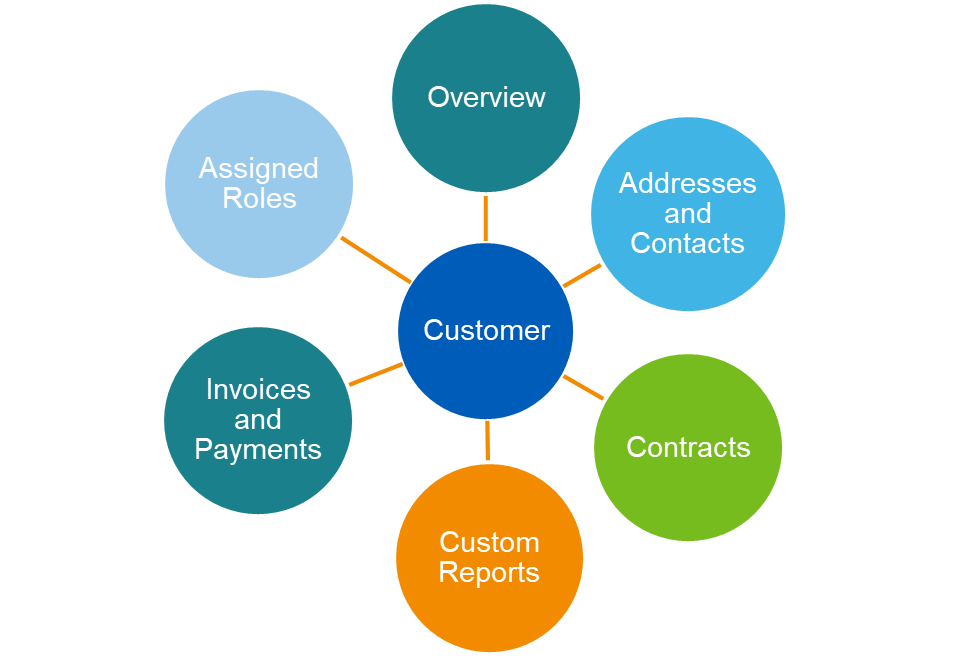
You can configure the information displayed to match your company business requirements. By using the tasks
Configure Profile
and Configure Profile Group
, you can reorder or remove the tabs and sub tabs that display. You may also add custom reports to the customer profile.You can create customers directly in Workday or use web services to upload data from external sources. You can add most of the customer profile information during record creation. You can also edit these profile attributes for a customer.
Note: Workday will alert you if you are creating a customer with a duplicate name. However, the system will not flag the same customer as a duplicate if the spelling was slightly different than the original customer entered. You can add an additional condition step in the business process to force approval on possible duplicates. An example of a duplicate is using the field "Customer Primary Tax ID Exists" is equal to Yes when the customer's tax id already exists. Using this Boolean field (true or false) in a condition step would route for additional approval by a chosen security group.
A customer profile gives you a comprehensive and actionable view of information on your customer. Workday enables you to:
- Use the customer profile to create or edit customers in Workday.
- Create custom fields on a customer profile that support your organizational requirements.
- Assign customer roles to positions rather than individual workers making it easier to support organizational changes.
- Configure security on your customers to control worker access to your customer data through security segments.
- Manage relationships between business entities and addresses through Connection Maps.
- Assign your customers to various groups or categories for easier search and management.
Customer Setup
Considerations
As you create a new customer in Workday, consider the following:
Option | Description |
|---|---|
Customer | Workday uses this name for search purposes. You can enter a full legal name for integration, billing, or remittance usage in the Alternate Name table on the Document Delivery tab. |
Create Customer from Business Entity. | (Optional) Select an existing business entity from which to create your customer. Depending on the customer, your selection might populate the Tax ID. |
Customer Category | Workday uses the customer category you assign to the customer and the receivables account posting rule to determine the accounts receivable ledger account to book to. All customers must have only one customer category. |
Customer Group | Used for reporting and analysis purposes and to aid in selection. Example: You can group customers by industry, locality, salesperson, and alphabetical division (Customers A-M). |
Default Tax Code | Select if you want Workday to automatically populate tax code fields on all transactions. You can override the default at any time on individual transactions. |
Currency Options | (Required) Specify whether the customer accepts all currencies or not. Select a currency as a default for all transactions associated with this customer. Transactions in currencies, other the currencies listed here, generate an error. In this case, select an accepted currency. |
Customer Roles
To help you track which workers support each of your customers, you can configure role assignments on each customer. Once configured, you can assign the customer role to specific positions like Collector or Collections Manager.
To save time with role assignments for your customers, use the task Mass
Assign Customer Roles.
To assign positions to multiple customers at once, assign workers to those positions. When an employee leaves a position, Workday automatically reassigns that worker assignment when you fill the position.Customer-specific roles can require some setup and the roles should be "
Enabled for"
the Customer object. List the roles as Is Supporting
as not to show up on the company org chart.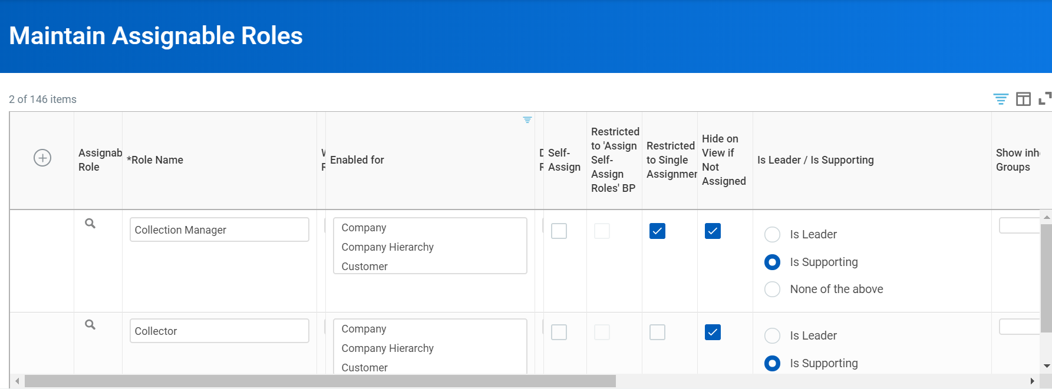
Collection Manager:
- Forecast and budget your cash and bad debt.
- Evaluate your customers and accounts receivable.
Collector manages and acts upon your collection tasks like:
- Aging invoices
- Collection letters
- Disputes
- Write offs
Mass Assign Customer Roles
To save time with role assignments for your customers, you can assign positions to multiple customers at once. You can then tie customer roles to positions rather than individual workers. In this way, when an individual contributor leaves a position, the role stays with the customer assignment. When you refill the position, Workday automatically places the new worker in the role assigned to the customer.
Go to
Mass Assign Customer Roles
task. Select the customers that you want to assign worker roles. You can select customers individually or by group, category, status, or worktag. When using worktag, you can select customers by a category such as region, product area, or project.You can view the job roles and workers that you assigned to customers on the
Assigned Roles
tab of the customer profile.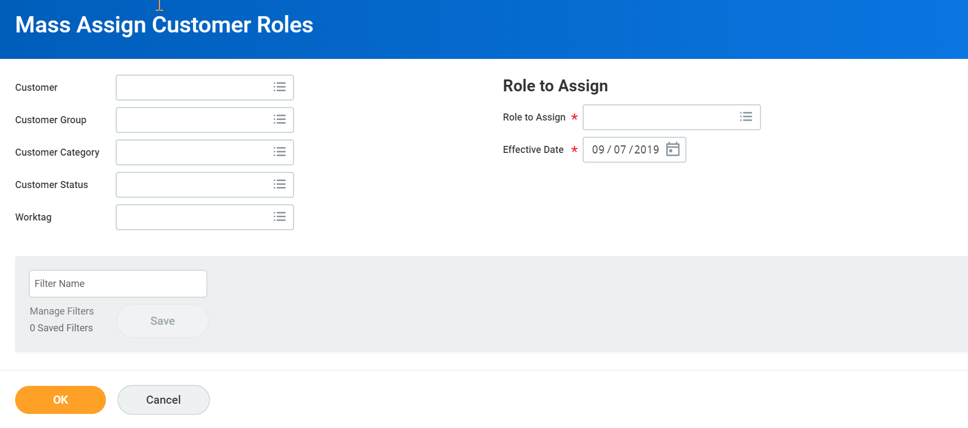
Customer Groups
Customer Groups is an optional grouping functionality that you can use for reporting and searching within your customer base. While it is optional, many other reports and tasks use Customer Group as a possible way to assign roles, apply payments, and print invoices. After creating a customer group, you can assign your customers to the group when creating a new customer, or when editing an existing customer. You may include each customer in multiple groups. For example, you can create groups for customer industries, localities, sales persons, or account reps, and the same customer can be in each of those groups.
Some of the benefits of Customer Groups are:
- Can use for searching and reporting.
- Can also give you more granular detail on a customer, and allow you to run payments by customer groups and mass assign customer roles by group.
- Can print by customer group.
- While groups are optional, you can enforce usage and combinations through custom validations.Customer CategoryCustomer GroupRequiredOptionalOneZero-to-ManySearchSearchReportReportAccount Posting Rules*Account Posting Rules*Tip:*You may use both Customer Category and Customer Group as dimensions in the account posting rules to determine the ledger accounts assigned to an operational journal.
Customer Categories
When you create a customer invoice, Workday determines the resulting accounts receivable ledger account. The customer category assigned to the customer, along with the receivables account posting rule, drives this process. All customers must have one, and can only have one customer category. You will also use customer categories when selecting or searching for customers.
Customer Currencies
Having currencies for the customers and their transactions enables you to manage the transactions better.
For each customer that you define in Workday, you can assign:
- Default currency - The default currency is their preferred currency for transactions.
- Accepted currencies - These currencies are the currencies that they accept for a transaction.
Whenever you create a transaction (such as an invoice), you can override the default currency with any accepted currency. The selected currency becomes the transaction currency. You can use numerous tasks within Workday to create these transactions.
Customers Hierarchies
Workday enables you to define parent-child relationships between customers. By defining these relationships, Workday can provide reporting based on parent-child relationships (e.g., rolling up child activity to report on totals for parent). Workday can also support application of a payment from a parent to invoices of a child, and vice versa.
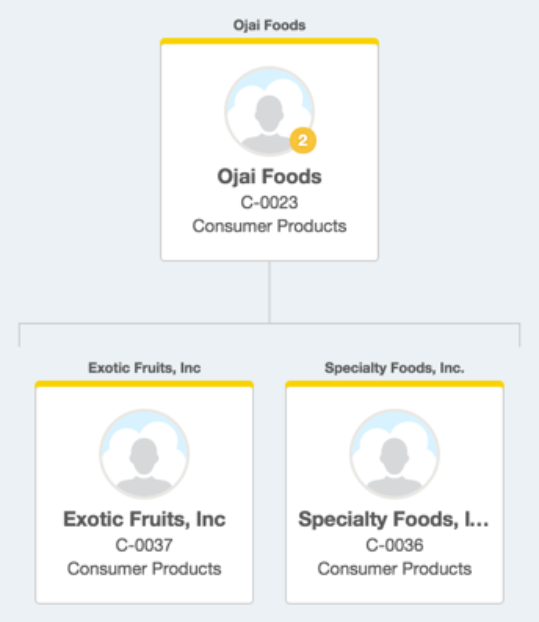
Customer Worktags
Configured Worktags on customers will default to customer transactions. Each customer can have multiple worktags, which will make it easier for you to follow revenue and can aid in reporting.
For reporting purposes, you can either group customers by worktags or customer groups. If data is always the same (i.e. same sales person), then you should use a customer group. If data is usually the same (i.e. customer occasionally falls under another sales person's results), then you should apply a customer worktag.
Maintain Related Worktag Usage
allows you to configure worktag fields or make worktags required when creating a customer.Customer Images
You can associate a customer logo with a customer. The logo, which displays on the Related Action preview for the customer, also displays in the customer profile. To add or remove a customer logo, use the task
Update Customer Logo
.Segmented Security
Optionally, you can control worker access to your customer data through definable customer security segments. Customer segment security restricts access to certain customers and visibility to key customer information so that workers cannot:
- Select customers that they do not have access to when creating or editing transactions.
- Select customers that they do not have access to when searching for transactions.
- Review customer information in search results of customers that they do not have access to.
- Print or view customer documents, such as invoices, statements, and refunds of customers that they do not have access to.
When a user encounters a customer that they do not have access to, Workday masks the customer name with asterisks and does not display other key information.
Activity Stream
In Workday, you can track customer activity and make comments on a customer object using the activity stream. The activity stream includes all business process events and comments associated with the customer. You can review the activity stream while looking at any instance of a full customer. The activity stream will not show when looking at Basic Customer worktags.
The stream displays the activities in reverse-chronological order (with the most recent at the top) at the bottom of a customer profile. Users will determine the activity stream if:
- The security administrator has enabled the activity stream for that object.
- The user has the appropriate security permissions to view that object.
To use the activity stream, system administrators can enable the Activity Stream Settings for Customer on the
Edit Tenant Setup - System
task.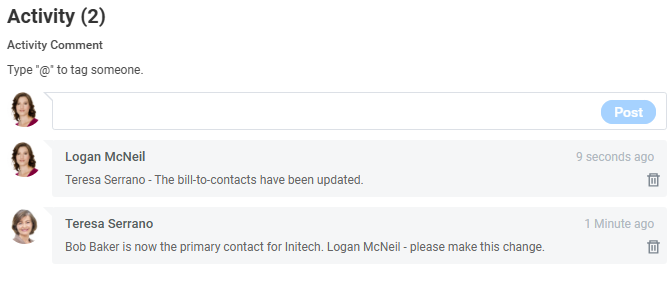
Customer Contact Types
Workday enables you to configure and add contact types to your customer contacts. This gives you more flexibility to categorize your customer contacts and simplifies how you access customer information.
Security Domain and Menu Item
Secure the
Maintain Contact Types
task to the Set Up: Customer Contacts
domain in addition to its existing domains, expanding the task to additional users. This task is also included in the Set Up: Customer Accounts menu.Maintain Contact Types
There is a Customer Contact option on the Maps to prompt when you add a contact type row on the
Maintain Contact Types
task.Note
: You can't remove the contact type row if it's in use.Contact Types on Customer Profiles
Workday enables you to select contact types on the Contact Type prompt when you add or edit customer contacts on the Addresses and Contacts tab on a customer profile.
Workday also displays the
Contact Type
column with the contact type information for contacts that have the contact type specified.Note
: You must have active customer contact types on the Maintain Contact Types task for Workday to display the prompt and column on the customer profile.Put Business Entity Contact Web Service
Workday updates the
Put Business Entity Contact
web service to support active customer contact types available on the Maintain Contact Types
task when you add or update customer contacts using this web service.Note
: You can add a business entity contact for contact types set only for customer usage when you create:- Customers.
- Suppliers from customers.
Bill-To Contacts
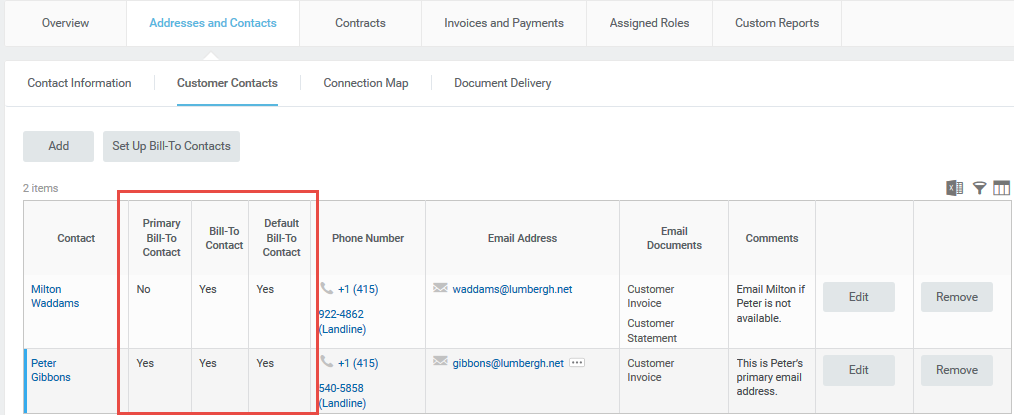
Customer collections specialists work with a large number of customers each day. Bill-To Contacts helps to manage the process of emailing customer invoices and statements to the correct contact. Once you set up bill-to contacts for your customers, you can:
- Email invoices to more than one contact at once.
- Populate the bill-to contacts into billing schedules and customer invoices, with the ability to override manually.
- Find the emailed recipient on the invoice.
- Identify a primary contact on the invoice PDF.
- Define a different customer contact for billing statements and invoices.
Define the bill-to contacts from the customer contacts that you configure for each customer.
Considerations
When configuring your bill-to contacts, consider the following:
Option | Description |
|---|---|
Primary Bill-To Contact | The primary contact prints on the invoice PDF and must also be a default bill-to contact. You can only have one primary contact. |
Default Bill-To Contact | The contacts you select as default populate automatically into the customer invoice, billing schedule, and statements. You can override these defaults on the billing schedule and invoice. You can select multiple defaults bill-to contacts. |
Email Invoice and Email Statement | Define which contacts should receive an emailed invoice and statement. You can email invoices and statements to multiple contacts. |
Comment | Enter pertinent information about each contact to help the user identify which contact to use. Example: You may use different contacts for certain customer contracts. You can note the specific contract to use in the Comments field. |
Business Connections
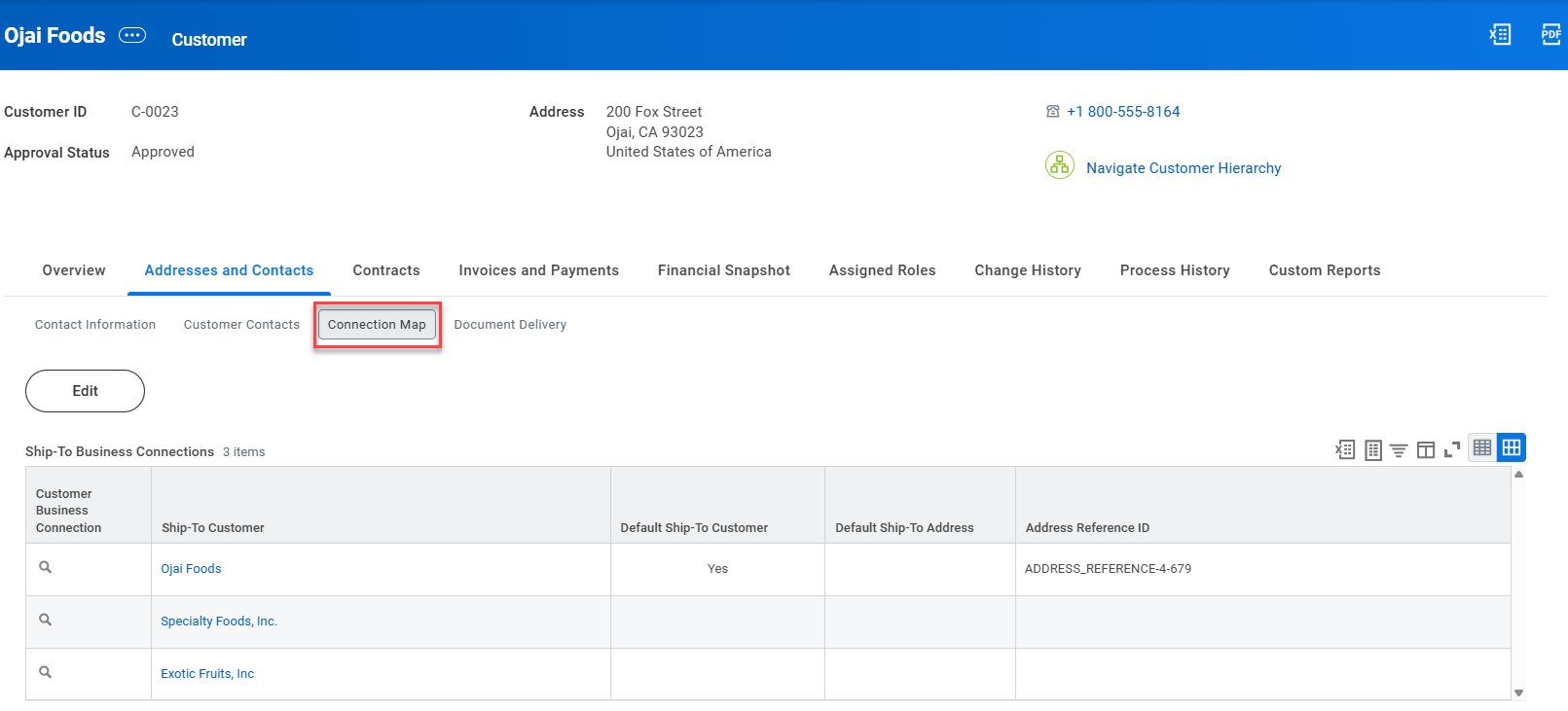
Workday provides the Customer Connection Map on the customer profile to help you manage the relationships between business entities and addresses.
The Business Connection Map enables you to:
- Set up multiple shipping addresses for a customer.
- Set up multiple ship-to customers that are different from the primary billing customer.
- Add or remove ship-to customers.
- Select a default ship-to customer.
- Select an optional default ship-to address for each combination of bill-to and ship-to customer.
The connection map is accessible from the
View Customer and
Edit Customer tasks
.
Considerations
As you configure business connections, consider the following:
Option | Description |
|---|---|
Ship-To Customer | Select a customer to add to the Connection Map.
|
Default Ship-To Customer | Select the checkbox for the customer that you want to serve as the default shipping connection on the customer invoice.
|
Default Ship-To Address | Select an address from the prompt to designate as the default ship-to location for the customer.
|
Address Reference ID | Typically, Workday introduces most IDs through integrations with external systems. For new customers that you enter manually, you define the address ID in the Address Reference ID field on the Contact Information tab. The ID syncs customer data with external systems giving you full control over the customer address. |
Configurable Entity Activity Codes
Workday enables you to configure multiple entity activity codes by country for your companies, customers, and suppliers. This helps you easily categorize companies, customers, and suppliers, and enhances reporting based on entity activity codes.
Workday delivers the following tasks and reports (secured to the
Set Up: Customer Accounts
domain):- Maintain Entity Activity Code Types: to configure entity activity code types for a country.
- Maintain Entity Activity Codes: to configure entity activity codes per code type.
- View Entity Activity Code Types: to view all available entity activity code types.
- View Entity Activity Codes: to view available entity activity codes by the code type that you select.
Workday enables you to assign entity activity codes to companies, customers, and suppliers, specifying 1 active code per entity activity code type:
- On the company profile, you can add the codes on a newEntity Activity Codestab on theEdit Company Tax Detailstask that you access from theCompanyrelated actions menu.
- On the customer profile, you can add the codes on a newEntity Activity Codestab that you access when you edit customer tax information on theTax Informationtab.
- On the supplier profile, you can add the codes on a newEdit Entity Activity Codes for Supplierstask when you clickEdit Entity Activity Codeson theTax Informationtab.
Workday delivers the following web services (secured to the
Set Up: Customer Accounts
and Special OX Web Services
domains) that you can use to create, edit, or return entity activity codes and code types:- Get Entity Activity Code Types
- Get Entity Activity Codes
- Put Entity Activity Code
- Put Entity Activity Code Type
Workday enables these web services to support entity activity codes for companies, customers, and suppliers:
- Get Company Tax Details
- Get Customer Tax Information
- Get Supplier Tax Information
- Put Company Tax Details
- Put Customer Tax Information
- Put Supplier Tax Information
You can configure the codes on the web services using the
Entity Activity Code Reference ID
field.There is an
Assigned Entity Activity Code
report field on the Company, Customer, and Supplier business objects that you can use in custom reports to drill down on the details of the entity activity codes. Workday also adds these report fields on the Entity Activity Code business object to use in custom reports as entity activity code details:- Entity Activity Code
- Entity Activity Code Country
- Entity Activity Code Description
- Entity Activity Code Type
- Inactive Entity Activity Code
Reports
Workday Standard Reports
- Customer Categories
- Customer Groups
- Edit Customer
- Find Customers with Facet Search
- Navigate Customer Hierarchy
- Reasons for Customer Status Change
- Ship-To Connections
- View Customer
- View Customer Request