
Payments
Overview
In this chapter, you will learn how to process and apply customer payments. You will also learn how to manage customer payments and invoices.
Objectives
By the end of this chapter, you will be able to:
- Identify customer payment domain and business process security policies.
- Record a customer invoice payment.
- Apply a customer payment.
- Configure auto-application of customer payments.
- Place a customer invoice in dispute.
- Place a customer invoice in collection.
Security Policies
As you deploy Workday Revenue, there are some customer payment security policies that you will need to configure to ensure the appropriate security groups have the right permissions.
Domains
Topic | Functional Area | Domain |
|---|---|---|
Customer Payments | Customer Accounts |
|
Business Processes
- Bad Debt Write off Event
- Cash Sale Event
- Cash Sale Intercompany Event
- Customer Deposit Event
- Customer Payment Application Event
- Customer Refund Event
Customer Payments
You sent invoices to your customers and now it is time to get paid. When you receive a customer payment, there are several steps to perform to process it in Workday. You need to record your payment, apply the payment to the proper invoices or invoice adjustments, and deposit your payment. Optionally, you can write off any amounts while processing your payment. If you have any overpayments, you can place them on account or refund them.

Recording Customer Payments
Record that a customer payment has been received and apply it to invoices and invoice adjustments. The task
Record Customer Payment
enables you to record and apply one payment after another.If applicable, you can record that a deposit has been made here as well, rather than using the separate
Create Customer Deposit
task. When you create a deposit for a single payment, Workday creates the payment application and deposit as one receivables transaction.As you record your customer payment, different options are available to determine how you would like to apply the payment:
Option | Description |
|---|---|
Ready to Auto-Apply | Select this option for the payments that you want to have applied against invoices using the Auto-Apply Customer Payments task. You can record multiple payments one after another, and then run the auto-apply task to apply them all at once.Workday requires an entry for the Remit-From Customer field if you select this option. |
Do Not Apply Payments to Invoices on Hold. | When selected, Workday will not display invoices in the Apply Customer Payments grid that are on hold. |
Show Only Matched Invoices When Applying | Filters the grid on the Apply Customer Payments task to display only those invoices that match the references in the remittance advice when you Save and Apply Payment or go to the task as a related action from a payment. |
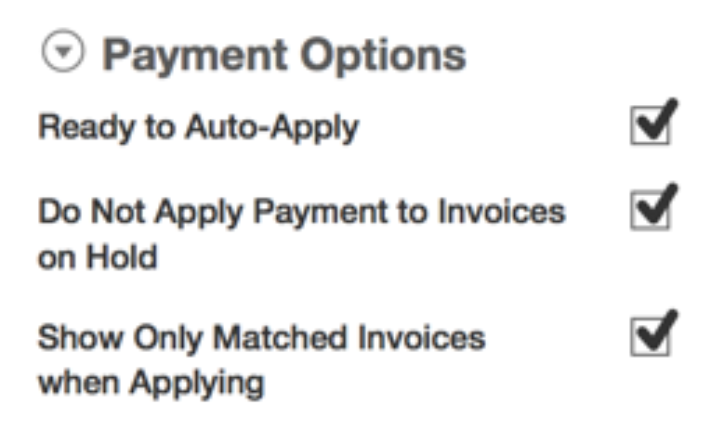
When submitting this task, you have the option to Save and Apply Payment, which takes you directly to the
Apply Customer Payment
task, or you can Save Payment in draft status and apply the payment later.Mass Record Customer Payments
If you need to process a large volume of payments, you can use either a Workday integration or the task
Mass Record Customer Payment
. In the Payments grid of this task, you can enter several payments with different Remit-From Customers.Create Customer Payments and Deposits from Bank Statements with Invoice Prefixes
Workday enables you to configure invoice prefixes in customer payment rule sets and populates associated invoice instances and remit-from customers on remittance advice when you record customer payments from the bank statement lines. This feature helps you more accurately search for customer invoice numbers when creating customer payments from bank statement lines.
The
Invoice Lookup Prefixes
grid on these tasks allows you to add prefix rows and enter prefix values for invoice lookup:- Create Customer Payment Rule Set
- Edit Customer Payment Rule Set
The
Schedule Customer Payment from Bank Statement Line
task populates the following information on remittance advice:- Invoice instances with matching prefix values from the associated rule set.
- Remit-from customers from these invoices.
- Automatically selects theReady for Auto Applycheck box.
Configure prefix lookups by creating a rule on the
Create
Customer Payment Rule Set
task.Configure your rules to copy bank statement line fields to the customer payment remittance advice type of
Invoice Number.
Note
: If you use a different remittance advice type when copying the remittance information that includes the invoice, the advanced lookup functionality will not work.Create Customer Payments and Deposits from Bank Statements with Remit-From Customer Mapping
Workday enables you to configure customer mapping tables so that you can easily populate remit-from customers and mark payments ready for auto-apply when you record customer payments and deposits from the bank statement lines. This streamlines the process of creating customer payments from bank statement lines, reducing the number of on-account payments.
The following web services (secured to the
Set Up: Customer Accounts
domain), allow you to add, update, or retrieve lookup mapping tables and the values associated with the tables for your remit-from customers or sponsors:- Get Remit-From Customer Lookup Mapping Table
- Put Remit-From Customer Lookup Mapping Table
The
Remit-From Customer Mapping
prompt enables you to select the customer mapping table that you associate to the customer payment rule set. The prompt is available on these tasks:- Create Customer Payment Rule Set
- Edit Customer Payment Rule Set
The
Remit-From Customer Mapping
field is on the View Customer Payment Rule Set
report.The
View Remit-From Customer Lookup Mapping Value
report (secured to the Set Up: Customer Accounts
domain) enables you to view the lookup mapping values for remit-from customers.On the
Schedule Customer Payment from Bank
Statement Line
task is an Exclude Unreconciled Bank Statement Lines with Canceled Payments and Deposits
check box. When you select this check box, Workday doesn't include bank statement lines that you use to create a payment and deposit but later don't reconcile and cancel the deposit and payment.When you run the
Schedule Customer Payment from Bank Statement Line
task with the relevant information copied to the remittance advice on the customer payment, Workday populates the remit-from customer on the customer payment and selects it for auto-apply if the lookup field from the mapping table matches to a value in the payment remittance advice text.The
Customer Payment Rule Set
report field on the Bank Account business object, is secured to these domains:- Process: Bank Reconciliation
- Reports: Banking
- Set Up: Bank Entity
You can use this report field to add a condition rule on the bank account event business process.
The following report fields (secured to the
Public Reporting Items
domain) allow you to use in custom reports to view the remit-from customer mapping details:- Lookup Value, on the Remit-From Mappings business object.
- Remit-From Mapping Table, on the Remit-From Mappings business object.
- Remit-FromMappings, on the Customers business object.
The
Remits For Customer
calculated report field on the Customers business object (secured to the Access Customer (Segmented)
domain) enables you to use in custom reports to view the customer that remits funds for the customer in the report.Applying Customer Payments
When you apply a customer payment, you can apply a full or partial payment against invoices, write off full or partial invoice amounts, and place all or part of your payment amount on account. After submitting the payment, if you have to make any corrections, you can also unapply the full payment and edit it. If you created the payment in error, you can cancel the payment.
If a customer overpays the amount of an invoice, you can apply the overpayment to another open invoice or place it on account. If you place it on account, you can apply it to another invoice later, or refund it (after you deposit the funds).
If you populated the Remittance Advice grid from the
Record Customer Payment
task with an invoice reference, Workday preselects those invoices in this page for payment.As you apply your customer payment, consider the following:
Option | Description |
|---|---|
Apply to Oldest First. | When checked, Workday sorts the Invoices grid by Due Date, listing the oldest first. It then selects all invoices where the Amount Due totals to the full Payment Amount to Apply. If the next invoice is larger than the amount remaining to apply, Workday assigns only the remaining amount to pay to that invoice. Example: There is a recorded payment of $1000. The oldest invoice for the customer is $600 and the next is for $1500. Workday selects both invoices, applying payment to the first in full and applying the remaining $400 of the payment to the next selected invoice. The outstanding $1100 on the second invoice remains in the queue of invoices to be paid. |
Amount to Place On-Account | If your payment amount is greater than the total amount applied to one or more invoices, you might want to place the overpayment amount on account. Enter that amount here. In order to balance and submit the payment, enter an amount that is equal to the Remaining Amount to Apply value. Once you enter that amount, Workday updates the Remaining Amount to Apply to zero, which means your payment is balanced and ready to submit. |
Payment Amount | If you are paying less than the full amount due on the invoice, enter the amount to pay. If you leave the amount as zero, Workday uses the full amount due. The payment amount cannot exceed the amount recorded for this payment. |
Discount Amount | If you apply the payment within the discount date from the customer invoice, Workday applies the predetermined discount based on the payment amount applied, not the invoice balance. You set the discount terms on the customer invoice Payment Terms field. Workday applies discount amounts as part of the payment application process. However, discount amounts are not part of the payment amount itself and display in a separate field on reports. |
Write off Amount. | (Optional) You may want to partially write off a customer invoice in the context of a payment. For example, you may want to write off a bank fee. Enter an amount here to write off. Or, to select multiple invoices for which to write off debt, use Write Off Customer Invoice. |
To submit payment your payment must balance, meaning that the Remaining Amount to Apply must be zero. Upon submission, Workday routes the payment for approvals, if applicable, and then creates the operational journal lines. If you choose to save for later, Workday saves the payment in draft status and does not generate any operational journal lines.
Edit Unapplied and On-Account Payments
Workday enables you to update the invoice currency for unapplied and on-account customer payments. You can also update the remit-from customer for unapplied customer payments. This eliminates the need to cancel and reissue customer payments, saving you time in payment processing.
Workday enables you to edit the Invoice Currency prompt on the Edit Customer Payment task for customer payments that have been:
- Applied to 1 or more invoices, and then unapplied.
- Placed fully on account.Note: You can only apply a payment to 1 set of invoice currencies. Example: You apply a payment in USD, then unapply the payment and change the invoice currency to CAD. You then only apply the payment to invoices in CAD instead of invoices in both CAD and USD.
Remit-From Customer Field
You can edit the Remit-From Customer prompt on the Edit Customer Payment task when you edit unapplied customer payments that were previously applied to 1 or more invoices.
Remit-From Customer in Web Services
The Put Customer Payment web service supports changing the remit-from customer in customer payments that have been applied to 1 or more invoices, and then unapplied.
Edit Customer Payments from Related Actions
You can edit the
Invoice Currency
prompt on the Edit Customer Payment
task that you access from the Customer Payment related actions menu of unapplied customer payments that were previously applied to 1 or more invoices. Use the Edit option on the Customer Payment related actions menu for customer payments that are fully placed on account. When you access the Edit Customer Payment task from this option, Workday enables you to edit the Invoice Currency prompt for payments placed fully on account.
Note
: This option isn't available for payments applied on account partially.Payment Application Processing
Workday removes customer invoices previously applied with a certain currency from the Payment Application grid when you select another currency in the Invoice Currency prompt of an unapplied payment that was previously applied to 1 or more invoices.
Invoice Currency in Web Services
The Put Customer Payment web service supports invoice currency changes in customer payments that have been:
- Applied to 1 or more invoices, and then unapplied.
- Placed fully on account.
Customer Payment Auto-Application
The
Customer Payment Auto-Application
job helps expedite customer payment applications when you process customer payments with large payment applications and credit adjustments with large volumes of customer invoices.Workday improves the performance of
Customer Payment Auto-Application
job when you process:- 1 customer payment with 1000+ payment applications. When a customer payment is being processed, it is locked by the Customer Payment Auto-Application job. 1 credit adjustment with large volumes of customer invoices.
The updates are available on these tasks:
- Auto-Apply Customer Payments
- Schedule Auto-Apply Customer Payments
When a payment is locked for processing by the
Customer Payment Auto-Application
job, you cannot take action on the payment on these tasks:- Apply Customer Payment
- Create Customer Refund
- Create Customer Refund (Do Not Use)
- Cancel Customer Payment
- Cancel Customer Overpayment
- Edit Customer Payment
- Edit Customer Payment Application
- Record Customer Overpayment
- Return Customer Payment
- Unapply Customer Payment
- Update Remittance Advice
When a payment is locked for processing by the
Customer Payment Auto-Application
job, you cannot take action on the payment with these web services:- Cancel Customer Deposit (Web Service)
- Cancel Customer Overpayment
- Cancel Customer Payment (Web Service)
- Put Customer Payment (Web Service)
- Submit Customer Overpayment
- Submit Customer Refund (Web Service) (DEPRECATED)
- Submit Customer Refund Document (Web Service)
- Submit Payment Return (Web Service)
- Unapply Customer Payment (Web Service)
We add this new validation message:
- The Auto Apply Job is processing the customer payment. Try again later.
Deployment Considerations
Implementers can view the Child Process Request Description on the Background Process
Child Process
tab of the Customer Payment Auto-Application
job.Write-offs
If your company has a receivable on record and you recognize that the customer is never going to pay all or part of it, you can write off the noncollectable amount. You can create write offs for customer invoices or invoice adjustments.
Writing off a receivable transaction enables you to account for it as directed by the posting rules you created for the specified write-off category. You can write off all or part of a customer invoice and apply multiple write-off reasons for different amounts.
Maintain Writeoff Reasons
Use the task
Maintain Receivable Write off Reasons
to create, edit, and delete reasons that describe the receivables that you need to write off. You can create posting rules that identify write offs and deal with them appropriately.Examples of write-off reasons may include Currency Translation, Disputed Amount, or Uncollectable.
Note
: If you change the name of a write-off reason that is in use, be sure to adjust any posting rules that refer to the preceding category name.Write Off Customer Invoice
Write off Customer Invoice to select one or multiple customer invoices, and customer invoice adjustments to write off. Using the Related Action from an invoice or invoice adjustment will write off debt for that transaction.
You can enter multiple write-off amounts per invoice by write-off reason. To write off a portion of the invoice amount, change the value in Write-off Amount to a value less than the Amount Due.
Customer Deposits
You can deposit customer payments into specific bank accounts, which you can select for a company using the
Create Customer Deposit
task. You can use the Find Customer Deposit
task to find and cancel deposits. You can add a review step to the BP: Customer Deposit Event which would allow the reviewer to edit and approve a transaction during the review step.You can indicate that you made a deposit as you record a customer payment (
Record Customer Payment
task), or you can use the Create
Customer Deposit
task as a separate step. When you create a deposit for a single payment, Workday creates the payment application and deposit as one receivables transaction.You can add attachments to your customer deposit transactions so that you easily access the details to differentiate between multiple deposits. An attachment can be removed/added to an approved Deposit without requiring the Deposit to be canceled or invoking the business process to submit for approval again.
There is a delivered tenant and company level opt-in that enables you to configure a sequence generator for defining unique IDs for customer deposits so that you can easily find and report on them when you have a large number of transactions. This functionality also simplifies the bank reconciliation process, ensures that there are
no duplicate customer deposit numbers, and improves efficiency.
Customer payments available for deposit can come from cash sales, check, cash, or manual payments you record, and credit card and direct debit payments that you complete through the Workday settlement processing.
As you complete this task, consider the following:
Option | Description |
|---|---|
Bank Account | The account to deposit the payment. The bank account that you select must accept the payment's currency. If the payment and bank account currency differ, Workday uses the Currency Rate Type and Currency Rate to convert the deposited foreign-currency payments into the bank account currency. Set the default rate type on the Maintain Currency Rate Types task. The default rate between the deposit and bank account currency for the selected rate type is set on Maintain Currency Conversion Rates task. You can change these default values. |
Deposit Reference | Helps you identify this deposit during reconciliation. |
Control Total Amount | To compare the total of the selected payments shown in Total Deposit Amount, to the desired or expected control amount that you specify. |
Clear Open Accounts Receivable with Customer Payments
Workday enables you to record customer payments with a payment amount of 0, so that you can quickly match multiple invoices, adjustments, and payments in a single transaction. This reduces manual workarounds to offset your customer invoices and adjustments, increasing your productivity and improving the user experience.
This enables you to set the
Total Payment Amount
field to 0 when creating or editing customer payments:- Edit Customer Payment
- Record Customer Payment
You can also use the
Apply Customer
Payment
task, enabling you to apply customer payments with customer invoices and invoice adjustments netting to 0.After you submit your zero-amount payment application, Workday now creates a customer payment with:
- Payment Status:Complete
- Application Status:Fully Applied
Customer Refunds
Customers can overpay their invoices for various reasons, such as an error or a change in transaction. Workday enables you to refund that amount. You can issue refunds to customers for on account balances and for invoice adjustments where you owe the customer money.
When you want to pay funds back to a customer, Workday provides the ability to create a refund for a paid invoice. You can create a customer refund only if:
- The payment has a credit adjustment or an amount on account.
- A deposit exists for the on account payment.
For example, you might create a refund for a customer who sends in a payment that exceeds the invoice amount and does not plan to make another purchase.
A refund would also be suitable for a customer who pays the invoice in full, and afterwards gets an adjustment for damaged goods. This customer might have paid in full for an order, but then requires a refund due to an order issue.
Once you create a refund, you can process it with the Create Settlement Run task. The Workday settlement engine creates the accounting for the refund, and enables you to print and send out a refund check. When you refund a direct debit payment, the settlement engine creates both the deposit and the payment. For credit card refunds, the settlement engine creates the deposit and payment through Cybersource.
On the refund, there is a field called Refund Amount, which enables you to specify the amount you want to refund for credit adjustments and on-account amounts, streamlining the process. This is referred to as a partial refund.
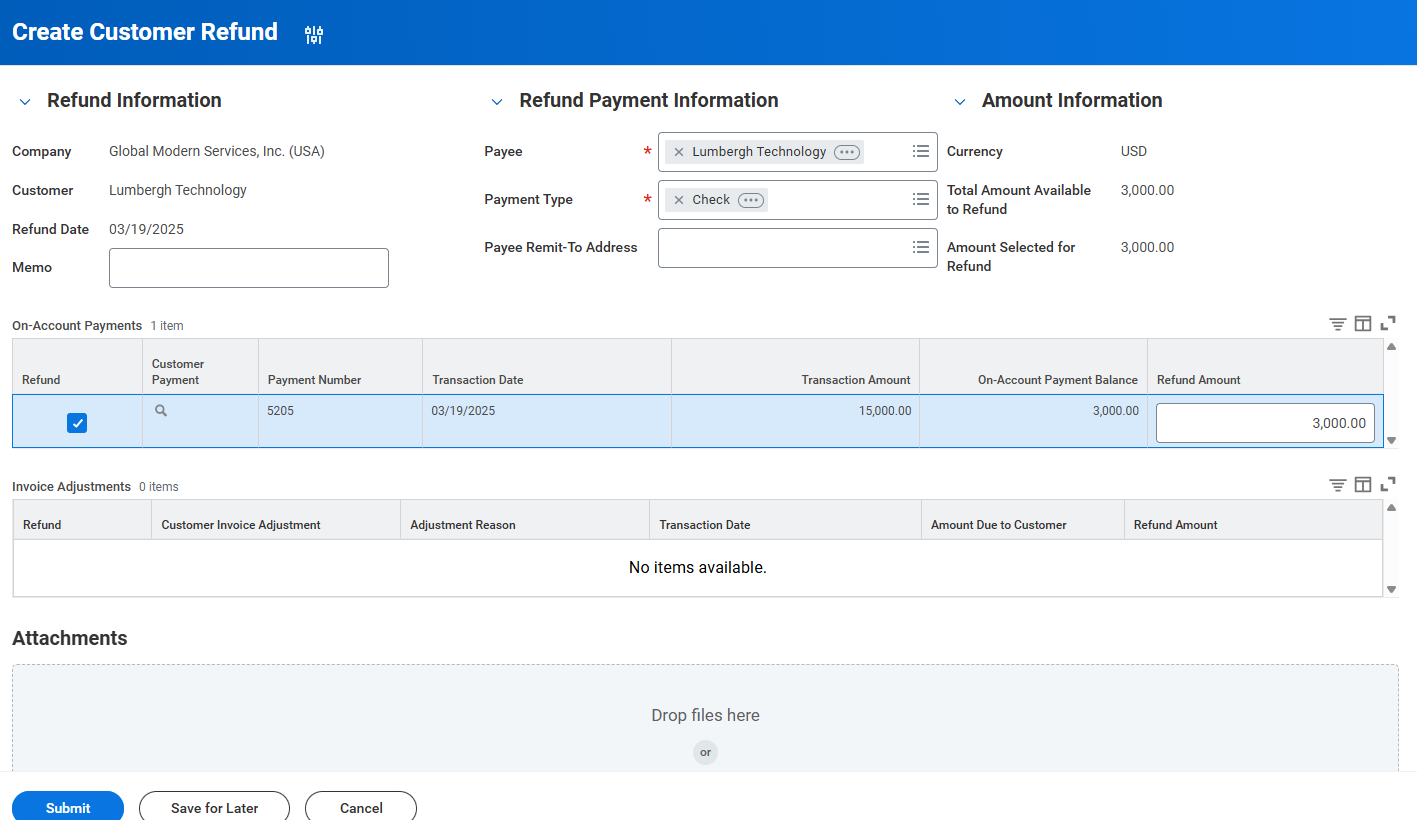
Remit-To Address Settings on Customer Refunds
Workday enables you to select the payee remit-to address when creating customer refunds. This improves finance efficiency by streamlining manual tasks and eliminating the need for manual workarounds.
Note
: To use this enhancement, you must opt in to the Customer Refunds Optimization
feature on the Maintain Feature Opt-Ins
report.You will find a
Payee Remit-To Address
prompt when you create or edit customer refunds on the:- Create Customer Refundtask.
- Edit Customer Refundtask, which you access from the related actions menu on the customer refund document.
When you create a customer refund, Workday automatically populates the latest effective address with the
Remit-To
usage from the customer profile. When you edit your customer refund, Workday:- Automatically populates the lastPayee Remit-To Addressthat you've saved.
- Automatically populates an updated address when you update the payee remit-to address on the customer profile.
- Displays a validation message prompting you to change the address when the payee remit-to address is no longer valid.
You can select a different remit-to address using these new prompt filters or leave it blank:
- Default Remit-To Address
- All Remit-To Addresses
Workday also displays the
Payee Remit-To Address
field on the View Customer Refund
task that you access when taking actions on a customer refund.Workday automatically populates the last saved
Payee Remit-To Address
when you submit your customer refund for approval.Before the customer refund is approved in the review and revise business process steps, Workday:
- Enables you to change the payee remit-to address.
- Automatically populates an updated address when you update the payee remit-to address on the customer profile.
- Displays a validation message prompting you to change the address when the payee remit-to address is no longer valid.
Workday uses the payee remit-to address specified on the refund document at the time of approval when generating customer refund payments through settlement run.
Workday updates customer refund settlement processing to add
Payee Remit-To Address
to the customer refund payment grouping criteria. Workday automatically groups payments by:- Settlement Company
- Payee
- Payee Remit-To Address
- Payment Type
- Currency
- Bank Account
You can't change the payee remit-to address when you've already created and grouped customer refunds in a draft settlement run. To change the payee remit-to address on an approved customer refund, you must first cancel the settlement run, then cancel the customer refund and create a new customer refund with the correct payee remit-to address.
There is a
Payee Remit-To Address
report field on the Customer Refund business object (secured to the Access: Customer (Segmented)
domain) that you can use in:- Custom validations.
- Custom reports when you copy theFind Customer Refundsstandard report.
Workday also provides the
Remit-To Address
report field on the Customer Refund Payment business object (secured to the Public Reporting Items
domain) that you can use in custom reports when you copy the Find Customer Refund Payments
standard report.This enables you to print checks for customer refund payments with the payee remit-to address on the customer refund document. When you don't have the payee remit-to address on the:
- Customer refund document, Workday populates the latest effective payee remit-to address from the customer profile.
- Customer profile, Workday displays a validation message to prevent you from printing the check with no payee remit-to address.
Workday also provides a
Payee Remit-To Address
report field on the Source External Field or Condition Rule
prompt that you can use in custom validations for Customer Refund
on the Maintain Custom Validations
report.Disputes and Collections
After creating and issuing a customer invoice, customers might dispute collection on the invoice for various reasons. In Workday, you can track and manage disputes in the customer profile.
Invoice Disputes
Manage the reasons you indicate for disputes using the task
Maintain Dispute Reasons.
Examples of dispute reasons include Duplicate Charge, Not Satisfied, or Defective Product.From the Related Action on a customer invoice, select the task
Maintain Dispute
. When you mark a customer invoice for dispute, you can indicate dispute date, dispute amount, and dispute reason.Collections
Similar to dispute reasons, you can configure collection codes for reporting purposes. Examples of collection codes include Collection Agency, Final Notice, and Partial Payment Plan.
From the Related Action on a customer invoice, select the task
Maintain Collection
. From the task, you can indicate collection date, payment amount promised, and collection code.Collections Dashboard
The Customer Collections dashboard includes both tasks and reports that provide insight into your collections. The default menu for the dashboard includes tasks related to customers, invoices, payments, write offs, and adjustments.
You can configure the dashboard with different worklets.
Worklet | Description | Information |
|---|---|---|
Invoice Follow-up Dates | Displays which invoices you need to follow up on in the next 2 weeks. Or to determine when you last contacted the customer and any notes you took. | Reports: Customer Accounts domain in the Customer Accounts functional area. |
Invoices Missing Purchase Orders | Identifies invoices that are missing purchase order numbers, which could delay receiving the customer payment. | Reports: Customer Accounts domain in the Customer Accounts functional area. |
My Write-off Amount | Keeps track of your write-off amounts for the current and previous period, ensuring that you are within the assigned limits. | Reports: Customer Accounts domain in the Customer Accounts functional area. |
Payments Applied | Identifies the top collections by comparing all the applied payments against the total number of invoices due in a period. | Reports: Customer Accounts domain in the Customer Accounts functional area. |
Manage Multiple Customer Invoices
As a collector, you might want to perform bulk operations on multiple customer invoices at once to save time. These actions might include managing invoices in and out of dispute or collection. Or, you might want to add notes to invoices, assign follow-up dates for future action, or add or remove holds from payment.
Using the task
Manage Customer Invoices
, you can select more than one customer and use filters to process multiple invoices with the same characteristics. You can also save your filters for repeated use.Intercompany Payments
Workday enables you to centralize the receipt of customer payments so that a single company can pay invoices for its related companies, accelerating the cash remittance to banks. One company can receive payments from a customer on behalf of other related companies, and pay their invoices. This process makes it faster and easier for you to recognize the receipt of payments.
In Workday, you can record and deposit payments without remittance information so you can quickly recognize the receipt of payment from your customers.
Other areas of Workday that support intercompany payments include:
- TheView Accounting for Customer Transactionreport, contains an Intercompany tab that displays intercompany accounting lines, including payables and receivables.
- Customer statements give a description of payments to or from another company, if applicable.
- You can make intercompany payments when worktag balancing is active, as configured in your tenant.
- Find other companies using prompt categories on invoice prompts, such asSame Bill-ToorRemit-From By Companyon theRecord/Mass Record Customer Paymentand theApply Customer Paymenttasks.
VAT on Payments
In certain countries, companies can elect to pay Value Added Taxes (VAT) on payments instead of on invoices. Upon configuration, you can record VAT pending upon invoice and VAT payable upon collection of payment. Workday calculates and posts VAT on payment automatically. When you configure VAT on payment for a company, any customer invoices that have not yet paid will still use the original accounting, and no tax accounting applies to the payment. Any invoices you create after configuring for VAT on payment will use the VAT on payment accounting.
VAT considerations in Workday include:
- Customer invoice and customer invoice adjustments support different rates per invoice line.
- Support for prorated tax amounts for partial payments.
- Support for cash sales.
- On Account payments, use the company level default tax rate.
- On Account payments, apply to a customer invoice.
Settlement
The single settlement engine in Workday enables you to manage all incoming and outgoing payments in one place across your entire business. This unified infrastructure controls the financial inflows and outflows of your enterprise and gives you the analytic data you need to make informed decisions.
Using the
Settlement Dashboard
, you can quickly manage, analyze, and report on all of your recent settlement run activity. To perform settlements, you first create settlement runs to group payments and open items. Then you view, edit, and process the settlement run. You can set the processing to run automatically, or you can use a preview mode to view and then run manually. By using routing rules, you can define that payments made for certain transaction types draw from specific accounts.For customer invoices, only invoices with electronic payment types apply, including direct debit or credit card. When the invoices process via settlements, the combined deposit and payment results automatically.
Once the settlement engine completes the payments, it generates the accounting entries associated with each payment and sends them to Workday financial accounting.