
Customer Contracts
Overview
In this chapter, you will learn how to create, manage, and amend customer contracts.
Objectives
By the end of this chapter, you will be able to:
- Identify customer contract domain and business process security policies.
- Navigate the customer contract work area.
- Configure the Customer Contract Event business process.
- Define contract line types.
- Create a customer contract.
- Configure the Contract Amendment business process.
- Maintain customer contract amendment types.
- Amend a contract.
- Allocate revenue for multiple-element arrangement contracts.
Security Policies
As you deploy Workday Revenue, there are some Customer Contract security policies that you will need to configure to ensure the appropriate security groups have the right permissions.
Domains
Topic | Functional Area | Domain |
|---|---|---|
Customer Contracts | Customer Contracts |
|
Business Processes
- Customer Contract Amendment Event
- Customer Contract Event
Customer Contracts
Customer Contracts
Customer contracts document the operational details of customer sales agreements, such as sales items or projects, important dates, payment terms, and milestones. These elements are then used to calculate billing and determine revenue recognition. Workday manages each step of the contract lifecycle from draft to completion, including automatic routing for approval based on your business processes. Customer contracts can also work with third-party management systems.
Navigating Customer Contracts
There are several ways to find customer contracts in Workday. From the customer profile, the Contracts tab displays existing contracts with that customer. From here, you can create a new customer contract or navigate to the report Find Customer Contracts.
The
Find Customer Contract
report displays all customer contracts, based on your desired search parameters. When running this report, you must enter a value in at least one search filter. You can also create filters for frequent searches.Customer Contract Work Area
The
Customer Contract Work Area
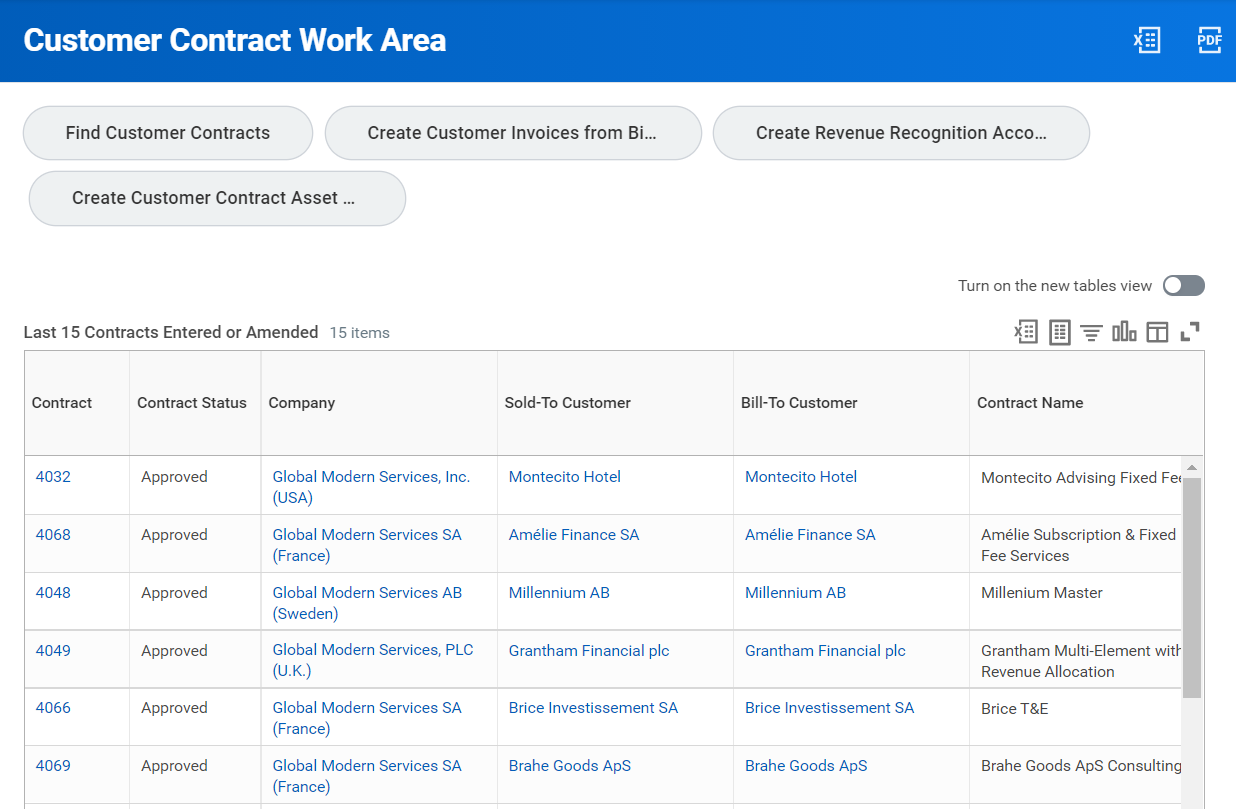
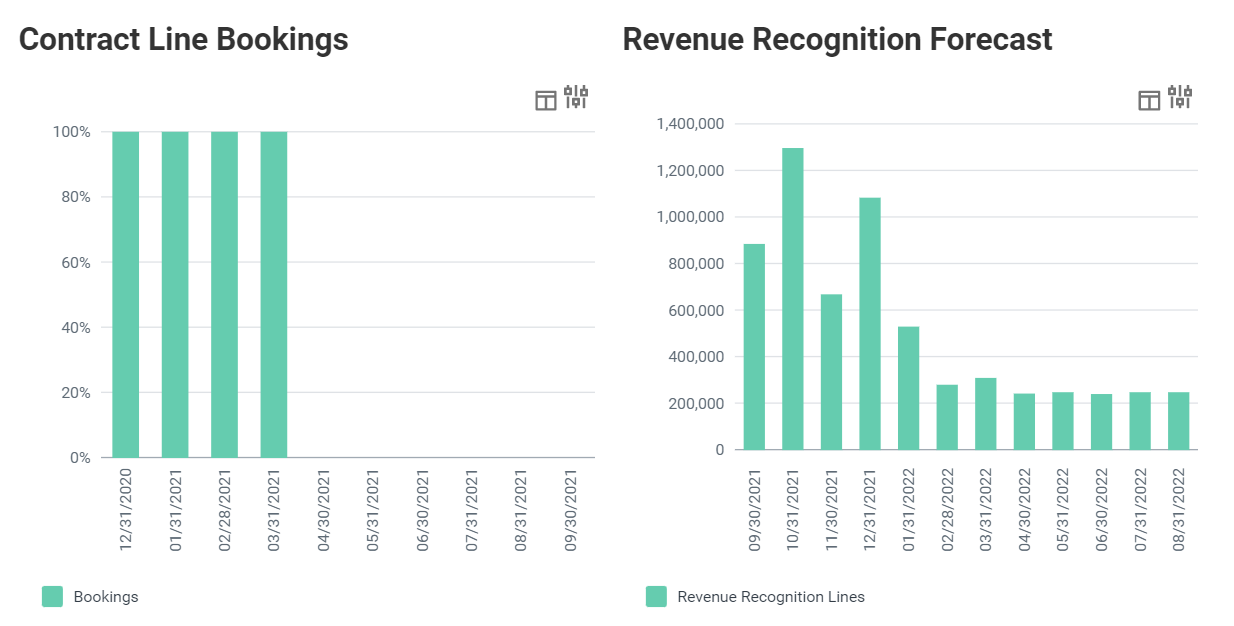
is a dashboard that allows you to view and manage your recent customer contracts. Based on your security, this actionable report allows you to:- View at-a-glance information about the last 15 entered or amended customer contracts.
- Manage customer contracts using Related Actions.
- Navigate to the reportFind Customer Contracts.
- Create customer invoices from billing installments.
- Create revenue recognition accounting.
Customer Contract Setup
Tenant Setup
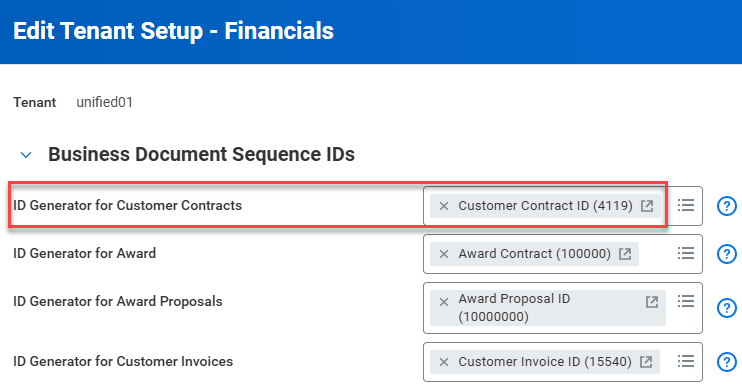
The first step in creating customer contracts in Workday is to make sure you set your tenant up the way you want it to function. You can create sequence IDs to automatically assign a sequence number to new customer contracts. Use the
Create ID Definition / Sequence Generator
task to define a sequence ID that you will map to the ID Generator, for customer contracts within tenant setup.To map the sequence ID that you define as the business document sequence ID for customer contracts, use the task
Edit Tenant Setup - Workday Financial Management
.
Optionally, you can define company-specific sequence IDs. From
View Company,
select Related Actions Edit Company ID Definitions.
Create a new ID generator for Customer Contract ID in the same manner as defined at the Tenant Setup level.Contract Types
Every customer contract must have a contract type enabling you to identify, approve, and manage your contracts the way you want.
Contract types are user-defined and are mostly informational. You define contract types on the
Maintain Customer Contract Types
task. Examples may include Master, Linked Contract, Add-On, or Project Time and Expense.Contract Lines
Workday requires revenue categories and line types when entering contract line details, which you can enter directly. These can be derived from a sales item.
Contract line types are Workday-defined and determine field behavior and validations on the contract line. You cannot change line types once you approve the contract.
To comply with your revenue allocation requirements (VSOE, TPE, or ESP), you can distribute a contract line amount differently for billing and revenue. Controls at the overall contract level ensure that billing and revenue amounts are equal. You can capture discounts as negative contract lines.
Contract Line Types
Contract Line Type | How You Use It | Billing Options | Revenue Recognition |
|---|---|---|---|
Fixed Amount | Set the amount for the contract item (not dependent on resources used or time expended). Example: You create a contract with perpetual license. The license can be a one-time set amount to charge. | Installment Transaction (only for order fulfillment) | Installment Transaction (only for order fulfillment) |
Fixed Amount - Billing Only | Set the bundled amount for a sales item for billing. Example: You contract with a client to sell a laptop bundled with a docking station and monitor for a set price. | Installment | |
Fixed Amount - Revenue Only | Set the individual amounts for items of a contracted sales item bundle for revenue recognition. Example: You sell a laptop bundled with a docking station and monitor and want to recognize revenue on the individual items. Use this contract line type with the Fixed Amount - Billing Only line type or for Revenue Recognition Linked Contracts. | Installment |
Contract Line Type | How You Use It | Billing Options | Revenue Recognition |
|---|---|---|---|
Fixed Fee Project | Set and fix the project value at the time of contract creation. Example: You issue a contract to charge your customer to custom build an application. You define the scope and product up front and agree on a firm contract amount. | Installment Milestone | Installment Milestone Percentage of Completion Method of Accounting |
Prepaid | Use for outside of Workday prepaid tracking, but not for creating a prepaid invoice. | ||
Project Time and Expense | Charge the project as you incur time and expense against the project. Example: For deployment projects, you can charge your customers based on direct time and travel expenses. | Installment Milestone Transaction | Milestone Transaction |
Contract Line Type | How You Use It | Billing Options | Revenue Recognition |
|---|---|---|---|
Recurring - Fixed Term | Bill a set amount on a repeat basis. You can use this type with other variable lines such as usage based to manage minimum commitments. Example: You create a contract for support with minimum monthly fees and other usage-based transaction lines. | Installment | Installment |
Subscription | Set the amount for the contract item (not dependent on resources used or time expended), and track subscription-related transactions. Example: You create a 3-year contract that you can renew for an additional fixed term or indefinitely. | Installment | Installment |
Usage Based | Process your transactions as they occur. Example: You create a contract for on-call tech support. As your customer calls for service, you process transactions and bill them. | Transaction | Installment Transaction |
Contract Line Type | How You Use It | Billing Options | Revenue Recognition |
|---|---|---|---|
Value-Based Project | Bill for projects with variable value based on external factors. Example: You have an open-ended project to provide consulting services to your customer. At the outset, you do not know the overall value of the project, so you bill customers on an ad hoc basis. | Installment Milestone | Installment Milestone |
Variable Amount - Non-Project | Bill for contracts with varying value based on external factors. Example: You have an open-ended contract to provide services to your customer. At the signing, you do not know the overall value of the contract, so you bill customers on an ad hoc basis. | Installment | Installment Milestone |
Creating a Customer Contract
Based on your needs, you can create customer contracts in Workday in various ways. If you are creating a single contract for a customer, use the task
Create Customer Contract
to create a contract manually. You may also choose to copy an existing customer contract or upload customer contracts from a spreadsheet. Additionally, Workday can work with third-party systems, such as Salesforce.com, to integrate your customer contracts.Copy Customer Contracts
When creating multiple contracts for the same customer, Workday gives you the option of copying an existing customer contract to save time. Use the Related Actions on a customer contract and select Copy.
When creating a copy of a contract, Workday copies the following information:
- Contract lines as numbered in the original contract
- Billing and contract notes
- Tax code using the current tax rate
- Only the current approved version of the contract for contracts with multiple amendments
You cannot copy:
- Canceled or terminated contract lines
- Associated billing or revenue recognition schedules
Workday duplicates the original contract in Draft status. You will then make the necessary changes to the contract and submit it for approval. The Customer Contract Event business process initiates the review and approval of the contract.
Upload Customer Contracts
Workday gives you the ability to add new customer contracts or update existing, unapproved customer contracts from a spreadsheet using Enterprise Interface Builder (EIB). The spreadsheet includes sections for customer contract data and contract line data. It also includes worktags for you to assign customer contracts and customer contract lines to specific business objects, such as locations, cost centers, or projects.
You can submit the contracts or save them in draft mode. In addition, you can optionally lock the contracts in Workday to prevent editing or cancellation. However, Workday does not recommend locking customer contracts because it prevents you from amending the contracts in Workday. After you approve contracts, you cannot make contract amendments through web services, either.
When successfully completed, the upload automatically triggers the Customer Contract Event business process.
Customer Contract Amendments
Contract amendments give you the ability to capture all additions, changes, and corrections in approved contracts. Configurable contract amendment types enable you to identify, approve, and manage your amendments the way you want. In addition, amendments enable you to control status changes to an overall contract or specific contract line. You can view the entire amendment history of a contract or contract line as of any version.
When any of these processes are in progress, you cannot submit an amendment:
- An associated billing installment.
- An associated revenue recognition installment.
- An associated customer invoice or invoice adjustment.
Use the
Amend Customer Contract
Related Action to amend a contract. Workday automatically assigns the next version number to each new amendment. You can also specify an optional amendment number to correlate with a legal document.Once you amend a contract, the changes list on the contract Amendments tab.
Workday assigns the next version number to each new amendment, and you can specify an amendment number to associate with a legal document.

Customer Contract Change
You can make changes to a customer contract without going through the full amendment process. Without an amendment, you have limited options, if your contract already has billing or revenue recognition schedules attached. Changes are typically made for internal to Workday contract changes where as amendments would tend to be an agreement between the company and customer regarding a change to the legal contract. For example you would use Contract Change to update a worktag and Amend to add an additional product to the contract.
Amendment Types
Customer contract amendment types are user-defined and you can create them for reporting purposes. Use the task
Maintain Customer Contract Amendment Types
to create new contract amendment types or inactivate types not in use. You may only delete unused amendment types.Examples of amendment types might include correction, cancel/terminate, or add-on.
Multiple-Element Arrangement Contracts
An example of a multiple-element arrangement contract is if your company sells bundles of software products and related services as a unit at a single price. Workday has the ability to allocate revenue for multiple-element arrangement contracts, using the relative selling price method.
When creating a customer contract, indicate if the contract requires multiple-element revenue allocation. If you select the checkbox, additional Fair Value fields open up to enter the fair value unit price or the fair value extended amount. You may also configure these values on sales items and they will default into the contract fields.
The
Fair Value Allocation Report
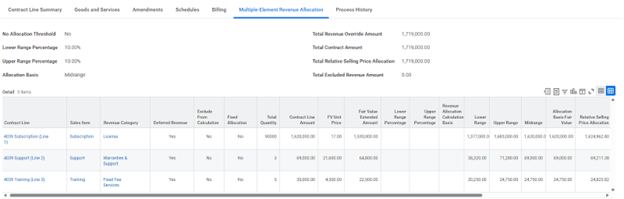
displays contract line amounts and fair value amounts. If they do not fall within the acceptable allocation range based on the company's accounting policy, you will need to allocate the revenue. You want to ensure the total revenue amount recognized in the end, equals the contract amount. Actions of the contract to allocate the revenue. The result is a Multiple-Element Revenue Allocation tab on the customer contract, showing the details from the Fair Value Allocation report.
You may configure the allocation threshold for a company using the task
Edit Company Revenue Allocation Threshold.
Fair Value Price List
You can create fair value price lists to associate with your customer contracts when you select the Multiple-Element Revenue Allocation checkbox on the contract. The fair value price list defaults in when you use the setup Revenue Allocation Configuration task to associate the price list with the contract company. When you create a contract line for an item on a price list associated with your contract, the fair value information defaults to the contract line. The fair value for each sales item is dynamic and you can base the fair value on:
- Company
- Sales Item
- Sales Item Group
- Contract Effective Date
- Worktags
Reports
Workday Standard Reports
- Customer Contract Amendment Types
- Customer Contract Types
- Customer Contract Work Area
- Fair Value Allocation
- Find Customer Contract Lines
- Find Customer Contracts
- View Customer Contract