Deploying the Report Design to the Workday Tenant
Overview
The Report Designer tool can be used to send the report design file to the Workday tenant. Workday will then create a business form layout object, attach the report design field and then associate the business form layout with the custom report.
Objectives
By the end of this chapter, you will be able to:
- Deploy the report design file to the Workday tenant.
- Print the custom report with the formatted design.
Deploy to Workday
After you have completed your report design and are happy with the results, the next step is to deploy the report design for the custom report in Workday using the Workday Studio Deploy Report Design to Workday wizard.
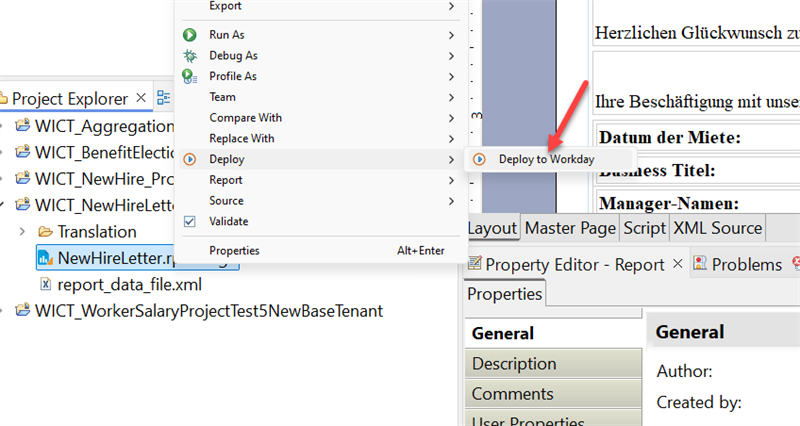
In the Project Explorer view, right-click the report design file, then select Deploy> Deploy to Workday.
In the "Select Custom Report for which to Deploy this Report Design" section, the Custom Report text box displays the selected WICT_RD_NewHire custom report. You can select a different report by clicking Select Custom Report.
In the Create or Select Business Form Layout for which to Deploy this Report Design section, the Create Business Form Layout option is selected by default. If you have already deployed the report design for a business form layout, the Select Business Form Layout text box displays a list of previous values for selection; otherwise, this list is empty.
Note
: If you used a local file (XSD) to create the data source, you will need to Select Custom Report in order to deploy.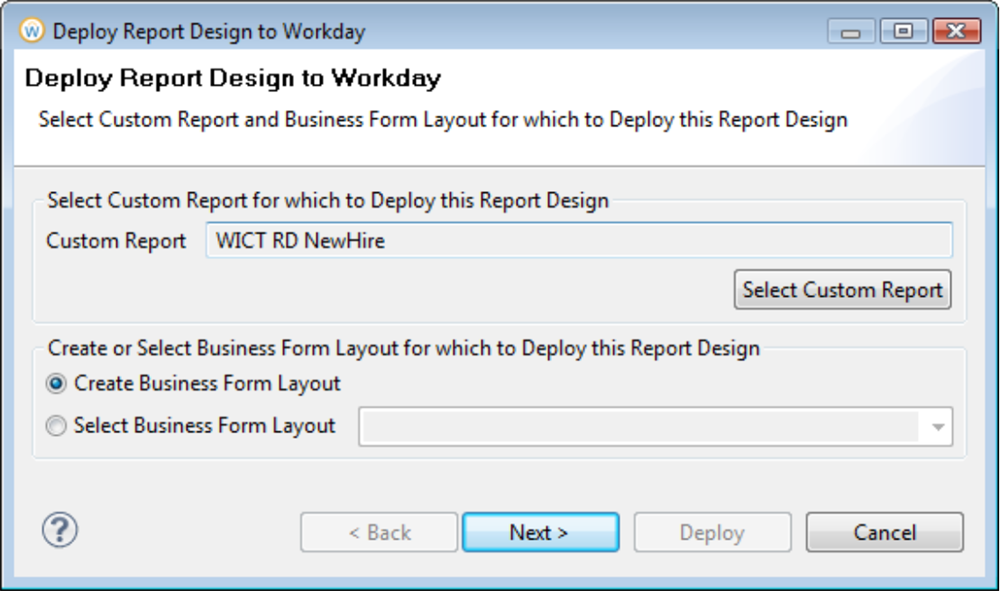
On the following screen of the wizard, specify the following details:
- Description:Specify a description for the layout.
- Active:This checkbox is selected, by default, to activate the layout for the custom report.
- Document Expiration:Specify the number of days until the resulting PDF document expires.
- Comment:Specify an optional comment.
- Apply per row:This setting controls how Workday applies the report design to the data that the report returns. If you do not select this checkbox, which is the default, Workday applies the report design to the data returned by the report as a whole.
- Default:To set this report design as the default business form layout for printing the custom report, in the Use as the Default Business Form Layout section, select the Default checkbox. Note that this checkbox is enabled only if there is already a report design associated with the custom report in Workday.
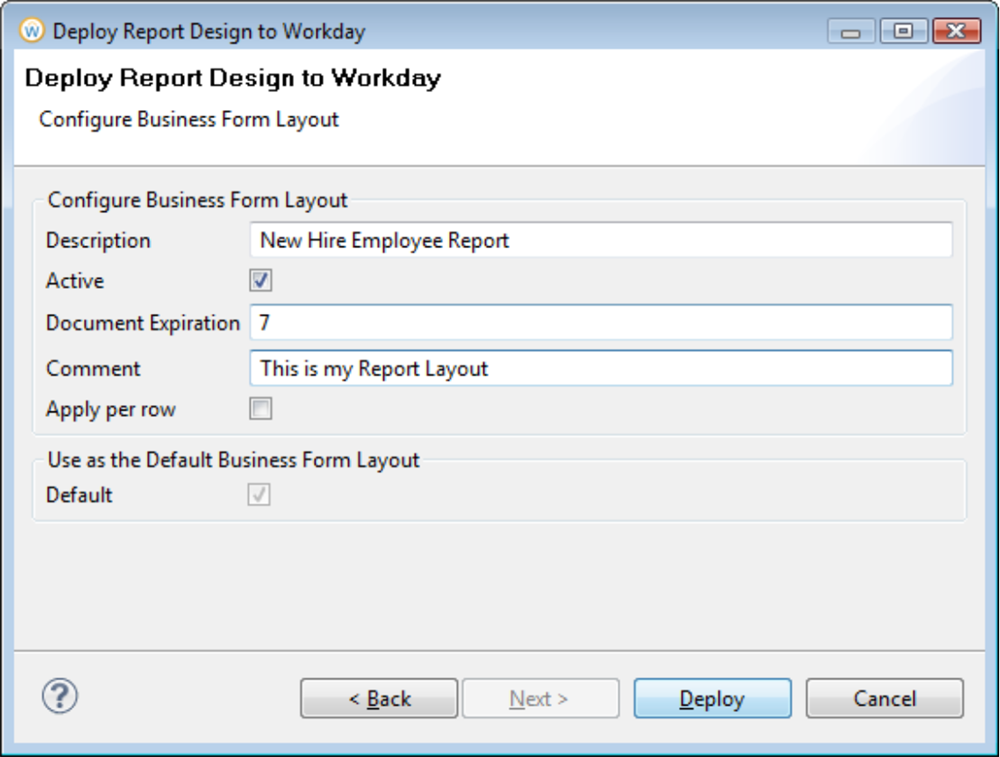
Once you select deploy. The layout will be deployed to Workday and you will receive a confirmation.
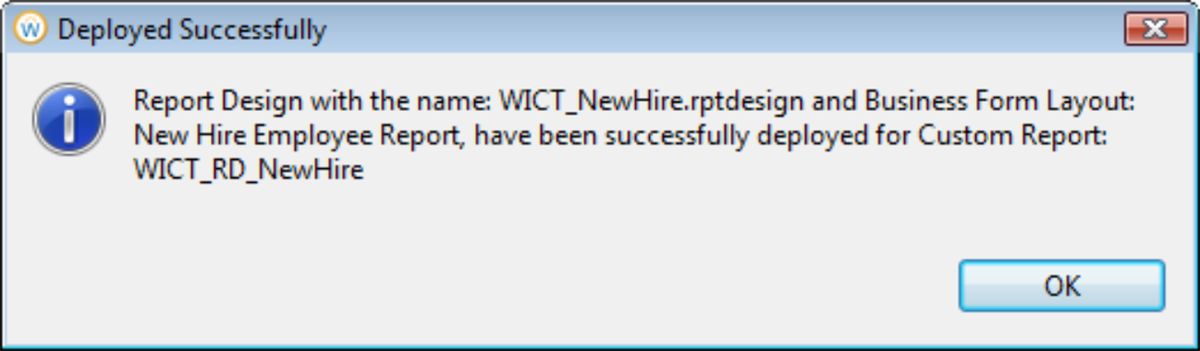
Note
: If you do not see this confirmation dialog box, view the Error Log view to determine why deployment was not successful.Access your Workday tenant and search for your report. You can generate a PDF that applies the new report design.
- On the custom report page, for example, the "WICT_RD_NewHire" custom page, select the Print button at the bottom of the page.
- On the custom report page, go to the actions and select the Print task.
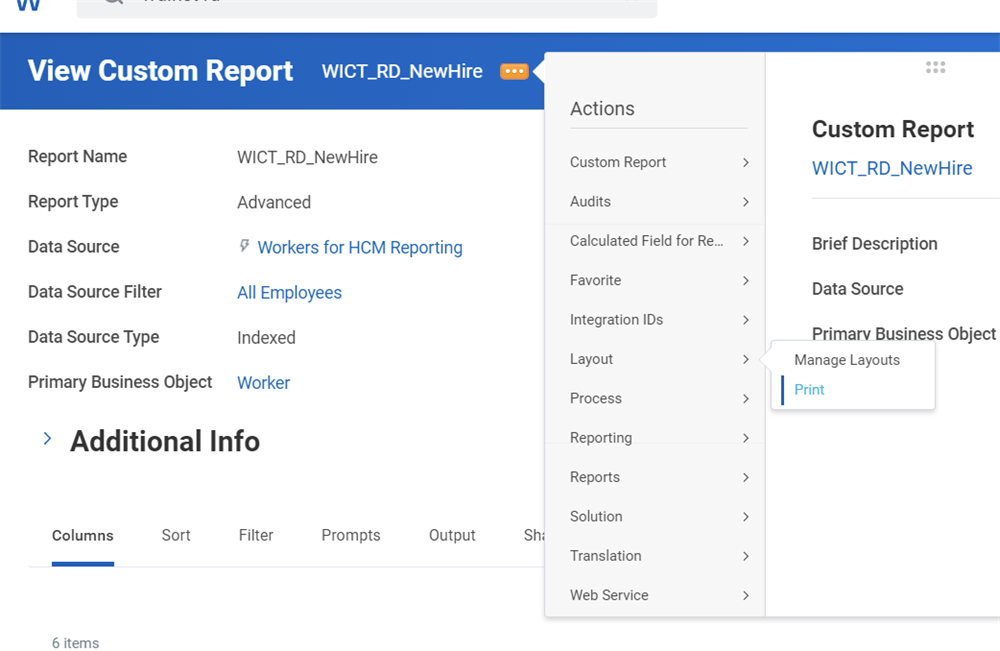
You will be prompted input date parameters.
The report will open in your browser.
If not automatically displayed, you may need to view the Notifications to access the PDF.
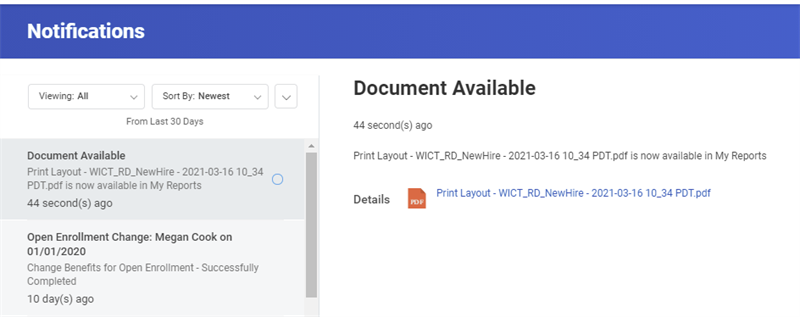
You can force the report to download as a PDF at the business form layout level or the tenant level.
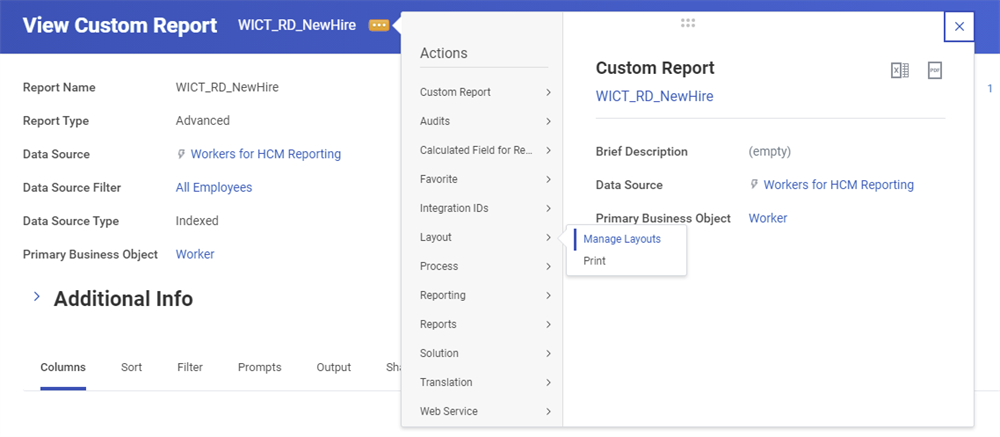
Once deployed, you can manage the report layouts associated to the report. Additionally, you can associate the report design with a custom report business form layout using the Workday application's Manage Layout page, by uploading the report design from a local drive. Uploading report design files in this way is required only if your report design includes translation resource properties files. If your report design does not include translation resource properties files, use the Deploy Report Design to Workday wizard.