Aggregation and Grouping
Overview
The Report designer can be used to aggregate and group data. This allows one to perform a calculation on a set of values rather than on a single value. Calculations include but not limited to the following: sum, average, minimum, maximum, count and many others.
Objectives
By the end of this chapter, you will be able to:
- Sum the total amount due on customer invoices.
- Use the data report item to aggregate the amount due.
- Copy a custom report and update the namespace.
Aggregation and Grouping
Aggregation
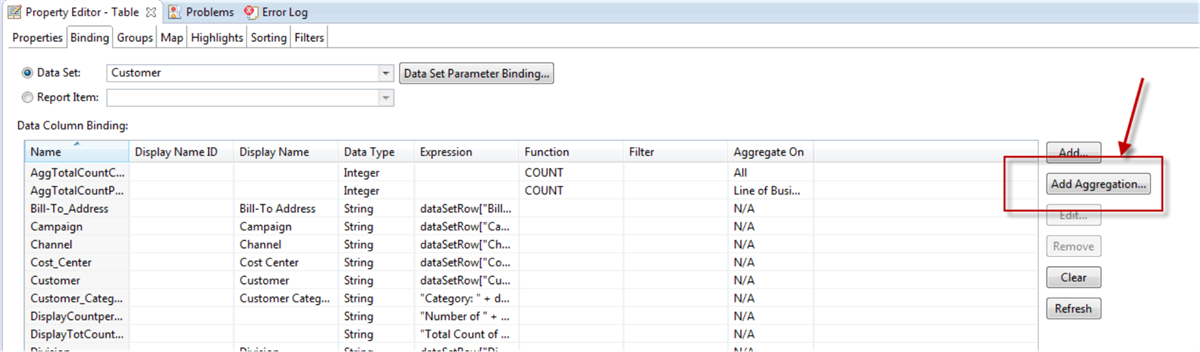
One of the key features of any report is the ability to display summary, or aggregate, information. For example, a sales report can show the overall sales total; sales subtotals by product type, region, or sales representatives; average sales figures; or the highest and lowest sales figures.
Aggregating data involves performing a calculation on a set of values rather than on a single value. For a simple listing report, aggregate calculations are performed on values in a specific field, over all the data rows in the report.
Sort
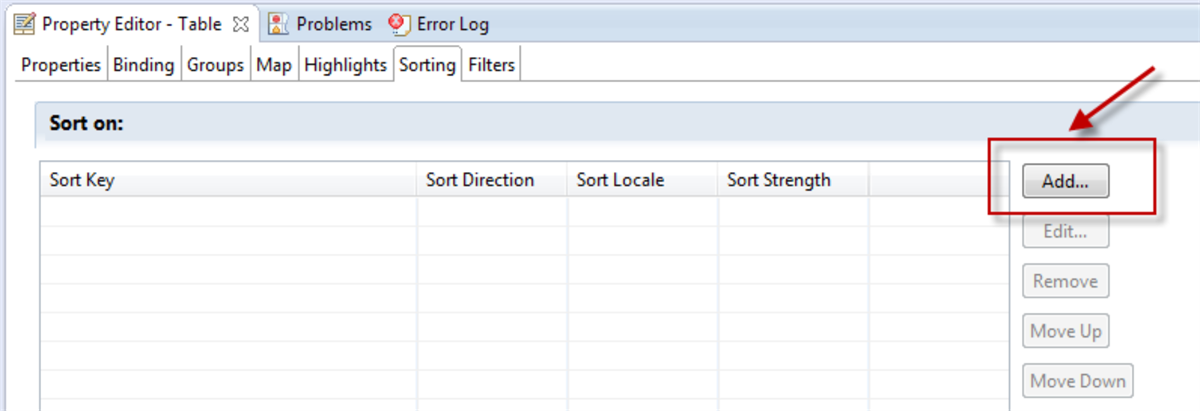
When you first create a report and preview the data, the report displays the data in the order in which the data source returns it. In most cases, you will want to change the order in which data appears in a report. A customer phone list, for example, is easier to use if it is in alphabetical order. A sales report is more useful if it presents sales figures from highest to lowest, or the reverse, depending on whether the focus is on top or low performers.
Grouping
The Report Designer's group-by feature allows you to group a set of rows within a report by the values of one particular column. For example, in your report design, you might want to group shopping transactions by day of week or time of day. The group-by feature also allows you to:
- Aggregate and summarize a grouping and add this information to the printed report.
- Add titles or other text to the beginning of each group.
- Add averages, counts, subtotals, and other summary information to the beginning or end of each group.
- Insert a page break before or after each group.
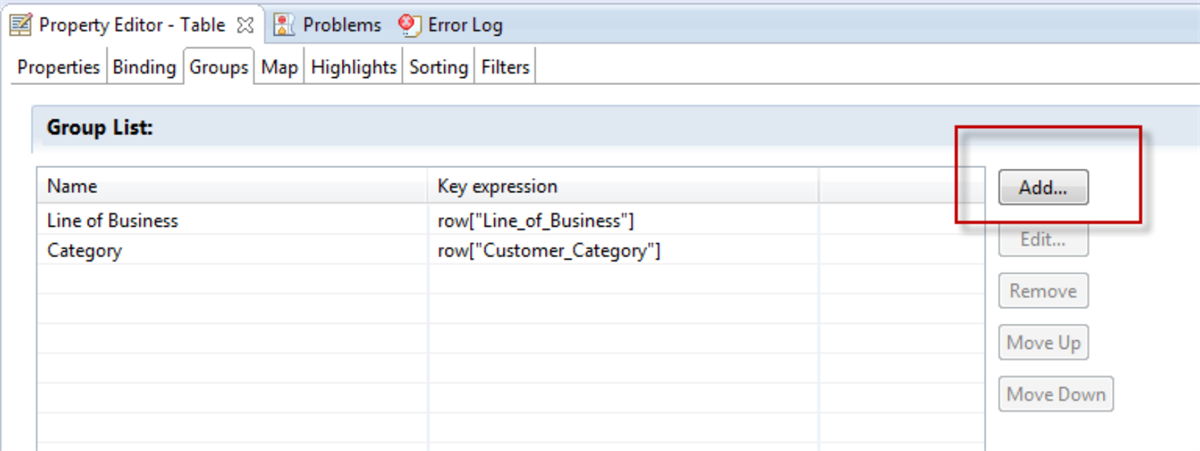
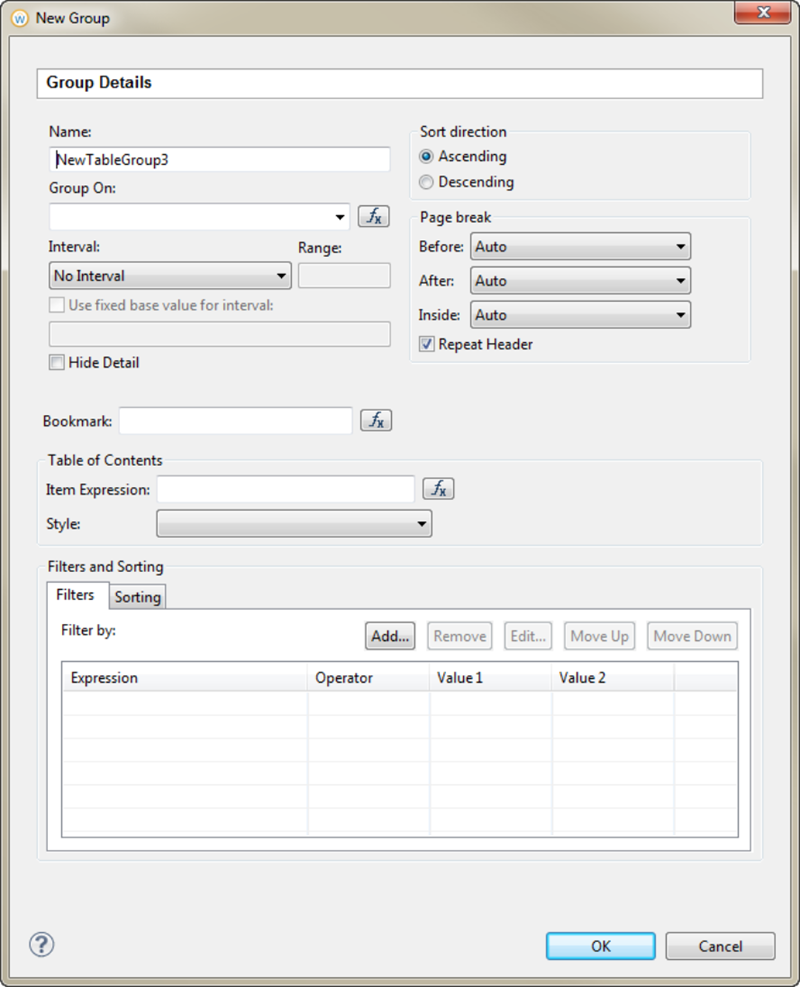
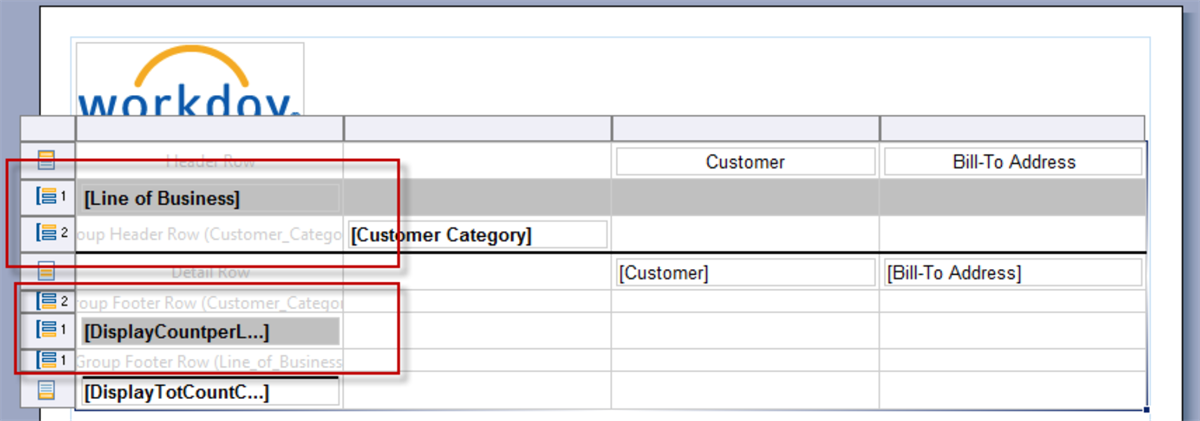
Once created, a group header and footer row are added to the table for each group that you create.
Outline Tab
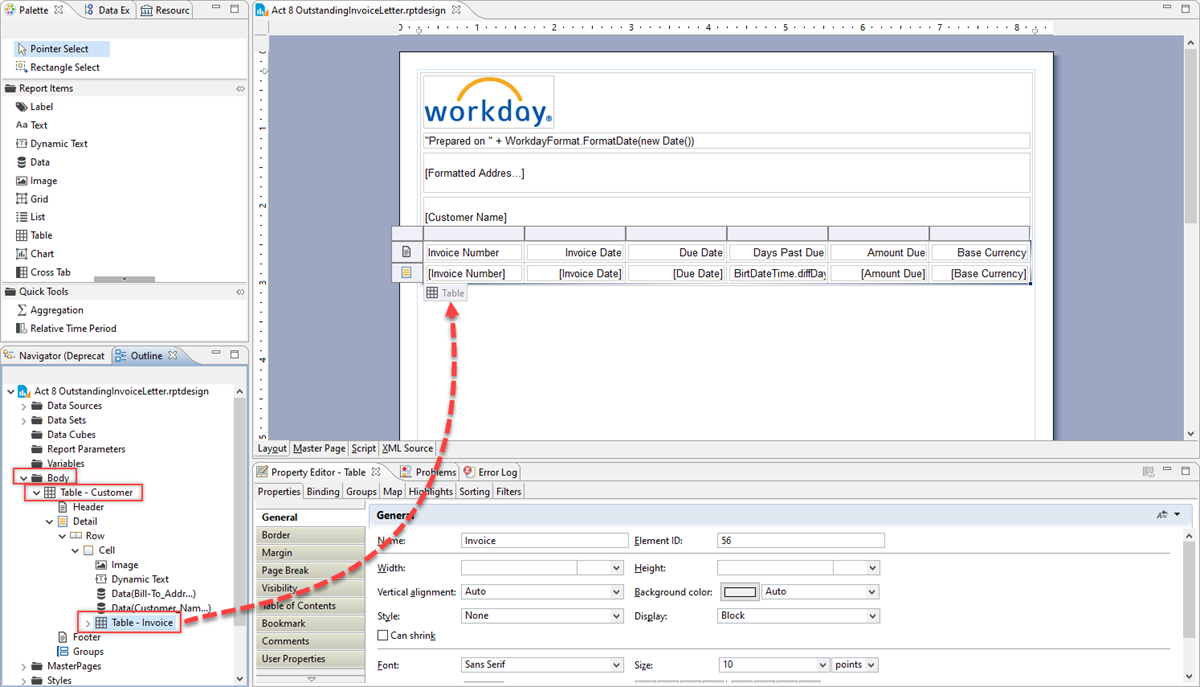
When a report design begins to get more busy, you may find the Outline tab very useful to select elements on the page.