
Using Report Data with Workday Studio
Overview
Workday Studio integrations can also use reports as data sources by levering Reports-as-a-Service (RaaS) or Workday Query Language (WQL) with the workday-out-rest component.
Objectives
By the end of this chapter, you will be able to:
- Review Reporting-as-a-Service (RaaS).
- Configure and invoke RaaS using workday-out-rest.
- Set up Workday Query Language (WQL) queries using reports.
Reporting as a Service (RaaS)
Workday enables you to use advanced custom reports as web services that can be called from a Workday Studio integration. Choosing an indexed data source can improve the performance of your integration system.
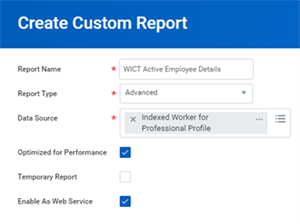
Create Custom Report task
When a custom report is web service-enabled, Workday generates a namespace for the report using the following format: urn:com.workday.report/Report_Name, where Report_Name is the name of the report in "snake case".
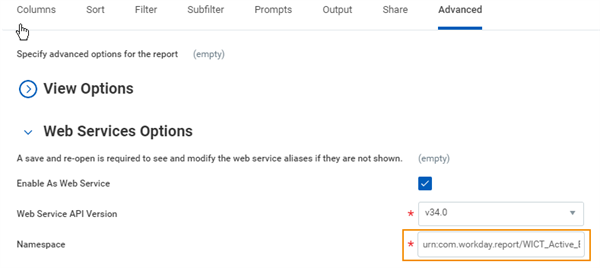
Report Namespace
To minimize disruptions to integrations that use the report output, the RaaS namespace doesn't change when the report name or report owner changes.
You can edit the namespace for a custom report. However, consider:
- Workday doesn't verify that a RaaS namespace is unique.
- If an integration uses the report as a web service, you must update it with the new namespace
To use a report as a web service, all columns, prompts, and related business objects must have a Column Heading Override XML Alias. This is the text that will be used for the tag name of XML data elements. Workday automatically converts the names of these objects into XML-safe names by replacing spaces and other special characters with underscores. You can change the generated aliases to suit your needs.
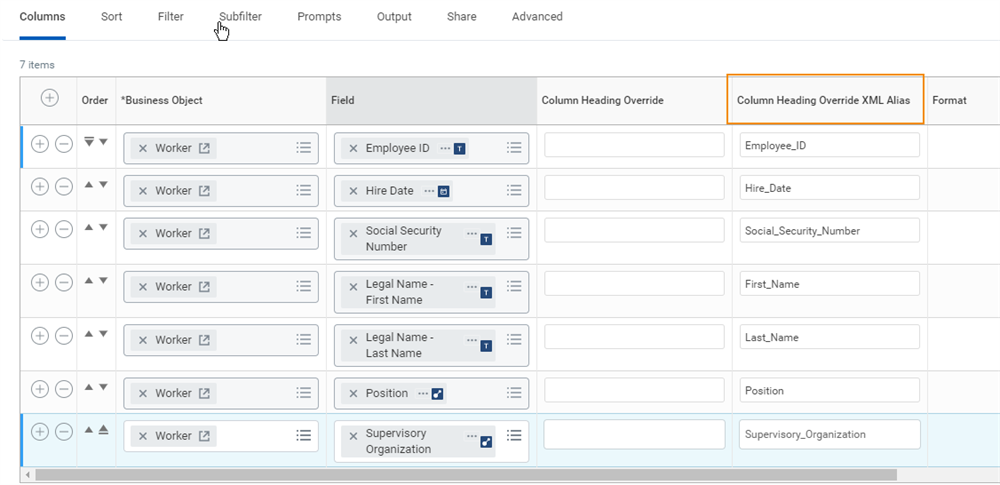
Custom report settings
Reports
When creating reports, ensure that you select the optimal data source for your report. There are three types of data sources available:
- Standard: slow execution speed; near real-time; supports effective date time;
- Indexed: fast execution speed; a time lag of several minutes up to hours; no support of effective date time;
- Prism: fastest execution speed with a significant time lag of day(s) up to weeks and possibly more; no support of effective date time;
If you have a choice always select the indexed report data source. If you can't locate an indexed report data source for your use case you can create a brainstorm in Workday Community to request it.
Besides the data source there are other factors influencing report performance:
- Filter: always prefer indexed fields in filter conditions; sequence of report fields makes a difference (place more restrictive fields before less restrictive fields);
- User-based unconstrained role-based security is faster than constraint user-based security.
- Report fields can be indexed.
- Use sorting sparingly.
- Calculated fields impact processing time.
Review the report logs to help you guide your decisions.
Workday-Out-Rest Transport
Workday-out-rest is a synchronous transport that sends Workday application requests via an HTTP URL. In this transport, you configure an Extra Path that defines the API-specific part of the system path to which the REST request is sent.
In the following example, the endpoint invokes the WICT Active Employee Details custom report. This report is owned by lmcneil, in the unified01 tenant, in the default Workday XML format. Note the literal Extra Path in this case is:
customreport2/unified01/lmcneil/WICT_Active_Employee_Details
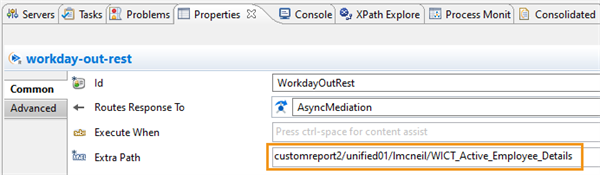
workday-out-rest Extra Path property
Note
: Delivered reports should be copied when used as a data source in an integration system. This will ensure that any workday updates to standard reports don't affect your integrations.To find the Extra Path of the report, navigate to the report in the tenant, then use the report's Related Actions > Web Service > View URLs. Several alternate output formats are available:
- Workday XML: A version of XML that contains all details about the data in your report including Integration IDs.
- Simple XML: A simplified version of Workday XML with a flattened structure where multi-instance fields are changed to a simple string with semi-colons separating values. Integration IDs are omitted and date fields do not contain a time zone offset from GMT.
- CSV: Comma-Separated Values.
- RSS: Really Simple Syndication.
- GData: Google Data protocol.
- JSON: JavaScript Object Notation.
It is possible to use any of the above formats in the workday-out-rest by appending a query string to the URL that includes the format. E.g.,
?format=json
Report Service
The extra path for a report includes items like the tenant identifier, report owner, and report name. Any changes to a report that affect those properties would prevent an integration from retrieving the report's results. A report service addresses this challenge by allowing us to create a pointer to a report reference called an alias. This alias is then used to create the extra path dynamically at runtime with information based on the current report configuration in the tenant. Consequently, if the report were to be renamed or the owner of the report changed, the extra path produced via this alias would be automatically updated.
You can configure the aliases defined by the report service in the tenant. If a different report were needed as the data source, you can change the report reference to which the alias points. Using a report service provides greater flexibility than hard coding the extra path property, which would require refactoring your Workday Studio code and redeploying to production.
You define a report service in the Services tab of the Workday-In properties by using the Create 'report-service' button:
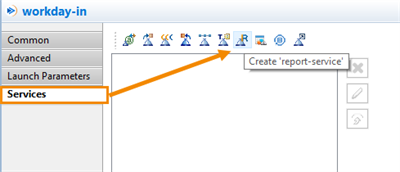
Add Report Service to Workday In via Services Tab
A dialog prompts you for a name for the report service. Since the service is deployed and visible in your tenant, it is a good idea to provide a descriptive name that relates back to the integration system.
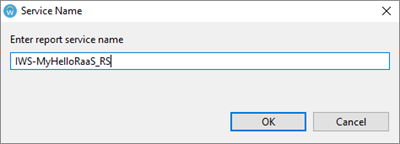
Enter name for new Report Service ( )
The report service is now listed in the Workday-In Services tab with an Add New Entry ("+") button to create one or more report aliases tied to that service:
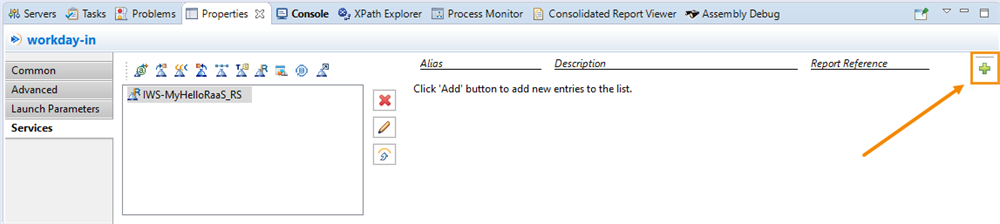
Button to add new Report Alias (After selecting Add New Entry, provide an Alias name (required) and description (optional):)
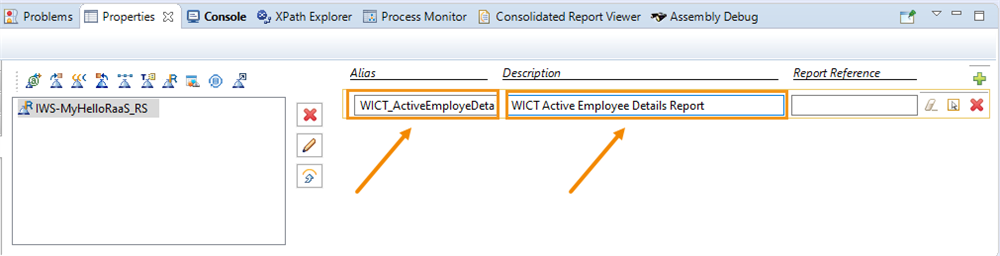
Set Alias Name and Description
Note: Although it is possible to directly select a Report Reference in your assembly, it is not recommended as this will hard-code the report's WID in your assembly XML. This would prevent you from deploying your integration to another tenant because the WID for the report would not be found. Instead it is recommended you leave the report reference blank in your workday-in properties and configure it in the tenant once the integration has been deployed.
In order to take advantage of the report alias on a workday-out-rest component, the Extra Path property needs to include MVEL to dynamically create the path at runtime. You can use "Pick an existing report alias" icon to have Workday Studio create the MVEL expression for you based on the alias you just defined.
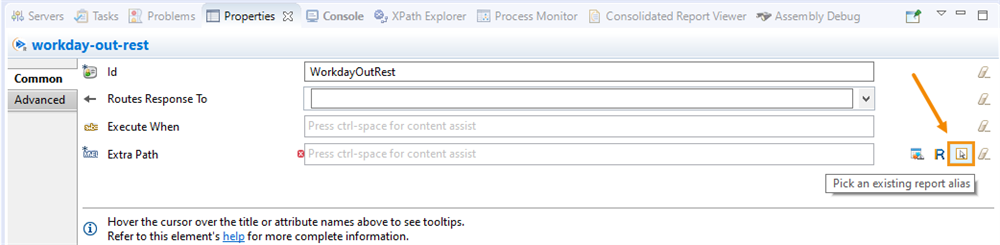
Button to Pick an Existing Report Alias
Selecting this icon presents you with a list of report aliases defined in your assembly.
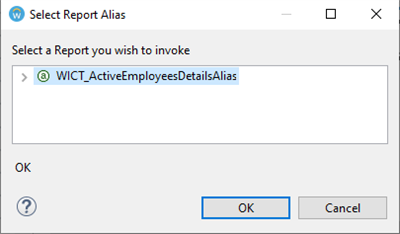
Select Report for Extra Path (Once selected, an MVEL expression is generated pointing to a report using an alias. E.g.,)
@{intsys.reportService.getExtrapath('WICT_ActiveEmployeesDetailsAlias')}
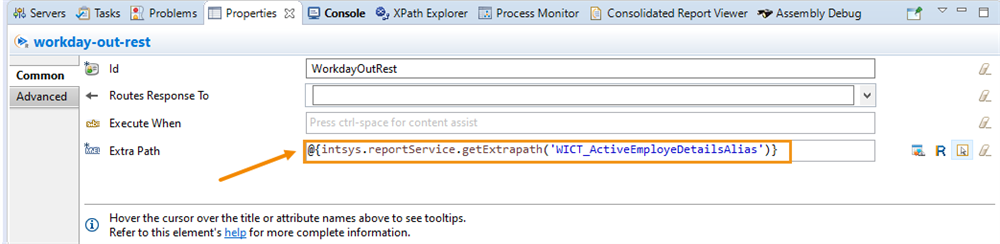
Extra Path Populated with MVEL Expression
Once the report service and alias are defined in the assembly, deploy the project so that the report reference for the alias can be configured in the tenant. After deploying to Workday, the Cloud Explorer also displays the report service.
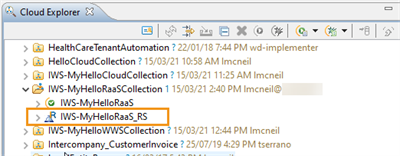
Report Service displayed in Cloud Explorer
The report service is listed as a property of the integration system in the tenant.
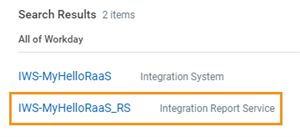
Report Service in tenant
In order to use the report in the assembly, you need to find the integration system in the tenant and use its Related Actions to select Integration System > Configure Integration Reports.
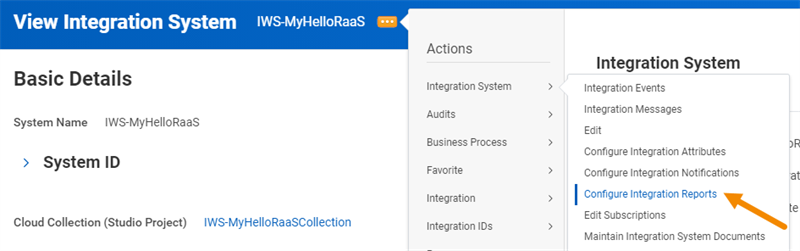
Integration System Related Actions Configure Integration Report
This is where you configure which report the alias refers to.
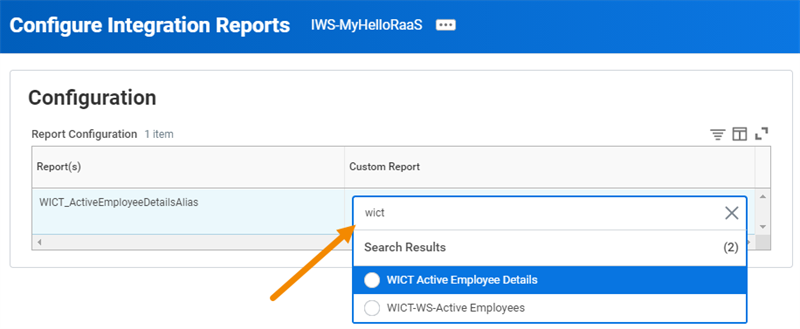
Select the Report associated with the Alias
Your Workday Studio integration can now use the Report's data and will no longer be susceptible to breaking due to change in report configuration such as a change to the report name or owner.
Workday Query Language (WQL)
Workday Query Language (WQL) allows you to access data from Workday using SQL-like syntax. This enables the building of dynamic queries to Workday data sources without the need to create custom reports in the tenant. Like RaaS, WQL can only retrieve data, not update Workday.
As an example, the following WQL statement returns the maximum years of service of workers, grouped by location:
SELECT location, max(yearsOfService) FROM allWorkers GROUP BY location
WQL responses are in JavaScript Object Notation (JSON) format instead of XML:
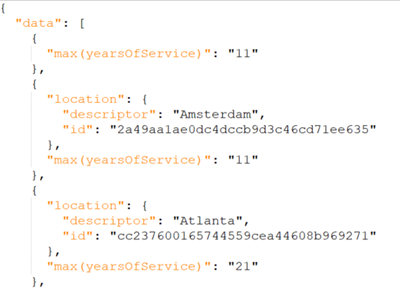
WQL responses are limited to 1,000,000 results that can be retrieved in pages of up to 10,000 records at a time.
The domain security that allows access to Workday data is the same for WQL as it is for reports. However, the WQL API itself has a different base URL than RaaS reports (https://{hostname}/ccx/api/wql/{version}/{tenant}) and each request requires the bearer access token for a client registered in Workday. As such, the http-out transport is typically used for WQL requests from Studio rather than workday-out-rest.
Resource
: For more information on WQL, including client registration and a task that can convert a report to a WQL query, search Workday Documentation for Workday Query Language.Convert Reports into WQL Queries
You can convert advanced and matrix reports into WQL queries for use in integrations. Access the
Convert Report to WQL
report and select the report you want to convert. Workday displays the WQL query and indicates if it's valid. Some report configurations may prevent a valid WQL query from being created. 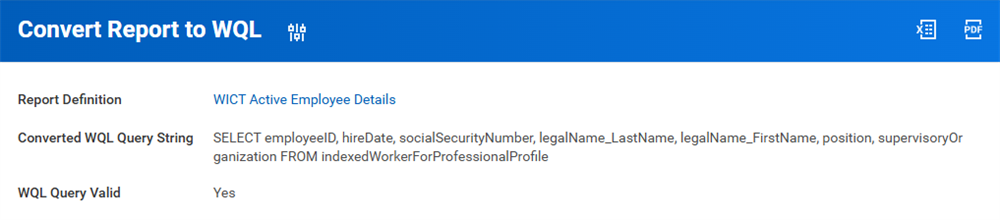
When reports contain values in the "Column Heading Override" column, Workday includes the value as an alias in the converted WQL query. For fields from related business objects, Workday uses the value in the "Group Column Heading" as the alias. Any report components that cannot be converted to WQL are listed in a table
View WQL Query Results
Test your WQL queries directly in your tenant using the
View WQL Query Result
task. Workday truncates results to 500 rows for queries without a limit or with a limit greater than 500.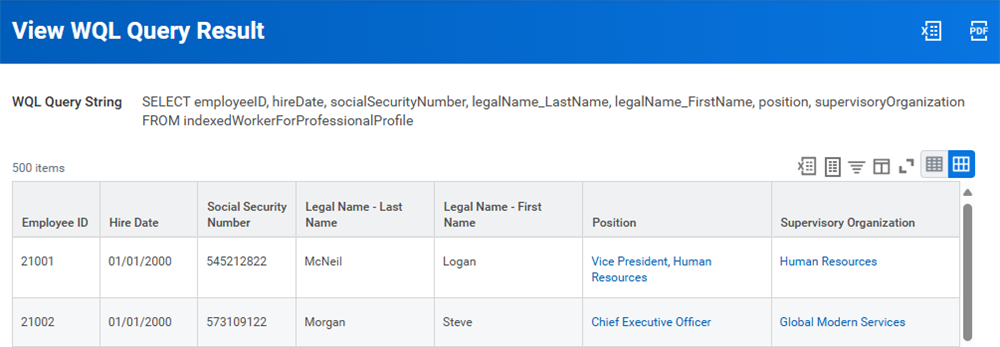
The ORDER BY clause sorts results. For example, ORDER BY count() sorts in ascending order, while ORDER BY count() desc sorts in descending order.
Note
: Optionally, save the query for later use with the Manage My Saved Filters
report.RaaS vs. WQL
Now that you've worked with both Reports as a Service (RaaS) and Workday Query Language (WQL), here's a final comparison to reinforce when to use each:
Feature | Report as a Service (RaaS) | Workday Query Language (WQL) |
|---|---|---|
Primary Use | Prebuilt reports as APIs | SQL-like queries for Workday data |
Performance | Slower, processes full reports | Faster, retrieves only required data |
Customization | Fixed structure, requires report setup | Flexible queries with filtering and grouping |
Security | Report-based access control | API client and domain security required |
Input | Custom Report with predefined fields | Query with SELECT, WHERE, GROUP BY clauses |
Output | XML, JSON, CSV, Excel | JSON response |
Use Case | Large, structured data extracts | Quick, on-demand data retrieval |