Logging and Error Handling
Overview
Logging is an important debugging and troubleshooting tool for developers. Several options are available to place text messages into server files and Workday integration event pages. In this chapter, we will explore a more readable and configurable alternative to the log step: the cloud log. We will also implement formal error handling to gracefully capture technical and data exceptions, and to provide friendlier, user-facing event messages.
Objectives
By the end of this chapter, you will be able to:
- Leverage the cloud log as a more efficient alternative to the log step.
- Catch and report unexpected issues with the global error handler.
- Handle predictable exceptions with the local error handler.
Review Logging Methods
Workday Studio provides several components for recording informational messages in technical server logs and posting user-facing details in the integration event. The option you choose depends on the message audience and the type of information you need to log.
Workday has found that a significant factor in the performance of customer integrations is excessive use of logging. While useful for troubleshooting during development, logging high volumes of data (or many small messages) takes time and consumes ESB disc space.
You must avoid logging the mediation message by any method in production. This does not only have performance implications; any user with Integration Event permissions can view the raw web service or RaaS responses, putting customer-confidential and personally-identifiable information at risk.
The best option to review the mediation message and variable contents while developing is the Workday Studio debugger. However, the debugger can be slow to start up and might not fully reflect cloud runtime behavior (particularly if a complex business process is involved). If you need to leave logging in your production code for later debugging purposes, you should delete or disable them (e.g., by using an execute-when) to prevent the components from running in standard executions.

Using the Log Step
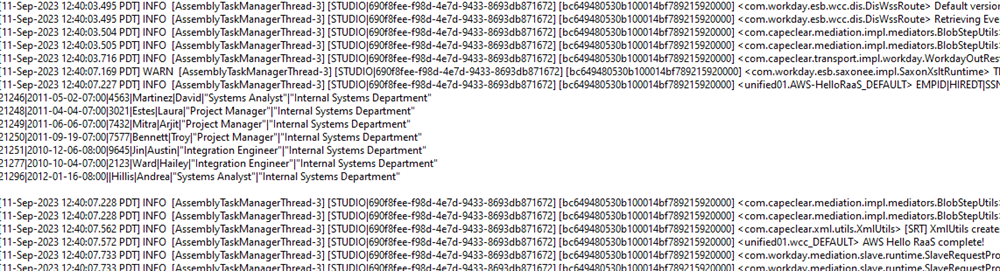
The most common and most frequently misused method for logging output is the log step. By placing a log step in a mediation component, you are appending a text message (or the contents of the mediation message or a variable) in a server log file. (When debugging, these messages are printed to the Console view in Workday Studio.)
The server log has an overall size limit of 48 MB and a line length limit of 128 KB. The View Log File function in the Workday Studio Process Monitor view further truncates lines to 32 KB.
This log includes a high amount of obscure technical details about the event, making it hard to locate your integration-specific messages. Only use log steps when you need to insert small, technical details and interpret them along with internal Workday Studio component messages. For example, you might want to log a file size to help troubleshoot store steps or sftp-out transports that are failing with obscure errors in production.
Using PutIntegrationMessage
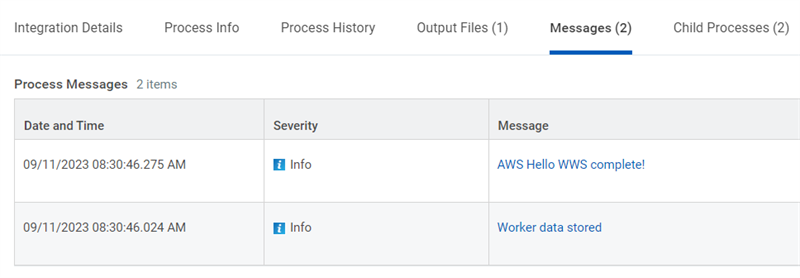
The PutIntegrationMessage (PIM) component has several fields that are useful to record integration event information. PIM messages appear in the tenant on the Messages tab of the integration event. The Messages tab is much more user-friendly, in that it does not include the more cryptic technical details from the server log. (The PIM does have built-in logging, so its severity, summary, and details are also written to the server log.)
As an alternative to log steps, PIM output is more readable but has some serious drawbacks:
- PutIntegrationMessage is a web service operation. Many PIM executions in an event can therefore impact performance more severely than logs.
- The PIM component uses the mediation message for its request. You must take care to protect or copy your message data if you need to continue processing it after a PIM.
- The PIM component has a limit of 500 messages it can place on the integration event. Any subsequent PIM messages are sent to the server log and not the integration event messages. (PIMs will still store messages after the limit when they tag documents, include targets, or change the event status.)
Ideally, you should use PIMs sparingly to summarize overall event execution and not many times when iterating through files and records.
Using the Cloud Log
The cloud log is the newest way to write interactive log files intended for consumption by users and is the standard model of error handling for integrations built with the Studio Starter Kit (SSK). The cloud log is a separate file from the server/console log, so it does not include any unnecessary technical details. The default output is an interactive HTML file, or you can opt for CSV or Excel formats.
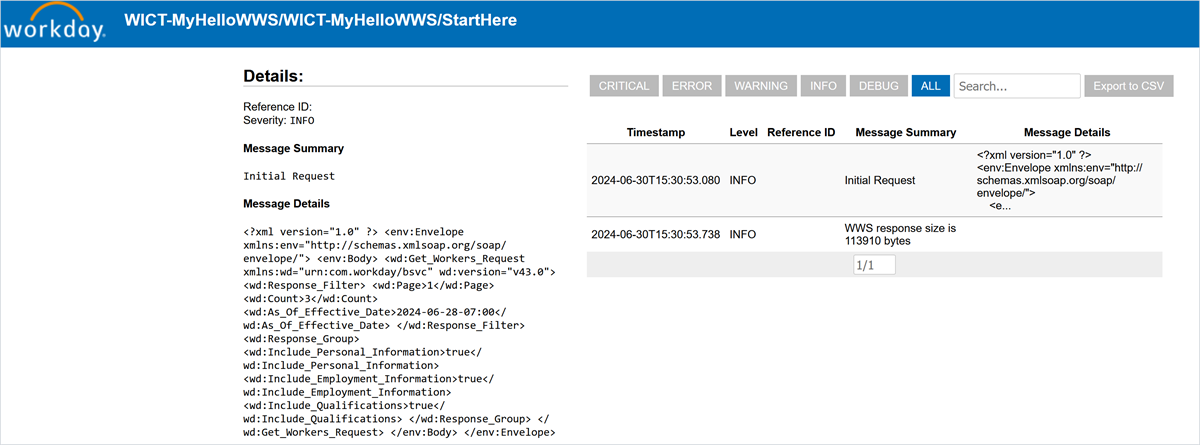
Cloud log steps include all the message summary and detail options of a PIM, while also allowing you to add extra columns of information. Because the cloud log uses variables, your mediation message is safe, you may have multiple logs in the same event, and you avoid the repeated web service calls of a PIM (until that final store).
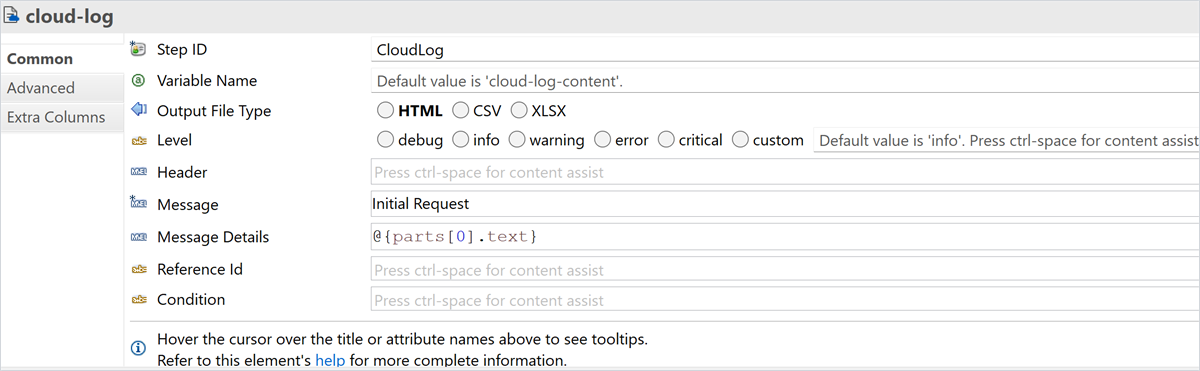
The details of a cloud log are appended to a variable and must be attached to the integration event using a store step. The store step component in Workday Studio is used to persist data during the execution of an integration. It allows you to save a document or message into the Workday Blobitory, which is a storage location within the Workday ecosystem. The store step component will be covered further in later chapters.
Reminder
: Although variables are part of the mediation context, they leverage ESB disc space for the bulk of their data and therefore make efficient use of cloud runtime memory.Error Handling
Error handling includes the detection, mitigation, and reporting of exceptions that can occur in any programming environment. Workday Studio includes assembly components that let the developer capture and handle common and unexpected issues more gracefully than the default error processing. Workday Studio also includes steps that can raise exceptions based on custom validation requirements.
In this chapter, we will focus on catching errors and providing user-facing feedback about them.
Provide User-Facing Messages
Although error handling includes developing logic to automatically adjust and correct issues, integration errors should generally be brought to the attention of the launching user. Error messages provide information that can help both technical and functional users determine the cause and solution for integration problems. Every error message you present could include the following four items:
- Context: Identifies the source of the problem, such as the name of the worker or integration map that caused an error.
- Condition: Describes the error condition such as invalid data, missing fields or attributes, or empty map values.
- Requirement: Specifies the valid values or conditions that must be met.
- Response: Provides a suggested solution to the problem.
It is important to note that while a good error message includes all of the above components, most users will ignore long details. At the very least, include the context and condition, which should be sufficient for a user to start investigating the problem.
Set Event Status With PIM
When a PIM component executes, the is.message.severity property directly affects the overall status of the integration event. The PIM only supports four severity levels.
Severity | Expected Processing Behavior | Integration Event Status |
|---|---|---|
INFO | Processing continues | Completed |
WARNING | Processing continues (record or file may be skipped or included in output) | Completed with warnings |
ERROR | Processing continues (record or file should be skipped) | Completed with errors |
CRITICAL | Processing stops | Failed |
Note
: The PIM severity only affects the event status and not the behavior of the assembly. It is up to the developer to handle an exception appropriately and to set the severity based on how it impacted the event flow.Handle Global Errors
All integrations should capture and handle unexpected exceptions. When you have an unexpected problem, it is best to stop processing as quickly as possible to prevent possible data loss or corruption. The integration should set an overall status that reflects a failure and a message to present the troubleshooting user with any useful details from the event.
The purpose of the global error handler is to cleanly manage system failures. It will catch any exceptions for which there is not a dedicated local handler and stop the assembly flow. All integrations should have a global error handler that routes to a PutIntegrationMessage with a critical severity.
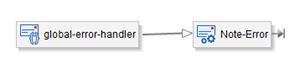
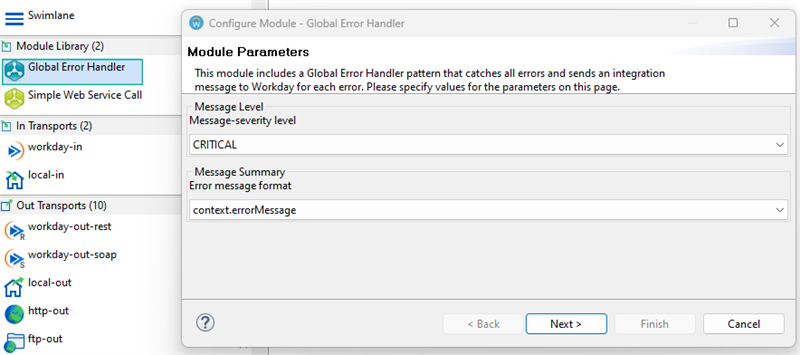
Workday Studio includes a Global Error Handler module to quickly build these components on your assembly diagram. It defaults the PIM severity to CRITICAL and sets the message summary to the error message from the MVEL context helper object.
Handle Local Errors
You should be able to identify areas of your assembly that are more prone to generating errors. Some examples include:
- complex transformation
- data access
- web service calls
Local error handling allows you to focus on those more predictable problem areas. You design your local handling to cover a particular set of issues. If an exception falls outside of that set, it is passed along to the global error handler.
It is particularly important to handle exceptions from out transports that make requests to systems outside of the cloud runtime (this includes workday-out-soap, workday-out-rest, http-out, etc.). This is because the availability and configuration of those systems is outside of the Workday Studio developer's control. A perfectly-built web service request could still fail at run time for a number of reasons.
Add Local Error Handler
You add a local error handler to a mediation component. Some other components have fields that provide custom failure message text but do not capture and handle errors themselves.
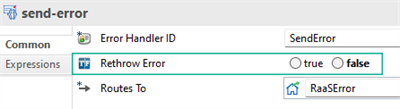
There are three types of error handlers. However, the log-error only sends messages to the server log (like a log step) and the custom-error-handler requires a Java class. In practice you will only use the send-error type as it provides the most flexibility without custom Java programming.
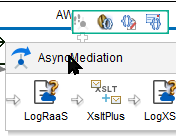
When a send-error on a mediation catches an exception, it effectively starts a sub-route with its own request-response flow. Within that path, you can include any number of components to perform any desired processing. The simplest pattern is to route to a PIM to provide user feedback, just as the global error handler module does.
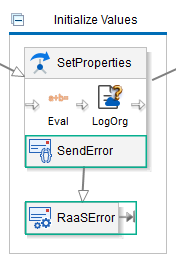
By default, a local error handler will only handle errors thrown by steps within the mediation component to which it is attached. The Continue After Error option allows you to decide whether a captured exception should prevent further processing (default: rewind) or whether assembly flow should continue (recover). This option is most commonly used in conjunction with custom validation steps (covered later).
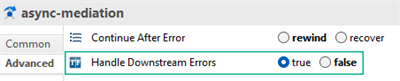
In order to handle exceptions from components further down the processing chain, such as workday-out transports, set the mediation component's Handle Downstream Errors property to true. (Continue After Error does not apply to downstream errors; they always rewind.)
Control Error Flow
When an error occurs in a Workday Studio integration, assembly processor starts looking for an error handler, beginning with the component that threw the error.
If the current component has no error handler, the processor will start "walking" backwards up the processing chain looking for an error handler in a mediation set to the handle downstream errors. If the reverse walk reaches the beginning of the chain (i.e., the workday-in transport) the error passes to the global error handler for handling.
A mediation handling downstream errors will catch any exception further down the assembly path, not just the next component. In the error handler, you can write MVEL expressions to limit the conditions under which that handler applies (such as specific components by their Id).

If you know that an exception that invokes a send-error is always a critical problem (e.g., a configuration problem rather than a data validation issue), you can select the send-error's Rethrow Error property to true. When that option is selected, the send-error raises the exception again after its Routes To path is followed. This typically results in the error being processed a second time by the global error handler, causing a critical error and the end of the event.