
Transforming Data
Overview
Workday Studio offers several transformation options. You can create and test XSLT files directly in your workspace outside of any assembly by using a general project with XML samples. When you are ready to use the XSLT in an assembly, you should use the XSLT+ component. Additionally, components like the XTT and ETV steps provide additional functionality to workflows leveraging XML files.
Objectives
By the end of this chapter, you will be able to:
- Explore XML and test XSLT.
- Apply transformations using the XSLT+ step.
- Leverage built-in transformation steps.
XSLT in Workday Studio
XSLT+ Step
Use the XSLT+ step to transform an XML document using an XSL transformation (XSLT) stylesheet. The XSLT+ step is found in the Transformation folder of the palette and needs to be added to a mediation component. It supports all versions of XSLT (1.0, 2.0, and 3.0).
Note:
You will also find an XSLT step in the Palette. This step can only handle XSLT versions 1.0 and 2.0. Since the XSLT+ step can supports all versions of XSLT, it is suggested you use it rather than the XSLT step.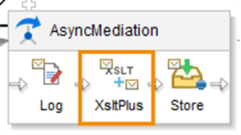
XSLT+ icon
XSLT+ transforms the data found in the selected Input using the XSLT stylesheet provided in the Url and places the resulting data in the selected Output.
In the Url property of the XSLT+ step, you can either import and attach an existing XSLT file using the Browse for file icon or use the Create XSLT file icon to start a new XSLT file.

XSLTPlus properties
The selected XSLT file is added to the the project folder under ws/WSAR-INF.
Creating a Delimited File
The xml-to-csv step enables you to easily create delimited files from an XML mediation message or variable. Output specifications frequently require a comma-separated variable (CSV) file and it is important to know how to best create one with Workday Studio.
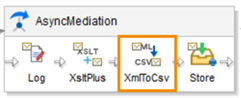
xml-to-csv icon
The easiest method for creating a CSV file is by using the xml-to-csv step. This step needs to be added into a mediation component, after the integration has retrieved its data, but before it stores the output. Although the default delimiter is a comma, you can specify a different column separator via the Separator property. Pipe (|) and tab characters are commonly used as delimiters in text files.
If you want to include column headers based on the XML tag names for each data point, set the Write Header Line to true. For further flexibility, the Write Header Line property lets you insert an MVEL expression to conditionally output a header (determined at runtime).
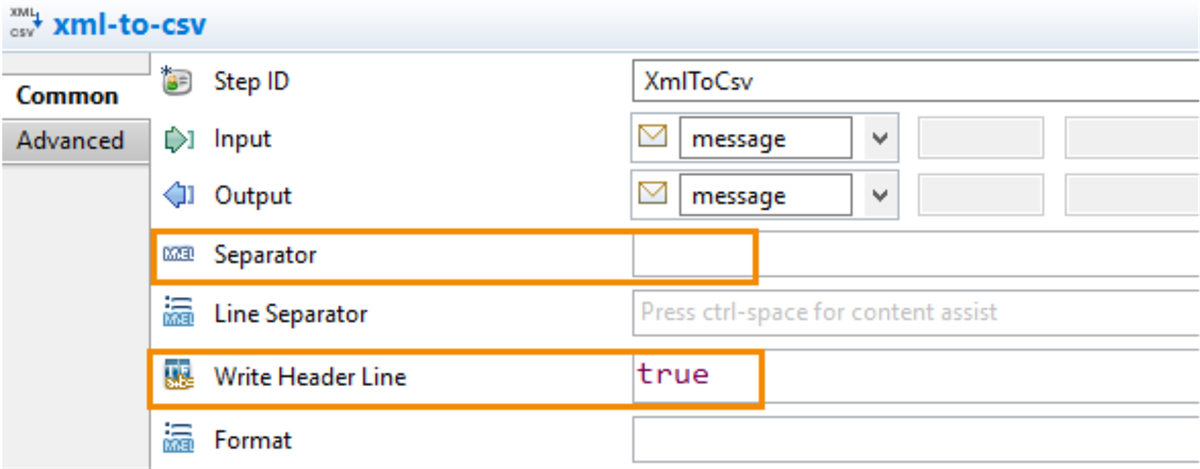
xml-to-csv properties
Although it is possible to transform into CSV format using XSLT, this requires writing code to appropriately special processing scenarios, such as delimiter characters and/or quotes naturally occurring in the data. The xml-to-csv and XTT steps handle these scenarios more gracefully. xml-to-csv also provides a Format property to control if adherence to the RFC-4180 standard is required.
Introducing XTT and ETV
The
XTT
(XML to Text) step converts XML documents to text formats such as CSV, fixed width, or other text formats. XTT uses attributes within the XML document to define the transformation rules. For example, attributes can specify that rows are separated by newlines, items by commas, and values enclosed in quotes. XTT also supports all the functionality of the ETV
(Element Transformation and Validation) step, including transformation and validation rules, number and date formatting, and element counting and summation. This allows XTT to be used standalone or in conjunction with ETV.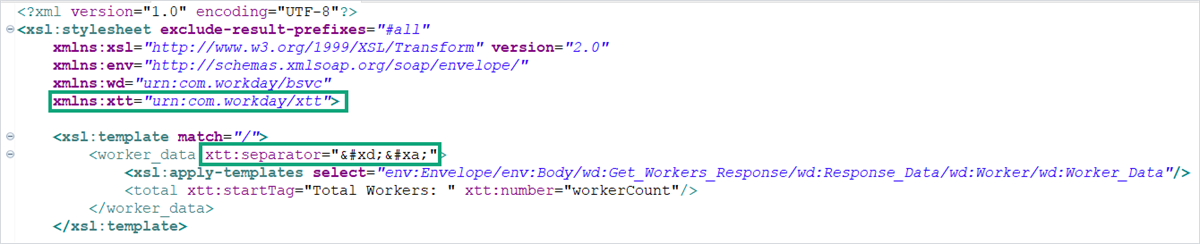
The
ETV
(Element Transformation and Validation) step transforms and validates elements within an XML document based on attributes attached to those elements. ETV can truncate values, enforce data type validation, and perform other transformations. ETV also supports number and date formatting rules and provides a mechanism to count elements or calculate the sum of their contents.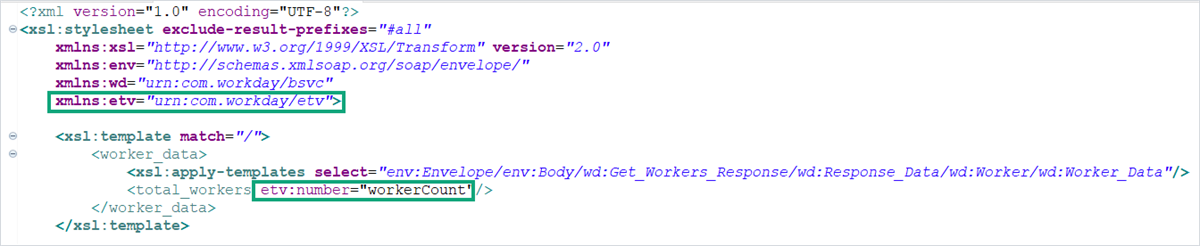
When ETV and XTT are used together, the namespace is used to dictate which step will process which attribute. Attributes in the urn:com.workday/etv namespace will be processed by the ETV step, while attributes in the urn:com.workday/xtt namespace will pass through the ETV step and be processed by the XTT step.