
Enhancing User Control of Integrations
Overview
In this chapter, we will explore launch and configuration options that give users more control over the run time behavior of your integrations. The workday-in transport defines the parameters and services that a launching user or integration administrator can access with respect to Workday Studio.
Objectives
By the end of this chapter, you will be able to:
- Leverage reference type launch parameters to filter an integration output.
- Provide unique file names using sequence generators.
- Build messages and control step execution with MVEL expressions.
Launch Parameters in Studio
A launch parameter is a value supplied by the user every time the integration is run. Launch parameters may have default values and be recalculated automatically when an integration runs on a schedule.
Create a Launch Parameter
As with all integration system attributes that allow user interaction, launch parameters are defined on the workday-in transport.
There are three broad categories of launch parameters:
- Simple: user enters a simple data value, such as a string or date.
- Reference: user selects from a list of Workday object instances, such as Supervisory Organization or Worker.
- Enumeration: user is limited to a small list of string values created by the developer.
You may also define a default value, either a literal value of the launch parameter type (e.g., 2023-01-01) or a Workday report field that dynamically determines the value at runtime (e.g., Today).

Access Launch Parameter
The lp MVEL helper object gives access to launch parameter information. Use the appropriate lp object method based on the parameter type:
- lp.getSimpleData()can access simple and enumeration launch parameter values.
- lp.getDate()is similar to getSimpleData but omits the time part of a date parameter.
- lp.getReferenceData()returns the specified integration ID of a reference-type parameter.
You can use lp methods in any component property that supports MVEL (e.g., write step Message Builder, PIM parameters). Consider putting object method results into a properties (i.e., props) to avoid repeating sometimes complex code. Then use the props object to output the value where you need it.

Launch parameters allow for user input into integration behavior and web service requests. You can also pass these user-supplied values into report prompts by manipulating the URL of web service-enabled reports.
Reference type launch parameters are based on Workday class report fields (CRFs). Just like in a single- or multi-select field in Workday, reference parameters restrict the user to a list of valid values.
Define a Reference Type Launch Parameter
Whereas simple launch parameters are only of a small set of primitive data types, reference type launch parameters present Workday business objects to the launching user. You choose a report field that exposes the valid set of Workday instances the user can select from.

The Select Type icon opens the Select Class Report Field dialog.
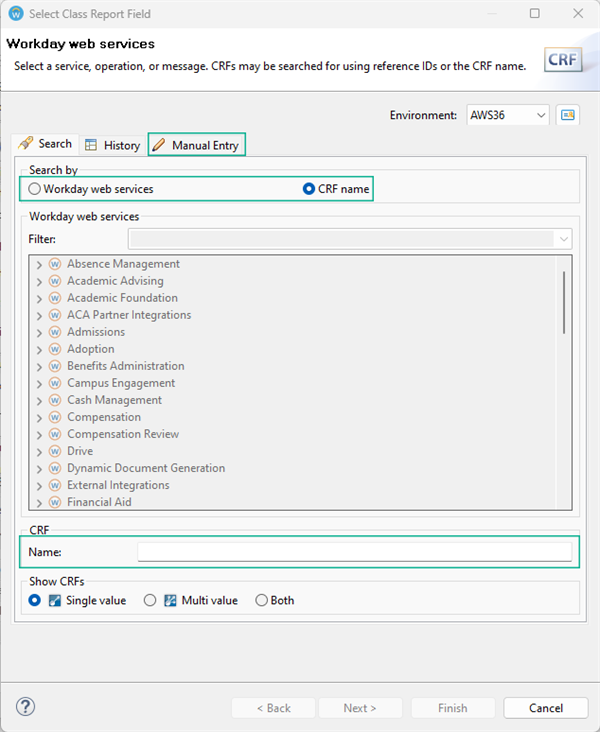
There are three options for searching for and selecting, or entering the class report field (CRF) you want for the launch parameter type:
Workday web services
Use this option when to search by reference IDs that you know a service operation uses.
After you select a service and operation, the dialog presents a list of the reference IDs (e.g., Company_Reference_ID, Employee, ID) that the operation includes. You then select a reference ID, which results in a list of CRFs that include that ID. Choose one of those fields for your launch parameter type.
A limitation of this method is that it might not allow you to select delivered and calculated fields for objects that don't include reference IDs (e.g., integration events).
CRF name
The simplest option, this allows you to search for a CRF by its field name. However, you may find it difficult to locate the exact field you are interested in, such as a field you added to a report or that is on a related page in the tenant.
Manual Entry
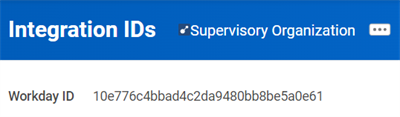
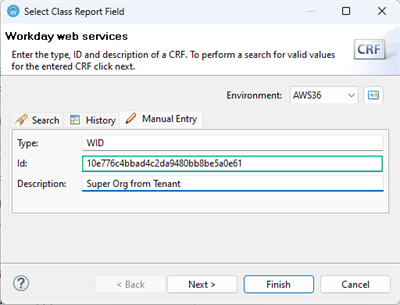
A more complex but more consistent option, the Manual Entry tab lets you enter the WID of a CRF field. If you can locate a field of interest in your tenant, such as from a calc field you just created, access its integration IDs and copy its WID.
In Workday Studio, paste that WID into the Manual Entry tab Id field. The description is optional, as it will not display to the launching user.
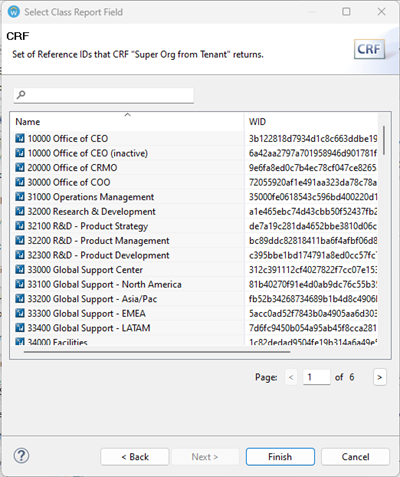
For all of these options, the Select Class Report Field includes an additional Next button so you can test the field and verify it returns the expected values.
Access the Reference Launch Parameter Values with MVEL
Launching users select reference type launch parameter values by searching for business objects by their descriptors, just as they would when entering data on a page in the tenant. Workday Studio exposes all the integration IDs for selected instances using the MVEL lp helper object.
There are four lp methods that give access to reference parameter values:
- lp.getReferenceData('label', 'type')Used to retrieve single-instance object references by launch parameter name (label) and integration ID type ('type')
- lp.getReferenceData('provider', 'label', 'type')Used to retrieve single-instance object references when the launch parameter is presented by a service provider (i.e., a connector service)
- lp.getReferenceDataList('label', 'type')Used to retrieve an array of multi-instance object references
- lp.getReferenceDataList('provider', 'label', 'type')Used to retrieve an array of multi-instance object references from a service provider (i.e., a connector service)
These methods return one or more integration IDs as strings that you can use directly or place into properties for repeated use within your assembly.

Make sure to match the requested reference data type with the expected integration ID for your REST URL or SOAP XML.

Configurable Services
In addition to giving launching users dynamic input into integration events, you might want to enable integration options that are still under user control but change much less frequently. Integration services allow for tenant configuration of more static settings that Workday Studio can access with MVEL without a development and deployment cycle.
In this chapter, we will explore attributes and sequence generators. As with the report service, only users with Integration Configure domain access can configure these services. This allows for a separation of responsibilities not only between Workday Studio developers and Workday users, but also between launching users and integration administrators.
Define and Configure Attributes
Attributes are values associated with the integration system that a functional user may need to change occasionally. Once a user sets the value in the tenant, it will remain at that setting until it is changed. This is unlike a launch parameter, which is reset every run.
You define attributes in the workday-in transport on the Services tab. As with launch parameters, you can set the type as simple, reference, or enumeration. Unlike with launch parameters, you cannot set a default value. However, you can select the option to make the attribute required for launch.

A user (typically an integration administrator or owner) configures the value for the attribute in the tenant, as a Related Action of the integration system. If the developer set the attribute as required for launch in the assembly, the integration cannot launch until the admin enters a value for it.
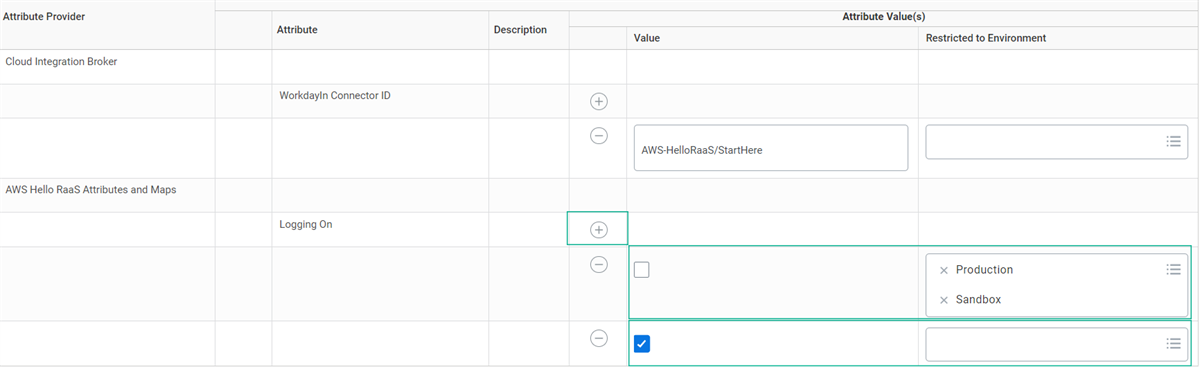
Attributes support environment-specific values. By setting them once and migrating the integration system configuration between tenants, an adminstrator does not have to continually maintain attributes in multiple environments (e.g., after a tenant refresh).
Define and Configure Maps
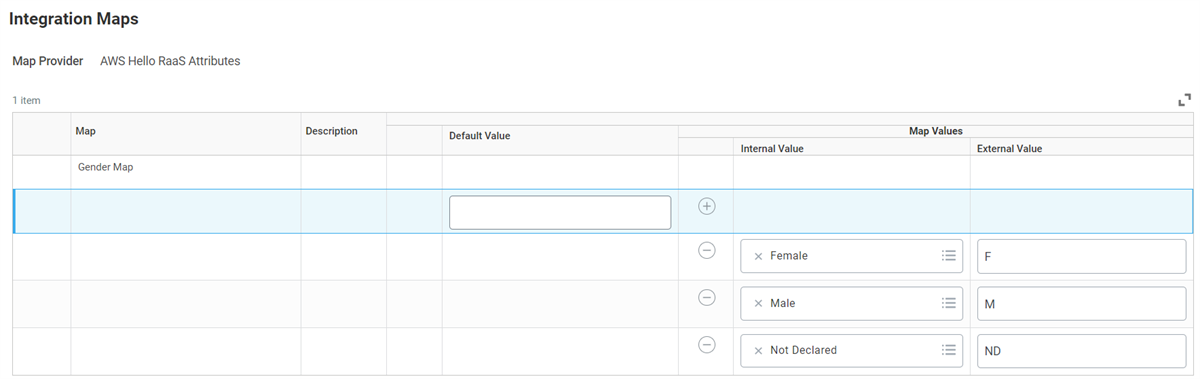
Integration maps associate Workday values to their equivalent values in another system and are valuable in both inbound and outbound scenarios. They allow you to easily translate information between the Workday representation of a business instance and its external representation.
Many Workday connectors have predefined maps that you populate when you configure their data services. The connector logic automatically applies them as part of the transformation process. In Workday Studio, we need to define an integration map as part of an attribute and map workday-in service, configure it in the tenant, and apply it in the assembly using MVEL or transformation code.

Integration maps will often use a class report field (CRF) as an internal type, which allows the map to directly reference Workday business object data. Other internal options are the same as launch parameters: simple and enumeration types. External types can be simple or enumeration. Note that in the assembly, you only define the name of the map and the valid types of values that can be applied. It is up to a user with Integration Configure permissions to configure the actual mapping of values in the tenant.
Define and Configure a Sequence Generator
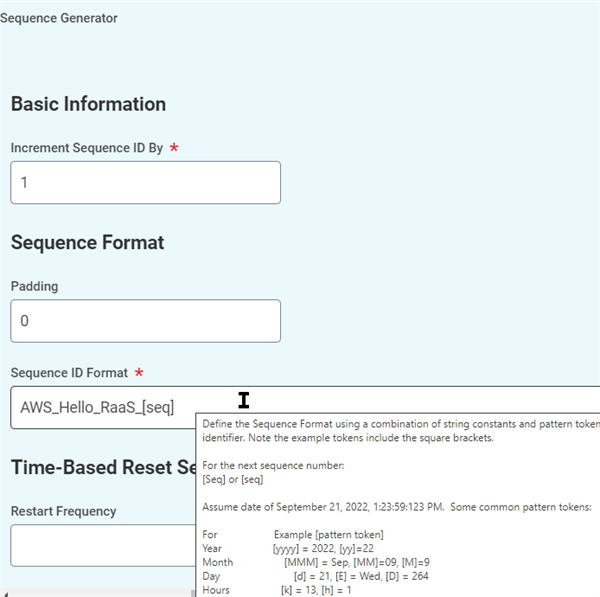
A sequence generator service contains one or more sequencers, which are functions that produce unique strings at each launch based on a configured pattern. In Workday Studio, you will most often apply sequencers to generate unique file names to avoid overwriting files sent to a common location, such as an SFTP directory.
In Workday Studio, you only define the names of the sequence generator service and any sequencers you want to run at each launch.

A user sets the sequencer pattern in the tenant, as part of the integration system configuration. Sequence generator patterns support both date-time tokens and incrementing numeric sequences, as well as literal characters.
While file names are the most common item created with a sequence generator, they can be used for other purposes. However, note that you can configure automatic sequences of business object identifiers in the tenant without resorting to Workday Studio coding. For example, a configured sequence generator for employee IDs will automatically generate unique IDs for new hires, whether entered into the tenant or through web service requests.
Resource
: For more information on defining sequence generators for unique object IDs, refer to the "Concept: ID Definitions and Sequence Generators" page in the Manage Workday administration guide under Tenant Configuration > Tenant Setup.Reusable Services and Enumerations
Workday Studio allows you to create reusable, tenant-defined services that can be used across multiple integrations. These services can be used to perform a variety of tasks, such as retrieving data from Workday, transforming data, and sending data to external systems. To create a reusable service, you first need to create an assembly project. Then, you can add a workday-in transport to the assembly project and configure it to use the service.
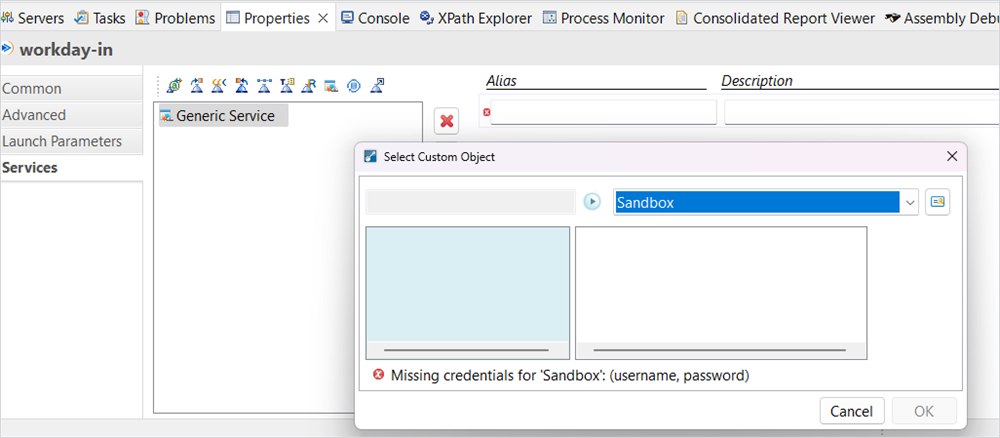
Enumerations are tenant-configurable lists-of-values that can be used to restrict the range of data that an integration uses.
For example, you could create an enumeration of all the valid job titles in your organization. Then, you could use this enumeration to validate the data that is being sent to Workday. To create an enumeration, you first need to create an attribute map service. Then, you can add an enumeration type attribute to the service and configure it to use the enumeration.

Access Services With MVEL
As with launch parameters, you access configured services using MVEL. The MVEL helper objects that expose these configurations can vary.
Integration attributes are considered static properties of the integration system itself. Like the report service and its custom report aliases, these settings do not change frequently. Use the intsys object and its methods to access attributes. In general, ignore the methods that include a service_name parameter unless you want to retrieve attributes of a connector in the same integration business process.
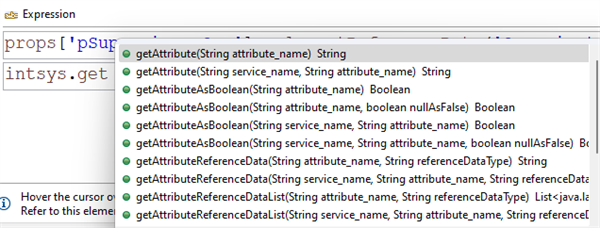
- getAttribute('attribute_name'): Retrieve a string or date-time attribute.
- getAttributeAsBoolean('attribute_name'): Retrieve a boolean (true/false) value. By default, a boolean attribute that is not configured is "false".
- getAttributeReferenceData('attribute_name', 'referenceDataType'): Retrieve a single Workday instance by an integration ID type.
- getAttributeReferenceDataList('attribute_name', 'referenceDataType'): Retrieve an array of Workday instances by an integration ID type.
Since sequence generators execute their sequencers at each launch (to generate unique strings per event), you use the lp helper object to access sequenced values. (In a sense, lp represents the launch itself and not just its parameters.)
There is only one useful method to retrieve a sequenced value:
lp.getSequencedValue('name')
. Other methods and properties return the first configured sequencer's value (only useful if you are certain to only have one sequencer per system) or access a sequencer by its integration ID (the name is much easier).