
Managing Projects
Overview
Workday Studio assembly projects are organized using collections. A collection bundles all the necessary artifacts for an integration into a cloud archive (CLAR) that is deployed to the tenant. The Workday tenant uses the assets in the CLAR file to run the integration.
Objectives
By the end of this chapter, you will be able to:
- Explore collections.
- Define version control.
- Import and export collections.
Integrations, Collections, and the Cloud Repository
Assemblies provide a simple framework for deploying integrations. Within Workday Studio, collections are the basis for deployment to the cloud repository. A collection can contain one or more integrations.
A collection is a packaging concept that Workday Studio uses to construct a binary deployment artifact called a CLAR (CLoud ARchive). A CLAR contains all artifacts from the integration projects (e.g., assembly.xml, any XSLT, any Text Schema files). It also includes compiled Java code and any third-party Java libraries that developers have added to the integration projects. Collections also allow developers to organize their own reusable assembly components into common projects and share those between integrations.
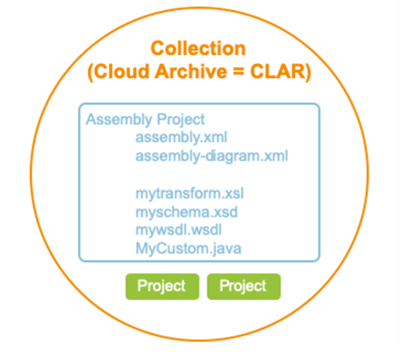
CLAR package
Workday Studio allows developers to deploy CLARs to the Workday cloud repository. This is a resource within the Workday network where Workday stores your integration. When deployed, users with the appropriate privileges can further configure the integration in the Workday application and execute it by launching or scheduling it to launch.
The Cloud Repository only maintains the last deployed copy of a CLAR. When you delete a collection from the Cloud Explorer view using Workday Studio, Workday Studio also removes the CLAR from the Cloud Repository.
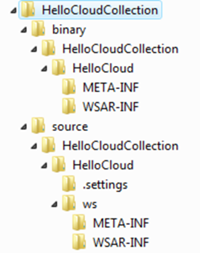
CLAR file structure
The CLAR archive file extracts into the following folder structure:
Binary
: This folder contains a collection folder, which contains all the binary artifacts for the collection's projects that are required for deployment to the Workday environment.- Collection-name: This folder contains a clar.xml file and one or more projects.
- Project-name: Each project contains the following subfolders:
- META-INF, which contains the MANIFEST.MF file. This file provides information about the files packaged in the archive file, for example, the manifest version and classpath details.
- WSAR-INF, which contains the assembly.xml and assembly-diagram.xml files and any additional files that the assembly references, for example, XSL and text schemas, and any required libraries.
Source
: This folder contains a collection folder, which contains the integration source code. The integration source code is the original Workday Studio project from which the CLAR was exported and its associated settings.- Collection-name: This folder is a container folder for one or more Workday Studio projects,with the following subfolders:
- Project-name: Each project contains the following subfolders and the project's .classpath and .project files:
- .settings, which contains project settings and facet configuration files.
- ws, which contains:
- META-INF
- WSAR-INF
Source Code for Deployed Integration in Tenant
Including source code during deployment is optional. You can only import the CLAR located in the Workday tenant to a project in your workspace if this option was selected during the last deployment. If the deployment did not include source code, you can import the CLAR to your local workspace from the Cloud Explorer.
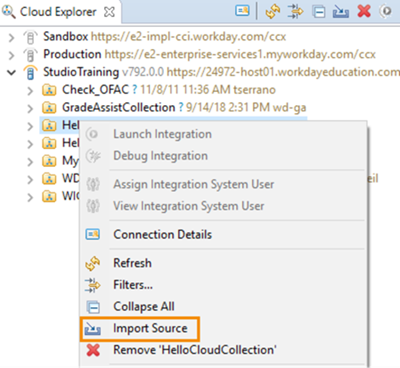
Importing source code
We recommend that you always Include Source to your deployed CLAR. You can either select the checkbox manually every time you deploy to Workday or change your default workspace preferences by selecting Window > Preferences, then Workday > Deployment. (For Mac users, selectWorkday Studio > Preferences, then Workday > Deployment.)
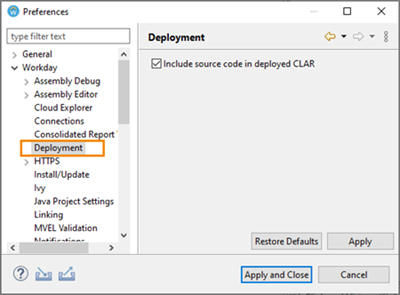
Deployment preferences
Once this preference has been set, the checkmark next to Include source code in deployed CLAR is automatically selected when deploying.
There is also an option in the tenant to enforce that all assemblies include source when deployed.
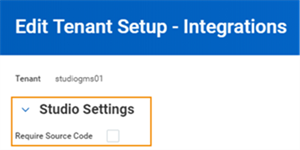
Studio settings to require source code
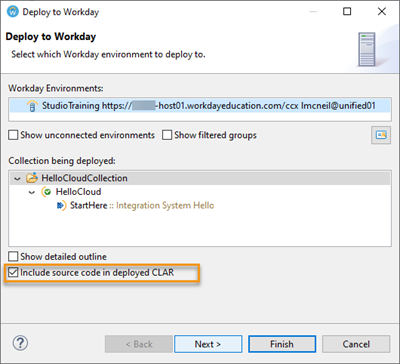
Deploy to Workday wizard
Team Development and Workday Studio
When developing a Workday Studio integration using a team of developers, it is important to understand that a deploy will overwrite the previously deployed CLAR in Workday. Any developer with appropriate privileges can deploy a collection to the tenant and replace the collection with a new version of the code represented by a CLAR. Since Workday does not retain prior versions of deployed CLAR files, it is recommended that you use a version control system to keep track of changes otherwise close coordination between team developers is required to ensure no loss of code.
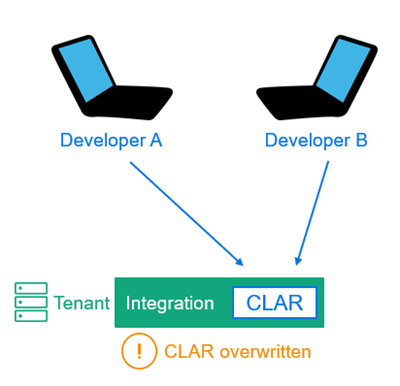
Team development structure
Version Control
Version control systems allow for collaboration by keeping track of changes in a set of files. As with other development environments, Workday Studio requires a version control system to allow developers to work effectively in a team environment.
Eclipse supports several version control systems, which can be added from the Help menu by selecting "Install Software" and searching for the appropriate system. Examples of version control systems supported by Eclipse include:
- Subversion
- Concurrent Versions System (CVS)
- Git
- Mercurial
- Bazaar
Before using a version control system, you need a repository. A repository is a central location for managing your files. Your company may already have one; check with your IT department or system administrator to obtain access to the URL and user login credentials.
Export Collections
You can export a collection and its associated content to a CLAR without deploying it to Workday. Doing so creates a backup of the project, assemblies, and other artifacts associated with your collection which can later be restored.
- Right-click the collection you wish to export and select Export > CLAR file.
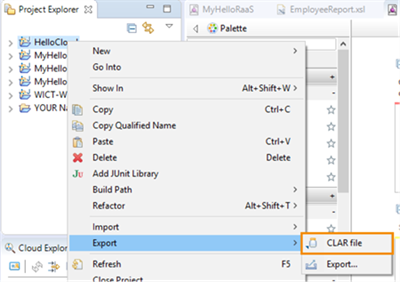 Exporting a CLAR file
 - Select the collection you wish to export.
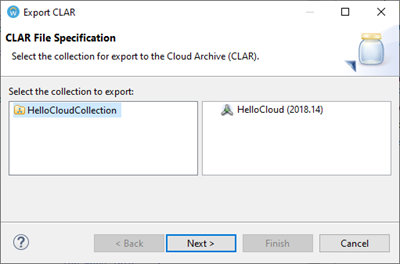 Specifying a CLAR file for export
 - You can select an existing manifest file or create a simple manifest.
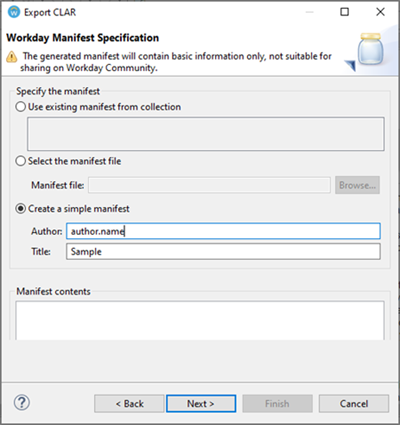 Manifest specification
 - Select the export directory where you want to save your CLAR file. The location for the CLAR file should be separate from the workspace directory.
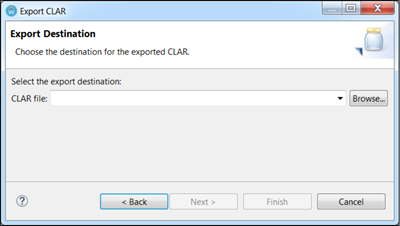 Export destination
 - You can also select the Export a CLAR to the Workday Solution Catalog or file button in the Workday Studio toolbar or right-click the project in the Project Explorer view.
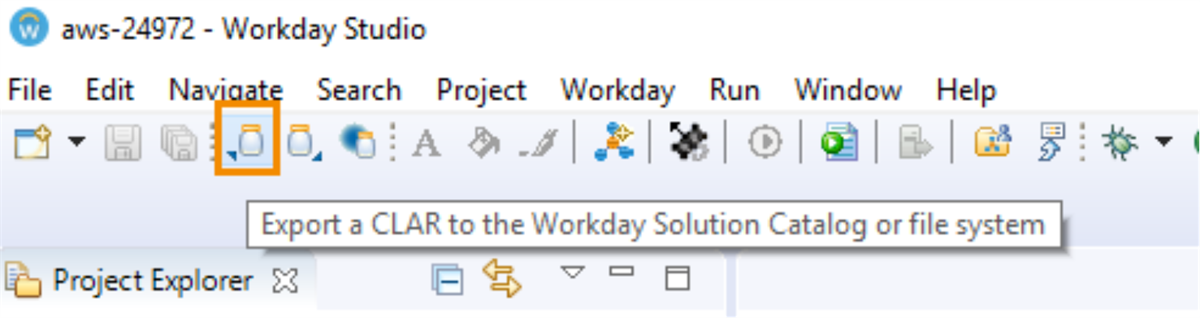 Export a CLAR menu icon
Import Collections
You can import a CLAR in the following ways:
- From the Workday Studio menu bar, select File > Import > Workday > CLAR file.
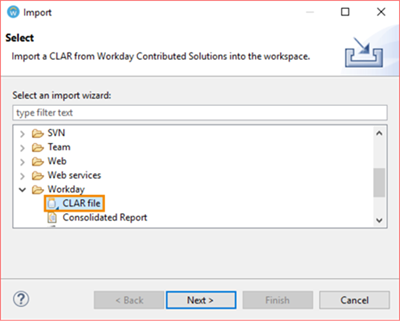 Import a CLAR fileYou can also select the Import a CLAR from the Workday Solution Catalog or file button in the Workday Studio toolbar.
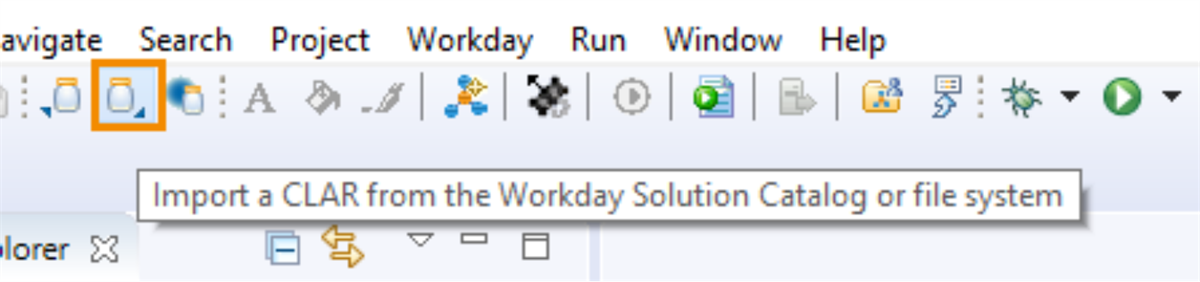 Import a CLAR file iconAlternatively, right-click Project Explorer view > select Import > CLAR file.
 - The Import CLAR wizard opens. In the CLAR File Location dialog, you can browse to import a CLAR from the Solution Catalog or your file system into the workspace.
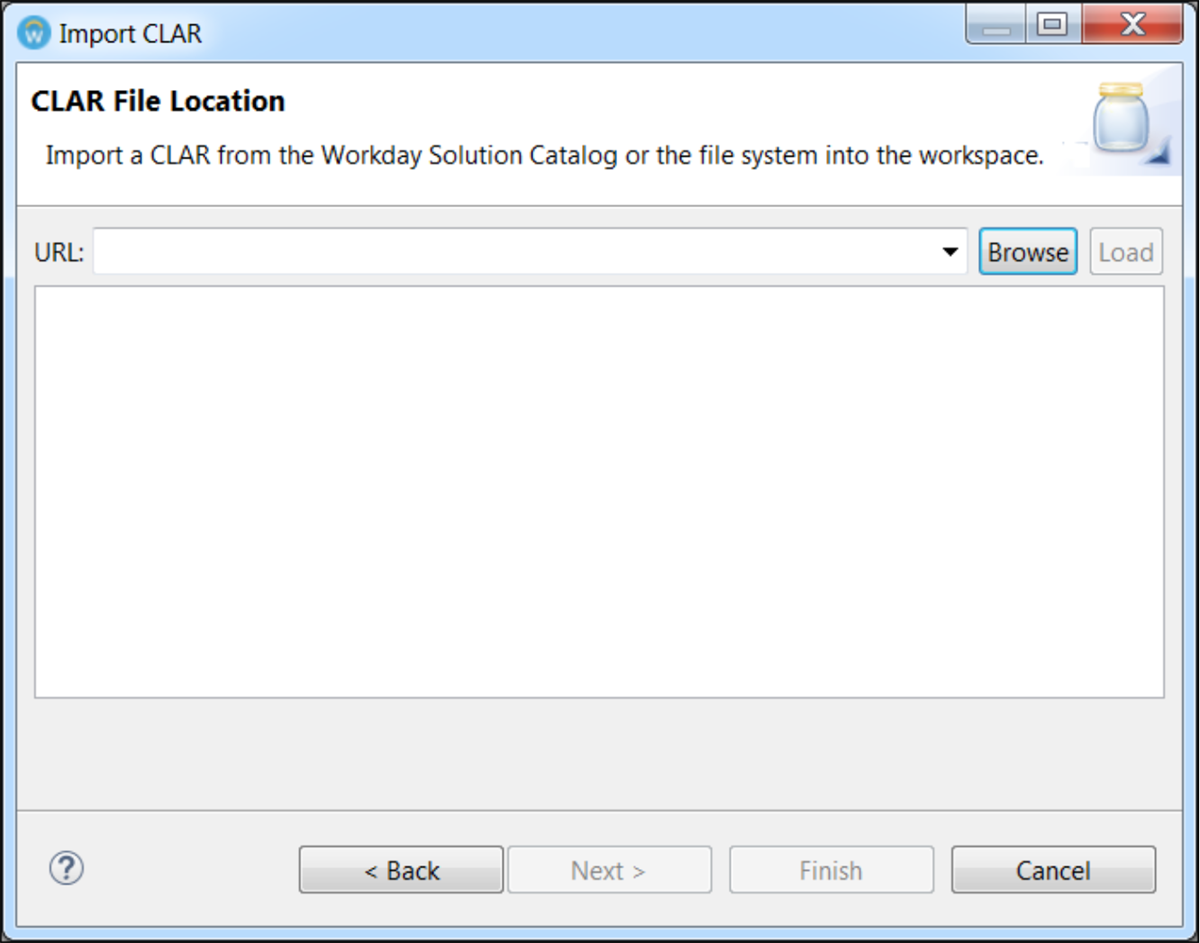 Import a CLAR wizard
 - Select Browse to select the CLAR file, and then Open.
- Select Next. Workday Studio loads the file and displays the contents of the manifest file, such as the title, description, and the Import CLAR wizard.
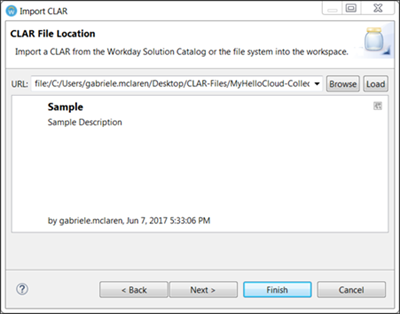 CLAR manifest contents
 - Select Next. The CLAR Details page displays. Workday Studio checks for naming conflicts at the collection and project levels. If a conflict exists, you may either rename the conflicting level(s) using the Edit button or ignore the collection naming conflict and add its associated project to the existing workspace collection. (Project names must still be unique.) This check prevents you from accidentally replacing existing projects in your workspace that may be under source control. (e.g., if you are using applications such as Subversion (SVN) for team development). If the intention is to replace an existing version of a collection and associated project(s) in your workspace with the CLAR file version, cancel out of the wizard, delete the project from your Project Explorer (including contents on disk) and then import the CLAR.
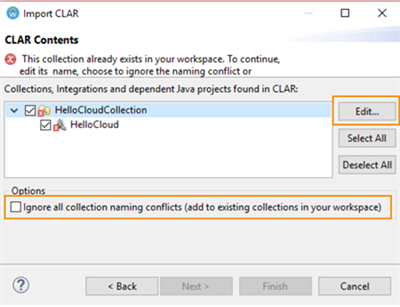 CLAR details and duplication promptIf a collection or project does not already exist in the workspace, no message is displayed and you can continue.
 - Select Finish. Workday Studio imports the project from the CLAR and displays it in the Project Explorer. You are now free to work with the project as with any Workday Studio integration project.