
Exploring the Mediation Context
Overview
When you launch a Workday Studio integration, the Workday cloud runtime provides a container for the information available during the integration event. Assembly components use objects within this container to perform all processing, including triggering web service calls, performing transformations, and sending information to the integration event. The main holder object for this information is called the mediation context. All processing in the assembly involves either reading from or writing to the mediation context.
The Workday Studio debugger allows for interactive execution of an event. By setting breakpoints to pause an integration's processing, a developer can step through an assembly's components and examine the contents of the mediation context along the way. Debugging empowers developers to investigate assembly flow, and to detect and diagnose integration errors.
Objectives
By the end of this chapter, you will be able to:
- Access the mediation context using MVEL.
- Filter data using launch parameters.
- Debug Workday Studio.
Mediation Context
The assembly framework uses a temporary memory holder object called the mediation context to pass information between assembly components. As the starting point of the assembly processing chain, the workday-in transport creates the mediation context. Subsequent components can read and manipulate the objects initialized by the workday-in.
The mediation context includes three main data objects:
- Mediation Message: This object represents a message (data) and is sometimes referred to simply as the message. Messages can be single or multi-part (MIME). Parts can contain either text or binary data. A message is exchanged with an external system using an out-transport component (e.g., http-out, sftp-out, and ftps-out).
- Variables: These provide separate temporary holders for message data. A common usage pattern is to copy the contents of a message to a variable to conserve it for later processing in the assembly chain.
- Properties: This provides a map where developers can place smaller data structures, such as strings and dates, for quick and repeated reference within the assembly.
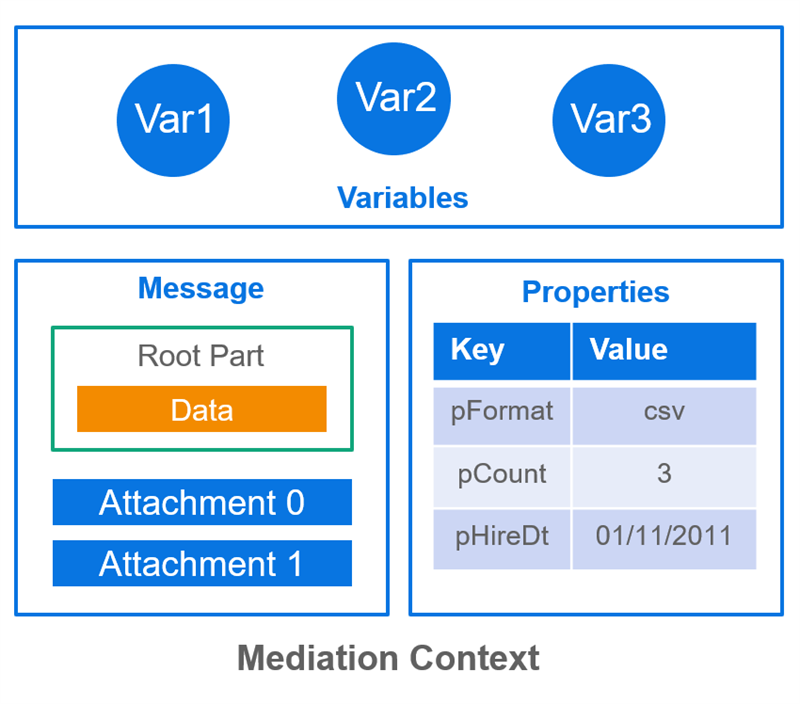
Diagram of Mediation Message
Mediation Message
The mediation message is an object that contains a block of data that can be exchanged with an external endpoint using an out-transport. Components read from the mediation message and can write back to it as the assembly is being processed. Since Workday public web service APIs are primarily XML-based, the content of the mediation message is often XML data, however it can contain other text-based formats and even binary content. When the the mediation message contains a SOAP message, it is possible to access the SOAP body directly.
The mediation message has a root part and the ability to handle additional parts as attachments. Some external systems return multi-part form data that is accessible via attachments. Workday web services do not use attachments, where variables have replaced their purpose. For this reason, when it comes to Workday requests and responses, you can generally view the message and the root part as synonymous.
Variables and Properties
Variables and properties both allow for data to be stored outside of the mediation message. However, they each serve a different purpose.
Variables:
Variables provide an alternative storage location for a message or block of data. A challenge with the mediation message is that it is routinely overwritten during the processing of the assembly's components. Since variables are named/initialized by developers, they are a safe place to keep a copy of the mediation message for later recall by other components. Some components and mediation steps can read from and write to variables directly, and there is a mechanism to copy data between the mediation message and variables. Like the mediation message, variable can handle messages and blocks of data in a memory-efficient way. They excel at sequential reading of large files and are not meant to store strings, integers, or other simple data.Properties:
Properties are a general-purpose map of name-object pairs that also store data outside of a message. Properties more typically store primitive data types like a strings, integers, and boolean flags, but can be an object like a list or java hash map. Examples of data stored in a property are a worker's name, worker's hire date, counter, or the value a user provided for a launch parameter. Use properties when you want to refer to a setting or calculated value multiple times in your assembly. With few exceptions, you use MVEL to access properties.MVFlex Expression Language (MVEL)
MVFlex Expression Language (MVEL) is a powerful scripting language for Java-based applications. It provides a plethora of features and is suited for everything from the smallest property binding and extraction to full-blown scripts.
The assembly runtime uses MVEL extensively to enable dynamic configuration of components. Some component field values tend to be more dynamically-determined than others. These MVEL expression-capable properties are identified by an "a+b=" icon and allow you to enter MVEL expressions directly. For these fields, you need to wrap literal strings and dates with quotes and use concatenation to include them with MVEL (e.g.
'Hello ' + lp.getSimpleData('name')
+ '!'
).Other fields expect a more static value, but some support the inclusion of MVEL. These MVEL template-capable properties are identified by an "MVEL" icon and require that any dynamic expressions be in orb syntax, using a @{ } wrapper. This orb allows for the injection of a dynamic expression into what would otherwise be a literal value (e.g.,
Hello @{lp.getSimpleData('name')} !
).Below are some examples of the MVEL objects that Workday Studio and the assembly runtime supports:
- parts: provides access to parts of the mediation message. For example, parts[0].text gets the text of the root part of a message.
- props: provides access to the mediation context properties map.
- vars: provides access to variables in the mediation context. For example, vars['fred'].text gets the text of the variable called 'fred'.
- lp:provides access to launch parameters. For example, lp.getParameterData('PayGroup') gets information about the parameter 'PayGroup' that was passed as part of the launch integration event.
Assembly Runtime
The assembly runtime has a simple execution model. It consists of transports and components that are linked together to form processing chains. Processing starts at the workday-in transport, which receives a document called a launch integration event and places it in the mediation message. This document contains some data about the event, for example the integration event ID that is used to track the integration. It also includes any parameters that were specified at launch time. As the assembly proceeds, components execute one at a time, interact with the mediation context.
The "context mediation" style of processing is primarily message-oriented: take in a message, process it, and route it on. Assemblies provide a way of describing such message-oriented processing chains. Messages arrive over a variety of transports and go through a series of mediation steps before being routed to another component or delivered to a service via a transport.
Message Flow through Assemblies
The interaction between transports/components and the Mediation Message can be summarized as follows:
- In-transports:In-transports receive a message from Workday or a local resource, write it to the mediation message and forward it for processing to other components defined within the assembly. In-transports always indicate the start of a processing chain.
- Out-transports:Out-transports read the mediation message and send it to an endpoint. Out-transports are synchronous: they wait for a response message and replace the mediation message with it.
- Mediation components:Mediation components are the main mechanism for modifying and transforming the mediation message as it flows through an assembly. For instance, a transformation step may read XML data from the mediation message as the source data and then overwrite the mediation message with the resulting transformed data.
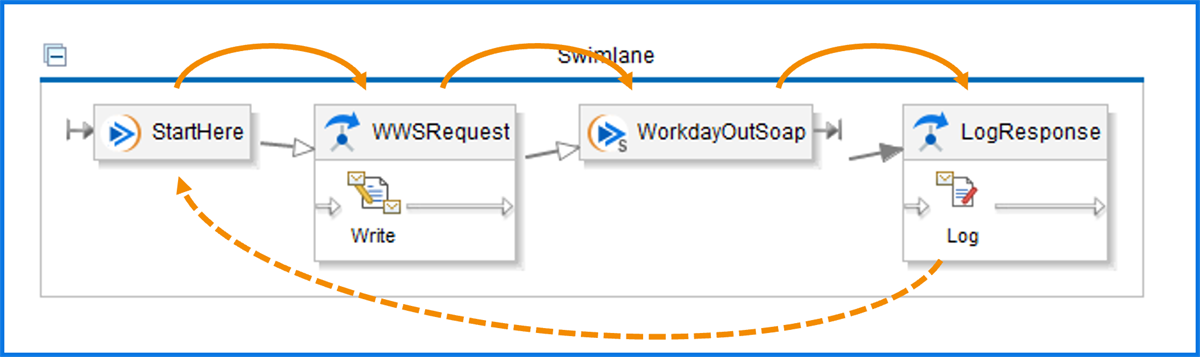
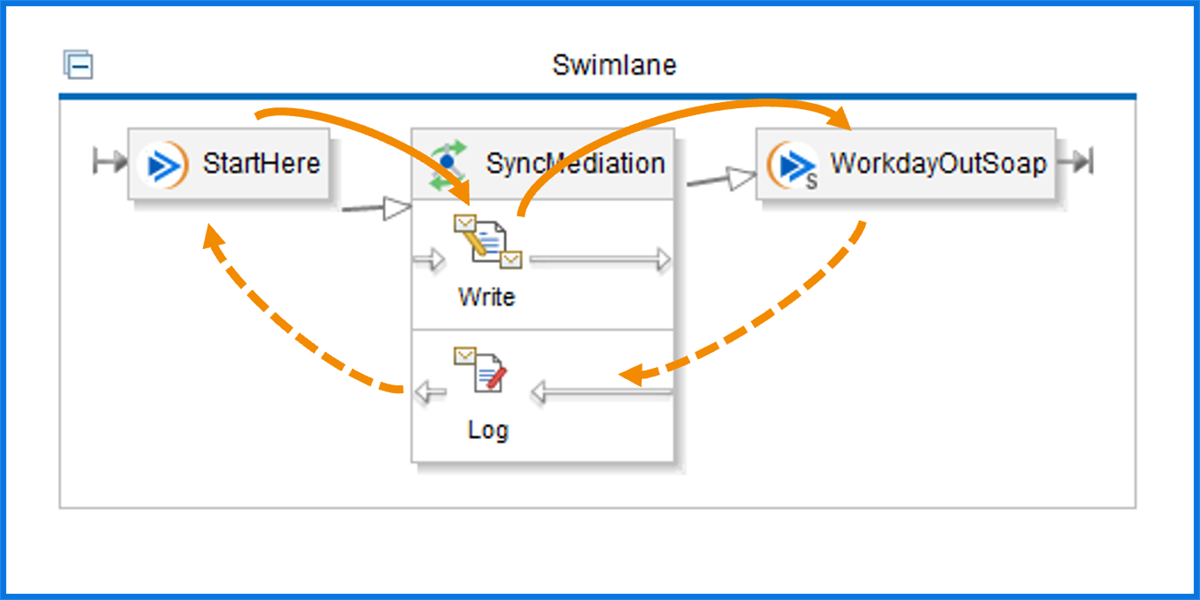
Workday Studio processes an assembly using a stack-based processing model. Essentially, during the outbound, or request phase of an assembly, components are "pushed" onto a processing stack. At the end of a processing chain, Workday Studio begins the response phase, "popping" components off of the end of the stack and executing any synchronous components on the way back to the workday-in starting point.
The Consolidated Report Viewer
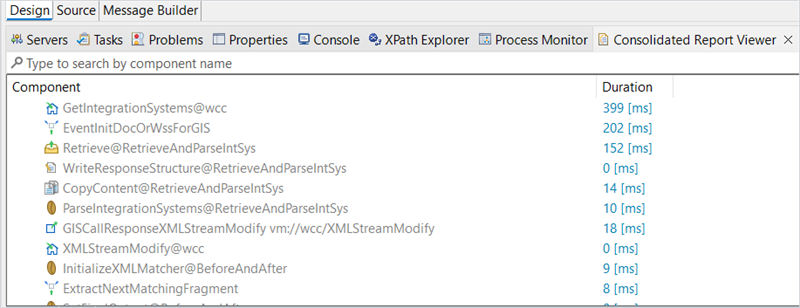
The Consolidated Report Viewer in Workday Studio provides insights into your integrations' performance and behavior. Access it through Window > Show View > Consolidated Report Viewer or the Process Monitor view.
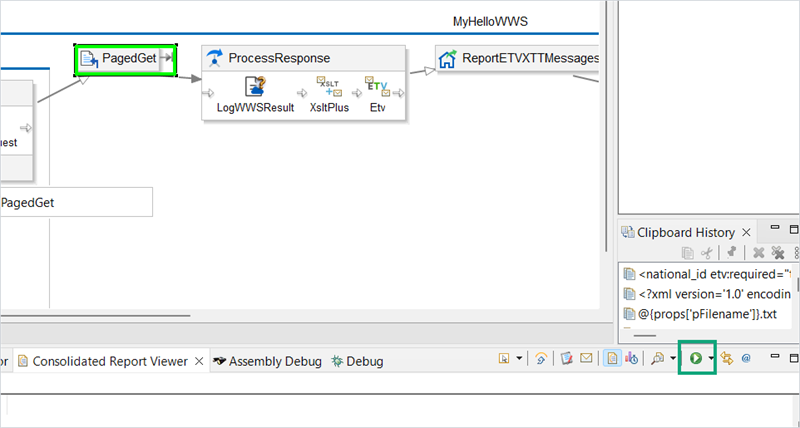
The replay button (green arrow) replays assembly executions. It provides visual feedback on assembly steps.
To review report annotations within the integration's design and structure, use the annotate button in the Consolidated Report Viewer. This feature displays performance metrics from consolidated reports directly on assembly diagrams.
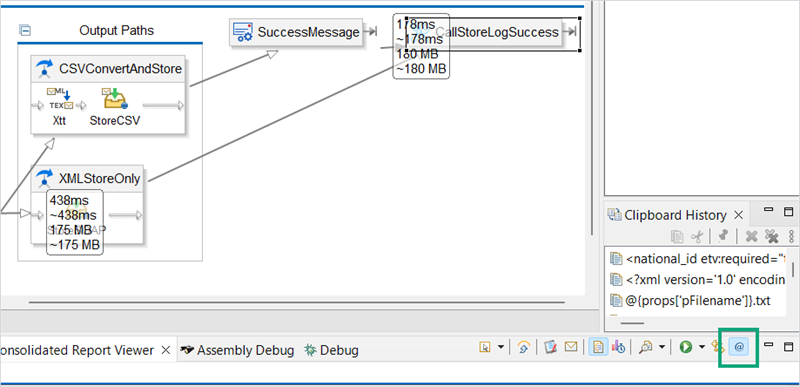
The Consolidated Report Viewer displays key metrics, including timing, memory usage, and the number of calls per step. This allows you to identify potential bottlenecks and areas for optimization. You can review a summary of all Workday Web Service calls made during the integration, including request and response details. Error highlighting helps pinpoint integration errors with clear error messages and stack traces. Additionally, the Events Log allows you to monitor the integration process flow and track events chronologically.
Tip
: Annotations link consolidated reports to assemblies and display annotations on each assembly element in your diagram, providing a visual representation of performance and errors. The Workday Studio Debugger
Workday Studio has a tool that allows you to explore programmatic flow and changes to the state of the mediation context. The Workday Studio debugger allows an integration's processing to be suspended at any component and to step through the code, one item at a time, while being able to review the values of the mediation message, as well as any variables or properties while execution is paused. Debugging an integration is different from a normal launch in that even though debugging is initiated via the Cloud Explorer, the debugger runs locally using the assembly in the local workspace as the basis for processing.
Important
: When debugging an integration, it will create an integration event in the tenant and will process all Workday web service requests as if it were a regular launch. This means debugging an inbound integration could create and update objects in your tenant. In order to protect the integrity of customer data, Workday Studio does not permit debugging in Production tenants.Prior to launching a debug session, it is important to indicate to the processor where to pause execution by toggling one or more assembly breakpoints. These breakpoints are stored as part of the local workspace and do not affect a normal launch of the integration.
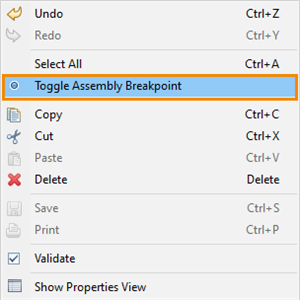
Toggle Assembly Breakpoint
To launch an assembly in debug mode, right-click the appropriate workday-in transport in the Cloud Explorer and select "Debug Integration."
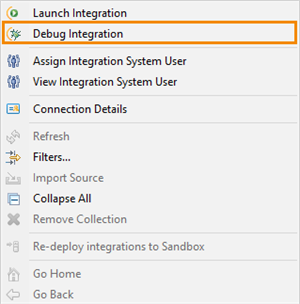
Debug integration menu item
Two settings on the Debug launch dialog may need to be adjusted To reach them, select Open Debug Dialog, then select the Debug tab. In general, setting the "Session connect retries" to 400 and the "Wait for startup max iterations" to 600 allows your local machine more time to establish communications with the tenant in the cloud.
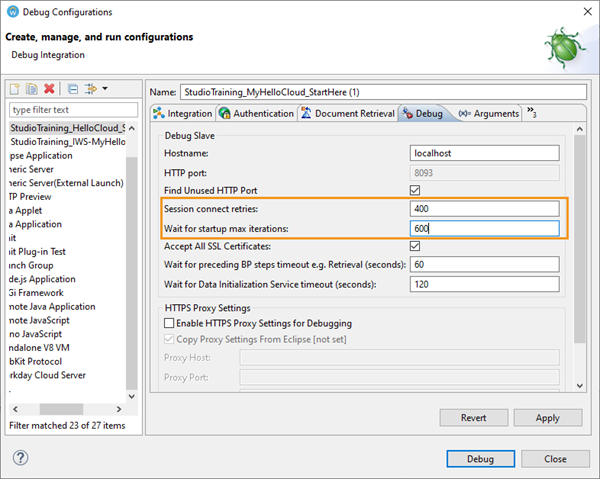
Debugger settings
Once the debugger reaches the first assembly breakpoint, it will prompt you to move to the debug perspective. The recommended course of action is to select the Switch button on this prompt.
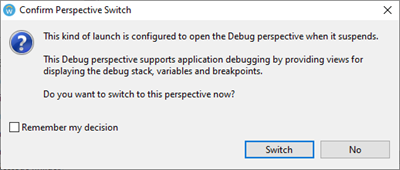
Debug perspective
The debugger highlights the step where execution is suspended in green. The debugger stops at that breakpoint but does not execute the step until you proceed through it (e.g., Step Over - F6).
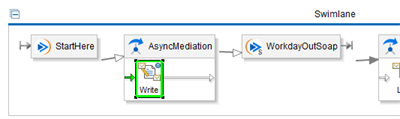
Debug - Processing Paused
Assembly Debug View
At any time during a paused execution, you can inspect the mediation context's parts using the Assembly Debug view.
The contents of the mediation message are found in the Message Root Part tab.
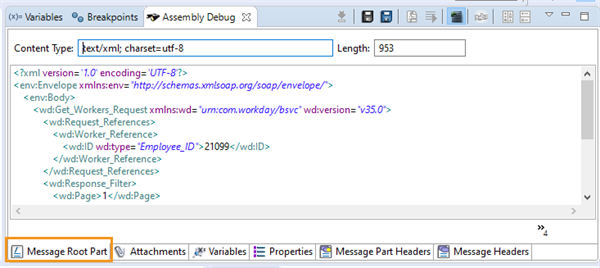
Assembly debug mediation message
Properties and variables can be accessed from their respective tabs.

Debug variables and properties
The Properties tab displays the name and associated value for all properties in the assembly.
The Variables tab only displays variable names but allows you to locally save the contents of a variable to review its contents.
Notice that the debugger does not provide a tab for viewing launch parameters, however the Scratchpad allows you to run MVEL expressions (such as the lp methods) during the debug event.
Debug Controls
The Workday Studio Debugger provides options to control what happens next:
- Resume:Continues processing the assembly components until the next breakpoint is reached and then pause processing again. If no breakpoint is encountered, it will run the assembly until completion.
- Terminate:Stop the debugging session and will not process any further assembly components.
- Step Over:Executes the currently highlighted component and moves to the next component. It allows for the assembly to processed one component at a time.
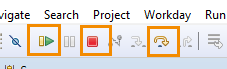
Debugger controls
Workspace File Path Revisited
The Workday Studio Debugger will not launch if you have a space in the workspace file path. To view the workspace file path navigate to the main menu option File > Switch Workspace.
Ensure that there is no space in the file path. A space is treated as a command line delimiter by the debugger, which will incorrectly assume a truncated path.
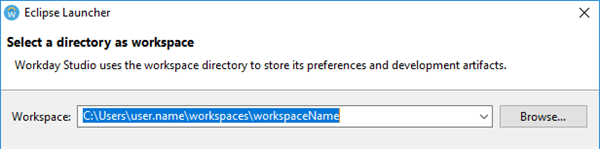
Workspace Path - No Spaces