
Web Services and API Integrations
Overview
Workday web services and APIs enable seamless integration between Workday and external systems, allowing for efficient data exchange and automation. This chapter focuses on using Workday SOAP and REST APIs, configuring HTTP requests, and processing API responses to build dynamic and reliable orchestrations. By understanding how to access, configure, and handle these integrations, you can create workflows that interact with both Workday and external services effortlessly.
Objectives
By the end of this chapter, you will be able to:
- Leverage Workday web services in your orchestration workflows.
- Configure and execute REST, SOAP, and External API calls using Workday Orchestrate components.
- Process API responses to extract and transform data for downstream use.
- Configure Orchestration Security.
Web Service Basics
An API (Application Programming Interface) defines how systems exchange data. For example, an orchestration might request exchange rates from an external service or send data to a downstream system.
An API call consists of the following key components:
- Request: The client, in this case Workday Orchestrate, sends a request to an API endpoint. The request includes at least a URL and HTTP method, and can include query parameters, headers, and a body.
- Response: The API server returns a response that includes a status code and, often, a body with data or error details. Common response formats include JSON and XML.
There are two approaches for building APIs allowing apps to communicate:
- REST (REpresentational State Transfer).
- SOAP (Simple Object Access Protocol).
There are reasons to choose one over the other:
- REST is generally preferred for its simplicity and speed.
- SOAP is chosen for its robust security and formal structure.
Workday Web Services (WWS) use SOAP for many core operations but there is also an extensive REST library.
Comparing REST vs SOAP
Feature | REST | SOAP |
Architecture | Architectural style using standard protocols like HTTP. | A string protocol with defined standards maintained by the Worldwide Web Consortium (W3C). |
Message Format | JSON, XML, HTML, etc. | XML Only. |
Performance | Lightweight, faster. | Verbose, slower. |
Learning Curve | Lower, more intuitive. | Higher, more complex. |
SOAP is better suited for applications requiring high security and reliability, such as financial services and healthcare systems. SOAP supports advanced features like WS-Security.
REST is ideal for web services that require Create-Read-Update-Delete (CRUD) operations and are designed for scalability. REST is commonly used in public APIs and mobile applications.
Fundamentals of API Calls in Workday Orchestrate
API calls enable orchestrations to interact with external systems and Workday services by sending and receiving data. Workday Orchestrate provides components, such as Send HTTP Request, for external endpoints and Send Workday API Request for Workday APIs.
API Related Components in Orchestrate
API Type | Orchestration Step |
Workday RaaS | Send Workday RaaS Request |
Workday REST | Send Workday API Request
Send Paged Workday REST Call |
Workday SOAP | Send Workday API Request
Send Paged Workday SOAP Call |
External API (third-party APIs) | Send HTTP Request
Send Paged HTTP Request |
Orchestrate API Call Patterns
Making API calls in Orchestrate follows a common pattern:
- Add a Send Workday API Request step.
- Configure the request body and headers.
- Inspect the response and status code.
- Handle success and error paths.
Making API Calls in the Orchestration Builder
Before you add an API call to an orchestration, decide whether you are calling an external service or a Workday API. Use Send HTTP Request for external endpoints and Send Workday API Request for Workday APIs.
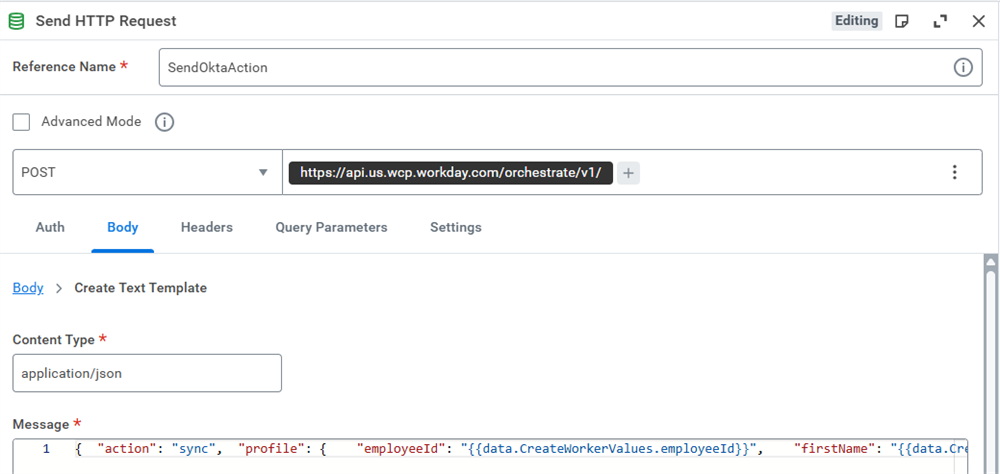
To configure a basic external call with Send HTTP Request:
- Open Orchestration Builder and add a step like Send HTTP Request.
- In the Properties, select the HTTP method, such as GET, POST, PUT, PATCH, or DELETE. The component supports several methods, including DELETE, GET, OPTIONS, PATCH, POST, PUT, and HEAD.
- Use Expression Builder to enter the request URL.
- On the Auth tab, select an authentication type that matches the target service.
- If the method requires a request body, configure it on the Body tab by selecting or composing the data and choosing an appropriate content type.
Request and Response Workflow
After you configure the API call, Workday Orchestrate runs the step, sends the request, and captures the response for use in subsequent steps.
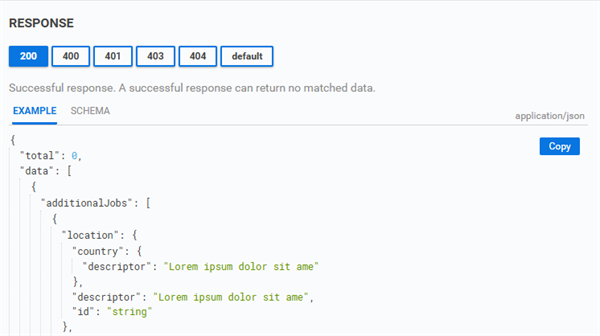
Note
:
The response shown above is a dummy response, not the real data you will see when you try the API. This screen is only for documentation purposes.- Execute the Request:Trigger the Send HTTP Request or Send Workday API Request step as part of the orchestration. Orchestrate sends the request to the configured endpoint.
- Inspect the Response: Review the response status code, such as 200 OK or 400 Bad Request, and the response body in JSON or XML format. Use the step's outputs to read headers, body content, and any error details.
- Parse and Process Data: Use downstream steps, such as Evaluate Expression or Create Values, to extract specific values from the response and store them in variables for further processing.
- Integrate with Workflows: Pass the processed data to later steps that send notifications, perform calculations, or update Workday records. For example, an orchestration can use retrieved exchange rates to calculate reimbursement amounts in different currencies.
REST Web Services
REST APIs (Representational State Transfer Application Programming Interfaces) enable systems to exchange data over HTTP. In Workday Orchestrate, REST APIs provide a flexible way to retrieve and update data in Workday or external systems. Workday REST endpoints are exposed through the API Gateway by service and version, using a URL format such as: https://api.workday.com/{service}/{version}/{resource}.
REST APIs commonly support operations that:
- Retrieve data using GET methods.
- Modify data using POST, PUT, PATCH, or DELETE methods.
Workday REST APIs use JSON payloads for requests and responses. Some endpoints also support XML, especially when you integrate with orchestrations that already use XML structures.
Workday secures each REST endpoint to a domain or business process security policy. REST APIs use OAuth and the Workday configurable security model, and they act on behalf of the signed-in user or integration system.
In Workday Orchestrate, use REST APIs when you need:
- Real-time access to business data for external or downstream processes.
- Targeted, modular calls that retrieve or update specific resources.
- Scalable integrations that handle frequent or high‑volume requests.
REST API Explorer
The REST API Explorer on the Workday Developer site documents Workday-delivered REST endpoints and provides an interactive interface to run them against a tenant. You can review endpoint details, configure requests, and inspect responses in the same view.
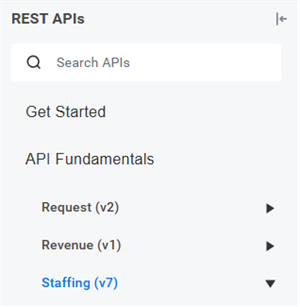
Key capabilities include:
- Endpoint access: Browse endpoints by service category, such as Expense or Workers.
- Request input: Enter query parameters and path variables in the Parameters area.
- Payload testing: Provide JSON request bodies for write operations.
- Response review: Execute requests and view status codes and JSON response data.
- Security alignment: Authenticate to a tenant and run APIs under that tenant’s security.
The REST API Explorer follows a similar workflow to the SOAP Explorer:
- Log in to the Workday Developer Site.
- Navigate to the REST API Explorer.
- Select a service category, such as Supervisory Organizations.
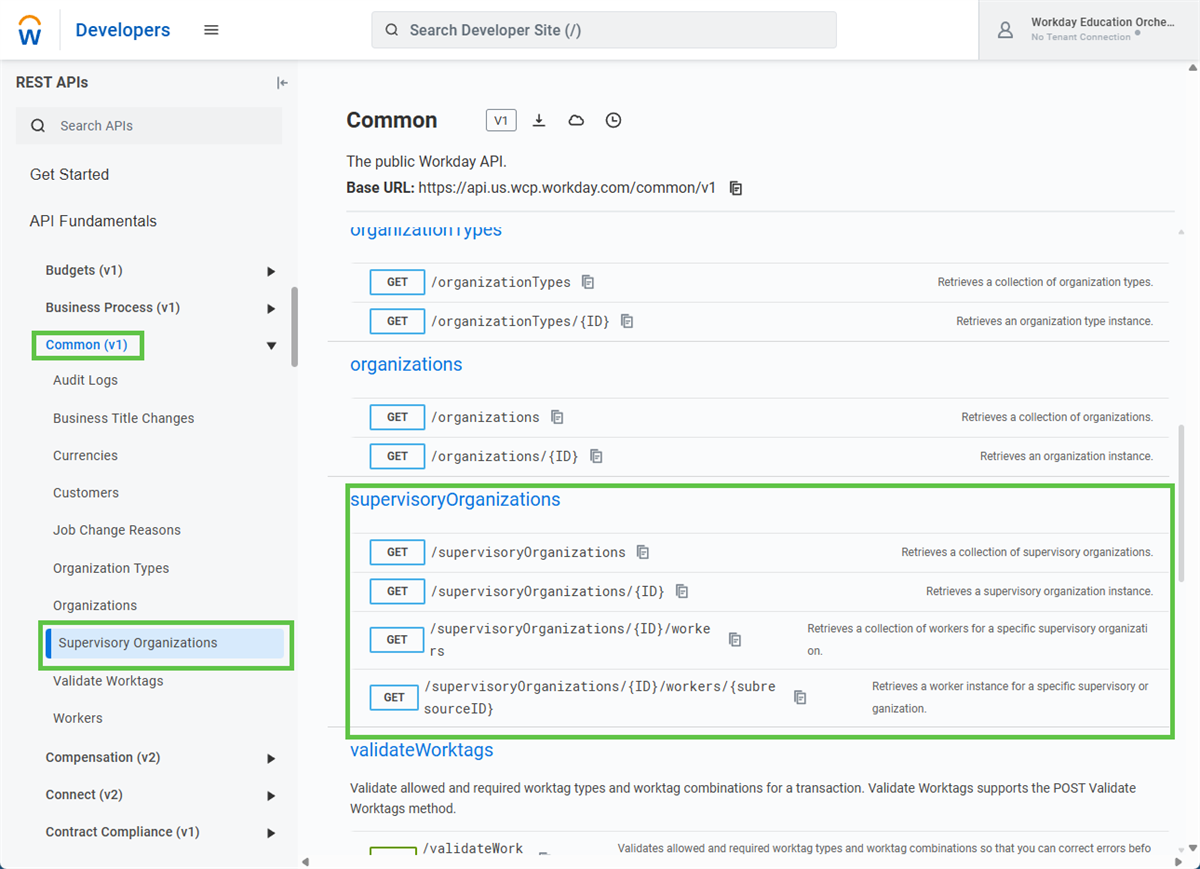
- Select the operation to test, such as GET /supervisoryOrganizations or GET /supervisoryOrganizations/{id}/workers.
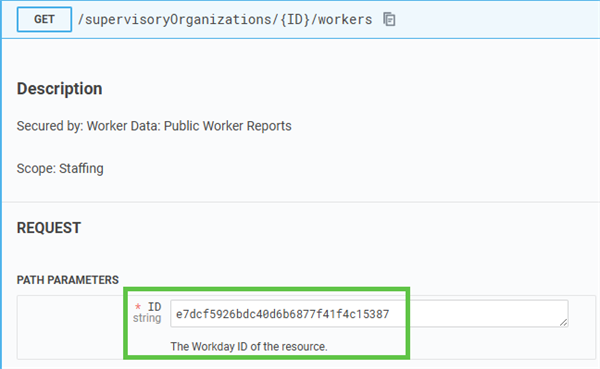
- Enter query parameters or path variables, such as a worker id.
- Confirm required headers, such as Authorization and Content-Type, are present based on the endpoint and authentication model.
- For POST, PUT, or PATCH operations, construct the JSON request body in the request area.
- Execute the request and review the status code and returned data in the response section.
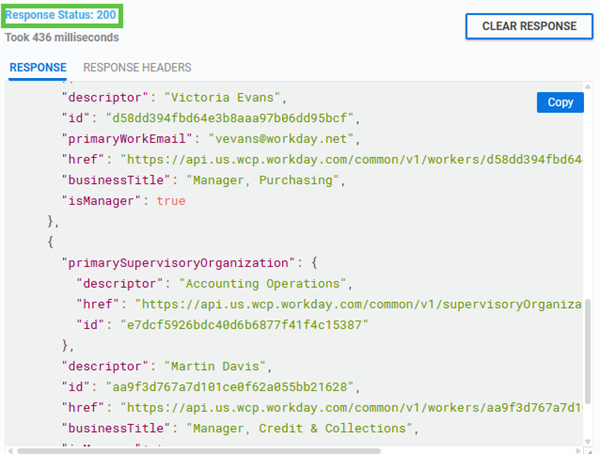
- Adjust parameters or payloads as needed and resend the request until the response matches your requirements.
Parsing JSON Data
JSONPath lets you navigate JSON structures in Expression Builder. For example:
- All employee names in an array: $.employees[*].name.
- The department of the first employee: $.employees[0].department.
To process each item in a JSON array with a Loop step:
- Treat the response body as JSON, then use it as the source for your iterator.
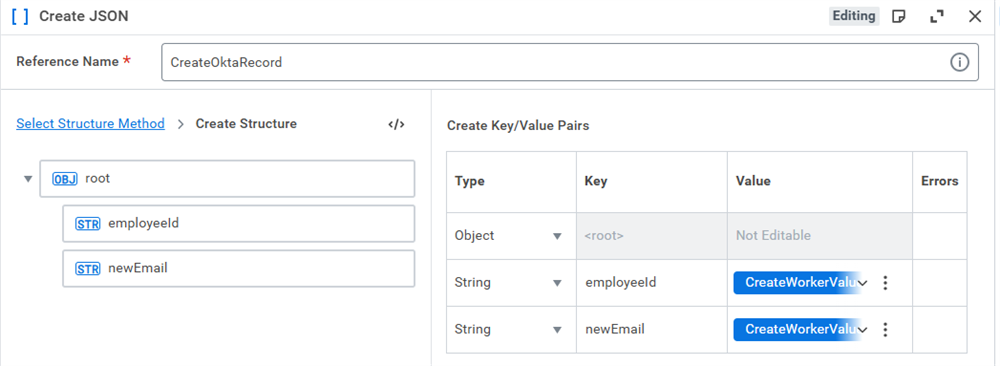
- In Expression Builder, create an iterator, such as data.LoopInput.response.iterator("$.employees[*]"), and use it in the Loop step. Each iteration exposes the current item as data.Loop.item.
- Inside the Loop, use JSON member functions on data.Loop.item:
- Name: data.Loop.item.stringAtJsonPath("$.name")
- ID: data.Loop.item.stringAtJsonPath("$.id")
- Use stringAtJsonPathWithDefault (or another …WithDefault variant) when a field might be empty or missing, following the same pattern as the XPath …WithDefault functions.
- Build labels or other derived values directly from the Loop item, for example:
- "Employee Name: " + data.Loop.item.stringAtJsonPath("$.name").
- data.Loop.item.numberAtJsonPath("$.salary") when you need a Number type.
Handling REST API Responses
Handle REST API responses in Orchestrate the same way you handle other orchestration data: inspect the structure, extract only the fields you need, validate required values, and use Orchestration Logic components to control the flow. The patterns in this section apply to both paged and non‑paged REST steps.
Inspect the API Response
Start by understanding the JSON structure returned by the upstream step.
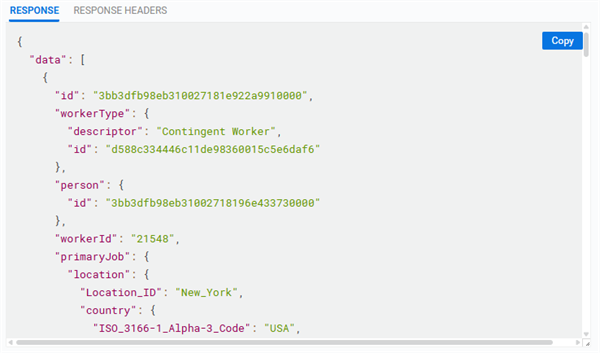
- Use Run Logs and API Logs in Orchestration Builder to review status codes, paths, and payload sizes while you test.
- Use orchestration debugging and Log / Log to File steps when you need to see intermediate values during development.
- Identify whether the top-level structure is an object or array.
For Workday REST APIs, you can also inspect responses in the REST API Explorer before wiring the endpoint into your orchestration. Use the Explorer only for Workday APIs; it does not test external endpoints.
Parse and Extract Relevant Data
Use Expression Builder and JSON member functions to pull specific values from the REST response. The common pattern is:
- Reference the upstream REST step response as a DataType value, then treat it as JSON.
- Use JSON path accessors:
- Use stringAtJsonPath to retrieve string values from JSON, such as worker IDs or descriptors.
- Use numberAtJsonPath when you expect a numeric value.
- When the response contains an array, use iterator("$.path[*]") and a Loop step or a text template each block to process each item.
Validate the Response
Validation generally focuses on two questions:
- Are the required fields present (not empty or missing)?
- Do the values match the types and patterns your orchestration expects?
Recommended patterns:
- Check for existence before extraction:
- For XML, the reference guidance is to use …WithDefault variants to avoid failing when a node is missing.
- Apply the same pattern to JSON: prefer stringAtJsonPathWithDefault or similar variants when a field might be missing.
- Combine checks with and()
- When validating multiple required fields in JSON, use logical functions such as and() instead of chaining inline comparisons.
- Example pattern: and(exists(fieldA), exists(fieldB)) to require both fields before processing.
- Use Orchestration Logic for failures
- Use Continue on Conditions to stop the orchestration when required output is missing or invalid and log a clear message.
- Or use Branch on Conditions to route valid and invalid responses down different paths, as in the address‑selection example.
Store or Pass the Data
After you extract and validate the data, either use it within the same integration event or send it to another system. In most integration scenarios, data flows directly from the REST step into downstream logic or outbound calls within the same integration event, without additional persistent storage.
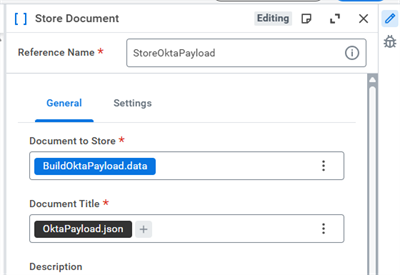
Use Store Document only when you have a clear requirement to persist data for audit or support purposes and, optionally, attach it to the integration event.
- Store Document saves a DataType document and can attach it to the integration event.
- Tags must already exist in the tenant; using a tag that is not defined causes the step to fail.
Using the Send Paged Workday REST Call Component
Use the Send Paged Workday REST Call component to request paginated responses from Workday REST APIs. Use this component when a GET collection endpoint supports limit and offset and can return large result sets, such as worker lists or WQL data. The component works like the Send Paged Workday SOAP Call component, but for JSON responses from REST APIs instead of XML SOAP responses.
Configuring the Send Paged Workday REST Call Component
When you run the Send Paged Workday REST Call step, Orchestrate sends a series of GET requests using the limit, offset, and Max Pages values you configured. It stops when it reaches the Max Pages setting or when the endpoint returns no additional items. Use this procedure to point the step at a specific REST collection endpoint and control how many pages it returns.
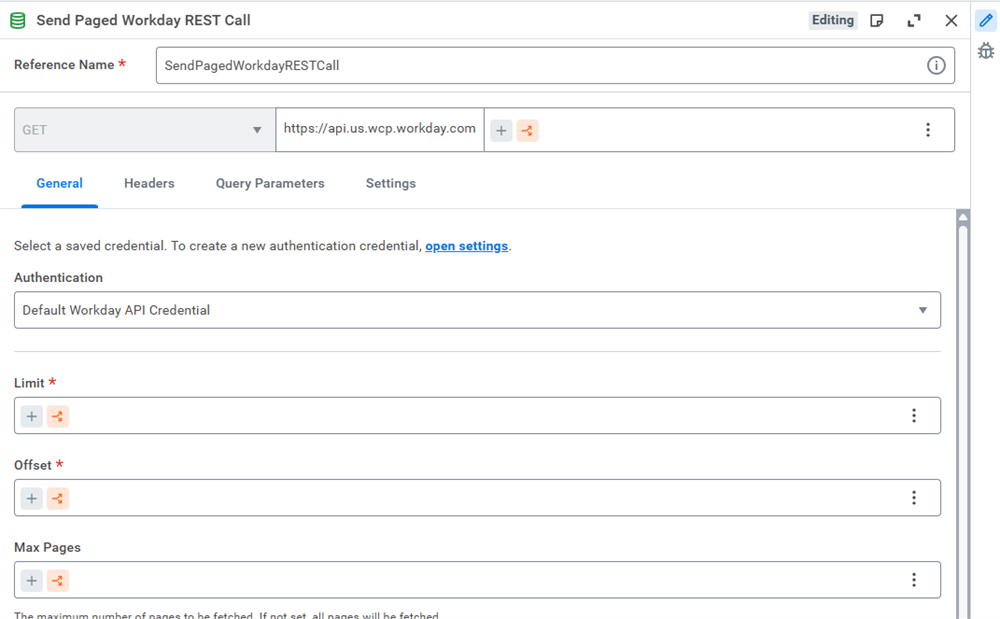
- In Orchestration Builder, select the Send Paged Workday REST Call step and open its properties.
- Alongside the prepopulated GET method and Workday API address, use Expression Builder to append the endpoint path (e.g., /staffing/v1/workers).
- On the General tab, select the authentication credential to use for the request. The component uses this credential to handle Workday API authentication; you do not add Authorization headers.
- Still on the General tab, set the pagination fields:
- Limit: Items per page.
- Offset: Starting index.
- Max Pages: Maximum number of pages to request.
- Flatten Result: Whether to combine all pages into one dataset.
- If the endpoint supports additional filters or options, add them as key‑value pairs on the Query Parameters tab.
- On the Settings tab, choose an HTTP retry policy if you want Orchestrate to retry failed calls under defined conditions.
Processing the Response
After the Send Paged Workday REST Call step runs, it returns JSON data from one or more pages of a REST collection endpoint. You process that data the same way you process any JSON response in an orchestration, with the main difference that it may represent multiple pages.
- Use a Loop step with the component’s iterator output when you want to handle each item or page separately, mirroring the Loop pattern used with the SOAP pagination component but for JSON instead of XML.
- The response body is a DataType document. Cast or treat it as JSON in Expression Builder, then use JSON functions to access fields (e.g., IDs, descriptors, or nested objects).
- Use Create Values or other data operations to collect items from each iteration into a single structure that downstream steps can consume, following the same aggregation approach you used in the SOAP pagination workflow.
Error Handling
Handle errors for Send Paged Workday REST Call the same way you handle errors for other REST data‑request steps, with a focus on HTTP retry policies and orchestration control flow.
- Define an HTTP retry policy in Orchestration Settings and assign it on the component’s Settings tab to control how often and under which conditions Orchestrate retries failed requests.
- Add an error handler to the Send Paged Workday REST Call step when you want to catch failures locally, log details, or set a fallback result before the orchestration continues. This mirrors the pattern you use for the SOAP pagination component, but the error context and body are JSON instead of XML.
- After the step, use Branch on Conditions or Continue on Conditions to change the flow based on outputs such as status, error flags, or empty‑result conditions, matching the “error handler or branch on conditions” approach from the SOAP pagination section.
SOAP and Workday Web Services
Workday Web Services (WWS) provide a framework for interacting with Workday data through APIs. SOAP (Simple Object Access Protocol) is one of the primary ways to access Workday business objects such as workers, organizations, and compensation components. Requests and responses use XML, and Workday SOAP APIs expose operations through versioned service paths and WSDL definitions.
What is SOAP?
SOAP is a messaging protocol used to facilitate communication between systems. Unlike REST, SOAP uses XML for defining its message structure, ensuring consistency and strict validation. It is widely employed in enterprise applications where data integrity, security, and detailed interaction are paramount.
Key characteristics of SOAP in Workday include:
- Structured messages that use an envelope, header, and body, giving each request and response a predictable schema.
- Operations that can support batch and transactional use cases, such as Get and Put requests across multiple business objects.
- Built-in error handling that returns detailed SOAP faults when a request fails.
Use SOAP when:
- You need to work with complex data that spans multiple business objects, such as worker data that includes compensation and organizational details.
- You require strict schema validation for requests and responses.
- You are calling supported Workday SOAP APIs through the API Gateway or the Send Paged Workday SOAP Call component.
How SOAP Fits Within WWS
SOAP is one of the main protocols exposed by Workday Web Services. Each SOAP service publishes a WSDL that defines available operations, request structures, and response structures. This contract‑first model is well suited for tasks that require strong validation and predictable responses, such as Get operations that return paged data or Put operations that initiate business processes.
Key Elements of SOAP Operations
SOAP Get operations follow a consistent pattern that balances precision and flexibility:
Request Structure:
- Request references that identify specific objects, such as worker IDs or organization IDs.
- Request criteria that filter results, such as excluding inactive records.
- Response filters that control page size and record counts.
- Response groups that select which parts of the data model to return, such as personal data or compensation data.
Response Structure:
- The response echoes the request filters so that you can confirm what the service evaluated.
- Response results summarize the number of records and pages. </wd:Total_Results>">
- Response data returns only the requested, security‑filtered data.
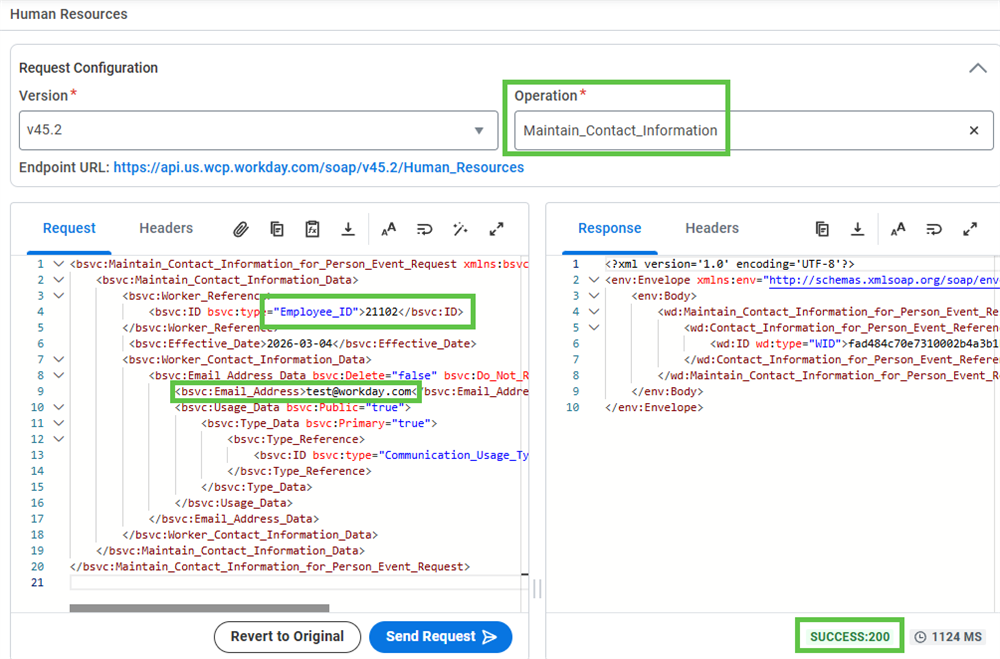
While the SOAP API Explorer will help provide you with a model of a request, that typically will not be enough. Workday Community has more complete documentation. The following will take you to the SOAP API Reference page on Community.
https://community-content.workday.com/content/workday-community/en-us/public/products/platform-and-product-extensions/soap-api-reference.html?lang=en-us
There you will probably want to look at the Public Web Services API Directory, or the Operations Directory for the complete documentation on WWS services.
Important
:
There are five different WWS that allow you to update contact information, like email addresses. You must do the research and decide which is the best for your use case. We know that our test case in the class is limited to only a few workers. Our WWS that we chose, Maintain_Contact_Information can easily handle that volume in our loop. But, there may be better performing options. Or options that allow for bulk updates. Do the research.Implementing SOAP with WWS
Accessing the WSDL File:
- In Workday Web Services documentation or SOAP API Explorer, locate the service and version that you need.
- Review the operations, request elements, and response elements so that you understand the required references, criteria, and response groups.
Constructing a SOAP Request:
- Use tools such as Workday Studio’s Web Services Tester or API Explorer to compose and validate the SOAP envelope.
- For example, a Get_Workers request can include a Response_Filter with a Count element and any criteria that exclude inactive workers. </wd:Count>">
- Wrap the request with a SOAP envelope.
Processing SOAP Responses:
- Unwrap the response from the SOAP envelope.
- Inspect the echoed request elements and response results to confirm that the service used the expected filters and page settings.
- Extract data from the response using built‑in, type‑specific functions in Orchestrate. For multi‑step processing, use Create Values to store extracted values so that you do not repeat the same parsing and transformation in later steps.
Parsing XML Data
XML is used widely in integrations, especially with Core Connectors and some third-party systems. In Workday Orchestrate, you use XPath expressions in Expression Builder to extract values from XML so that orchestrations can work with specific elements or attributes.
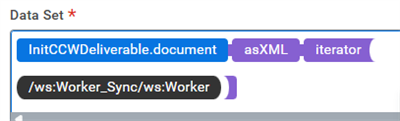
XPath is a query language for navigating XML structures. Orchestrate supports a subset of XPath and provides type‑specific functions such as stringAtXPath, countItemsAtXPath, and iterator.
To select data with XPath:
- All employee names: /Employees/Employee/Name.
- The department of the first employee: /Employees/Employee[1]/Department.
Processing XML Collections with a Loop
XML often contains repeating elements, such as a list of Employee nodes. You do not need to “extract” these nodes first. Instead, you configure an iterator over the set of elements you want and loop through them one at a time.
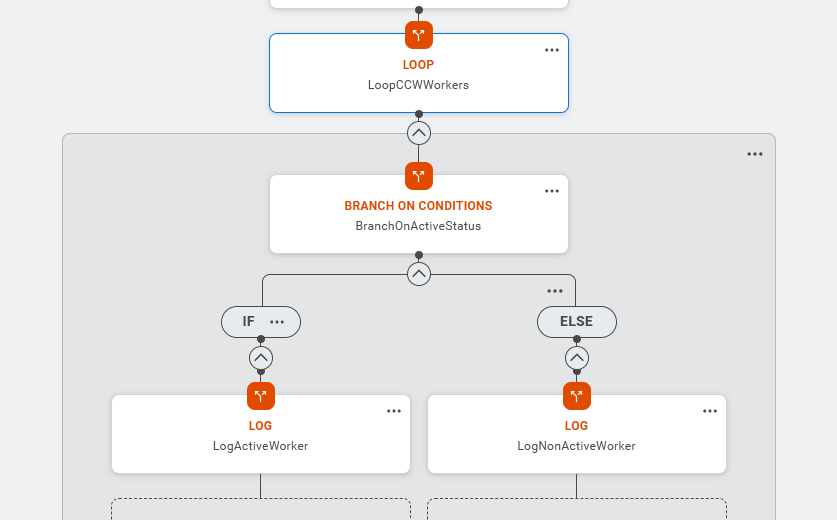
Typical pattern:
- In Expression Builder, call response.iterator("/Employees/Employee") on the XML document to create an XmlTypeIterator over the Employee elements.
- Configure a Loop step to iterate over that iterator so that each iteration receives one Employee element as the current item.
- Extract values from the current item:
- ID: stringAtXPath("/Employee/ID").
- Name: stringAtXPath("/Employee/Name").
SOAP API Explorer
The SOAP API Explorer on the Workday Developer Site provides a guided way to view these elements, test requests, and review responses before you configure an orchestration.
Access the SOAP API Explorer:
- Sign in to the Workday Developer Site.
- Open the SOAP API Explorer and sign in to the target tenant.
- Select a service and version, such as Human_Resources and a specific version.
- Choose an operation, such as Get_Workers for retrieving worker data.
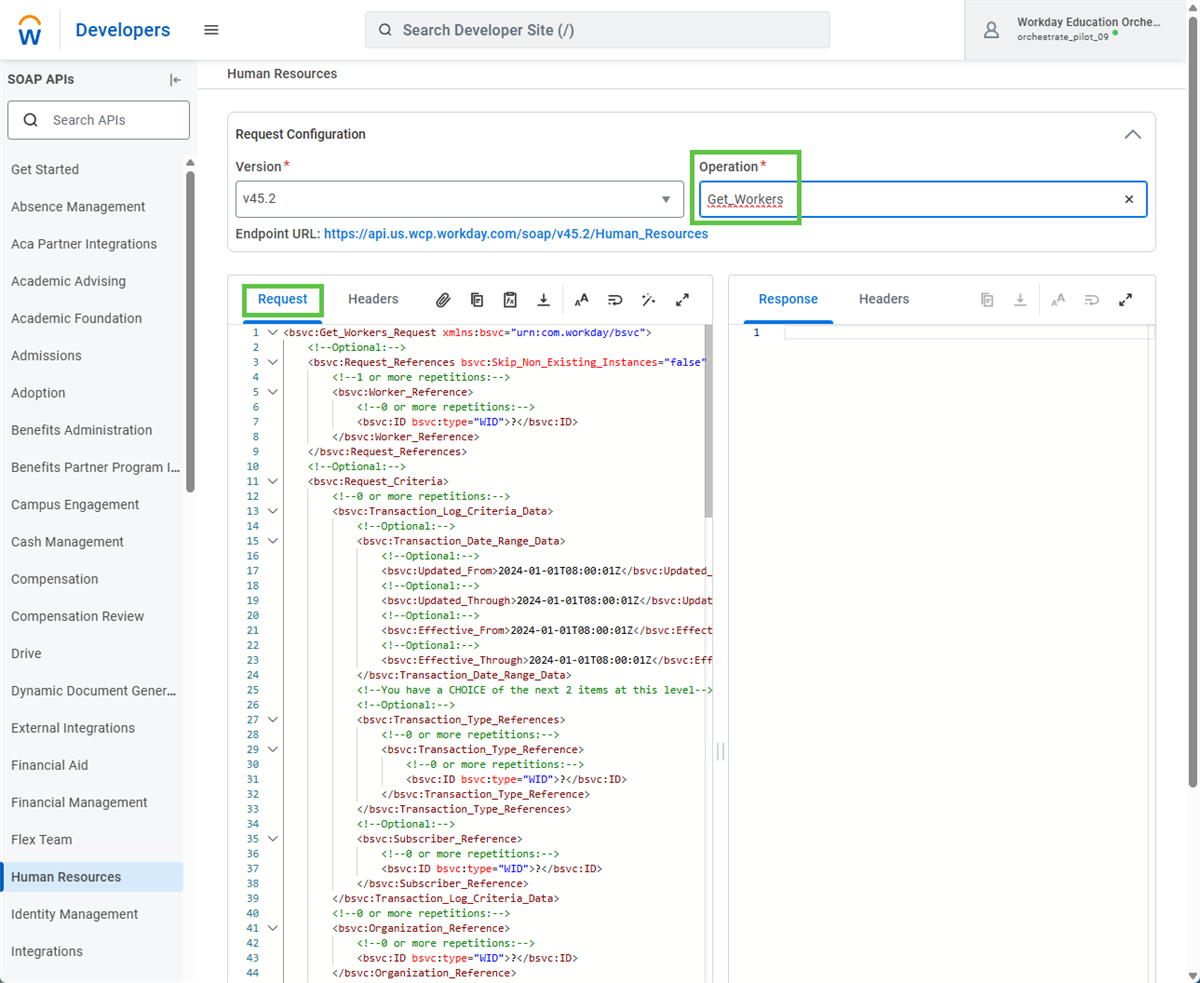
Configure the SOAP Request
After you select an operation, the SOAP API Explorer generates a base XML request.
- Start with the prepopulated XML template for the operation.
- Edit key elements in the body to match your use case:
- Request references for specific business objects, such as worker instance references.
- Request criteria that limit the result set, such as excluding inactive workers.
- Response filters that control page size and record limits.
- Response groups that specify which sections of data to return.
- Send the request to test the configuration and review the XML response, including the echoed filters and response results.
Note
: Before your request is sent to the server, the application will perform certain validations to ensure integrity and accuracy of the request.Handling SOAP Responses
SOAP responses from WWS are XML documents that include the envelope, body, and the service‑specific response. Before you extract data, review the structure to identify important elements and namespaces, such as Envelope, Body, and service prefixes like wd.
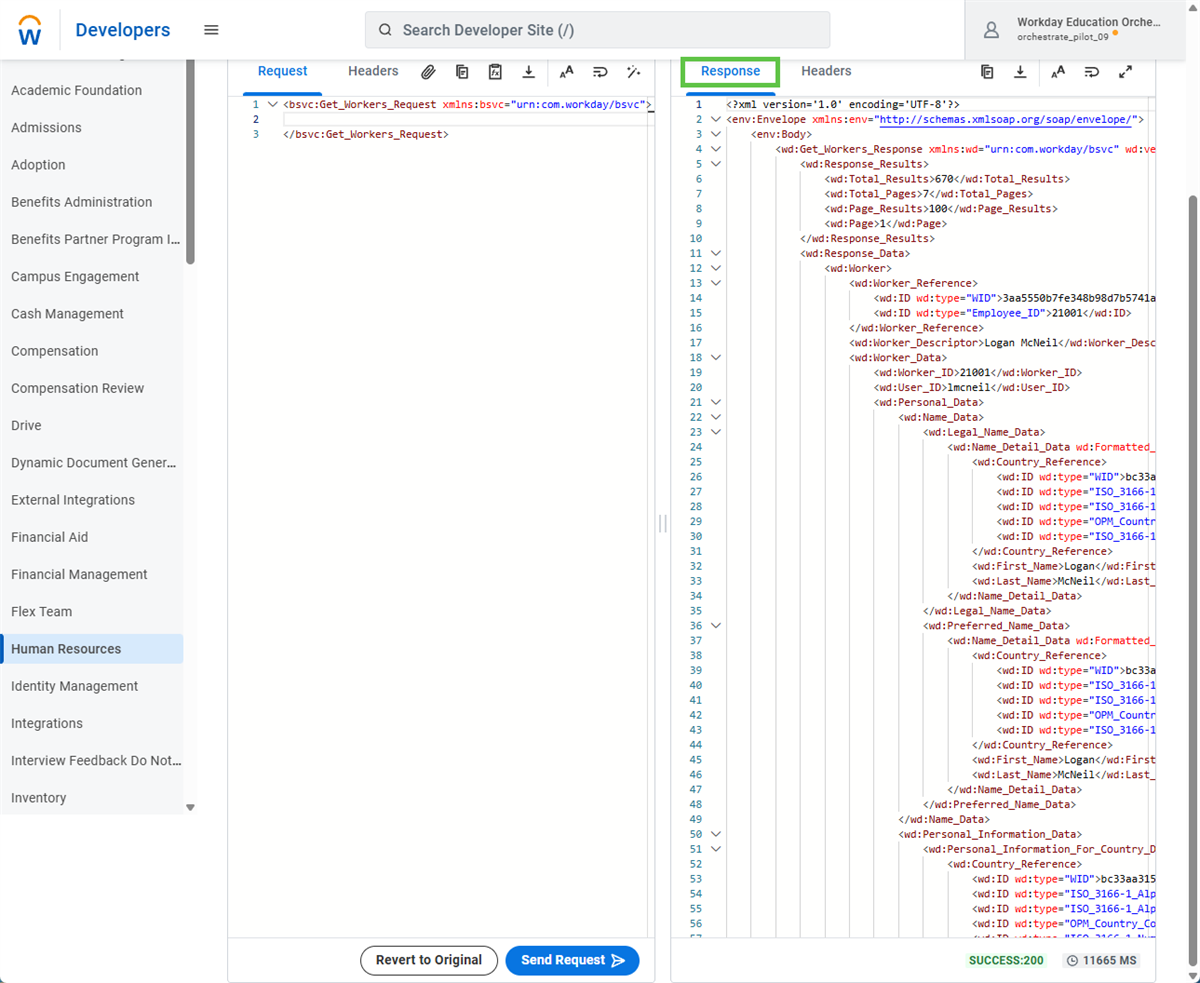
In Workday Orchestrate:
- Use the unwrapSOAP global function in Expression Builder to remove the SOAP envelope and body from the response. This returns the inner service XML so that your XPath expressions can start at the service response node instead of at /env:Envelope/env:Body.
- Apply XPath global functions to the unwrapped XML to extract and validate data. For example:
- Extract a worker ID: stringAtXPath("/wd:Get_Workers_Response/wd:Response_Data/wd:Worker/wd:ID[@wd:type='Employee_ID']")
- Count workers: countItemsAtXPath("/wd:Get_Workers_Response/wd:Response_Data/wd:Worker")
- Handle missing values with a default: stringAtXPathWithDefault("/wd:Get_Workers_Response/wd:Response_Data/wd:Worker/wd:Name", "Unknown")
- For multi-step processing, store extracted values in a Create Values step so that you do not repeat the same XPath expressions across multiple steps and branches.
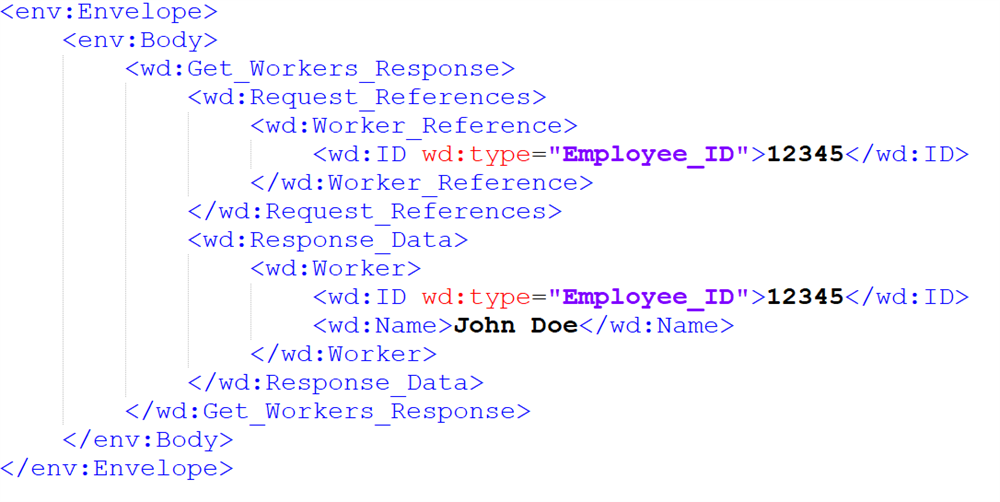
Key elements include:
- RootElements: Envelope and Body.
- ResponseData: Hierarchical nodes like Worker with child elements (ID, Name).
- Namespaces: Ensure correct usage of prefixes (env, wd) in XPath queries.
Tip
: Use tools like the SOAP API Explorer or SOAP UI to inspect and test responses before integrating them into an orchestration.Workday Orchestrate provides XPath functions to extract data efficiently from SOAP responses. Use these functions within the Expression Builder to retrieve specific elements, attributes or to validate the incoming data.
Examples:
- Extract a worker's ID: stringAtXPath("/env:Envelope/env:Body/wd:Get_Workers_Response/wd:Response_Data/wd:Worker/wd:ID[@wd:type='Employee_ID']")
- Extract a worker's name: stringAtXPath("/env:Envelope/env:Body/wd:Get_Workers_Response/wd:Response_Data/wd:Worker/wd:Name")
- Count the number of workers: countItemsAtXPath("/env:Envelope/env:Body/wd:Get_Workers_Response/wd:Response_Data/wd:Worker")
- Handle null values with default values: stringAtXPathWithDefault("/env:Envelope/env:Body/wd:Get_Workers_Response/wd:Response_Data/wd:Worker/wd:Name", "Unknown")
Implementing WWS Operations
Many outbound Workday Web Services (WWS) operations expose four main elements that control what data you receive and how it is shaped. These elements appear in the SOAP body for operations such as Get_Workers.
- RequestReferences: Identify the business objects that the operation targets, such as specific workers or organizations. For example, you can reference a worker by Employee_ID or WID.
- RequestCriteria: Filter the data that the operation returns, such as limiting results to active workers or to workers with terminations in a date range.
- ResponseFilters: Control paging and record counts, such as the number of results per page. For example, a Count element of 50 limits each page to fifty results.
- ResponseGroups: Specify which parts of the data model to return, such as personal data, employment data, or compensation data.
These elements apply to Get operations that retrieve data. Put operations that load or change data use request references and request data, but they do not use criteria, response filters, or response groups in the same way.
Integrate a SOAP Operation into an Orchestration
After you validate a SOAP request in the SOAP API Explorer, integrate the operation into your orchestration by using the Send Workday API Request step. The step calls Workday APIs through the regional API Gateway and manages the Workday authentication flow for you.
Set Up the SOAP Request
- Drag a Send Workday API Request step into the orchestration.
- In the Properties, select the HTTP method that the SOAP operation uses, typically POST. The step uses a prepopulated Workday API address and routes the request through the correct regional endpoint for your tenant.
- Copy the XML body that you tested in the SOAP API Explorer into the Body tab, using either Reference Existing Data or Create Text Template as appropriate.
- Do not manually add OAuth headers for Workday APIs. Authentication is handled by the app configuration and Send Workday API Request.
Process and Store the SOAP Response
The Send Workday API Request step returns the SOAP response as XML. Downstream steps can access this value in Expression Builder by referencing the step’s response output.
Use unwrapSoap to simplify your XPath expressions. The function removes the envelope and body so that XPath starts at the service response node.
Example – Extract a worker ID from a Get_Workers response: data.SendWorkdayAPIRequest.response.unwrapSoap().stringAtXPath("/wd:Get_Workers_Response/wd:Response_Data/wd:Worker/wd:Worker_Reference/wd:ID[@wd:type='Employee_ID']")
If you need the same value in more than one place, create a key in a Create Values step that performs the XPath extraction. Later steps reference the key instead of repeating the XPath expression. This keeps the orchestration easier to maintain and lets you apply any required transformations in one location.
Some fields are not present for every worker or business object. When a value can be missing, use a fallback function such as stringAtXPathWithDefault. This function returns a default when the XPath expression matches nothing. The stringAtXPath function raises an error if it cannot find a value, so reserve it for fields that must exist.
Processing Paged SOAP Responses
Paged SOAP responses split large result sets across multiple pages. Workday SOAP services use the Next_Page_Reference element to indicate that more pages are available. The Send Paged Workday SOAP Call step calls a paginated SOAP service and automatically follows Next_Page_Reference values, so you do not need to build your own paging logic.
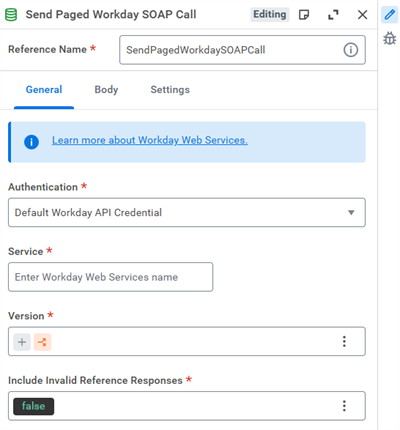
Configuring the Send Paged Workday SOAP Call Step
- Add a Send Paged Workday SOAP Call step to the orchestration.
- In the General tab, select the authentication credential, then enter the service name and version for the Workday web service that you want to call.
- Build the SOAP request body so that it matches the service schema, and then use the wrapSoapV11 function in Expression Builder to add the correct SOAP envelope.
- Orchestrate adds the envelope automatically when you use the paging component, and a duplicate envelope makes the request invalid.
- The step reads Next_Page_Reference from each response and uses it in the next request.
- You can use the Max Iterations setting to limit the number of pages and prevent long-running calls.
Handling iteration and Responses
Handling iteration and responses describes how your orchestration loops through each page returned by the paged SOAP call and processes the XML data from every page.
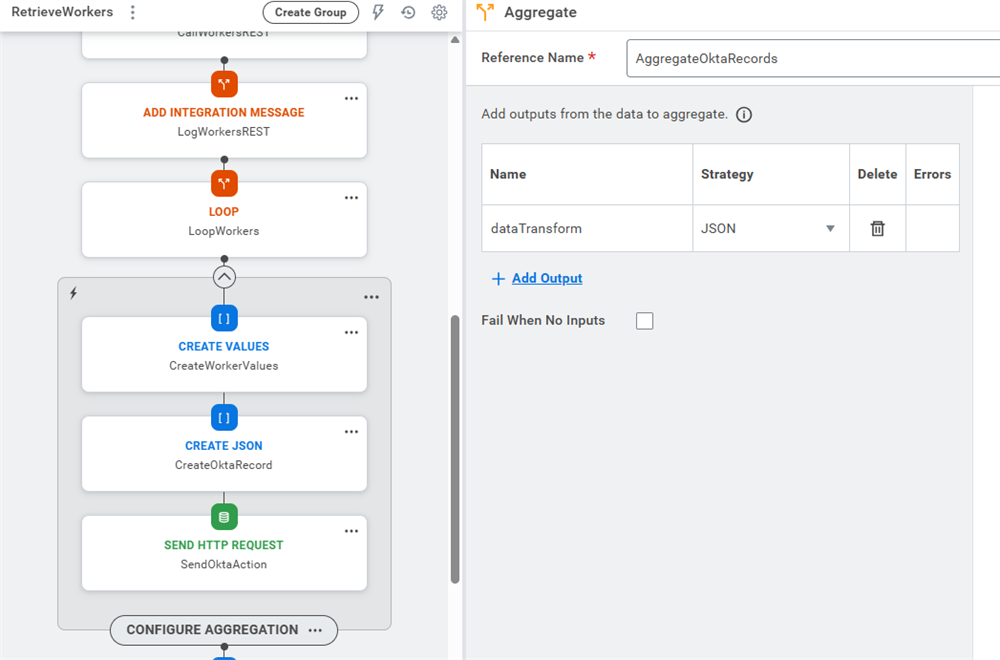
- Use a Loop step with the iterator output from the Send Paged Workday SOAP Call step. Each iteration of the Loop processes one page of XML from the paged SOAP call.
- Extract values from each page with Expression Builder functions such as stringAtXPath and stringAtXPathWithDefault. Use these functions to navigate the XML and read the elements or attributes that you need.
- Aggregate results as in any other Loop.
- For example, use a Create Values step or other data operations to collect records across iterations so that, after the Loop completes, the aggregated values contain data from all retrieved pages.
Using the Send HTTP Request Component for External API Calls
Use the Send HTTP Request component to call external HTTP endpoints from an orchestration. Do not use this component to call Workday REST APIs; use the Send Workday API Request component for those calls.
Configuring the Send HTTP Request Component
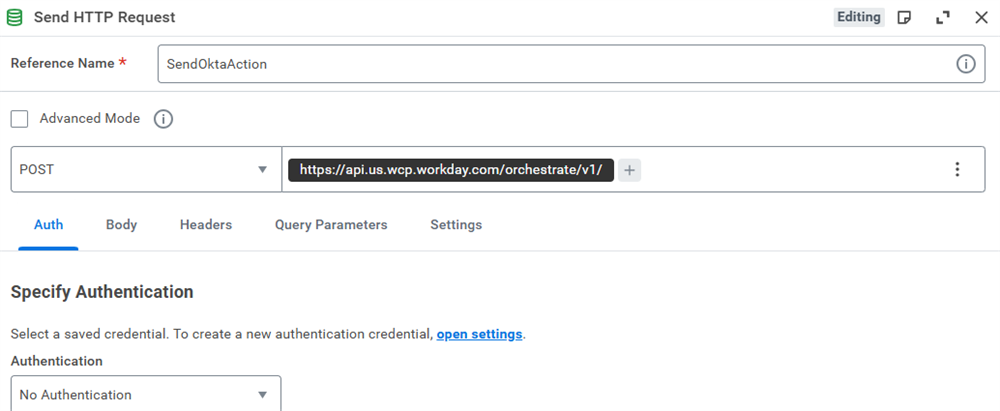
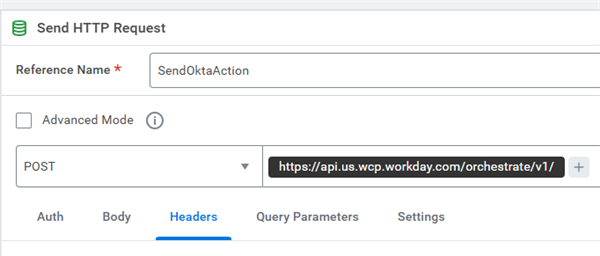
- Add a Send HTTP Request step to the orchestration and provide a clear reference name.
- Define the request:
- Method: Select the HTTP method, such as GET, POST, PUT, PATCH, or DELETE.
- URL: Enter the full external URL in the Expression Builder.
- Query parameters: Add key‑value pairs on the Query Parameters tab if the API requires them.
- On the Auth tab, select the credential type to use for the request. The list comes from credentials defined on the orchestration Settings page.
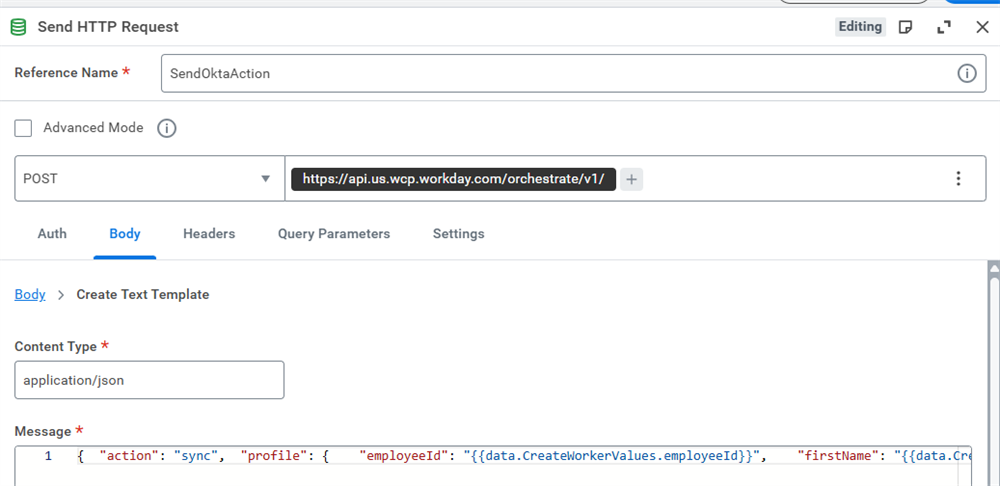
- For methods that send data, configure the Body tab:
- Reference existing data from earlier steps.
- Create a text template for JSON or XML.
- Build a multipart body when the API requires multiple parts.
- On the Headers tab, define any required HTTP headers, such as Content-Type or API‑specific headers.
- If the API is sensitive to transient failures, assign an HTTP retry policy on the Settings tab.
- The component exposes the HTTP response as a step output, including the response body. You can treat the body as DataType and cast it to JSON or XML for parsing in downstream steps.
About Security
Orchestrations security is relatively simple given it uses the Workday configurable security model. For orchestrations, you configure security at these levels:
- Domain security policies.
- Authentication credentials for orchestrations.
- Endpoint authentication.
Security Related to Workday APIs
For API calls made through the Workday-specific orchestration steps are automatically authenticated through the API Gateway. These calls work without any explicit orchestration developer action. The security comes from the user attached to the integration system associated with the orchestration. No API Clients needed for Workday calls. This includes:
- Workday SOAP and REST APIs
- Workday Query Language (WQL) and Workday Reports as a Service (RaaS)
- Prism
- Adaptive (Partial)
Endpoint Authentication
Specify an authentication scheme for each endpoint invoked by an integration app.
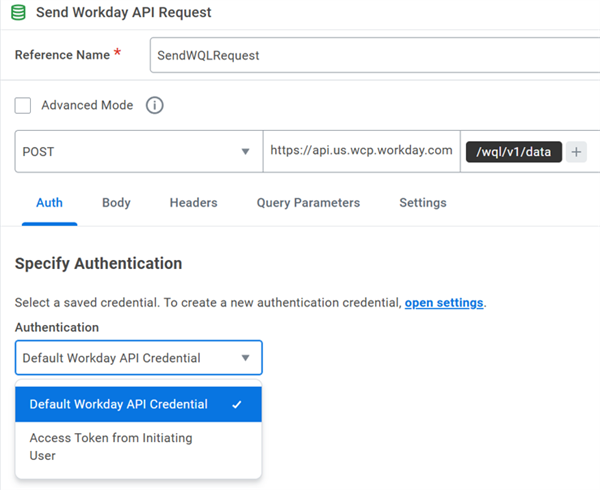
- Access Token From Initiating User, uses the same credentials as the user that launches the Integration. And can be applied to Workday REST APIs, Workday SOAP APIs, and Prism APIs.
- The Integration System User endpoint authentication scheme is also available for Business Process Template orchestrations.
REST Security
Workday REST APIs use OAuth and the Workday configurable security model to secure interactive transactions. For security policy permissions for the domain that secures the REST API:
- Add a Report/Task permission for the security groups.
- Select the proper permission for each security group:
- View for the GET operation.
- Modify for the POST, PUT, PATCH, and DELETE operations.
REST APIs only require Report/Task Permissions. Only SOAP requires Integration Permissions
Security Related to External APIs
For external API calls, authentication needs to be configured or implemented. These calls may require something like OAuth security. This is controlled by the developer of the external API.
There are some Workday APIs that are not available through the API Gateway. Like those from acquisitions like Peakon. If the API is not processed through the API Gateway, they are considered external APIs.
Orchestration Authentication
Select the type of authentication credentials for sending API requests from orchestrations in your app:
- API Key:Requires a key-value pair containing an API key as a query parameter or header value.
- Basic Authentication: Requires a username and password.
- OAuth: Requires a token or cred store reference.
- Integration System User: Requires an ISU username. The ISU credential uses the simplified ISU authentication.