
Creating PECI Integrations
Overview
This chapter introduces the major components of the PECI integration template. PECI integrations use simple configurations for integration services, attributes, and field attributes. In this chapter, you will learn how to configure a basic PECI integration system and interpret the XML output.
Objectives
By the end of this chapter, you will be able to:
- Create a PECI integration.
- Launch an integration.
- Familiarize yourself with the XML output of a PECI integration.
- Explore the key components of a PECI integration.
- Add field attributes and field overrides to an integration.
PECI Advantages
PECI is a full-stack integration. It transmits each payroll change for each worker sequentially and includes the effective date and data entry date for each change. PECI enables you to:
- Easily send payroll data to and receive payroll data from a third-party payroll vendor.
- Process global payroll for specific countries.
- Use Workday as the single source of truth for payroll data.
- View and change third-party payroll data directly in Workday.
- Customize the payroll data that you want to send to a third-party payroll vendor.
- Reduce troubleshooting time by viewing payroll errors at the worker level.
- Send hire and termination data to a third-party payroll vendor immediately upon creation.
- Track the status of the integration and identify any necessary corrective actions without leaving Workday.
- Transmit worker data with the Data Initialization Service (DIS) rather than a web service, providing better performance of data transmissions.
PECI Limitations
When using PECI integrations, be mindful of the system limitations. PECI does not:
- Include contingent workers in output files. If your company employs contingent workers, you can use the Worker Effective Change Interface integration to transmit contingent worker data.
- Support orchestration. You can add PECI to only one business process.
- Support processing over 250,000 active employees.
- Report on one-time payments that are beyond 2 years.
- Report on benefit elections that have a deduction begin date that is earlier than a worker's hire date.
- Support dynamic calculated compensation plans. Consider using event-driven calculated compensation plans instead.
- Display noneffective dated stack sequences in descending order.
XML Output for PECI
Structure
Data changes for PECI are reported for each worker within peci:Effective_Change elements. Each effective change element contains a peci:Sequence attribute that indicates the order in which the change became effective in Workday. Workday reports on the effective change along with a derived event code, effective moment, and entry moment. Any enabled data sections that are impacted by the change are output. A Worker_Summary element is also included for each worker with a data change. The structure for each worker is as follows:
- Worker
- Worker Summary
- Effective Change Sequence
- Derived Event Code
- Effective Moment
- Entry Moment
- Impacted Data Sections
Change Flags
Within each effective change, changes are annotated by change flags at both the section level and the field level.
Flag | Use at Section Level | Use at Field Level |
|---|---|---|
isAdded | All field values in the section are new. | The field value is new. |
isUpdated | A field value is added, updated, or deleted from the section. | Not used. |
priorValue | Not used. | The field value is updated. The prior value is output along with the updated value. |
isDeleted | All field values in the section were deleted. | The field value was deleted. |

Personal Data section with isUpdated flag. Updates field uses priorValue flag. Added field uses isAdded flag.
PECI Building Blocks
Integration Services
Integration services perform tasks for an integration system. All integration services required for a PECI integration to run are enabled by default. Unlike PI, there are no services specific to change detection or data sections. Several services are optionally available:
Service | Description |
|---|---|
Transaction Log Service | Improves performance by allowing the integration not to compare all worker data changes. When you configure the transaction log, select only those events/transactions that you want the integration to monitor for changes. When enabled, the integration does not detect indirect changes, such as a worker assignment to a different manager. However, the integration detects an indirect change when the worker has a qualifying transaction based on the transactions you are subscribed to that makes them eligible for further review. When you enable the Subscribe to all Business Process Types except option, the integration does not output any transaction log that is an event type, such as a worker's time off. |
Effective Stack - Expanded Effective Changes | Enable this option to trace transaction events. All fields on the transaction log data section must be enabled to use this service. The transaction log tracks what kind of transaction, such as a rescind or a correction transaction, created the effective change. This service is for effective-dated changes, not entry-dated changes. If you enable this service and a worker has time off during a pay group transfer, the integration output will not display all the effective changes for the time off during the pay group transfer. |
Payroll Effective Change Interface - Include Sections Configuration Service | Includes all data sections, including data sections that have no changes. |
Filename Sequence Generator | Applies a unique name to each integration file by using the Workday sequence generator. |
Payroll Effective Change Interface - Merge Files Launch Parameter | Merges the output files from multiple pay groups. |
Worker Last Successful Run Date - Launch Parameters | Displays the Update Worker Last Successful Run Date launch parameter on the Launch/Schedule integration task. |
Payroll Effective Change Interface - Effective Stack Sync Service | When you configure the integration to run frequently during the day, this service enables you to run a final synchronization run. The final run captures indirect changes and ensures that the integration does not output duplicates. Enable this service simultaneously with the Transaction Log service. Use for primary runs only. |
Payroll Effective Change Interface - Event Driven Integration for Third Party Payroll | Enables Workday to send information automatically to a third-party payroll provider through a business process step. You can enable this option for one primary integration per pay group. |
Integration Attributes
Integration attributes drive the top-level format, content, and behavior of the integration system. PECI requires the Payroll Vendor, Payroll Country, and Document Retention Policy attributes to be configured in order for the integration to successfully launch. Note that Payroll Vendor and Country are used for reporting purposes only and do not impact the format of the XML output. However, Workday recommends creating separate integration systems for each payroll country and payroll vendor.
Note
: The Payroll Vendor is a required field. However, if your payroll vendor is not listed in the pull-down menu, you may select Other.Integration Field Attributes
Integration field attributes allow you to select individual fields to include in the integration output. To configure which fields to include in the output, navigate to the PECI system's Related Actions and select Configure Integration Field Attributes. This task is organized using a tree structure with the Effective Stack Worker folder as the top-most level. Within this level, you must specify the data sections to include in the output. Some data sections are included by default, such as Worker Status Data Section.
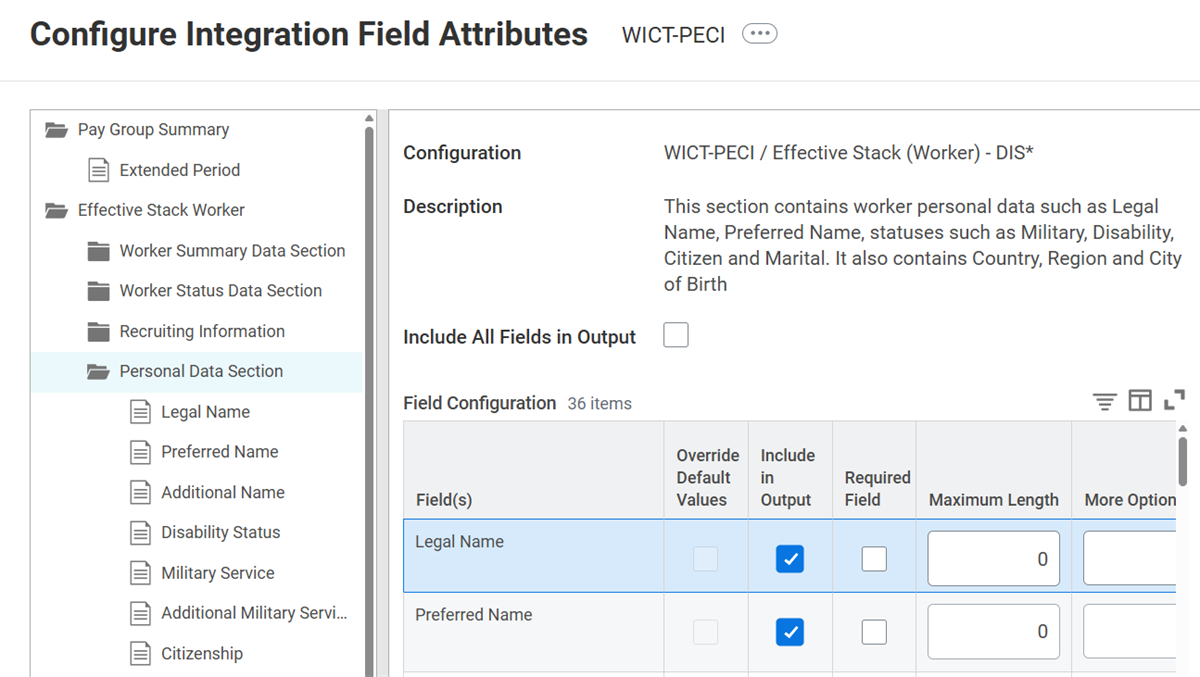
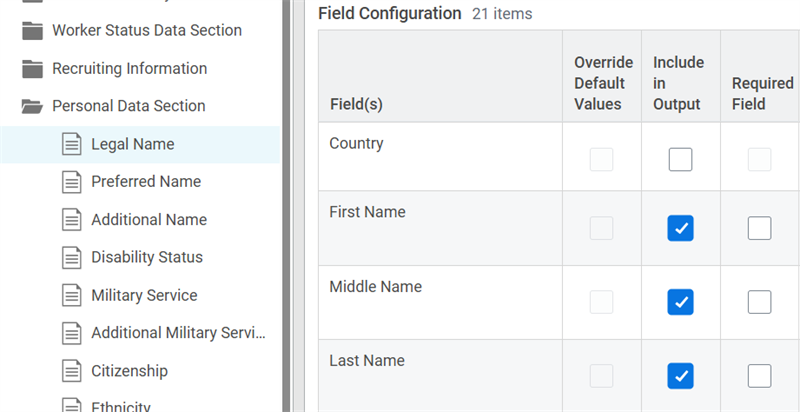
After selecting data sections, specify which fields within that section to include in the output using the corresponding data section folders in the left pane. Some sections also have configurable subsections. Upon enabling a subsection, select the subsection page and choose any related fields to include in the output.
Integration Field Overrides
Field overrides are flexible tools to customize the integration system. They make it easier to map internal data to an external endpoint. Field overrides also replace configurable maps in the Workday integration template. With field overrides, you can control what data you send in a file by adding custom values from:
- Report fields
- Calculated fields
- Custom fields
When creating field overrides for PECI, test the calculated field in a report before adding it to the integration to ensure the values the integration returns are correct and the performance is not greatly affected. Workday strongly recommends testing all production scenarios, such as bulk import or organization changes, as these can affect performance depending on the report fields you use in the calculated field. Make sure that the value of the calculated field changes with the worker event when you expect it.
Calculated Fields in PECI
You can use calculated fields to accomplish the output of custom data in PECI integrations. However, be sure to optimize these fields so that integration performance does not degrade. When creating calculated fields for use in a PECI integration, keep in mind that transactions that do not display in Workday History may still generate in the background.
If custom data is required in the output, consider using one of the following options:
- Filtered Parameter: Replace the Source Field Report Field with the Worker Event History with Filter Parameters Report Field and complete the Transaction Log Types prompt on the extended field in the DIS field overrides.
- Document Parameter: Create a document parameter using the Worker Event History with Filter Parameters Report Field and complete the Transaction Log Types prompt. Create a prompt for the Extract Single Instance Source Field and pass the values from the document parameter there.
Note
: The report fields listed below have the potential to significantly degrade integration performance.- Worker Events Completed
- Worker History
- Staffing History - All
- Staffing History - Approved
Troubleshooting Calculated Fields in PECI
When including calculated fields in a PECI integration, be sure to properly configure the fields. An improperly configured calculated field may lead to severe degradation of the integration's performance and the integration could end with an exception being thrown. It is important to keep in mind that some report fields pull a large amount of background data for a worker even though the data may not display in the Worker History.
Field Overrides with DIS
Connectors with DIS enabled do not require you to create a custom integration service for field overrides. Instead, from the connector's Related Actions, select Integration System > Configure Integration Field Overrides.
Reminder
: If you configure a field override for a calculated field, this may cause significant performance issues.Integration Planning Considerations
As you plan out your third-party payroll integrations, consider the following questions:
- What/how many integration systems need to be created? Should the integration be outbound inbound? How many Pay Companies?
- What is the third-party payroll system? Is there a packaged integration available?
- For each integration system, how many clones are needed for testing? Typically, customers require one clone for testing and manual runs and one for scheduled runs - does this apply to your organization or do you have different requirements?
- Which data and events should be included in the output?
- Who are the pay groups, what is the pay schedule, and how should runs be scheduled to ensure proper change detection for customer requirements?
- How should Workday field values map to the third-party payroll system?
- How should Workday fields map to the third-party payroll system? Is a Document Transform required?
- In what format should the output file be sent? Is a Document Transform required?
- How should the output file be delivered to the payroll system?