
Change Detection
Overview
Workday payroll integrations require payroll-related tenant configuration and may be a required step for the integration consultant before getting started. In this chapter, we will explore the functional set up of payroll elements and how they contribute to integration behavior.
Objectives
By the end of this chapter, you will be able to:
- Work with change detection in a PECI integration.
- Configure elements of the payroll framework.
- Configure your tenant for earnings and deductions.
- Compare a primary integration run to an ad hoc run.
- Identify how various staffing events work in a PECI integration.
- Configure a PECI integration to use Worker Level Last Successful Run Date.
Change Detection
Full Snapshot vs Change Detection
Before diving into the differences between a full snapshot and change detection, let's first differentiate between the terms full diff and full snapshot. When PECI runs in full-diff mode, the integration begins by selecting all workers within the defined population of employees. The integration then determines which of these employees had changes during the defined date range. Those employees are included in the output.
In contrast, Full Snapshot is a launch parameter that, when enabled, captures all workers (terminated or active) who are assigned to the pay group and active between the end date of the processing pay period and the entry date of the integration. Workday does not provide change detection when running Full Snapshot. Therefore, the output file will be empty if the transaction log is enabled. A great use case for the Full Snapshot launch parameter is to seed the downstream payroll processor with all the worker information, before launching the integration for the first time.
Note
: The integration does not report one-time payments when running Full Snapshot. One-time payments are individual and period specific events; therefore, PECI reports them in standard change detection events when they are within the entry and effective date ranges.Change Detection
The change detection functionality within Workday ensures that only relevant changes are captured by the integration and passed to the payroll system. Starting from the concept of data entry and effective dates, we explore how change detection works in matching these dates against the last successful run date and pay period dates. We will also examine the method of change detection for primary integrations, including how the integration interacts with the pay period status and Last Successful Run date.
Knowledge of the change detection methods and launch parameters is essential for understanding what is picked up and why. It can also set you up for success during testing and troubleshooting.
You can select from two change detection methods when running a Payroll Effective Change Interface (PECI) integration. The appropriate method depends on whether an integration is the first run of the pay period or an incremental run. The methods are:
Include all changes effective in the pay period.
Select this method for the first launch of the integration in a pay period. The payroll extract includes all changes to employee data that are effective in the current pay period. This payroll extract occurs regardless of the entry date of the changes in Workday. When transactions in Workday have an effective date in a future pay period, Workday excludes them from a payroll extract. Workday includes transactions when their effective date is in the pay period that the integration is processing.
Include only changes entered since the last successful run.
Select this method when you launch a subsequent run after the first run of a pay period. The payroll extract includes only:
- Changes that you entered in Workday after the date of the last successful run.
- Changes that are effective in the current pay period or a prior pay period.
Note
: An all effective run will not pick up changes to entry dated objects that are made before the last successful run date but are effective in the current processing period.Change Detection Summary
There are four factors that determine the resulting output:
- Change detection entry and effective date rules.
- Data changes to workers in the pay group.
- Data changes via tracked transactions.
- Data changes to fields defined in the output.
Top of Stack vs Effective Stack
PECI Effective Stack
The Payroll Effective Change Interface template enables you to capture all Workday events with effective dates in the sequence in which they occurred. The effective stack includes multiple staffing events in the period, multiple data changes keyed on the same day with different effective dates, and indirect changes. The following rules apply when working with an effective stack:
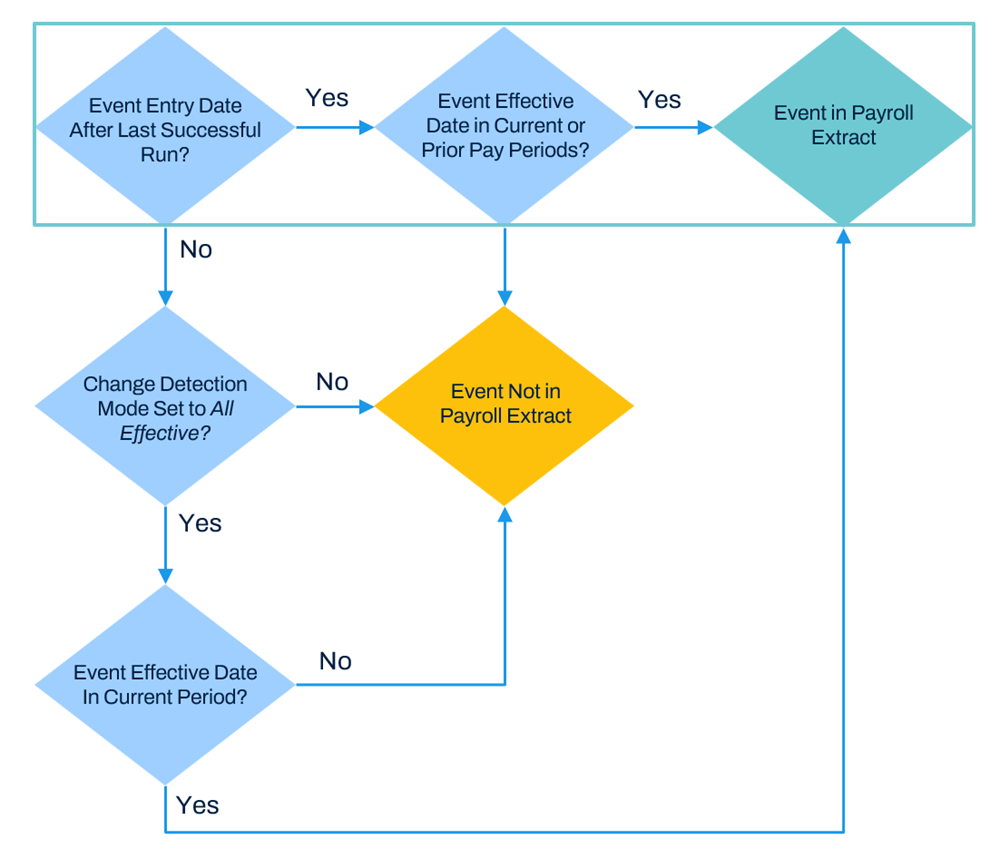
- When the event entry date is after the LSRD, the change is picked up if the event is effective in the current or prior period.
- When the event entry date is before the LSRD, the change is picked up if the event is effective in the current period and the change detection method is All Effective.
Refer to the diagram below to check if an event will be included in the payroll extract.
PECI Changes Output
While the change detection method is the same for PI and PECI, the changes reported in the output differ. For PECI, all staffing events and data changes are returned, rather than just the most recent. PI captures one staffing event per worker while PECI captures multiple events per worker and reports the changes in sequence along with an event code.
Here is a representation of the effective stack with sample event codes:
Change Sequence | Details |
|---|---|
Effective Change 0 | Derived Event Code: DTA
Effective Moment
Entry Moment
Data sections |
Effective Change 1 | Derived Event Code: LOA
Effective Moment
Entry Moment
Data sections |
Effective Change 2 | Derived Event Code: TERM
Effective Moment
Entry Moment
Data sections |
Effective Change 0 refers to the peci:Sequence attribute on the peci:Effective_Change element.
Only data sections that have been impacted by a field value change will be included in the output for the worker. For multi-instance fields, all instances are output if there is a change to one instance (e.g., addresses, names, etc.).
Each data change is reported in sequence with the exception of changes effective with the same date/time. This occurs when the specific effective moment is not tracked by Workday and thus each change effective on that date is considered to have the same effective moment. Only the latest change based on entry moment would be included in the output.
Note
: Full snapshots do not return the effective stack. Data effective as of the last day of the defined pay period will be output for each worker.Dated vs Non-Dated
In Workday, some changes have a corresponding effective date and others only have an entry date. The last successful run date drives entry-dated transactions. You can enable the Configuring an Effective Date for Non-Effective Dated Transactions integration attribute in a PECI integration to set the effective date to the entry date. Using this integration attribute to configure the effective date for an entry-dated transaction does not change the data that the integration returns; it only changes the effective moment.
Also, be mindful that entry dated changes will always output, even if they fall outside of the effective range. This occurs because the changes cannot be detected later using All Effective change detection if they are not included within the last successful run date as well.
Note
: When adding or changing a dependent for a worker, you must enter an effective date within Workday. However, when running PECI for that worker, the integration outputs the effective date as the entry date because the dependent event is non-effective dated.Future Dated
The output file display future dated changes if the Effective To Date you specify when launching the integration is before the event. The output only displays the change when the effective range includes the future end date.
For example, imagine there is a termination on 2022-2-28. You run the integration for the February pay period. The termination will not appear in the output until you run it for the March pay period. This is because the termination is effective until the day after the termination (2022-3-1). When you enable the Reporting for Termination on Last Day of Pay Period attribute when running the integration for the February or March pay period, the integration includes the termination.
Include Sections Configuration Service
There may be times when you want all data sections to appear in the output, including sections that have no changes. To obtain this result, you may configure the PECI Include Sections Configuration Service.
Expanded Effective Stack Service
When there are multiple changes effective on the same date, PECI collapses all changes into a single effective change with the entry date as of the most recent transaction. If you do not want all the transactions in a single effective change, you can enable the Effective Stack - Expanded Effective Changes integration service. This service enables the integration to include expanded data change details for the same effective date.
You can also enable this option if you need to trace transaction events. Be sure to enable all fields on the Transaction Log data section when using this option, otherwise the integration will end in an error. The transaction logs display what transaction created the effective change. They also list the transaction type, such as a rescind or correction transaction. Additionally, keep in mind that when you enable this service and a worker has time off during a pay group transfer, the integration output will not display all the effective changes for the time off during the pay group transfer.
Note
: The Expanded Effective Changes service does not support entry data roll up configurations.Transaction Log
In PECI integrations, transaction logs do not indicate whether the integration reports a change. Instead, you can use transaction logs to flag a worker for review.
For example: A compensation event has an entry date of 2020-5-15 and an effective date of 2020-6-1. Workday creates a corresponding transaction log with the same dates. When you run a PECI integration that accommodates the same dates, the integration reviews the worker. The integration will not detect changes because you did not enable the fields with changes. Therefore, the integration will not report the worker in the output.
To display changes in the transaction log:
- The effective moment of the change must match the entry moment.
- The change must have a corresponding business process change.
- The change must be a direct change.
Transaction logs do not display changes that either
:- Have an entry date but no effective dates.
- Have no corresponding business process change, such as changes to job profiles.
- Are indirect changes, such as a worker assignment to a different manager.
When enabling transaction logs, only worker-level events trigger PECI to review the worker. When you make an indirect change, such as changing the name of the cost center the worker is assigned to, the integration does not create a worker transaction log, since the change is on the cost center and not the worker.
Troubleshooting PECI Change Detection
Dates can help you understand the changes that payroll integrations pick up. If events are missing from a payroll extract, check on the relationship between:
- The last successful run date
- The pay period start date
- The event entry date
- The event effective date
When running a PECI integration as a primary integration, there are some details to keep in mind:
- Primary integration is intended for use in scheduled payroll interface runs.
- If the Primary Run launch parameter is selected, Workday considers the integration run as a primary run.
- Primary integration runs perform change detection automatically.
- The integration includes all effective changes for a pay period whose status is "Not Yet Started."
- The integration run will only capture changes since the last successful run when the pay period status is "In Progress."
- If the Primary Run launch parameter is not selected, the payroll integration will not update the pay period status.
When running a PECI integration as an ad-hoc run, keep in mind the following details:
- Ad-hoc integration runs are intended for unscheduled payroll runs.
- The integration run will not update pay group or pay period status.
- Integration runs will not appear in theData Changes Auditreport.
- EDI Worker events will be disregarded.
Payroll Framework for PECI
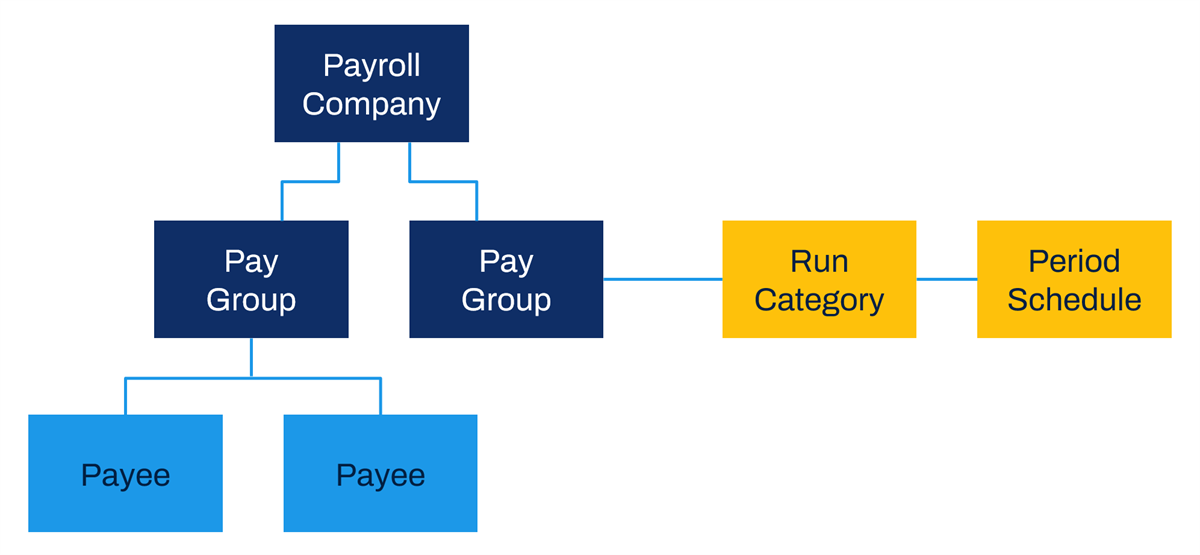
The payroll framework is the starting point of your integration. At the top of the payroll structure is the payroll company, which is typically defined by the specific payroll vendor used. When you create your payroll company, you assign Pay Group as the subtype, allowing the pay group to roll up to the payroll company. Each pay group is associated with a run category and period schedule to derive pay periods. Every employee in the system is assigned to a pay group.
Period Schedule
A period schedule shows how periods are defined by specified start and end dates, their frequency, and where the schedule is used in the system. Different processes can share period schedules, but our focus for this section is how the payroll process uses the period schedule. You can define a period schedule and frequency for employee payment, such as weekly, bi-weekly, or monthly. This is how Payroll Interface calculates and distributes payment. Additionally, the system derives pay periods from the period schedule.
Run Category
Each pay group is assigned a run category. Pay groups for Payroll Interface may only have a single run category. A run category may only have one period schedule. The period schedule defines the start and end dates of the pay periods. In the setup, indicate that the run category is used in Payroll Interface.
Pay Group
Pay groups identify who to pay, the pay frequency, and which payments to process by tying the previously defined pay period and run category together.
A pay group is a group of workers in Workday who are paid in the same way, including:
- Same frequency
- Same period begin and end dates
- Same pay dates
- Same pay check dates
This is important because large enterprises, especially global enterprises, will likely have various methods of paying their employees. Perhaps one region uses a monthly frequency, and another uses a bi-weekly frequency. Perhaps the date paychecks are distributed on different dates, based on department. Pay groups organize these variations so that automated payment processes can easily be distributed per the customer requirements.
Payroll Company
All of the individual pay groups you create roll up into a payroll company. Usually this represents the payroll vendor you are using (for example, ADP Payroll). Sometimes companies have a more complex way of grouping and paying employees. For instance, if the organization has one payroll vendor used for the UK and another for the U.S., a unique payroll company would represent each of these processes. Within these payroll companies, we can define different groups who share common ways of being paid or common periods of payment.
You may have one payroll company representing one payroll provider and beneath the payroll company, multiple pay groups or a single pay group.
Tenant Setup
Workday payroll integrations require payroll-related tenant configuration before running PECI integrations. Additionally, knowing the functional setup of payroll can help you configure the integration and understand integration behaviors.
Payroll Interface Countries
Select the countries where you are licensed and planning to use Workday Payroll. These countries determine the values available in the Country field that appears on various payroll pages.
Payroll Framework Elements
Configure the period schedules, run categories, pay groups, and payroll companies defined above to create the payroll processing framework.
Payment Election Rules
You must configure payment election rules for each election rule type defined in Workday. These rules control how to pay workers for each type of pay they receive. They define:
- The payment types (e.g., check and direct deposit).
- The number of elections allowed for each pay type.
- How payments are distributed among split payment elections.
If the payment election rules are not defined, payment election data will not be processed by CCTPP integration.
External Payroll Earnings
Earnings include direct compensation such as salary, bonuses, and allowances, as well as indirect compensation (taxable benefits) such as health care costs paid by the employer that are categorized as taxable. The
Maintain External Payroll Earnings
task allows you to configure the earnings code used internally by Workday and externally by the payroll system.External Payroll Deductions
Deductions include employee contributions to health care or life insurance plans. The
Maintain External Payroll Deductions
task allows you to configure the deduction code used internally by Workday and externally by the payroll system.Leave Setup
Employee leaves, such as medical, family, jury duty, and bereavement may have a payroll effect. A leave type defines the set of rules that apply to a specific type of leave. It identifies the unit of time for leave requests, employee eligibility rules, validation rules, whether to track balances, and other rules. Workday organizes leave types into leave families, or categories.
Assign Employee to Pay Group
After the pay groups, schedules, and run categories are created, employees are assigned to a pay group that will be set up for payroll. Using the employee record, you can move the employee to a different pay group.
Note that the effective date of the pay group assignment must be in the past, otherwise the payroll interface will not recognize the employee.
Primary and Ad-hoc Integration Runs
PECI does not require separate integration systems for primary and ad-hoc integration launches. With PECI, the integration run type is determined by launch parameters. You can configure one integration system that includes all requirements and use it for both primary and ad-hoc launches.
Primary Integration Runs
For primary integration runs, Workday updates each pay group processed with a Last Successful date and time. Workday also updates the period status to In Progress after the first run for a period.
The Primary integration is intended for use in scheduled payroll interface runs. If the Primary Run launch parameter is selected, Workday considers the integration run as a primary run. The Primary integration run performs change detection automatically. The integration includes all effective changes for pay periods whose status is Not Yet Started. The integration includes only changes since the last successful run when the pay period status is In Progress.
The integration requires only two launch parameters: Pay Group and Pay Period Selection Option. When run, the integration automatically updates the Last Successful Run date of the pay group. The integration changes the pay period status (if needed) from Not Yet Started to In Progress. The integration also selects all effective records if the period status is Not Yet Started. Additionally, the integration selects incremental changes only if the period status is In Progress. If the Primary Run launch parameter is not selected, the payroll integration does not update the pay period status.
Ad-Hoc Integration Runs
Ad-hoc integration runs are intended for unscheduled payroll runs, usually after correcting a previous error. It does not update pay group or pay period status. When running ad hoc integrations, Workday disables these options:
- Number of Additional Pay Periods: PECI only runs for the current pay period.
- Enable Data Changes Audit for Faceted Search: Workday does not include ad-hoc integration run audits in the report.
- Workers using PECI Event Driven Integration (EDI): The ad-hoc runs disregard EDI worker events. If you already sent the worker's hire event to the vendor, it will pick up the hire again if you set the pay period and LSRD to pick up the hire.
- Disabled Launch Parameters: Ad-hoc runs use all the launch parameter values you populate.
For PECI, separate integration systems are not required for primary and ad-hoc integration launches. Configure one integration system that includes all requirements and use it for both primary and ad-hoc launches.
Primary Launch
When defining a schedule for primary integration runs, configure the launch parameters as follows:
Field | Description |
|---|---|
Pay | Specify pay groups. |
Pay Period Selection Option | Select Use Earliest Open Pay Period. |
Primary Run | Select the checkbox. |
All other launch parameters will not apply. The Change Detection method and updates to the Last Successful Run Date and Pay Period Calculation Status will take place automatically.
Note
: Primary launches for PECI have a Last Successful Run Date limitation. The last successful run of the integration must be within the prior two months.Prior to the first primary run for a pay group, you must define the Last Extracted Created date. Set this date using the
Maintain Payroll Integration Systems for Pay Group
task.Primary Integrations and Change Detection
As mentioned previously, primary integrations do not use the Change Detection launch parameter, but apply a change detection method automatically.
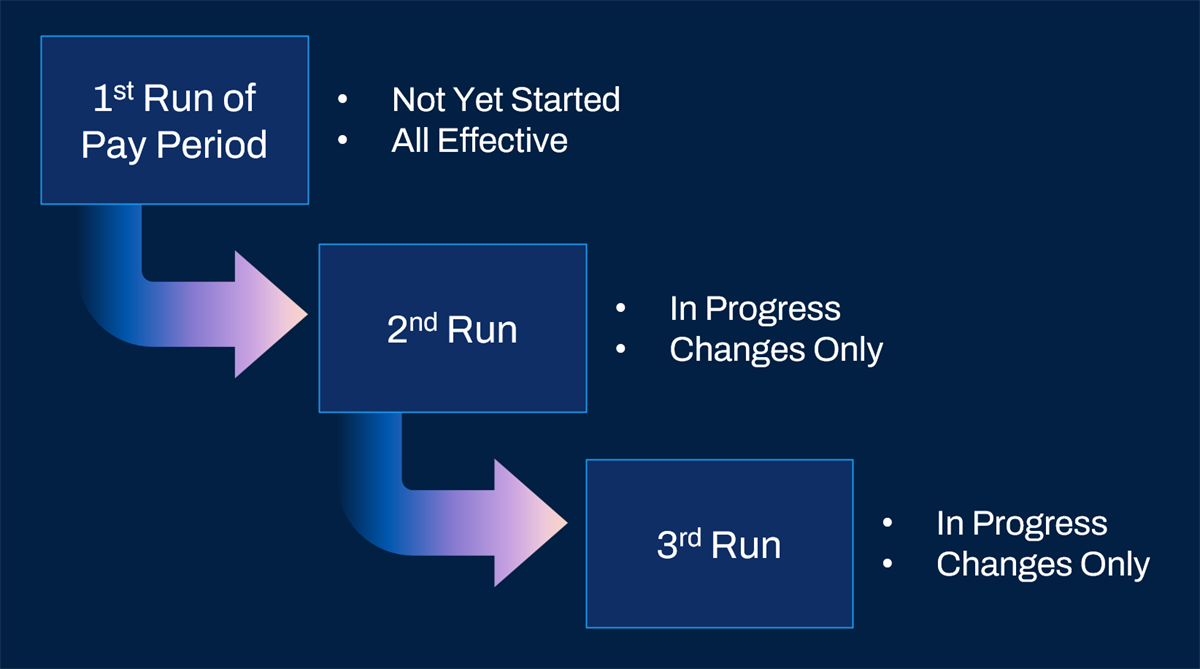
If it is the first run of the pay period for the pay group specified (calculation status of Not Yet Started), the integration applies the All Effective method.
The pay period status then automatically updates to In Progress and the Last Successful Run date saves for that pay group. Any subsequent runs for that pay group while the pay period is still In Progress will apply the Changes Only method.
Staffing Events
Payroll Events
PECI Event Output
Each event is reported in the sequence in which it becomes effective in Workday. Within each Effective Sequence element are the derived event code, effective moment, and entry moment for the event.
PECI has a Worker Status data section that contains the Status field, indicating whether an employee is active or inactive. However, this section does not contain the Event Code field. It contains other information relevant to hire and termination, including service dates.
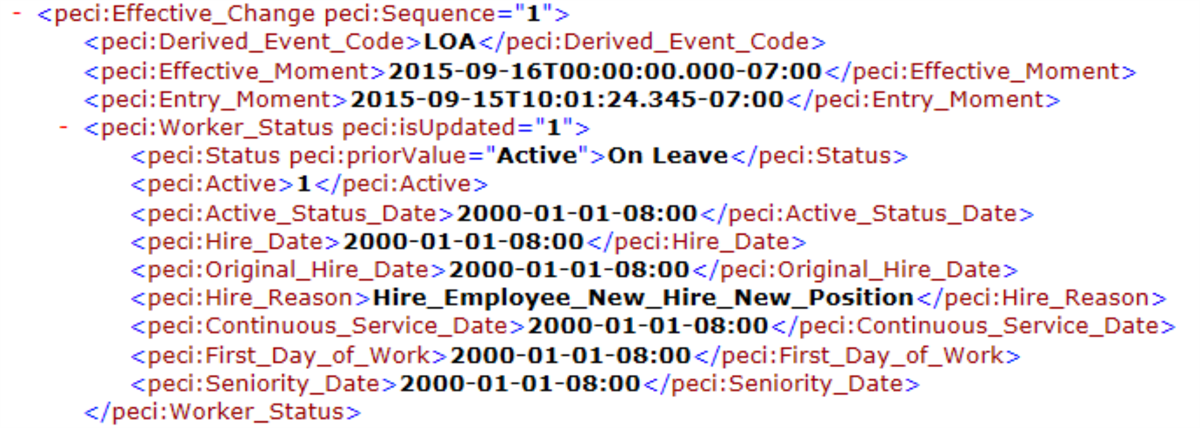
PECI XML output showing Effective_Change section with LOA as the Derived_Event_Code. Also includes the Worker_Status subsection.
Staffing Events
Staffing events, such as the hiring and termination of workers, drive employee status and have a direct impact on employee pay. Leave of Absence may also have an effect if configured to impact payroll. Lastly, employee transfers to other pay groups (as a result of a job change, for instance) must also be reported to the payroll provider.
Each event results in specific data sections being included in the payroll extract. For hiring and inbound transfer events, Workday includes all data sections, since the payroll provider may not have any existing data for those employees. For most outbound transfer events, Workday includes the status section and changes go into effect the day before the transfer.
To learn more about which data each staffing event includes, visit Workday Documentation on Workday Community.
PECI tracks the events listed in the table below and all other changes are reported as a data change using the code DTA.
Term | Definition | Status Event Date | Data Included |
|---|---|---|---|
CONT-LOA | Continuous leave of absence. A worker returns from leave and immediately goes on leave again. The leave must be back-to-back and can be any type of leave. Example: A worker returns from parental leave on the 15th and goes on personal leave on the 16th. | Same date as original leave effective date | Leave of Absence section |
DTA | Other data changes. | Effective date of data changes | Changed sections only |
HIR | Add a new hire into a pay group. | Hire date | All sections for employee |
HIR-C | Correction to the hire event. Correcting the hire date by moving it to an earlier effective date generates this event. | Hire date | Status section |
HIR-R | Rescind the new hire event. | Hire date | Status section |
LOA | On leave of absence. | First day of leave | Status and Leave of Absence sections |
LOA-C | Correction to end date or type of leave of absence. | Day of return from leave | Status and Leave of Absence sections |
LOA-R | Rescind leave of absence. | First day of leave | Status and Leave of Absence sections |
ORG | Change organization without changing pay group. Note : Changing to a different pay group within the same organization does not generate a secondary ORG event. | Date of position change | All sections for employee |
PCI | Transfer:
For payees with multiple positions, this code applies only to the first position transferred. Payroll Effective Change Interface performs an ADD operation for additional position transfers for the same payee. No staffing event occurs for these ADD operations. When a worker has a PCI and RFL for the same pay group on the same day, the integration reports the PCI event code. To report on individual transactions, enable the Effective Stack - Expanded Effective Changes integration service. | Date of pay group reassignment | All sections for employee |
PCO | Transfer:
For payees with multiple positions, this code applies only to the last position transferred. Payroll Effective Change Interface performs a REMOVE operation for additional position transfers for the same payee. No staffing event occurs for these REMOVE operations. | Date of pay group reassignment | These sections:
|
PGI | Transfer:
| Date of pay group reassignment | These sections:
|
PGO | Transfer:
| Date of pay group reassignment | These sections:
|
RFL | Return from leave of absence. | First day back at work | Status and Leave of Absence sections |
RFL-R | Correction to end date of leave of absence. | First day back at work | Status and Leave of Absence sections |
TERM | No longer employed. Employee status changes from active to terminated. | Termination date + 1 Day | These sections:
|
TERM-C | Correct termination event. Correcting the termination date by moving it to an earlier effective date generates this event. Status changes from active to terminated. | Termination date + 1 Day | Status section |
TERM-R | Rescind the termination event. Correcting the termination date by moving it to a future effective date generates this event. Status changes from terminated to active. | Termination date + 1 Day | Status section |
Hire Data Checkpoint
Typically, when a customer hires a new employee, the PECI integration picks up their data based on the entry or effective dates. However, there are times when an employer may want to withhold a new hire's data from being included in the integration output until a specific step has been completed. For this scenario, you can enable a hire data checkpoint.
Hire data checkpoints are only for primary integration runs. If the integration is run ad-hoc, it will bypass the checkpoint on the
Hire
business process.Worker Level LSRD
Worker Level Last Successful Run Date is a new functionality incorporated in PECI that can recognize a data change the ADHOC run has already picked up. It will then prevent the same data from getting picked up again in the subsequent primary run.
Keep in mind if you enable additional pay periods by selecting the update worker LSRD launch parameter, PECI will include the additional pay periods. The periods are included even if PECI is run ad-hoc. This happens so there are no gaps in data transmission when PECI runs in primary mode at a later time and does a look back to the worker LSRD.
Use Case
- Primary PECI run generates a payroll extract with errors/warnings for a few employees
- Last Successful Run Date (LSRD) updated on pay group
- HR Partner fixes errors/warnings for the employees in Workday
- Workday sends corrections to downstream via ad-hoc PECI run
- Last Successful Run Date (LSRD) updated on employees sent through the ad-hoc run
- Subsequent Primary PECI run excludes corrections that were already sent
Benefits
- Automatic Worker LSRD update after the ad-hoc run
- Synchronization between primary and ad-hoc runs, avoiding duplicate data changes being sent to payroll
Configuration
- Configure Integration System
- Specify Payroll Integration System for Pay Group
- Enable Worker LSRD Integration Service
- Monitor Worker LSRD
- Launch Parameter - Update Last Successful Run Date
- View/Maintain Payroll Integration Systems for Employee
Validations WLSRD Ad-hoc Integration Launch
- No Pay Group Members selected
- Pay Group Members selected
- Exclude Member Option Selected
- Primary Run = True
- Full Snapshot = True
- Update Worker Last Successful Run date - LP is enabled
Validations for Worker LSRD Override
- Worker LSRD Override should not be greater than current time
- Worker LSRD Override should be greater than PG LSRD
Additional Pay Periods
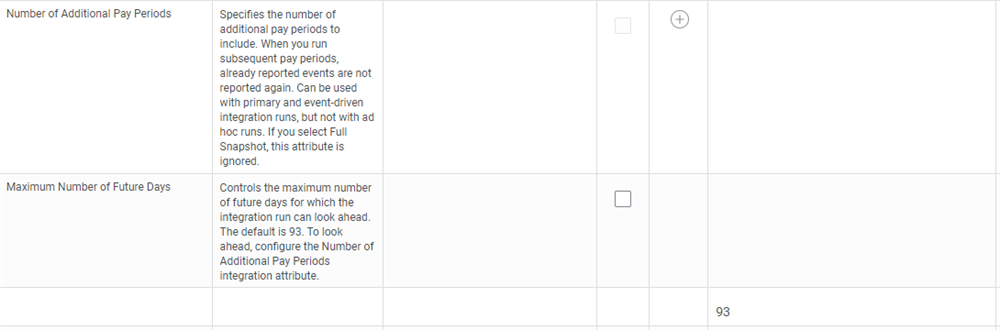
The Look Ahead feature allows us to pick up future effective-dated data. PECI integrations can include future effective-dated data up to 13 months. Configure the look ahead range using the Number of Additional Pay Periods and Maximum Number of Future Days attributes.
Note
: The default value for the integration attribute maximum number of future days is 93. However, the integration will accept a value up to 403 days.Troubleshooting Staffing Transactions
When a PECI integration does not output expected data, it may be helpful to review the configuration settings. One common misconception is that the integration will output every worker that has transactions within the specified time frame and pay group. In reality, the integration will attempt to process every worker that should be included in the output. However, a worker with missing or invalid data will be excluded from the extract and the integration will attempt to continue processing remaining workers. For example, if a worker does not have data for a section that the integration is configured to require, that worker will not be included in the output. Determining which transactions will be in the output requires an understanding of staffing event behavior. Review some of the less common details listed below.
Hire, Rehire, and Termination Events
- Correcting a hire date to an earlier effective date generates an HIR-C and a DTA.
- Correcting a hire date to a future effective date generates an HIR-R and an HIR.
- Correcting a termination date to an earlier effective date generates a TERM-C and a DTA.
- Correcting a termination date to a future effective date generates a TERM-R and a TERM.
Leave of Absence Events
The leave of absence data section must be enabled for the integration to include CONT-LOA, LOA, LOA-C, LOA-R, RFL, and RFL-R events in the output.
Rescinded Events
- The data in the status section will match the status of the original event.
- Rescinding a rehire or correcting a rehire transaction to a future effective date will generate a TERM or HIR-R event.
- Enabling the Configure Rescind Rehire Staffing Event integration attribute controls this behavior.
Note
: Enabling the Effective Stack - Expanded Effective Changes service causes the integration to include HIR-C transactions and exclude CONT-LOA transactions.