
Additional Features
Overview
This chapter explores additional integration templates beyond PECI. You will learn to work with Worker Effective Change Interface (WECI), Payroll Interface (PI), and inbound integrations to import payroll documents from vendors into Workday.
Objectives
By the end of this chapter, you will be able to:
- Build an integration using the Worker Effective Change Interface (WECI).
- Import external payroll results and documents using the External Payroll Results Inbound and External Payroll Documents integrations.
- Create and configure an integration system using the Payroll Interface (PI) template.
- Review change detection, audit file processes, and data validation for PI integrations.
Worker Effective Change Interface (WECI)
Worker Effective Change Interface (WECI) serves a similar purpose as PECI but performs a more comprehensive compilation of data. WECI integrations capture all personal, job, and position data and changes, including contingent worker data. It also captures staffing events and data changes within the effective range. It is best to use WECI integrations to create snapshots of worker data for initial deployment or to synchronize data across multiple systems. Additionally, Workday recommends using WECI integrations if a vendor requires all effective changes within a range with a full-stack integration.
Some added benefits of using a WECI integration include:
- The ability to format and validate data to confirm to external system requirements.
- The ability to transfer only those changes relevant to the external system.
- The ability to transmit worker data with the Data Initialization Service (DIS) rather than a web service, providing better performance of data transmissions.
Troubleshooting WECI
Although WECI is similar to PECI, it is important to keep in mind that the integrations behave differently. WECI uses effective stack technology to detect worker changes. Review the configuration considerations listed below.
- WECI integrations run on GRID-enabled tenants.
- WECI integrations do not capture time off or time tracking data.
- WECI integrations do not allow specific eligibility criteria.
- A business process may only include one WECI integration.
- Transactions must be within 90 days of the effective date range to be transmitted.
- WECI requires an Integration System User (ISU) account.
WECI Events
WECI has some specific behaviors relating to the transactions that appear in the output. Review some of the transaction rules listed below to better understand the events that the WECI extract may include.
Hire and Termination Events
- Correcting a hire date to an earlier effective date generates an HIR-C and a DTA.
- Correcting a hire date to a future effective date generates an HIR-R and an HIR.
- Correcting a termination date to an earlier effective date generates a TERM-C and a DTA.
- Correcting a termination date to a future effective date generates a TERM-R and a TERM.
Leave of Absence Events
The leave of absence data section must be enabled for the integration to include CONT-LOA, LOA, LOA-C, LOA-R, RFL, and RFL-R events in the output.
Rescinded Events
- The data in the status section will match the status of the original event.
- Rescinding a rehire or correcting a rehire transaction to a future effective date will generate a TERM or HIR-R event.
- Enabling the Configure Rescind Rehire Staffing Event integration attribute controls this behavior.
Note
: Enabling the Effective Stack - Expanded Effective Changes service causes the integration to include HIR-C transactions and exclude CONT-LOA transactions.Inbound Integrations
External Payroll Result
External Payroll Result enables Workday to send instructions to third-party vendors, allowing them to compute paychecks. It also brings the calculation data back into Workday. Payroll results from third-party vendors stored in Workday help the system run a report against the payroll data that is computed from the external payroll system. It also allows users to have a global view of payroll data, consolidated from all the payroll systems the client uses.
Use Case
- External Payroll System processed the payee's paycheck.
- A customer needs to update Workday with payroll processing details.
Benefits
- Enables customers to load payroll results from third party vendors into Workday.
- Store employee's payroll results in Workday.
- Perform analytics and labor costing.
- Display results for employees to view.
- Can have multiple payroll results per pay period, including:
- Different check numbers.
- Different payment dates.
Configuration
- Automatically available, no opt-in required.
- Standard security set up for integration system.
- The following domain security policies determine who can set up and view payroll results.
- Set Up: Payroll Interface - All set up tasks.
- View: Maintain Payroll Interface - RDS and reports.
- Enables you to:
- Create integration systems.
- Configure external payroll earnings and deductions.
- Create custom reports if needed.
Result
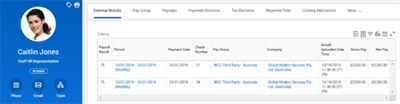
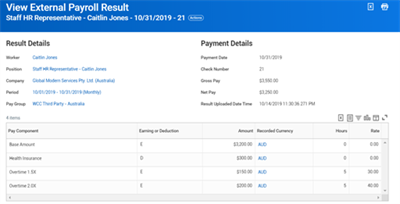
The images below provide examples of external data that display result details of what the third party payroll system computed.
External Payroll Results - View Results
External Payroll Results - View Result Details
External Payroll Documents
Workday allows you to import payslips, tax documents, and other payroll documents from your external payroll system into Workday. Workers or payroll administrators can access the payroll documents from an external payroll system directly in Workday. This access eliminates the need to sign in separately to the external payroll system to retrieve documents.
There are two types of external payroll documents:
- Documents that are not stored in Workday: These include REST API payslips/tax documents. Workday makes an API call to the vendor endpoint to retrieve the data.
- Documents that are stored in Workday: You can import external payslips, tax documents, and other payroll documents into Workday via the integration template, web service, or manual task.
To make your data cleanup more efficient, Workday delivers a
Mass Delete External Payroll Documents
task that you can use to delete the following external payroll document categories:- External Payslips
- External Tax Documents
- Other External Payroll Documents
The
Mass Delete External Payroll Documents
task deletes all documents that meet the criteria that you specify and displays a count of the deleted documents. You may delete up to 1000 documents for each document category at one time. Be advised, deleted documents are not recoverable and cannot be reported on once deleted.Payroll Interface (PI)
To create a Payroll Interface integration, use the
Create Integration System
task and select the Payroll Interface template.Integration System Attributes
The following attributes are required to launch Payroll Interface:
Attribute | Description |
|---|---|
Version | Indicates the Workday version of your environment. |
Payroll Vendor | Indicates the third-party payroll vendor for the integration. |
Primary Payroll Integration | Identifies the integration as an Ad-hoc or Primary Integration. |
Generate Full File
The Extract All Payee Data attribute allows you to bypass change detection and get a full file of employees in the pay group specified.
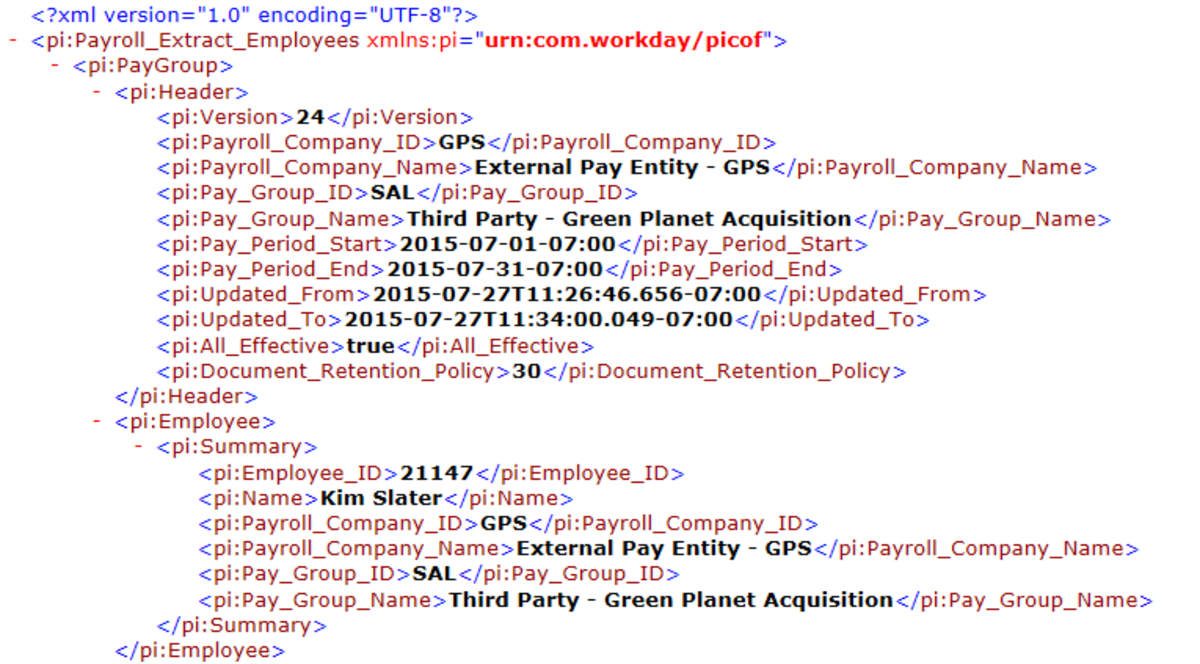
XML output generated from running a full extract.
Note
: Alternatively, the PI Full Extract with No Diff Launch Parameter integration service can be enabled. Select the checkbox for this parameter when launching the integration to return a full extract.Integration Services
Specify which categories of data to include in the output files and services to include, such as change detection and launch parameters. Note that Payroll Interface and PI Launch Parameters are required and enabled by default. The Transaction Log Service is not enabled by default, but is required for change detection processing.
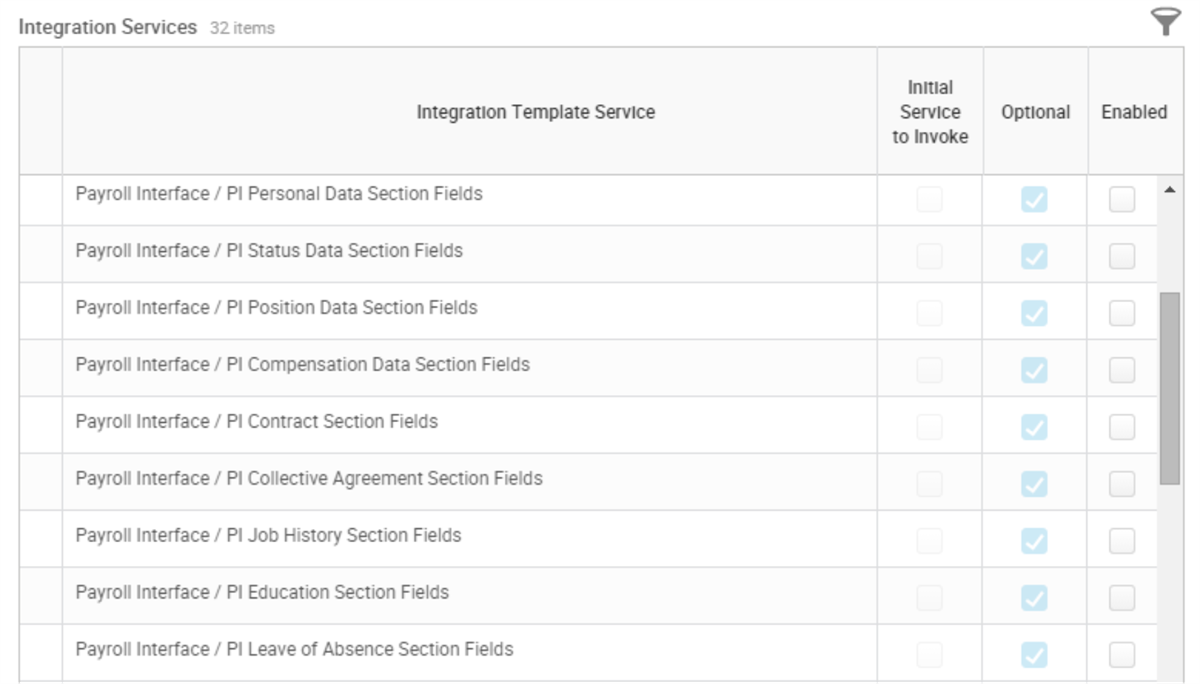
Integration Services list from the Configure Integration Services action.
Integration Field Attributes
After the data sections have been enabled, the next step is to define which fields to include in the extract. Only fields that are enabled using the Configure Integration Attributes related action will be included in the extract, whether a full file is generated or change detection is applied. For PI, the fields available for inclusion depend on which data sections were enabled in Integration Services.
Integration Maps
Integration maps allow you to convert values in Workday to different values in the output file to meet the needs of the payroll system. For example, the payroll system may require a value of "M" for a Marital Status of "Married - (United States of America)" that is used in Workday. When required, each possible value can be mapped to a specific value for the payroll system.
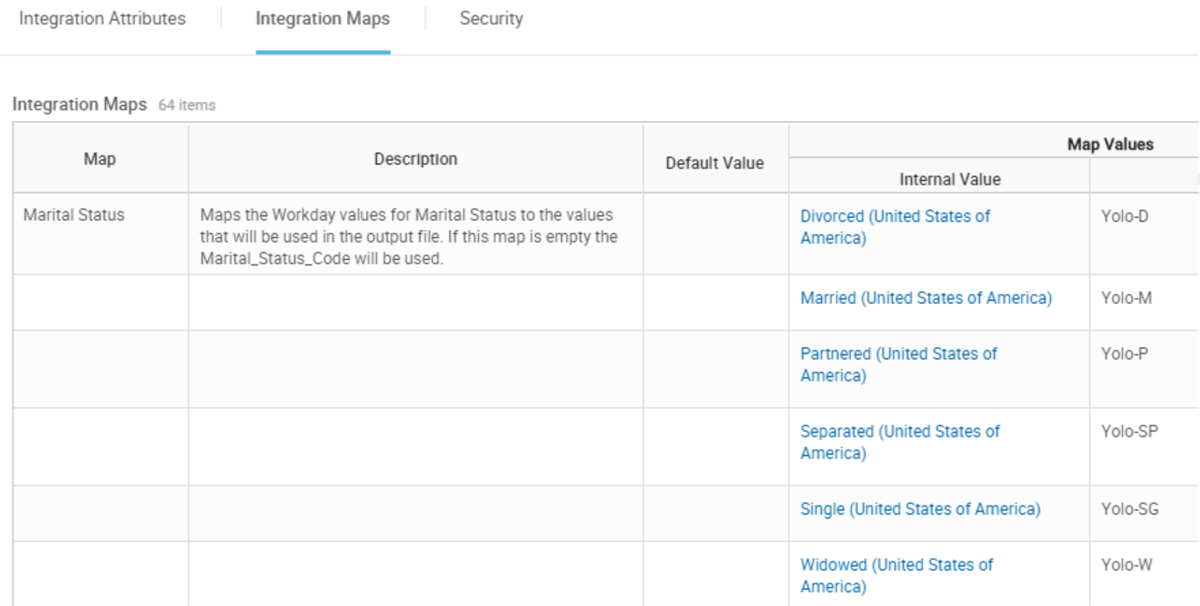
Integration Maps tab showing mapped values for Marital Status.
Workday maps data according to the following rules:
- If an integration map has at least one row of data, Workday uses the map to convert tenanted values to external values. If a tenanted value is not defined in the map, Workday uses the map's default value. If the default value is blank, Workday issues an error or a warning message and no value is output.
- If an integration map is empty, Workday typically uses Reference IDs in the output file. While viewing the integration system, select the Integration Maps tab to view which Reference ID corresponds to each map. If a tenanted value has no reference ID, Workday issues an error or a warning message and the external value is empty.
Determining mapped values is part of your early planning stages prior to building your integration.
Important
: Workday requires some fields to have defined mapped values. An error message will display if these fields are enabled as Integration Field Attributes without mapped values defined.Integration Field Override
A field override is a flexible tool to customize the integration system. It makes it easier to map internal data to an external endpoint. Field overrides replace configurable maps in the Workday integration template.
Integration Launch
Payroll Interface can be launched as a Primary or Ad-Hoc integration. Both types are required for implementation of a Payroll Interface connector. The two systems are functionally very similar, but are used for different purposes.
Integration Type | Definition |
|---|---|
Ad-hoc Integration | Used for manual runs, debugging, and testing. Maintained in the Production environment to be run as needed. |
Primary Integration | Configured with a schedule to be run regularly. It is not used for testing and is essentially left alone once you are sure it is set up properly. |
For Payroll Interface, whether an integration is Primary or Ad-Hoc is controlled by an Integration Attribute.
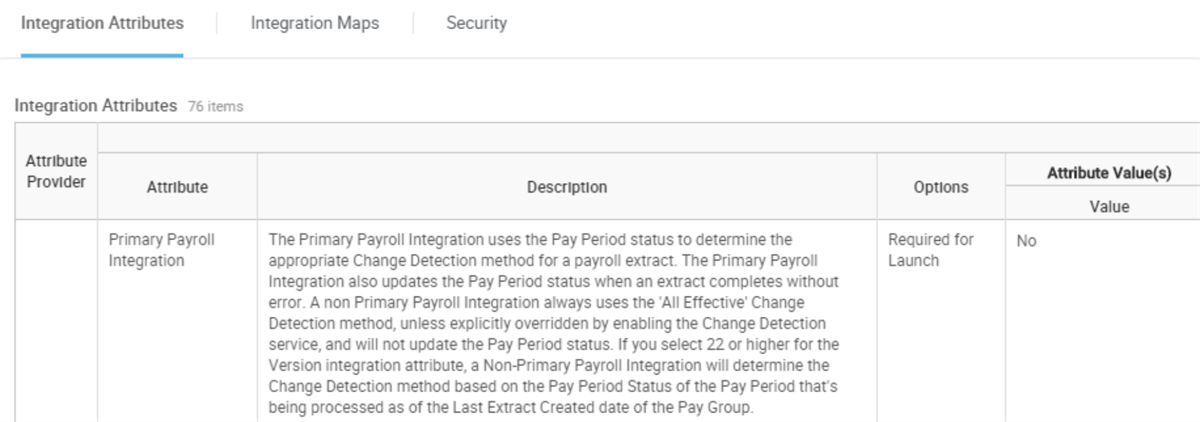
Primary Payroll Integration attribute set to No.
Required Launch Parameters
Only two launch parameters are required to launch a Payroll Interface integration: Pay Group and Pay Period Selection Option. Additional launch parameters become available when the Change Detection Launch Parameter integration service is enabled. These will be covered in detail in the Change Detection chapter.
Field | Definition and Value |
|---|---|
Pay Group | Groups of employees who are paid the same way. Select one or more pay groups at the prompt to extract pay period data for all pay group members. |
Pay Period Selection Option | The pay period is the date range employees are paid. Specify how to select the pay period: Use Earliest Open Pay Period : Selects the first open pay period based on the pay group's period schedule and period calculation status.Use Pay Period for Current Date : Selects the pay period for the current date. |
Earliest Open Pay Period
When Use Earliest Open Pay Period is selected, the integration reviews the status of the pay periods defined in the schedule for the pay groups. It will process the next pay period with a Calculation Status of Not Yet Started or In Progress that follows a previous pay period of
Complete
. This is often what is used in a scheduled integration; once it is configured, the integration automatically picks up the next open pay period to determine if any changes happened in that period.Important
: The integration requires at least one pay period to be completed to define where to begin change detection.Pay Period For Current Date
Pay Period for Current Date selects the most current pay period regardless of the period status. This option is useful for manual run tests.
Pay Period Calculation Status
There are three Pay Period Status values:
- Not Yet Started
- In Progress
- Completed
Pay Period Status is updated automatically when a Primary integration is successfully run. The open pay period changes from a status of Not Yet Started to In Progress. The Pay Period Status must then be set to Complete to finish Payroll for that period.
Note
: Pay Period Status can be manually updated for testing your integration configuration by using the Edit Organization related action off of the pay group.Payroll Interface Audit File Processes
Workday attaches six audit reports and output files to the Reports and Other Output Files section of each Payroll Interface integration event:
- Data Changes Audit
- Diagnostic Audit
- Payroll Extract
- Messages Audit
- Schema XSD
- Rescinds and Corrections Report
In addition to the Payroll Extract file, we will focus on the Data Changes Audit and Diagnostic Audit files to help you identify the data changes and troubleshoot your results.
Data Change Audit
The Data Changes Audit is a readable version of the integration output file. This report has two components:
- Extract Summary: Shows the selection criteria for the payroll extract, the pay group name, the payroll company name, and the period start and end dates.
- Payee Details: Provides summarized and detailed views of employee data changes, and displays the payee count. The summarized view shows employee names, IDs, and the categories of changed data. The detailed view displays current field values, prior values if the data has changed, and transaction log details with effective dates and entry dates. New records are highlighted in green and deleted records are highlighted in gray.
Diagnostic Audit
The Diagnostic Audit is designed to help you troubleshoot integration errors and tune the performance of the integration to include intended results. The report includes details on all employees that the integration processed when creating the payroll extract. You can view each employee's processing details, validation messages, current properties, and transaction log details to determine why the payroll extract included or excluded the employees. In some cases, employees had transactions that did not affect the set of data configured in the payroll extract. In other cases, the integration encountered an error while processing these employees.
Payee Data Validation and Error Handling
Workday Payroll Interface applies a number of validation rules to employee data based on how you configure your payroll integration. An integration attribute called Payee Validation gives you control over integration processing when employees fail these validation checks. Three options are available to accommodate different capabilities in third-party payroll systems:
Field | Definition and Value |
|---|---|
Include | Includes an employee in a payroll extract even if validation errors occur. Integration processing continues and the errors are reported as warnings. Select this option if your payroll provider can process payroll extracts that contain some invalid data. The payroll administrator can fix the imported data and you can apply the same changes to the data in Workday later. |
Omit | Excludes an employee from a payroll extract when validation errors occur. Integration processing continues, the errors are reported, and the payroll extract contains data for the rest of the employees. Select this option if your payroll provider rejects payroll extracts that contain invalid data. In this case, the invalid or missing data for one employee does not hold up payroll for an entire pay group. You can update the employee data in Workday later and generate a supplemental payroll extract by using the Pay Group Members integration launch parameter. |
Abort | Stops all integration processing when data validation fails for any employee. This option is useful when a payroll provider only can process a single payroll extract per pay period. In this case, you can fix the employee data in Workday and recreate the payroll extract. The integration reports this action with critical severity message. |