
Troubleshooting PECI Integrations
Overview
In this chapter, we will review standard troubleshooting methodology as well as several tools you can use to identify issues with PECI integrations. To do this, we will explore how to interpret event error messages and audit files.
Objectives
By the end of this chapter, you will be able to:
- Interpret PECI integration event error messages and audit files.
- Evaluate common integration troubleshooting scenarios.
Troubleshooting Methodology
To troubleshoot a connector integration system, complete the following steps:
- Identifythe problem. Read any error messages or warnings and research the issue on Workday Community, if needed.
- Brainstormto establish a theory of probable cause.
- Choosea theory to test. Use focused experimentation to determine the cause. Establish a plan of action to resolve the issue.
- Testand assess your solution. Although there may be several possible solutions to a problem, always test one change at a time. Assess the results of that change before trying something else.
- Documentyour findings, actions, and outcomes. Review with each iteration.
- Repeatthe process for subsequent issues.
Integration Audit Files
Every time an integration runs, Workday generates the following files, located in the Output Files tab of the event:
File | Description |
|---|---|
Data Changes Audit | Includes field-level changes for all instances that had changes. Not generated for Full Extract integration events. |
Diagnostic Audit | Includes details on all instances the integration event processed for the output file. |
XSD File | Defines the schema, or content and structure, of the integration event. |
Messages Audit | Contains all web service requests and responses. For DIS connectors, it organizes data into manageable groups. |
Data Changes Audit
Similar to the Data Changes Audit for PI, this file contains a readable version of the XML extract. The launch parameter details appear in the Extract Summary and there is an entry for each worker who has experienced a data change. Worker entries include the event code, effective moment, and entry moment for each effective change, as well as the current/prior values for enabled fields.
New records are highlighted in green and deleted records are highlighted in red.
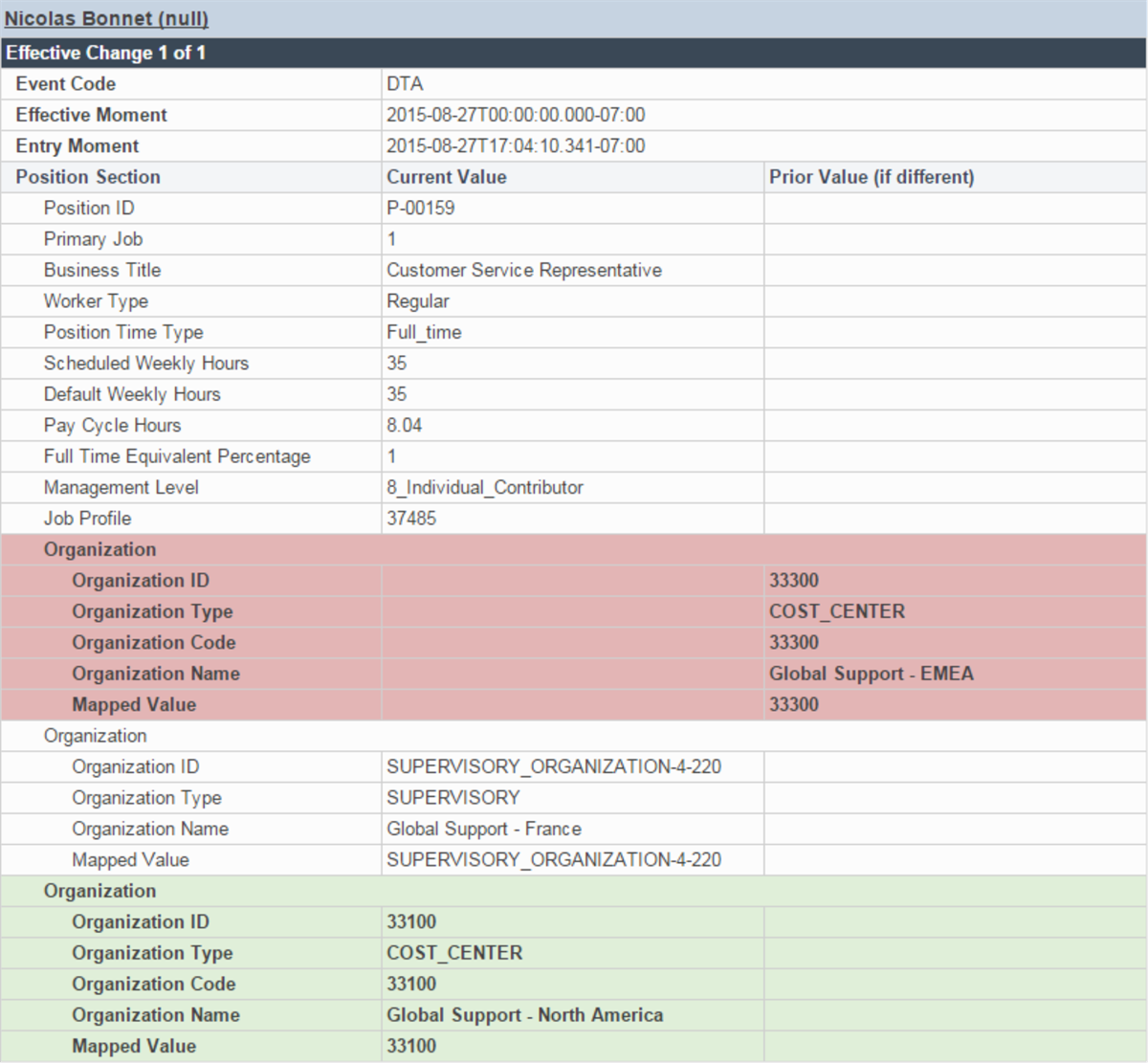
Sample Data Changes Audit file.
You also have the option to use the Data Changes Audit report via the Data Changes Audit task. The report requires at least one of the following prompts:
- Pay Groups
- Workers
- Integration Events
- Integration Sent From Date Time
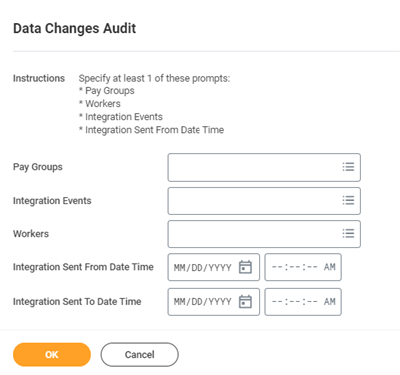
Specify at least one prompt to run the Data Changes Audit report.
Diagnostic Audit
This file lists all workers in the pay group who were assessed for changes. For each worker, the system reports Yes or No for Changes Detected, Included in Extract, and Has Error(s). It also reports the Payee WID and Messages Audit File name. Additionally, the Summary section includes details for the launch parameters.
Refer to the Payee WID listed for a worker when viewing the XML files in the Messages Audit folder.
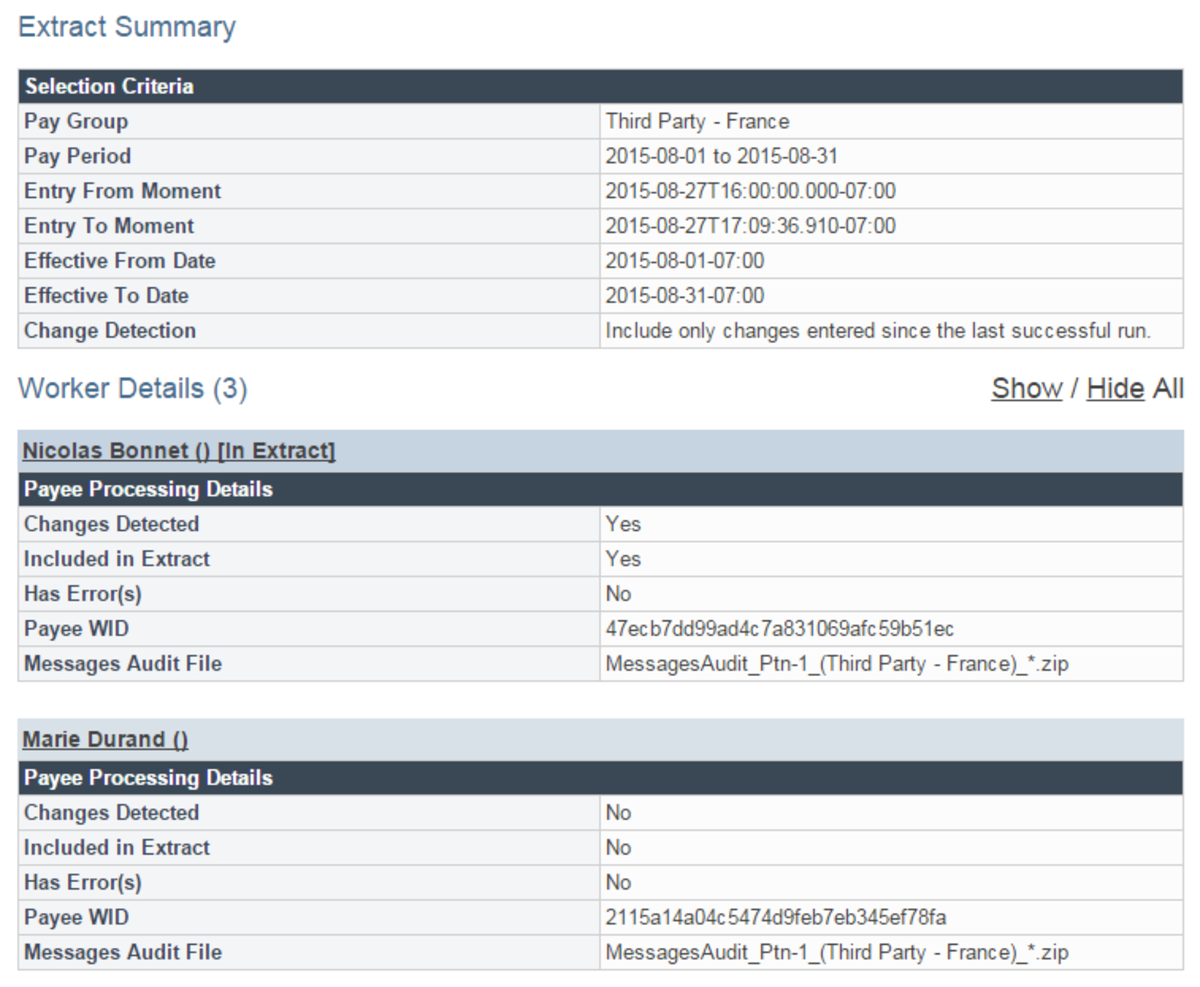
Sample Diagnostic Audit file.
Exception Handling Mode
By default, the integration logs exceptions as informational messages. However, PECI has an attribute labeled Exception Handling Mode for DIS that, when enabled, reports Data Initialization Service (DIS) exceptions as errors or warnings.
Integration Performance
Follow these practices for optimal connector integration performance:
- Limit the use of field overrides, since each field override service makes a separate web service call.
- Avoid creating field overrides for:
- Calculated fields with historical data sources.
- Calculated fields with prompts.
- Use XSLT to transform fields instead of field overrides, if possible.
- Select only the fields you need for output and no more.
- Use the transaction log, if available.
- Enable the Data Initialization Service (DIS), if available.
Reporting
Workday provides several reports that offer more clarity on PECI integration output data. These reports include:
Report | Use |
|---|---|
Maintain Errors from Third-Party Payroll Report | View and correct errors your third-party payroll vendor returns. Provides a consolidated view of errors from:
|
Third-Party Payroll Errors Report | View errors your third-party payroll vendor returns for:
|
Workers Not Processed by PECI Events Report | View workers:
|
Common Troubleshooting Scenarios
These are some of the most common connector troubleshooting scenarios.
Category | Issue | Resolution |
|---|---|---|
Security | Insufficient security may cause critical failures or missing data. | Integration system security controls the data values that your integration system can access. The ISU may not have access to the web service. |
Field Overrides | Error: 'The integration field override "UNAME" in integration service "WICT_PECI" has no field definition.' | You created the custom integration service, but forgot to configure the field override. |
Maps | Error: "No value output from applying integration map Worker Type for Worker Type." | You mapped data, but did not include all possible values. |
Document Transformation | The document transformation system experiences a critical error. | Document transformations rely on receiving documents they then transform. If the output file does not exist or has incorrect tags, the document transformation system may experience a critical error. |
Document Transformation | Syntax errors at runtime. | Workday does not validate your XSLT code on upload. If there are syntax errors in the XSLT, they create errors at runtime. Syntax errors may mask subsequent errors. |
DIS Connector Data Fields | A field you thought you included is not appearing in the output file. | You likely forgot to select the parent folders and sections in the configuration field attributes tree, so the integration ignored nested field attributes. If you go back and select the parent folders or sections to correct this issue, make sure to also reselect the subfolders, sections, and fields, or the integration will not work. |
Data Fields | A field you thought you included is not appearing in the output file. | You may not have configured the fields associated with the data change, transaction, or event in the integration system. Check the Data Changes Audi t report for field-level changes to identify new data, changed data, and removed data. This file contains only details of instances that had changes. |
Data Issues | Data you expected was not included in the output. | You may have improperly configured population eligibility. Additionally, review the effective and entered dates in your integration system launch parameters to ensure the change occurred within the specified period. Review the Diagnostic Audit to view all instances considered during the integration event and whether the output included the instance. |
Transaction Log | The transaction log excluded a data change, transaction, or event. | You may not have subscribed to the transaction type that triggered the data changes. |
Transaction Log | A Core Connector: Worker integration event did not include indirect changes. | Review the schedule of the indirect changes to ensure they occurred in the specified range. Determine if you need to configure an integration attribute to detect these changes. For the Core Connector: Worker template, you can enable the integration attribute "Always Include Manager Changes in the Output" to include indirect changes of this kind. |