
Workday Configurable Security
Overview
This chapter describes which components of the configurable security framework interact with integration systems and how to configure them.
Objectives
By the end of this chapter, you will be able to:
- Explain which security components make the bridge between system users and the back-end data.
- Explain the components of a functional area.
- List the various items that secure underlying Workday data.
- Determine which items a given Workday domain or business process type secures.
- Assign security groups to a security policy.
- Create an Integration System User (ISU) and an Integration System Security Group (ISSG).
The Problem
Integrations need access to secured items in Workday in order to be able to call the relevant web service operations, access report fields, and initiate business processes. Assigning an integration to a Workday user, like Logan McNeil, is not the answer. Regular business users are not the right people to run integrations because they:
- Leave the company.
- Change jobs, resulting in changes to their security.
- May not have access to all of the areas the integration may cover.
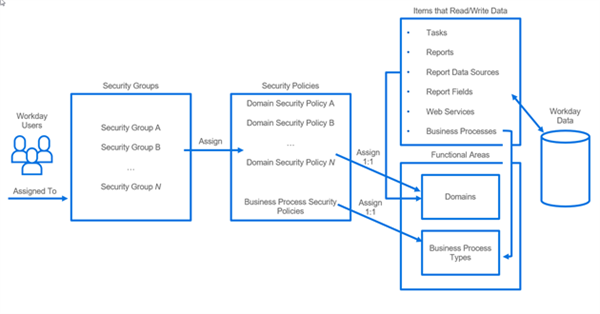
However, there are several components in between the user and the data. First, you need to understand how the Workday Configurable Security Framework works.
The Goal
In class, you have been running the integrations using Logan McNeil. You are now going to set up an Integration Systems User (ISU) that will control the integration. You cannot set up the ISU to mirror Logan. For classroom purposes, Logan has more security access than our integrations need. You will only assign the bare minimum security required to run the integration system.
You will need to transfer integrations to a different type of user. Workday recommends ISUs. In addition, you will create an Integration System Security Group (ISSG). You will create one ISU and ISSG for each integration system.
After creating the ISU/ISSG, you will transfer ownership of these two components:
- Integration System.
- Integration Schedule.
The purpose of these chapters on security is to get those integrations you created earlier:
- Transferred over to an ISU.
- Tested to make sure they will:
- Run successfully.
- Get the same data as when run under Logan.
Configuring security is not an easy task. There are many steps:
- Create the ISU.
- Assign the ISU to an Integration System Security Group (ISSG).
- Associate the ISSG with the proper security policies. Without the proper permissions, the ISSG will not be able to access all the data or run the integration.
- Assign the ISU to the integration system, and the schedule if there is one.
- Test the integration system as the ISU, comparing the data to what you extracted using Logan's credentials.
Workday Configurable Security
The Workday Configurable Security framework enables your organization to control what a user can view and do in Workday. The framework supplies a tenant-wide model for access across Workday, from tasks, to reports, business processes, dashboards, and integrations.
When a user signs into a Workday tenant, their account is associated with many security groups. What the user can do in Workday is based on the configured permissions for each of those security groups.
System Users
The creation of users is necessary to sign in to Workday. Logan McNeil is a user. Workday considers Logan a business user.
Data
The goal of Workday Configurable Security is to protect the customer's data. In Workday, users read or write data through items that are part of the Workday application.
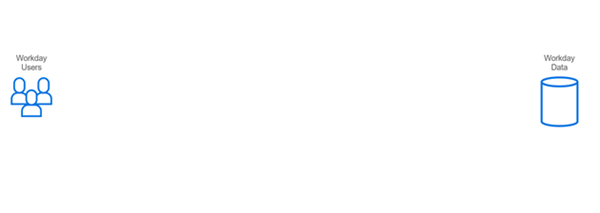
There are two categories of items:
- Items associated with a domain.
- Items associated with a business process type.
Solutions and Functional Areas
The Workday application is a collection of solutions. Solutions represent the major areas, like:
- Workday Human Capital Management (HCM)
- Workday Financial Management (FIN)
- Workday Payroll
- Workday Student
- And others.
When customers buy Workday, they purchase one or more solutions. For example, a customer may only purchase HCM, or they may purchase HCM and FIN.
Associated with every solution are multiple functional areas. Functional areas break the solution down into logical collections of features. For example, the HCM solution has functional areas like:
- Advanced Compensation
- Benefits
- Career and Development Planning
- Staffing
- And more.
The best place to view the solutions and functional areas is to use the
Functional Areas
report.For each functional area, the report provides a list of included:
- Domains
- Business process types
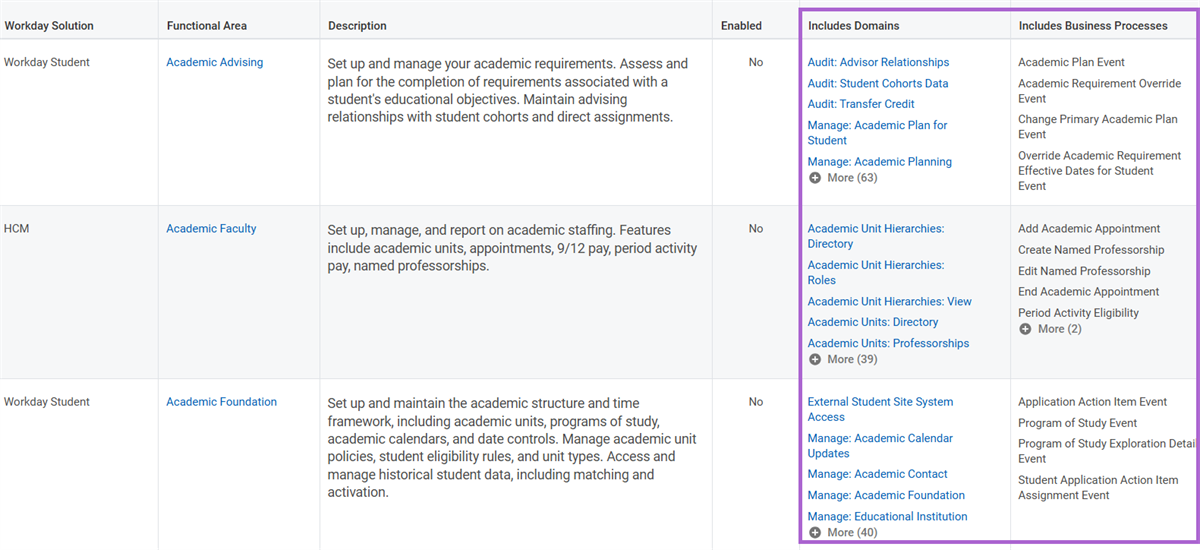
Domains
Domains are containers of items that can read or write Workday customer data. The items in a domain may include:
- Tasks
- Data Sources
- Reports
- Report Fields
- Web Services
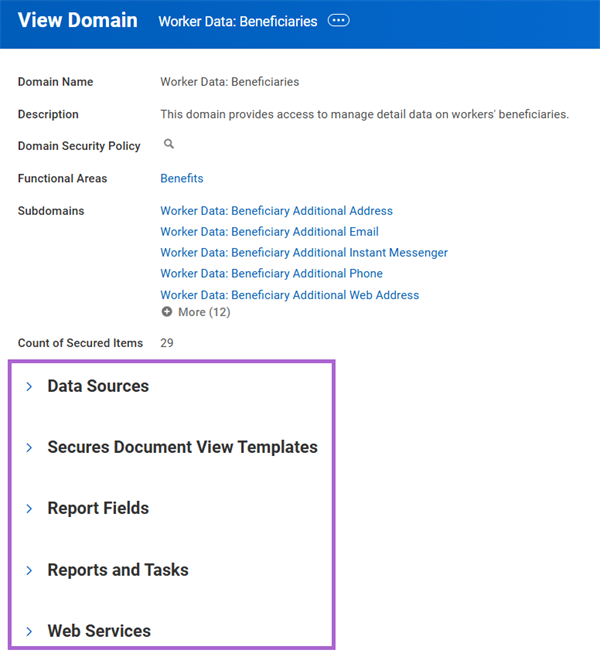
You can drill down into the items of a domain to view exactly what that domain controls.
Note
: Workday delivers all solutions and functional areas. You cannot edit them.Integration Related Domains
Within the Integration functional area, these are some come common domains and permissions.
Domain | Modify Permission | View Permission |
|---|---|---|
Integration Build | Create or edit an integration system. Deploy a Workday Studio integration. | View an integration system. |
Integration Configure | Configure the integration services. | View integration system details. |
Integration Debug | Debug a Workday Studio integration. | |
Integration Event | Launch or schedule an integration. | View integration events, including integration output documents. |
Integration Reports | View integration reports, including reports for integration events exception audits, messages, and integration IDs. | |
Integration Security | Maintain integration system security segments. Maintain integration system users. | View integration system security segments. |
Integration Subscriptions | Edit integration subscriptions. | View integration subscriptions. |
Security Note
: To launch an integration, business users must have Modify access to the Integration Event domain. The ISU would also need the same permission.Business Process Types
A business process type is a business process delivered by Workday that provides workflow automation. Examples include:
- Hire
- Terminate
- Change Benefits
In addition to domains, each functional area has associated business process types. Where domains secured items like tasks, reports, and web services, business process types secure business processes.
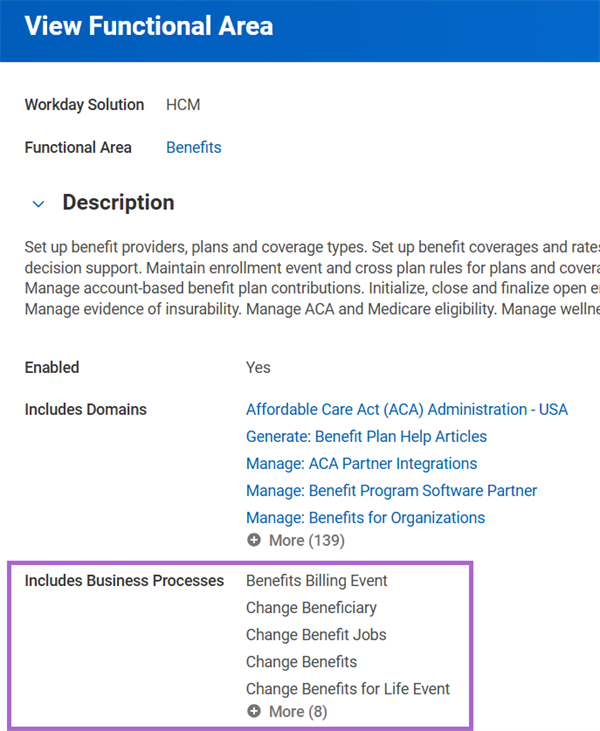
This is important because business processes can trigger integrations. With regard to security, you can control which security groups can perform common business process-related tasks like:
- Initiate
- Approve
- Cancel
- Rescind
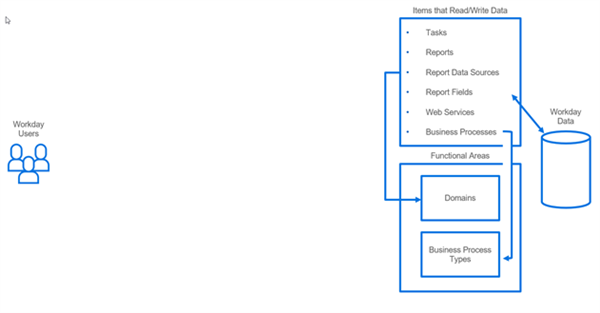
Now, let's discuss how users access the reports, tasks, or web services of a domain. There are two components that sit between the user and the domain, or business process type. Those components are:
- Security Policies
- Security Groups
Security Groups
Security groups contain users. There are different types of security groups:
- User-Based
- Role-Based
- Job-Based
- And others
Logan McNeil belongs to the HR Administrator security group. HR Administrator is a user-based group.
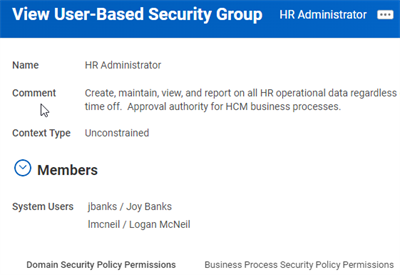
Our picture of the Workday Configurable Security framework is becoming more complete.
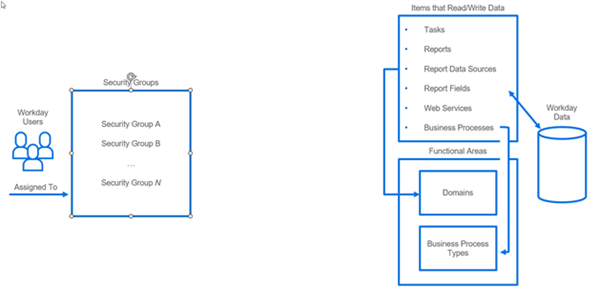
There is still a component missing. This component will be the bridge between the security groups and the domains or business process types. We need to connect a security group to a domain.
Security Policy
Security policies contain one-to-many security groups. Within a security policy, you can configure security groups to access:
- Report/Task Permissions
- Integration Permissions
There are two types of security policies:
- Domain Security Policies
- Business Process Security Policies
Configuring Domain Security Policies
The Related Actions of a domain allow you to edit or view its security policy permissions.
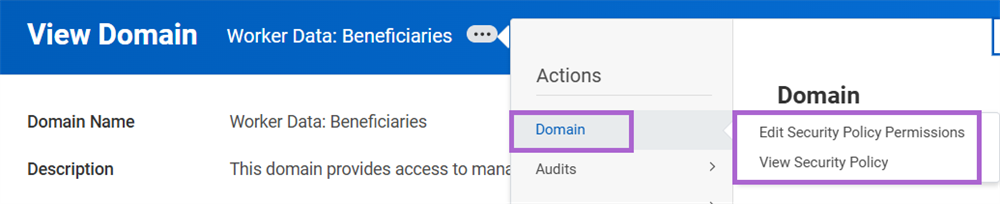
Workday divides the security policy into two sections:
- One where you assign security groups report and task permissions.
- One where you assign security groups integrations permissions.
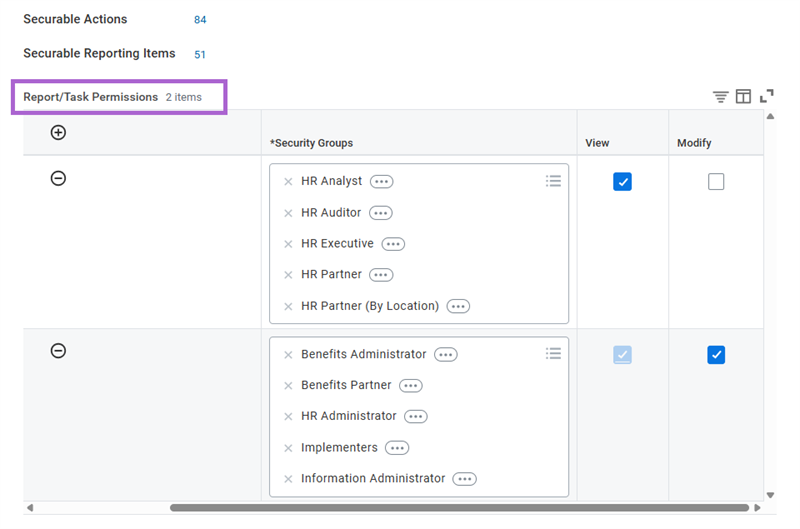
Each section has links to let you drill down into the actions or reporting items covered by the policy. In this example, we selected the securable actions link labeled 71. A pop-up appears showing:
- All securable items associated with this policy.
- Whether (in this case) the item is a task or a report.
- The type of permission required.
When editing the security policy, you can:
- Review which items the policy secures.
- Add or remove security groups to/from the policy.
- Define whether the security group will have View or Modify access to the actions and reporting items of the associated domain.
There can be multiple security groups in each row and multiple rows of security groups in each section. You can have multiple rows because some security groups only need View access, while some may need Modify access. You can explore the individual secured items to decide whether you want to allow View or Modify. However, keep in mind that Workday Delivery Assurance will not allow you to give more security access than needed.
Note
: Selecting Modify automatically includes View.To this point, we have focused on the report and task permissions section. The second section is for integration permissions. This section still has securable actions and report items, but also includes securable integrations.
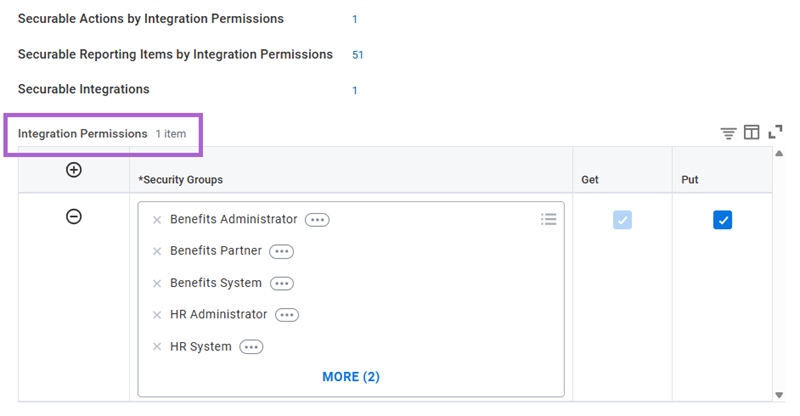
For integrations, the terminology has changed:
- Get has replaced View.
- Put has replaced Modify.
You assign security groups to a security policy. You must carefully consider the appropriate security before making your configurations. If you added a security group to an existing row with both Get and Put permissions, you could be giving that group more access than necessary. You may need to add a new row to the integrations section and configure that row to be Get only.
Regardless of the change in terminology to Get/Put, they still mean the same thing as View and Modify. There may also be scenarios where you could add your security group to either section. If you explore the pop-up that appears when you select a securable items link, the Permission Required column displays View Get for some items. Technically, you could choose either.
Important
: Most outbound integrations only need Get. There are a few occasions where you need Put or Modify. We will discuss these cases later.Inheritance and Security Policies
Reviewing the Worker Data: Beneficiaries domain, you will notice that there are 29 secured items.
Yet, when you examine the associated security policy, you notice the policy secures 71 actions and 39 reporting items.
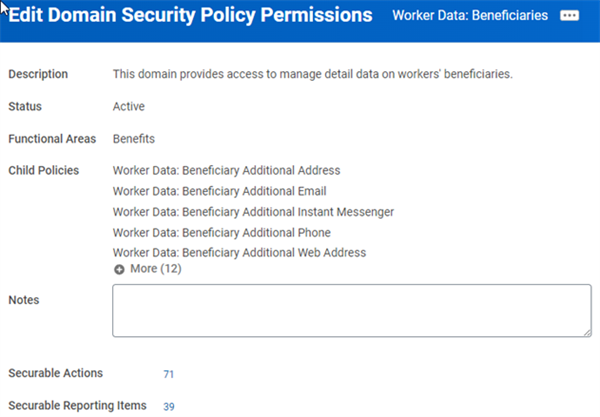
The difference comes from the Child policies. One security policy can have multiple child policies.
Important
: When you assign security, you do not want to give too much access. Keep security policy inheritance in mind as you configure security.Configuring Business Process Security Policies
Business process security policies allow you to configure the following types of permissions for the business process type. When configuring business process security, you need to know:
- Who can start the business process (including what actions initiate the business process)?
- Who can delegate an action to others?
- Who can complete action steps in the business process, like:
- Who can view all?
- Who can approve?
- Who can cancel?
- Who can rescind?
- Who can manually advance?
- Who can deny?
In the following example, Change Benefits is a business process type in the Benefits functional area. You can use the Related Actions of the business process type to edit the associated business process security policy.
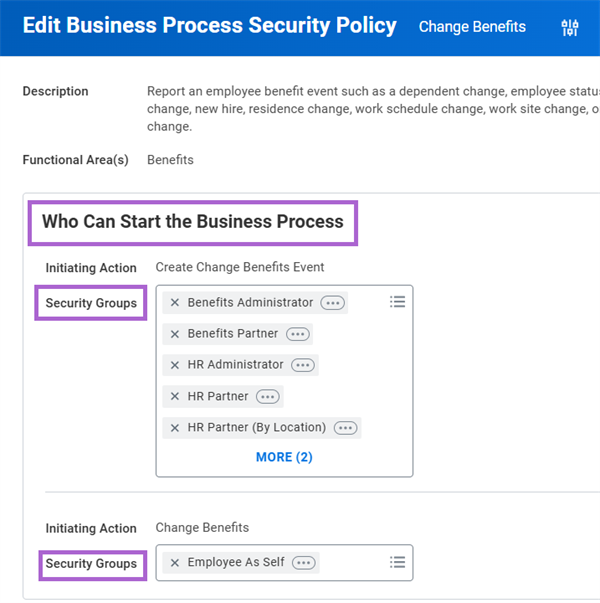
Business Process Security for Integrations
There are two scenarios where an integration system requires access to a business process security policy.
Scenario | Security Requirement |
|---|---|
The integration calls a web service that initiates a business process, like the Hire or Assign Roles business processes. | Permission to Initiating Action (Web Service) in the business process security policy. |
A related business process triggers the integration, like the Background Check business process. The integration may require access to files or values from the event. | Permission to View All for the business process security policy. |
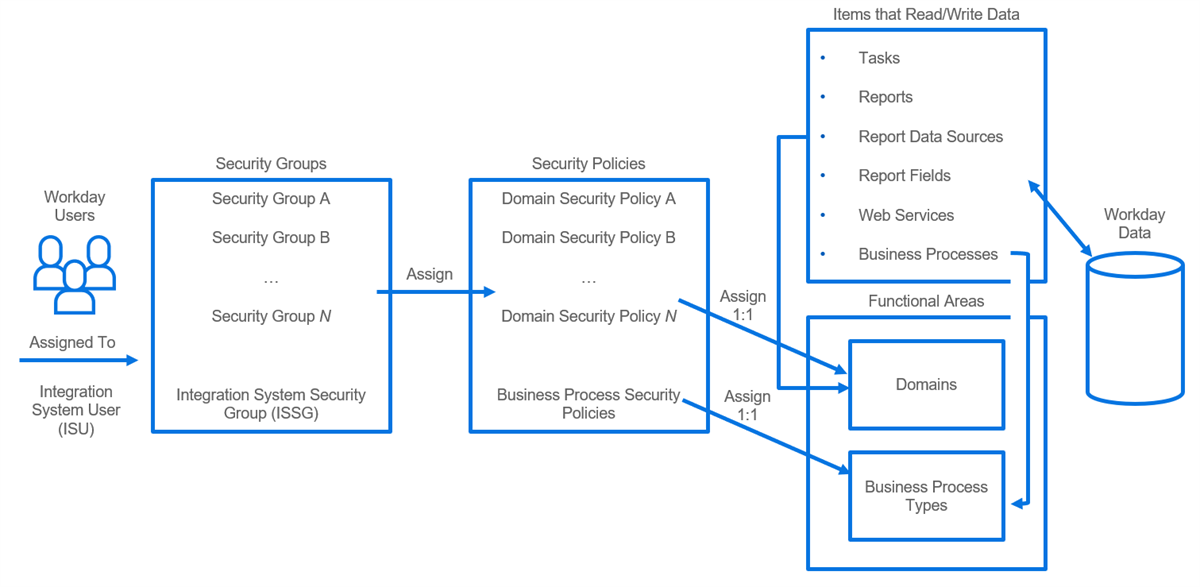
We have almost completed our picture of the Workday Configurable Security framework. All that remains is to discuss two more components specifically related to integrations.
Integration System Users
An ISU accesses report data and web service operations required by an integration system. You could leave a business/system user assigned to the integration. However, recall the considerations around business users:
- People leave the company.
- People move to different jobs, which would change their security access.
- Managers promote people, also changing their security.
For these reasons Workday created the Integration System User type.
Benefits of an ISU
ISUs have multiple benefits, including:
- Preventing overpowered accounts:You will create only one ISU per integration system. That ISU only needs access to the items for one integration.
- Preventing missing data due to insufficient security permissions:While a business user could launch an integration, they probably would not have the security to access the data needed. You can give an ISU permission to do both.
- Simplifying maintenance of accounts:You need only configure ISU security once, as it is not an actual person and will not change.
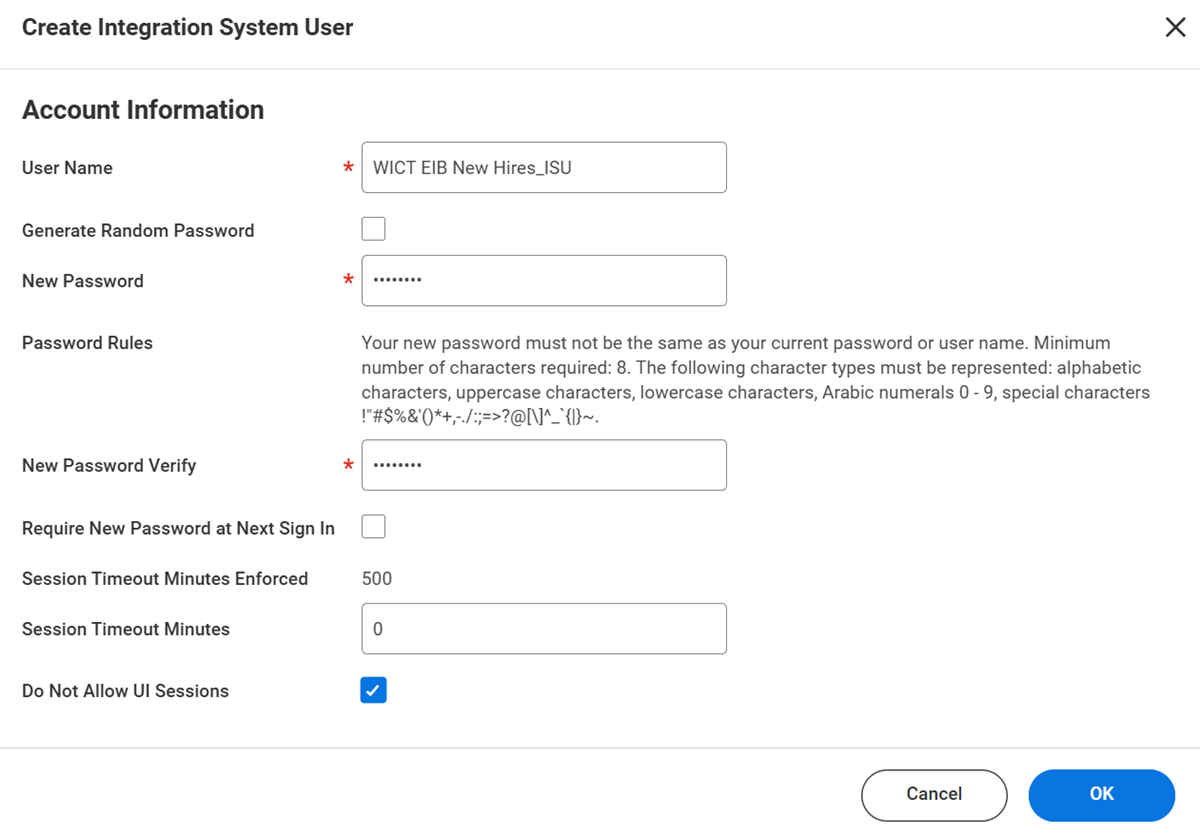
Create an ISU with the
Create Integration System User
task. When creating the ISU remember that it:- Does not represent a person.
- Does not need access to the Workday UI.
- Has the same name as its integration, with an _ISU suffix.
Integration System Security Groups
An integration system security group (ISSG) serves the same purpose as the standard security group, except that it services an integration. One integration will have one ISSG.
You can choose constrained or unconstrained ISSGs. You configure most integrations and their ISSGs with unconstrained access. Unconstrained means the user will, for example, be able to access all workers. Constrained means the user would, for example, only be able to access workers in the organizations the Security Administrator assigned them to. Occasionally, an integration system warrants using the constrained group type, which enables you to filter results contextually based on organization.
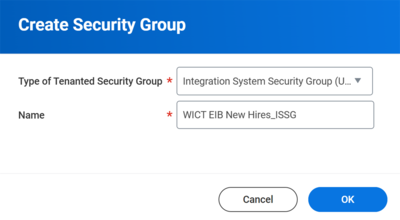
Create an ISSG with the
Create Security Group
task.- Select the type of security group, including constrained or unconstrained.
- Name the ISSG with the same name as its associated integration system and an _ISSG suffix.
After creating an ISSG, you assign it an ISU. Only ISUs can be members of ISSGs.
Here is the completed picture that represents Workday configurable security.
After creating the ISU and ISSG, you are ready to assign the ISU to the integration system. Using the Related Actions of the integration system, select Workday Account > Edit and choose your ISU.