
Change Detection
Overview
This chapter explores how you can use integration systems and their components to capture and output changes to Workday data.
Objectives
By the end of this chapter, you will be able to:
- Examine the change detection process.
- Configure the transaction log service to manage change detection.
- Predict the output results of an integration event.
- Schedule an integration system with dynamic launch parameters for change detection.
Full-Diff Extract
Instead of retrieving a full file (using the Full Extract or Full File launch parameter), you can retrieve only new or changed data since the last successful integration run, called a Full-Diff extract.
A Full-Diff extract identifies all instances that meet the eligibility criteria and then determines if data related to these instances changed. If it has, the integration includes all data for that instance.
Launch Effective and Entry Dates
Configure change detection using the date- and time-related launch parameters, which you can set in the past, present, or future.
Launch Parameter | Description | Example Value for Change Detection |
|---|---|---|
As Of Entry Moment | The moment date and time that the integration considers current. The integration will not include changes that occur after that moment. | Current moment |
Effective Date | The end date of the date range the integration considers. | Current date |
Last Successful As-Of Entry Moment | The last moment that the integration believes it successfully ran. While it defaults to the actual moment it last successfully ran, you can change it. | Current moment minus 48 hours |
Last Successful Effective Date | The beginning date of the date range the integration considers. | Current date minus 48 hours |
You can either enter static dates, like the examples above, or dynamic fields, which will calculate new values every time the integration runs based on current information.
Both Full-File and Full-Diff use date launch parameters.
- Full File:Extracts all instances that exist at the As Of Entry Moment and Effective Date, regardless of whether they changed.
- Full-Diff:Extracts all instances with one or more changed output fields between the current moment (As Of Entry Moment and Effective Date) and the last successful run (Last Successful As Of Entry Moment and Last Successful Effective Date).
Integration Audit Files
Every time an integration runs, Workday generates the following files, located in the Output Files tab of the event:
File | Description |
|---|---|
Data Changes Audit | Includes field-level changes for all instances that had changes. Not generated for Full Extract integration events. |
Diagnostic Audit | Includes details on all instances the integration event processed for the output file. |
XSD File | Defines the schema, or content and structure, of the integration event. |
Messages Audit | Contains all web service requests and responses. For DIS connectors, it organizes data into manageable groups. |
Transaction Log
Some connectors use a transaction log integration service that provides a record of the Workday events you choose, usually data changes relevant to an external system.
Example
: If your integration system connects to an external endpoint that orders business cards for new employees, you can include all new hire events in the transaction log.First, enable the transaction log service in the
Configure Integration Services
task. Then, from the integration system's Related Actions, select Integration System > Configure Integration Transaction Log.Configure a transaction log based on one of the following criteria.
Option | Description |
|---|---|
Subscribe to all Business Processes | All events associated with any business process type |
Subscribe to all Business Process Types except | All events associated with a business process type, except the selected types |
Subscribe to all Transaction Types | All events in Workday, not just those associated with a business process |
Subscribe to all Transaction Types except | All events in Workday, except the selected types |
Subscribe to specific Transaction Types | All events in Workday associated with selected types |
Important
: To improve integration performance, exclude business process and transaction types that you do not need. However, if in doubt about a transaction type, include it. Only the changes subscribed to are available to include in the integration output.Transaction Log Limitations
The transaction log can only pick up direct changes. A few examples of indirect changes, which an integration will not detect, include:
- Changes to the classification of a job
- Changes to the manager assignable role
The integration does not detect the changes because they are directly associated with an object rather than a worker. They have a downstream impact to a worker. To detect indirect changes, disable the transaction log service and use a Full-Diff extract.
Change Detection Nuances
The effective date for some transactions does not occur on an effective date you choose. The table below outlines these exceptions.
Nuance | Transaction Types | Example |
|---|---|---|
Some transactions are automatically effective the moment you submit the change, even if there is a date to select when entering the change. | Includes:
On the worker history, the transaction will display as completed but the effective date will be blank. | If you change a worker's marital status, it is effective immediately regardless of the Marital Status Change date. |
Some transaction types are effective the day after the effective date (effective date + 1). | Includes:
| If the integration subscribes to termination event, a worker with a termination effective date of today will not appear in the output until tomorrow. |
Note
: The Return From Leave event uses the last day of leave as the effective date, not the first day back to work.Change Detection Process
At a high level, Workday uses a four-step process to detect and report changes:
- Did the transaction log, if enabled, detect a change of the configured types?
- Does the worker meet the eligibility requirements?
- Was the change either newly entered or newly effective, based on the specified launch dates?
- Was the change made to an included field?
Launch Date Conditions
Generally, change detection looks for data that is either newly entered or newly effective.
- Newly effective:Data with an effective date in the specified range, entered in Workday on or before the current date.
- Newly entered:Data entered in Workday during the specified range with an effective date on or before the current date.
Important
: The furthest past date for effective or entered data is January 1, 1970. This is the start date for Unix time measurements, which Workday uses.Change Detection Process
The diagram below shows how the two launch date conditions fit into the entire Workday change detection process.
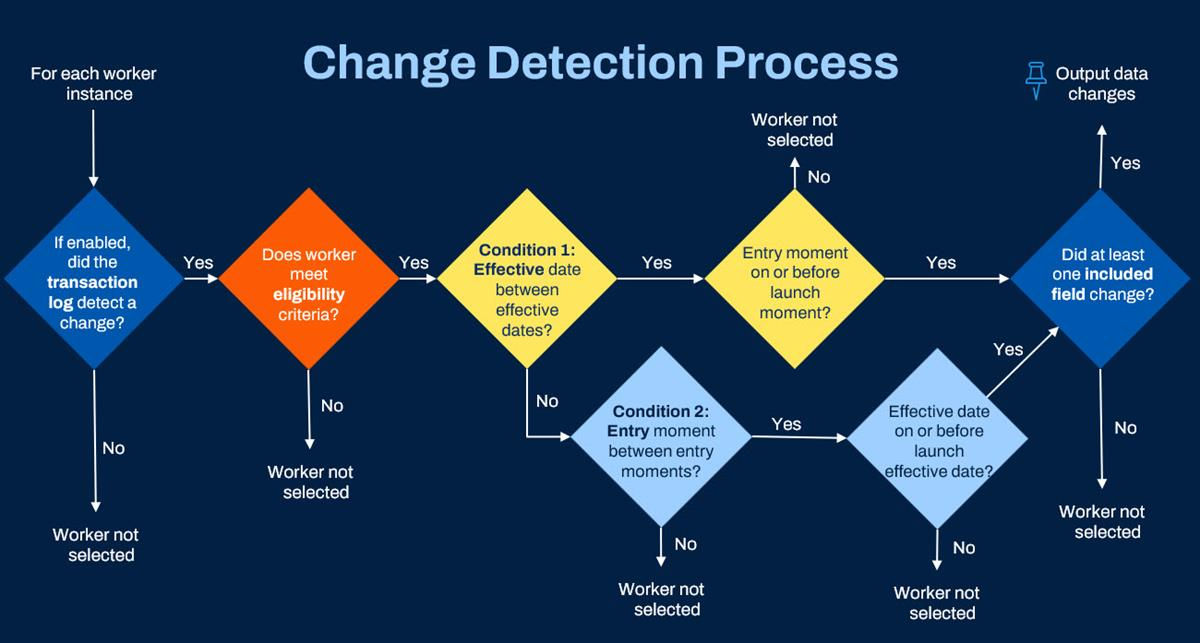
Change detection process.
Stack Processing
Connectors process data in two ways: top of stack and effective stack processing.
Term | Description | Examples |
|---|---|---|
Top of Stack | If the same field changes multiple times in the specified period, the integration recognizes only the starting and ending values, not any in between. |
|
Effective Stack | If the same field changes multiple times in the specified period, the integration recognizes all values, including changes on a single day. |
|
Schedule an Integration with Change Detection
To schedule an integration with change detection, run the
Launch / Schedule Integration
task and select a run frequency such as daily, weekly, or monthly. For the launch parameters, use the Determine Value at Runtime value type and select the following fields.Field Name | Field |
|---|---|
As of Entry Moment | Current Moment (DateTime) |
Effective Date | Current Effective Date |
Last Successful as of Entry Moment | As of Entry DateTime of Last Completed Integration Event |
Last Successful Effective Date | As of Effective Date of Last Completed Integration Event |
Important
: Note that a manual run can interrupt an integration schedule. When a scheduled integration event runs, it uses the last successful entry moment and effective date. These values will pull from the last run of the system, regardless of whether it was a manual run or a scheduled run.