
Enhance Integrations with Calculated Fields
Overview
This chapter introduces the different types of calculated fields and explains methods to help you identify and access the calculated fields in your tenant.
Objectives
By the end of this chapter, you should be able to:
- Describe the capabilities of calculated fields.
- Explain the function and utility of calculated fields in Workday.
- Determine if a certain calculated field already exists in Workday.
- Explain the performance considerations when configuring a calculated field.
Calculated Fields Overview
Calculated fields are field definitions that you configure to manipulate, transform, retrieve, and derive values based on existing data. You can use calculated fields to:
- Perform date calculations and formatting.
- Perform arithmetic calculations.
- Manipulate text with concatenate, substring, and formatting functions.
- Convert currency fields.
- Derive range bands from numeric or currency fields.
- Determine if a condition is true or not.
- Drill down and look up levels and values in hierarchies and organizations.
- Sum, count, and aggregate information across related instances.
- Look up values in related objects.
Use Calculated Fields in Reporting
You can add calculated fields to a custom report. For example, you can create a Date Difference calculated field to determine how far an employee's performance review is overdue.
You can also use calculated fields to create custom prompts or filters that affect the report output. For example, you can create a True/False Condition (Boolean) calculated field to display workers with a regular or full-time status and exclude contract workers.
Additionally, you can use calculated fields to access data on the primary business object (PBO). For example, you can make data accessible from a related business object (RBO) on the PBO for use in report types, report functions, and in other calculated fields.
Use Calculated Fields in Integrations
Use calculated fields with connectors and in reports that collect data for document transformation. Configuring calculated fields allows you to output data to meet specific requirements for the external system. For example, you can use a Format Text calculated field to format employee first names to uppercase.
Characteristics of Calculated Fields
There are three factors that characterize calculated fields.
- Workday calculates the value of the field based on existing data such as other Workday-delivered fields, other calculated fields, or available custom fields.
- Workday determines the value of a calculated field at runtime so that the system captures real-time data for the calculation. However, keep in mind that your tenant does not store calculated field values.
- Workday associates calculated fields with a business object. The business object determines what data to use in a calculated field and where to use the calculated field. Then, the calculated field becomes a new field on the business object.
Tip
: Consider performance when you configure calculated fields. For example, if you build a report that uses a calculated field referencing many different calculated fields, that calculation will significantly impact the runtime for that report.Based on Existing Data
Existing data within the Workday tenant is the basis for calculated fields. The system does not store a calculated field's value. Instead, the system pulls the value from existing fields at runtime. Changes to the underlying objects and fields you use in the calculation do not affect calculated fields. When values in the Workday tenant change, any derived calculations automatically include the new values.
Calculated at Runtime
All calculated fields resolve at runtime. Workday derives the value based on other Workday-delivered fields, calculated fields, and available custom fields. Calculated fields resolve at runtime because the values of the other fields that make up the calculation of the calculated field vary. When you run the report or execute the condition rule that uses the calculated field, Workday retrieves these field and object instance values.
Associated with Business Object
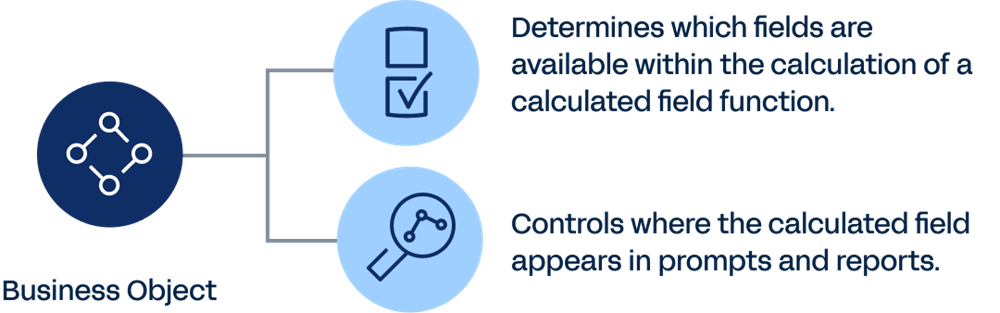
A business object determines which fields are available within the calculation of a calculated field function. Any calculated field you create for a business object appears and behaves just like any other Workday-delivered field for that business object. The business object also controls where the calculated field appears in prompts and reports.
The existing fields for the Worker business object are the basis for a calculated field built on that business object. That calculated field becomes a new field on the Worker business object. Wherever you use fields on the Worker business object, use that calculated field.
Locate Existing Calculated Fields
Before building your report, use the resources below to locate any existing calculated fields that perform similarly to the field you are designing.
Resource | Definition |
|---|---|
Maintain Calculated Fields Report | Returns all the system-wide calculated fields in the Workday tenant. You can also use this report as the control center for tasks related to system-wide calculated fields. |
All Calculated Fields Report | Returns all calculated fields in the tenant. You can specify to return only calculated fields on a specific business object. |
Business Object Details Report | Returns all fields available on a specified business object, including both Workday-delivered and calculated fields. You can also examine related business objects, data sources, and reports for the business object you select. |
Report Fields Report | Returns references for fields in the tenant, including Workday-delivered, calculated, and custom fields. |
Calculated Field Functions
Calculated fields can be date, numeric, currency, text, Boolean (true/false), single-instance, and multi-instance. The system determines the possible field types to return depending on the type of function. The following table lists Workday calculated field functions by the type of fields returned.
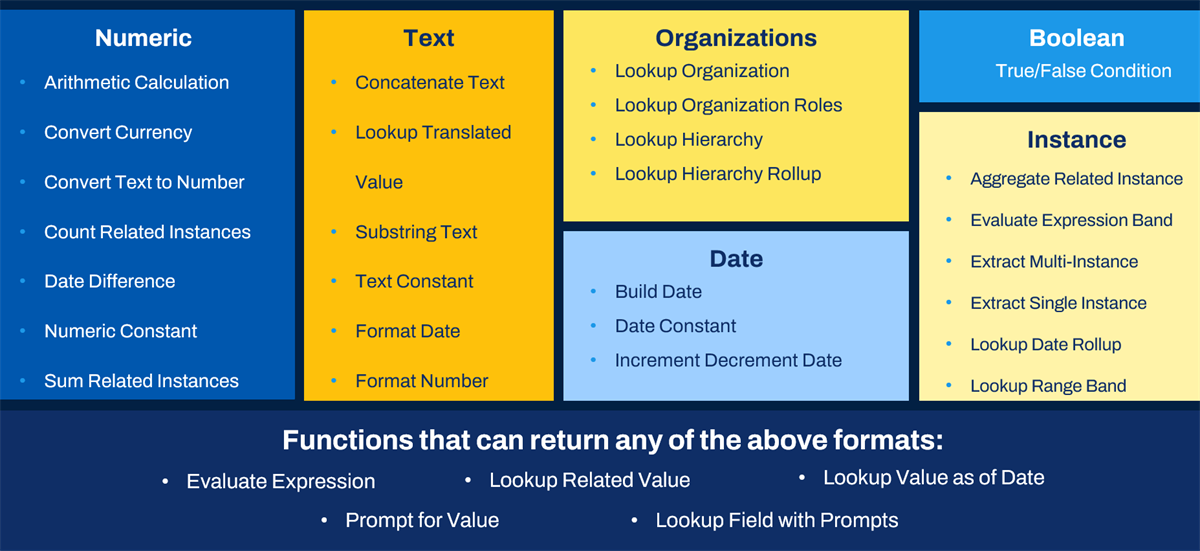
Calculated Field Functions by Type of Fields Returned
Constant Fields
Workday reporting uses three types of constant fields on the Global business object:
- Numeric Constant
- Text Constant
- Date Constant
Each constant represents a static value that you can use in reporting and calculations. These fields are useful in Evaluate Expression calculated fields. You can access and use them in the same way as a Global field, including in reports and calculated fields.
Numeric Constant
Use Numeric Constant fields when you need a constant numerical value for reference, such as in a mathematical equation. These numeric values are Workday-delivered fields but you can create additional numeric constants as required.
Text Constant
Use the Text Constant calculated field value when you need a constant text value for reference, such as in capturing measurements.
For example, in this scenario you generate a report that evaluates and categorizes employee salaries as low, medium, or high. Workday does not deliver these category markers. But, you can build each of these text strings as Text Constants. Then, you can use these text constants with other report data to assign these terms meaning.
Date Constant
Use the Date Constant calculated field when you need a constant date value for reference. You can also use Date Constant when you need a specific date to compare other dates against. For example, you can create a field that compares how many days an employee works before a company-wide, January 1, 2021, review date. In this example, that date constant value needs to exist in the system.
Global Calculated Fields
Global calculated fields exist on the Global business object. The Global business object contains the fields that are global in nature and can be Workday-delivered fields and calculated fields you define. Fields associated with the Global business object are available for use with any business object and are visible to all users. They can represent constants such as 1, 23, single space, is true, and USD.
They can also represent variables that vary over time such as today, last day of this month, and current user.
To create additional global fields, select Global as the business object when creating a calculated field. Global fields display in their own Global field prompt category.
Example
: A global calculated field that returns a date field value of one year before the variable value of Today (review the image below).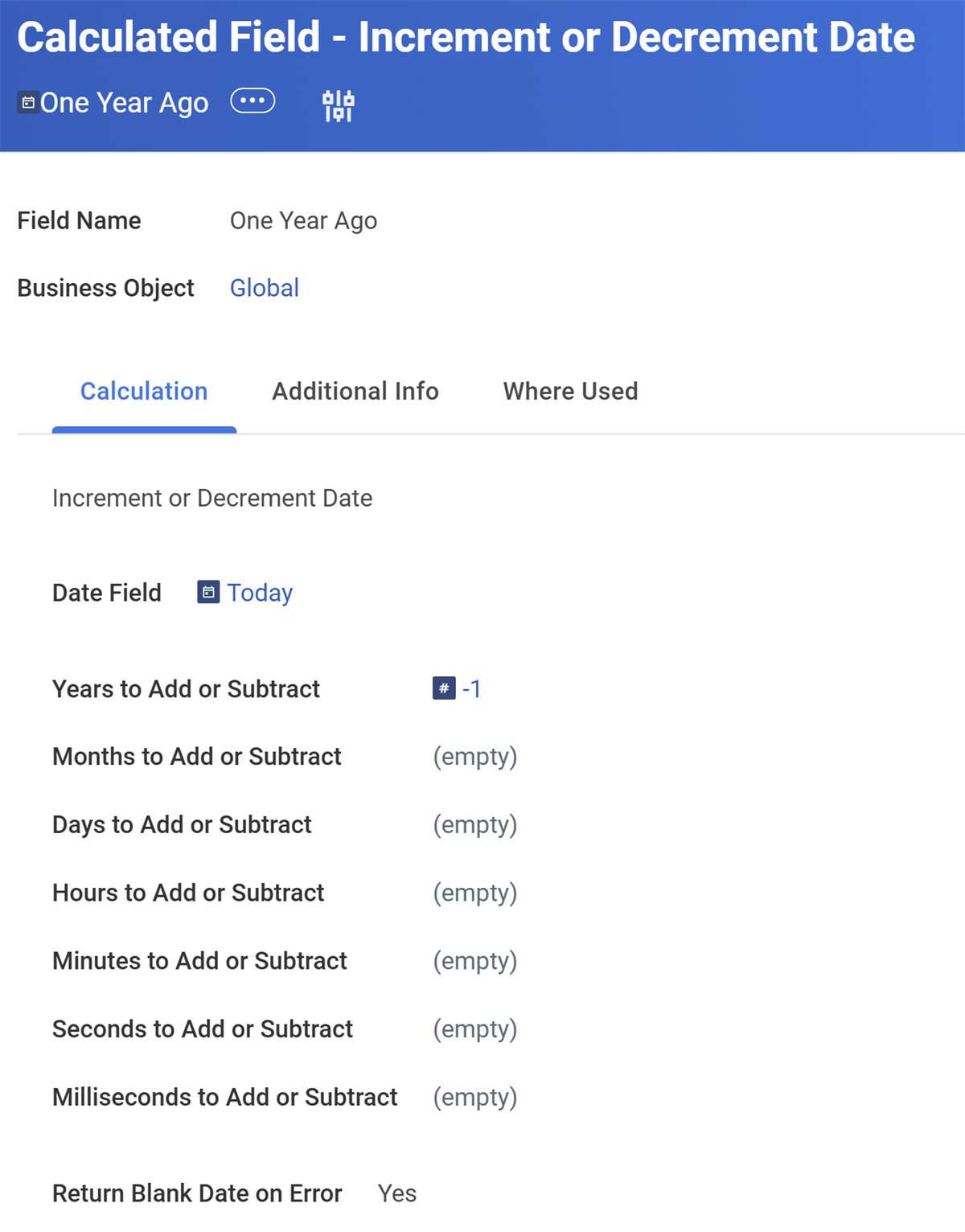
True/False Condition
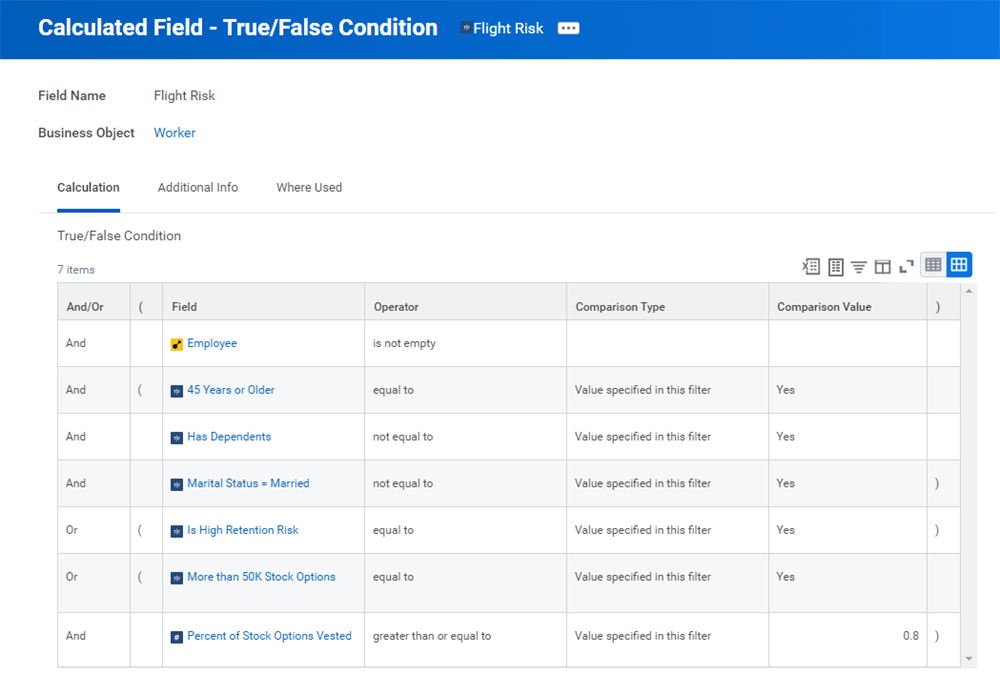
The True/False Condition calculated field function determines if a condition is true or not. The return is a Boolean type field that you can use in custom reporting, condition rules, and as a condition for other calculated fields. You can use parentheses, when necessary, to group the conditions for evaluation.
Important
: When using True/False fields, put conditions that exclude the greatest number of instances first for optimal report performance.Examples of True/False Condition calculated fields include:
- A field that indicates if an employee is highly compensated.
- A field that confirms if an employee is currently enrolled in a Health Savings Account (HSA).
- A field that verifies if an employee has one year of service or less.
- Grouping expenditures and revenue into various categories (with Evaluate Expression).
- Grouping expense reports by approval status and date (with Evaluate Expression).
Reminder
: Where possible, remember to use filters or subfilters in reports instead of calculated fields for optimal report performance.Evaluate Expression
The Evaluate Expression calculated field function groups and transforms data. This function evaluates a series of conditions and returns the value associated with the first condition that is true. At runtime, the function applies the default value and then starts testing conditions starting with the first condition defined. If a condition is true, Workday sets the corresponding return value and does not test any subsequent conditions. Otherwise, Workday tests the second condition, and if true, sets the corresponding return value, and so on.
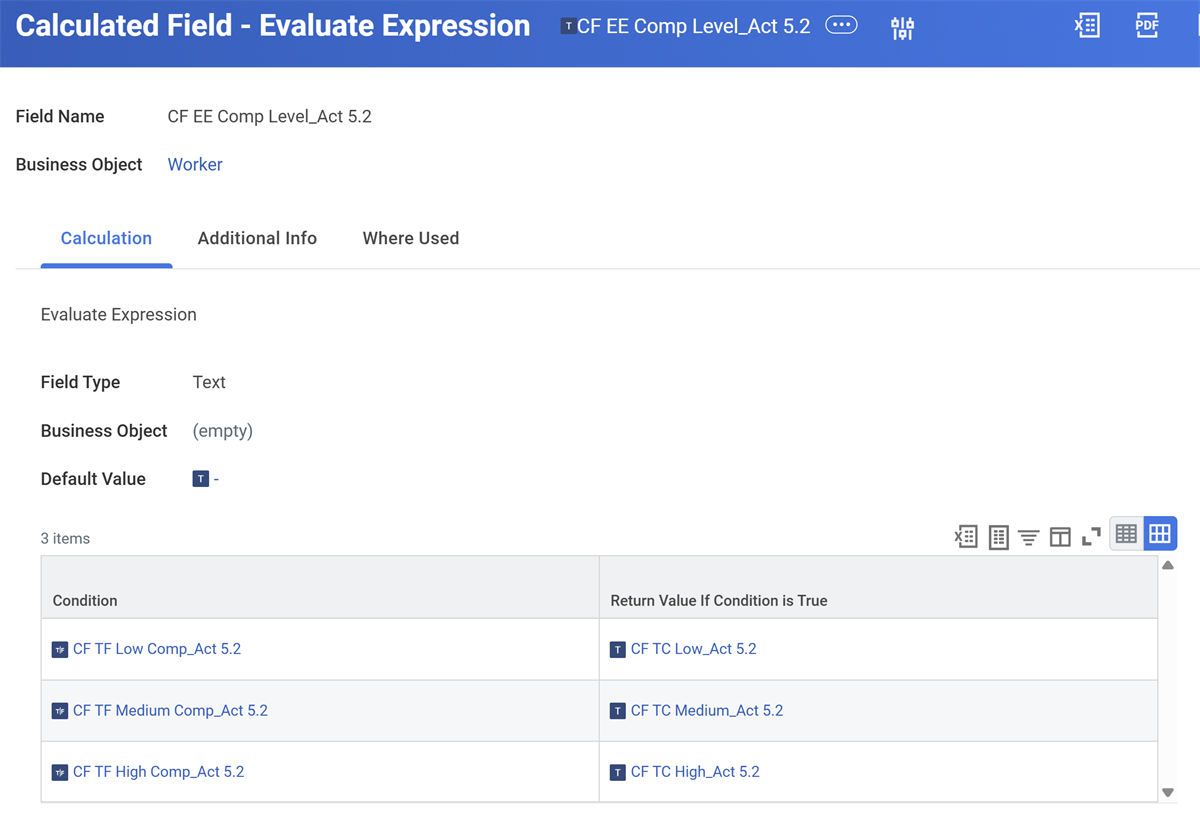
The evaluated conditions must be a Boolean field that returns a true or false value at runtime. If you use Evaluate Expression, you can capture information that evaluates existing data across different fields and returns values in one calculated field. To optimize performance, place the most likely conditions first.
Examples of grouping data include:
- Evaluate employees and group by employment status such as active, leave, terminated, or contractor.
- Evaluate employees and return a management status such as management or staff.
- Evaluate a list of expenditures and group them into categories.
- Evaluate journal data to categorize spending such as employee burden, contingent labor, travel and expense, or goods and services.
Evaluate Expression Band
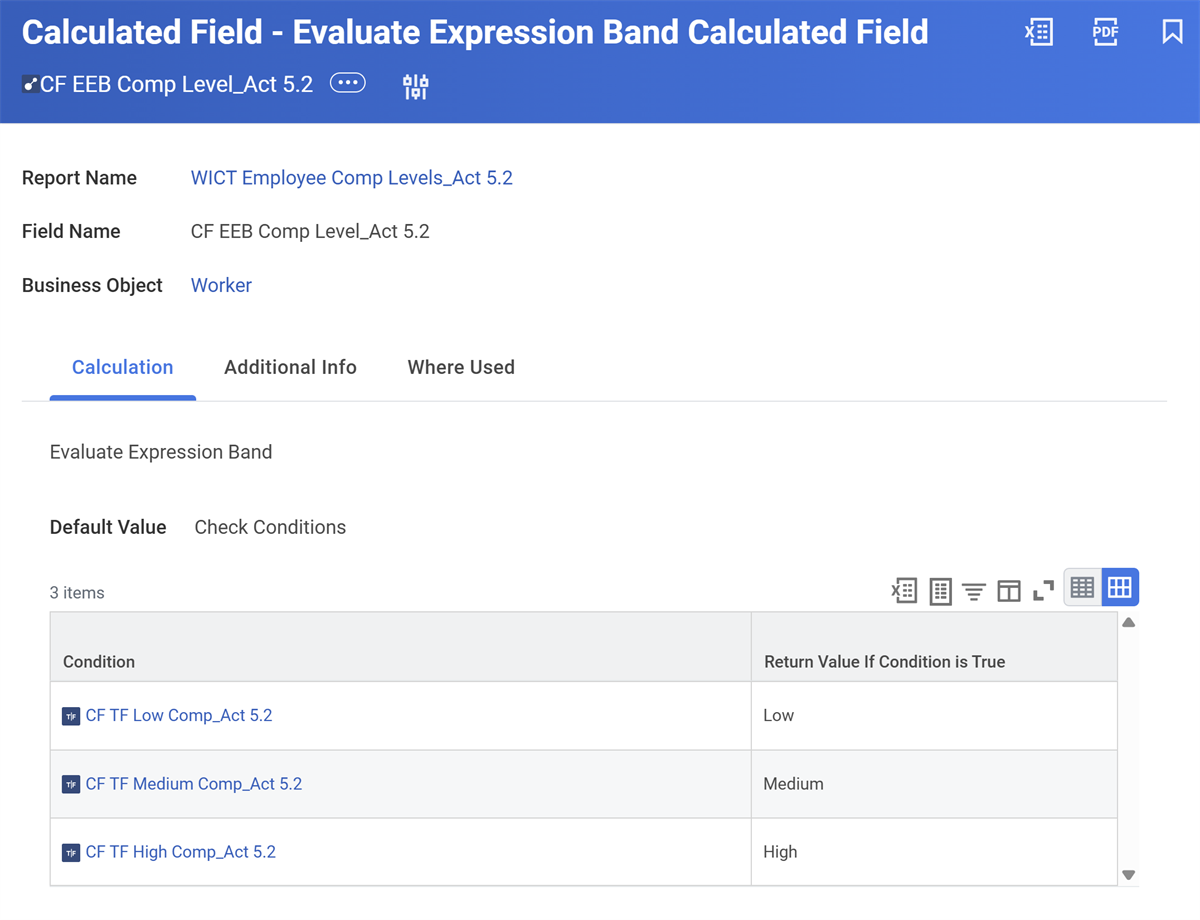
You can use the Evaluate Expression Band calculated field to specify values for True/ False (Boolean) conditions and return instances.
Evaluate Expression Band works like the Evaluate Expression calculated field in that it evaluates a series of True/False conditions. However, Evaluate Expression Band always returns a single instance type field whose values are defined when creating the field.
In the example below, the Evaluate Expression Band calculated field determines who has initiated a business process. The system will identify the True conditions - "Employee" or "Manager." If any instance does not meet any of the True conditions, those instances will default to a specified value - "NOT initiated by Manager or Employee Self-Service."
Evaluate Expression vs. Lookup Range Band vs. Evaluate Expression Band
You may notice that Evaluate Expression, Lookup Range Band, and Evaluate Expression Band functions return similar report outputs. While these two calculated fields perform similar functions, there are some key differences.
Calculated Field | Functions |
|---|---|
Evaluate Expression |
|
Lookup Range Band |
|
Evaluate Expression Band |
|
Performance Considerations
When using calculated fields that evaluate conditions, consider how that field performs in a report. If you do not configure the calculated fields to optimize performance, your reports load more slowly. Other considerations for these types of calculated fields include:
- Order of Evaluation (True/False Condition, Evaluate Expression, Lookup Range Band)
- Put conditions that are most likely to be true first.
- Exclude the greatest number of instances at the top of a configuration improving performance when evaluating many instances.
- Using fields in a Calculated Field
- Use the most specific source field to access the data.
- Evaluate fewer instances to help the report perform efficiently.
Create Calculated Fields
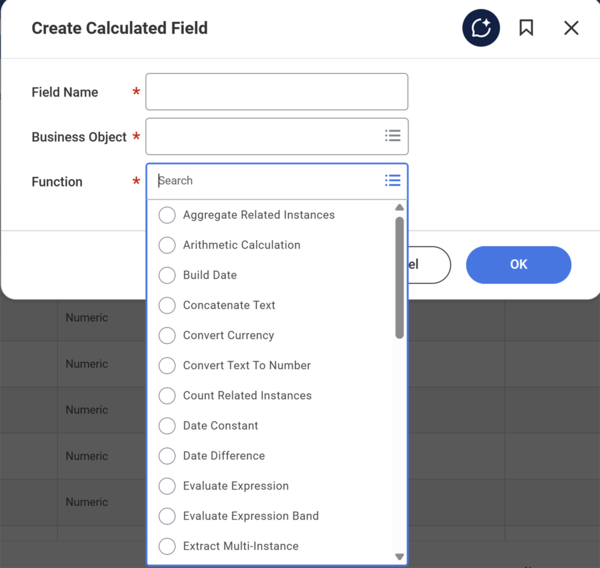
The basics for creating a calculated field involve running the
Create Calculated Field
task and configuring the Calculation and the Additional Info tabs accordingly. You can follow these steps:- To create system-wide calculated fields, use theCreate Calculated Fieldtask. Then:
- Enter the name for the calculated field.
- Select a Workday-delivered business object.
- Choose a function type.
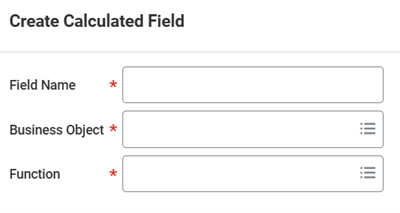
Create Calculated Field Task
- In the Calculation tab, specify the calculated field's parameters. Parameters vary depending on the calculated field function selection.
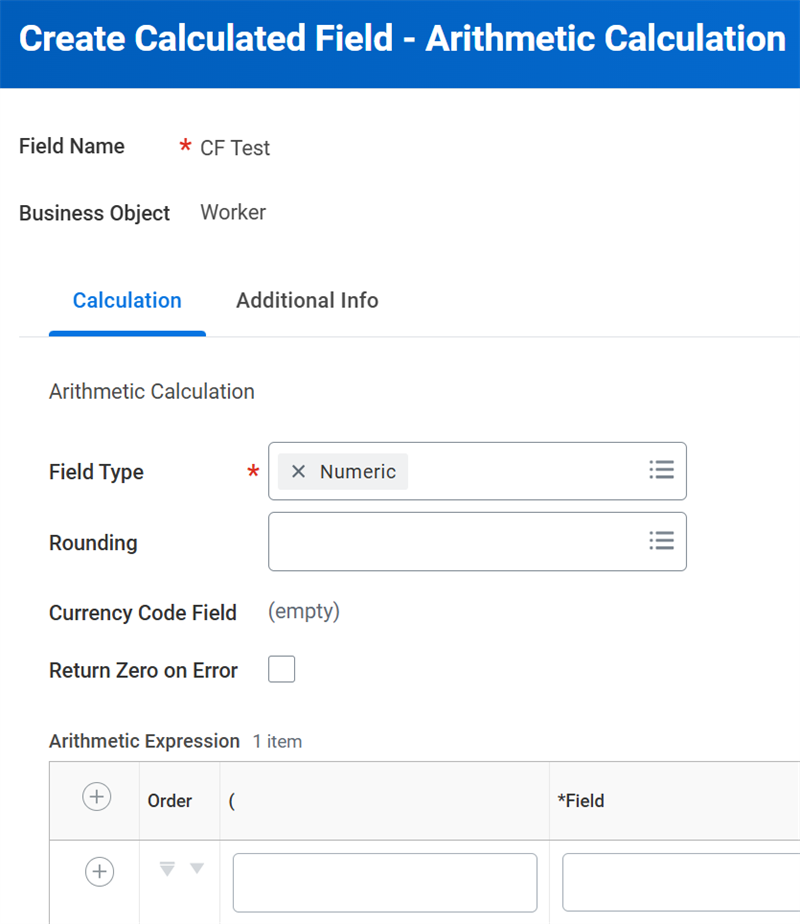
Calculation Tab in the Create Calculated Field Task
- In the Additional Information tab, specify information necessary to organize, document, locate, and reference the calculated field.
Initial Information
At the prompt, enter a field name, select the business object, and the function. The business object choice determines two major outcomes:
- What fields are available within the calculation? If you choose the Employee business object, all class report fields on the Employee business object are available for use in your calculated field.
- Where can you use the new calculated field? If you choose the Employee business object, your calculated field is available anywhere you use fields on the Employee business object. The calculated field is a new field on the Employee business object and has the same access rules and characteristics as the other fields on Employee.
Calculation Tab
In the Calculation tab, you specify the parameters of the calculated field. The parameters you configure here vary depending on the calculated field function you select.
Copy a Calculated Field
To copy an existing calculated field, use its Related Actions to select Calculated Field > Copy. When you copy an existing calculated field, the new field must use the same business object and function as the original field.
Naming Conventions
The best practice when creating calculated fields is to adhere to a set naming convention for your organization. You can include information in the name of the calculated field to easily identify details such as organization, calculated field function, report author name, and report name.
Example
: Company-CF-RPT-Date Difference-MD-Phase1-Months since last pay increaseAlternatively, you can name your calculated fields like any other field in Workday. You can include the details in the Category and Description sections of the Additional Info tab.
Example
: Months since last pay increaseMake sure your organization has a set naming convention and method of organizing your calculated fields and reports. Adhere to these conventions to avoid redundancy.
Retrieving Data from Related Objects
Extract Multi-Instance
The Extract Multi-Instance calculated field extracts specific instances from a multi-instance field. The calculated field returns zero, one, or multiple instances based on the number of instances that satisfy the condition.
Examples of the Extract Multi-Instance calculated field include:
- Trainings each employee completes within the last 12 months.
- Current enrollment elections for an employee.
- Invoices currently due, but unpaid.
- Accounts with negative balances.
- A specific set of companies for bursting report output.
- Projects that are both high-risk and have a status of Open.
The following breaks down how the Extract Multi-Instance calculated field function determines its return value:
- Selects operation type determining how many source fields you will select.
- Accesses the related business object associated with the multi-instance field you specify.
- Applies the condition to the instances selected by the source fields. Make sure to define the condition on the related business object before creating the Extract Multi-Instance calculated field.
- Identifies and extracts instances that meet criteria and operation type.
Extract Multi-Instance Operation Types
The Extract Multi-Instance function extracts data in several ways:
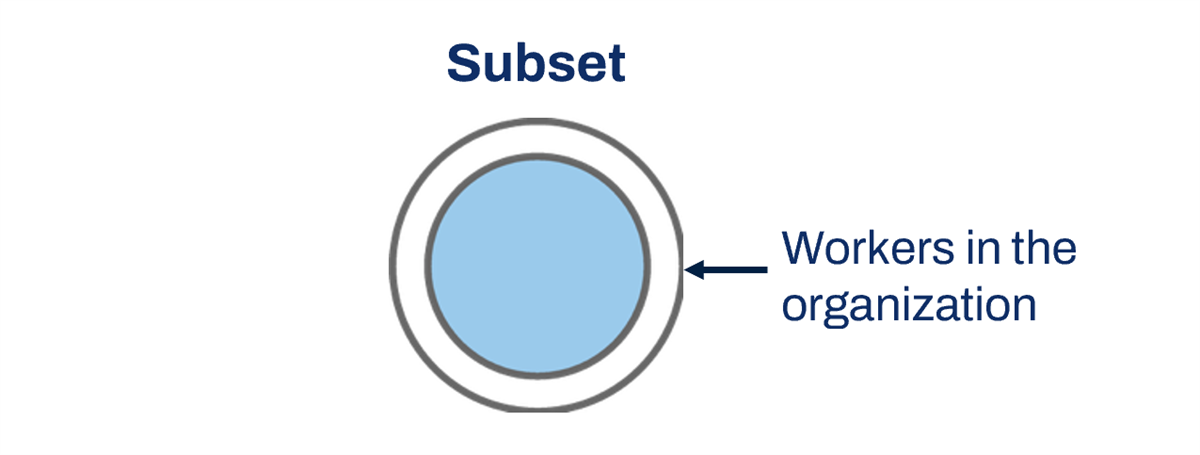
- As a subset, it filters instances from the specified source field (Source Field 1) and returns the results. For example, it can return workers in the organization who are "high potential."
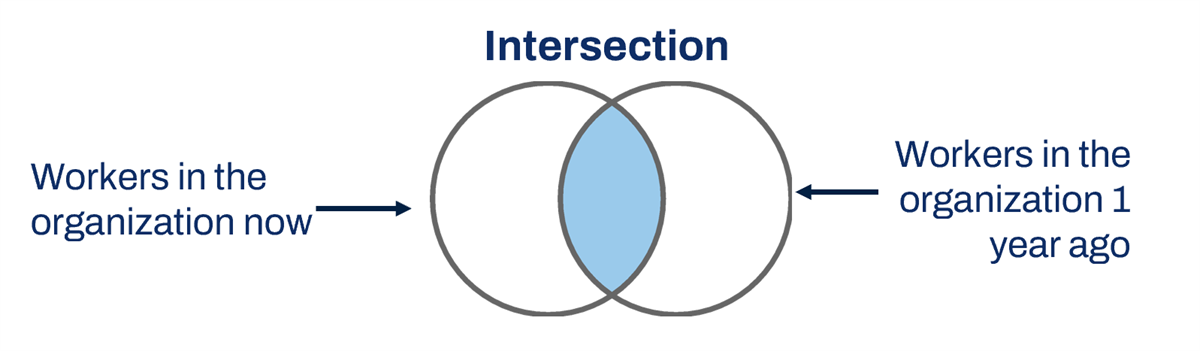
- As an intersection, it evaluates the filtered instances from both fields (Source Field 1 and Source Field 2) and returns only the instances that are common to both fields. For example, it can return workers who are in the organization now and were in the organization one year ago.
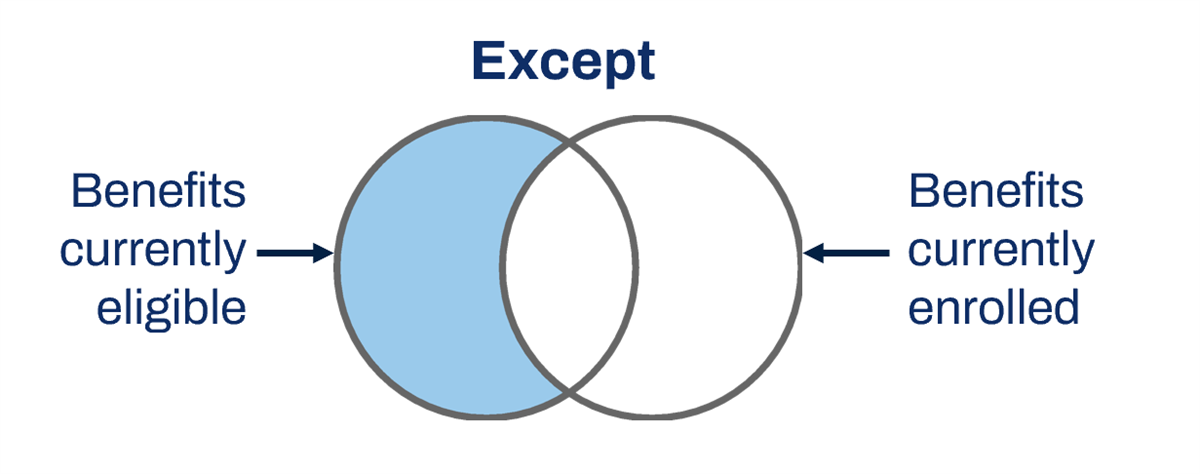
- As an exception, it evaluates the filtered instances from both specified source fields (Source Field 1 and Source Field 2) and returns the instances from the first field minus the instances from the second field. Except is useful for exception reporting. For example, it can return a list of benefits in which an employee is currently eligible, but for which the employee is not currently enrolled.
- As a union, it combines the filtered instances from both specified source fields (Source Field 1 and Source Field 2) and returns the results. For example, it can return a list for each employee consisting of their manager and HR Partner.
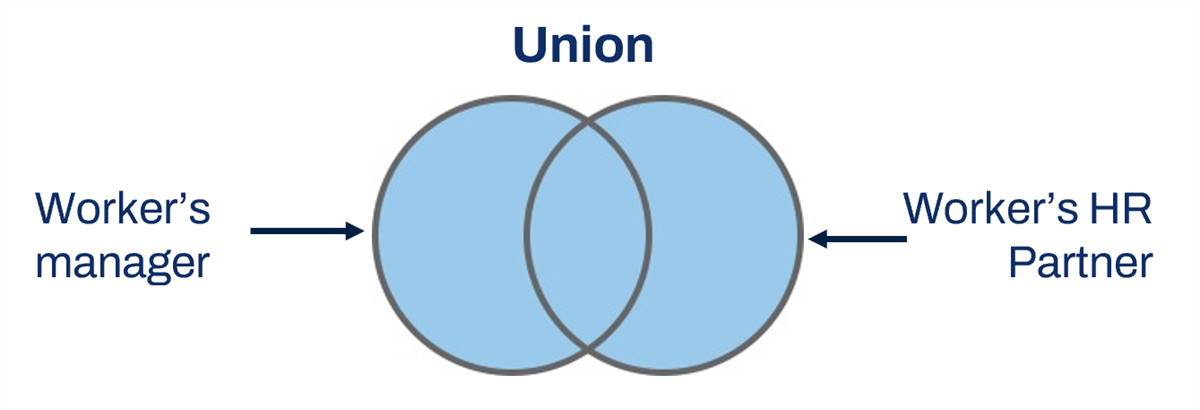
In functions using two source fields, both source fields must be on the same business object.
Document Builder
Document Builder provides flexible configuration options for navigating to and outputting data from related business objects. Using Document Builder, you can group multiple levels of data and add that data to the integration output. This approach is helpful when working with multi-instance fields in your Core Connector and improves performance compared to using calculated fields.
Use the
Create Document Builder
task to define a set of data fields. The Context Business Object field enables you to access fields related to a different Primary Business Object than the object that the parent subdocument uses. For example, you can use a Document Builder to output data from the Dependent business object for a Core Connector: Worker integration.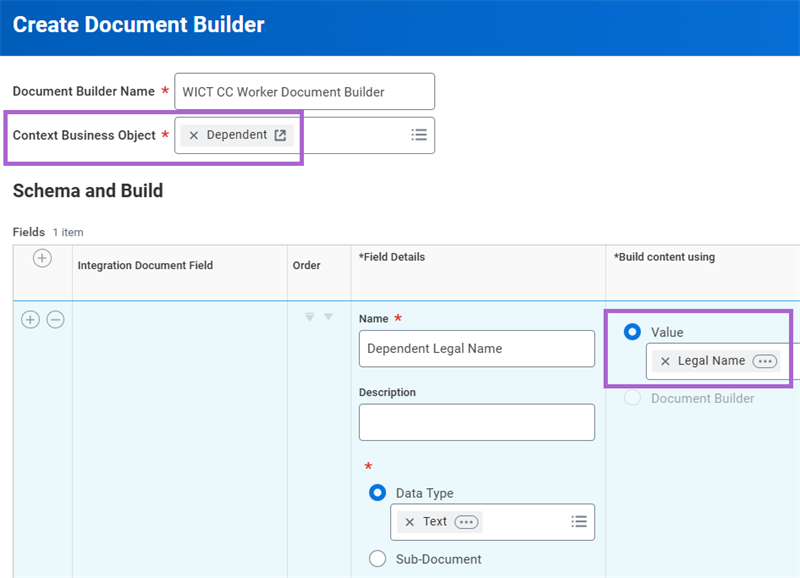
Then, navigate to your Core Connector. In the Field Override Services, configure a Sub Document and select the Document Builder.
Extract Single Instance
The Extract Single Instance function returns a single instance from a group of related instances on a related business object. The single instance is one of many from a multi-instance field that has a 1:M relationship with the primary business object. Use the Extract Single Instance function to retrieve the last, first, or "nth" instance from a set of instances that meet a specific condition. Depending on the condition, the field will return one or zero values. The sort field and direction enable you to select the occurrence that meets your needs.
Examples of Extract Single Instance uses include:
- First Master's degree an employee receives.
- Last complete performance review for an employee in 2022.
- Second time-off request of 2023.
- Last Payroll Result completed.
- Oldest unapproved expense report for a worker.
Use the Extract Single Instance function when using the Lookup Related Value. Do so on a business object that has a one-to-many (1:M) relationship with the calculated field's business object. The function creates a one-to-one (1:1) relationship. Then, use the Lookup Related Value function to extract the value.
How Extract Single Instance Determines Return Value
The Extract Single Instance calculated field function determines return value as follows:
- Advanced Report:Accesses related business object instances associated with the multi-instance field you specify.
- Applies Conditions:Applies a condition to the instances by the source field. You can configure the conditions from theCreate Calculated Fieldtask when creating the Extract Single Instance calculated field.
- Sorts the Data:Sorts any related business object instances that satisfy the condition in ascending or descending order.
- Select Single Instance:Identifies and extracts the first, last, or "-nth" occurrence of the instances sorted.
For example, the following represents a list of expense reports for one worker.
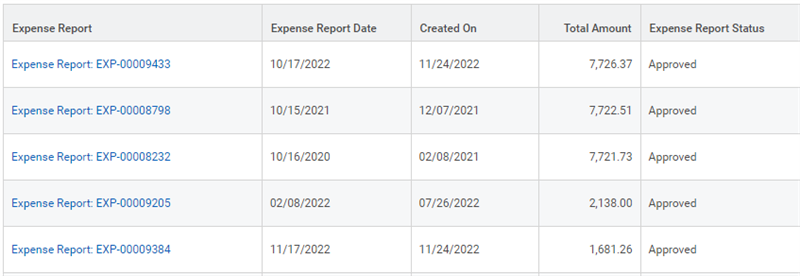
If you want to extract the oldest approved expense report, you can use an ESI field and reference the following data:

Remember to use the most specific and targeted source field to extract an instance from. To optimize performance, your report should only process the minimal number of instances.
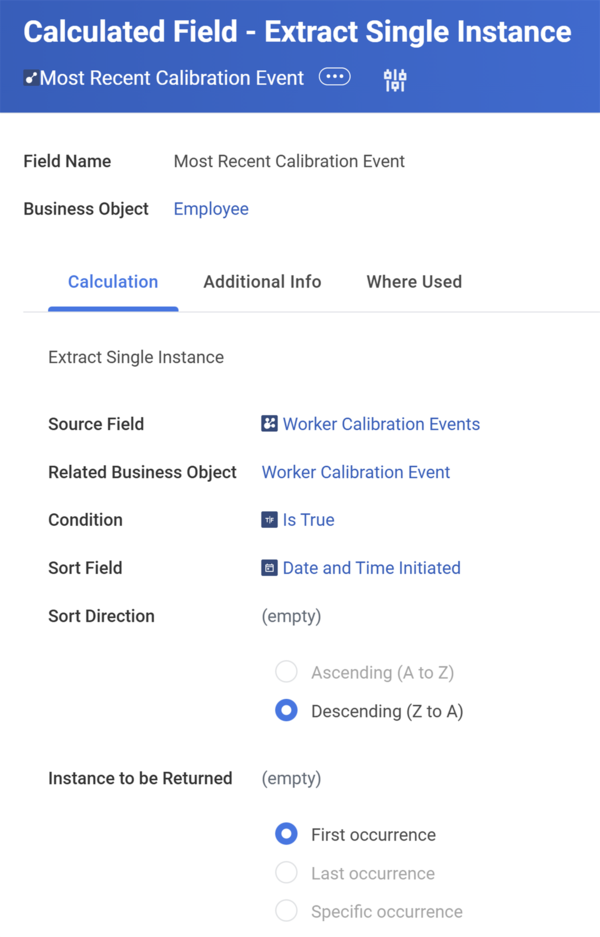
When creating an Extract Single Instance calculated field, you must specify the sorting options that determine which instance to extract. In the following example, the calculated field will return the most recent worker calibration event for each employee.
Condition
In the Condition field, specify the filter condition for instances on the related business object. Doing so narrows down results. If you do not need a condition, select a global field like "Is True" to accept all instances of that field.
Sort Field
The sort field determines the value the system uses to sort the instances. In this case, the values sort by date and time initiated. The Sort field is a required field. If the condition eliminates all but one field, or you do not need a sort, use a global field like "Any Field" to return the instance.
Sort Direction
Choose the direction in which to evaluate the instances. To optimize performance, the field should evaluate the fewest possible instances. For example, suppose that you want to sort by date and return the most recent instance. To do this, start from the latest value and select the first available instance. Doing so is quicker than starting with the first or earliest date and selecting the last value available.
Instance to be Returned
Finally, you specify the instance to return - first occurrence, last occurrence, or specific occurrence.
Lookup Related Value
The Lookup Related Value function retrieves a value from a field on a related business object. This function promotes that value from the related business object to the primary business object. Once the value is available on the primary business object, you can use it for a calculation, condition rule, or reporting.
Here are some examples of looking up a value on a related business object:
- Promote the value of Worker's Manager from the Worker business object to the Competency business object for a matrix report using Competency as its primary business object.
- Make a field from Worker available to a compensation event condition rule.
- Promote a field from a related business object to the primary business object to make it available for grouping and totaling on an advanced report.
- Promote a field from a related business object to a primary business object to use it in combination with a field on the primary business object to create a calculated field.
To use the Lookup Related Value calculated field function, there must be a 1:1 relationship between the primary business object and related business object.
In the example below, we use the Lookup Related Value function to create a new field on the Competency business object. The new field retrieves the Worker's Manager from the Worker business object and relates it back to the Competency business object. We can now use the value in Worker's Manager in a report that uses the Competency business object.
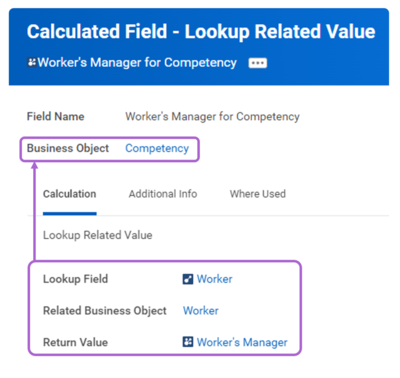
Graphic of calculated field definition for Worker's Manager for Competency Lookup Related Value function used to create a new field on the business object (Worker).
Using the Business Object Details Report
The two business objects in a Lookup Related Value calculated field must have a 1:1 relationship. You can use the
Business Object Details
report to determine whether the relationship between your two objects is 1:1 (single instance) or 1:M (multi-instance).When designing needed calculated fields, you can use the
Business Object Details
report to research the relationships between business objects. The image below demonstrates how valuable this report can be when planning and configuring the Lookup Related Value calculated field function in advanced and matrix reports.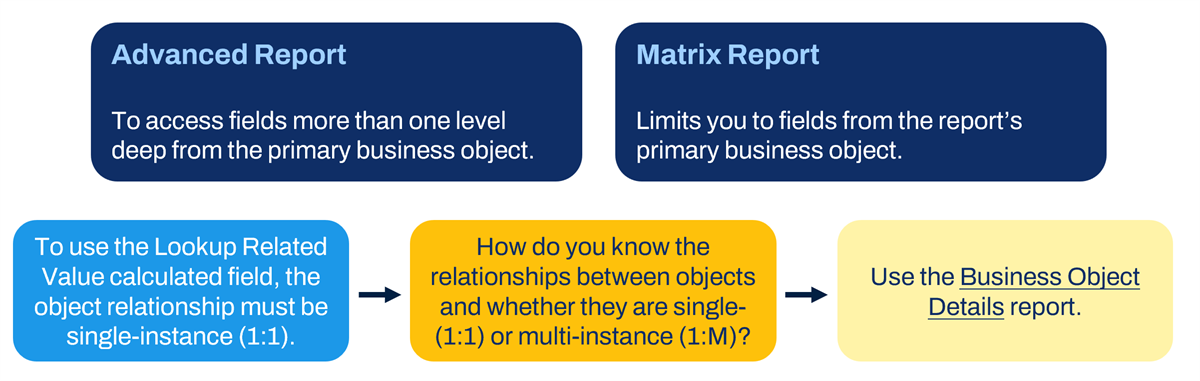
Performance Considerations
Remember to use the source field most specific to the data you are accessing when extracting data from a related business object.
Also, use the related business object fields when possible. For advanced reports, add the business object and field to your report by accessing data from related business objects. For sorting and filtering, use fields from related business objects instead of creating a calculated field.
Reminder
: Having fewer instances to evaluate when running reports results in optimal report performance.