
Data Initialization Service (DIS)
Overview
This chapter examines the Data Initialization Service (DIS), an integration service that changes the way an integration retrieves data, improving integration performance.
Objectives
By the end of this chapter, you will be able to:
- Create, configure, and launch an outbound connector integration with DIS.
- Explain the advantages of enabling the Data Initialization Service (DIS).
- Identify and browse connector integration templates.
Data Initialization Service
Data Initialization Service (DIS) is an integration service that improves performance and scalability when gathering data from report fields in Workday. DIS is available for some connector templates and Workday Studio and it can be used as an alternate data source to a web service. Using underlying technology known as job framework processing, DIS obtains data using report fields.
DIS is an integration service that can be added, as a custom integration service, to an integration based on the Cloud Integration Template. DIS is enabled in some integrations by default and others will require the service to be enabled. DIS can be enabled by going to the integration system's Related Actions menu, then selecting Integration System > Configure Integration Service. Workday recommends that you use this service if you:
- Extract data for large numbers of workers.
- Experience performance issues with existing Core Connector: Worker integrations.
Enabling DIS provides additional field attributes for selection. The additional field attributes will be listed under a new
CCW - Workers for DIS
folder.Advantages of Using DIS
Some benefits of enabling DIS include:
- Flexible configuration options for navigating to as many related business objects as your integration requires, using Document Builders.
- The ability to configure custom integrations to extract only the data fields needed.
- Improved performance by eliminating processing time spent retrieving, filtering, and joining data.
- Data extract parallelization, designed to improve performance and reduce complexity.
- The absence of API calls, making your integration more resilient to network fluctuations and eliminating time spent waiting for data over the network.
- A reduction in the failure rate of integration and an improvement on the number of integrations that can be run overall.
Integration Field Overrides with DIS
With DIS, you do not need to create a custom integration service to use field overrides. Instead, the ability to configure field overrides is built into the Data Initialization Service. To configure field overrides, navigate to the integration's Related Actions and select Integration System > Configure Integration Field Overrides.
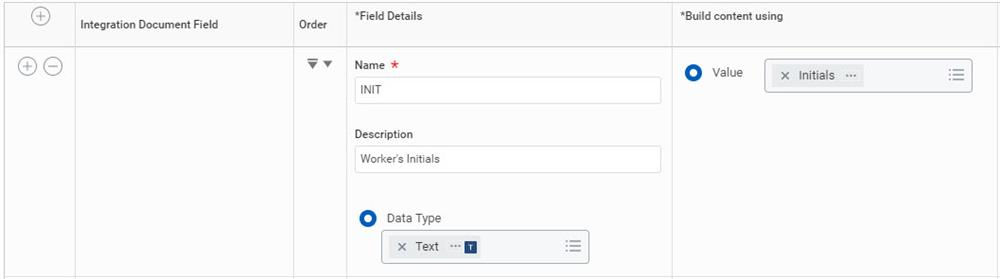
Configure integration field overrides.
DIS Worker Eligibility
Eligibility determines what workers will be included in your integration's output. A single boolean field defines membership:
- If the field value is true for a worker, then changes for that worker will be included in the integration.
- If the field value is false, the integration system will not include that worker.
You can set eligibility using a report field or a calculated field. The field must be based on the Worker business object and must return a boolean true or false value.
Tip
: To include all workers in the integration's output, use the Is True delivered field. This field always returns true.For non-DIS connectors, configure eligibility using the Define Eligibility field override. For worker-based connectors with DIS enabled, configure Population Eligibility from the integration system's Related Actions, then Integration System > Configure Integration Population Eligibility. If you configure eligibility with the Define Eligibility field override on a DIS connector, Workday ignores it and uses the Configure Integration Population Eligibility option instead.
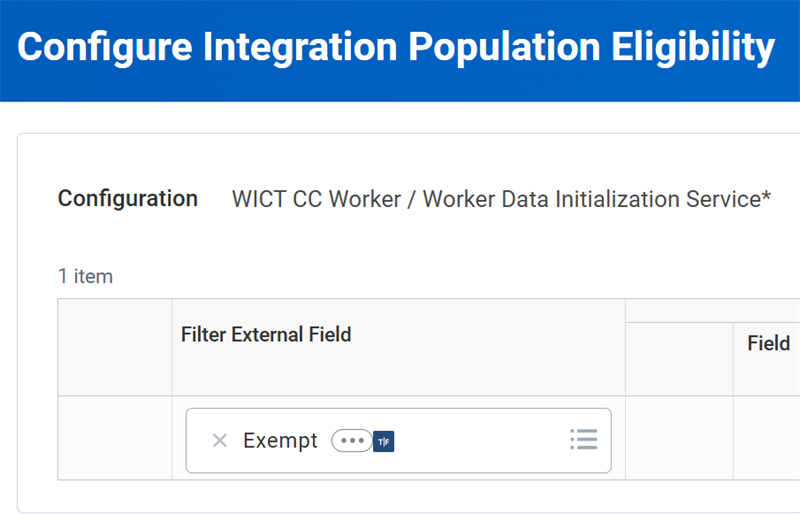
Evaluating DIS Performance
You can use the DIS performance to track DIS performance in integration events. This option is automatically enabled when you enable the Worker Data Initialization Service. After the integration completes, you may access the performance log by selecting the integration system's Related Actions, then Integration Event > Retrieve Technical Files.
You may also select the integration system's Related Actions, then Integration Event > Generate DIS Performance Summary after the integration completes to generate 1 HTML summary report per DIS output file. The report provides a summary of the longest running fields and instances. Workday does not track fields that take less than 5 milliseconds and Workday does not collect performance data once the raw performance log exceeds 4 megabytes.