
Request Compensation Change
Overview
In this chapter, we will focus on the transactions that allow the defaulting to occur. When there is a change in an employee's compensation, it must be done through a compensation event. Compensation changes can occur as part of a larger business process, such as a hire or job change, or as a standalone business process. Using the
Request Compensation Change
business process, ad hoc compensation changes can occur at any time for many reasons.Objectives
By the end of this chapter, you will be able to:
- Configure and initiate a request compensation change.
- Define and test expected end dates and actual end dates.
- Analyze roll out and removal of compensation plans for a large population.
Requesting Compensation Changes
The
Request Compensation Change
business process works differently than most compensation transactions. This process is not triggered from an employee data change and does not require an evaluation of the eligibility rules. Instead, current compensation data populates into the task, allowing someone to edit the current compensation.Note
: Eligibility is NOT evaluated during this business process. Current compensation assignments are populated and warnings are provided if eligibility is different than what is assigned.Request Compensation Change Business Process
The
Request Compensation Change
business process uses a template-driven user interface. You can add instructional text and add additional security at a plan-by-plan level. Using the task security, you can configure the business process so certain plans are available for a partner but not the manager security group.By navigating to the business process template, you can view or modify:
- Sections that can display help text.
- Instructional text on the summary page.
- Security configurations.
Request Compensation Change Security Policy
When viewing the
Request Compensation Change
business process security policy, you may notice that there is more than one initiating action available. The Request Grade Change
action allows for a change to only the compensation grade and no other compensation data. The Request Compensation Change
task allows changes to all compensation data.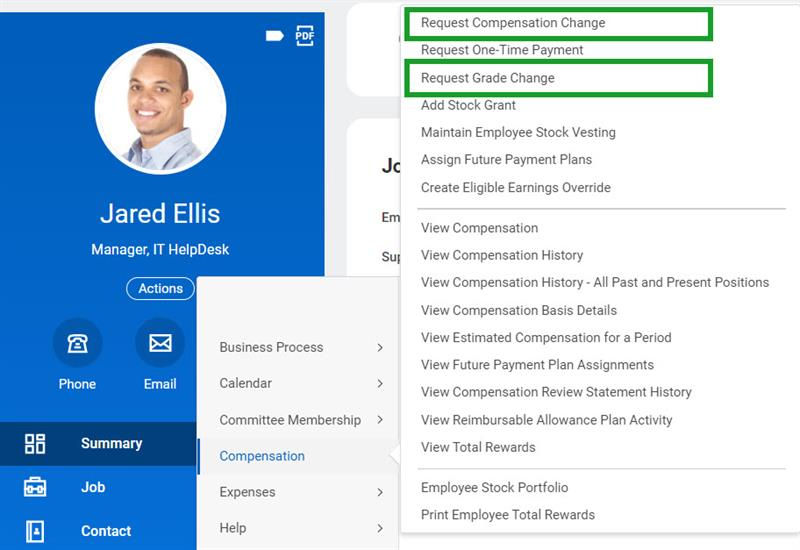
Initiating Actions
The
Request Compensation Change
business process is flexible. The task can change an employee's package, grade, rate of pay, salary amount, or plans. Since this task is an ad hoc change to compensation, Workday does not re-evaluate eligibility. Instead, it populates current compensation and the data is editable.There are two separate initiating actions for the
Request Compensation Change
business process:- Request Compensation Change
- Request Grade Change
The domain security policies within this business process template provide the ability to control which security groups can change the different compensation components. For example, a manager has security to change salary or hourly rates, but not a bonus plan.
Request Compensation Change for Edit Position
The
Edit Position
business process can include the Request Compensation Change
subprocess as a step. This business process will evaluate eligibility and will remove compensation components. Any compensation component for which the employee is newly eligible will default in. Workday recommends that only the HR partner and HR administrators initiate the Edit Position
business process.Request Grade Change
Although this initiating step uses the same business process as
Request Compensation Change
, it only allows changes to the compensation grade.Request Compensation Change (Web Service)
The web service is used when building an integration to load this type of change for many employees.
Security Options
There are other options in the business process security policy. Common configurations include:
Security Option | Definition |
|---|---|
View All | Enables viewing of all actions, completed or not. |
View Completed Only | Supports the manager review process, compensation changes, and other worker history. This option suppresses related components, so that only completed business processes are viewable. This can also be used to allow employees to see only completed business processes. |
Cancel | Specifies which security groups can cancel the business process while in progress. |
Rescind | Specifies which security groups can rescind the business process after it is complete. |
Correct | Specifies which security groups can correct the business process. Correct has no impact on any earlier and later effective-dated compensation changes. |
Reassign Tasks | Allows tasks to be reassigned to other users. |
Allow Inbox Task Delegation | Allows this business process to be delegated. Requires enabling delegation on the tenant level using the Edit Tenant Setup - Business Process and Notifications task. The configuration of the Request Delegation Change business process and security policy needs to be completed. |
Hide Comments From Worker | Hides all comments by all participants in the business process. |
Hide Details from Worker | Prevents the event target from having access to the details of a business process instance. |
Allow Attachments within Emails | Allows attachments to be added to notification emails in this business process. |
Wage Theft Statements Overview
Wage theft statements are an increasingly prevalent part of the human resources landscape. Jurisdictions continue to adopt legislation to require these statements. As you adopt new laws, you need the tools to support the new requirements. Workday can generate and deliver wage theft statements to your employees to meet requirements set for your organization and jurisdiction. To use wage theft statements, begin by creating configurable templates, adding the Generate Wage Theft Notice action step to compensation processes to auto generate during transactions, or using the
Generate Wage Theft Prevention Notice
task. You can generate Ad Hoc Wage Theft Statements in Workday as well.You can provide employees with a statement that details changes to rate of pay, basis of wage payment, allowances, regular payday, employer contact information, and worker's compensation insurance carrier information. Workday secures each component differently, so be sure to consider security, business processes, and system configuration.
Security | Business Process | System |
|---|---|---|
|
|
|
Actual and Expected End Dates
When entering compensation, through an HR event or an ad hoc business process, you can control participation start and end. Enter the start of a compensation component as an effective date. The expected or actual end date drives the end date.
- Expected end dates allow you to remove all salary, hourly, or allowance plan assignments from an employee's compensation. The expected end date requires a process to run to pick up the date and remove the plan. Unlike the Actual End Date field, expected end dates do not use an automatic process. As the name implies, this date is an expected date, not an actual date.
- The actual end date does not require a process. Instead, the plan will end on the date entered. Actual end dates allow you to automatically end a plan assignment. The entry of the Actual End Date is available during the plan assignment of ALL compensation plan types. You can also extend the Actual End Date during theRequest Compensation Changeprocess.
Two delivered reports can help you track all plan assignments that have an expected end date:
Report | Definition |
|---|---|
Compensation Plan Expected End Date Audit | Lists employees, by organization, participating in a compensation component with an expected end date. You can copy and modify this report. |
Compensation Plan Assignments With Expected End Dates | Lists employees as of a specific date, assigned a compensation component with an expected end date. You can copy and modify this report. |
To initiate the process of removing plan assignments, run the
Schedule Remove Compensation Plans with Expected End Date
task. This process runs for one or more compensation plans at a time. Additionally, you can schedule the report to run as often as needed.One of the advantages of the expected end date is the ability to select an effective date option. If you enter an actual end date, participation in the plan will end on that date. In contrast, if you enter an expected end date, you can choose to have the plan assignment end using one of the effective date options.
Effective Date Options
Other fields on the
Schedule Remove Compensation Plans with Expected End Date
task are as follows:Report | Definition |
|---|---|
By Compensation Eligibility Rule | Identifies the population to evaluate and remove a plan assignment. The population identifies the selected plan and populates the expected end date. |
Expected End Date | Employees with an expected end date for the selected compensation plan that equals this date. |
State Date | Employees with an expected end date for the selected compensation plan that is on or after this date. |
End Date | Employees with an expected end date for the selected compensation plan that is on or before this date. |
Once the process runs, the employees will automatically have the plan removed. Add a reason for the change to the employee's compensation to easily track why a compensation plan removal.
Compensation Rollout and Removal
When you create a new compensation plan, it is necessary to enroll eligible employees into the plan. Even though an employee may be eligible, you must have an event to assign the employee to the plan. The
Rollout Compensation Plans to Employees
task allows you to add a compensation plan to an employee's compensation. The rollout and removal tasks use the Request Compensation Change
business process definition.
The View Compensation Plan Rollout Process page includes information regarding the names, number of employees impacted, and a list of employees with in-progress compensation transactions. Workday will exclude any employees with in-progress compensation processes from receiving the compensation plan.
When you no longer need an existing compensation plan, you must remove it from employees' compensation. By using a compensation eligibility rule and running the
Remove Compensation Plan from Employees
task, the system will remove the plan from employees.