
Manage Basis Total
Overview
Managing employees by a compensation basis total, or MBT, simplifies the management and distribution of compensation components to employees. This is useful and common for companies that operate globally.
MBT uses the Primary Compensation Basis in Workday as a single value to calculate and distribute an employee's compensation plan amounts. Instead of updating multiple individual plans, managing by a basis total enables you to update a single value. Then, Workday distributes the total down to each of the individual plans the employee is eligible for. This method to distribute pay is referred to as the Top Down calculation.
For example, during the compensation review process, you can change an employee's total compensation by changing their Primary Compensation Basis. Workday automatically distributes that amount to the compensation plans that make up the Primary Compensation Basis.
To use MBT, you must enable it on a configurable compensation basis in Workday. There are additional requirements in your compensation configurations for the MBT to work. In this chapter, you will learn about these configuration requirements and apply MBT to a transaction.
Objectives
By the end of this chapter, you will be able to:
- Describe a Manage Basis Total (MBT) business case and identify configuration requirements.
- Configure and test a transaction using a Manage Basis Total (MBT) compensation basis.
- Discuss the Model Allocation report.
Manage Compensation Basis
Workday provides the option to manage an employee's compensation using their compensation basis. One common basis is Manage Basis Total, or MBT. When you hire an employee using MBT, you enter one total compensation amount. The amount distributes automatically to all components of pay within the compensation basis using an algorithm. For employees with multiple plans, the increase or decrease applies to all assigned compensation plans.
Manage Basis Total
Use Manage Basis Total (MBT) to manage compensation by the total number and have the system apply complex calculations to distribute the amount to plans. This top-down approach is common in countries with many legislated or collective agreement components, guaranteed fixed amounts, or compliance and government regulations, including Italy, India, France, and Germany.
The table below outlines the differences between MBT and managing by individual compensation components, which is a bottom-up calculation.
Individual Compensation Component | Manage Basis Total (MBT) |
|---|---|
Entering amounts for each individual plan | Entering a single total compensation amount |
The user knows and enters the individual component amounts | Provides a configurable/flexible algorithm that will redistribute the total amongst all the plans. |
Users should understand the small details and dependencies of the complex compensation structure | Allows users to manage complex compensation events with a single point of data entry. |
Note
: Managing by compensation basis works in combination with step progression. The step amount will become a fixed amount, and other components of pay will be adjusted.Using Compensation Basis
The use of a compensation basis provides several benefits. One of the most notable is a holistic view and calculation of a worker's compensation. Additionally, you can use the compensation basis with the manage basis total (MBT) functionality.
When changing compensation for an employee who is earning a total across multiple plans, one amount it entered. An increase applies to all compensation plans in the compensation basis as defined by an algorithm. Basic configuration steps include:
- Selecting the compensation basis has the Manage Basis Total checkbox.
- Add the MBT compensation basis to the employee's compensation package.
- Based on the definition's ranking, the MBT compensation basis is the employee's primary compensation basis.
The screenshot below illustrates the
Create Configurable Compensation Basis
task with the Manage Basis Total section and highlights the related fields.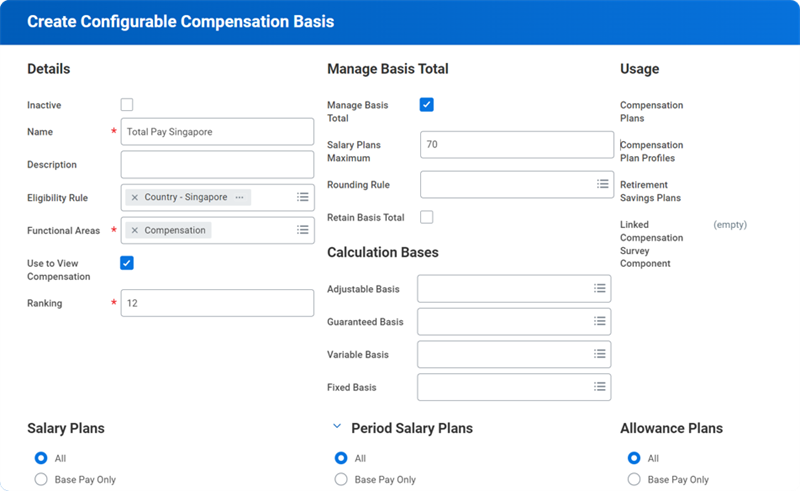
The fields that are crucial to manage basis total configuration:
Field | Description |
|---|---|
Salary Plans Maximum | Enter a maximum percentage amount for salary plans. You cannot enter a value greater than 100. If you enter 100, there is no limit. |
Retain Basis Total | Retains the compensation basis total even when a staffing transaction changes compensation plan assignment. Workday will recalculate the plan assignments but the compensation basis total will be fixed. |
Compensation Basis Calculation
The following table displays the evaluation order and how the MBT aligorithm will distribute from the top down:
Order | Distribution Evaluation | Description |
|---|---|---|
1 | Fixed Amount Plans | The amounts are known and unchangeable. Therefore, these plans need to be allocated first. If there are multiple plans in this group, they are allocated randomly since no one plan's value affects another's within the group. |
2 | Percent Plans Based on Primary Compensation Basis | Since a worker's total compensation amount is the starting point for the calculation, the value of percentage plans based on that number is inherently a fixed plan. |
3 | Percent Plans Based on a Fixed Number | Similar to percentage plans based on primary compensation basis, percent plans based on a fixed number is also inherently a fixed amount plan. |
4 | Salary Plan | This is where MBT allocation really makes a difference. Since salary is not input at the beginning, the algorithm for MBT will resolve for this. If there are percent plans based on salary, they will be allotted next. |
5 | Percent Plans Based on Plans from Boxes 1, 2, 3, and 4 | As the salary plan gets resolved and a value becomes known, the value for a percent plan based on salary also becomes known, and the system will allocate it. |
6 | Remainder Plans | Any plans remaining will be allocated with the remainder left from the primary compensation basis. |
Take the information above and apply it to an example calculation:
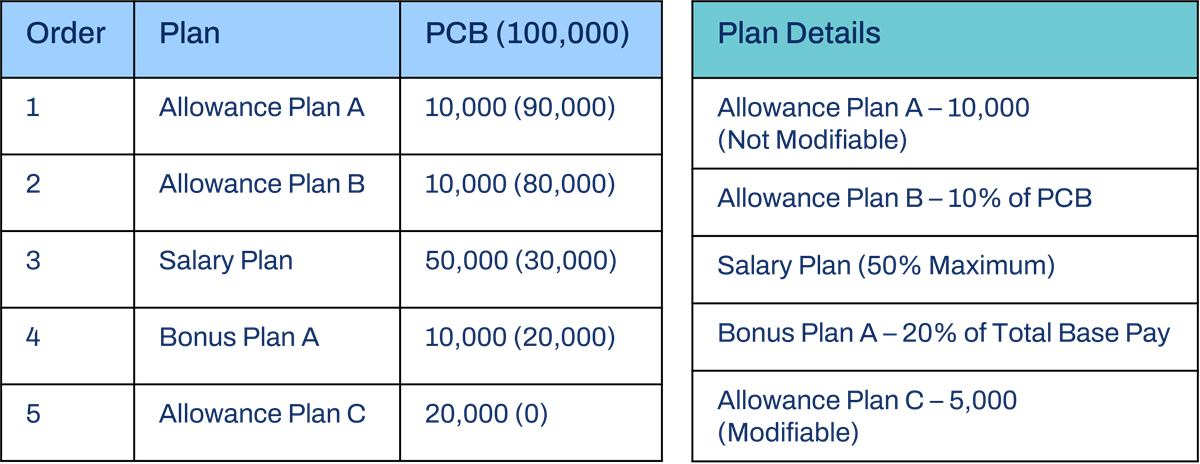
The graphic above displays three tables with MBT allocation calculations for seven plan types. For this example, the salary plan maximum was set to 50% to demonstrate how the remainder plans are allocated. In a typical case, when the salary plan maximum is set to 100% the remainder plan will likely have nothing left to be allocated and Workday will delete any zero value plans.
This is a 50% increase in the employee's compensation basis. The 50% increase is applied to each proportional and an overridable compensation plan, and Allowance C plan absorbs the remainder.
Compensation Basis and Compensation Grades
Another advantage of using a compensation basis is the additional guidance when included in your compensation grades. Compensation grades require the use of Total Base Pay, which is a delivered compensation basis, but can also show a range for a configured compensation basis. You can review the difference between the total base pay and the total cost to the company by reviewing the
View Compensation Basis Detail
report.Model Allocation
The
Model Allocation by Compensation Basis
report provides analysis of the compensation basis during a Change Job
, Change Position
, Hire,
or Request Compensation Change
.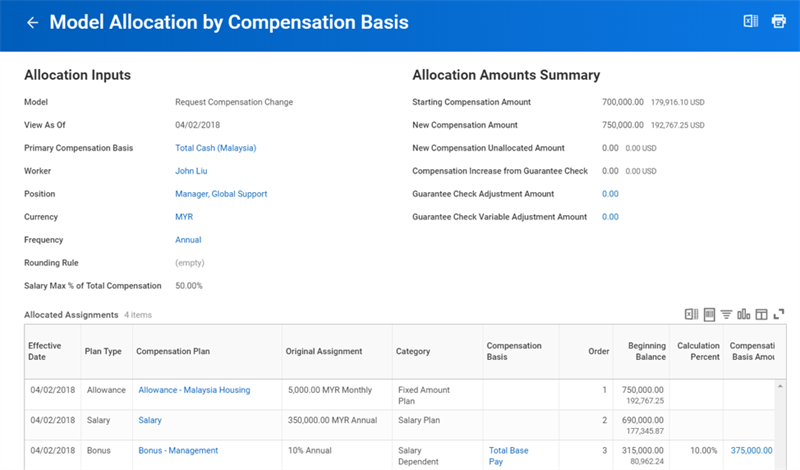
Model Allocation by Compensation Basis report.
The primary benefit of this task is in modeling the MBT calculations. This report can confirm correct configuration and expected calculations.